

In Profit.co, you can make the Overall Rating comment mandatory only when a reviewer's rating differs from another reviewer's rating, so rating gaps are always explained. For example, a comment is required when the Self and Manager ratings do not match.
Table of Contents
- What Is the Mandatory Comment Rule for Differing Ratings in Profit.co?
- Why Does Requiring Comments Only on Differing Ratings Matter in Profit.co?
- What Does a DIFFERS FROM Rule Look Like in Profit.co?
- How to Make Overall Rating Comments Mandatory When Reviewer Ratings Differ in Profit.co?
- What Happens When You Set a DIFFERS FROM Comment Rule in Profit.co?
- Best Practices for Mandatory Comments on Differing Ratings in Profit.co
- Related Questions
- Frequently Asked Questions
What Is the Mandatory Comment Rule for Differing Ratings in Profit.co?
The mandatory comment rule lets super users require an Overall Rating comment only when a reviewer's rating differs from another reviewer's rating, for example, when the Self and Manager ratings do not match. You set it per reviewer step in the review template.
Previously, comments were either optional or required for every rating. Rating gaps could go unexplained, or reviewers had to comment even when they agreed with the earlier rating.
Why Does Requiring Comments Only on Differing Ratings Matter in Profit.co?
Requiring comments only on differing ratings keeps the written justification where it adds value. It benefits reviewers and HR teams in three ways:
- Rating gaps come with a reason: When a manager rates differently from the employee's self-assessment, the justification is captured at the point of submission.
- No filler on aligned ratings: Reviewers who agree with the earlier rating are not forced to write a comment just to clear a mandatory field.
- Calibration-ready records: HR teams reviewing rating differences can see why each gap exists without following up with individual reviewers.
What Does a DIFFERS FROM Rule Look Like in Profit.co?
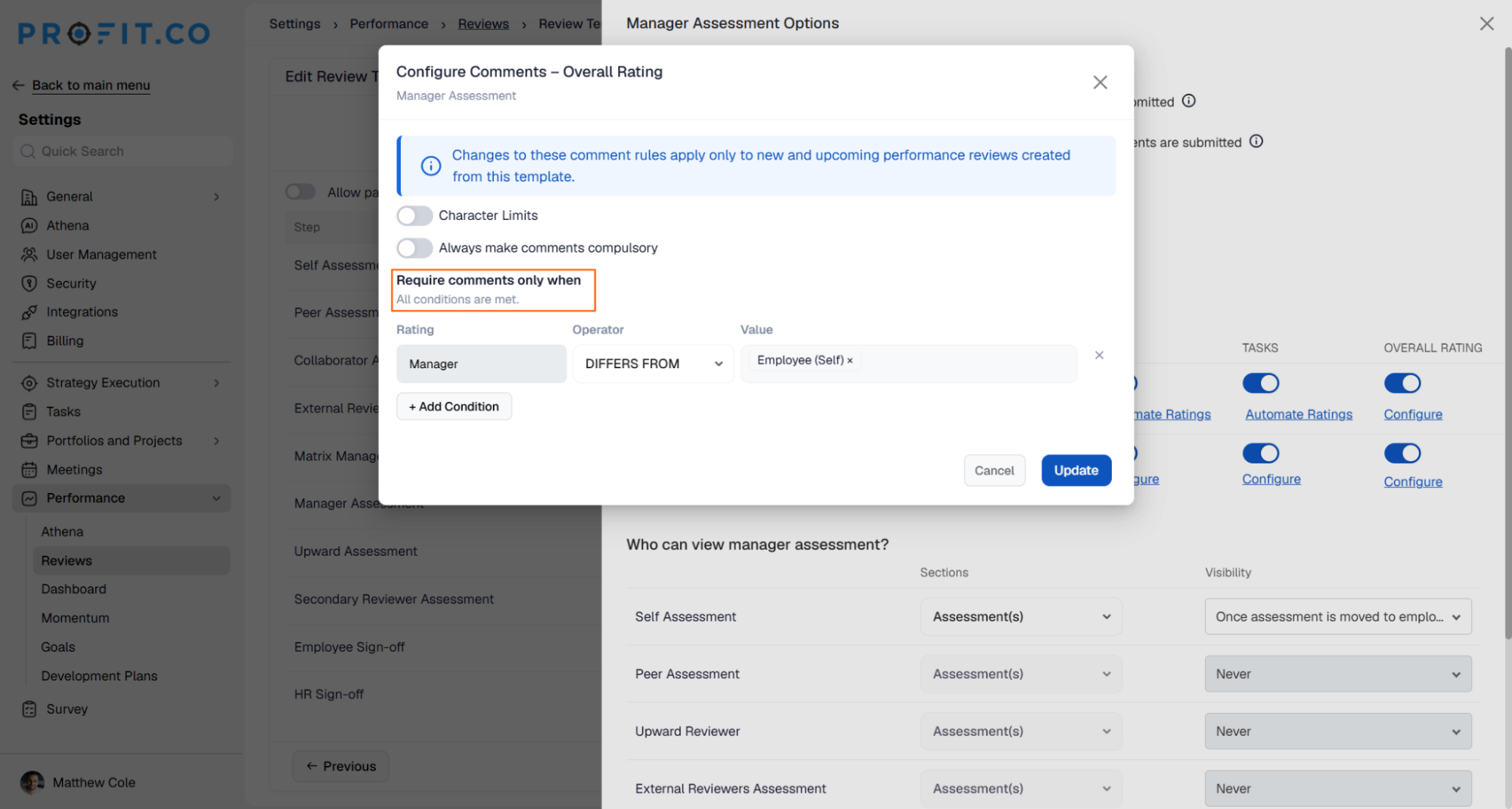
Example scenario: A super user wants the manager to explain the Overall Rating whenever it differs from the employee's self-assessment. In a sequential review, the super user edits the Manager Assessment step, opens the Overall Rating comment settings, and adds one condition:
| Rating | Operator | Value |
|---|---|---|
| Manager | DIFFERS FROM | Employee (Self) |
During the review, the employee rates themselves 4, and the manager rates the employee 2.
The Manager rating (2) differs from the Employee (Self) rating (4), so the rule applies. When the manager submits, Profit.co shows a pop-up that prompts them to add an Overall Comment first. The manager's justification for the gap is captured at the point of submission. If the manager had also rated 4, the ratings would match and the manager could submit without a comment.
How to Make Overall Rating Comments Mandatory When Reviewer Ratings Differ in Profit.co?
Follow these steps to make Overall Rating comments mandatory when reviewer ratings differ in Profit.co:
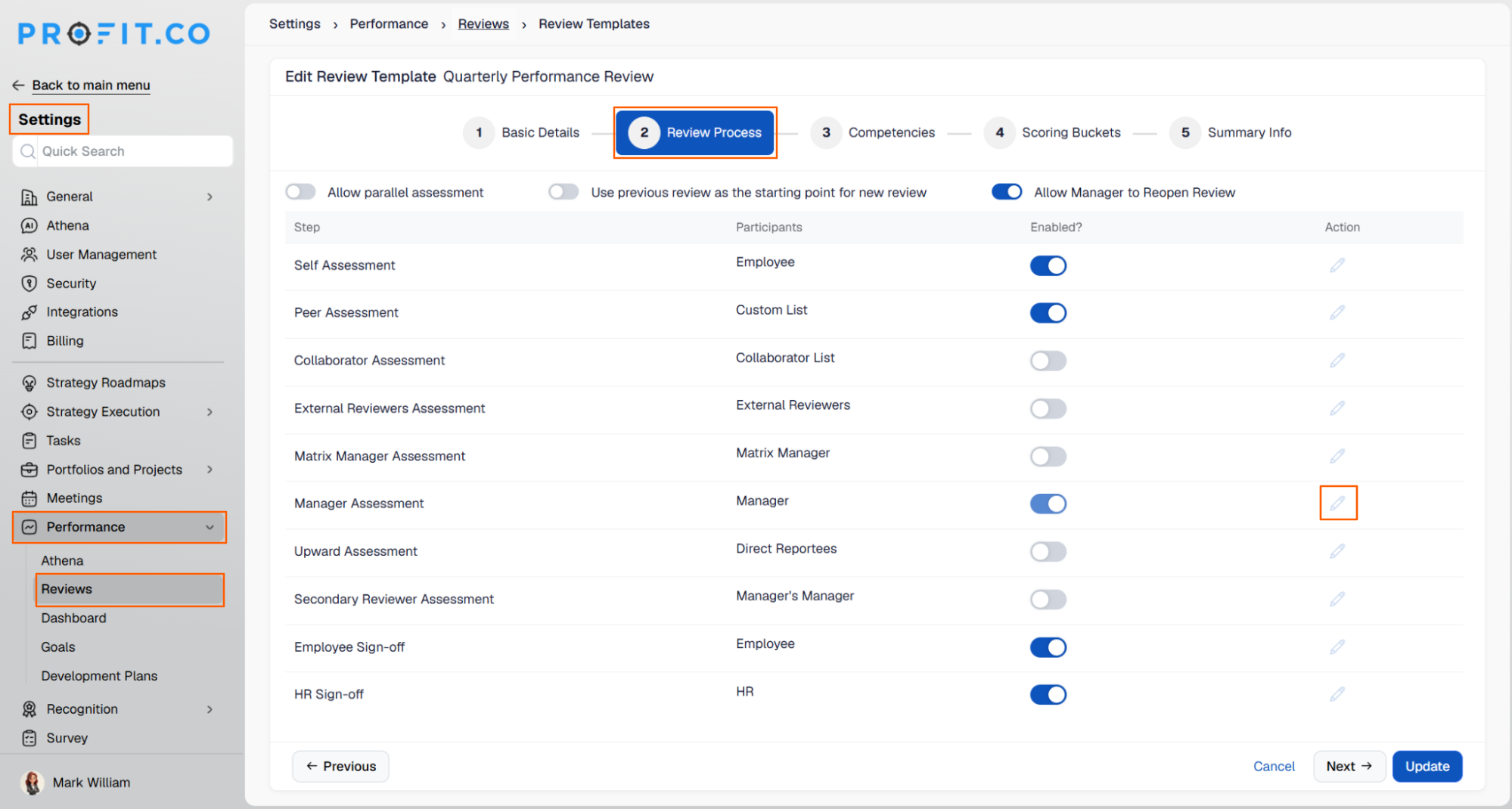
Step 1
- Navigate to Performance → Reviews → Review Process.
- Select a reviewer step (for example, Manager Assessment) and click the Edit icon.
Step 2
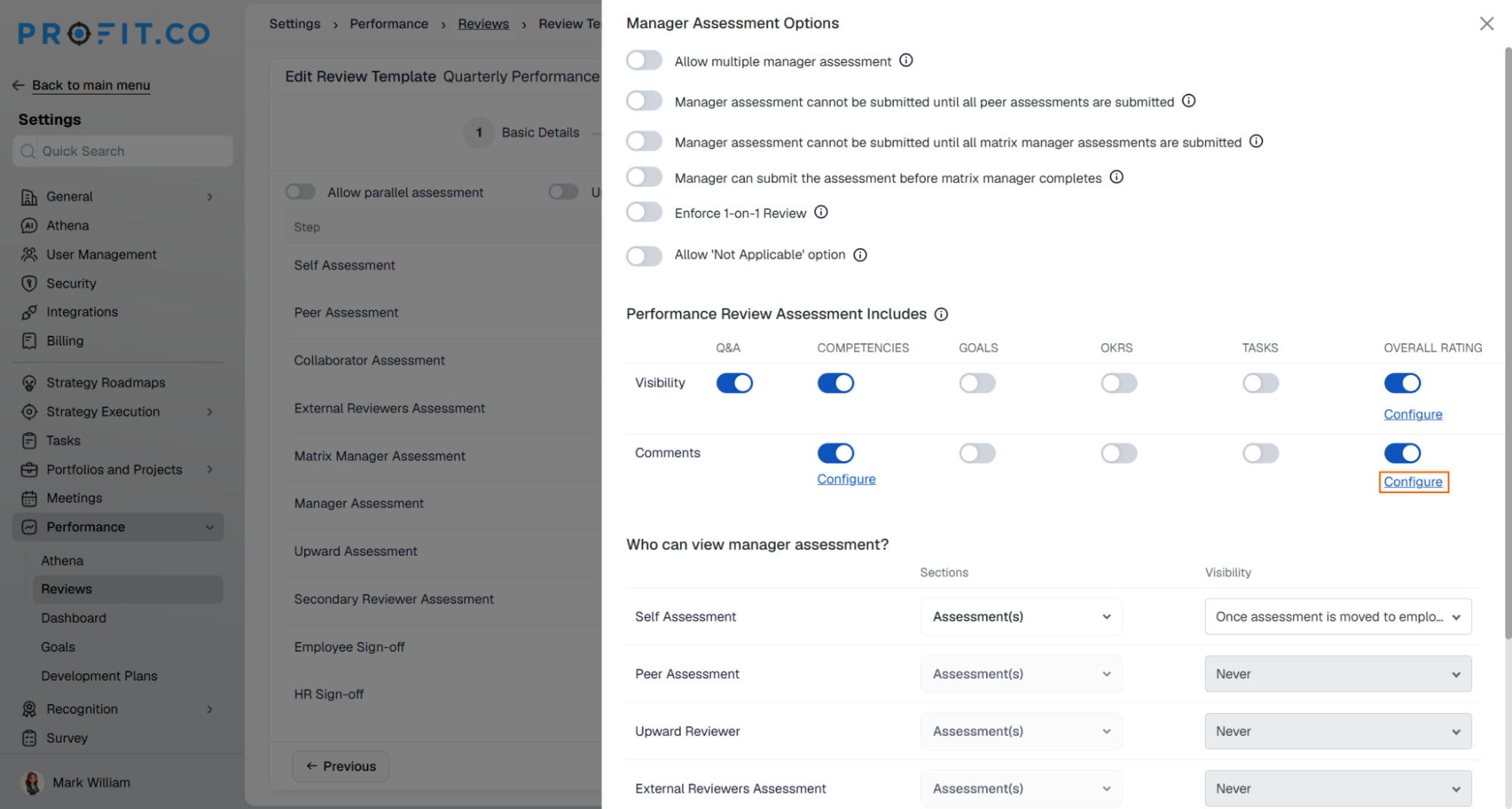
- Under Performance Review Assessment Includes, go to the Comments row.
- Click Configure under Overall Rating.
Step 3
- In the Configure Comments – Overall Rating dialog, under Require comments only when, select DIFFERS FROM as the Operator.
- Select the reviewer to compare against in the Value field, and click + Add condition if you need another condition.
- Click Update to save the rule. Profit.co saves the rule for the selected reviewer step.
What Happens When You Set a DIFFERS FROM Comment Rule in Profit.co?
| Scenario | What Happens |
|---|---|
| You set a DIFFERS FROM rule and a reviewer's rating differs from the compared rating. | Profit.co shows the reviewer a pop-up that prompts them to add an Overall Comment before submitting. |
| You set a DIFFERS FROM rule and a reviewer's rating matches the compared rating. | Profit.co lets the reviewer submit without a comment. |
| You add more than one condition to the rule. | Profit.co requires the comment only when all the conditions are met. |
| You save the rule. | Profit.co applies it only to new and upcoming performance reviews created from this template. |
Best Practices for Mandatory Comments on Differing Ratings in Profit.co
- Set the rule on the reviewer steps where gaps matter most, such as Manager Assessment, so differences from the Self rating are explained.
- Choose comparison reviewers that fit the review type: earlier stages in a sequential review, or any other step in a parallel review.
- Name the exact reviewers in the Value field, such as Employee (Self) or External Reviewer, so the rule compares against the stage you intend.
- Use the Overall Comments captured on differing ratings during HR calibration reviews to understand why each gap exists.
Related Questions
- Click here to learn more about how to fill out a Manager assessment form
- Click here to learn more about how to enable parallel assessment in a review template
- Click here to learn more about how Upward Assessment works
Frequently Asked Questions
Super users can configure this rule for a reviewer step in the review template.
Go to Performance → Reviews → Review Process, select a reviewer step, and click the Edit icon. Then click Configure under Overall Rating in the Comments row.
It depends on the review type. In a parallel review, every reviewer step can compare with the other steps. In a sequential review, a step can be compared only with the stages before it.
Execute your strategy with confidence
Connect OKRs, tasks, and teams in one place with Profit.co
