

When an employee is terminated or disabled mid-cycle, Profit.co automatically flags every assessment slot they held and groups the impact by role, so HR doesn't have to hunt for orphaned assessments manually. Reviewees affected by an excluded manager, peer, secondary reviewer, or matrix manager stay visible until HR resolves the slot.
Table of Contents
- What Is the Excluded Users Panel?
- Why Does the Excluded Users Panel Matter?
- How Does the Excluded Users Panel Work?
- What Happens When You Use the Excluded Users Panel?
- Who Can Access the Excluded Users Panel?
- What Are the Best Practices for the Excluded Users Panel?
- Related Articles
- What Are Some Frequently Asked Questions About the Excluded Users Panel?
What Is the Excluded Users Panel?
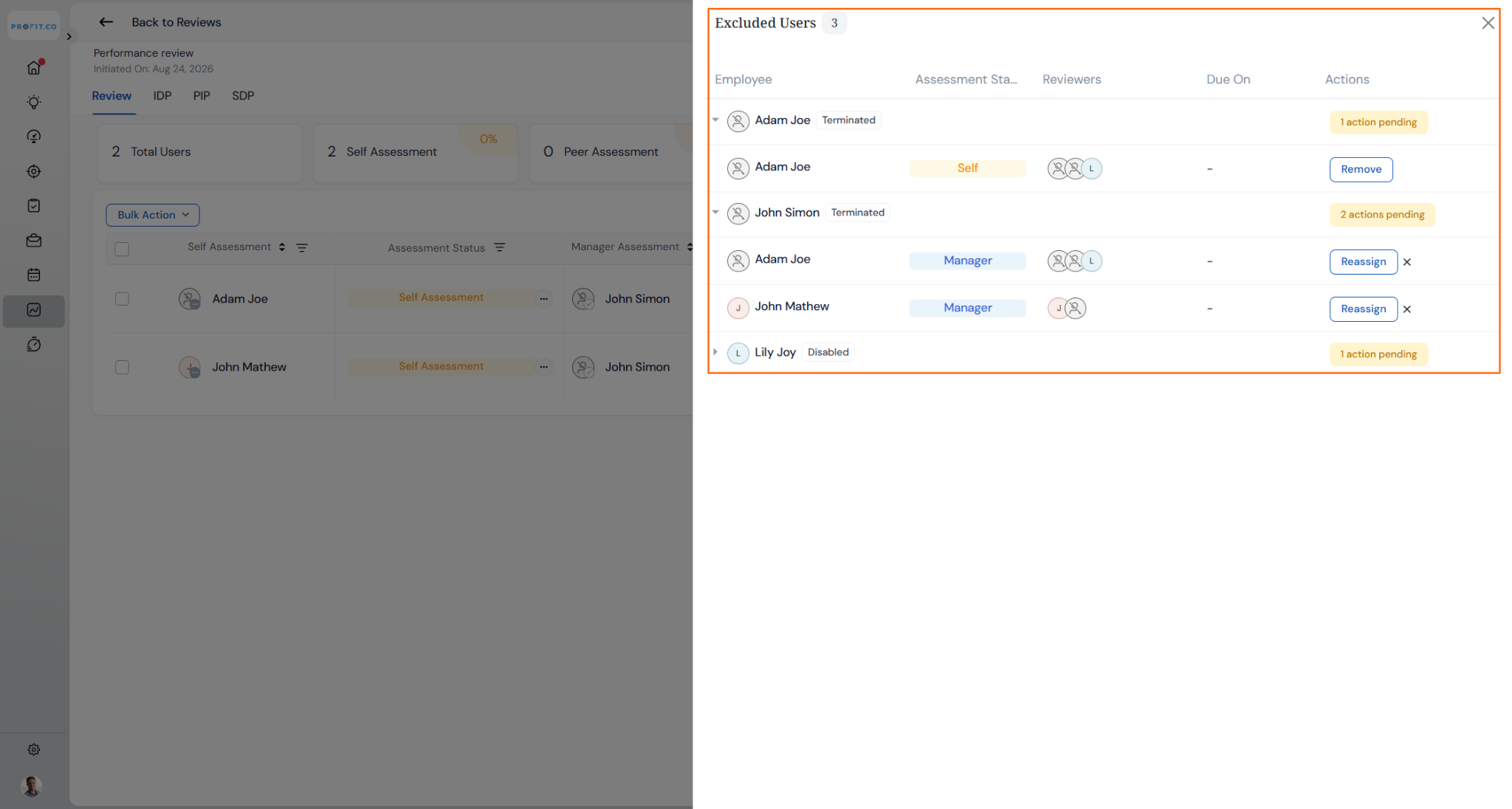
The Excluded Users Panel is a view inside an active review cycle that groups every assessment slot affected by a terminated or disabled employee. It replaces the static Terminated Employees count with a breakdown by role and a corrective action for each affected slot.
The panel only covers cycles that are currently open. Closed or already-completed review cycles are not recalculated when a participant is later excluded, and the panel never automatically advances or skips a stage on its own.
| Assessment Role | Available Actions |
|---|---|
| Self Assessment | Remove |
| Manager Assessment | Reassign |
| Peer Assessment | Reassign |
| Secondary Reviewer | Reassign |
| Matrix Manager | Reassign |
Note
The Excluded Users Panel only appears inside an active review cycle. Terminating or disabling a user is a separate action performed from User Management.
Why Does the Excluded Users Panel Matter?
Before this panel existed, HR had to manually scan the participant list for terminated or disabled employees, remove them, and separately investigate which other employees' assessments stalled because that person was their assessor. The Excluded Users Panel surfaces every affected slot automatically the moment an employee's account status changes.
Grouping by role also shows HR exactly which employees are affected and in what capacity, so a manager, peer, secondary reviewer, or matrix manager slot can be reassigned without cross-referencing separate participant records.
How Does the Excluded Users Panel Work?
Step 1
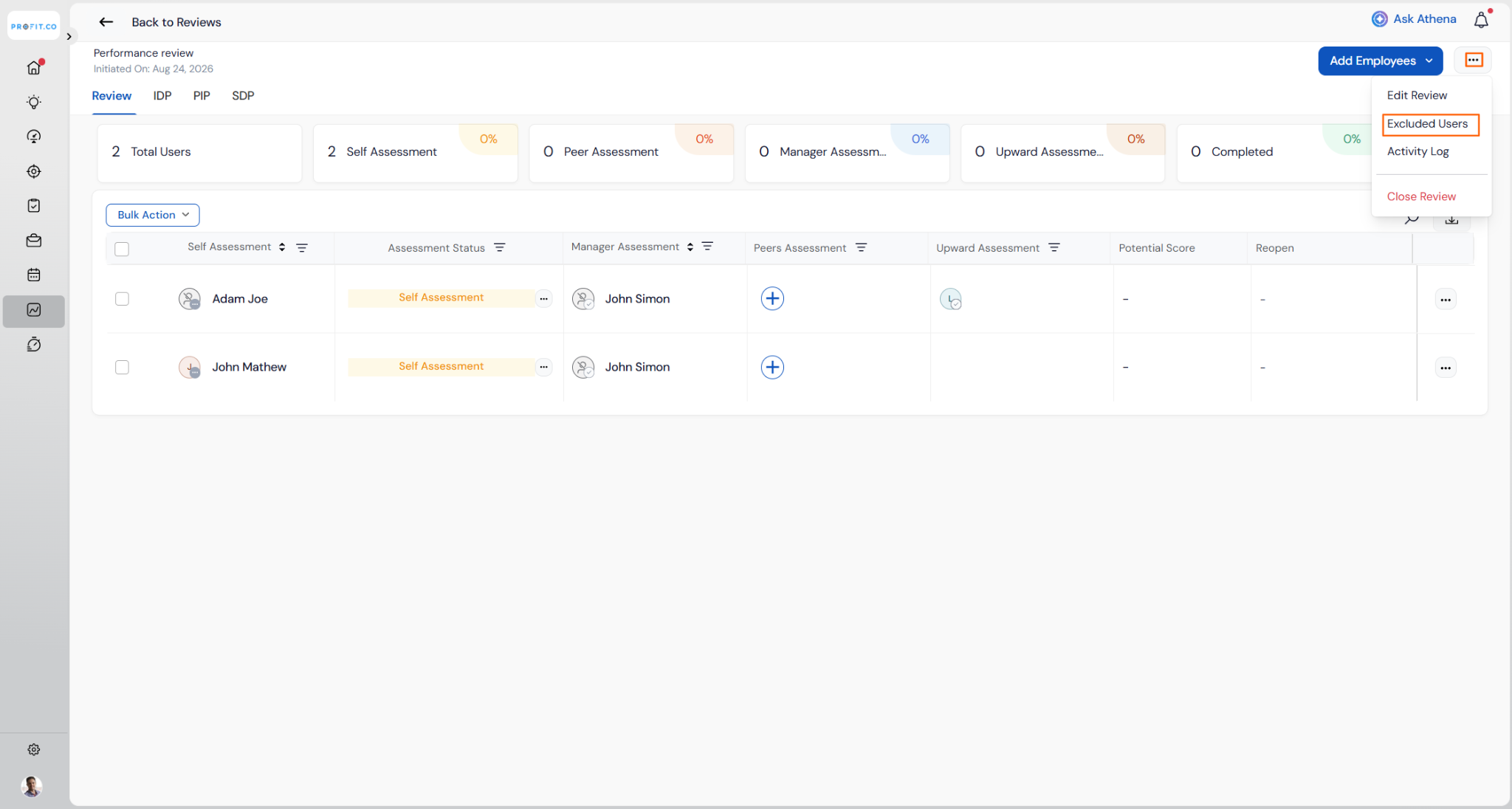
- Go to Performance > HR Administration from the left navigation panel
- Switch to the Reviews tab
- Open the review cycle you want to manage
- Click the Excluded Users tile in the action bar
Method 1: Reassign an Assessor Slot
Step 2
- Click Reassign on the row for the excluded Manager, Peer, Secondary Reviewer, or Matrix Manager slot
- Search for and select an active employee as the replacement
- Click Confirm
Remove the Participant
- Click Remove on the excluded employee's row in the Self Assessment section
What Happens When You Use the Excluded Users Panel?
| Scenario | What Happens |
|---|---|
| You terminate or disable an employee who is participating in an active review cycle. | Profit.co stops sending them further review cycle notifications or reminders from that point onward. |
| You click Remove on an excluded employee's Self Assessment slot. | Profit.co drops that employee from the completion percentage calculations for every stage, so percentages reflect only active participants. |
| You click Reassign on an excluded Manager, Peer, Secondary Reviewer, or Matrix Manager slot. | Profit.co keeps the reviewee at the same stage, updates the slot to the new assessor, and emails the new assessor a notification. |
| You cancel a Reassign or Remove confirmation modal instead of confirming. | Profit.co makes no changes, and the row stays in the Excluded Users view for you to act on later. |
| You re-enable a disabled employee's account before the cycle closes. | Profit.co reverses their exclusion automatically, restores their orphaned assessor slots to active, and increases the completion-percentage denominator by one. |
Note
Only disabled employees can be reinstated this way. Terminated employees stay excluded from the cycle permanently, even if their account status changes later.
Who Can Access the Excluded Users Panel?
Access to the Excluded Users Panel depends on your role in Profit.co. HR Admins have full access, while HRBPs can view the panel but not act on it directly.
| Role | Access |
|---|---|
| HR Admin | View the panel and use Remove or Reassign on any slot |
| HRBP | View the panel for their assigned departments; Remove and Reassign require an HR Admin |
| Manager / Employee | No access to the Excluded Users Panel |
What Are the Best Practices for the Excluded Users Panel?
- Reassign Manager Assessment slots first, since a review can't advance for that reviewee until a new manager assessor is in place.
- Confirm the replacement assessor's availability before clicking Reassign, since Profit.co emails them a notification as soon as you confirm.
- Treat Remove as final for Self Assessment slots, since it excludes the employee from completion percentage calculations rather than pausing their participation.
- Reassign Peer, Secondary Reviewer, and Matrix Manager slots promptly even though they don't block the cycle, since they stay open in the Excluded Users view until you act.
- Route Reassign or Remove requests through an HR Admin when an HRBP first spots the excluded slot, since both actions require HR Admin access.
Related Articles
What Are Some Frequently Asked Questions About the Excluded Users Panel?
Yes. If the excluded employee is both a reviewee and an assessor for other employees, Profit.co creates a separate row in each affected role group, and you resolve each one independently.
Peer Assessment shows a peers-remaining indicator for that employee, but Manager Assessment is unaffected since it doesn't depend on the peer group.
No. Profit.co only recalculates open, active cycles. A later exclusion has no effect on cycles that are already closed.
Yes. If a Manager Assessment slot is still unresolved when the cycle closes, it remains visible in the Excluded Users view, since Profit.co doesn't auto-resolve open slots.
Execute your strategy with confidence
Connect OKRs, tasks, and teams in one place with Profit.co
