

Review templates let you decide whether reviewers score an entire OKR, Goal, or Competency section with a single rating and comment, or score each item in it separately. The choice is made once per section, per template, and applies to every review created from it.
Table of Contents
What Is Overall Rating?
Overall Rating is the Rate as a setting inside a review template's section controls, available for the Competencies, Goals, and OKRs sections. It determines whether the section is scored as a single unit, one rating and one comment for the whole section, or whether each OKR, goal, or competency in it keeps its own rating and comment.
The setting lives at the review template level, not with the reviewer. For Competencies, the item-level alternative is labeled Competency/Group level; for Goals and OKRs, the alternative simply rates each entry on its own.
| Rate as a Option | What It Means |
|---|---|
| Overall level | Reviewer gives one rating and one comment for the entire section |
| Competency/Group level (item level) | Reviewer rates and comments on each OKR, goal, or competency individually |
Note
The Overall level option is available only for the Competencies, Goals, and OKRs sections. No other section type supports this setting.
Why Does Overall Rating Matter?
Before this option, every OKR, goal, or competency in a review required its own rating and comment, even when a reviewer only had an opinion about the employee's overall contribution in that category. Overall Rating removes that repetition without removing the ability to score items separately where that's still needed.
How Does Overall Rating Work?
Step 1
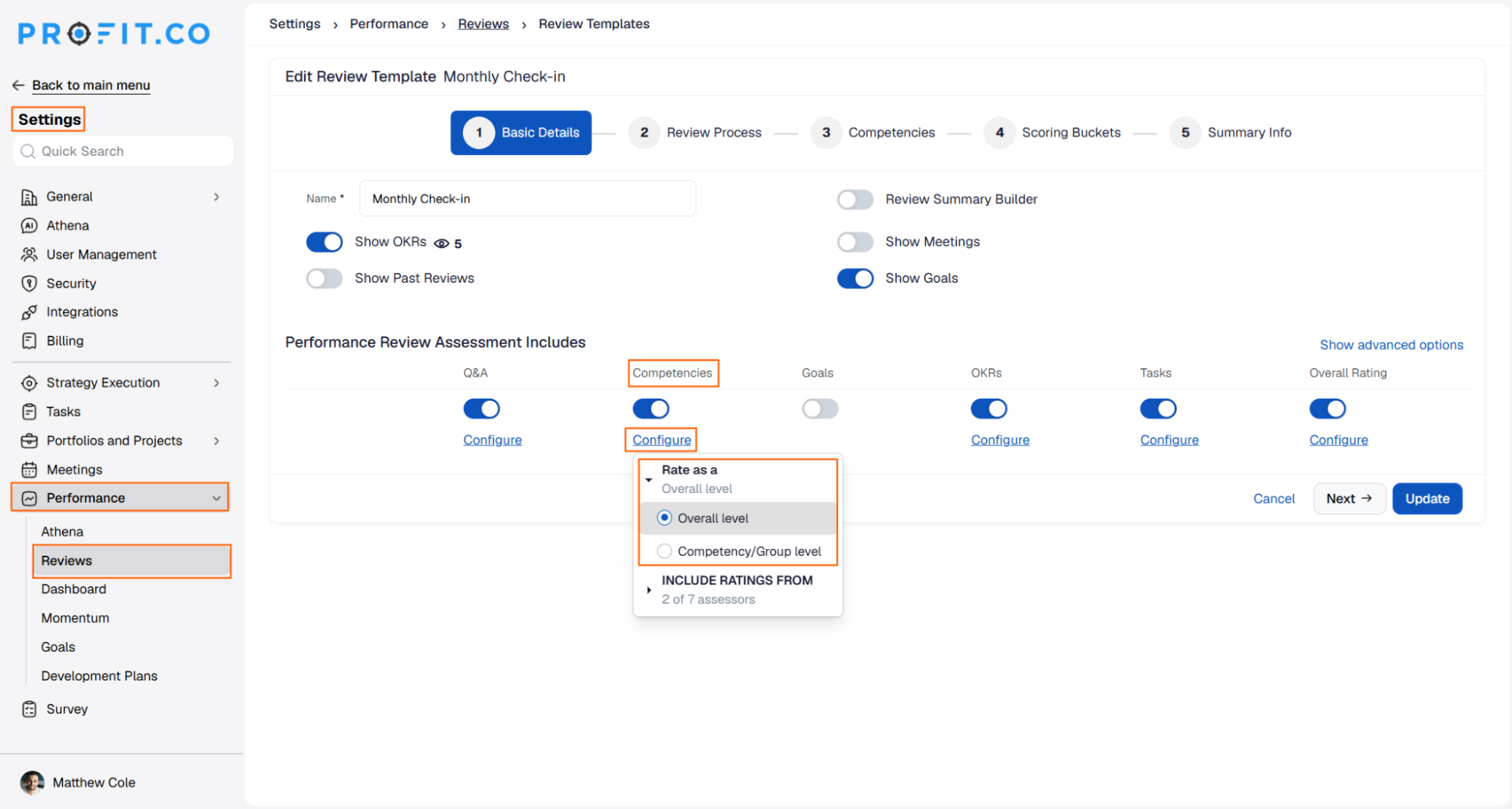
- Navigate Settings → Performance → Reviews → Review Templates.
- Open the review template you want to configure.
- In Basic Details, under Performance Review Assessment Includes, enable Competencies, Goals, or OKRs.
- Click Configure under the section.
- Under Rate as a, select Overall level to score the whole section at once.
- Select Competency/Group level instead to keep rating each item individually.
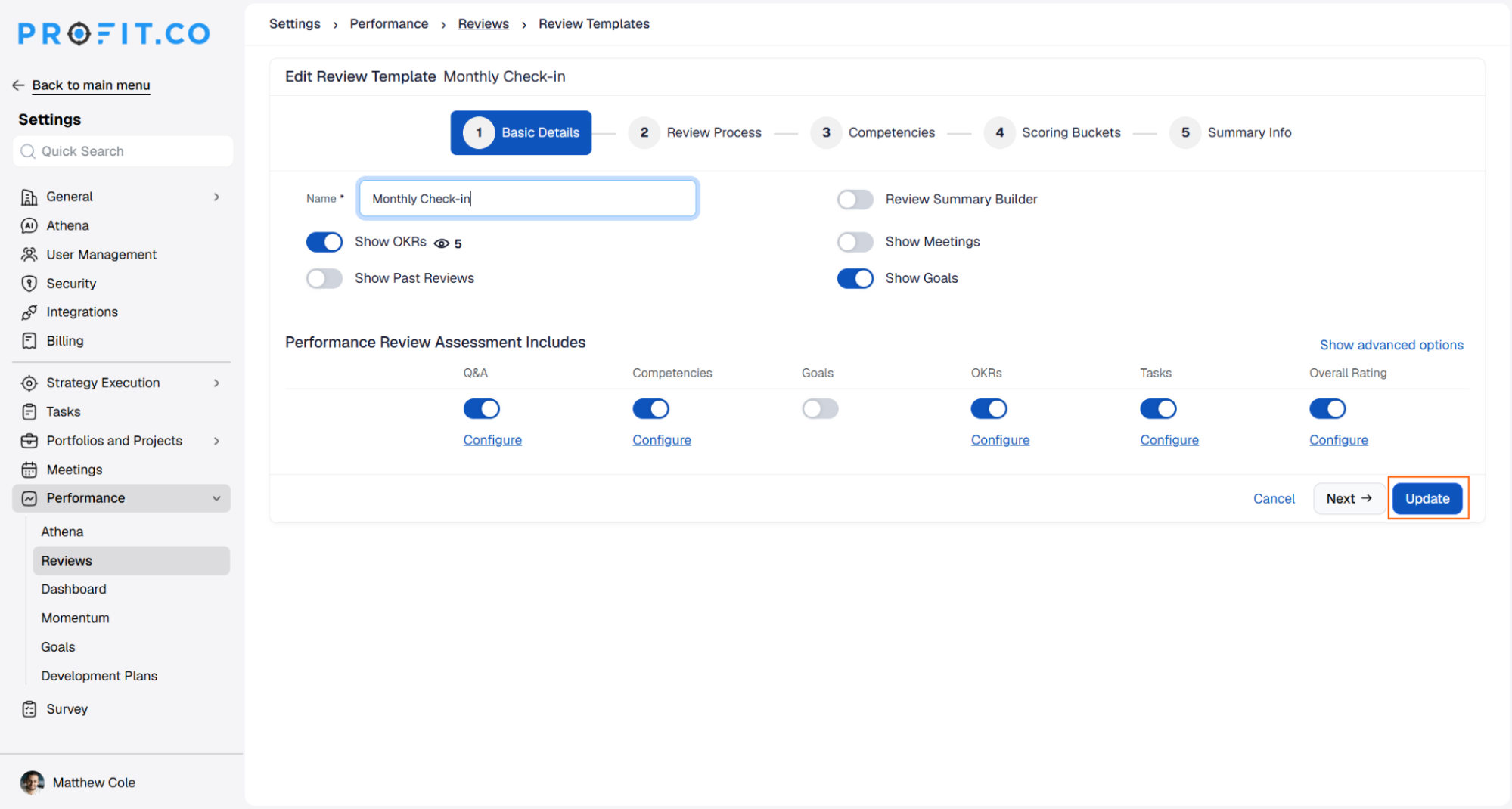
- Click Update to save the template settings.
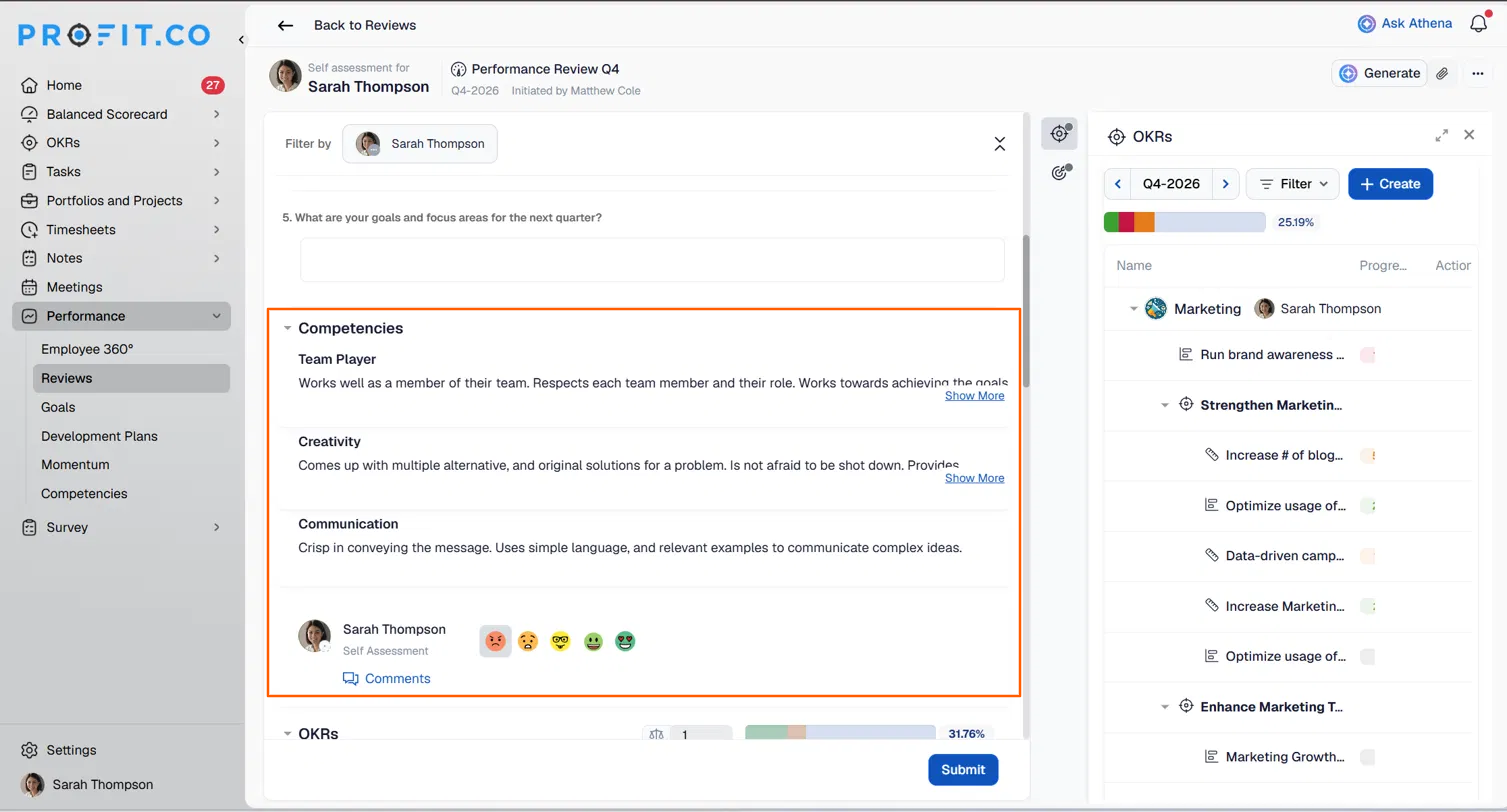
Once the setting is saved, here's what a reviewer sees when completing the assessment:
- Open the assessment; since the section is set to Overall level, only one rating and one comment apply to all its items, such as Team Player, Creativity, and Communication under Competencies.
- Select one rating from the emoji scale shown once, below all the items.
- Click Comments to add the single comment for the section, then submit the assessment.
What Happens When You Use Overall Rating?
| Scenario | What Happens |
|---|---|
| You set a section's Rate as a option to Overall level. | Profit.co asks reviewers for one rating and one comment that covers the entire section instead of one per item. |
| You leave a section's Rate as a option at Competency/Group level. | Profit.co keeps the per-item flow, and reviewers rate and comment on each OKR, goal, or competency separately. |
| You configure different sections in the same template with different Rate as a settings. | Profit.co applies each section's setting on its own, so one section can ask for a single overall assessment while another still asks for one per item. |
| You try to change a section's Rate as a setting on a template that already has reviews initiated. | Profit.co keeps the existing setting in place, since Rate as a can only be changed before any review is initiated from that template. |
What Are the Best Practices for Overall Rating?
- Set each section's Rate as a option before initiating any review from the template. The choice locks for that template once a review starts, so later changes won't reach reviews already in progress.
- Pick Overall level for sections where you judge contribution as a whole category, not item by item. Reviewers lose the per-item comment field once a section is set to Overall level.
- Treat Competencies, Goals, and OKRs as independent controls. A single template can run one section on Overall level and another on Competency/Group level without conflict.
- Keep Competency/Group level wherever calibration or compliance work requires a rating and comment on each individual competency, goal, or OKR.
- Limit Rate as a changes to Super Users with review template access, since reviewers never see or choose this setting during their own assessment.
Related Articles
- How to Configure Review Templates in Profit.co?
- How to enable Competency Group in Performance Review?
- How to enable Overall rating in Performance Review and what is the use of it?
What Are Some Frequently Asked Questions About Overall Rating?
No. The Overall level option in Rate as a is available only for the Competencies, Goals, and OKRs sections of a review template.
No. Rate as a is configured by a Super User in the review template. Reviewers simply see one rating and comment field, or one per item, depending on how the section was configured.
Yes. Rate as a is set per template and per section, so one review template can use Overall level for OKRs while another template keeps OKRs at item level.
Execute your strategy with confidence
Connect OKRs, tasks, and teams in one place with Profit.co
