













Go to Performance → HR Administration → Reviews and open the review. Select the employees you want to take out, then click Bulk Action → Remove and confirm with Yes. The employees leave the review, and the Total Users count drops. Removing an employee deletes all the ratings and comments they have in that review.
Table of Contents
Why Remove Employees from a Review?
After a review starts, the list of people in it may need to change. Common reasons:
- The employee has left the organization or is on long leave.
- The employee joined too recently to be reviewed in this cycle.
- The employee was added by mistake, or belongs in a different review.
- The employee changed roles or teams and will be reviewed in another cycle.
Removing them keeps the review's progress and reports accurate, because only the people who should be reviewed are counted.
What Happens When You Remove an Employee?
| Item | What Profit.co Does |
|---|---|
| The employee | Leaves the review list for that review only |
| Their ratings and comments | Deleted. The confirmation says "This action will delete all the given ratings and comments" |
| Total Users | Drops by the number of employees removed, for example from 5 to 4 |
| Other employees in the review | Not affected |
How to Remove Employees from a Review
Step 1
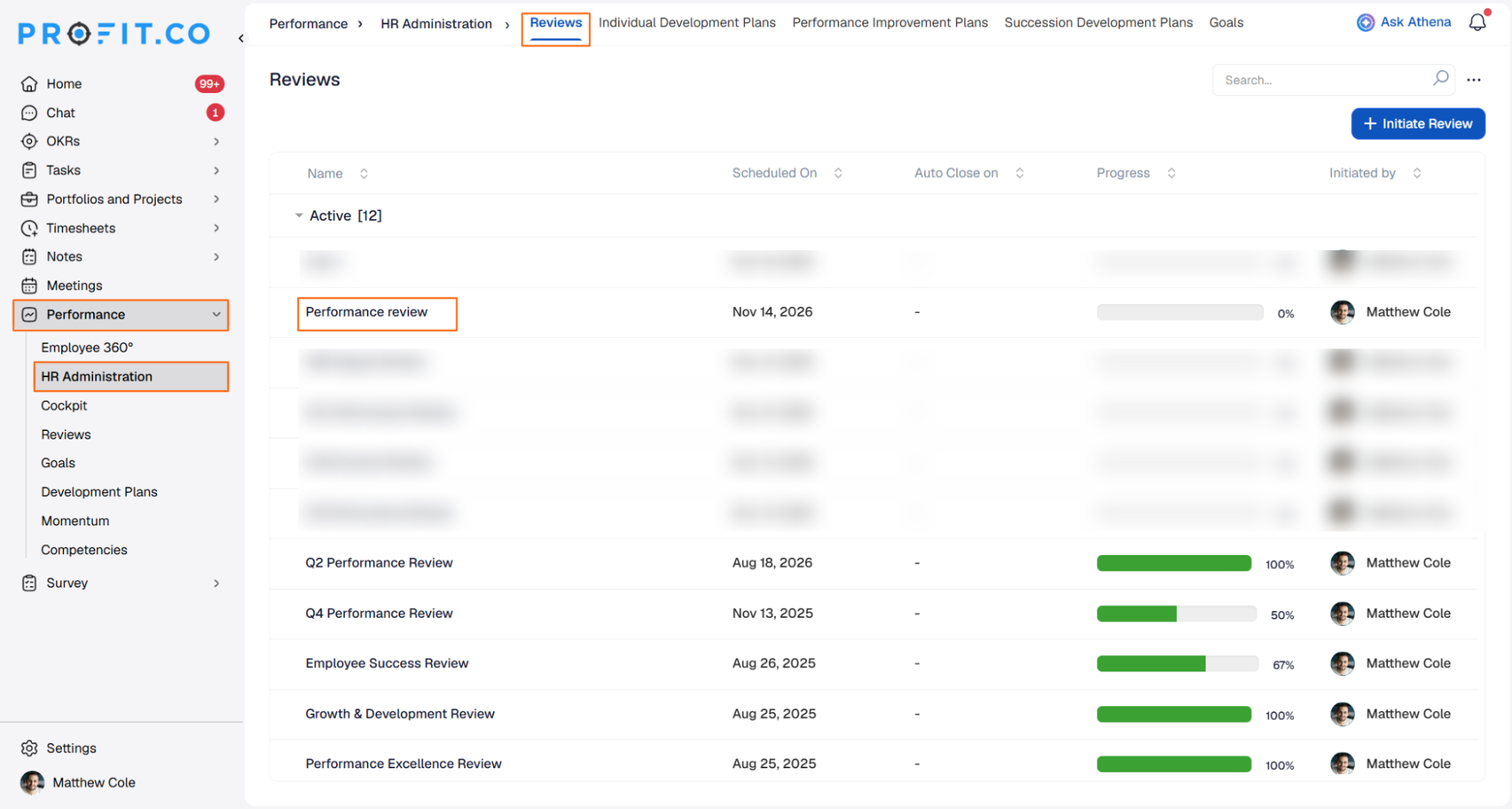
- In the left navigation panel, expand Performance and click HR Administration.
- On the Reviews tab, find the review in the list, for example Employee Success Review, and click its name to open it.
Step 2
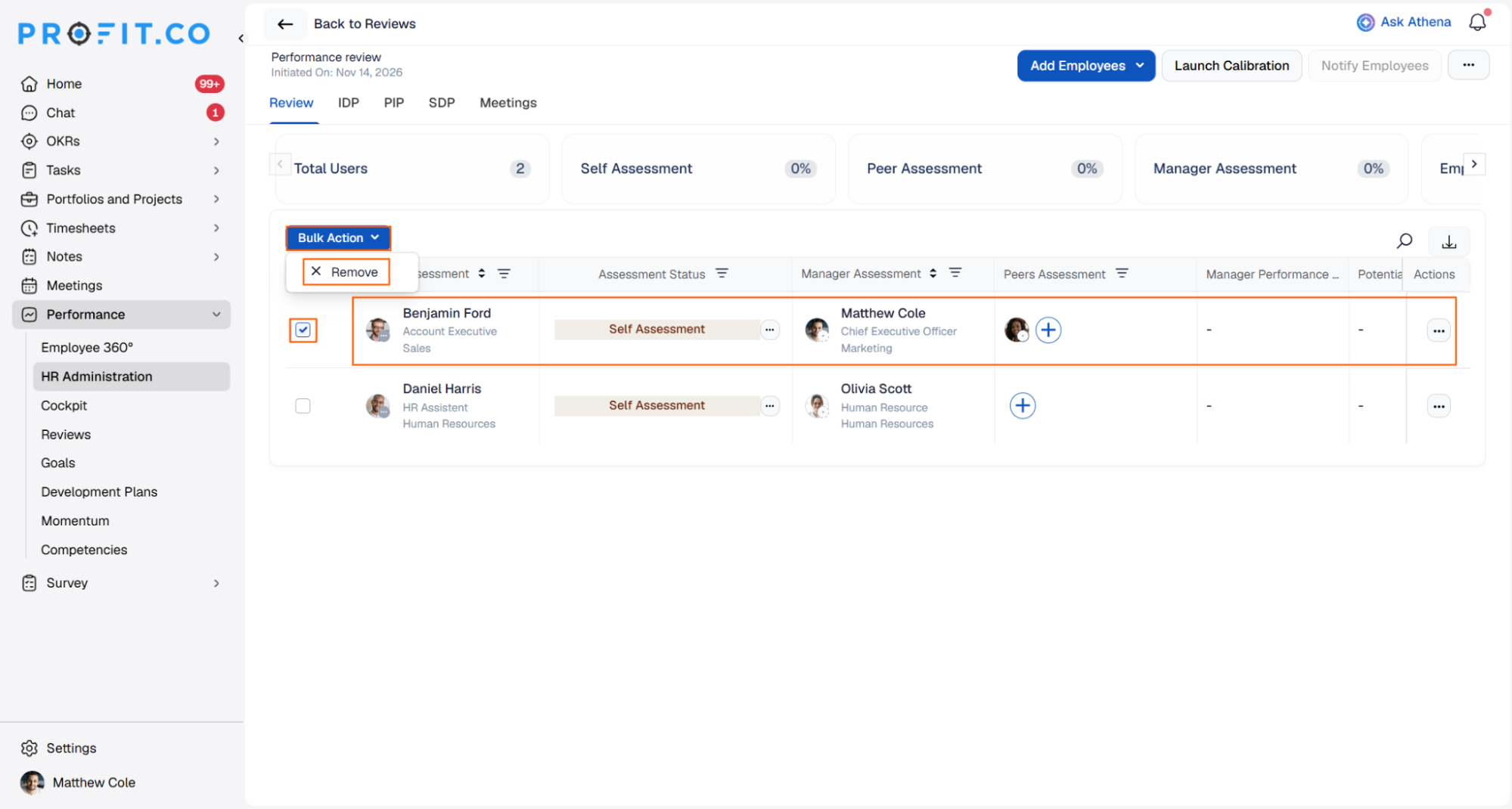
- On the Review tab, tick the checkbox next to each employee you want to remove. You can select one or several.
- Click the Bulk Action drop-down above the list.
- Click Remove.
Step 3
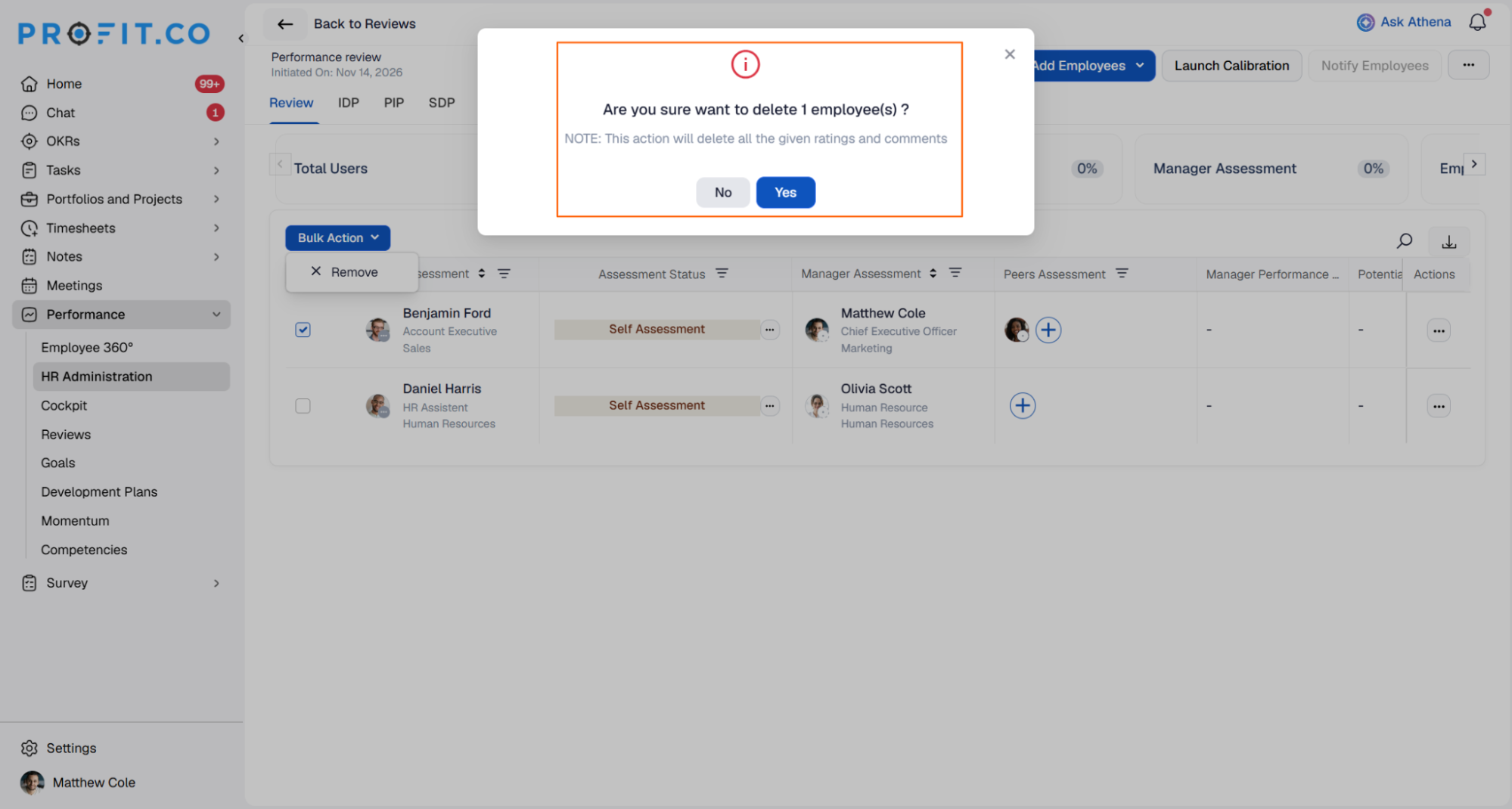
- A window asks "Are you sure you want to delete 1 employee(s)?" The number matches how many employees you selected.
- The note warns that the action will delete all the given ratings and comments.
- Click Yes to remove them, or No to cancel.
Step 4
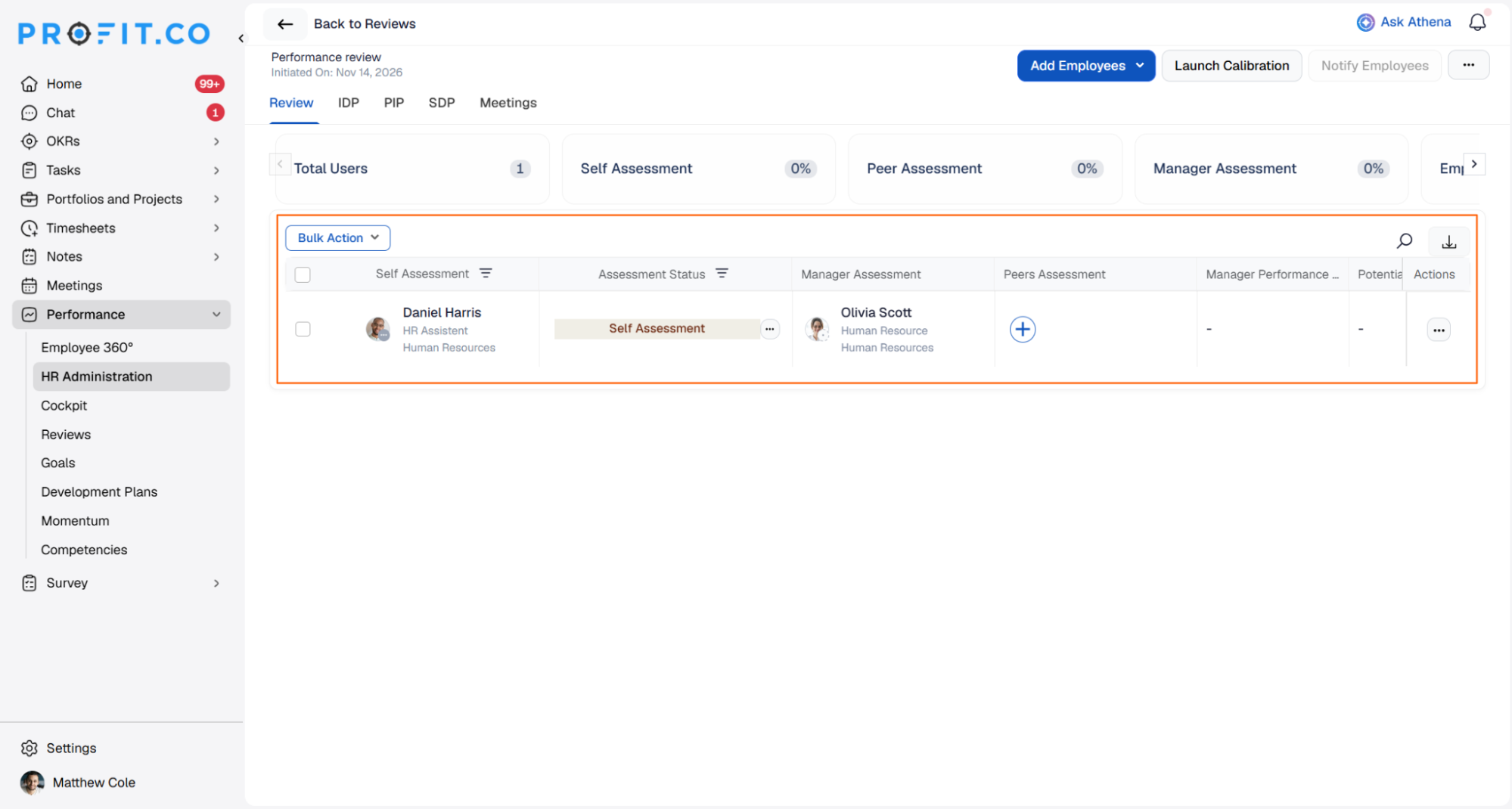
- The selected employees no longer appear in the review list.
- The Total Users card shows the new count.
Best Practices
- Remove early: Take people out before assessments start, so no ratings or comments are lost.
- Check the count in the confirmation: Make sure the number of employees matches what you meant to select.
- Tell the people involved: Let the employee and their manager know they are no longer part of this review.
- Re-add if needed: If you remove someone by mistake, add them again with Add Employees. Their earlier ratings and comments will not come back.
Related Questions
- How to initiate a performance review in Profit.co?
- How to add employees to an active performance review?
- How to notify employees about a performance review?
- How to launch calibration for a performance review?
Frequently Asked Questions
Open the review under Performance → HR Administration, select the employee, and click Bulk Action → Remove → Yes.
Yes. All ratings and comments they have in that review are deleted.
Yes. Select several employees and use Bulk Action → Remove.
You can add the employee back with Add Employees, but their earlier ratings and comments are not restored.
Execute your strategy with confidence
Connect OKRs, tasks, and teams in one place with Profit.co
