

Bell Curve for Non-Calibrated Reviews lets Super Users choose which review metric drives the distribution chart and lets HR see that distribution in Cockpit for reviews that have not gone through calibration. Enabling a template still controls whether the chart exists for that template's reviews at all.
Table of Contents
- What is Bell Curve for Non-Calibrated Reviews?
- Why Does Bell Curve for Non-Calibrated Reviews Matter?
- How Does Bell Curve for Non-Calibrated Reviews Work?
- What Happens When You Use Bell Curve for Non-Calibrated Reviews?
- What Are the Best Practices for Bell Curve for Non-Calibrated Reviews?
- Related Articles
- What Are Some Frequently Asked Questions About Bell Curve for Non-Calibrated Reviews?
What is Bell Curve for Non-Calibrated Reviews?
Bell Curve for Non-Calibrated Reviews is a template-level setting that makes the Bell Curve template list visible and configurable in Settings even when the organization's global Bell Curve toggle is off. Each template also has its own Distribution Metric, which replaces the previously hardcoded Overall Score as the value the chart tracks.
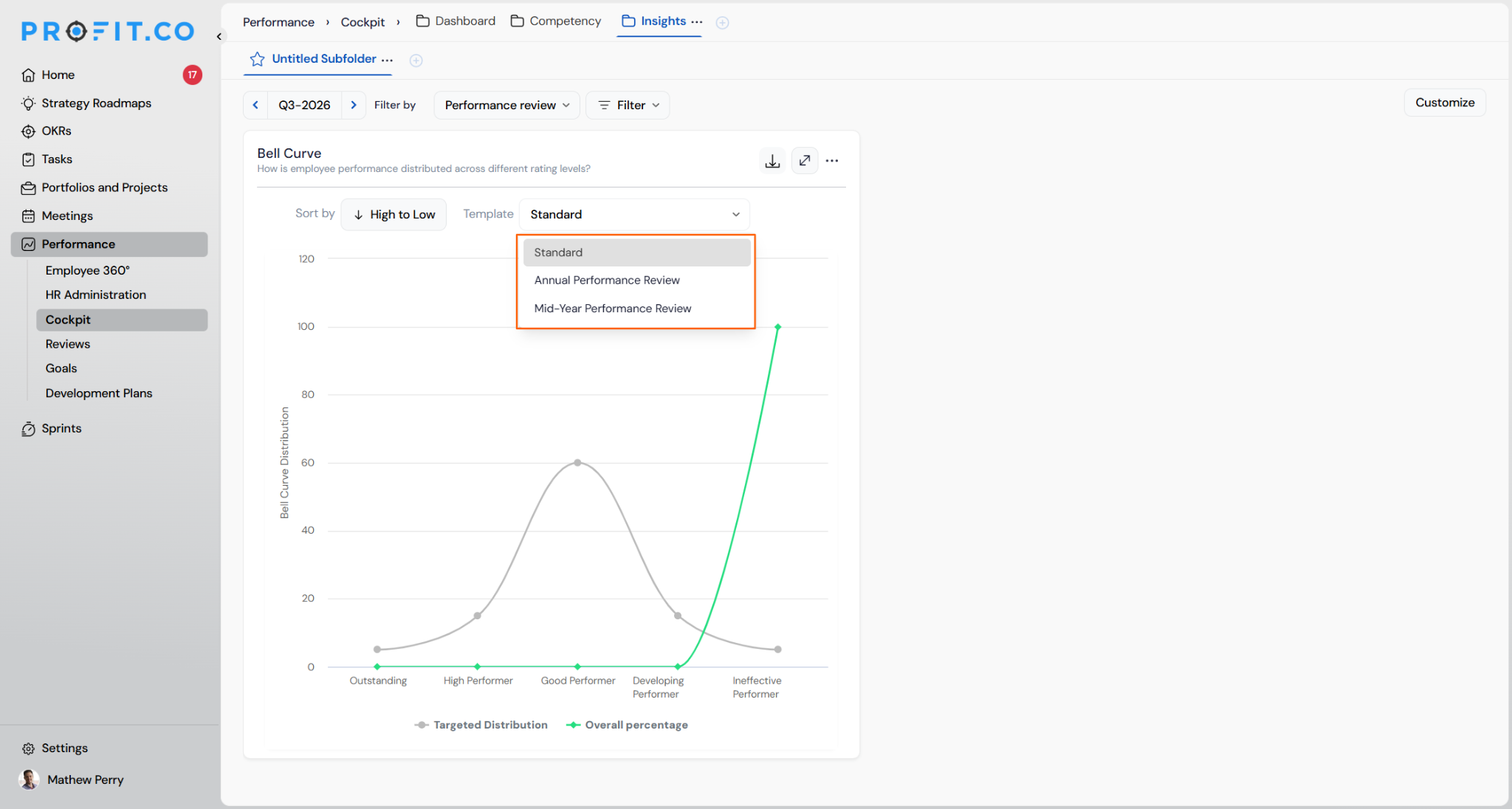
The Cockpit Bell Curve widget adapts to the review's calibration state. Non-calibrated reviews plot Targeted Distribution and the selected metric with an interactive template selector; calibrated reviews add a third Calibrated Score line and lock the selector to the template used at calibration launch.
| Review Type | Chart Lines | Template Selector |
|---|---|---|
| Non-calibrated | Targeted Distribution, Selected Metric | Interactive dropdown, any enabled template |
| Calibrated | Targeted Distribution, Selected Metric, Calibrated Score | Read-only, locked to the calibration-launch template |
Why Does Bell Curve for Non-Calibrated Reviews Matter?
Previously, the Cockpit Bell Curve widget always plotted a hardcoded Overall Score, and the chart was only meaningful once calibration had been launched. HR teams that wanted to review rating distribution before deciding whether to run calibration had no analytical view available to them.
Now, Super Users choose which metric each template's chart should track, and non-calibrated reviews render a fully functional Targeted Distribution versus Selected Metric chart directly from completed review data. HR gets the same distribution view earlier in the review cycle, without waiting on the global Bell Curve toggle or a completed calibration.
How Does Bell Curve for Non-Calibrated Reviews Work?
Configure the Template in Settings
This method lives inside Settings, where the Bell Curve option and Distribution Metric are configured per review template.
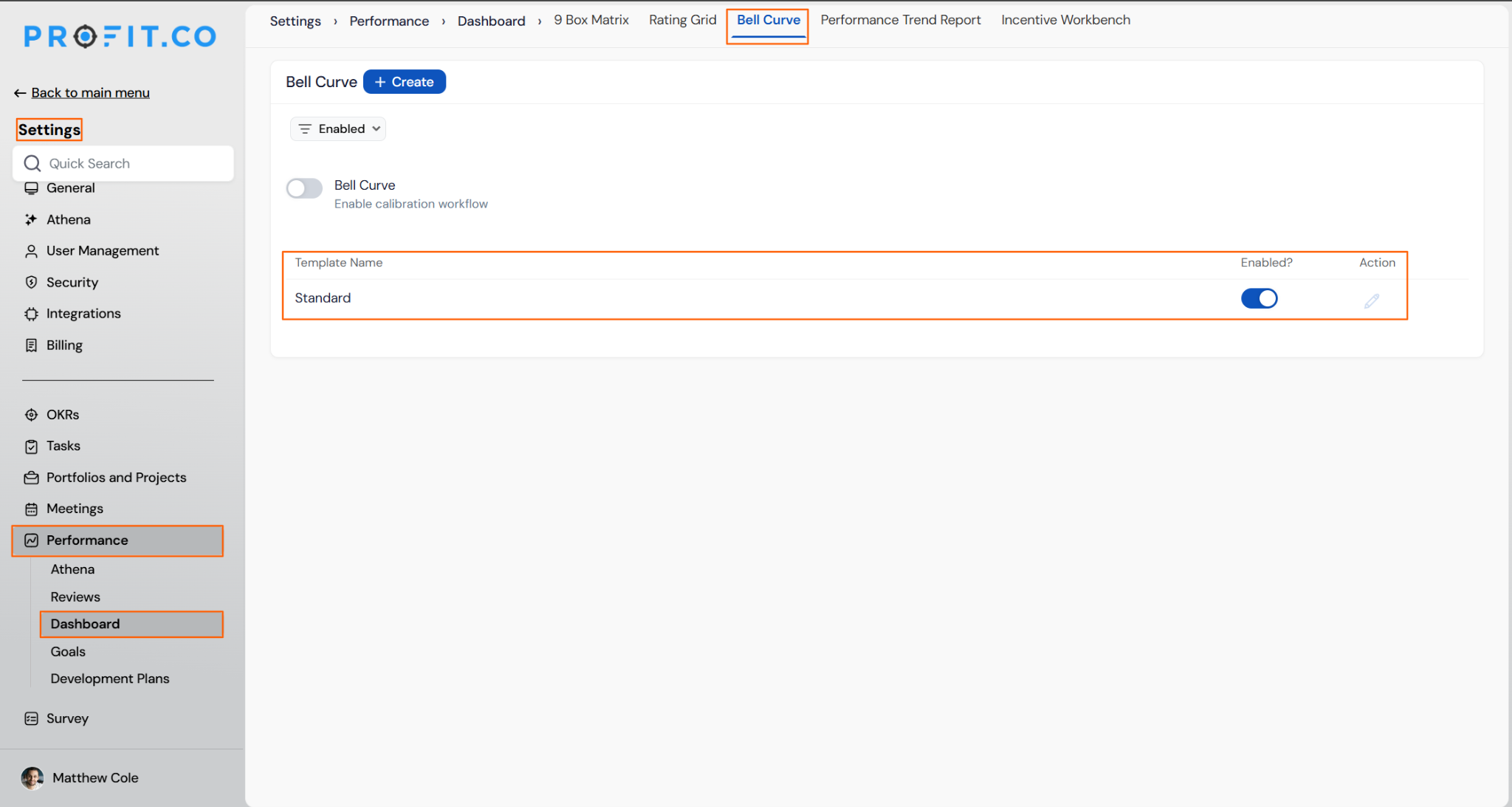
Step 1: Open the Bell Curve Template List
- Navigate to Settings > Performance > Reviews > Bell Curve
- The list of templates displays regardless of the global Bell Curve toggle's state
- Select the required review template from the list
- Turn on the Bell Curve option for that template
Step 2
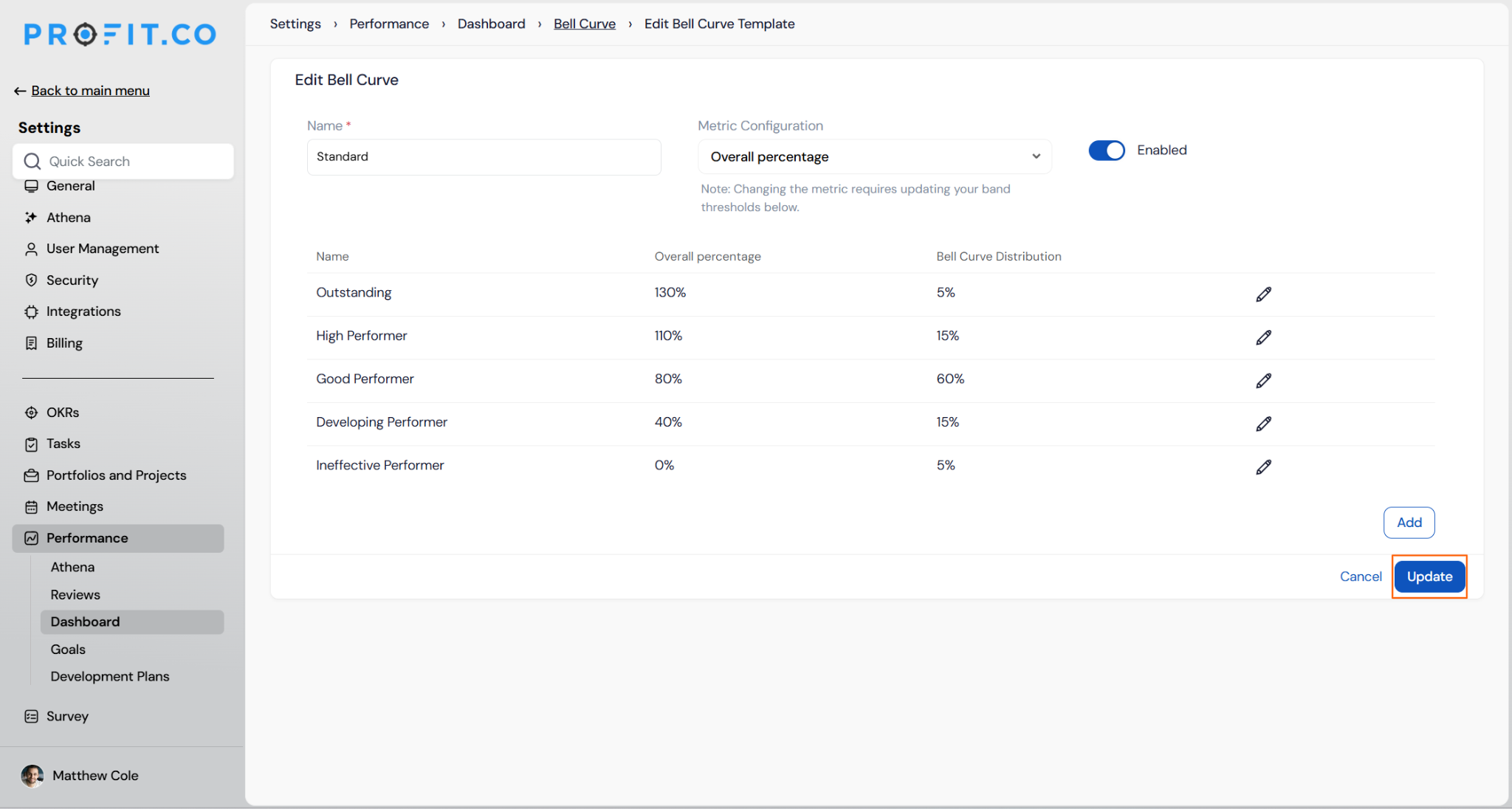
- Open the Metric Configuration section in Edit Bell Curve Template
- Choose a metric from the Distribution Metric dropdown
- Click Save/Update to apply the selection
View and Select Templates in Cockpit
Step 1
- Navigate to Performance > Cockpit
- Locate the Bell Curve widget on the Performance Dashboard
- Use the template selector in the widget header
- Select any enabled Bell Curve template from the dropdown
- On a calibrated review, this selector is a read-only label instead, so no selection is needed
What Happens When You Use Bell Curve for Non-Calibrated Reviews?
| Scenario | What Happens |
|---|---|
| You change the Distribution Metric on a Bell Curve template | Profit.co updates only which metric drives that template's chart, leaving existing score calculations, calibration data, and CSV export unaffected. |
| You select a different Distribution Metric but leave the page without clicking Save/Update | Profit.co discards the change and keeps the template's previous metric and column label. |
| You use the template selector to pick a different enabled template for a non-calibrated review | Profit.co re-renders the chart immediately using the newly selected template's configured metric and band definitions. |
| You open the Cockpit Bell Curve widget for a calibrated review | Profit.co locks the template selector to the calibration-launch template and adds a third Calibrated Score line to the chart. |
| You void the calibration data for a calibrated review | Profit.co removes the Calibrated Score line on the next render, while Targeted Distribution and the selected metric continue to display. |
| You launch calibration for a review after selecting a template in the non-calibrated Cockpit widget | Profit.co locks the selector to the template recorded at calibration launch, which may differ from the template you had selected before calibration began. |
What Are the Best Practices for Bell Curve for Non-Calibrated Reviews?
- Save the Distribution Metric selection immediately: it and the updated column label only persist after clicking Save/Update, so an unsaved change is lost if you navigate away.
- Confirm which template is active in Cockpit before launching calibration, since the selector locks to whichever template is recorded at calibration launch and may not match the one you were previewing.
- Use the interactive template selector on non-calibrated reviews to compare distribution across multiple templates before deciding which one calibration should use.
- Pick a Distribution Metric that matches what the review cycle needs to analyze, since the same setting also drives the calibrated review's chart once calibration runs.
- Enable Bell Curve per template deliberately: each template's setting is independent and does not cascade to other templates automatically.
Related Articles
What Are Some Frequently Asked Questions About Bell Curve for Non-Calibrated Reviews?
Yes. The metric you configure feeds the Selected Metric line for both calibrated and non-calibrated reviews. Calibrated reviews add a third Calibrated Score line on top of that.
Only super users can enable or disable the Bell Curve option for a review template from Settings > Performance > Reviews > Bell Curve.
No. Selecting the Distribution Metric happens in Edit Bell Curve Template in Settings, which is limited to super users. HR admins can still choose which enabled template drives the Cockpit chart for a non-calibrated review.
No. The global toggle only controls whether the template list is shown by default. A template's own Bell Curve and Distribution Metric settings stay as configured until a super user changes them directly.
Final Overall Rating. Every new or existing template uses Final Overall Rating as the Distribution Metric until a super user changes it.
Execute your strategy with confidence
Connect OKRs, tasks, and teams in one place with Profit.co
