

In Profit.co, you can add Tags to tasks to categorize, filter, and quickly locate them across any workspace or board, making task organization more flexible and efficient for your entire team.
Table of Contents
- What are tags in Profit.co's Task Management?
- Who can create Tags in Profit.co?
- How to create and add a Tag to a task in Profit.co?
- How to view tasks using Tags in Profit.co?
- How to delete a Tag from a task in Profit.co?
- Best practices for using Tags in Profit.co
- Related Questions
- Frequently Asked Questions
What are tags in Profit.co's Task Management?
Tags in Profit.co are customizable labels that can be attached to tasks to categorize and group them based on any criteria you define, such as project phase, task type, team responsibility, or priority level. Tags work across Workspaces and Boards, allowing users to filter and surface relevant tasks quickly without changing the underlying task structure.
Who can create Tags in Profit.co?
Tag creation in Profit.co is role-based to ensure consistent labeling across the organization.
| User Role | Tag Permission |
|---|---|
| Superusers | Can create new Tags while creating or updating tasks |
| Regular Users | Can select and apply existing Tags to tasks, but cannot create new ones |
How to create and add a Tag to a task in Profit.co?
Tags can be added to a task either during task creation or when updating an existing task.
Step 1
- Navigate to Tasks from the left navigation panel.
- Click on the task to open it, or begin creating a new task.
- Locate and click the Tag icon on the task card or within the task detail view.
- From the dropdown, select an existing tag to apply it to the task.
- To create a new tag, click the Manage Tags option and click on + Create Tags, enter the tag name, and Save.
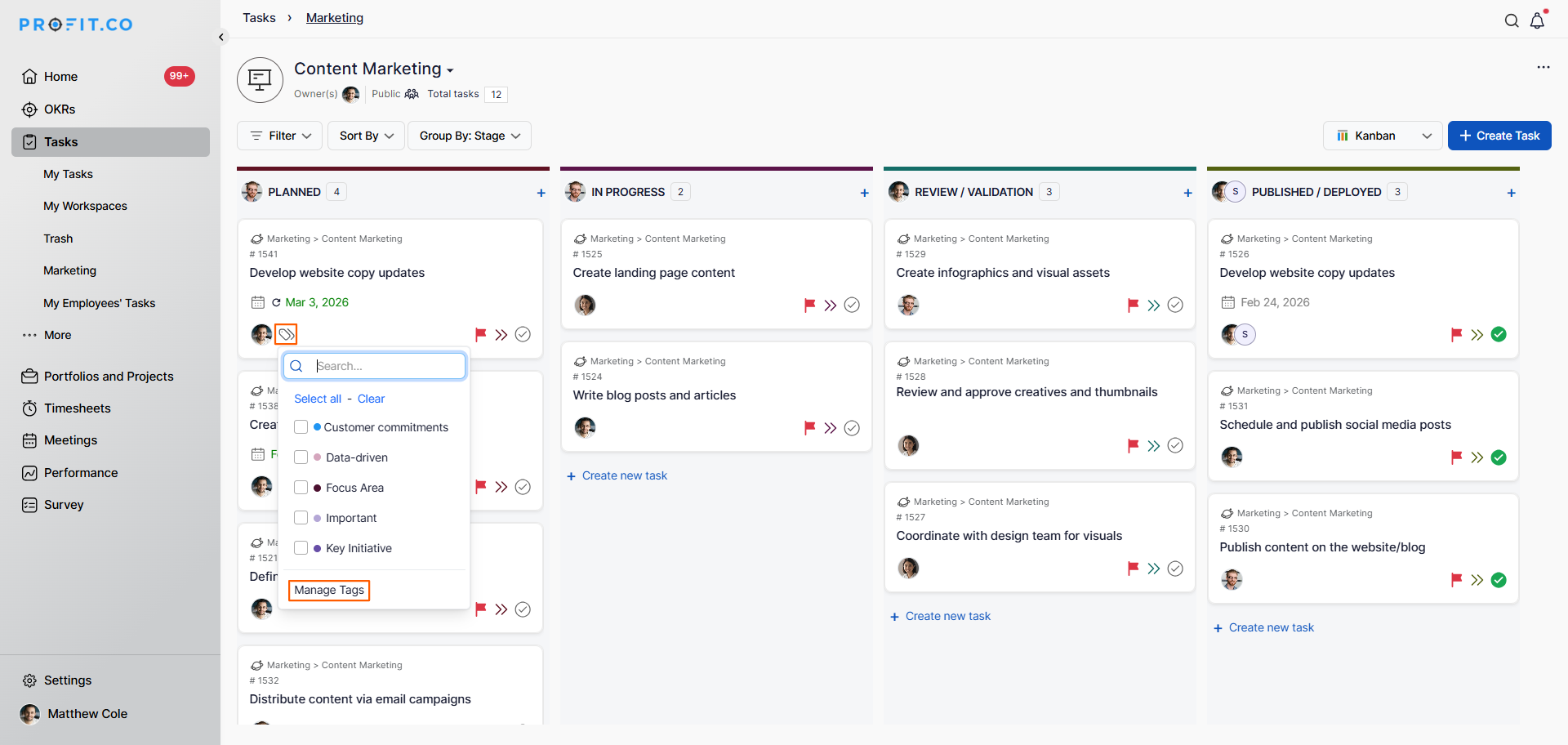
- Once the tag is added, save the task to apply the changes.

- The tag will now appear on the task card within the Workspace or Board.

How to view tasks using Tags in Profit.co?
Once tags are added to tasks, you can use the Filter option to view all tasks associated with a specific tag.
Step 1
- Go to the Workspace or Board where the tagged tasks are located.
- Click the Filter button at the top of the task view.
- From the filter dropdown, select Tags as the filter field.
- Enter or select the specific tag you want to filter by.
- Press Enter to apply the filter.
- The task list will update to display only the tasks associated with the selected tag.

How to delete a Tag from a task in Profit.co?
Removing a tag from a task is quick and does not affect the tag itself or other tasks using the same tag.
Step 1
- Click on the task from which you want to remove the tag.
- Locate the tag displayed on the task.
- Click the X icon adjacent to the tag name to remove it from the task.

Note: Deleting a tag from a task only removes it from that specific task. The tag remains available for use on other tasks.
Best practices for using Tags in Profit.co
- Establish a consistent tag naming convention across the organization so that tags remain meaningful and easy to filter.
- Use tags to represent categories that cut across multiple Boards — for example, tagging tasks by sprint name, client name, or department.
- Avoid creating too many overlapping tags; keep the tag library focused and purposeful to maintain clarity.
- Combine the Tags filter with other filters such as Assignees or Priority for more targeted task views.
- Review and clean up unused tags periodically to keep the tag list organized and relevant.
Related Questions
Click here to learn how to create a new task in Profit.co.
Frequently Asked Questions
Open the task, click the Tag icon, select an existing tag from the dropdown or create a new one using the Add Tag option, and save the task.
Only Superusers can create new Tags. Regular users can apply existing tags to tasks but cannot create new ones.
Navigate to your Workspace or Board, click the Filter button, select Tags from the filter dropdown, choose or enter the desired tag, and press Enter to apply the filter.
