

Profit.co allows new users to create an account easily and start managing their OKRs, tasks, and projects in one unified platform.
Table of Contents
- What Is Signing Up in Profit.co?
- What Information Do I Need to Sign Up in Profit.co?
- Which Modules Can I Choose When I Sign Up in Profit.co?
- How Long Do I Have to Verify My Email Address in Profit.co?
- How to Sign Up in Profit.co?
- Best Practices for Signing Up in Profit.co
- Related Questions
- Frequently Asked Questions
What Is Signing Up in Profit.co?
Signing up in Profit.co means creating your account from the Create your account form, adding your business details, and choosing the modules you want to use. The signup page offers a 30-day free trial, and no credit card is needed.
After you sign up, you must verify your email address within 24 hours.
What Information Do I Need to Sign Up in Profit.co?
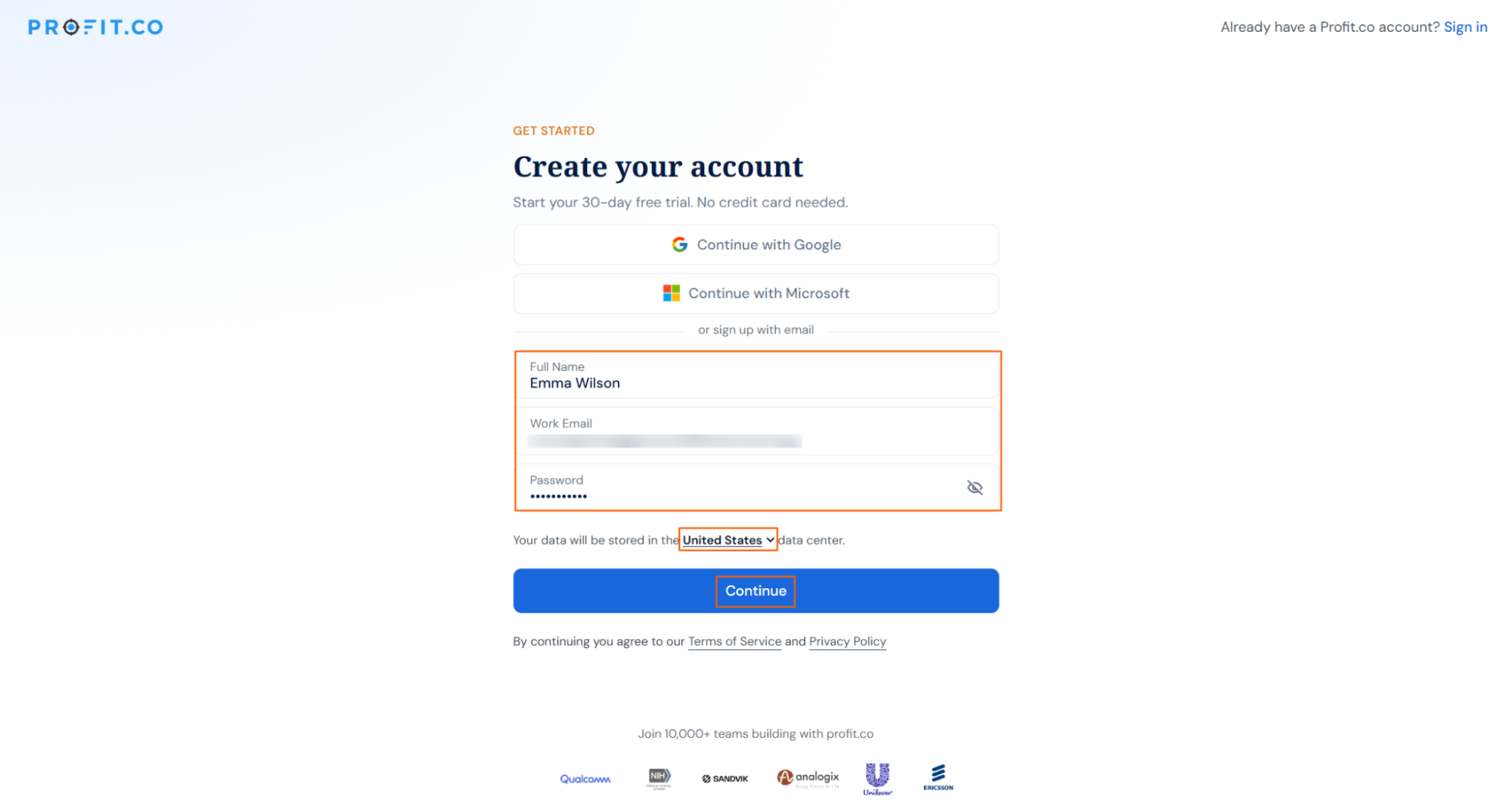
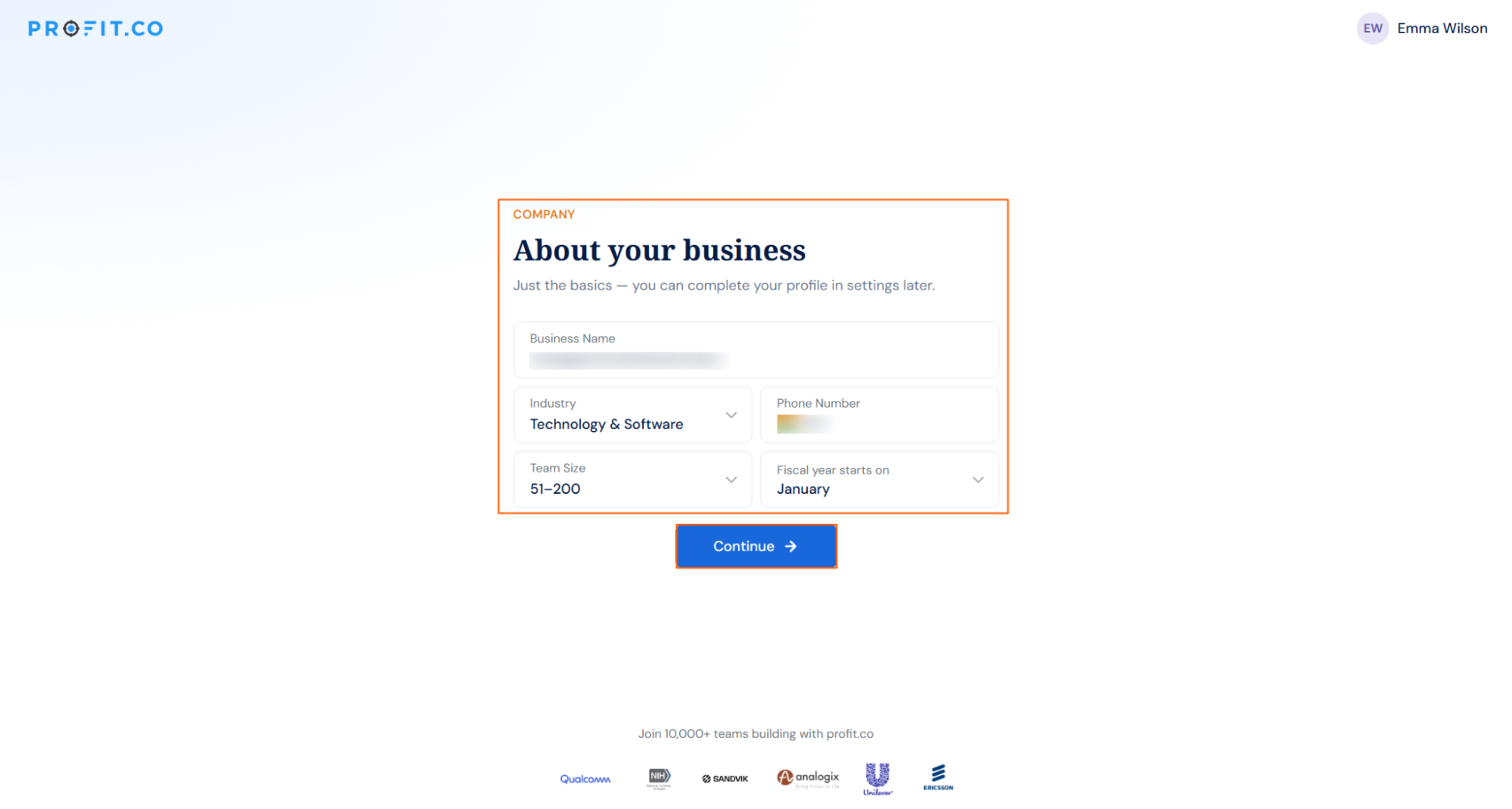
You enter details on two screens: the Create your account form and the About your business screen. The list below covers the fields on each screen.
On the Create your account form:
- Full Name
- Work Email
- Password
- Data center: choose the United States, Europe, Middle East, or Saudi Arabia
On the About your business screen:
- Business Name
- Industry
- Phone Number
- Team Size
- Fiscal year starts on
The About your business screen states that you can complete your profile in settings later.
Which Modules Can I Choose When I Sign Up in Profit.co?
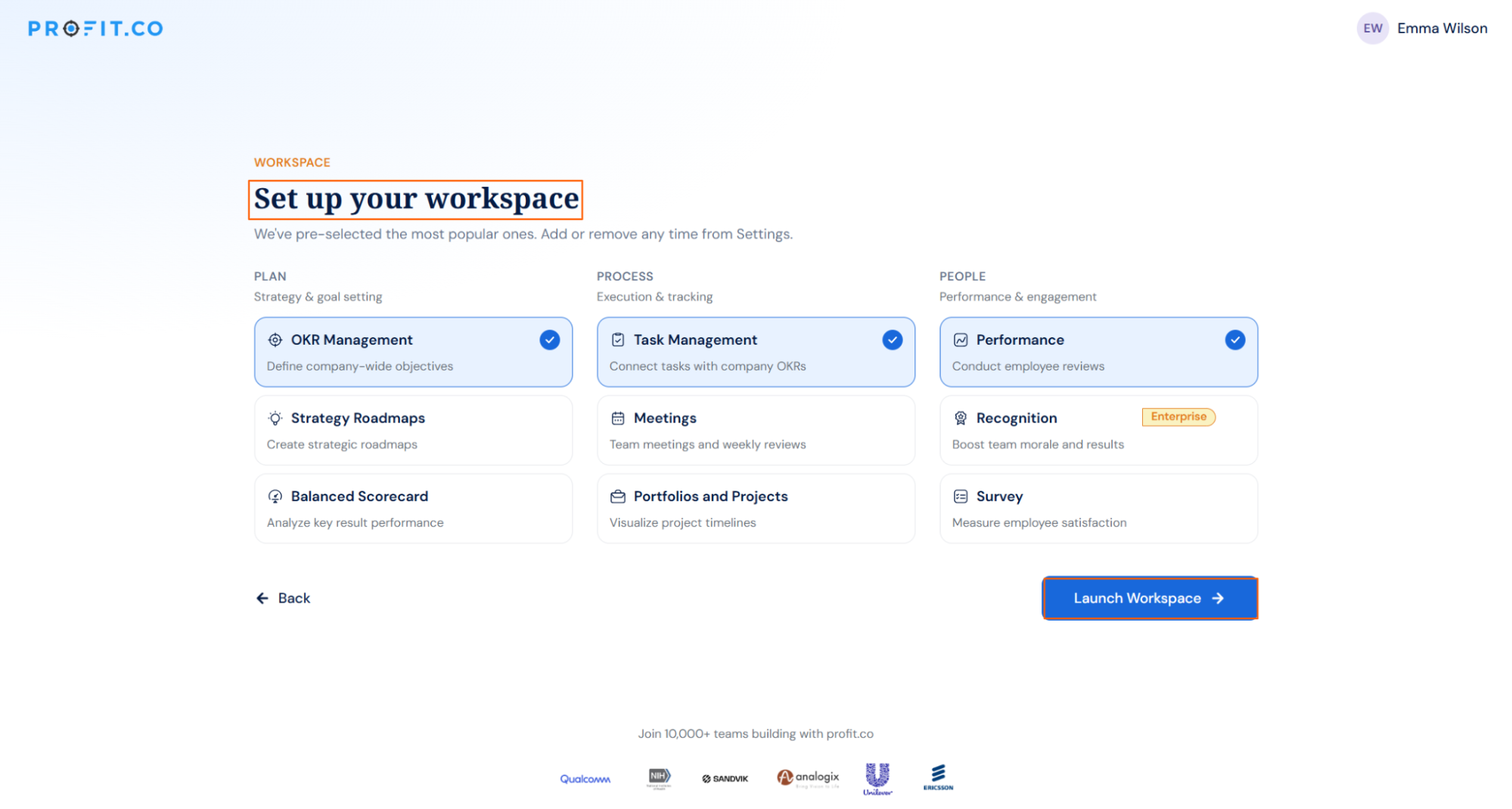
During signup, Profit.co selects OKR Management, Task Management, and Performance by default. You can add or remove modules any time from Settings.
- OKR Management
- Strategy Roadmaps
- Balanced Scorecard
- Task Management
- Meetings
- Portfolios and Projects
- Performance
- Recognition Enterprise
- Survey
How Long Do I Have to Verify My Email Address in Profit.co?
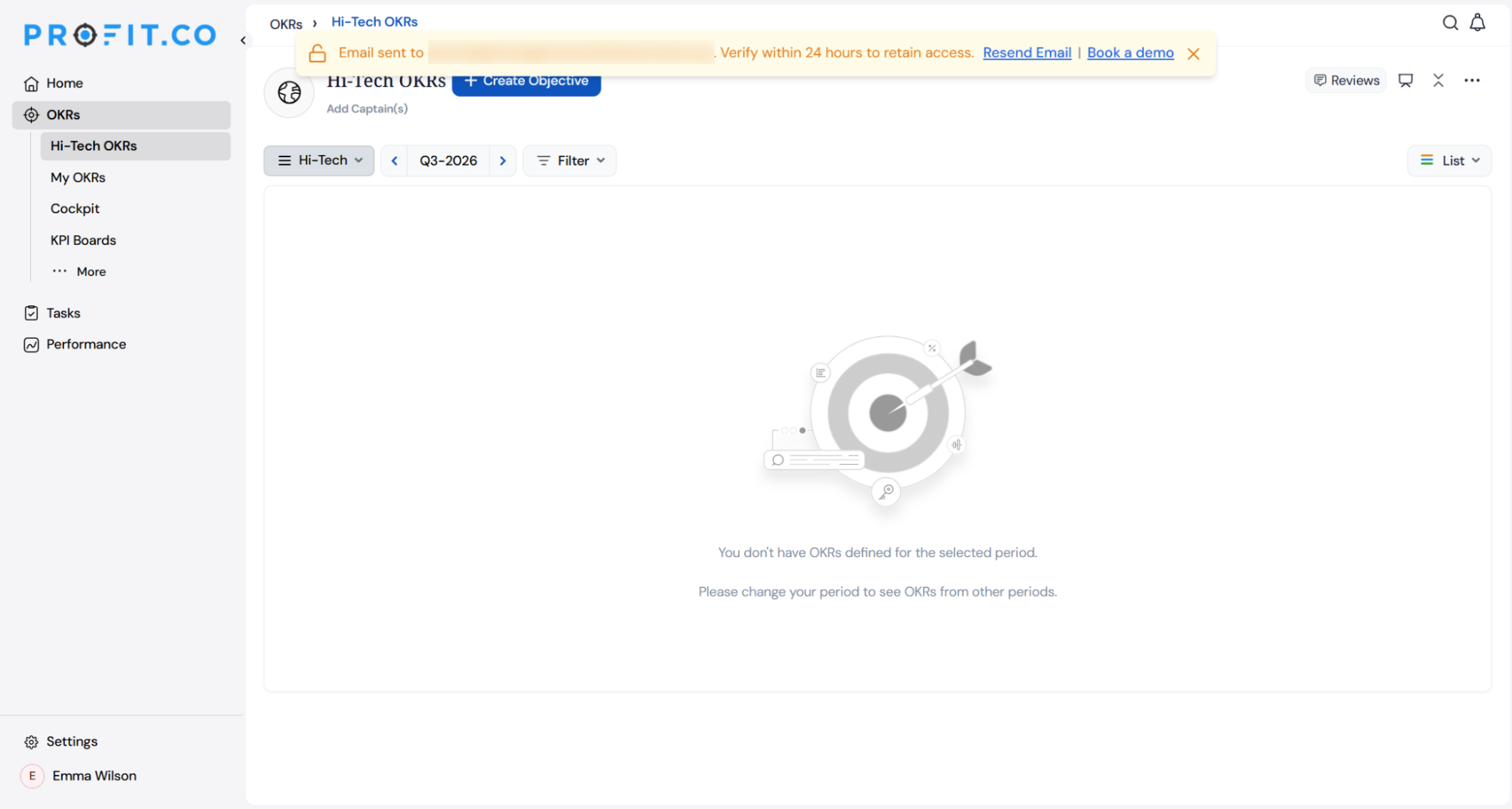
You have 24 hours to verify your email address in Profit.co. The verification link in the email expires within 24 hours, and a banner at the top of the page reminds you to verify within that time.
Note
You must verify your email address within 24 hours. If your email is not verified within that time, your account will be temporarily disabled.
How to Sign Up in Profit.co?
Follow these steps to sign up in Profit.co:
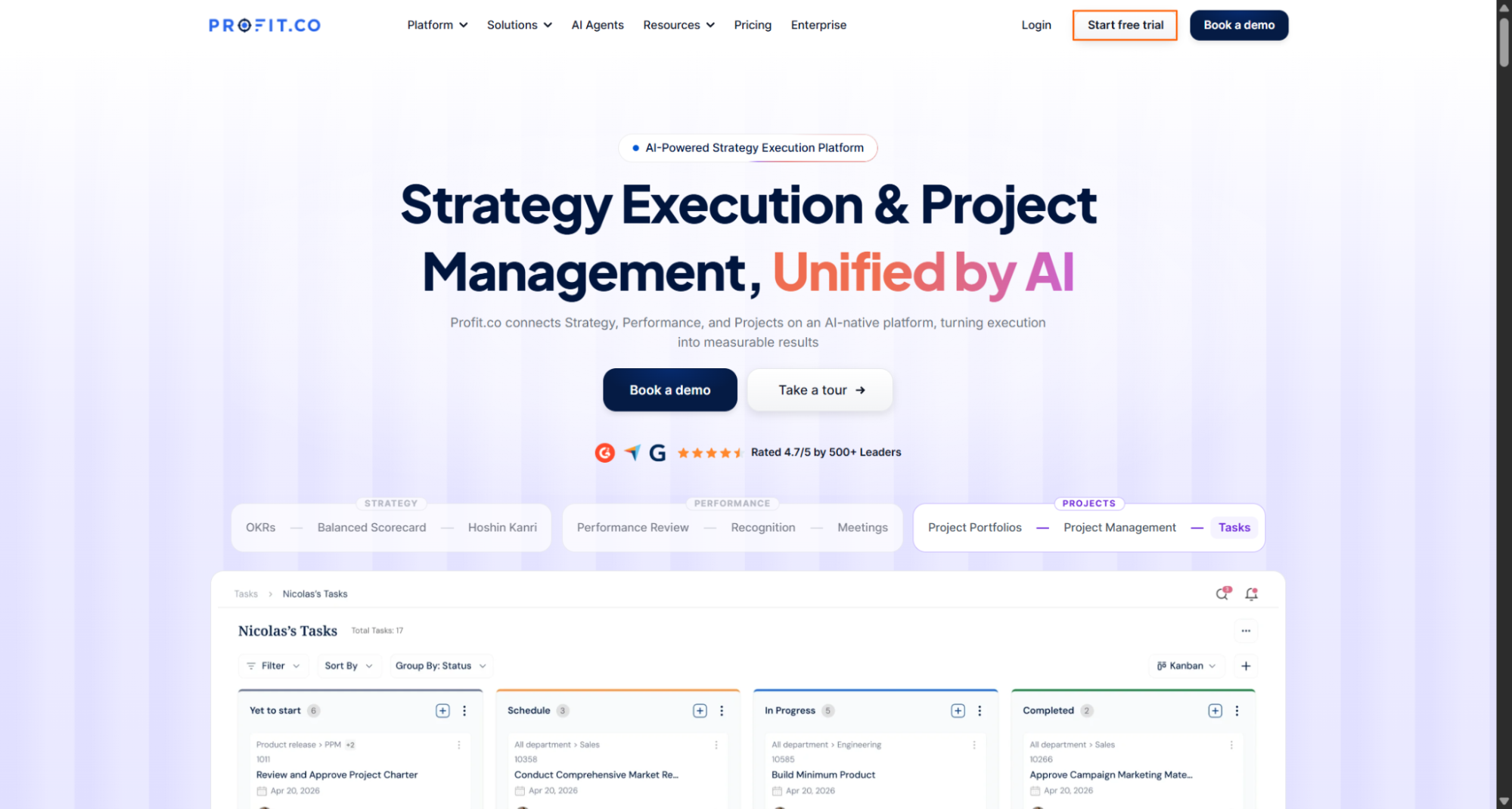
Step 1
- Open your web browser and navigate to www.profit.co.
- On the homepage, click the Start free trial button.
Step 2
- On the Create your account form, enter your Full Name, Work Email, and Password.
- Select your data center from the Your data will be stored in the ... data center option.
- Click the Continue button.
Step 3
- On the About your business screen, enter your Business Name, Industry, and Phone Number.
- Select your Team Size and Fiscal year starts on.
- Click the Continue button.
Step 4
- Choose the modules you want to use in Profit.co. By default, OKR Management, Task Management, and Performance are selected.
- Click the Launch Workspace button.
Step 5
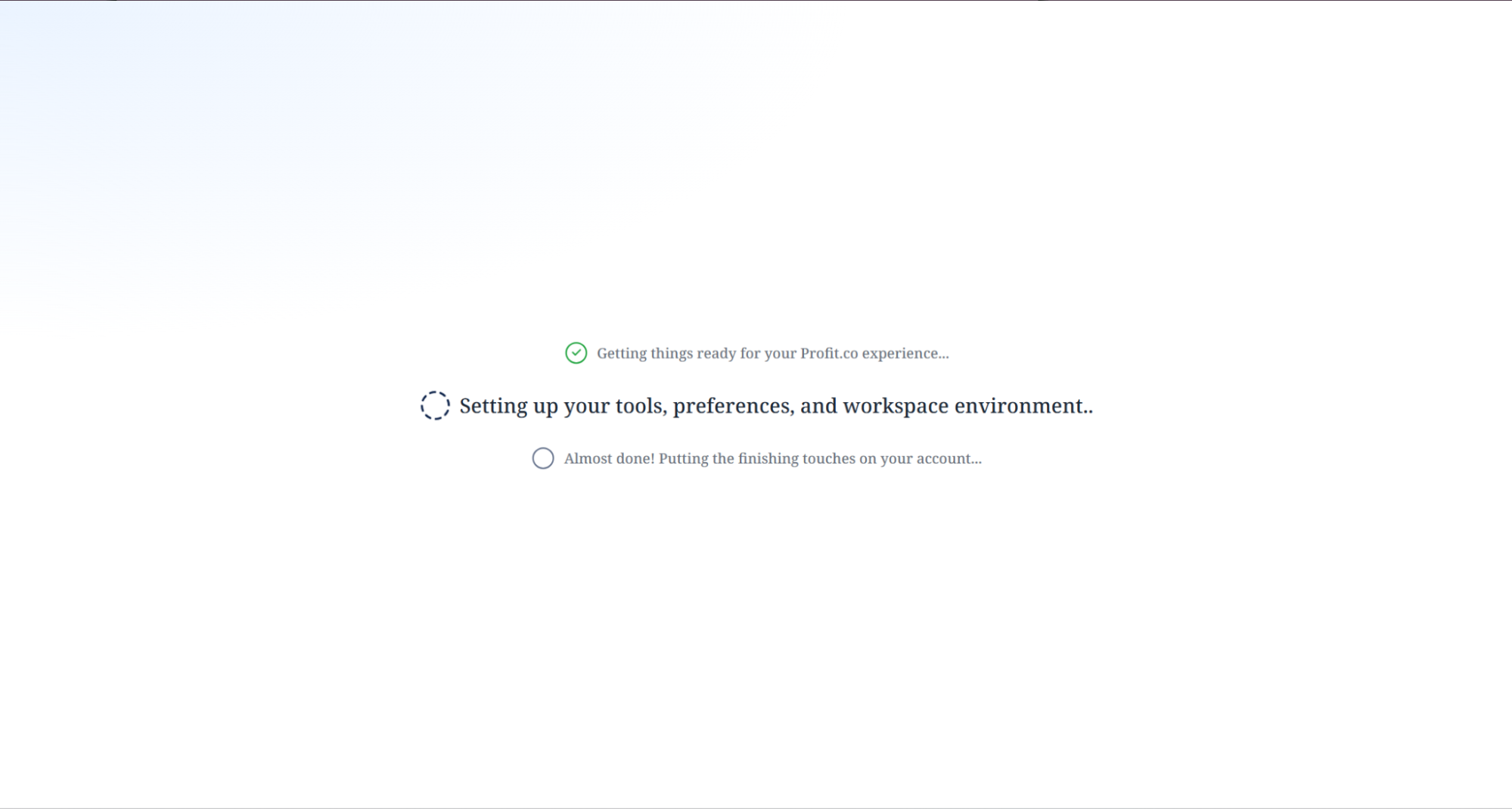
- A setup screen appears while Profit.co gets your tools, preferences, and workspace environment ready.
- When the setup is complete, you see the Profit.co page.
How Do I Verify My Email Address After Signing Up?
Step 1
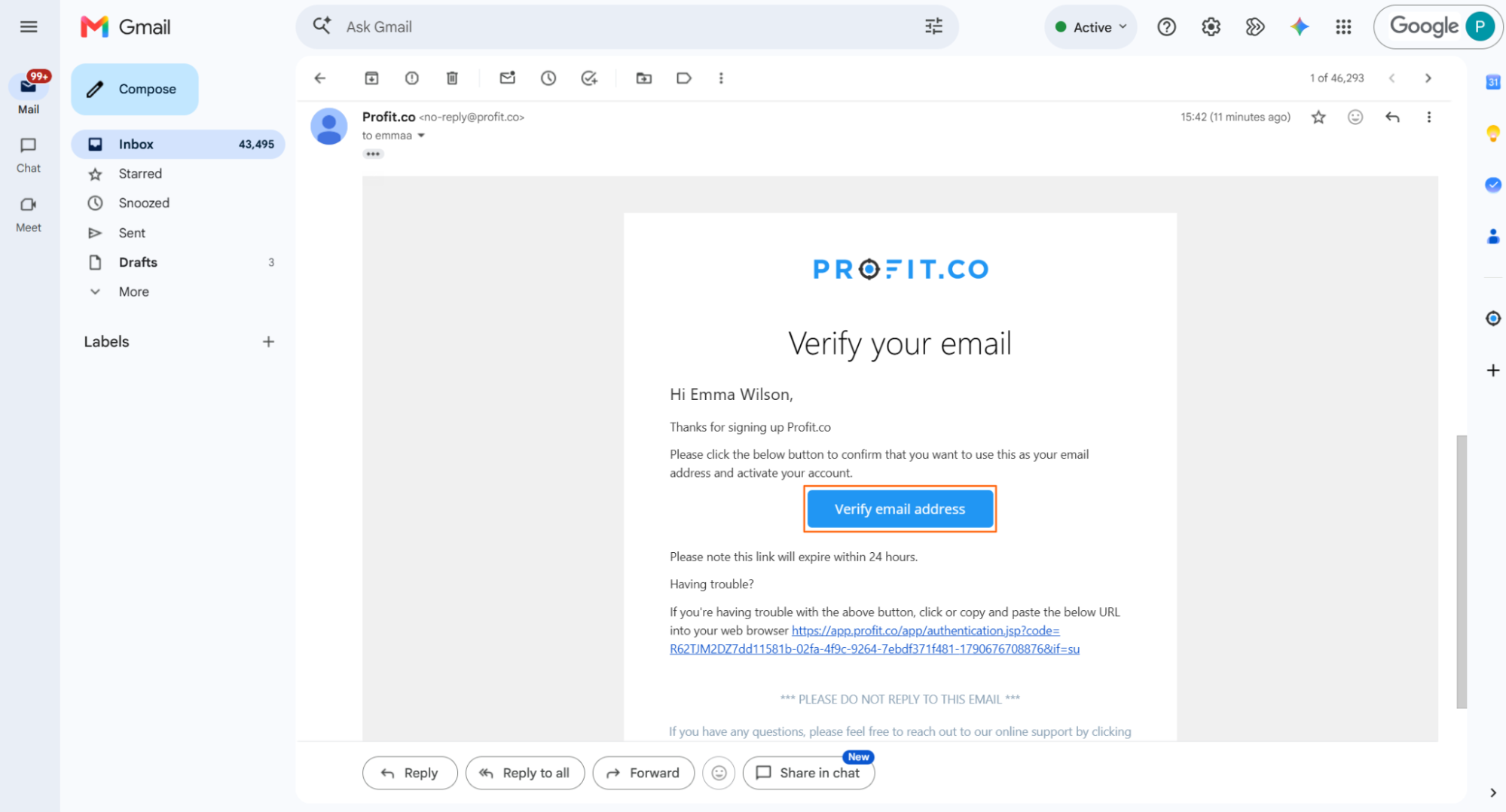
- After you submit the signup form, a confirmation message states that a verification email has been sent to your email address.
- Go to your email inbox and open the message from Profit.co.
- Click the Verify email address button.
Note
If you don't see the verification email, check your Spam or Promotions folder.
Step 2
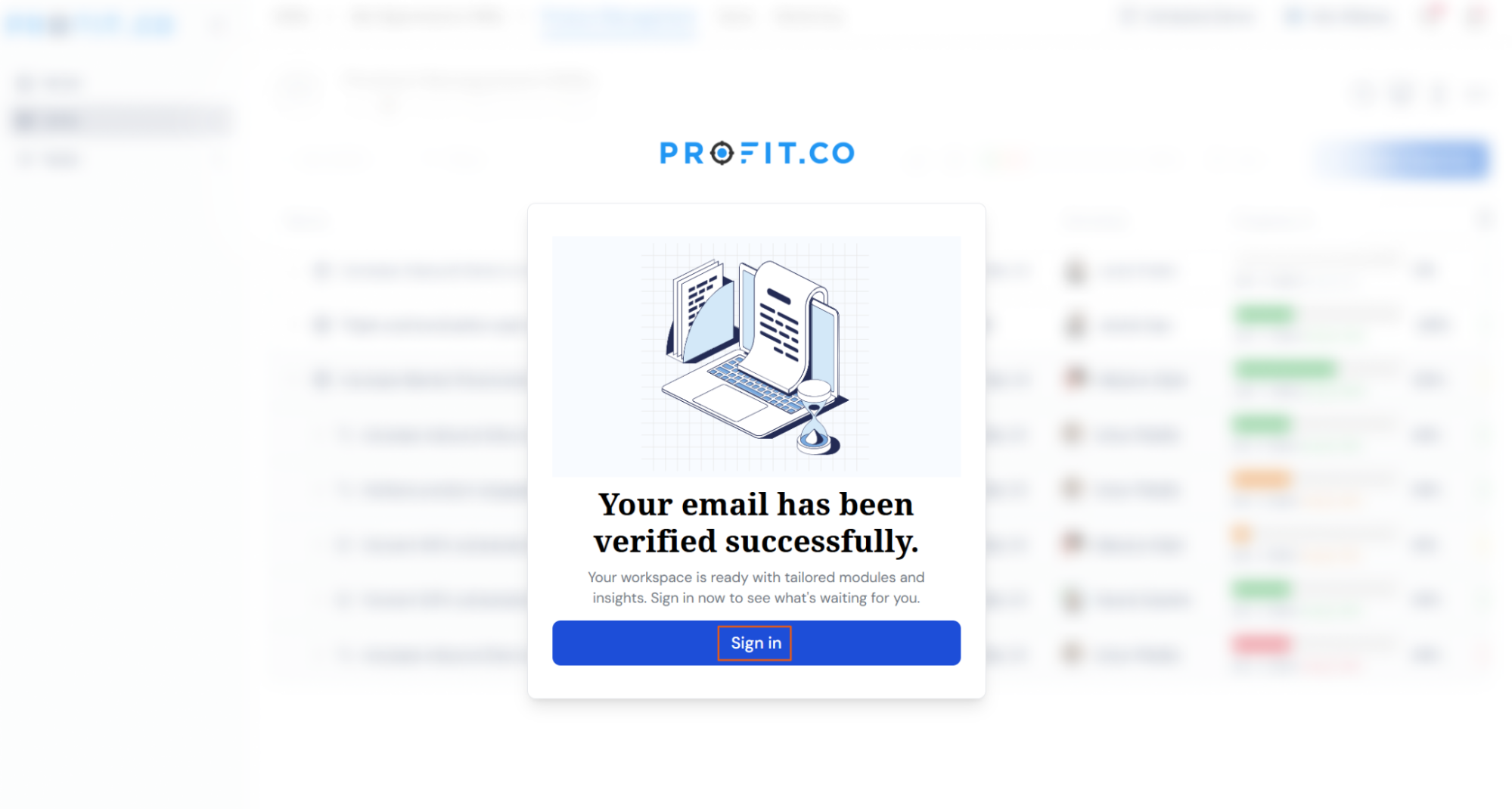
- You are redirected to the Profit.co authentication page, which states that your email has been verified successfully.
- Click the Sign in button.
- After successful verification, your account is activated automatically.
Step 3
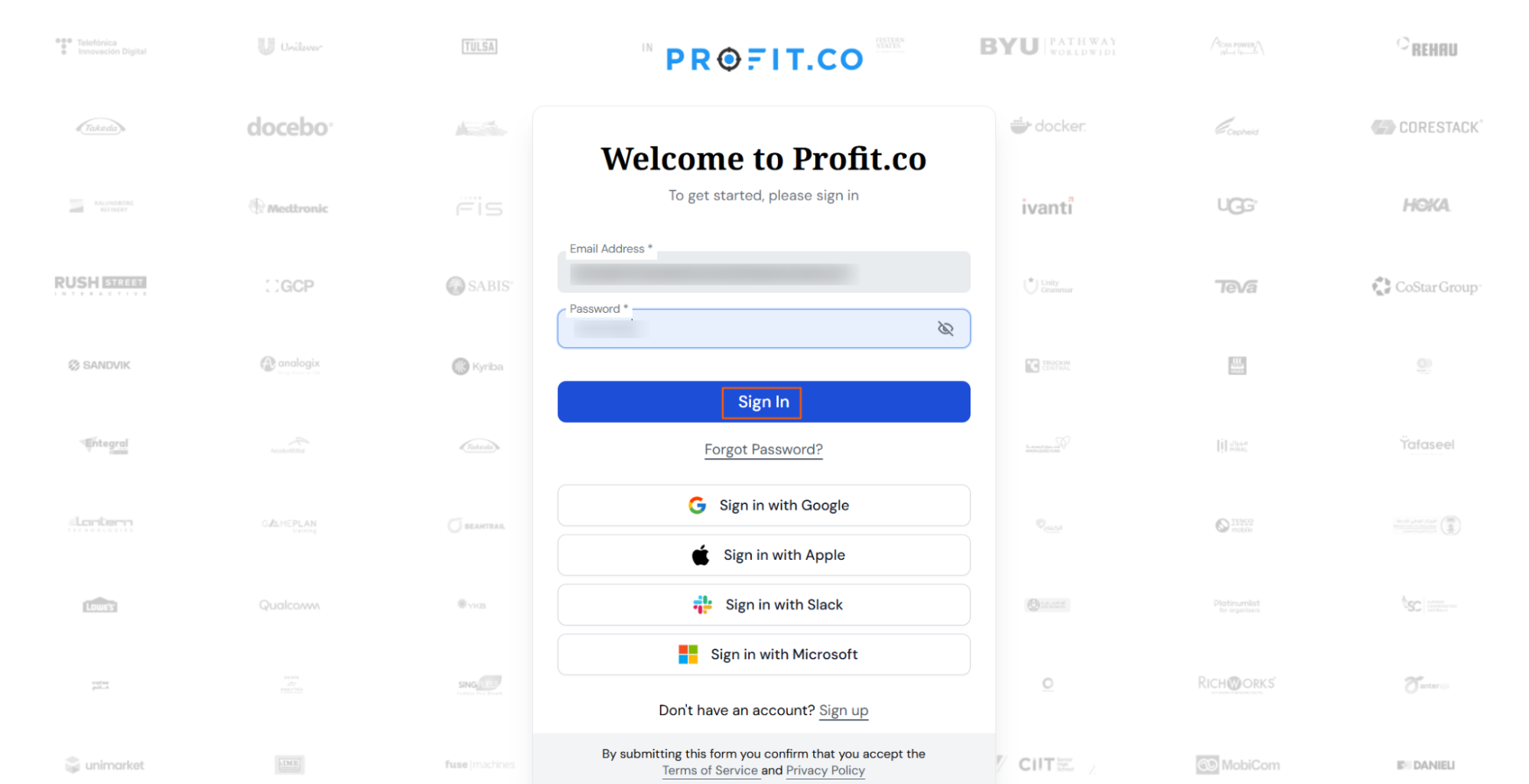
- On the login page, enter your Email Address and Password.
- Click the Sign In button.
- You are signed in and can start using the modules you selected during setup.
Best Practices for Signing Up in Profit.co
- Use your official business email if you plan to collaborate with your team.
- Keep your login credentials secure and avoid sharing them.
- Bookmark app.profit.co for quick access to your workspace.
- Verify your email immediately to activate all modules and features.
Related Questions
Frequently Asked Questions
Yes. The Create your account page offers a 30-day free trial, and no credit card is needed.
You must verify your email address within 24 hours. If your email is not verified within that time, your account is temporarily disabled.
OKR Management, Task Management, and Performance are selected by default. You can add or remove modules any time from Settings.
Execute your strategy with confidence
Connect OKRs, tasks, and teams in one place with Profit.co
