

Profit.co lets Key Result owners set which calendar weeks their Bi-Weekly check-ins fall on, instead of relying on a fixed system default. This gives OKR teams control over how bi-weekly cadences align with their own planning calendar.
Table of Contents
- What is the Bi-Weekly Starting Week Setting?
- Why the Bi-Weekly Starting Week Setting Matters
- How It Works
- Bi-Weekly Starting Week Scenarios and Their Outcomes
- Admin Configuration and Permission Requirements
- Best Practices for the Bi-Weekly Starting Week Setting
- Related Articles
- Frequently Asked Questions
What is the Bi-Weekly Starting Week Setting?
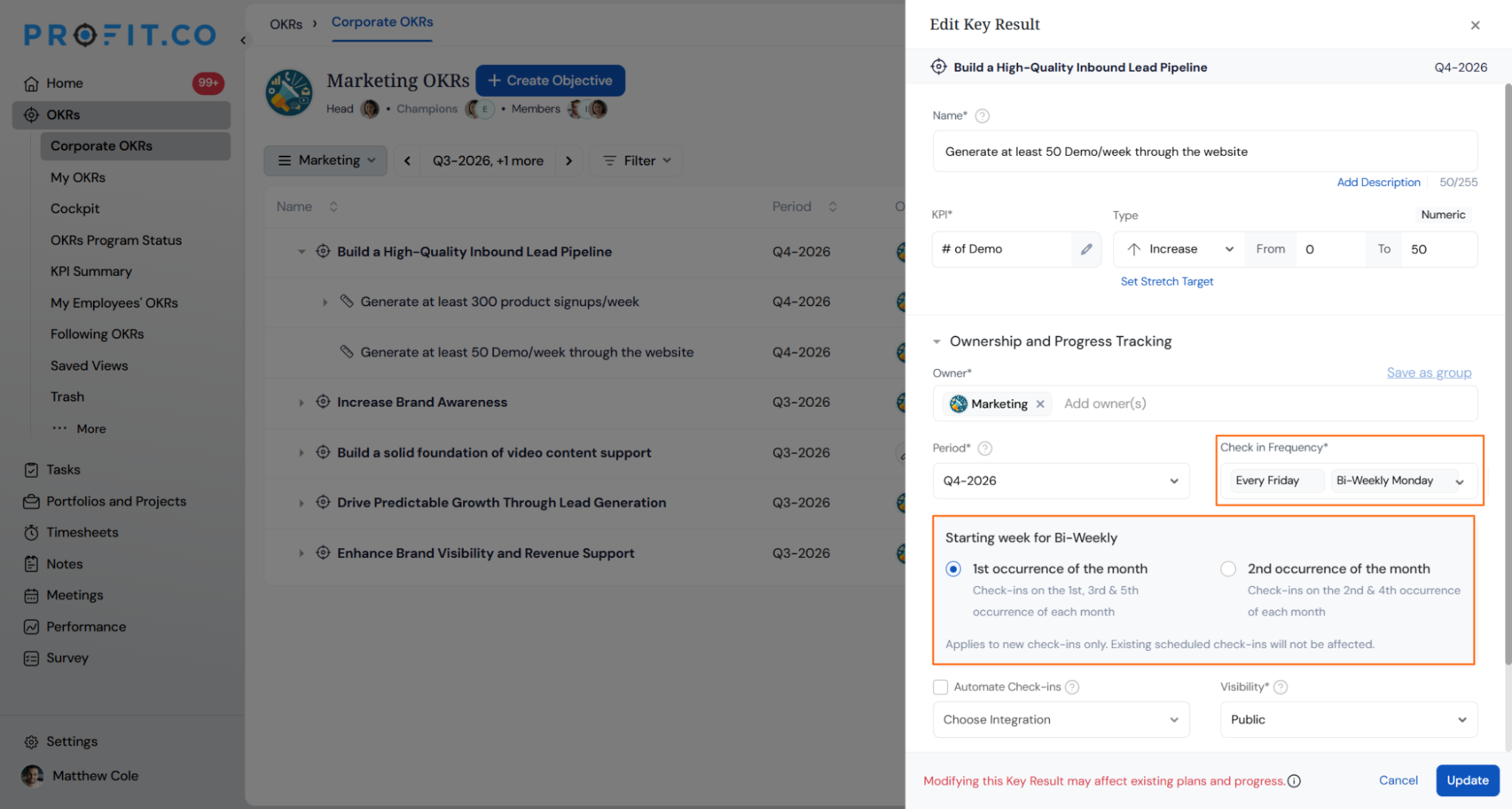
The Starting week for Bi-Weekly setting is a configuration option inside the Check-in Frequency section of the Add Key Result and Edit Key Result panels in the OKRs module. It determines whether check-ins land on the 1st and 3rd occurrence, or the 2nd and 4th occurrence, of the selected weekday in each calendar month.
The selector only appears after you choose a Bi-Weekly frequency, such as Bi-Weekly Monday or Bi-Weekly Friday, and only if the relevant Bi-Weekly option has been enabled globally in Settings. Weekly, Monthly, and Custom frequencies do not display this control.
| Option | Check-in Occurrence |
|---|---|
| 1st Occurrence of the month | 1st and 3rd occurrence of the selected weekday |
| 2nd Occurrence of the month | 2nd and 4th occurrence of the selected weekday |
Why the Bi-Weekly Starting Week Setting Matters
Bi-weekly Key Results previously anchored every check-in to the 2nd occurrence of the selected weekday, with no way to shift that anchor. Teams running sprints or governance cycles on weeks 1 and 3 had no option to match their own calendar, forcing check-ins onto a rhythm the team didn't actually follow.
Monthly frequencies in Profit.co already support selecting specific occurrences, such as the 1st Monday or the Last Friday. This update brings Bi-Weekly frequencies to the same level of control, and the prospective-only rule means existing Key Results keep their current check-in schedule untouched.
How It Works
Step 1
- Navigate to OKRs → Create Key Result, or open Edit Key Result on an existing Key Result.
- Expand the Ownership and Progress Tracking section.
- Open the Check-in Frequency dropdown.
- Choose any Bi-Weekly option, such as Bi-Weekly Monday or Bi-Weekly Friday.
- Locate the Starting week for Bi-Weekly selector, which appears immediately below the Check-in Frequency dropdown.
- Select 1st Occurrence of the month or 2nd Occurrence of the month.
- Click Update for a new Key Result.
Bi-Weekly Starting Week Scenarios and Their Outcomes
| Scenario | What Happens |
|---|---|
| You save a new Key Result without selecting a starting week option. | Profit.co retains the existing default of the 2nd occurrence of the selected weekday for backward compatibility. |
| You change the starting week on an existing Key Result. | Profit.co keeps all previously scheduled check-ins unchanged and applies the new starting week only to future check-ins. |
| You switch the Bi-Weekly weekday after already setting a starting week. | Profit.co updates the Starting week label automatically to match the new day and recalculates the occurrence dates. |
| You use a Bi-Weekly frequency in a month where the selected weekday occurs five times. | Profit.co skips the 5th occurrence and caps check-ins at two for that month. |
| You try to set a starting week before the relevant Bi-Weekly option is enabled in Settings. | Profit.co hides the Starting week for Bi-Weekly selector from the Check-in Frequency dropdown. |
Admin Configuration and Permission Requirements
Bi-Weekly frequency options stay hidden from the Check-in Frequency dropdown until an administrator enables them. Navigate to Settings → General → Frequencies and turn on the required Bi-Weekly day options, such as Bi-Weekly Monday or Bi-Weekly Wednesday, before Key Result owners can select them.
The Frequencies page groups individual weekday check-in options alongside separate Bi-Weekly toggles for each day, so an administrator can enable a specific weekday without turning on every option in that group.
Prerequisite
Only administrators with access to Settings → General → Frequencies can enable Bi-Weekly options. Key Result owners without this access will not see the Starting week selector until an administrator turns it on.
Best Practices for the Bi-Weekly Starting Week Setting
- Confirm which Bi-Weekly day options are enabled in Settings → General → Frequencies before asking Key Result owners to configure a starting week, since the selector will not appear otherwise.
- Set the starting week when you first create a Bi-Weekly Key Result rather than after check-ins have started, since a later change only affects check-ins going forward and won't realign ones already on the calendar.
- Coordinate starting week choices across a team's Key Results so related check-ins land on the same calendar weeks, keeping bi-weekly cadences aligned across shared OKRs.
- Account for months where the selected weekday occurs five times, since Profit.co always skips the 5th occurrence rather than adding an extra check-in that month.
- Re-check the Starting week label after switching the Bi-Weekly weekday, since the label and occurrence dates update automatically and may no longer match your original intent.
Related Articles
- How do I check-in for Key Results?
- How to set up custom check-in frequency?
- How to change the check-in frequency in a created KR?
Frequently Asked Questions
No. The selector only appears when a Bi-Weekly frequency is selected in the Check-in Frequency dropdown. Weekly, Monthly, and Custom frequencies keep their existing configuration options.
Yes. Both fields sit in the same Check-in Frequency section of the Edit Key Result panel, and the Starting week label updates automatically once you pick a new weekday.
Administrators enable this in Settings → General → Frequencies. Key Result owners cannot turn these options on from the Key Result panel itself.
Yes. Once an administrator enables the relevant Bi-Weekly option, existing Key Results using that frequency can have their starting week edited the same way as new ones.
Execute your strategy with confidence
Connect OKRs, tasks, and teams in one place with Profit.co
