

The Weekly OKR Audit Summary Report emails subscribed users a consolidated summary of check-ins, status changes, and other OKR activity log events across selected departments. Super users configure the notification and recipients at the organization level, while individual users manage their own subscription and department scope from their Preferences.
Table of Contents
What is the Weekly OKR Audit Summary Report?
The Weekly OKR Audit Summary Report is an email-based summary of OKR activity log events, including check-ins, status changes, and other audit entries logged under the OKR Update action type. Profit.co compiles the covered activity into a downloadable file attached to the email instead of requiring a manual review of the activity log.
The report runs on two configuration layers that control different parts of the same delivery:
| Configuration Layer | Location | Configured By |
|---|---|---|
| Notification, frequency, and recipients | Settings → General → Notifications → Action Center → OKRs → Weekly Summary | Super User |
| Subscription and department scope | Preferences → General → Action Center → OKR Weekly Audit Summary | Individual User |
Why the Weekly OKR Audit Summary Report Matters
Managers and super users get a single weekly email covering check-ins, changes, and audit events across chosen departments, replacing manual record-by-record review. Because each subscriber sets their own department scope, the summary stays limited to the teams they actually oversee.
Super users retain organization-level control over who receives the report and how often it sends, while individual users manage their own subscription and scope from Preferences. This keeps global governance and personal relevance in the same feature.
How It Works
Configure the Report as a Super User
Prerequisite
Only users with the Super User role can access Settings to configure the Weekly Summary notification, its frequency, and its recipients.
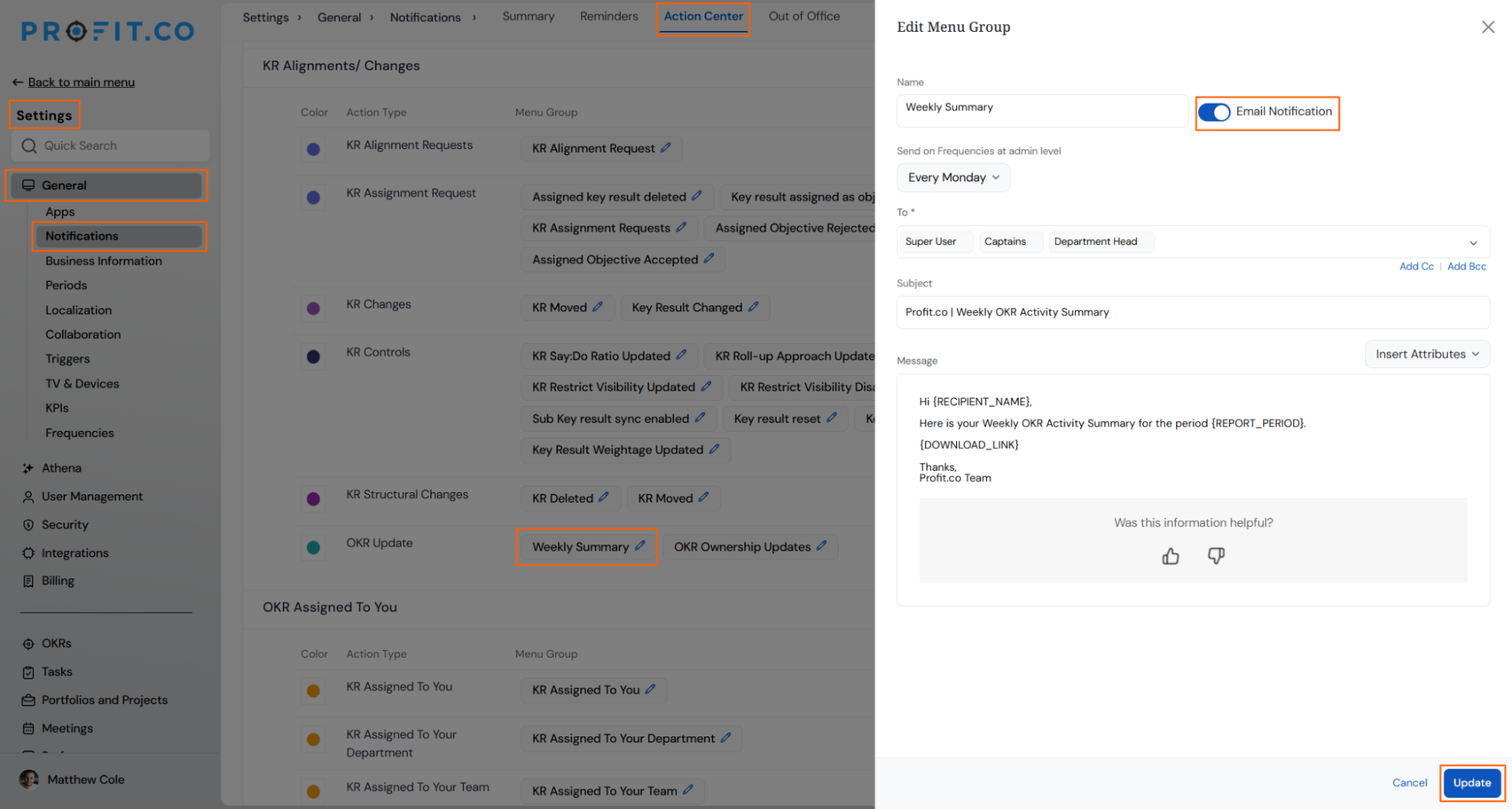
- Navigate to Settings → General → Notifications → Action Center → OKRs
- Locate the OKR Update action type
- Open the Weekly Summary menu group
- Enable Email Notification and set the send frequency, for example, Every Monday
- Configure the To and Add Cc recipients
Subscribe as an Individual User
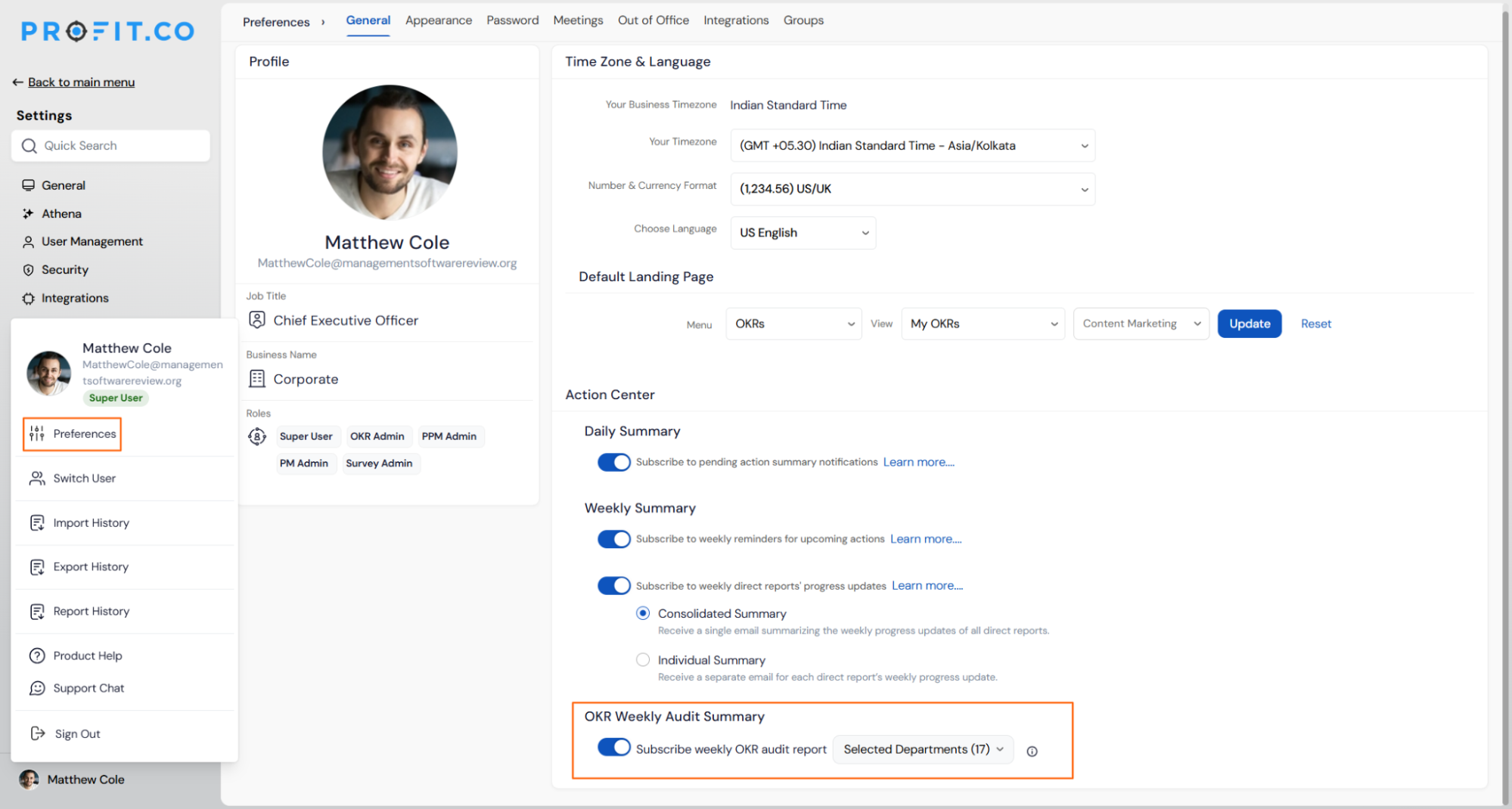
- Navigate to Preferences → General → Action Center
- Scroll to OKR Weekly Audit Summary
- Enable the Subscribe weekly OKR audit report toggle
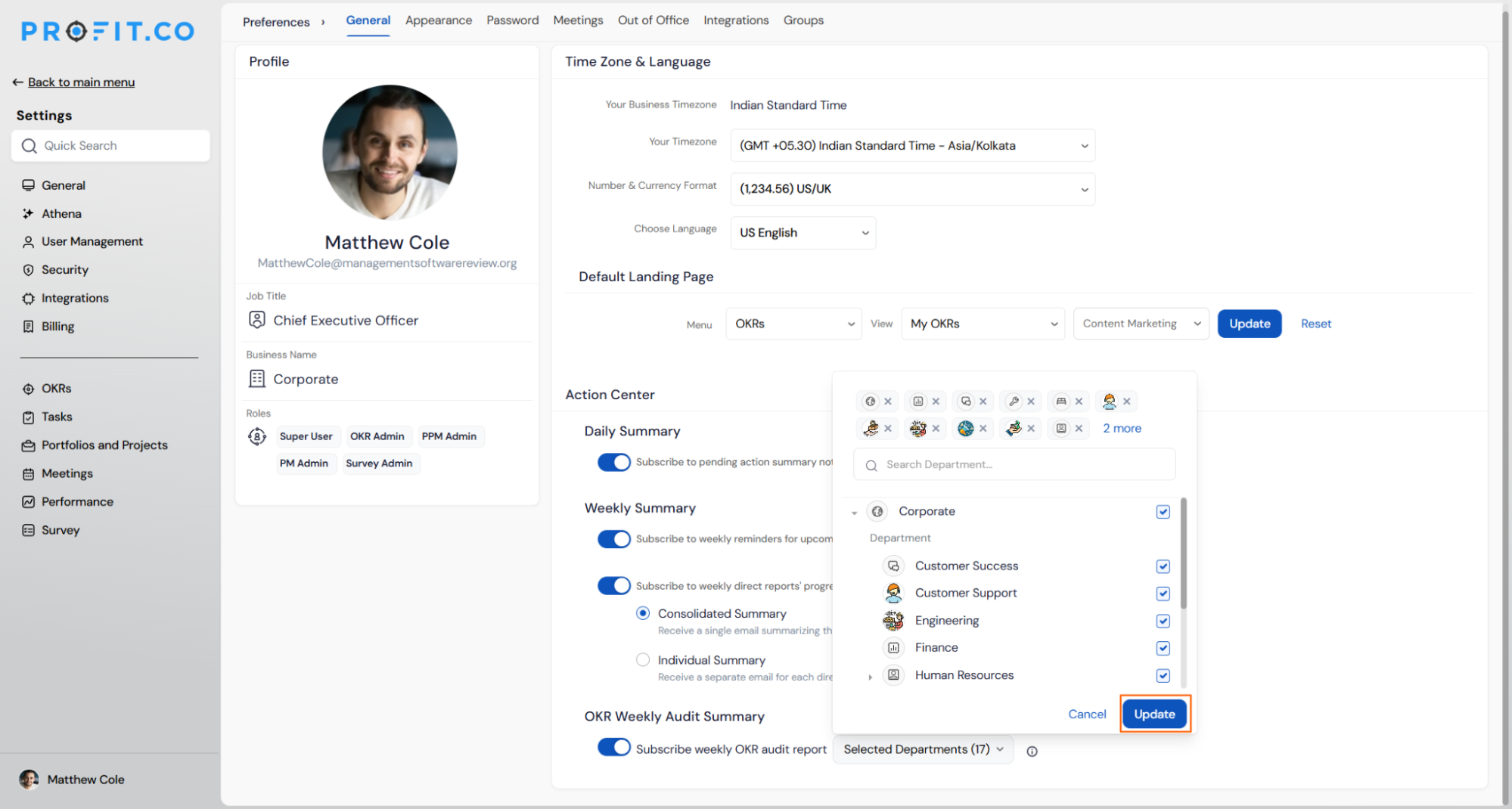
- Click the Selected Departments dropdown
- Select any combination of departments from the hierarchy. Corporate sits at the top level, with individual departments listed beneath it
- Click Update to save your department selection
Weekly OKR Audit Summary Report Scenarios and Their Outcomes
| Scenario | Options You Have | What Happens |
|---|---|---|
| You subscribe and select departments, such as Customer Success and Engineering. | Toggle your subscription on. Pick any combination of departments. | You receive a weekly email scoped only to the departments you selected. |
| You enable the Subscribe toggle but leave the page without clicking Update. | None saved. | Your department selection is discarded. Your subscription keeps its old scope. |
| A user without the Super User role tries to open the OKR notification settings. | You don't have access to Settings. | Profit.co restricts Settings entirely to Super Users. You manage only your own subscription and scope in Preferences. |
| The Super User hasn't enabled Email Notification on the Weekly Summary menu group. | None. The subscription option isn't available. | The OKR Weekly Audit Summary option doesn't appear in Preferences, so no one can subscribe until the Super User enables it. |
Caution
Disabling Email Notification on the Weekly Summary menu group removes the subscription option from Preferences for everyone, not just the Super User's own view.
Report Email Content
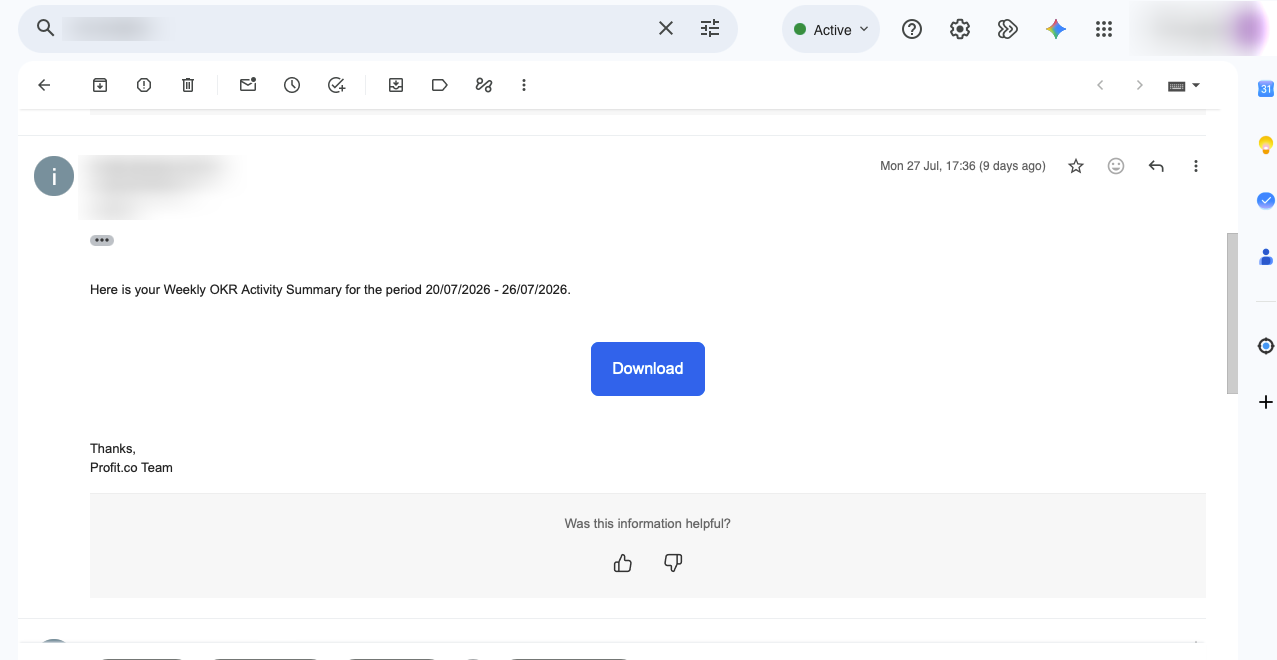
Every recipient receives the same subject line, "Profit.co | Weekly OKR Activity Summary," personalized through merge fields in the message body rather than through separate templates per recipient.
Best Practices for the Weekly OKR Audit Summary Report
- Reserve To and Cc recipients on the Weekly Summary menu group for stakeholders who need org-wide oversight; let team leads manage their own scope through Preferences instead of adding them to the global list.
- Review the Selected Departments list whenever teams are added, merged, or restructured, since department membership determines what each subscriber's report actually contains.
- Match the send frequency to your team's check-in cadence. Every Monday works well for weekly check-in cycles, but confirm this against your OKR review schedule before applying it broadly.
- Confirm Email Notification is enabled on the Weekly Summary menu group before promoting the individual subscription option to your teams, so subscribers don't set a scope that never delivers.
- Keep Cc on the org-level notification limited to stakeholders who need cross-department visibility, rather than the full leadership team, so the report stays meaningful.
Related Articles
- How do I enable and disable action center and email notifications?
- How does Profit.co's Check-in Reminder notification work?
- How do I get Email Notifications for the Key Results and Sub-key Results assignments?
Frequently Asked Questions
Everyone listed in the To and Add Cc fields on the Weekly Summary menu group receives the report on the configured schedule, in addition to any individual users who have subscribed through Preferences.
Send frequency, such as Every Monday, is set by a Super User on the Weekly Summary menu group in Action Center. Individual subscribers control their department scope, not the schedule.
The download link points to the full OKR activity summary for the stated report period, covering check-ins, status changes, and other logged OKR events for the departments in scope.
No. OKR Weekly Audit Summary is a separate toggle in Preferences → General → Action Center, dedicated to OKR activity log events, distinct from the Daily Summary and Weekly Summary sections shown on the same page.
Execute your strategy with confidence
Connect OKRs, tasks, and teams in one place with Profit.co
