

The Observers field lets you give employees or departments read-only visibility into a specific Objective or Key Result outside their normal reporting line. It grants visibility only, without making anyone an Owner or Contributor on the record.
Table of Contents
What Is the Observers Field?
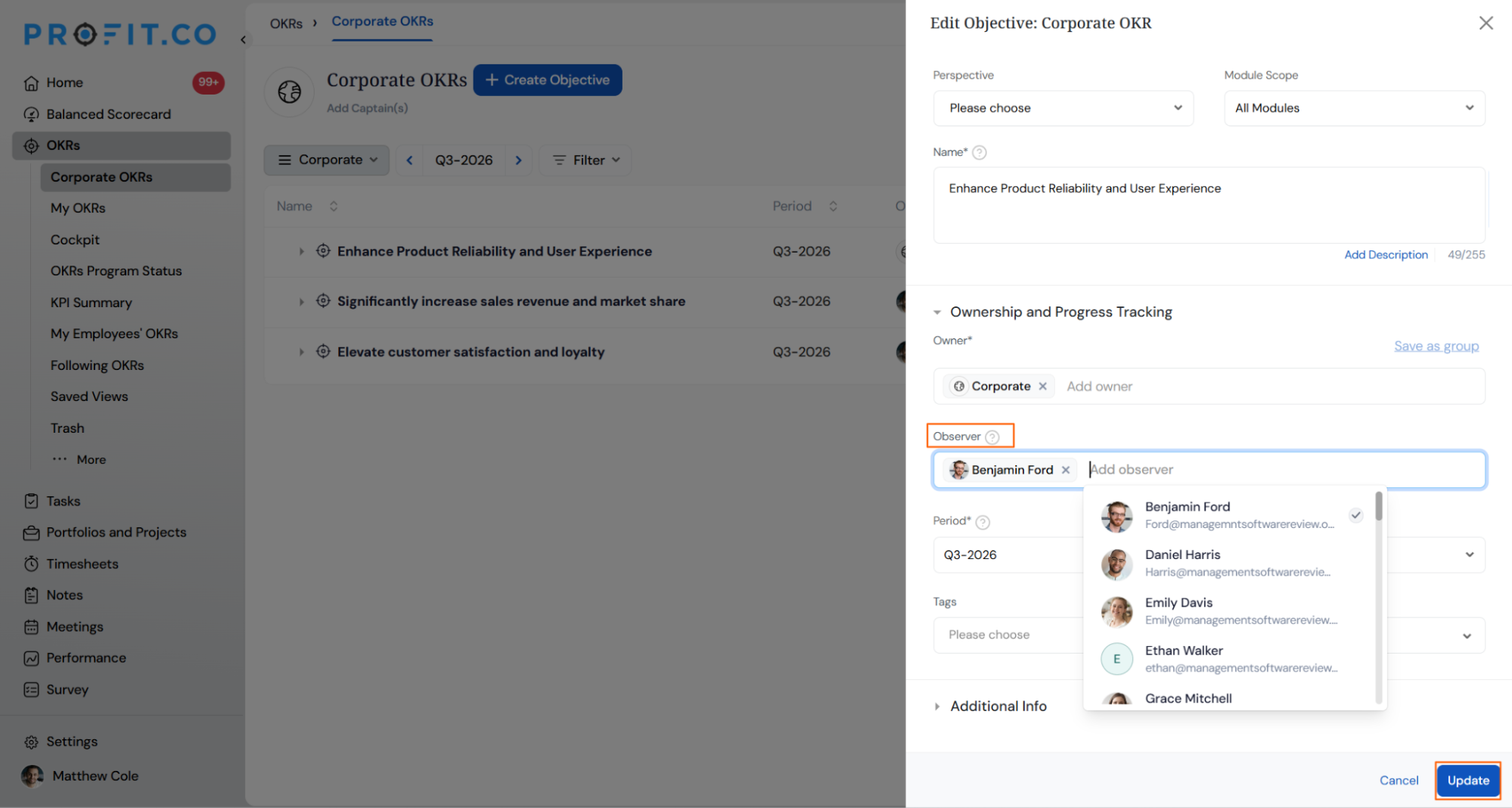
The Observers field is a configurable OKR permission that gives selected employees view-only access to an Objective or Key Result, separate from the record's Owner. It lives inside the Ownership and Progress Tracking section of the OKR creation and edit form.
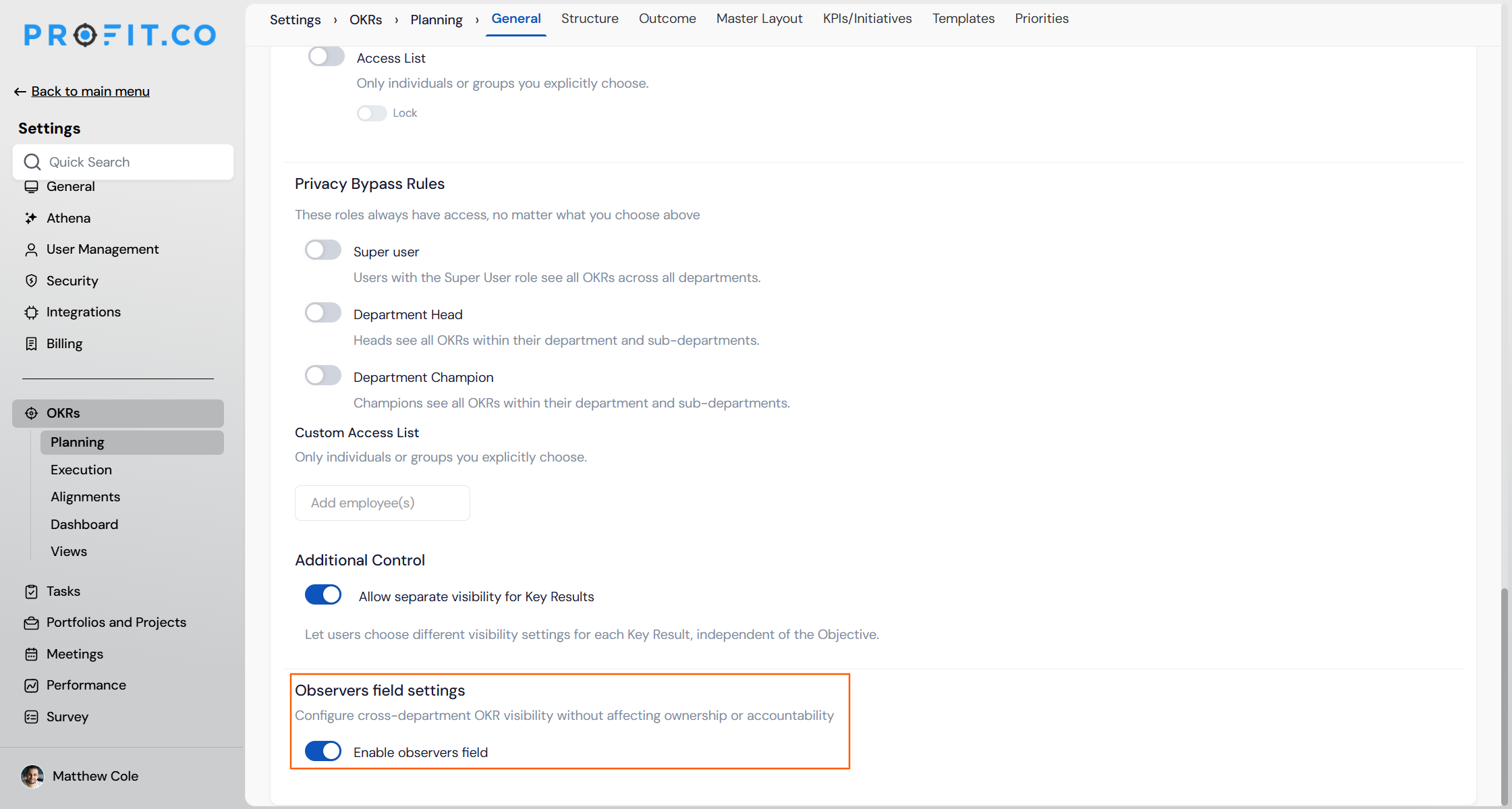
The field only appears once an admin turns on Enable observers field under Settings → Strategy Execution → Authoring → General. Observers can be assigned individually or at the department level, and adding one does not change who owns the OKR or who is accountable for its progress.
| Access Level | Can View the OKR | Can Edit or Check In |
|---|---|---|
| Owner | Yes | Yes |
| Observer | Yes | No |
Why the Observers Field Matters
Cross-department stakeholders, such as a department head reviewing a peer team's Objective, previously had no built-in way to see OKRs outside their own hierarchy without being added as an Owner or Contributor. Owners had to either share screenshots or hand over editing rights they didn't want to give away.
The Observers field closes that gap. It gives leadership, cross-functional partners, or auditors direct visibility into specific OKRs from their own OKRs list, while ownership and accountability stay exactly where they were.
Profit.co's OKR software gives cross-functional stakeholders direct visibility into specific OKRs, without changing ownership or accountability.
To learn more about how Profit.co manages OKR visibility across the organization, click here.
How the Observers Field Works
Enable the Observers Field
Step 1
- Navigate to Settings → OKRs → Planning → General from the left navigation panel.
- Scroll down to the Observers field settings section and enable the toggle for the Observers field.
Add an Observer to an OKR
Step 1
- Open the Objective or Key Result you want to update
- Locate the Ownership and Progress Tracking section on the edit panel
- Click Add observer under the Observer field
- Select one or more employees from the list
- Click Update to save the change
Note
Observer(s) is also available as a filter field in Customize Cockpit reports, letting you filter OKR data by assigned observer alongside filters like Owner(s) and Status.
Observers Field Scenarios and Their Outcomes
This section covers what actually happens to visibility, notifications, and access once you use the Observers field, not how to use it.
| Scenario | What Happens |
|---|---|
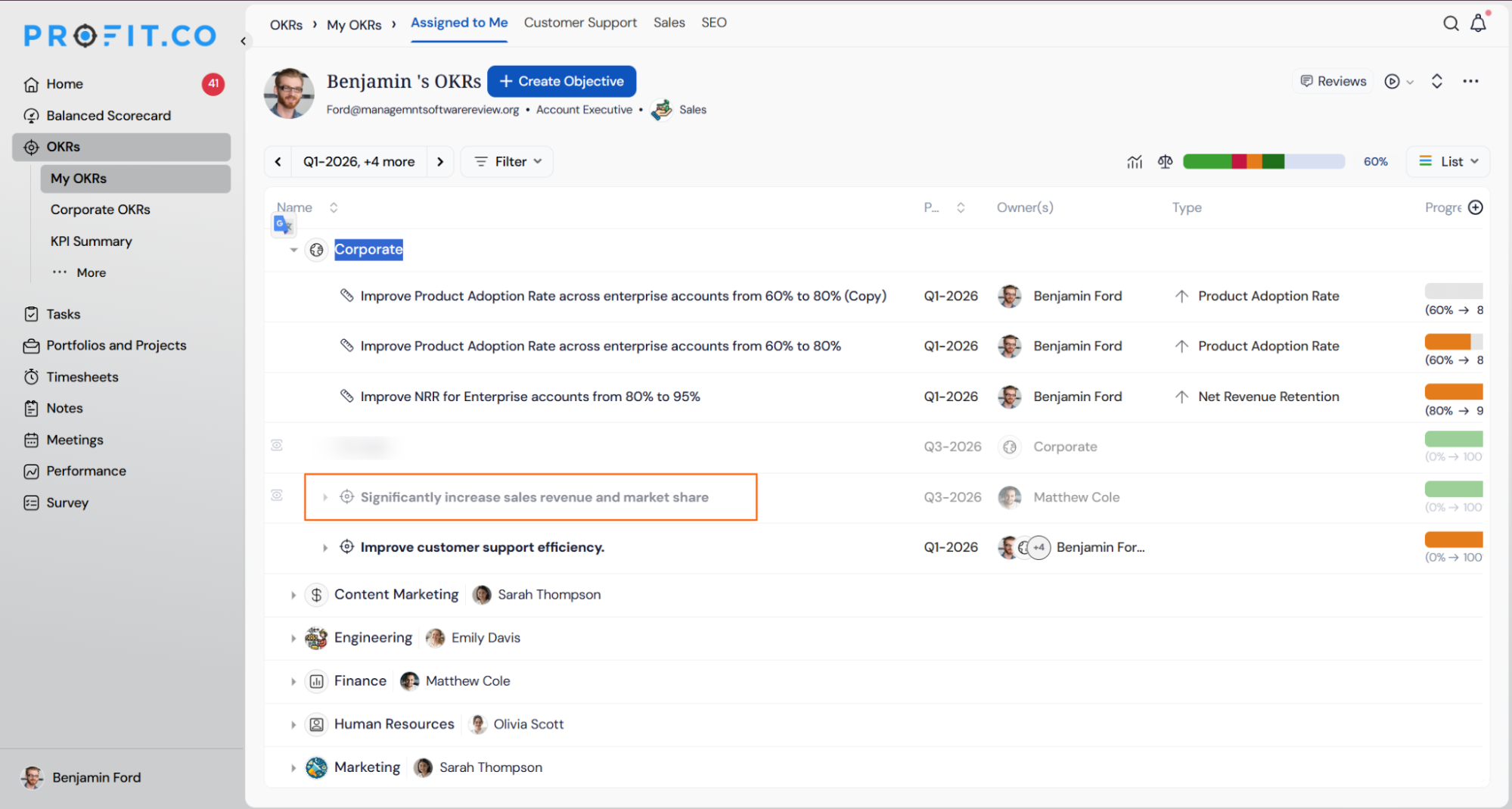
| You add an Observer to an OKR. | Profit.co notifies the observer and adds the OKR to their own OKRs list under Assigned to Me, flagged as observer-only. |
| You add an Observer to an OKR. | The OKR's ownership, accountability, and progress tracking stay exactly as they were before the Observer was added. |
| You take an action, such as editing or checking in, while assigned as an Observer on an OKR. | Profit.co blocks the action, since Observer access is view-only. |
| You turn off Enable observers field while OKRs still have Observers assigned. | Profit.co shows a confirmation dialog explaining the impact, then removes access immediately for those Observers, at both the individual and department level, once you click Apply. |
| You click Cancel on the Disable Observer field confirmation dialog. | Profit.co leaves Enable observers field turned on, and no Observer assignments are affected. |
Caution
Disabling Enable observers field cuts off Observer visibility immediately across every OKR that uses it, org-wide.
Best Practices for the Observers Field
- Enable the Observers field only where cross-department visibility is genuinely needed, since turning it off later removes access instantly for every OKR that uses it.
- Before disabling the setting, check which OKRs currently have Observers assigned, since both individual and department-level Observers lose access the moment you switch it off.
- Use Observers instead of adding cross-functional stakeholders as Owners when they only need visibility, since Observers can't check in, edit, or change progress on the OKR.
- Re-enable the setting rather than manually reassigning Observers if access needs to be restored, since Profit.co keeps saved assignments and restores them automatically.
- Set expectations with OKR owners that Observers receive a notification when added, so a stakeholder gaining visibility doesn't come as a surprise.
Related Articles
Frequently Asked Questions
No. It stays off until an admin turns on Enable observers field from Settings → Strategy Execution → Authoring → General.
Across departments. The setting is built for cross-department visibility, and Observers can also be assigned at the department level instead of picking individual employees one by one.
The Observer isn't saved. As with any other field on the OKR form, the change only takes effect once you click Update.
Execute your strategy with confidence
Connect OKRs, tasks, and teams in one place with Profit.co
