

Administrators can configure whether a key result or objective moves to the Completed stage automatically at 100% progress, or only once someone explicitly marks it complete. The rule can be set independently for key results and objectives.
Table of Contents
What is the Completion Rule?
The Completion Rule is an admin-level setting that controls what happens when a key result or objective reaches 100% progress: it can advance to the Completed stage automatically, or it can wait for someone to mark it complete by hand. It lives under the Completed stage's own settings in OKR Planning.
Before this setting existed, reaching 100% progress on any key result or objective always moved it to Completed immediately, with no way to require a review or sign-off step first. The Completion Rule can also be set separately for key results and for objectives, so one type can auto-complete while the other requires manual confirmation.
| Completion Rule | Behavior |
|---|---|
| Automatically, when progress reaches 100% | The key result or objective moves to Completed the moment progress hits 100%. This is the default and matches the platform's prior behavior. |
| Only when someone marks it complete | Progress can reach 100%, but the stage stays at In Progress until a user explicitly selects Completed. |
Why Does the Completion Rule Matter?
Organizations that treat hitting 100% and formally closing an OKR as two separate events previously had no way to enforce that distinction. Any key result or objective that reached 100% moved to Completed immediately, even before a team had reviewed the work. The Completion Rule lets admins require an explicit sign-off step instead.
Because the rule applies the same way across direct check-ins, parent rollups, and integrations like Jira, a review requirement configured here cannot be bypassed by an update arriving through a different progress source.
How Does the Completion Rule Work?
Prerequisite: You need admin access to Settings → OKRs → Planning to change the Completion Rule.
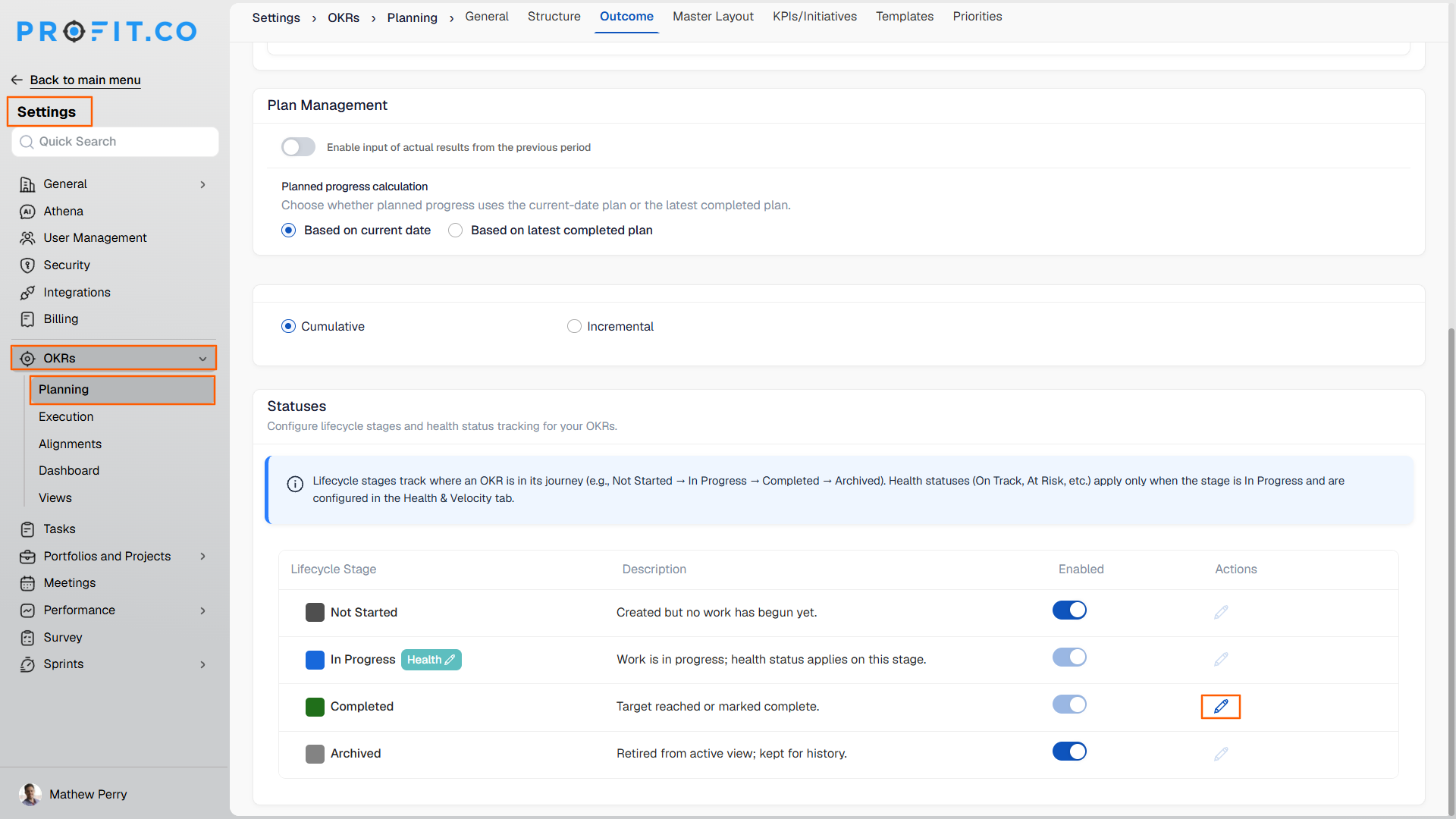
Step 1: Open the Completion Rule Section
- Go to Settings → OKRs → Planning.
- Switch to the Outcome tab and click edit on the Completed stage.
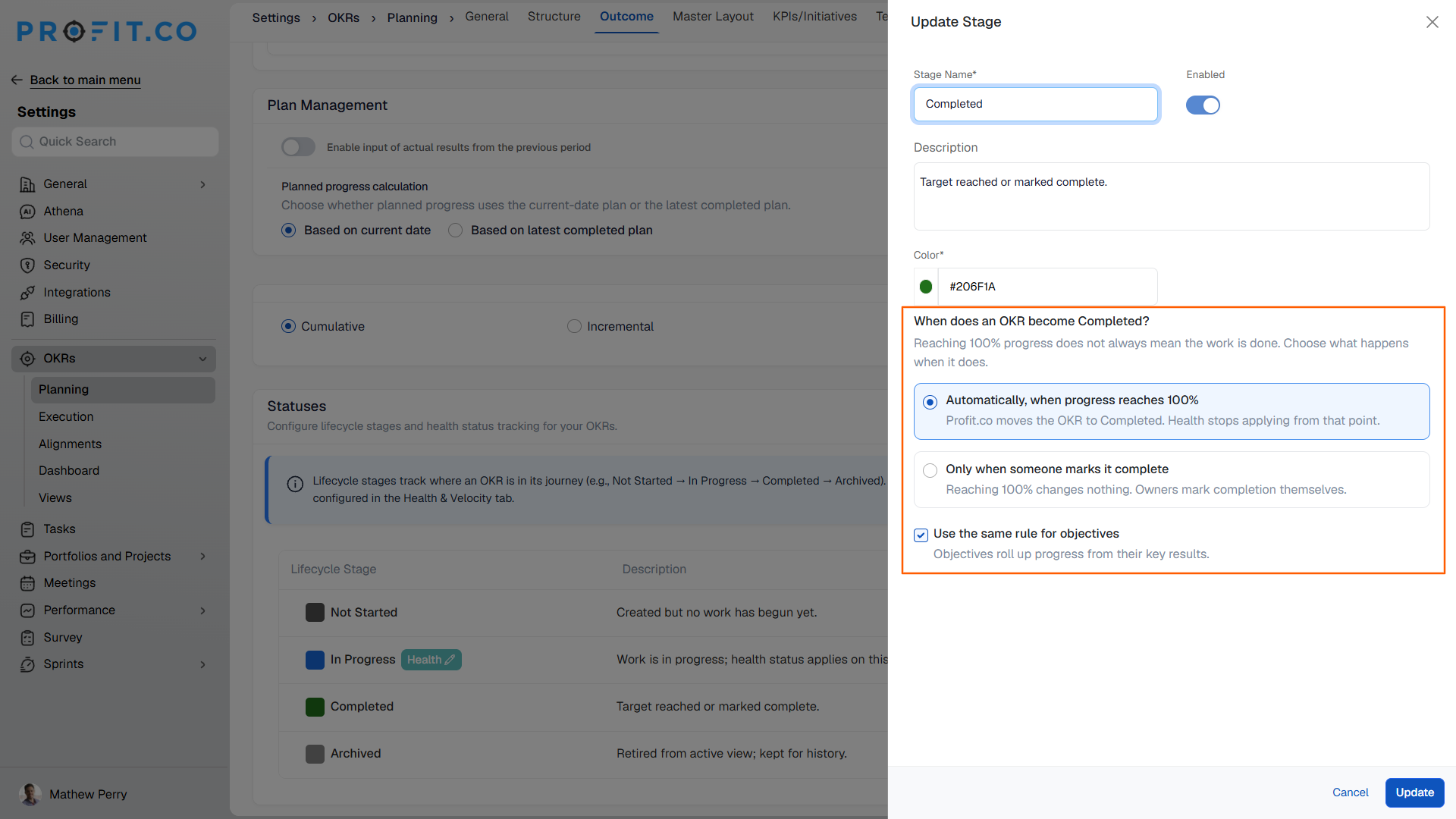
- Locate the Completion Rule section.
Step 2: Choose the Completion Rule
- Select Automatically, when progress reaches 100% to keep the existing default behavior.
- Select Only when someone marks it complete to require manual completion instead.
Step 3: Set the Rule for Objectives
- Leave Use the same rule for objectives checked to apply the same rule to both key results and objectives.
- Uncheck it to configure a different completion rule for objectives on their own.
What Happens When You Use the Completion Rule?
| Scenario | What Happens |
|---|---|
| You reach 100% progress on a key result or objective while the manual completion rule is active. | Profit.co keeps the progress at 100% but leaves the stage at In Progress until someone manually marks it Completed. |
| You manually select Completed from the status dropdown. | Profit.co moves the key result or objective to Completed immediately, regardless of which completion rule is active. |
| You update progress through a parent rollup or a connected integration like Jira instead of a direct check-in. | Profit.co applies the same configured completion rule as it would for a direct check-in. |
| You switch the completion rule from automatic to manual after some OKRs are already completed. | Profit.co leaves those already-completed OKRs as Completed and does not reopen them retroactively. |
What Are the Best Practices for the Completion Rule?
- Decide your Completion Rule before teams start logging progress for the cycle, since switching rules later doesn't reopen or recheck OKRs that are already Completed under the old setting.
- Uncheck Use the same rule for objectives only when key results and objectives genuinely need separate sign-off, since leaving it unchecked everywhere adds a manual step wherever it isn't actually needed.
- Confirm how your Jira or other integration reports progress before switching to manual completion, since the configured rule applies to integration-driven updates exactly as it does to direct check-ins.
- Tell reviewers that a key result sitting at 100% progress with status In Progress is expected under the manual rule, not a sign that progress data is wrong.
- Periodically review key results and objectives sitting at 100% progress under In Progress, since nothing advances them to Completed automatically once the manual rule is active.
Related Articles
Frequently Asked Questions
No. It only controls when the stage moves to Completed. Progress percentages and rollups are calculated the same way regardless of which rule is active.
It's admin-only, configured under Settings → OKRs → Planning. An owner can still manually mark their own key result or objective Completed at any time, regardless of which rule is active.
Yes. The rule is evaluated at the moment progress reaches 100%, so it applies to any key result or objective going forward, including ones created earlier.
It stays on Automatically, when progress reaches 100%, the same behavior Profit.co used before this setting existed.
Execute your strategy with confidence
Connect OKRs, tasks, and teams in one place with Profit.co
