

OKR Health Status shows you whether an Objective or Key Result’s actual progress is ahead, on pace, or behind its planned progress at this point in the cycle.
Table of Contents
What Is OKR Health Status?
OKR Health Status is a calculated indicator — In Trouble, At Risk, or On Track by default — that measures how much progress an Objective or Key Result has made against how much was planned by this point in the cycle. It is separate from lifecycle stage, which only tracks whether an OKR is Not Started, In-Progress, Completed, or Archived.
Health status only applies while an OKR is in the In-Progress lifecycle stage. Once an OKR moves to Not Started, Completed, or Archived, health status no longer displays, because there is no active plan left to measure progress against.
Lifecycle Stage vs. Health Status
These two ideas get bundled into a single Status field today, but they answer different questions. Lifecycle stage tracks where an OKR is in its journey; health status tracks how well it is performing during that journey.
| Lifecycle Stage | Health Status | |
|---|---|---|
| Answers | Where is this OKR in its journey? | How well is it tracking against plan? |
| Values | Not Started, In-Progress, Completed, Archived | In Trouble, At Risk, On Track (configurable) |
| When it applies | Always, every OKR is in exactly one stage | Only while the OKR is In-Progress |
| Driven by | User action: starting, completing, archiving | The health formula, recalculated on check-in |
Note
Lifecycle stage and health status currently share a single Status field in the interface, but they are functionally separate values driven by different inputs.
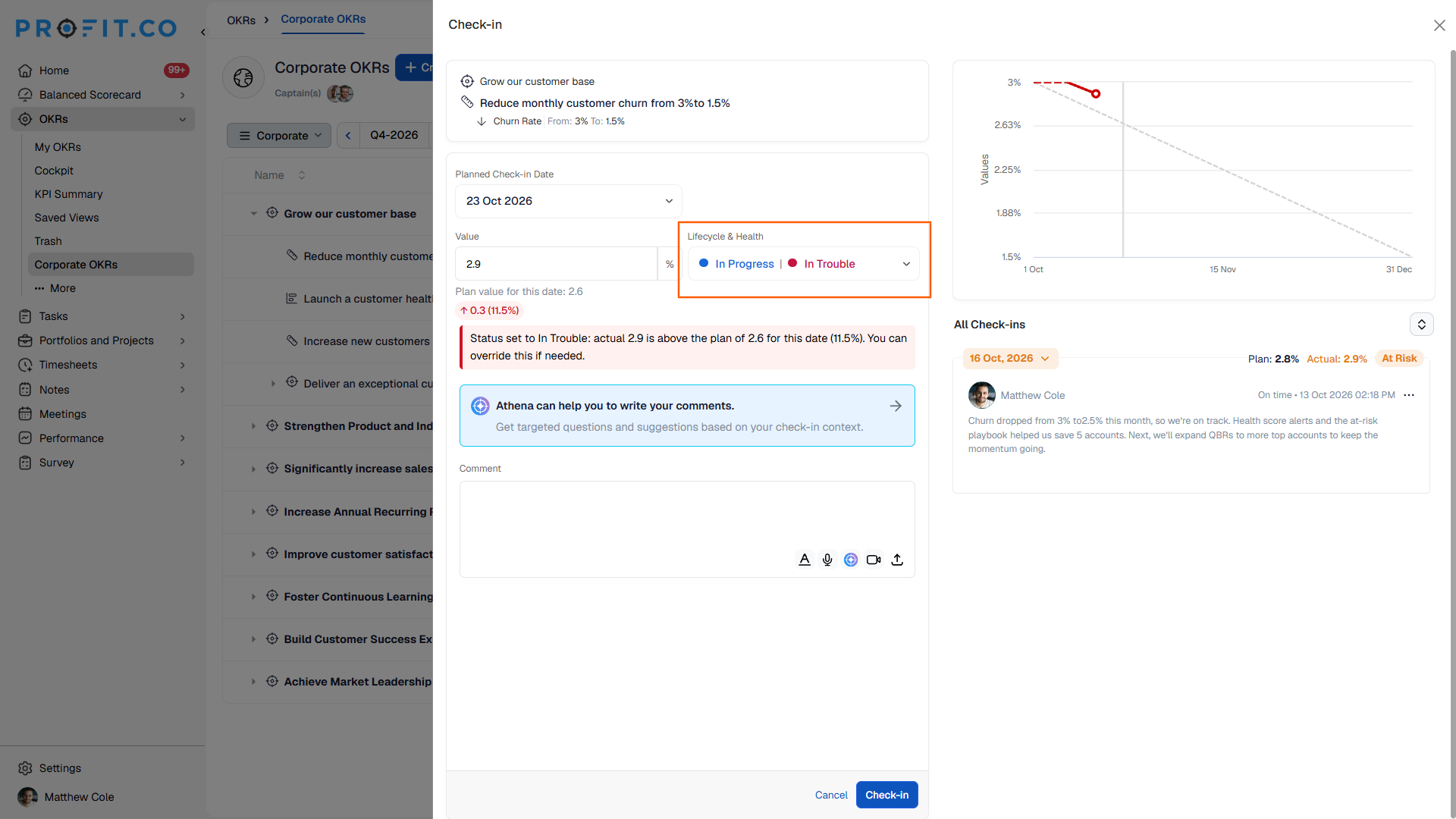
During check-in, this combined presentation now extends to the entry point itself. Lifecycle stage and health status, now appear together there as a single Status dropdown.
Why OKR Health Status Matters
Previously, an Objective's status was derived from its child Key Results through a Confidence % propagation mechanism that most teams found unpredictable. Now every Objective computes its own health directly from its own rolled-up actual and planned progress, the same formula used for Key Results, so you no longer have to guess how child statuses combine into a parent status.
The Department Heatmap previously ran on its own separate band settings. It now shares the same velocity band configuration as Key Results and Objectives, so a single set of thresholds governs health across every level of your OKR hierarchy.
- Lifecycle stage and health status are set from one dropdown instead of two during check-in, reducing the steps needed to update OKR status.
- Consolidating status selection into a single field speeds up check-in completion.
- Both status dimensions are visible together at the point of check-in, giving you a complete picture before you submit.
How OKR Health Status Works
Step 1
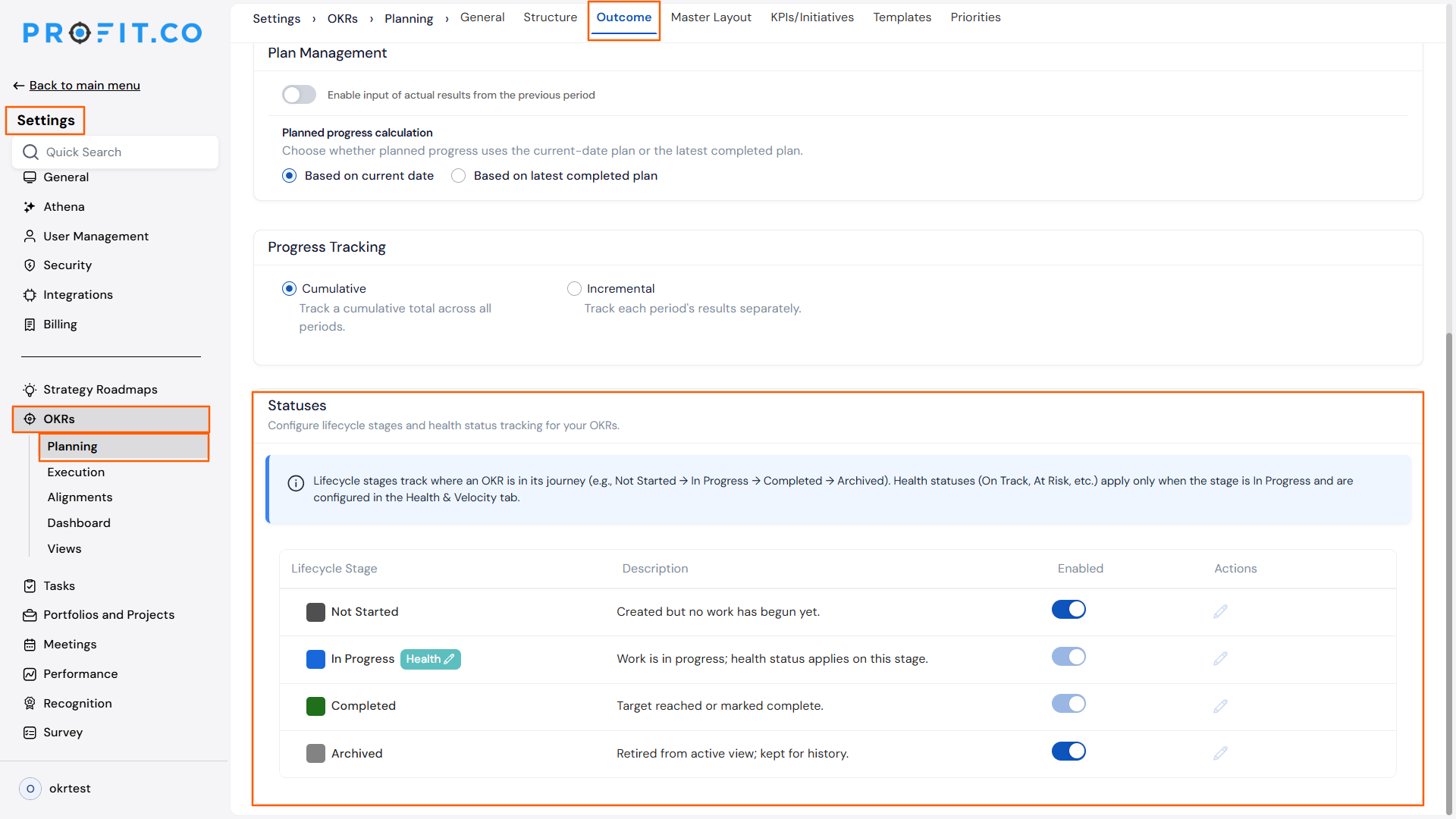
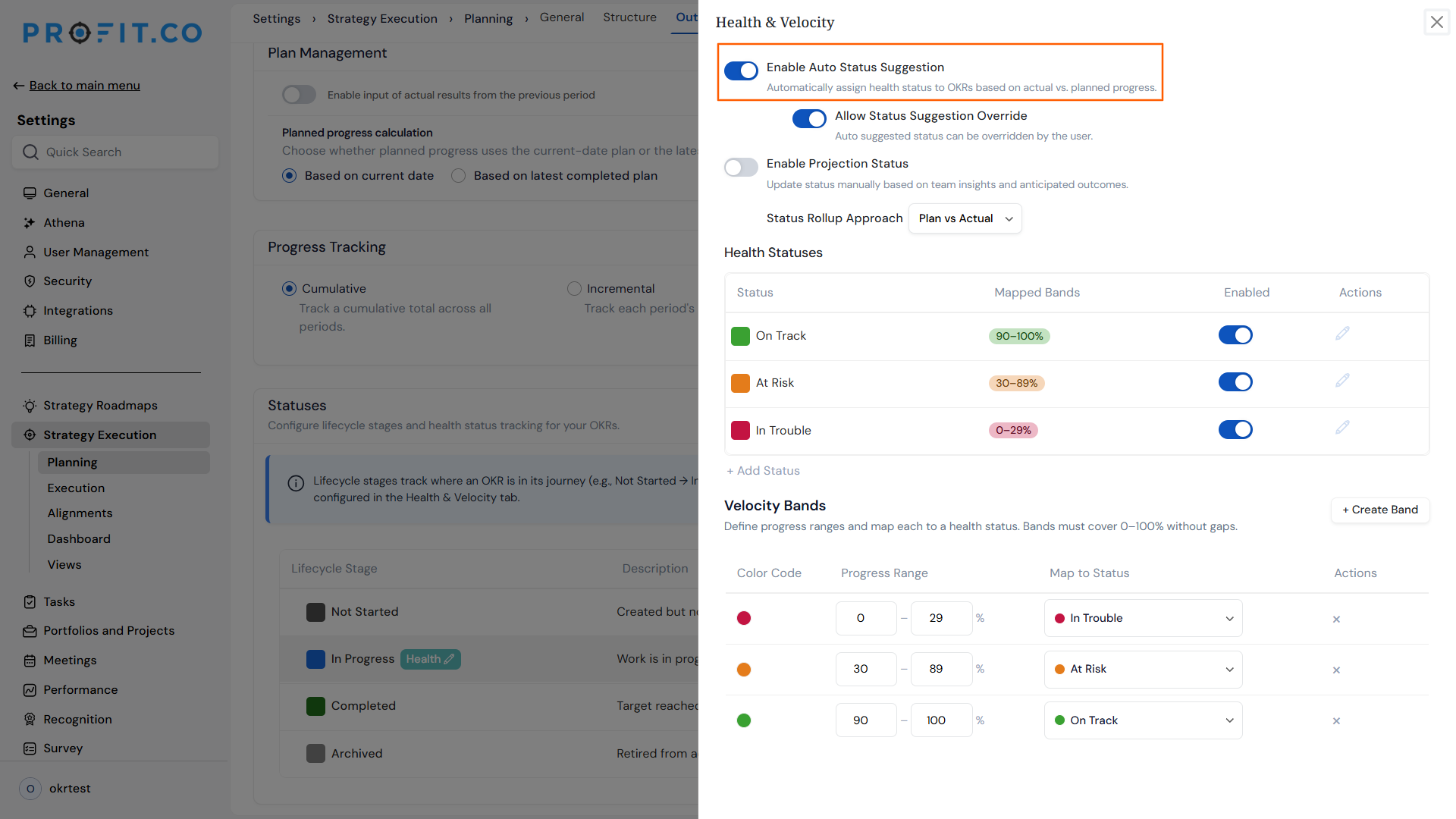
- Navigate to Settings → OKRs → Planning from the left navigation panel.
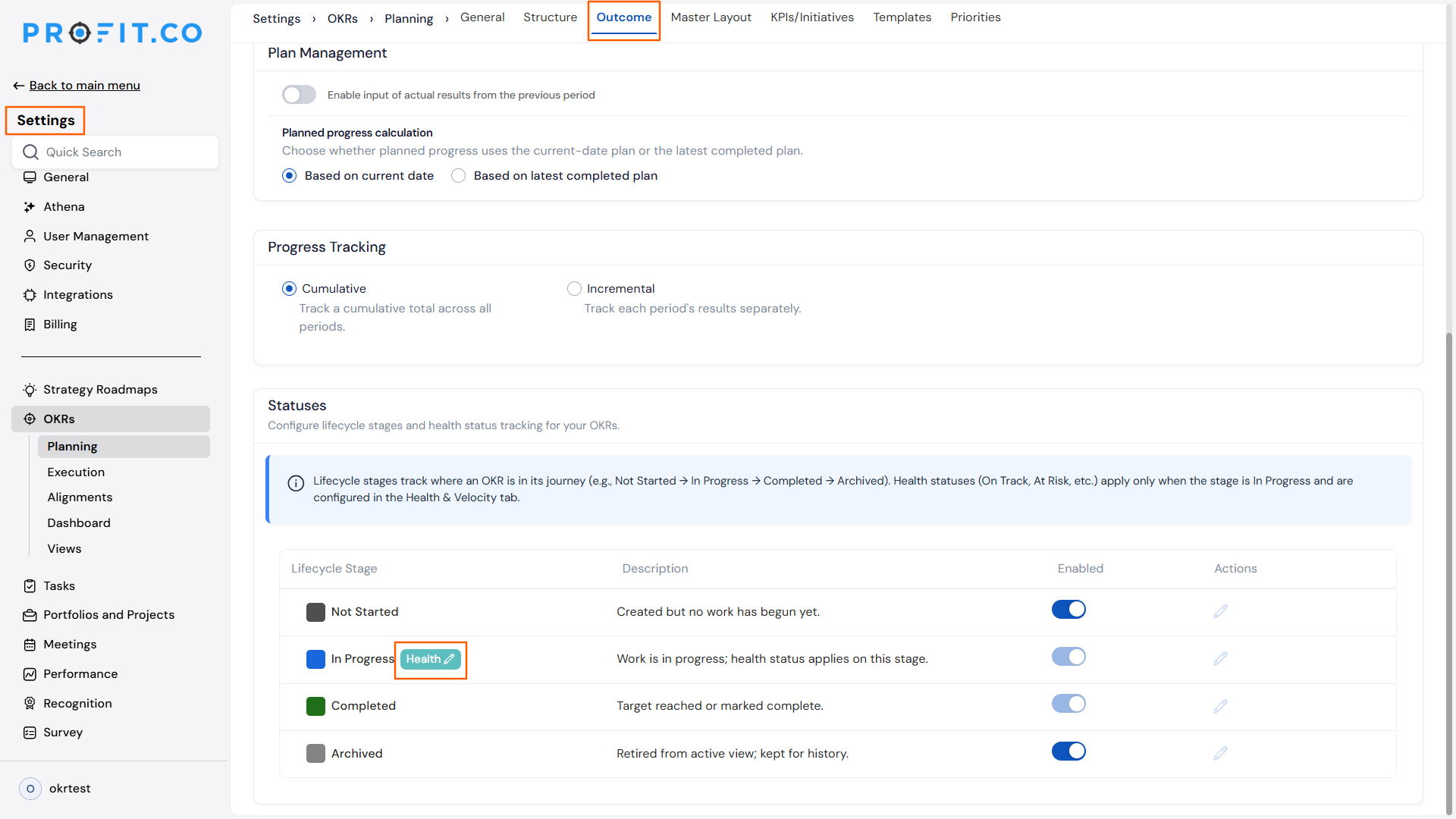
- Choose the Outcomes tab and locate Statuses.
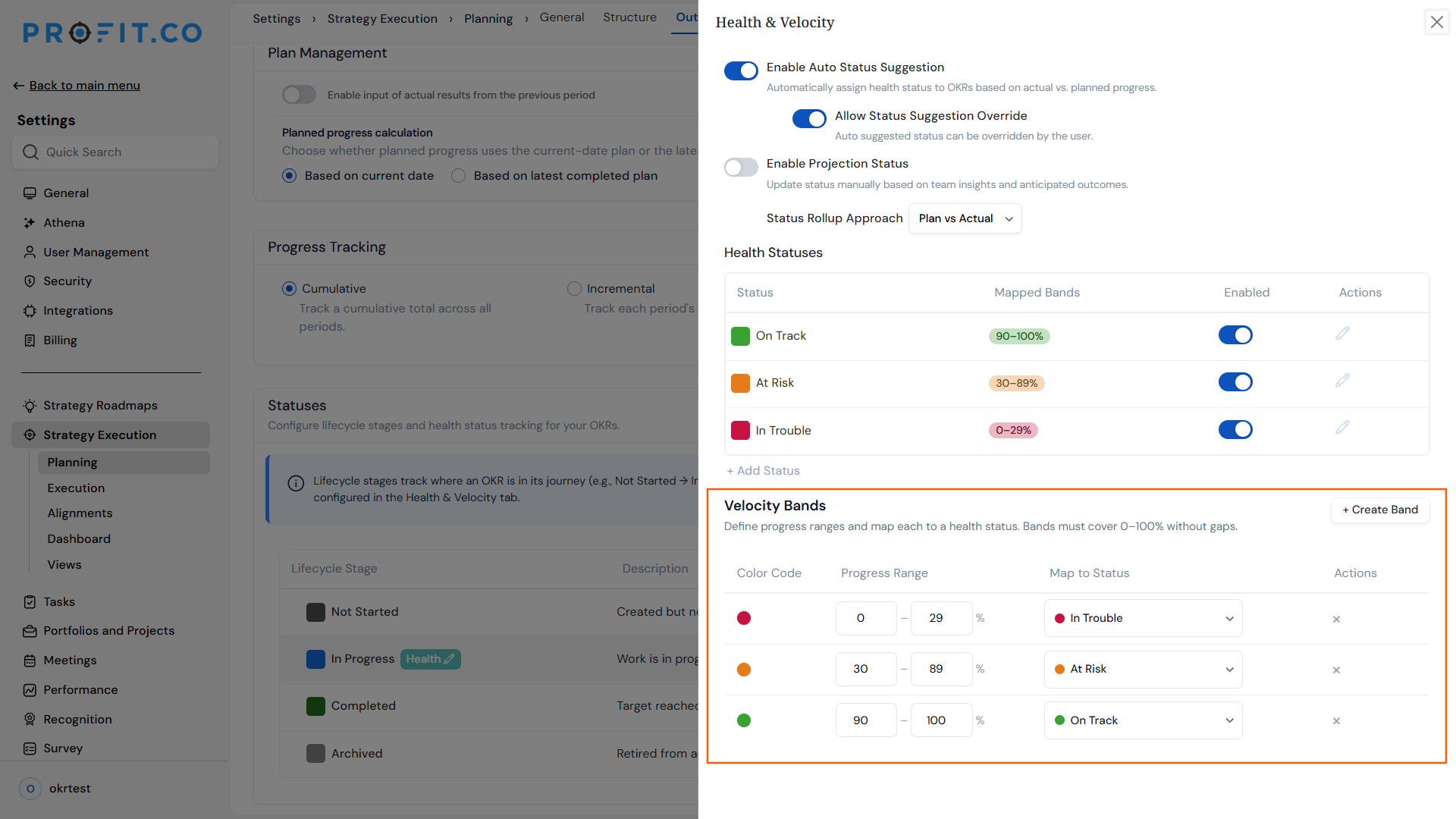
- Locate the velocity band configuration table.
Step 2
- Add or edit bands to cover ranges across the 0-100% spectrum.
- Map each band to a health status: In Trouble, At Risk, or On Track.
- Map more than one band to the same status where needed.
Step 3
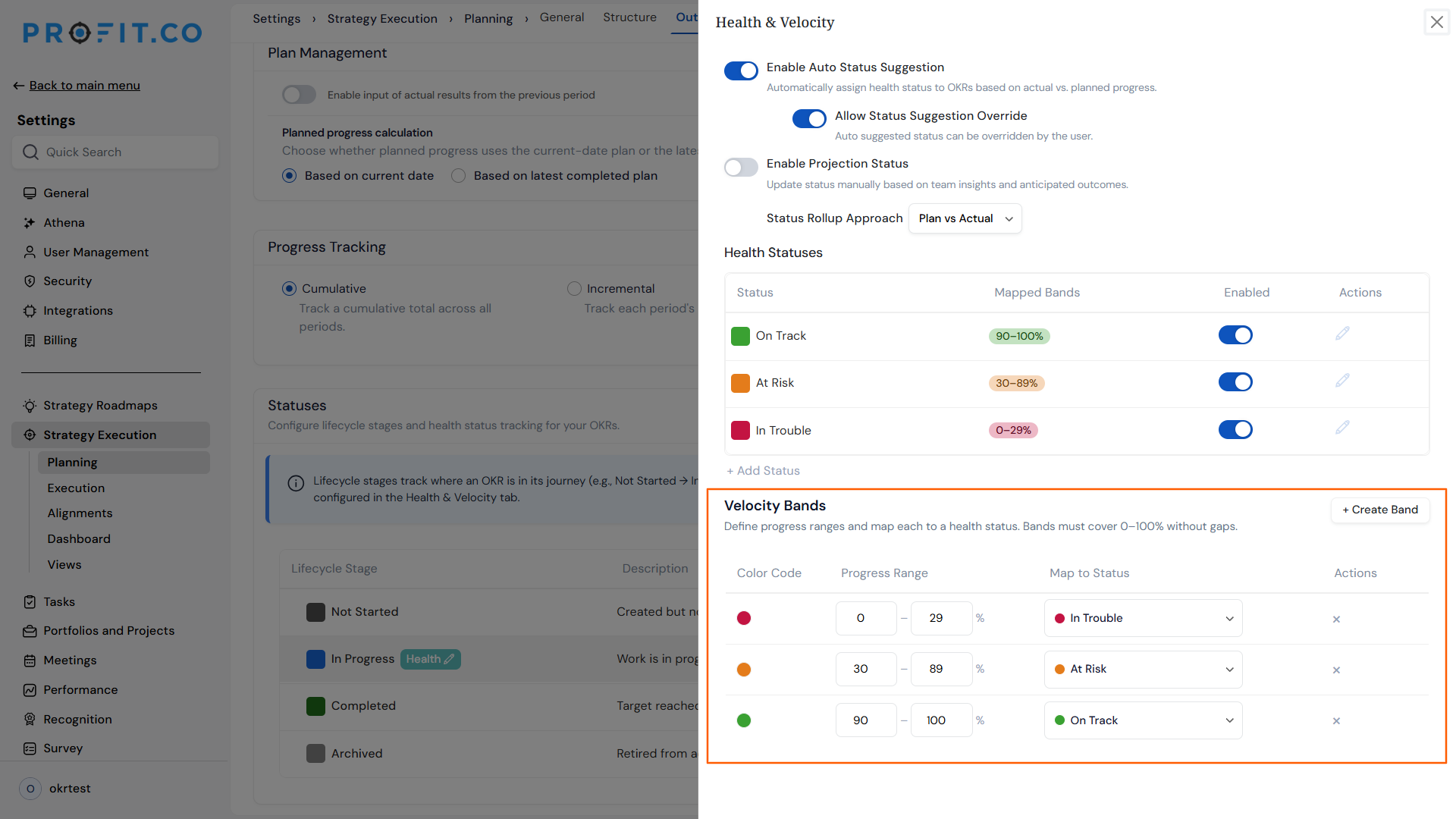
- Turn on automatic health to calculate status from the formula.
- Turn off automatic health to set status manually during check-ins.
Step 4
- Navigate to the check-in panel for an OKR.
- Enter actual progress, then select the required status from the single combined lifecycle stage and health status dropdown in the Status section.
- Submit the check-in.
OKR Health Status Scenarios and Their Outcomes
The table below covers what actually changes for your OKRs under specific conditions, not the steps used to configure the feature.
| Scenario | What Happens |
|---|---|
| You keep an OKR in the Not Started, Completed, or Archived stage. | Profit.co does not display a health status for it, since health only applies while the OKR is In-Progress. |
| You check in on an OKR with 0% planned progress and 0% actual progress. | Profit.co shows the item as Not Started rather than assigning a health status, since there is no plan yet to measure progress against. |
| You check in on an OKR with 0% planned progress but actual progress greater than 0%. | Profit.co treats velocity as 100%, and assigns On Track, since any progress against a zero plan counts as ahead of schedule. |
| You turn off the automatic health toggle. | Profit.co stops calculating health from the formula, since manual status entry during check-ins replaces the automatic calculation. |
| You map two or more velocity bands to the same health status. | Profit.co treats every mapped band as equivalent, since bands only exist to route a velocity percentage to one of the configured statuses. |
| You check in on child Key Results under a parent Objective. | Profit.co calculates the Objective's own health from its own rolled-up progress, since Objectives no longer derive status from child Key Result statuses. |
Calculation Logic Explained
The Health Formula
Key Results, Objectives, and the Department Heatmap all run the same formula: Health Status equals Actual Progress divided by Planned Progress, multiplied by 100. The resulting percentage is matched against a table of configurable velocity bands.
Where Actual and Planned Progress Come From
The formula is identical everywhere, but the source of the numbers differs by entity, along with what changed from the previous version.
| Entity | Actual & Planned Come From | What Changed |
|---|---|---|
| Key Result | Direct check-ins and plan configuration on the KR | Hardcoded Confidence % thresholds are replaced by configurable velocity bands |
| Objective | Rolled-up actual and planned progress from child KRs (rollup logic unchanged) | No longer derives status from child KR statuses; computes its own health independently |
| Dept. Heatmap | Department-level actual and planned progress (aggregation unchanged) | Now shares the same band configuration as KRs and Objectives, instead of its own separate settings |
Worked Example
Using the default velocity bands (0-40% maps to In Trouble, 41-80% maps to At Risk, 81-100% maps to On Track):
| Item | Planned | Actual | P vs A | Health Status |
|---|---|---|---|---|
| KR: Increase revenue to $5M | 60% | 55% | 91.7% | On Track |
| KR: Hire 10 engineers | 70% | 40% | 57.1% | At Risk |
| Obj: Scale Engineering (rolled up) | 65% | 47.5% | 73.1% | At Risk |
| Marketing Dept. (heatmap) | 54% | 32% | 59.3% | At Risk |
The Objective in this example is not an average of its two Key Results. Its 73.1% velocity comes from its own rolled-up planned and actual progress, run through the same formula used for Key Results.
Best Practices for OKR Health Status
- Set velocity bands to match your organization's risk tolerance before rollout. The default 0-40 / 41-80 / 81-100 split may flag items as At Risk earlier or later than your teams expect.
- Review Objective health on its own terms. Since Objectives compute health from their own rolled-up progress instead of inheriting a status from child Key Results, a healthy-looking KR list does not guarantee a healthy Objective score.
- Reserve the automatic health toggle-off for genuine exceptions. Turning it off hands status control to whoever submits the check-in, which removes the consistency the formula is designed to provide.
- Recheck Department Heatmap thresholds after adopting shared bands. Because the heatmap no longer uses its own separate settings, a band change made for Key Results now affects heatmap readings too.
- Watch Key Results with a 0% planned target closely. Any logged progress against a zero plan reads as On Track regardless of how small that progress is, so a single check-in can mask a KR that still needs attention.
Related Articles
Frequently Asked Questions
It applies to all three. Key Results, Objectives, and the Department Heatmap all use the same health formula, though the source of actual and planned progress differs by entity.
Yes. In Trouble, At Risk, and On Track are configurable, so admins can rename them or add additional statuses under Settings → OKRs → Authoring → Statuses.
There is no fixed limit. Admins can define as many bands as needed and map more than one band to the same health status.
Execute your strategy with confidence
Connect OKRs, tasks, and teams in one place with Profit.co
