

Confidence Rollup and Progress Velocity are two ways of deriving the health status of an Objective/Parent KR. Confidence Rollup combines the statuses of the Key Results below it. Progress Velocity checks whether the Objective/Parent KR itself is on schedule.
Table of Contents
What is the Status Rollup Approach?
An Objective's health status, such as On Track, At Risk, or In Trouble, tells you at a glance how that Objective is doing. Status Rollup Approach is the rule that derives which status an Objective gets.
The rule answers one question: what should the status be based on? With Confidence Rollup, it is based on the statuses of the Key Results below it. With Progress Velocity, it is based on how its own actual progress compares with where it was planned to be by today. Only one rule can be active at a time.
The same rule applies to a Parent KR. Just as Key Result progress rolls up into an Objective, Sub-KR progress rolls up into its Parent KR, so a Parent KR's status is derived the same way.
| Term | What It Means |
|---|---|
| Plan | Where an Objective or Key Result should be by today, based on its schedule. |
| Actual | Where it is today, based on the latest check-in. |
| Progress | How far the Actual value has moved toward the target, as a percentage. |
| Status value | The number each health status carries, for example On Track = 90, At Risk = 60, In Trouble = 30. Confidence Rollup averages these values. |
| Velocity | Actual ÷ Plan, as a percentage. It shows how much of the planned progress has been achieved so far. |
| Range | A band of percentages linked to a health status. An Objective/Parent KR gets the status whose range its value falls into. |
How Does Status Rollup Approach Work?
Step 1: Open the Health & Velocity panel
- Go to Settings → Strategy Execution → Planning.
- Open the Outcome tab.
- Click the Health edit icon next to the In Progress stage.
Step 2: Find Status Rollup Approach
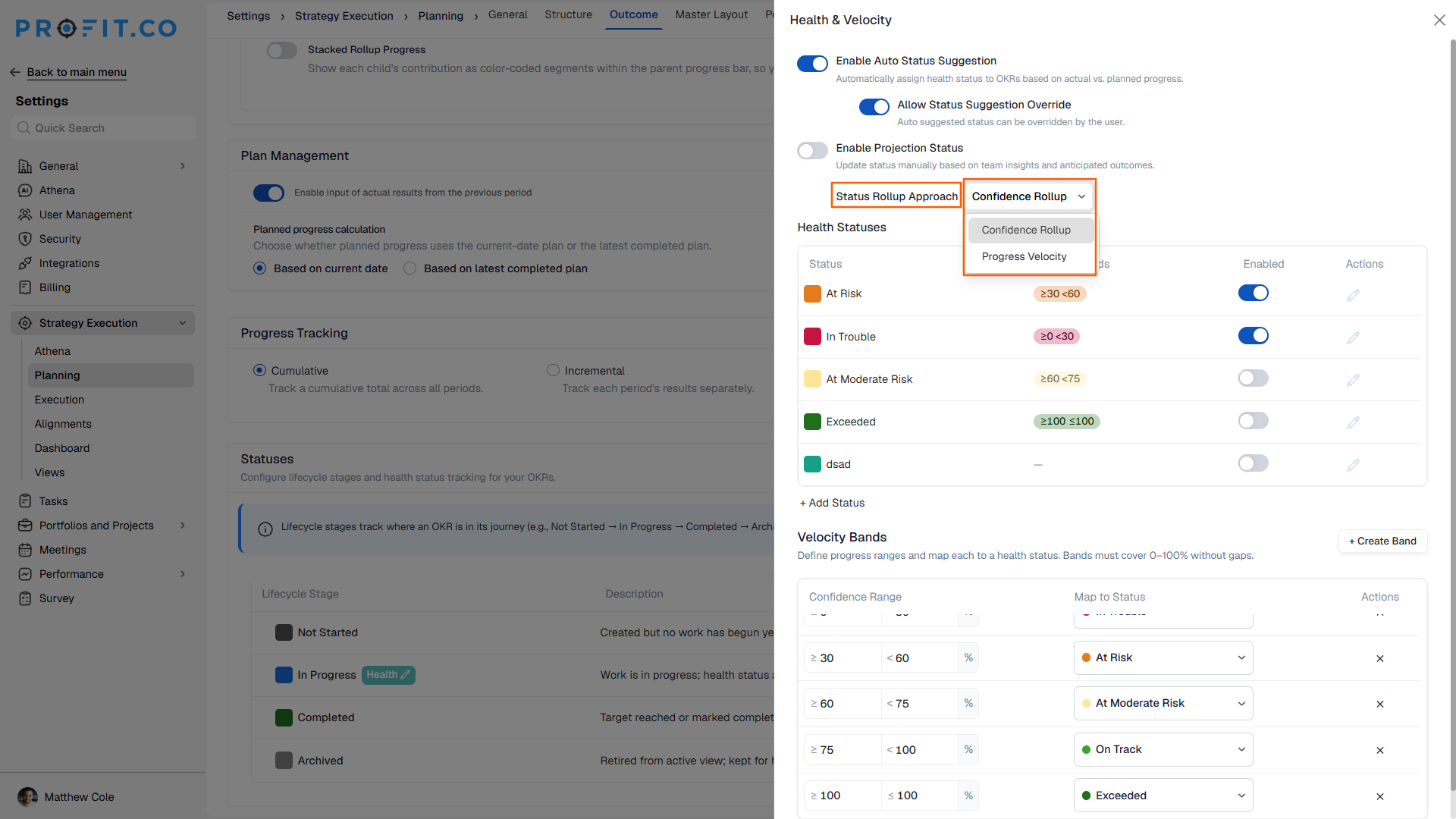
- In the panel, find the Status Rollup Approach dropdown.
- To let users change the suggested status, turn on Allow Status Suggestion Override.
Step 3: Choose a method and set its ranges
- For Confidence Rollup, select it in the dropdown. Then, in the Health Statuses table, set a range for each status and turn on the statuses you want to use. These ranges derive the status of an Objective/Parent KR from the average status value of the Key Results below it.
- For Progress Velocity, select it in the dropdown. Then, in the Velocity Bands table, set each range in the Confidence Range column and map it to a health status. These bands derive the status of an Objective/Parent KR from its velocity. Use + Create Band to add more bands.
How Does Each Approach Derive the Status?
Take the Objective "Launch Feature X this quarter," two-thirds of the way through the quarter. It has three Key Results: one is nearly done, one is moving steadily, and one has barely started because its team was pulled onto other work. The same steps apply to a Parent KR and its Sub-KRs.
Confidence Rollup
Progress is averaged as usual. The status comes from averaging the status values of the Key Results.
| Item | Progress | Status | Status value |
|---|---|---|---|
| OBJ – Launch Feature X this quarter | 53% | At Risk | 60 |
| KR – Checkout flow redesign | 90% | On Track | 90 |
| KR – Payment gateway integration | 55% | At Risk | 60 |
| KR – Fraud detection rules | 15% | In Trouble | 30 |
Objective progress = (90 + 55 + 15) ÷ 3 = 53%
Objective status value = (90 + 60 + 30) ÷ 3 = 60
Result: A status value of 60 falls in the At Risk range.
The progress bar still shows 53%, but the status comes from the Key Result statuses. One Key Result is On Track, one is At Risk, and one is In Trouble, so together they place the Objective at At Risk.
When to use Confidence Rollup: Launching in a New Market
Objective: Launch the new mobile app in the APAC market. Engineering, marketing, and support each own one Key Result and track its status separately.
Confidence Rollup combines the three Key Result statuses into one. Leadership sees a status that reflects how each team is doing, without needing a separate Plan on the Objective.
Progress Velocity
Compares the Objective's Actual with its Plan. Key Result statuses are not used.
| Item | Plan (by now) | Actual |
|---|---|---|
| OBJ – Launch Feature X this quarter | 80% | 53% |
| KR – Checkout flow redesign | Status not used | Status not used |
| KR – Payment gateway integration | Status not used | Status not used |
| KR – Fraud detection rules | Status not used | Status not used |
Velocity = Actual ÷ Plan × 100 = 53 ÷ 80 × 100 = about 66%
Result: 66% falls in the At Risk band.
The Objective is at 53% when its plan says it should be at 80%, so it is behind schedule. If its Actual were 60%, velocity would be 75% and the Objective would show On Track.
When to use Progress Velocity: Hitting a Revenue Target
Objective: Hit the Q4 new business revenue target. Sales works to a weekly plan, and leadership reviews the pipeline every Monday.
Progress Velocity compares the Objective's Actual with its Plan each week. As soon as the team falls behind, the Objective shows At Risk, leaving time to recover before the quarter ends.
| Confidence Rollup | Progress Velocity | |
|---|---|---|
| Status is derived from | The statuses of the Key Results or Sub-KRs below | The Objective/Parent KR's own Plan and Actual |
| Calculation | Average of the status values | Actual ÷ Plan × 100 |
| Ranges set in | Health Statuses table | Velocity Bands table |
| Answers | How are the Key Results doing together? | Is the Objective on pace today? |
What Are the Best Practices for Status Rollup Approach?
- Keep one method for the whole cycle. Switching mid-cycle changes how statuses are derived, so week-to-week comparisons stop lining up.
- Keep Key Result statuses current before using Confidence Rollup. The Objective's status is only as accurate as the Key Result statuses behind it.
- Set realistic Plans before using Progress Velocity. The status is only as accurate as the Plan behind it.
- Set each set of ranges for what it measures. Health Status ranges measure the average status value of the Key Results, while Velocity Bands measure how much of the plan is done. Set them separately.
- Use overrides only when needed. Overrides let users add context the numbers miss, but frequent overrides make statuses less consistent.
Related Articles
- How do I check-in for Key Results?
- What is OKR Health Status in Profit.co?
- What Is the Stacked Rollup Progress Bar in the OKR List View?
What Are Some Frequently Asked Questions About Status Rollup Approach?
No. You can select only one method at a time.
Yes. A Parent KR's status is derived from its Sub-KRs in the same way an Objective's status is derived from its Key Results.
No. It only changes how the status of an Objective/Parent KR is derived. Key Results without Sub-KRs keep their own calculation.
Yes, if Allow Status Suggestion Override is turned on. Users can then change the suggested status during a check-in.
Yes. You can create a custom status with its own range, for example At Moderate Risk. Use + Add Status below the Health Statuses table.
Execute your strategy with confidence
Connect OKRs, tasks, and teams in one place with Profit.co
