
Bulk Export and Follow let you act on several Objectives and Key Results from the list view in one step, instead of repeating the action for each record individually. Admins turn on each action separately, so availability varies by organization.
Table of Contents
- What is Bulk Export and Follow for OKRs?
- Why Does Bulk Export and Follow for OKRs Matter?
- How Does Bulk Export and Follow for OKRs Work?
- What Happens When You Use Bulk Export and Follow for OKRs?
- What Are the Best Practices for Bulk Export and Follow for OKRs?
- Related Articles
- Frequently Asked Questions
What is Bulk Export and Follow for OKRs?
Bulk Export and Follow are list-view actions that apply Export or Follow to more than one Objective or Key Result at the same time. Each action is switched on independently through a Bulk action toggle in Settings, so an organization can run one without the other.
Once enabled, bulk export reuses the same scope choices already available for a single OKR: All fields, Current View, and Custom Selections. Bulk Follow has no separate scope option; it applies the Follow action directly to every OKR you've selected.
Note
Export and Follow are controlled by separate toggles, so turning one on in Settings does not automatically turn on the other.
Why Does Bulk Export and Follow for OKRs Matter?
Without bulk actions, exporting or following several OKRs meant opening and acting on each record one at a time. With the toggle enabled, you select a group of OKRs in the list view and export or follow all of them in a single click.
Because the Export and Follow toggles are independent, admins decide exactly which bulk action is available to their organization rather than exposing both by default. Bulk export also carries over the same All fields, Current View, and Custom Selections options from individual export, so users apply a scope they already recognize instead of learning a new set of choices for bulk use.
How Does Bulk Export and Follow for OKRs Work?
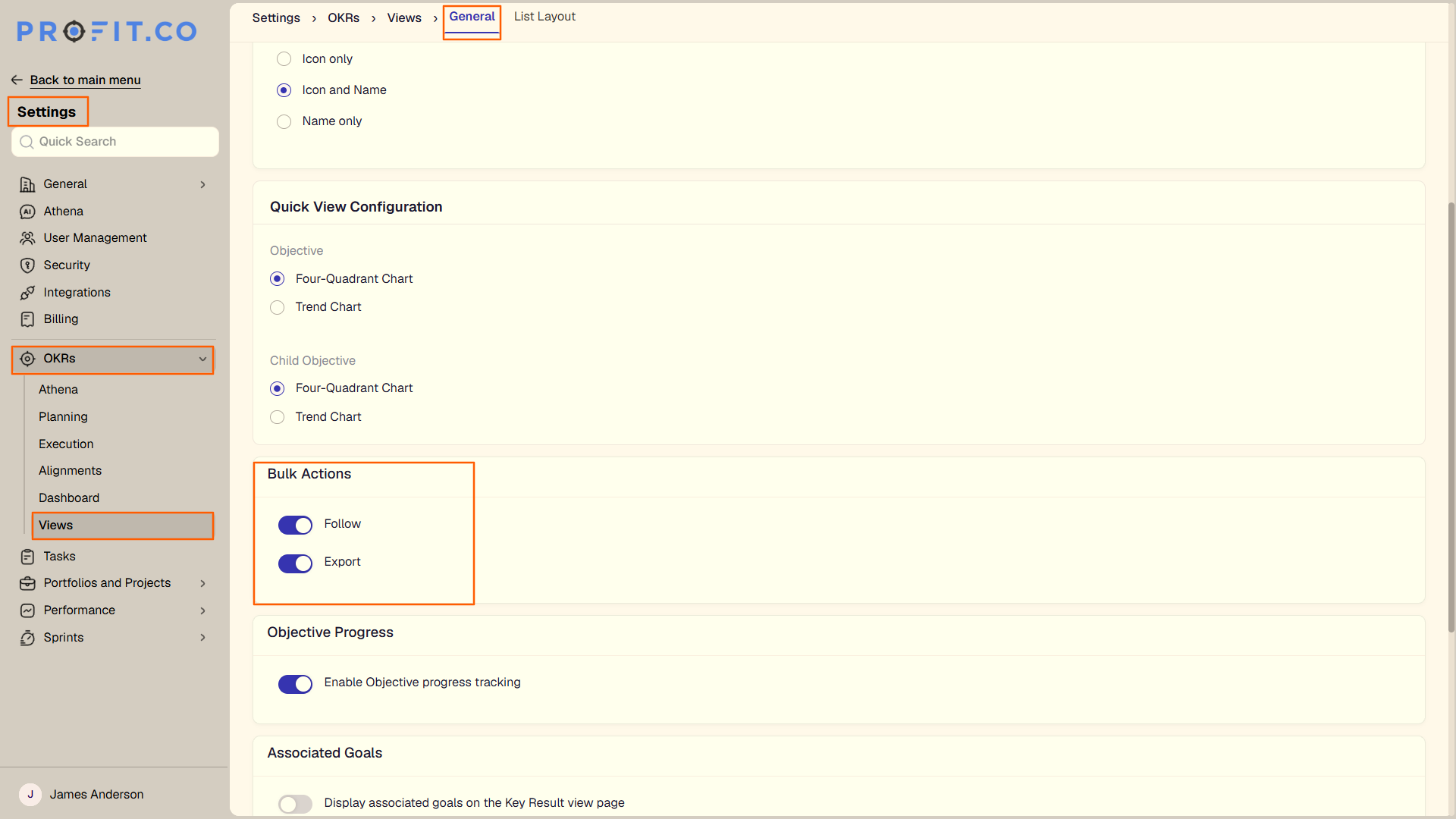
Step 1: Enable the Bulk Action Toggle
- Navigate to Settings → Views.
- Turn on the Bulk action toggle for Export, Follow, or both.
Step 2: Select OKRs in the List View
- Open the OKR list view.
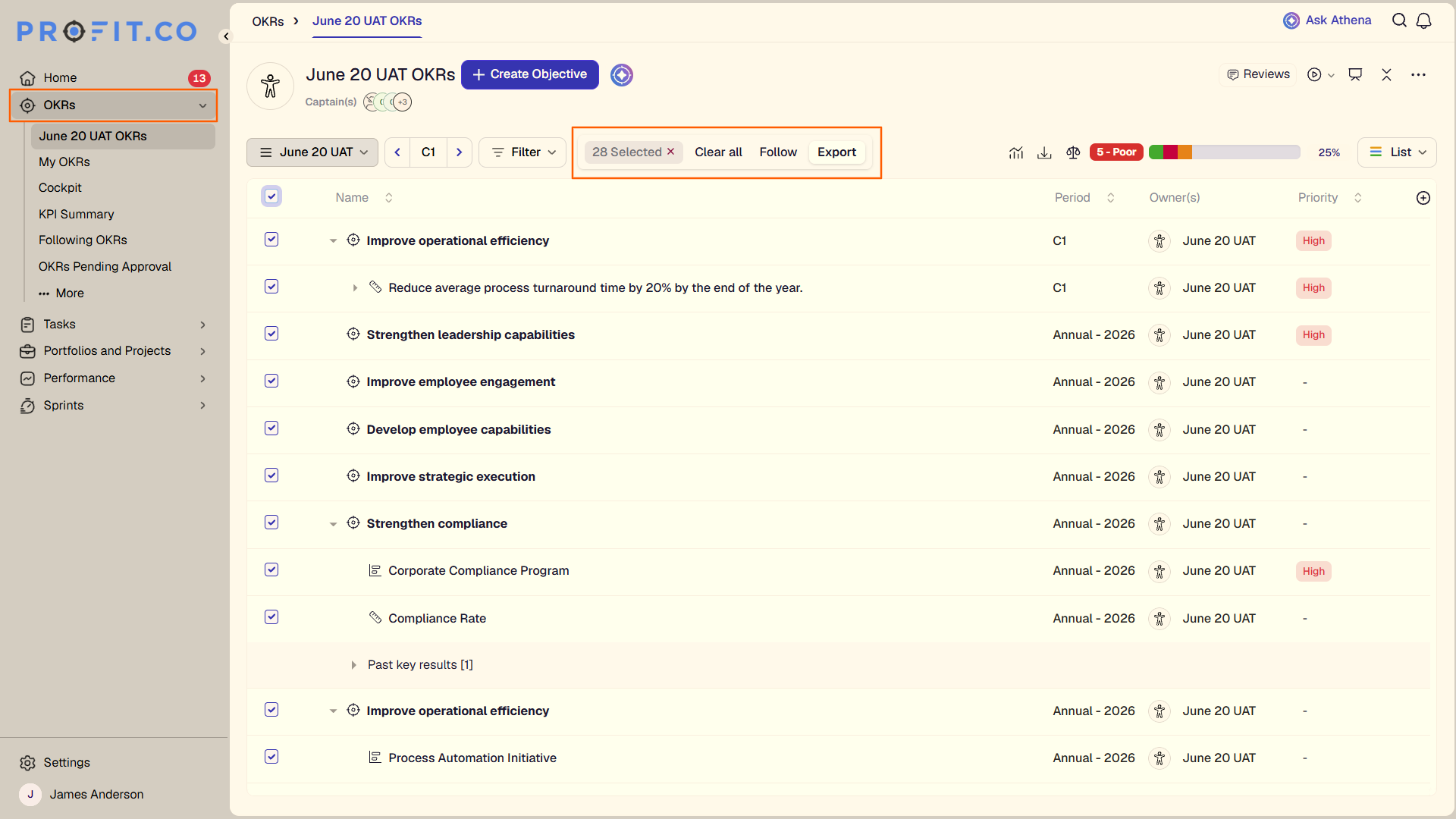
- Select the Select All checkbox, or select individual OKR checkboxes.
Method 1: Bulk Export OKRs — this is the primary path for pulling data on multiple OKRs out of Profit.co in one pass.
Step 3: Run the Bulk Export
- Select Export from the bulk action bar.
- Choose All fields, Current View, or Custom Selections.
Method 2: Bulk Follow OKRs — use this when you want to track several OKRs without opening or exporting them.
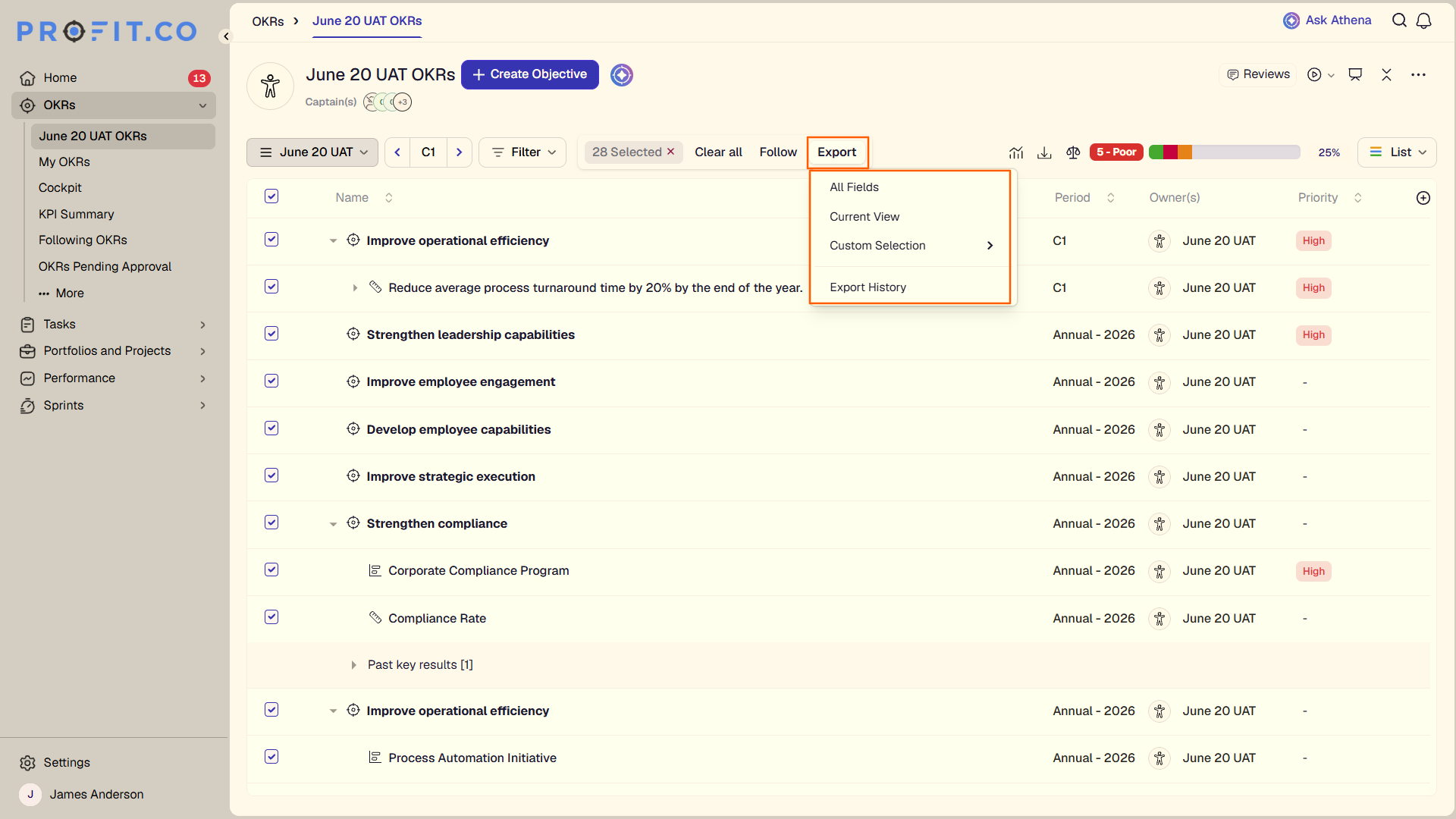
Step 3: Run the Bulk Follow
- Select Follow from the bulk action bar.
What Happens When You Use Bulk Export and Follow for OKRs?
| Scenario | What Happens |
|---|---|
| You enable the Bulk action toggle for Export or Follow in Settings → Views. | Profit.co adds the corresponding action to the bulk action bar in the OKR list view for every user in the organization. |
| You select multiple OKRs using Select All or individual checkboxes and click Export. | Profit.co generates a single export file containing only the OKRs you selected, not the entire list. |
| You choose All fields, Current View, or Custom Selections during bulk export. | Profit.co applies the same scope rules used for individual OKR exports, so the file matches the option you picked. |
| You select multiple OKRs and click Follow. | Profit.co adds you as a follower on each selected OKR without changing their progress, status, or ownership. |
| You disable the Export or Follow toggle after it has been in use. | Profit.co removes that action from the bulk action bar, so users can no longer bulk export or follow OKRs through it. |
What Are the Best Practices for Bulk Export and Follow for OKRs?
- Enable only the toggle your team needs: turning on Export without Follow, or the reverse, keeps the bulk action bar focused on the action people actually use.
- Match the export scope to the purpose: use Current View when the file should mirror your filtered list, and Custom Selections when you only need specific fields.
- Check your applied filters before using Select All: since bulk export and Follow act on whatever Select All currently captures, confirm the list view reflects the records you intend to include.
- Tell users before disabling a toggle: Export and Follow disappear from the bulk action bar as soon as the toggle is off, with no separate warning shown to users already relying on it.
- Keep the export scope consistent across repeat pulls: choosing the same option each cycle keeps bulk-exported reports comparable over time.
Related Articles
Frequently Asked Questions
Yes. Export and Follow are controlled by separate toggles in Settings → Views, so you can turn on one without the other.
They're available only in the OKR list view, where the Select All checkbox and the bulk action bar appear.
You can select individual OKRs one by one, or use Select All to include every record currently shown in the list view.
Execute your strategy with confidence
Connect OKRs, tasks, and teams in one place with Profit.co
