

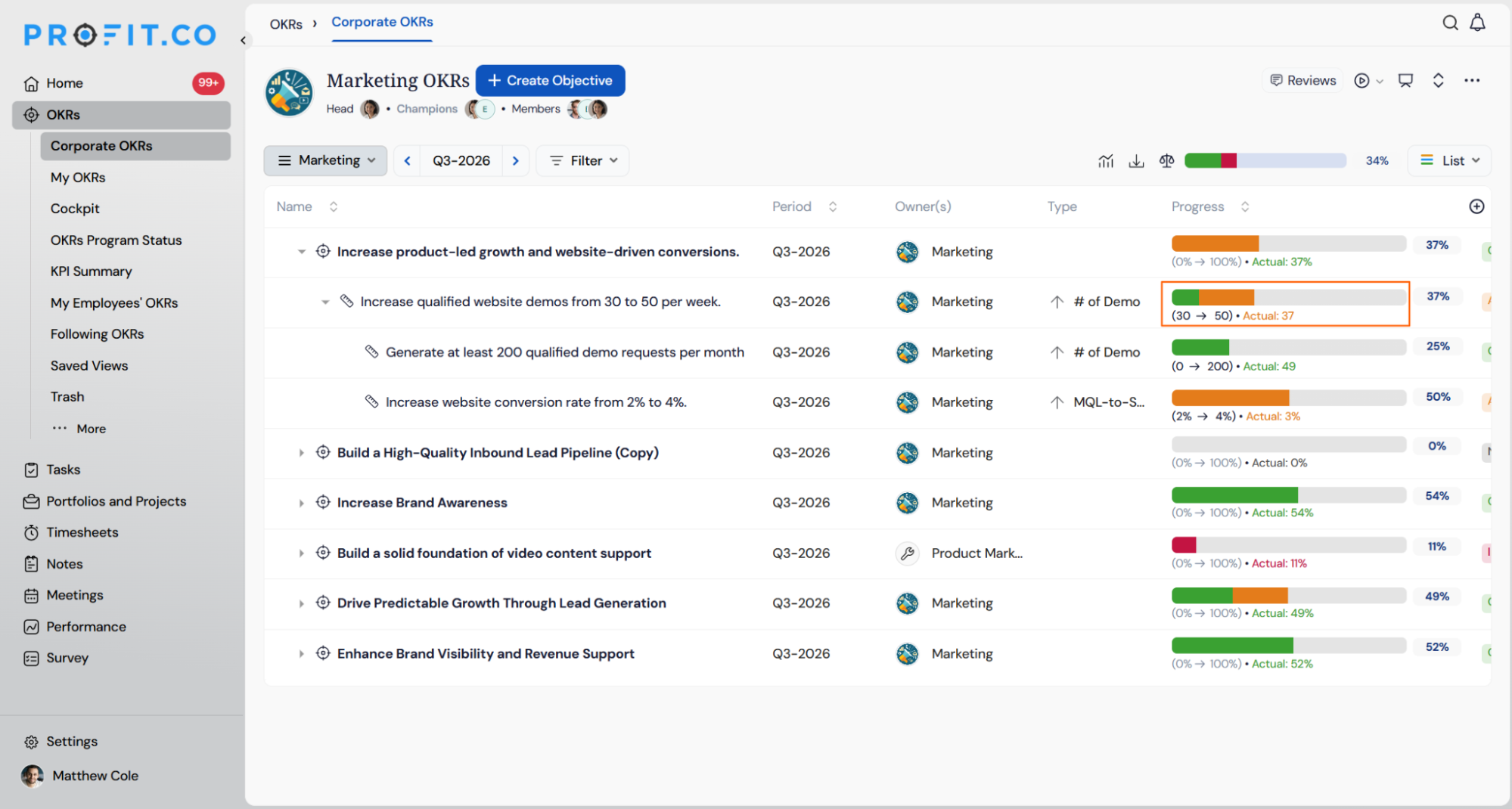
The Stacked Rollup Progress Bar shows the status breakdown of child OKRs directly inside a parent row's progress bar in the OKR List View. Instead of one blended percentage, you see color-coded segments for On Track, At Risk, In Trouble, and Not Started items without expanding the row.
Table of Contents
What Is the Stacked Rollup Progress Bar?
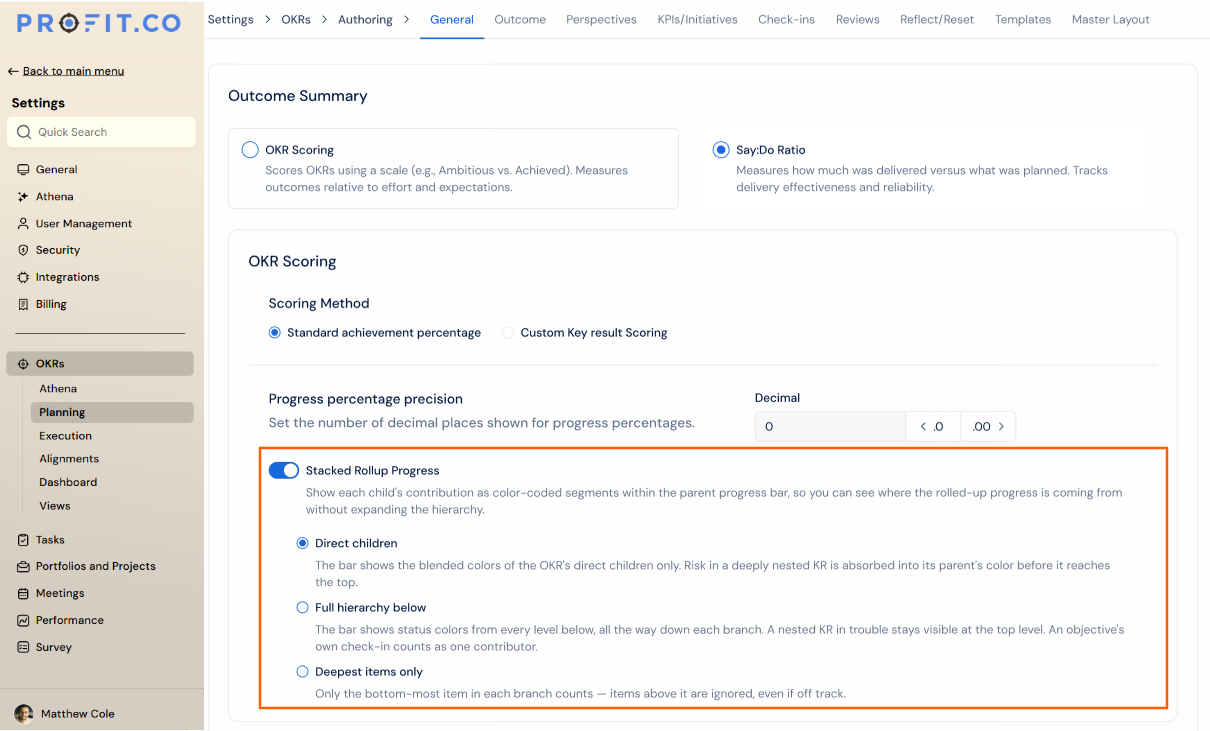
The Stacked Rollup Progress Bar is a display mode for the progress bar on parent rows in the OKR List View, covering Objectives, Key Results with Sub-KRs, and Department headers. A Rollup Mode setting, selectable once the bar is turned on, controls how deep into the hierarchy the bar looks before drawing its segments.
| Rollup Mode | What It Shows |
|---|---|
| Direct children | The bar shows the blended colors of the OKR's direct children only. Risk in a deeply nested Key Result is absorbed into its parent's color before it reaches the top. |
| Full hierarchy below | The bar shows status colors from every level below, all the way down each branch. A nested Key Result in trouble stays visible at the top level, and the objective's own check-in counts as one contributor. |
| Deepest items only | Only the bottom-most item in each branch counts. Items above it are ignored, even if off track. |
Why the Stacked Rollup Progress Bar Matters
Reviewing a large OKR tree previously meant expanding each Objective to see which Key Results were at risk, a manual step repeated across every review cycle. The stacked bar surfaces that same health distribution inside the existing progress cell, so reviewers read it without clicking.
Because the setting applies automatically to every role with OKR List View access, Owners, Department Heads, and Viewers all see the same distribution without a separate opt-in step per user.
| Benefit | What Changes |
|---|---|
| Faster risk identification | Review facilitators spot at-risk branches without expanding rows during live sessions. |
| Higher information density | The progress cell shows the full child health distribution instead of one blended number. |
| Reduced review time | Trees with 10 or more Key Results per Objective skip 3 to 5 minutes of manual expansion per review cycle. |
| Board-ready presentation | Collapsed Objective rows on the All OKRs page show the KR distribution without any click. |
| Nested risk surfaced | An at-risk Key Result several levels down now appears on the top-level Objective's bar in Full hierarchy below mode, so reviewers don't have to walk the tree manually. |
| One-click drill-down | Clicking a colored segment in Full hierarchy below mode opens the contributing Key Results, with their path, actual value, and contribution to that segment. |
| Progress stays exact | Switching rollup modes changes only how colors are displayed. The underlying progress percentage is calculated exactly as before. |
How It Works
Step 1
- Navigate to Settings → OKRs → Planning → Outcome from the left navigation panel.
- Scroll to the OKR Scoring section.
- Locate the Stacked Rollup Progress toggle and turn it on.
- Choose a rollup mode: Direct children, Full hierarchy below, or Deepest items only.
| Rollup Mode | Description |
|---|---|
| Direct children | The bar shows the blended colors of the OKR's direct children only. Risk in a deeply nested Key Result is absorbed into its parent's color before it reaches the top. |
| Full hierarchy below | The bar shows status colors from every level below, all the way down each branch. A nested Key Result in trouble stays visible at the top level, and the objective's own check-in counts as one contributor. |
| Deepest items only | Only the bottom-most item in each branch counts. Items above it are ignored, even if off track. |
- Open the OKR List View for any Key Result with Sub-KRs.
Step 2
- Click any colored segment on a bar, in Full hierarchy below mode, to see the contributing Key Results, with their path, actual value, and contribution to that segment.
- Click the progress percentage on any Objective to open the Progress & Health pop-up, showing both the progress calculation and how the color split was derived.
Stacked Rollup Progress Bar Scenarios and Their Outcomes
| Scenario | What Happens |
|---|---|
| You enable the Stacked Rollup Progress toggle. | All roles with OKR List View access, including Owners, Department Heads, Champions, Standard Users, and Viewers, see the segmented bar right away with no individual opt-in required. |
| You configure Key Result weights that do not total 100% in Percentage Weighted mode. | Profit.co automatically normalizes the segment widths so the bar still renders proportionally. |
| You collapse a parent Objective or Key Result row. | The bar keeps its full segmented display and does not revert to a single-fill bar. |
| You hover over a segment inside the bar. | Profit.co opens a pop-up showing the child's name, progress percentage, actual value, plan value, and status badge, then closes it when the pointer moves away. |
| You select Full hierarchy below mode. | Profit.co draws segments from every level in that branch, so a nested Key Result in trouble stays visible at the top level instead of being absorbed into its parent's color. |
| You select Deepest items only mode. | Profit.co draws segments only from the bottom-most item in each branch and ignores every item above it, even when that item is off track. |
| You click a colored segment in Full hierarchy below mode. | Profit.co opens a breakdown of the contributing Key Results, showing each one's path, actual value, and contribution to that segment. |
| You switch between rollup modes. | Profit.co changes only how the bar's colors are displayed. The objective's underlying progress percentage stays calculated exactly as before. |
Best Practices for the Stacked Rollup Progress Bar
- Confirm Key Result weights total 100% before enabling Percentage Weighted mode, so segment widths reflect deliberate emphasis instead of relying on Profit.co's automatic normalization.
- Turn the toggle on at the start of a review cycle rather than mid-cycle, since the change reaches every role's OKR List View at once with no per-user opt-in.
- Brief reviewers on the four status colors before a live session, so On Track, At Risk, In Trouble, and Not Started segments are read correctly without needing the hover pop-up.
- Treat a single-fill bar on a Sub-KR row as expected behavior, not a rendering gap. Leaf-node rows never receive segments.
- Keep individual Key Result weights current in Percentage Weighted mode, since segment width is driven by configured weight, not by progress percentage alone.
- Choose Full hierarchy below instead of Deepest items only when you want a complete color picture at the top level, since Deepest items only can hide an in-trouble item that isn't at the very bottom of its branch.
- Reassess your rollup mode choice whenever you restructure the OKR hierarchy, since adding or removing nested levels changes what Direct children, Full hierarchy below, and Deepest items only each surface at the top.
Related Articles
- How does the Key Result weight roll-up approach work based on Equally Weighted, % Weighted, and KPI Based in Profit.co?
- How do I define weights for key results within an OKR in Profit.co?
Frequently Asked Questions
Yes. Department headers display the same segmented bar as Objectives and Key Results with Sub-KRs, since the setting applies at the OKR List View level rather than to a specific row type.
No. Segment order always matches the top-to-bottom order of children in the list view and is never re-sorted by status, weight, or any other attribute.
No. The status colors, green for On Track, amber for At Risk, red for In Trouble, and grey for Not Started, are fixed and not configurable per role or user.
No. The stacked bar replaces only the fill area inside the existing progress bar track, so no new columns, rows, or navigation are added to the view.
No. The toggle stays on. Changing the rollup mode only changes which of the three radio options is selected beneath it.
No. The selected rollup mode applies OKR List View-wide, the same way the original toggle already applies to every role with access.
Execute your strategy with confidence
Connect OKRs, tasks, and teams in one place with Profit.co
