

The unified approval card lets an approver act on every objective and Key Result routed to them in one step, instead of approving each item on its own. It offers two actions on a single card: approve the full hierarchy, or send it back with comments.
Table of Contents
What Is the Unified Approval Card for OKR Hierarchies?
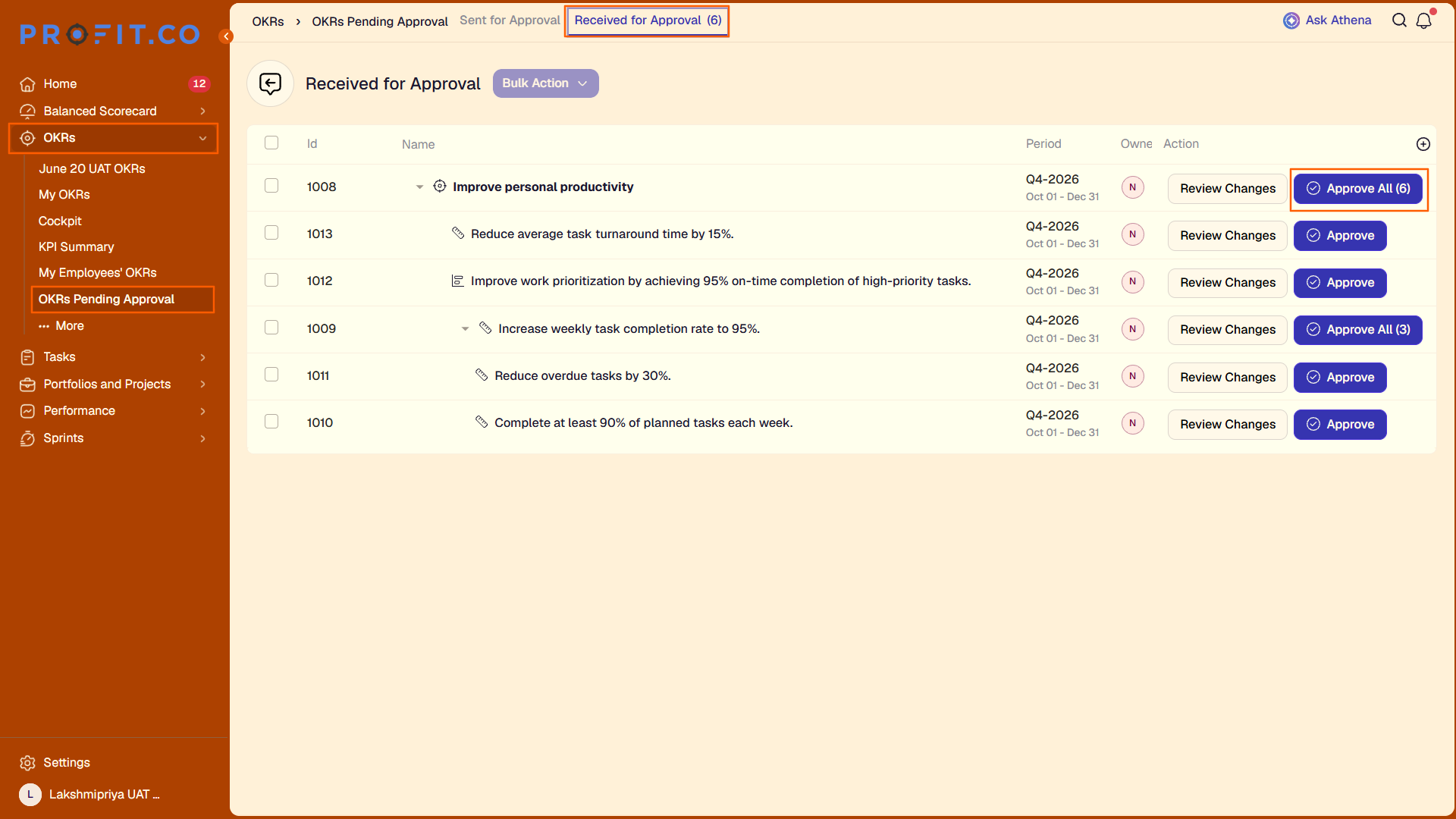
The unified approval card is the approval interface Profit.co displays when multiple objectives, each with their full hierarchy of Key Results, are routed to the same approver at the same time. It consolidates those items onto a single card instead of presenting them as separate approval requests.
The card exposes exactly two actions: Approve All, which approves every objective and Key Result shown on the card, and Review Changes, which lets the approver comment and send the items back. It applies specifically to the multi-objective, same-approver scenario; a single objective sent on its own does not trigger this consolidated view.
Why Does the Unified Approval Card Matter?
Before this card, an approver with several objectives pending review had to open and act on each objective and its Key Results separately. The unified card replaces that sequence with one Approve All click that covers the entire batch.
Routing multiple objectives to the same approver no longer means multiple approval actions. The Review Changes path also gives the approver a built-in way to leave comments and request revisions without leaving the card to find a separate feedback mechanism.
How Does the Unified Approval Card Work?
Step 1: Open the Approval Card
- When multiple objectives and their full hierarchies are routed to you as the approver, the approval card is displayed automatically.
- The card shows the Approve All and Review Changes buttons together.
Method 1: Approve the Entire Hierarchy
Step 2: Click Approve All
- Click Approve All on the approval card.
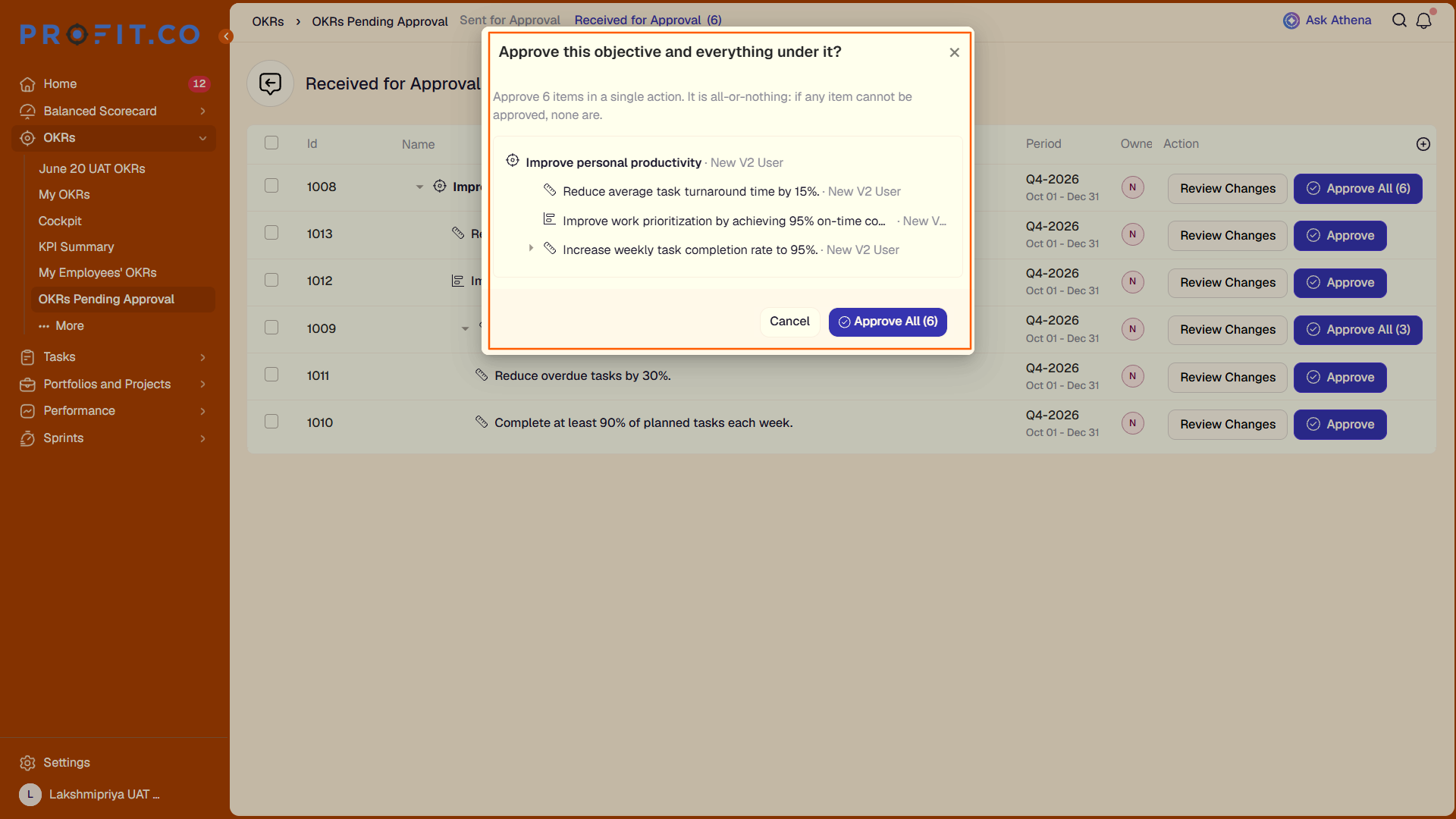
Step 3: Confirm the Approval
- A confirmation pop-up appears: "Approve this Objective and everything under it."
- Select Yes to confirm, or Cancel to return to the card.
Method 2: Request Changes Instead
Step 2: Click Review Changes
- Click Review Changes on the approval card.
Step 3: Add Comments and Submit
- Enter your feedback in the comment field that opens.
- Submit the request for changes.
What Happens When You Use the Unified Approval Card?
| Scenario | What Happens |
|---|---|
| You select Yes to confirm Approve All on a card with multiple objectives. | Profit.co sets the Objective and every Key Result underneath it to approved status, across every objective included on the card. |
| You complete an Approve All confirmation. | Profit.co notifies all contributors on the approved objectives and Key Results that the hierarchy has been approved. |
| You select Cancel on the Approve All confirmation pop-up. | Profit.co discards the approval action and returns you to the approval card with no status change applied. |
| You submit comments through Review Changes. | Profit.co records your comments, notifies all contributors, and keeps the objective and its hierarchy in a pending state until it is resubmitted. |
What Are the Best Practices for the Unified Approval Card?
- Open and check each objective and Key Result in the hierarchy before clicking Approve All, since the action approves every included item at once and does not offer a way to approve a subset.
- Read the confirmation pop-up text before selecting Yes, since it explicitly approves "everything under" the Objective, not the Objective alone.
- Use Review Changes when any single item in the hierarchy needs correction, since it records feedback for the whole batch without forcing a full approval first.
- Confirm the contributor list on each hierarchy before approving, since all contributors are notified the moment Approve All is confirmed.
- Treat Cancel as a safe exit when reviewing a large consolidated card, since it returns you to the card without applying any status change.
Related Articles
Frequently Asked Questions
No. It appears specifically when multiple objectives and their full hierarchies are routed to you as the approver at the same time. A single objective sent on its own does not trigger this consolidated card.
No. The card offers only two actions, Approve All and Review Changes, and there is no option to select a subset of the objectives shown on it.
No. The card is built around objectives and their full hierarchies, so it applies to approval requests that include an Objective and its underlying Key Results together.
Execute your strategy with confidence
Connect OKRs, tasks, and teams in one place with Profit.co
