

When enabled, Profit.co automatically composes notes logged against a Key Result into the check-in comment field, so contributors don't retype updates they've already recorded. The setting only changes what appears in that comment field; it never alters the notes themselves.
Table of Contents
- What is Pre-fill Check-in Comments from Notes?
- Why Does Pre-fill Check-in Comments from Notes Matter?
- How Does Pre-fill Check-in Comments from Notes Work?
- What Happens When You Use Pre-fill Check-in Comments from Notes?
- What Are the Best Practices for Pre-fill Check-in Comments from Notes?
- Related Articles
- What Are Some Frequently Asked Questions About Pre-fill Check-in Comments from Notes?
What is Pre-fill Check-in Comments from Notes?
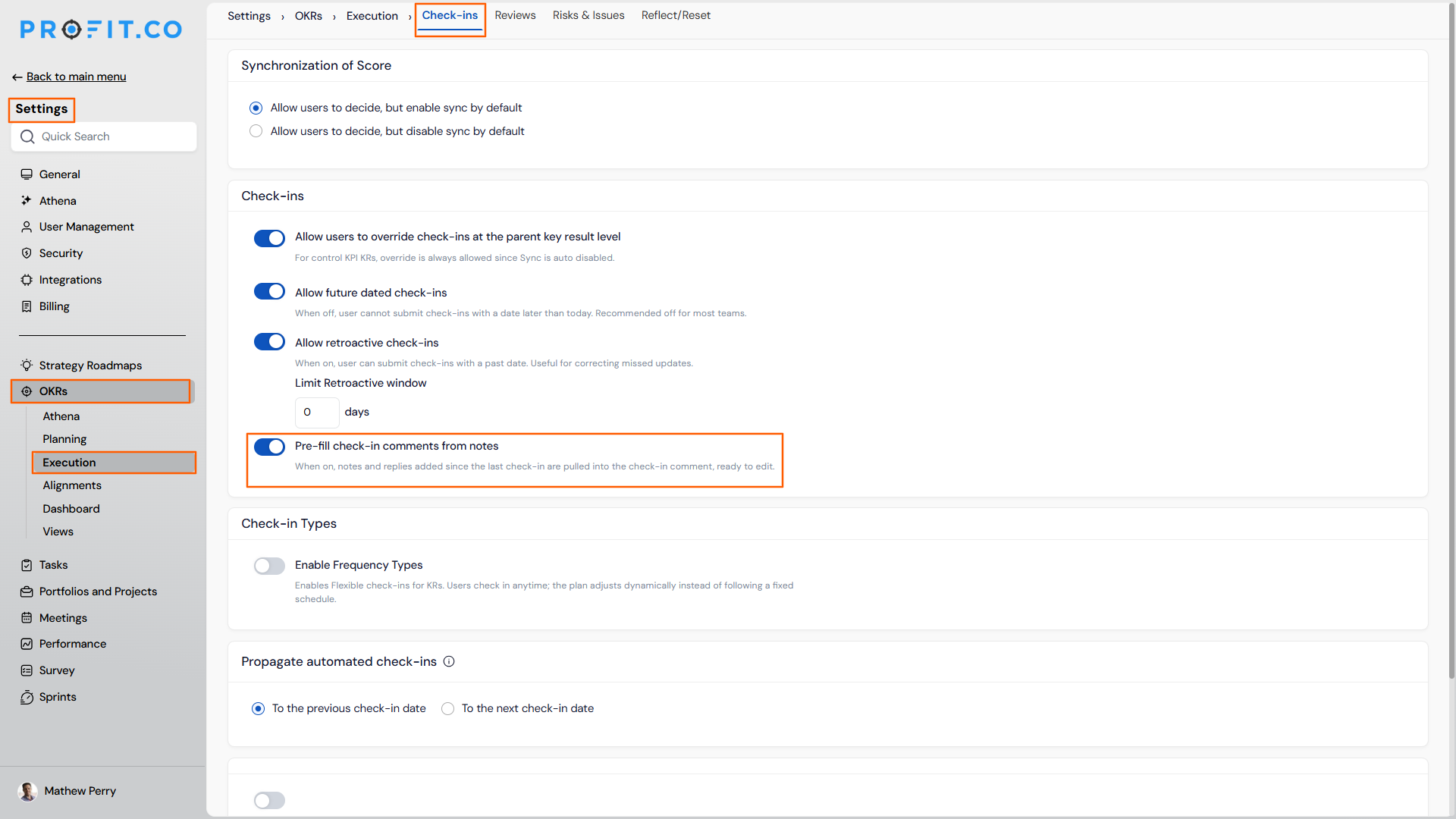
Pre-fill Check-in Comments from Notes is a setting that populates a Key Result's check-in comment field with the notes added to it since the last check-in, grouped by author and dated. It is a single toggle at Settings > OKRs > Execution > Check-ins named Pre-fill check-in comments from notes, and once enabled it applies to every Key Result check-in.
Private notes and threaded replies are never eligible content: only non-private, top-level notes are pulled into the pre-fill. On Key Results with multiple owners, the setting draws from notes added by every owner, not just the person performing the check-in.
Why Does Pre-fill Check-in Comments from Notes Matter?
Contributors previously had to reopen and reread notes, then retype that context into the comment box at check-in time, or skip it altogether. The pre-fill carries the same content forward automatically, so the formal check-in record reflects what the team actually logged in between.
Because the pre-filled text stays fully editable, no one loses control over the final comment, and because private notes and threaded replies are held back by default, contributors can log candid working notes without worrying that internal discussion will surface in a check-in visible to broader stakeholders.
How Does Pre-fill Check-in Comments from Notes Work?
Step 1: Enable the Pre-fill Toggle
- Navigate to Settings > OKRs > Execution > Check-ins.
- Turn on the Pre-fill check-in comments from notes toggle.
Prerequisite
Only a super user can access Settings to enable this toggle.
Step 2: Open a Key Result Check-in
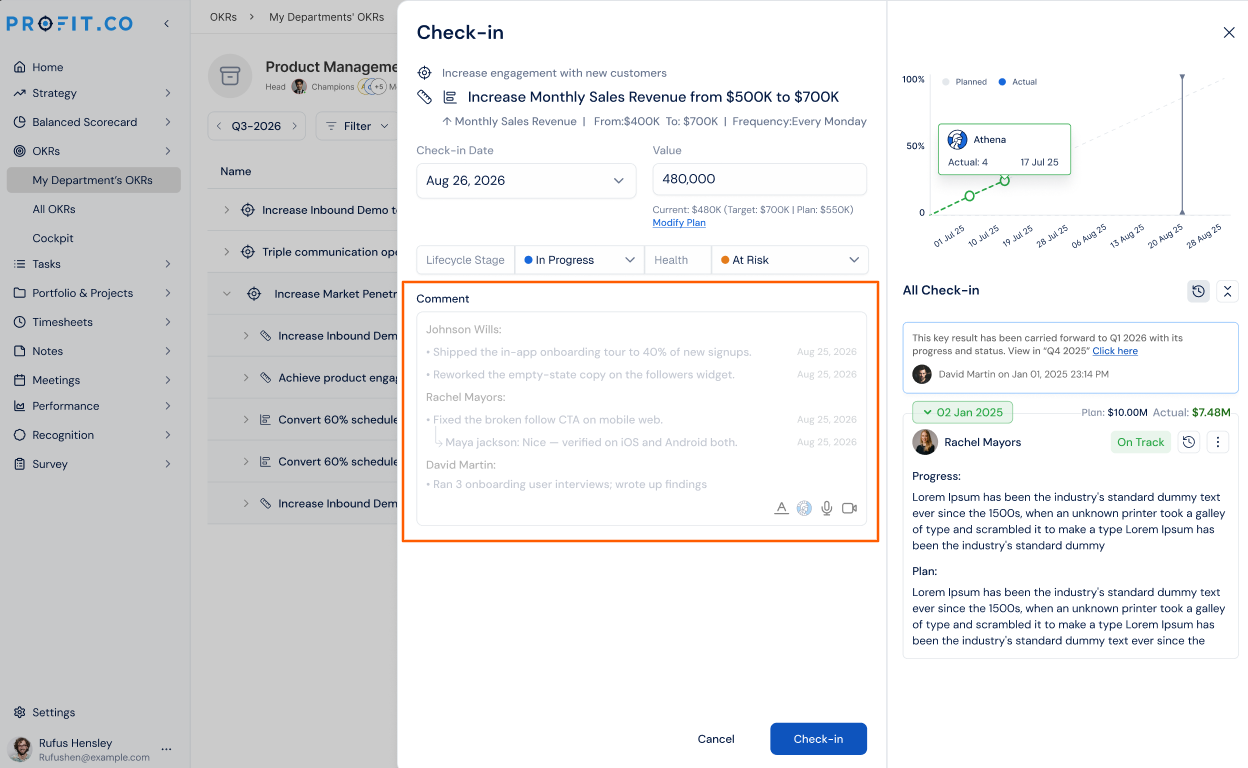
- Open the check-in form for any Key Result.
- Profit.co populates the Comment field with notes added since the last check-in, grouped by author and dated.
- Delete, reword, or append to the pre-filled text as needed.
- Submit the check-in once the comment reflects what you want on record.
What Happens When You Use Pre-fill Check-in Comments from Notes?
| Scenario | What Happens |
|---|---|
| You open the check-in form for a Key Result that has notes logged since the last check-in. | Profit.co pre-fills the Comment field with those notes, grouped by author and dated, and displays a pill indicator confirming the pre-fill. |
| You edit or delete the pre-filled text before submitting the check-in. | Profit.co stores only your final edited comment with the check-in, and the original notes remain unchanged on the Key Result. |
| You open a check-in form where the notes since the last check-in include private notes or threaded replies. | Profit.co excludes those items from the pre-fill and shows an exclusion summary with the count omitted, without revealing their content. |
| You open a check-in form for a Key Result that has multiple owners who each added notes. | Profit.co includes notes from every owner in the pre-fill, and groups them under separate author headings. |
| You close the check-in form without submitting after content has been pre-filled. | Profit.co discards the unsubmitted comment, and reopening the form regenerates the same pre-fill from the unchanged notes. |
| You have the Pre-fill check-in comments from notes toggle turned off. | Profit.co opens the check-in form with a blank Comment field, and behavior matches how check-ins worked before the setting existed. |
What Are the Best Practices for Pre-fill Check-in Comments from Notes?
- Ask contributors to keep working updates as regular notes rather than private notes if that context should carry into check-ins automatically, since private notes are always excluded from the pre-fill.
- Check the pill indicator's exclusion count before submitting a check-in you're relying on for a complete record, since it tells you how many notes were held back without showing their content.
- Confirm your OKR authoring conventions before enabling the toggle, since it is a single organization-wide setting that applies to every Key Result check-in once turned on.
- For Key Results with multiple owners, agree on how each owner logs notes before relying on the pre-fill, since the comment field groups contributions from every owner, not just the person checking in.
- Treat the pre-filled text as a starting draft rather than a final answer, since only your edited version is stored with the check-in and the underlying notes stay untouched either way.
Related Articles
- How do I create notes for a key result?
- How do I check-in for Key Results?
- Is it possible to delete created notes under key results in Profit.co?
What Are Some Frequently Asked Questions About Pre-fill Check-in Comments from Notes?
No. It only affects what appears in the Comment field the next time a check-in form is opened; check-ins already submitted are unaffected.
It is a single toggle at Settings > OKRs > Execution > Check-ins, so once a super user enables it, it applies to every Key Result check-in across the organization.
Only a super user can enable or disable it, from Settings > OKRs > Execution > Check-ins.
No. It only shows the count of items omitted from the pre-fill; it does not reveal the content or author of the excluded notes.
Execute your strategy with confidence
Connect OKRs, tasks, and teams in one place with Profit.co
