
Profit.co lets you customize your OKR Cockpit dashboard by grouping widgets into folders, controlling their visibility, and selecting which insights to display. This gives every user a dashboard that matches their own role and priorities.
Table of Contents
What is the OKR Cockpit Widget Customization?
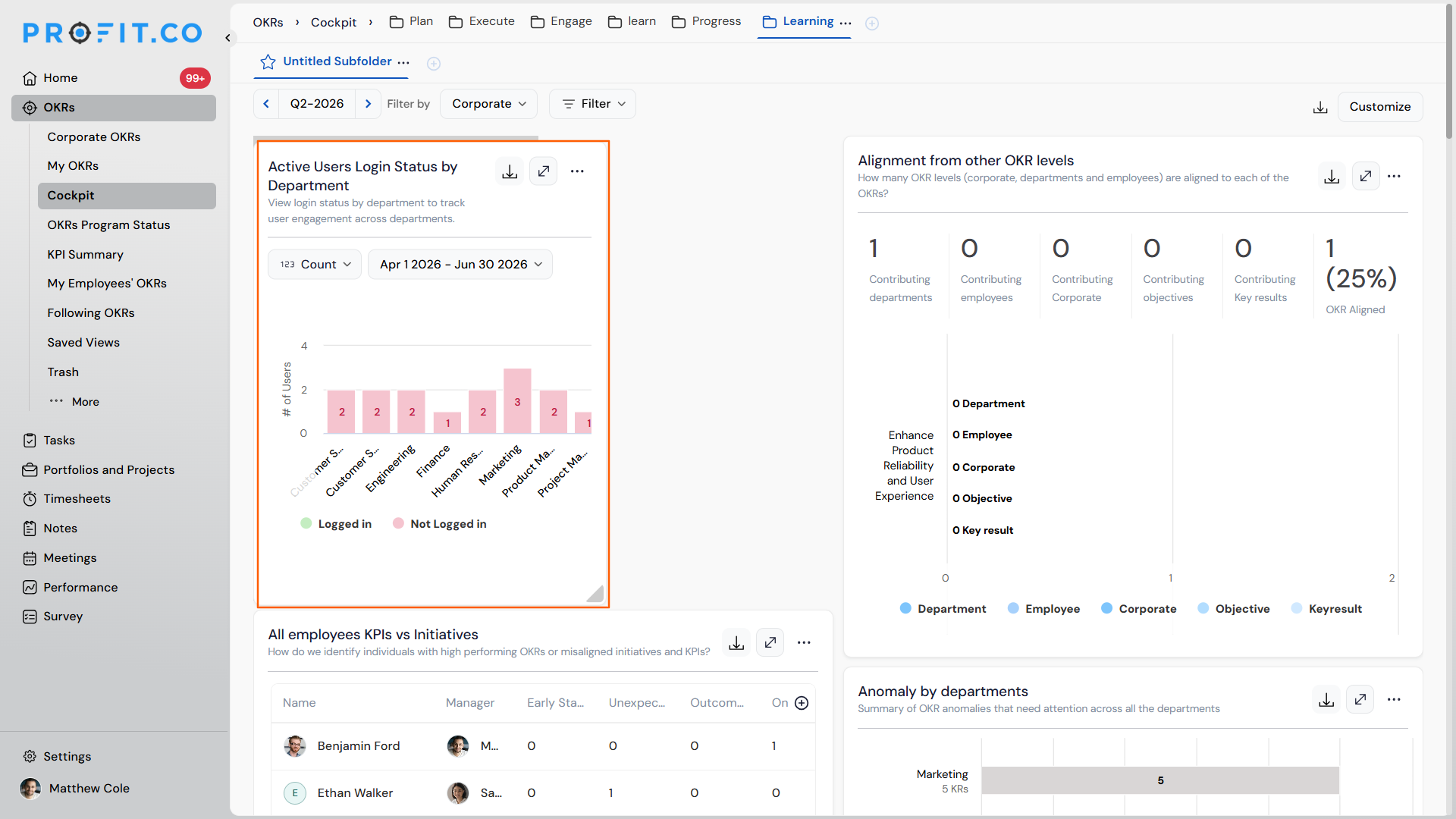
OKR Cockpit widget customization is a set of controls that let you organize, filter, and personalize the widgets shown on your Cockpit dashboard. It covers folder-based grouping, visibility restrictions, relevancy-based filtering, widget selection, and layout adjustments.
| Key Capability | Description |
|---|---|
| Folder and Subfolder Structure for Grouping | Supports hierarchical grouping by allowing users to create folders and subfolders, helping organize insights and simplify navigation. |
| Visibility | Provides access control to restrict visibility of folders and files, ensuring sensitive information is viewed only by authorized users. |
| Relevancy | Allows users to select widgets based on the categorization of Recommended, Best Practices, and New, ensuring quick access to relevant insights. |
| Personalization | Allows users to personalize their workspace by selecting and displaying widgets that align with their specific needs. |
| Interactive Layout Adjustments | Enables users to rearrange and resize widgets dynamically, optimizing the dashboard layout for better usability and clarity. |
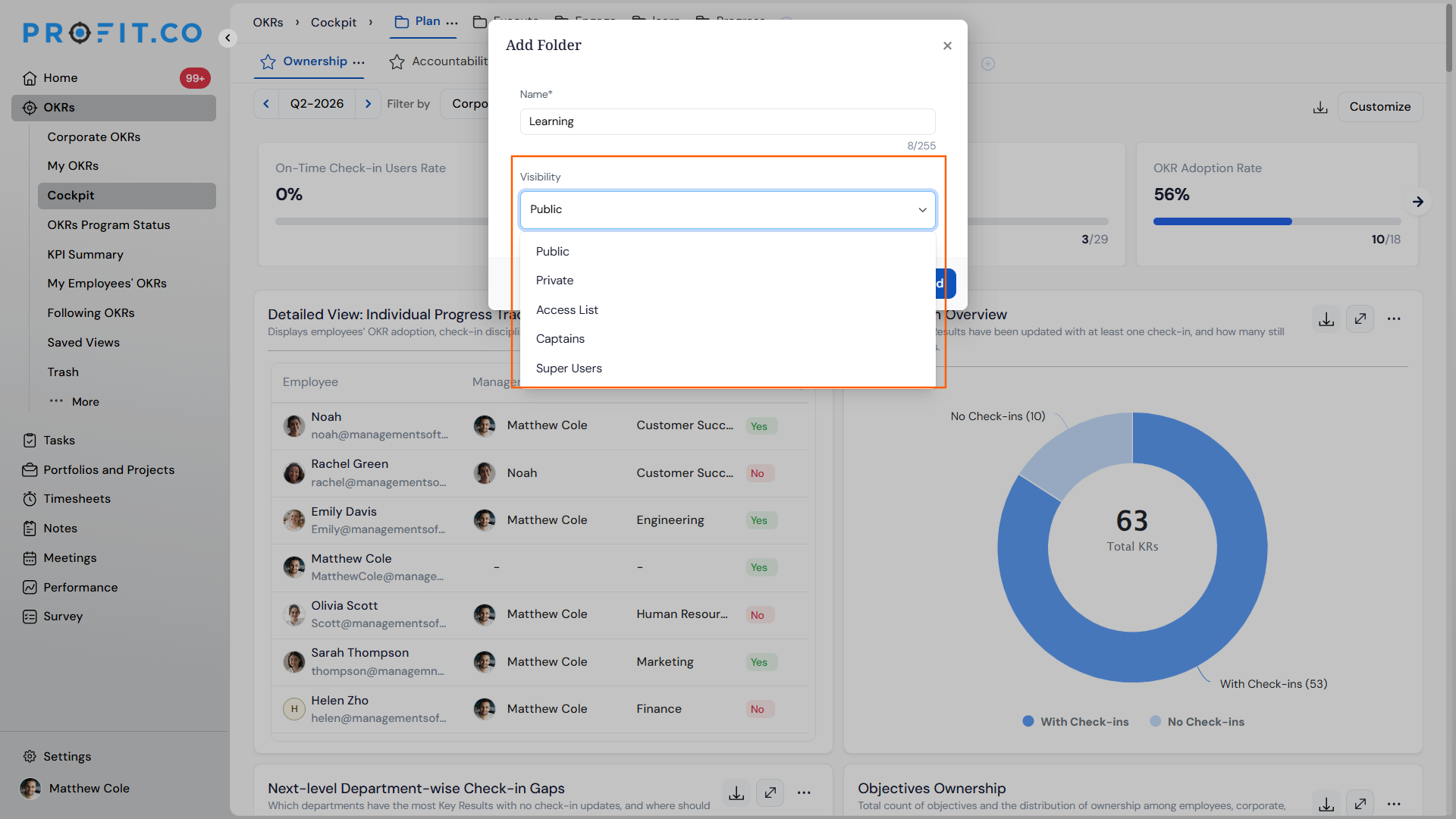
Each folder can be set to one of three visibility levels:
| Visibility Setting | Description |
|---|---|
| Public | Accessible to all users within the organization or team. Anyone can view and interact with the content. |
| Private | Restricted to the owner or creator. Only the person who created the folder can access and manage its contents. |
| Access List | Limited to specific users or groups assigned by the owner. Only users on the access list can view or interact with the folder. |
Widgets are also labeled by relevancy, so you can identify the ones that matter most:
| Relevancy Label | Description |
|---|---|
| Best Practices | Reflects must-have metrics, representing standard methods widely recognized for achieving success. |
| Recommended | Provides tailored suggestions based on user behavior, team goals, or frequently used metrics. |
| New | Highlights the latest widgets added to the platform, so users can discover newly introduced functionality. |
Why OKR Cockpit Widget Customization Matters
Before this customization existed, every user saw the same fixed set of Cockpit widgets, regardless of their role. Folder-based personalization replaces that one-size-fits-all view with a dashboard tailored to what each user actually needs.
| Benefit | What Changes |
|---|---|
| Tailored workspace | Users show only the widgets they need, creating a more focused and efficient workspace instead of a fixed, one-size-fits-all layout. |
| Sharper focus | Displaying only relevant widgets helps users concentrate on their key objectives and stay aligned with their priorities. |
| Faster access | Quick access to the information users value most makes the dashboard more user-friendly to navigate. |
How It Works
Step 1: Create a Folder or Subfolder
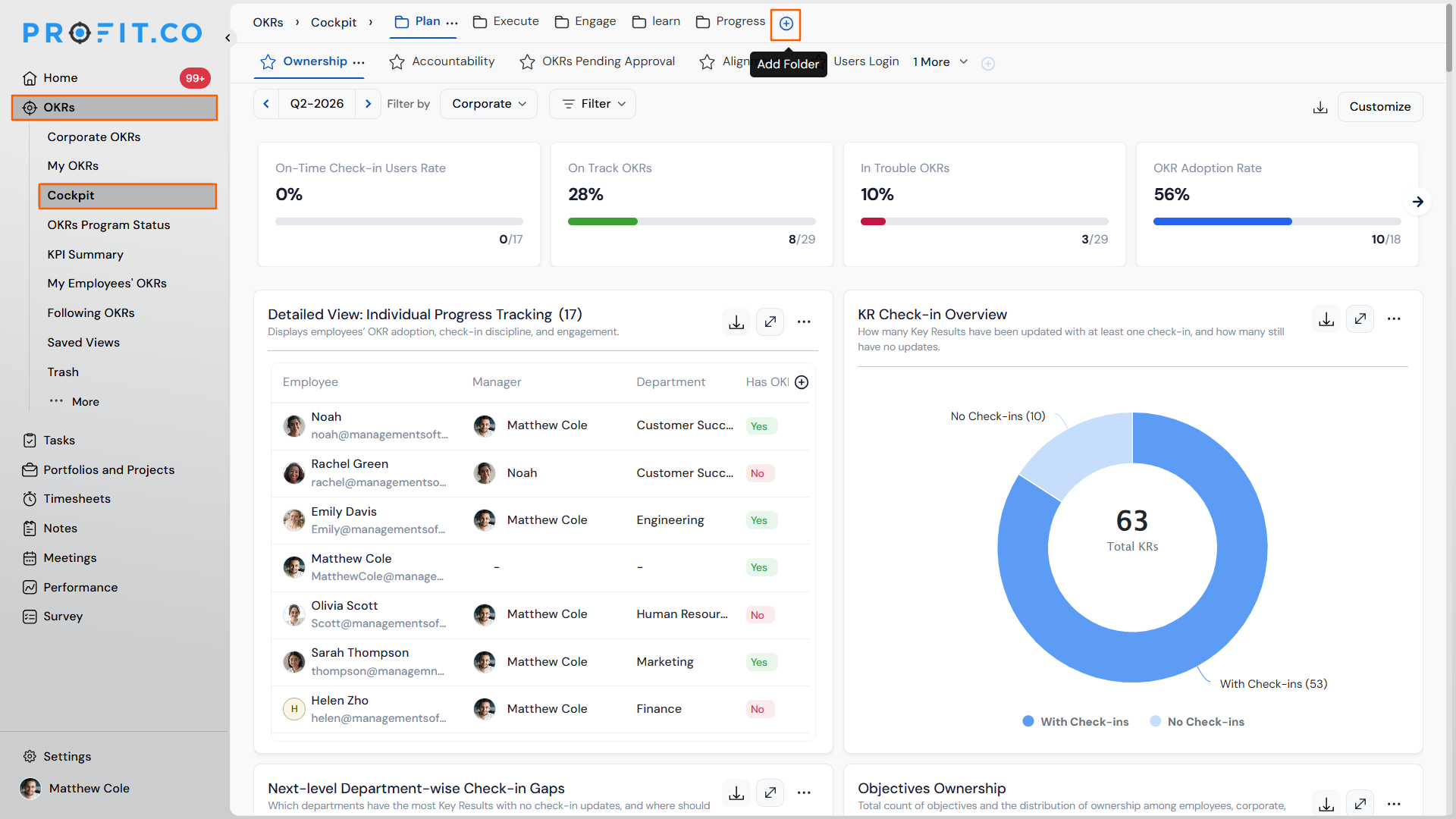
- Click the + icon to create a new Folder.
- Click the + icon within an existing folder to create a new Subfolder.
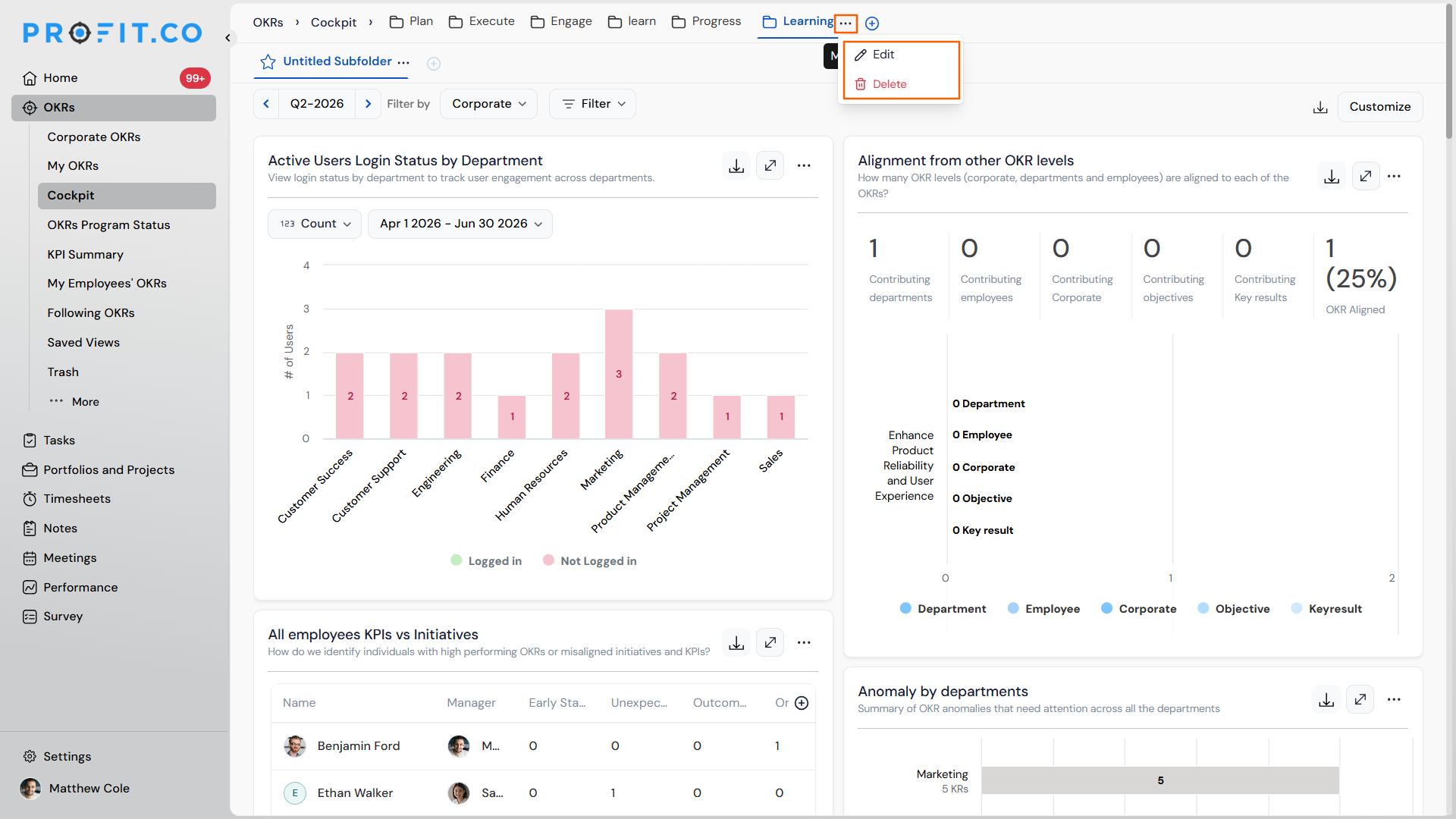
- Edit or delete the untitled Subfolder file using the More option.
Note
You can create subfolders within both newly created and existing folders. If you try to create a subfolder with a name that already exists, an alert message is displayed.
Step 2
- Set a new or existing folder's Visibility to Public, Private, or Access List.
Step 3
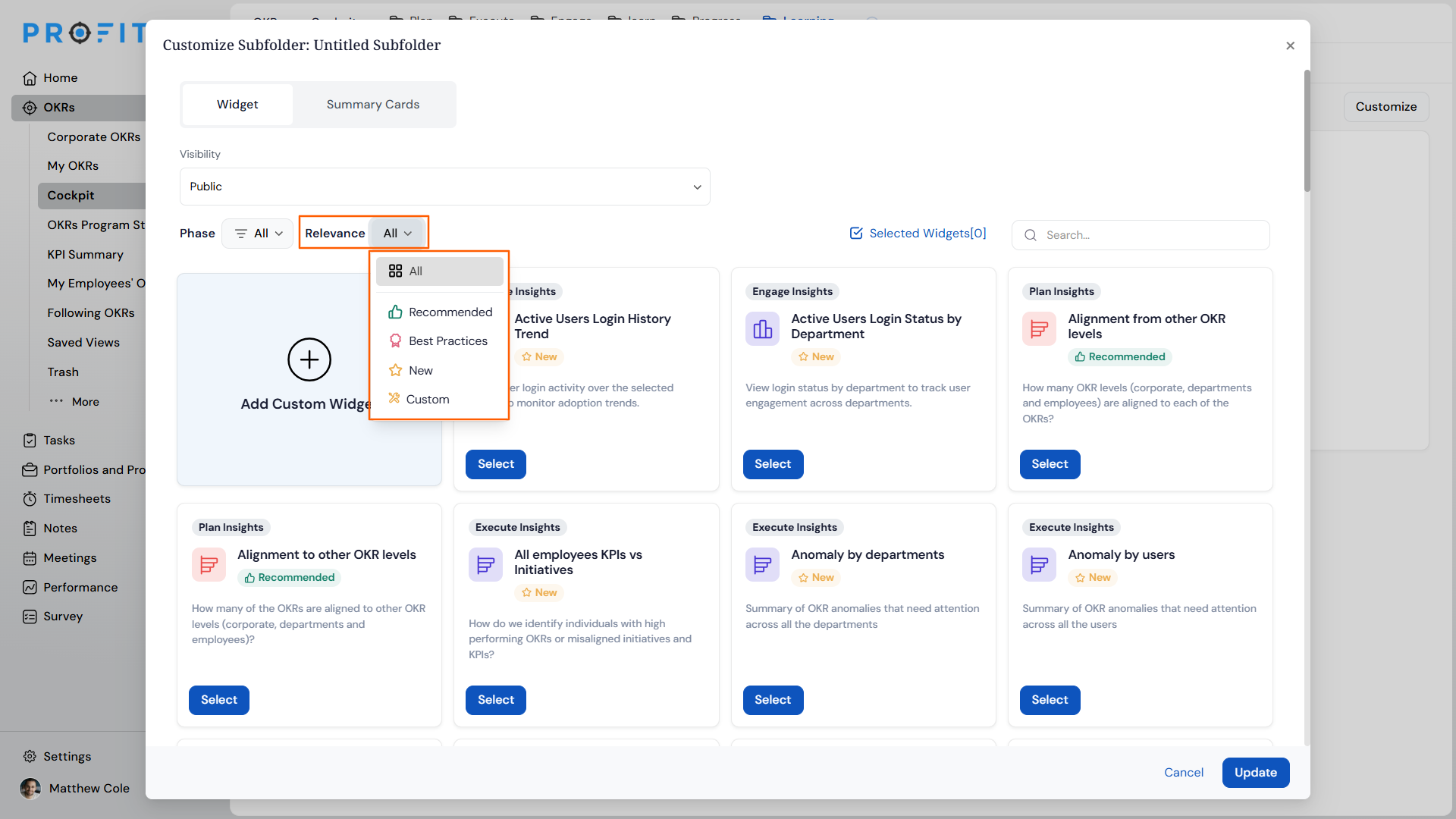
- Use the Relevancy filter to browse widgets labeled Best Practices, Recommended, or New.
Step 4
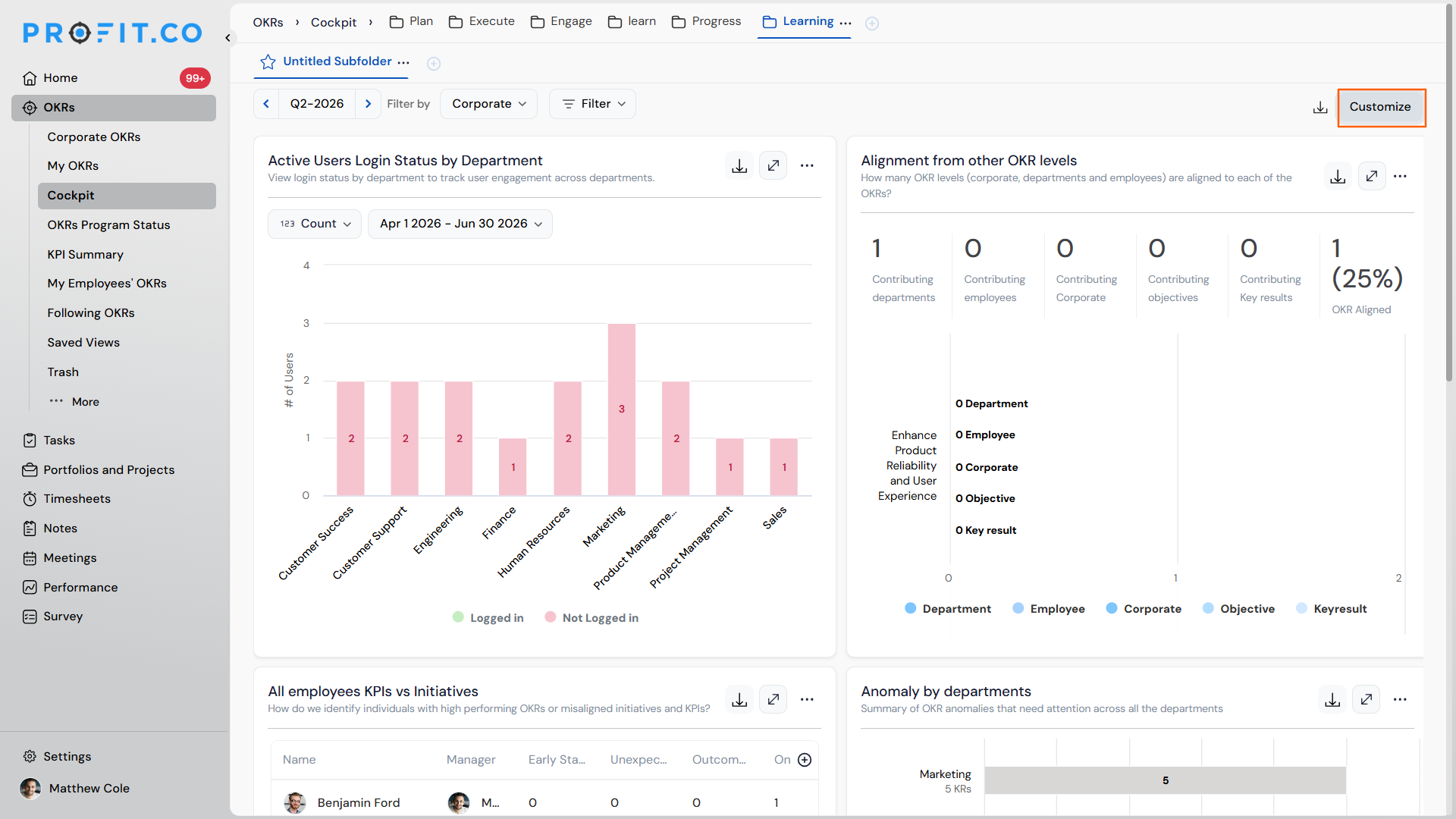
- Choose the required folder and file, then click Customize.
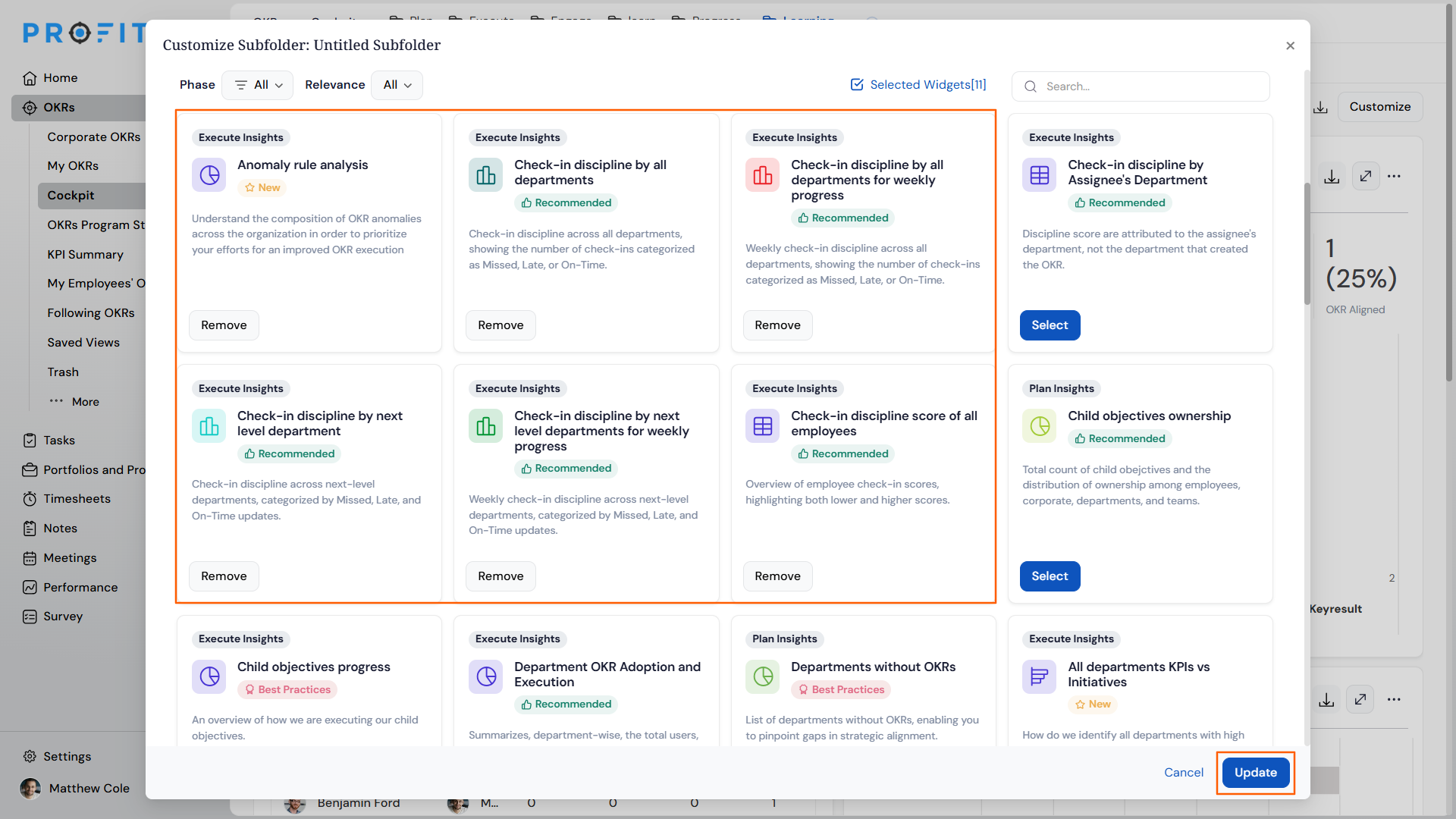
- Select the widgets that are most relevant to your role and objectives.
- Click Update to add the selected widgets to your dashboard.
Note
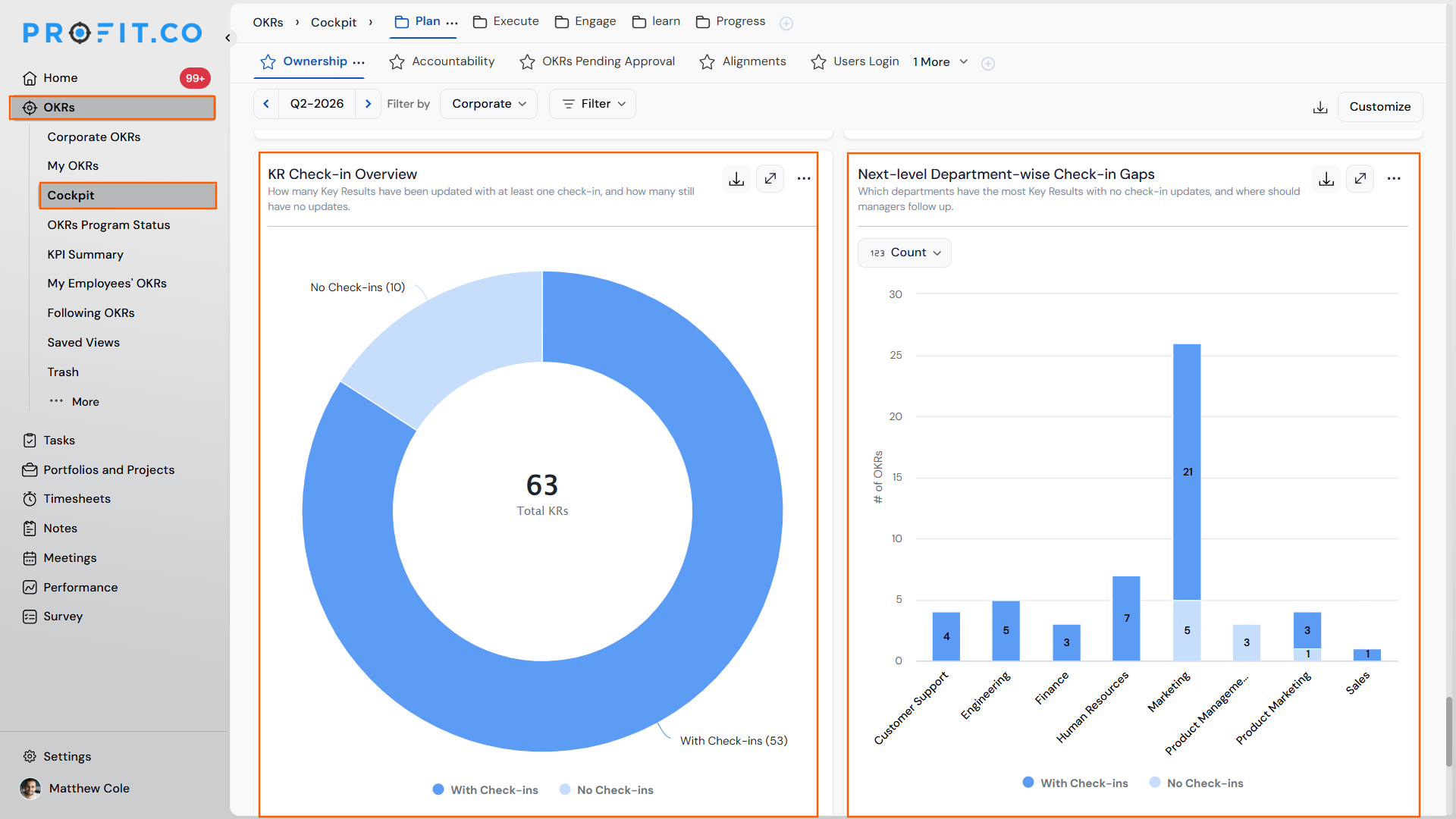
Two new widgets are now available under this customization: KR Check-in Overview and Next-Level Department-wise Check-in Gaps. Together, they show how many key results have check-ins and how many don't, broken down by department, so you can spot where check-ins are falling behind without opening each key result individually.
Step 5
- Rearrange and resize widgets dynamically on your dashboard.
- Export widget data in CSV format, or export a widget itself as JPG or PNG.
Note
You can also export the data in the widgets in CSV format, and the widgets themselves in JPG or PNG format.
OKR Cockpit Widget Customization Scenarios and Their Outcomes
| Scenario | What Happens |
|---|---|
| You set a folder's visibility to Private. | Profit.co restricts that folder to you as the creator, so other users don't see it on their Cockpit. |
| You set a folder's visibility to Public. | Profit.co makes that folder visible to all users within the organization or team. |
| You click Cancel instead of Update while customizing widgets. | Profit.co discards the widget selection changes and keeps your dashboard exactly as it was before. |
| You delete a subfolder file from the Cockpit. | Profit.co removes that saved widget arrangement, but the underlying OKR data behind each widget stays unaffected, since widgets only display live data. |
| You try to create a subfolder using a name that already exists. | Profit.co blocks the action and displays an alert message instead of creating a duplicate. |
Best Practices for OKR Cockpit Widget Customization
- Organize widgets into folders and subfolders before adding many of them, since a flat list gets harder to scan as your dashboard grows.
- Set folder visibility deliberately: use Public for team-wide dashboards, Private for personal working views, and Access List when only specific people should see a folder.
- Check the New label regularly, since it's the fastest way to discover recently added widgets without scanning the full widget list.
- Resize and rearrange widgets based on how you actually scan the dashboard, since Interactive Layout Adjustments lets you prioritize the metrics you check most often.
- Export widget data to CSV before a review meeting, since the export option preserves the numbers behind a widget for offline analysis.
Related Articles
Frequently Asked Questions
KR Check-in Overview shows the overall count of key results with and without check-ins. Next-Level Department-wise Check-in Gaps breaks that same information down by department.
Both widgets track check-ins at the key result level. Next-Level Department-wise Check-in Gaps then groups those key result check-ins by department.
Navigate to OKRs → Cockpit from the left navigation panel, then add KR Check-in Overview or Next-Level Department-wise Check-in Gaps from the widget list, the same way you'd add any other Cockpit widget.
Execute your strategy with confidence
Connect OKRs, tasks, and teams in one place with Profit.co
