

Key Result plans in Profit.co support five progression models that shape how check-in targets are distributed across a review period. Each model includes a built-in guide showing its calculation logic and a worked example based on the Key Result's own values.
Table of Contents
- What is Progression Model Selection for Key Result Plans?
- Why Does Progression Model Selection Matter?
- How Does Progression Model Selection Work?
- What Happens When You Use Progression Model Selection?
- What Are Common Progression Model Examples?
- What Are the Best Practices for Progression Model Selection?
- Related Articles
- What Are Some Frequently Asked Questions About Progression Model Selection?
What is Progression Model Selection for Key Result Plans?
Progression Model Selection is a plan-setup option that determines how a Key Result's check-in targets are distributed across its review period, instead of applying a single default distribution to every Key Result. Profit.co supports five models: Linear, Front-loaded, Back-loaded, S-curve, and Stepped.
| Model | Definition |
|---|---|
| Linear | The target increases by the same amount at every check-in, from start to finish. |
| Front-loaded | Most of the target is expected to be hit early, and progress slows as the period goes on. |
| Back-loaded | Progress is slow in the early check-ins and picks up sharply toward the end of the period. |
| S-curve | Progress starts slow, accelerates steeply through the middle, then levels off as the target is approached. |
| Stepped | The target holds flat and jumps only at fixed intervals, with no progress expected between milestones. |
Each model comes with a drill-down guide that shows the exact calculation formula and a worked example built from the Key Result's own Baseline and Target values, so the model's effect is visible before it's applied.
Why Does Progression Model Selection Matter?
Different types of work progress differently: campaigns front-load, sales pipelines back-load, and product rollouts follow an S-curve. Matching the model to the actual work pattern means check-in targets reflect real expectations instead of a single straight-line assumption applied to everything.
The drill-down guide's worked example removes the guesswork of committing to a model blind, since it calculates against the Key Result's own numbers rather than a generic sample. The embedded Ask Athena panel adds a faster path to the same result, letting users describe an adjustment in plain language instead of manually recalculating a plan from scratch.
How Does Progression Model Selection Work?
Step 1: Open the Plan Setup Panel
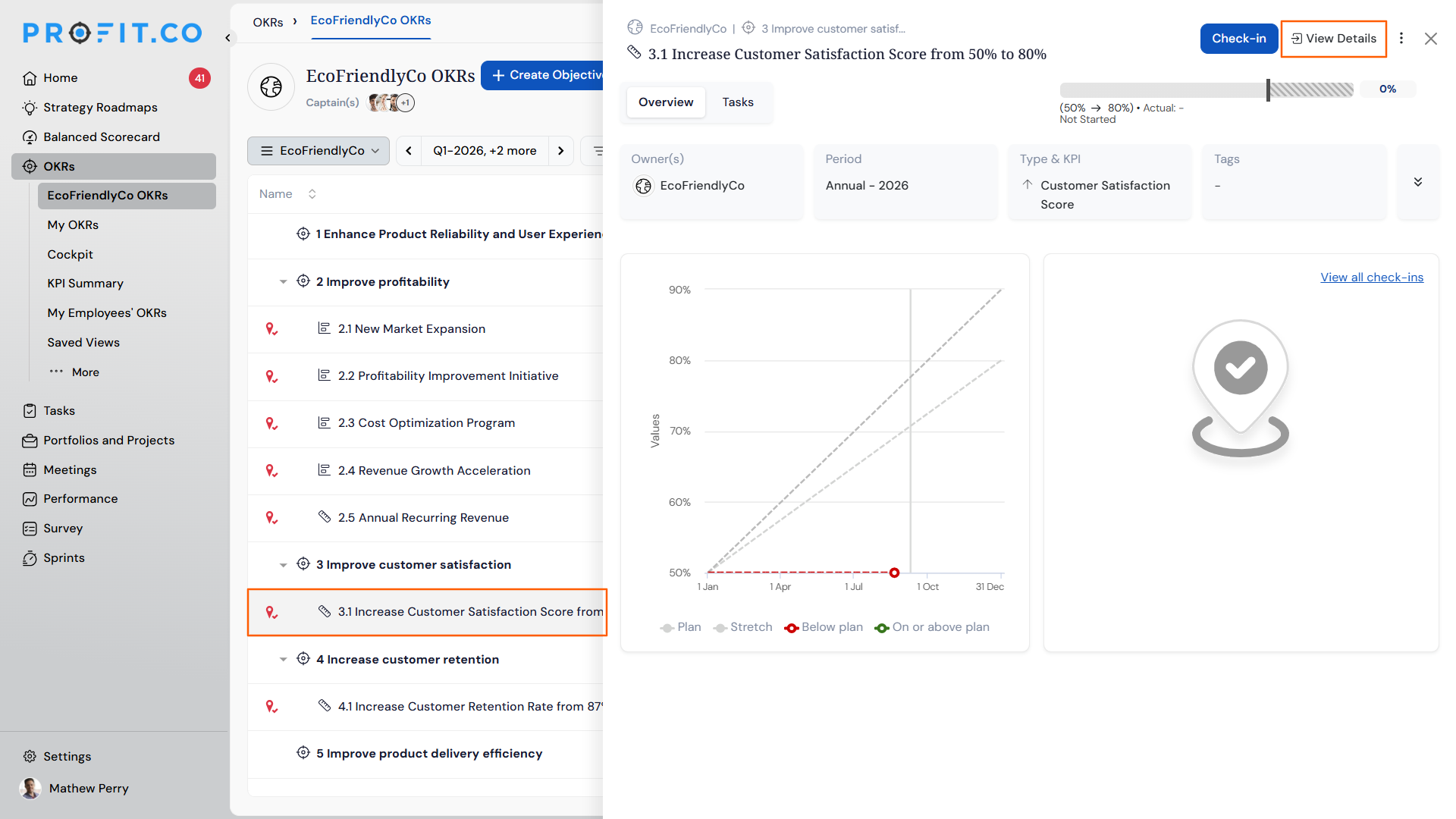
- Navigate to the Key Result and open its View Details page.
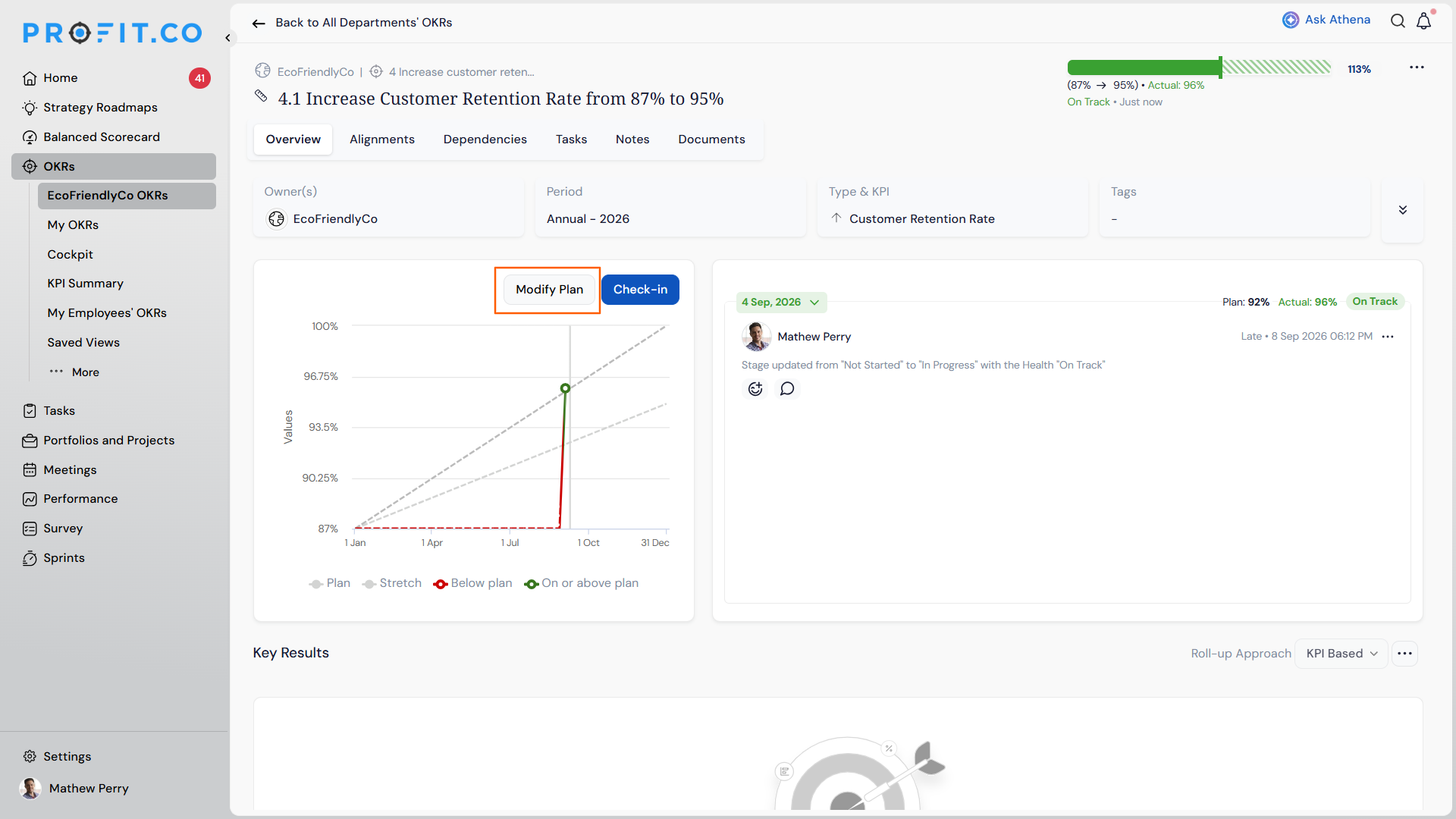
- Click Modify Plan.
- The Set up plan panel opens.
Step 2: Select a Progression Model
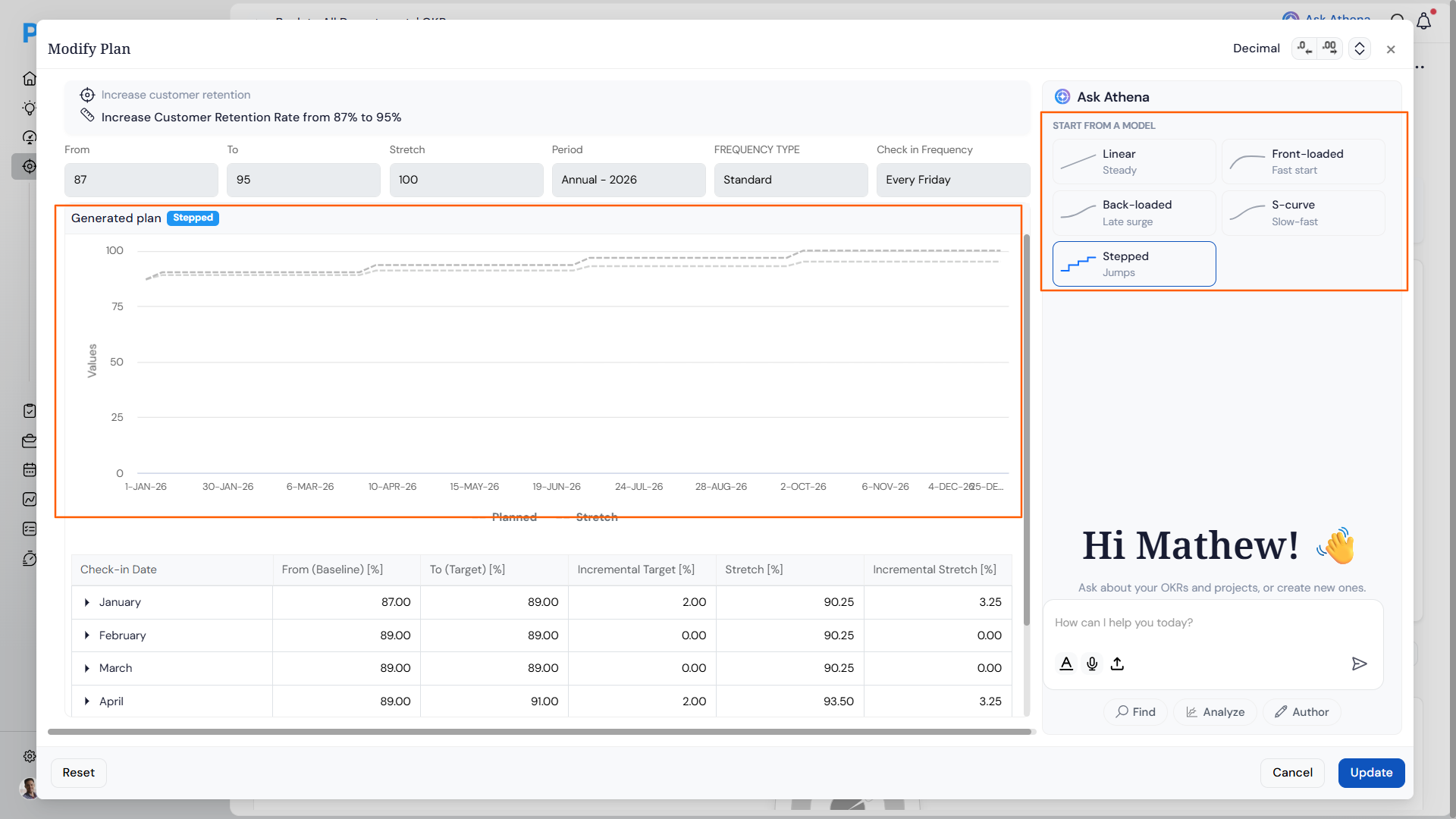
- In the right-side panel, choose a model: Linear, Front-loaded, Back-loaded, S-curve, or Stepped.
- Alternatively, describe the adjustment in the Ask Athena chat panel (for example, "back-load into March") and let Athena apply the change.
Step 3: Review the Live Breakdown
- Check the left panel, which updates automatically with a chart for the selected model.
- Review the check-in-by-check-in Baseline, Target, and Incremental Target values in the breakdown.
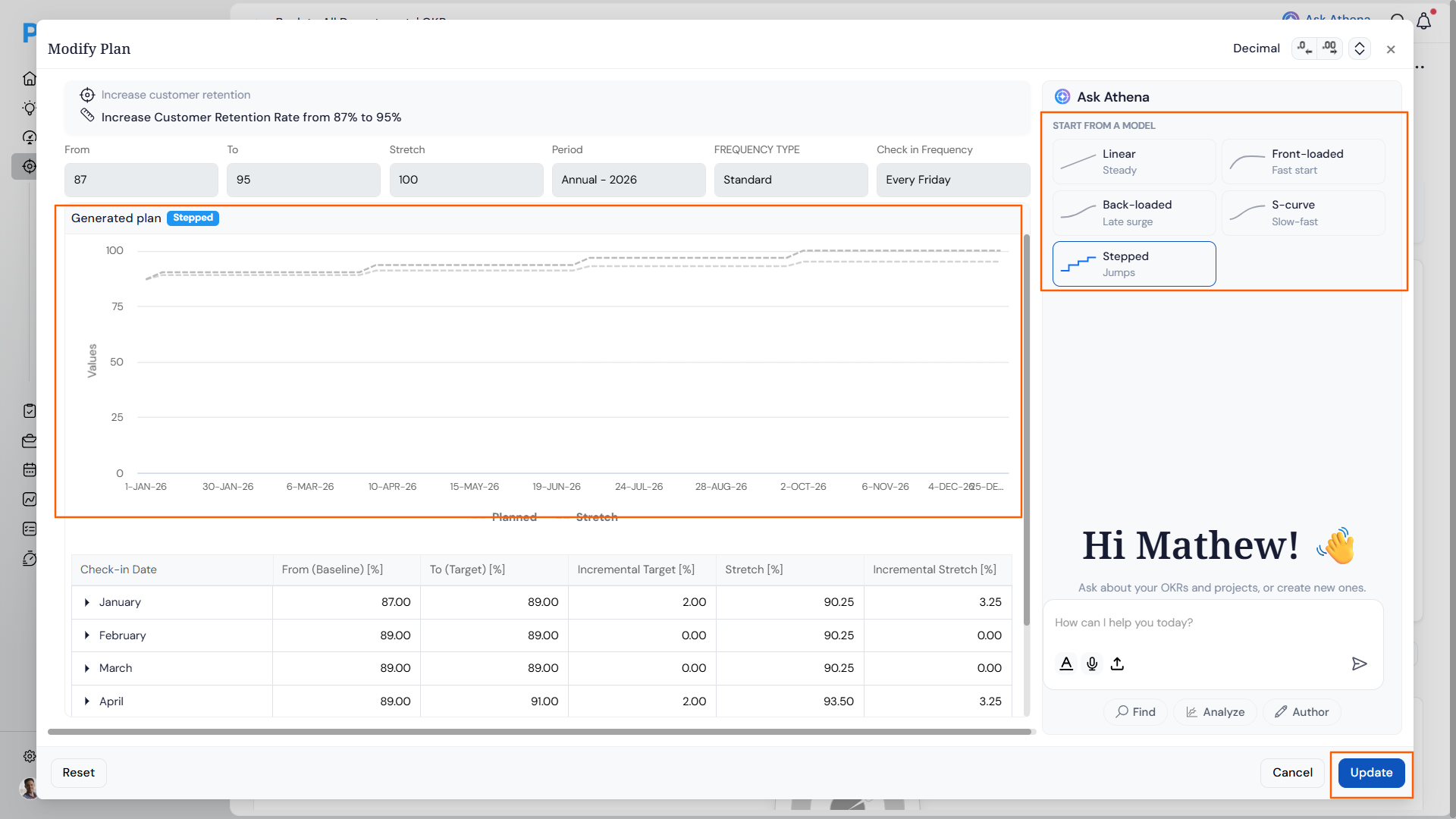
- Click Update to save the selected model and its check-in breakdown.
What Happens When You Use Progression Model Selection?
| Scenario | What Happens |
|---|---|
| You select a different progression model in the Set up plan panel. | Profit.co recalculates the check-in-by-check-in Target and Incremental Target values for the new model, and updates the chart and breakdown in the left panel live. |
| You describe a plan adjustment in the Ask Athena chat panel instead of selecting a model manually. | Profit.co applies Athena's interpretation to the plan, and reflects the resulting Target and Incremental Target values in the same live chart and breakdown. |
| You change the model or make an Athena adjustment, then close the panel without clicking Update. | Profit.co discards the unsaved changes, and the Key Result keeps the progression model and values it had before you opened the panel. |
| You open the built-in model guide for a progression model. | Profit.co shows the model's calculation formula, and displays a worked example using the Key Result's own Baseline and Target values. |
| You click Update after selecting a progression model. | Profit.co saves the selected model as the Key Result's plan, and locks in the check-in-by-check-in Target and Incremental Target values shown in the breakdown. |
What Are Common Progression Model Examples?
| Model | Example | Use When |
|---|---|---|
| Linear | Hiring 12 people over 6 months, at 2 hires every month. | Work is steady and predictable with no seasonal spikes. |
| Front-loaded | A product launch where 60% of sign-ups arrive in the first two weeks, then tapers off. | The hardest or most impactful work happens at the beginning. |
| Back-loaded | Sales deals that close at quarter end, with most revenue landing in the final weeks. | There is a long build-up phase before results start showing up. |
| S-curve | A company-wide software rollout where adoption is slow at first, spikes after training, then plateaus. | Work needs an onboarding or ramp-up phase before it can scale. |
| Stepped | Three software releases in a quarter, where the target jumps only when each release ships. | Work is delivered in batches, not continuously. |
What Are the Best Practices for Progression Model Selection?
- Open the model guide's worked example before committing to a model, since it calculates the breakdown using this Key Result's own Baseline and Target values rather than generic numbers.
- Match the model to the pattern of the work itself: use Back-loaded or S-curve for initiatives with a build-up phase, and Front-loaded for launches where most of the impact lands early.
- Use the Ask Athena panel for quick, targeted adjustments like shifting weight into a specific month, since it applies natural-language changes directly to the live breakdown instead of a manual recalculation.
- Review the check-in-by-check-in breakdown in the left panel before clicking Update, since the selected model recalculates every Target and Incremental Target value for the period.
- Reserve Stepped for work that ships in discrete batches, such as releases or milestones, since it holds the target flat between intervals rather than showing gradual progress.
Related Articles
What Are Some Frequently Asked Questions About Progression Model Selection?
Yes. Selecting a different model in the Set up plan panel simply recalculates the live breakdown; nothing is saved until you click Update.
It works alongside it. You can choose a model from the right-side panel or describe the adjustment to Athena in natural language, and both paths feed the same live chart and breakdown.
It's based on your own Key Result. The guide calculates its worked example using the Key Result's actual Baseline and Target values, not a sample dataset.
Yes. Every model works from the same Baseline and Target values already set on the Key Result; the model only changes how those values are distributed across check-ins.
Execute your strategy with confidence
Connect OKRs, tasks, and teams in one place with Profit.co
