

Profit.co lets you link one or more tasks directly to a project expense, giving every recorded cost a traceable connection to the work that drove it. You can create a task on the spot or pick from tasks already in the project, without leaving the expense.
Table of Contents
What is Associating Tasks with Expenses?
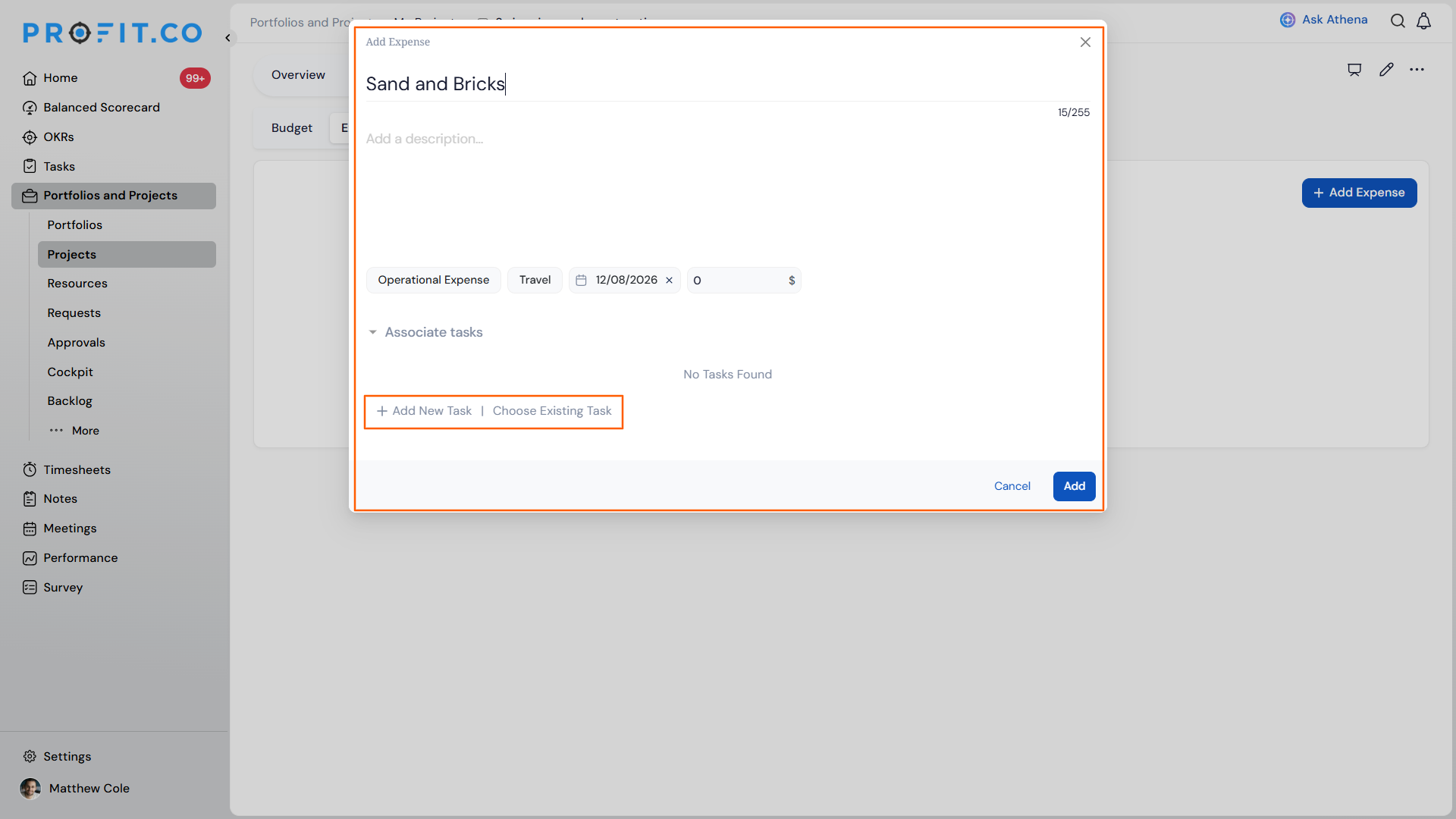
Every expense has an Associate tasks section with two entry points. + Add New Task opens an inline Create Task form to build a task without leaving the expense. Choose Existing Task opens a full-screen picker showing Task name with breadcrumb context, Assignee, Priority, Planned Start Date, Planned End Date, and Created By, with multi-select support for tasks and their subtasks.
Associations are tracking-only: linking a task to an expense never changes the expense amount and never contributes to cost, EVM, or progress rollups. Removing an association only unlinks the task from the expense; it never deletes the underlying task.
Why Associating Tasks with Expenses Matters
Before this update, connecting a cost to the work behind it meant cross-referencing expenses against tasks manually, often in an external spreadsheet. That left finance and delivery teams without a shared, in-product link between spend and effort.
| Benefit | What Changes |
|---|---|
| Full spend-to-work traceability | Costs link directly to tasks in-product, instead of being cross-referenced manually against outside spreadsheets. |
| A familiar interaction pattern | Associate tasks follows the same task-association pattern already used for Risks & Issues, so the interaction feels familiar rather than new to learn. |
| Cleaner audit trails | Tollgate and finance reviews get a direct, auditable link from each expense to the tasks that drove it, instead of an indirect paper trail. |
| No risk to rollups | Traceability is added without any risk of double-counting cost or progress, since associations never touch cost, EVM, or progress calculations. |
How It Works
Method 1: Add a New Task from an Expense
Step 1
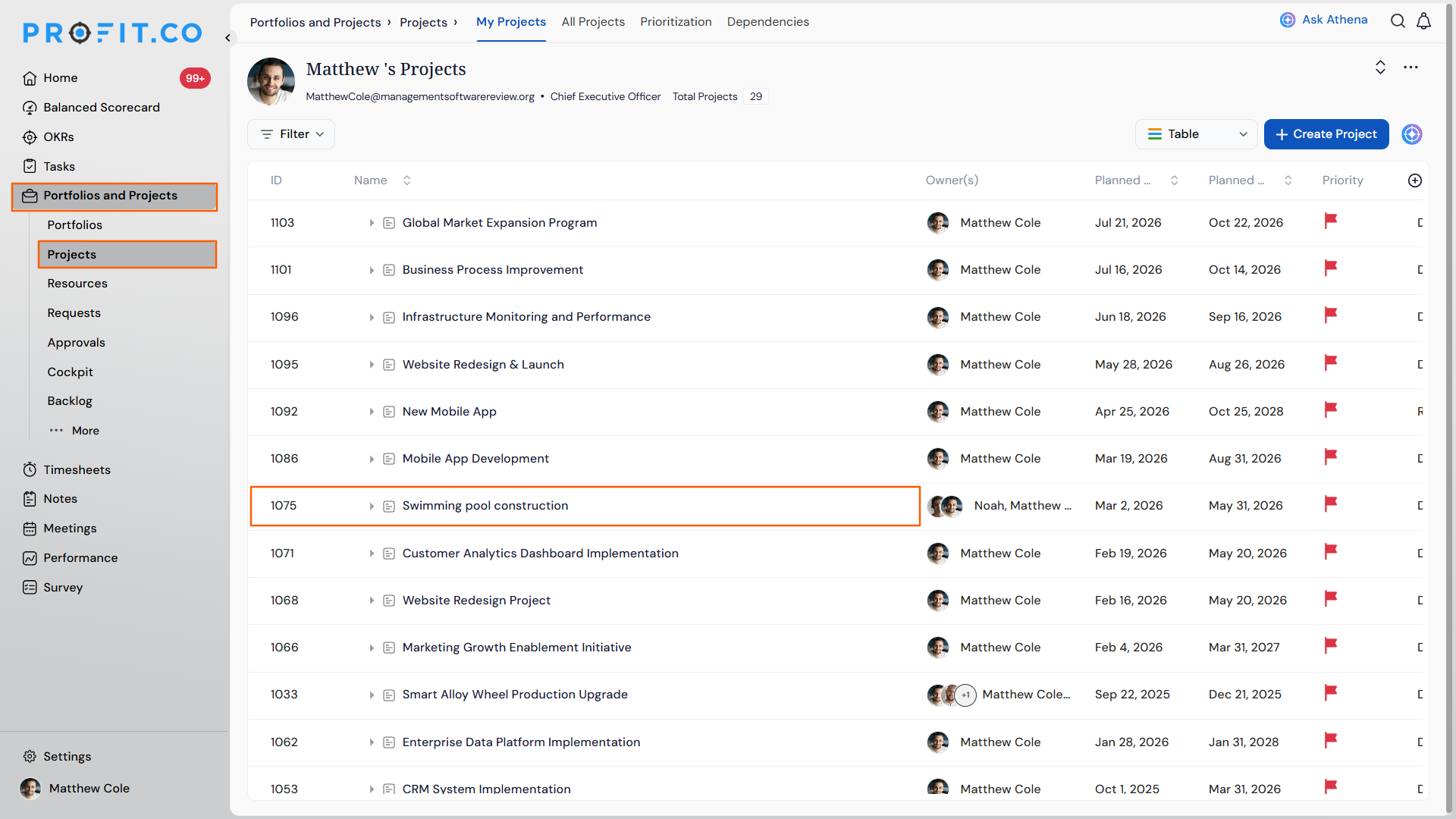
- Navigate to Portfolios & Projects → Projects from the left navigation panel.
- Choose the required Project.
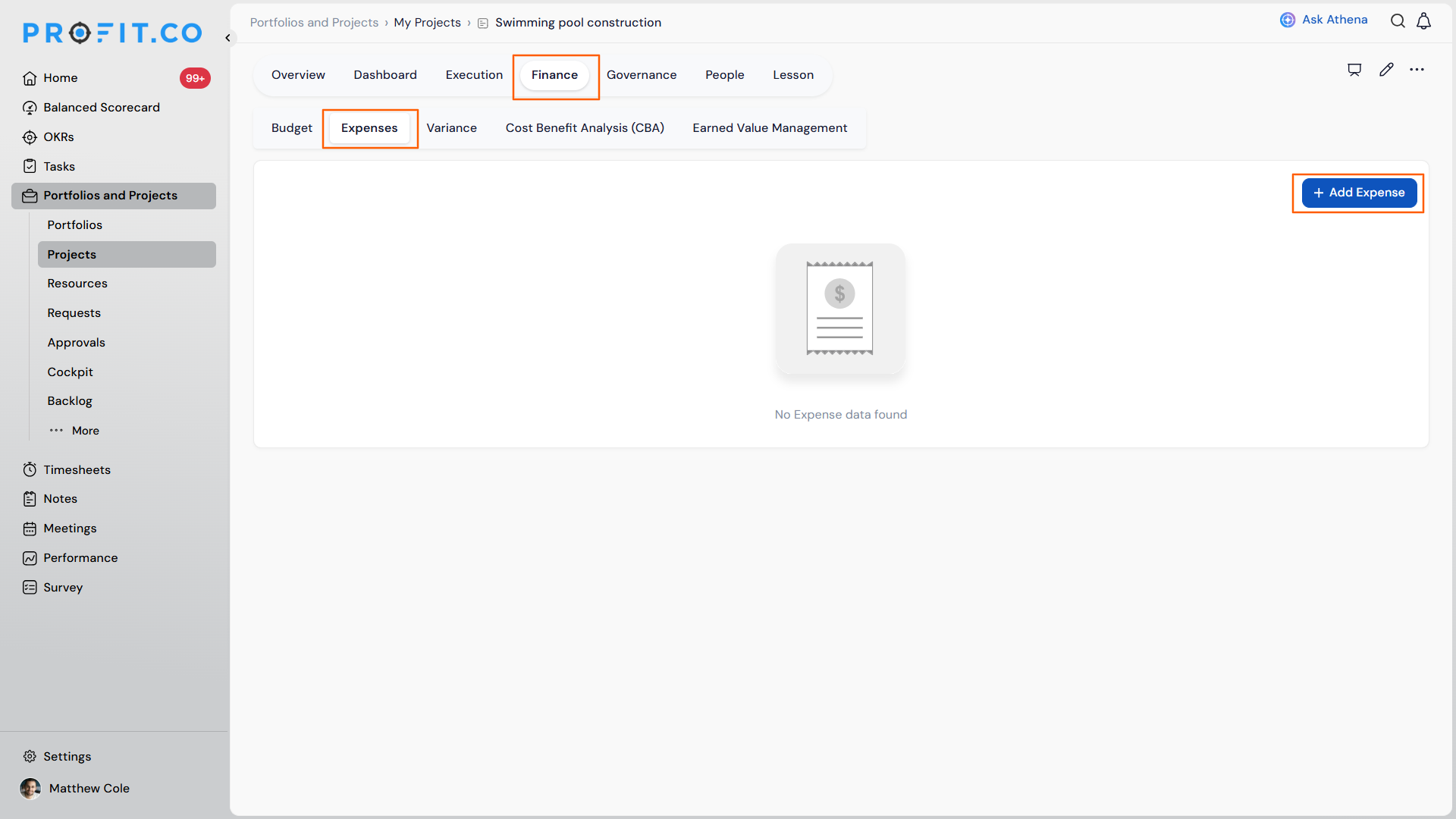
- Open a project's Expenses tab and click + Add Expense, or open an existing expense.
Step 2
- In the Associate tasks section, click + Add New Task or choose from the Existing Task.
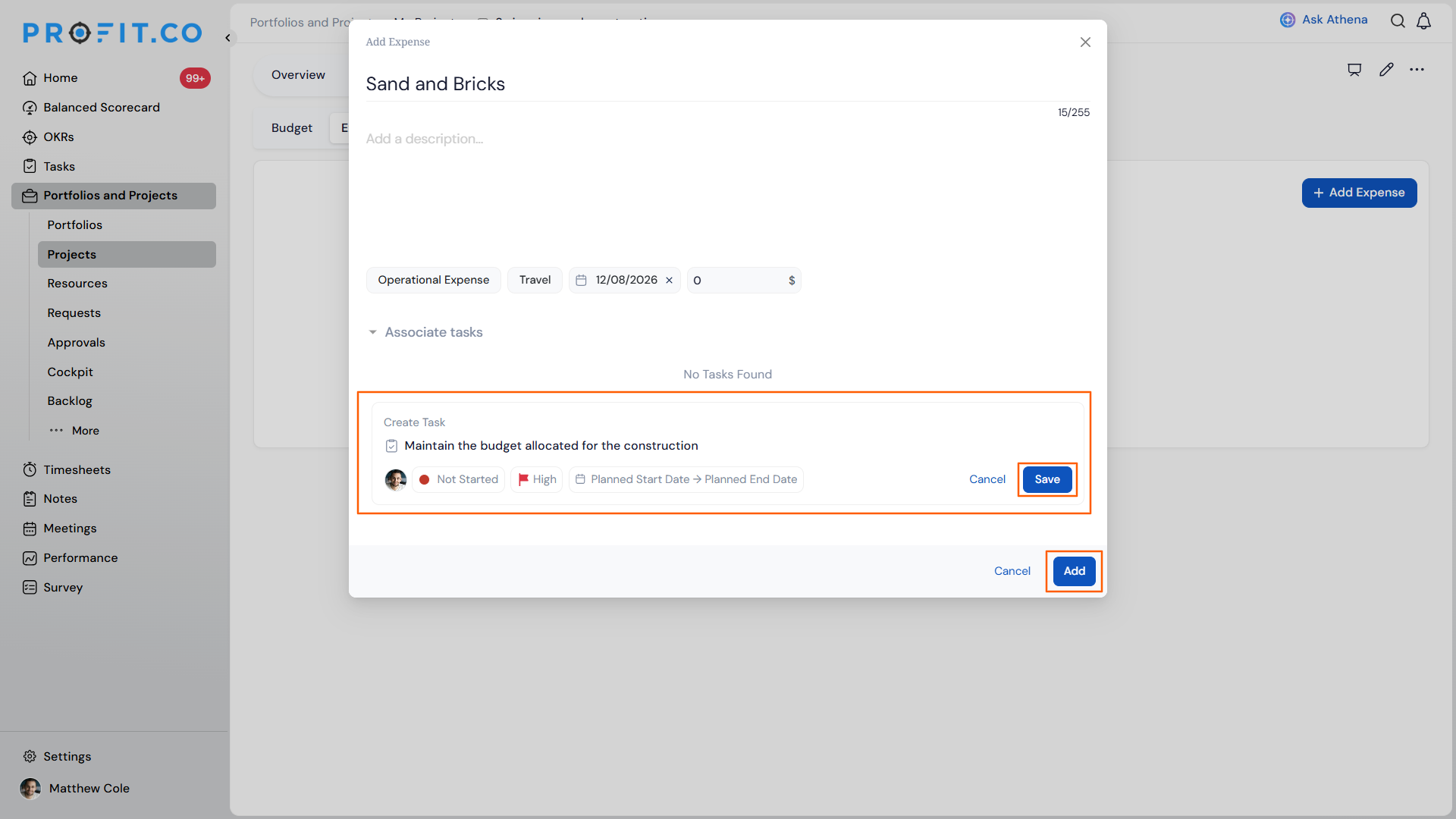
- Enter a task name; Save stays disabled until a name is entered.
- Set the owner, status, priority, and Planned Start/End dates as needed.
- Click Save to add the task to the expense's Associate tasks section.
- Click Add (or Update) to commit the expense with its associated task.
Associating Tasks with Expenses Scenarios and Their Outcomes
| Scenario | What Happens |
|---|---|
| You associate a task with an expense. | Profit.co links the task for tracking only, leaving the expense amount and the project's cost, EVM, and progress rollups unaffected. |
| You remove a task association from an expense using the row menu. | Profit.co unlinks the task from the expense only, and leaves the task itself unchanged, including its owner, status, and dates. |
| You associate a task that has subtasks with an expense. | Profit.co lets you associate the task and its subtasks independently, so you can link only the specific subtask that drove the cost. |
| You try to save a task you're creating inline without entering a task name. | Profit.co keeps Save disabled until you enter a task name, so an unnamed task can't be added to the expense. |
| You close the expense or the Associate tasks picker before clicking Add or Update. | Profit.co discards the task selections you made and does not link any tasks to the expense. |
Best Practices for Associating Tasks with Expenses
- Associate the specific subtask that drove a cost, not just the parent task, when the expense maps to one piece of work, since Profit.co lets you link tasks and subtasks independently.
- Treat the Associate tasks section as a traceability record, not a budgeting control, since associations never change the expense amount or the project's cost, EVM, or progress rollups.
- Check the breadcrumb column in Choose Existing Task when several tasks share a similar name, since the breadcrumb is what distinguishes them in the picker.
- Enter the task name first when creating a task inline from an expense, since Save stays disabled until a name is entered.
- Confirm you have the right task before removing an association from the row menu, since undoing the removal means re-adding the association manually.
Related Articles
Frequently Asked Questions
No. Choose Existing Task only lets you pick from tasks already in the same project as the expense.
Yes. Removing an association only unlinks the task, so you can use Choose Existing Task to associate the same task with the expense again at any time.
It's available on every expense, whether you're creating a new one or opening an existing one to add or review associated tasks.
Execute your strategy with confidence
Connect OKRs, tasks, and teams in one place with Profit.co
