

Profit.co's Project Check-in lets project managers record progress, set health status, and capture actual stage dates — all from a single check-in panel. Progress rolls up automatically from milestones and tasks within the project, and Athena AI can generate check-in comments based on updates from every milestone and task beneath it.
Table of Contents
- What is a Project Check-in?
- How do I configure Project Stages?
- How do I configure Health Status and Velocity Bands?
- How do I set up the Health Calculation Method?
- How do I perform a Project Check-in?
- How does Athena AI assist with check-ins?
- What is the difference between Automatic and Manual progress?
- Related Questions
- Frequently Asked Questions
What is a Project Check-in?
A Project Check-in is a periodic progress update recorded against a project. Each check-in captures:
- The current Stage of the project (e.g., In Progress, On Hold)
- The Health Status, either set automatically based on progress or entered manually
- The Actual Start Date and Actual End Date, captured automatically when the project moves to the configured stage
- A Comment describing progress, risks, or next steps — written manually or generated by Athena AI
Project progress is calculated automatically from milestones and tasks within it. As tasks and milestones update, the project progress rolls up in real time.
How do I configure Project Stages?
Before performing a check-in, confirm your project stages are set up correctly in Settings.
Step 1: Navigate to Project Stages
- Go to Settings → Portfolios and Projects → Projects from the left navigation panel and switch to the Project Health tab.
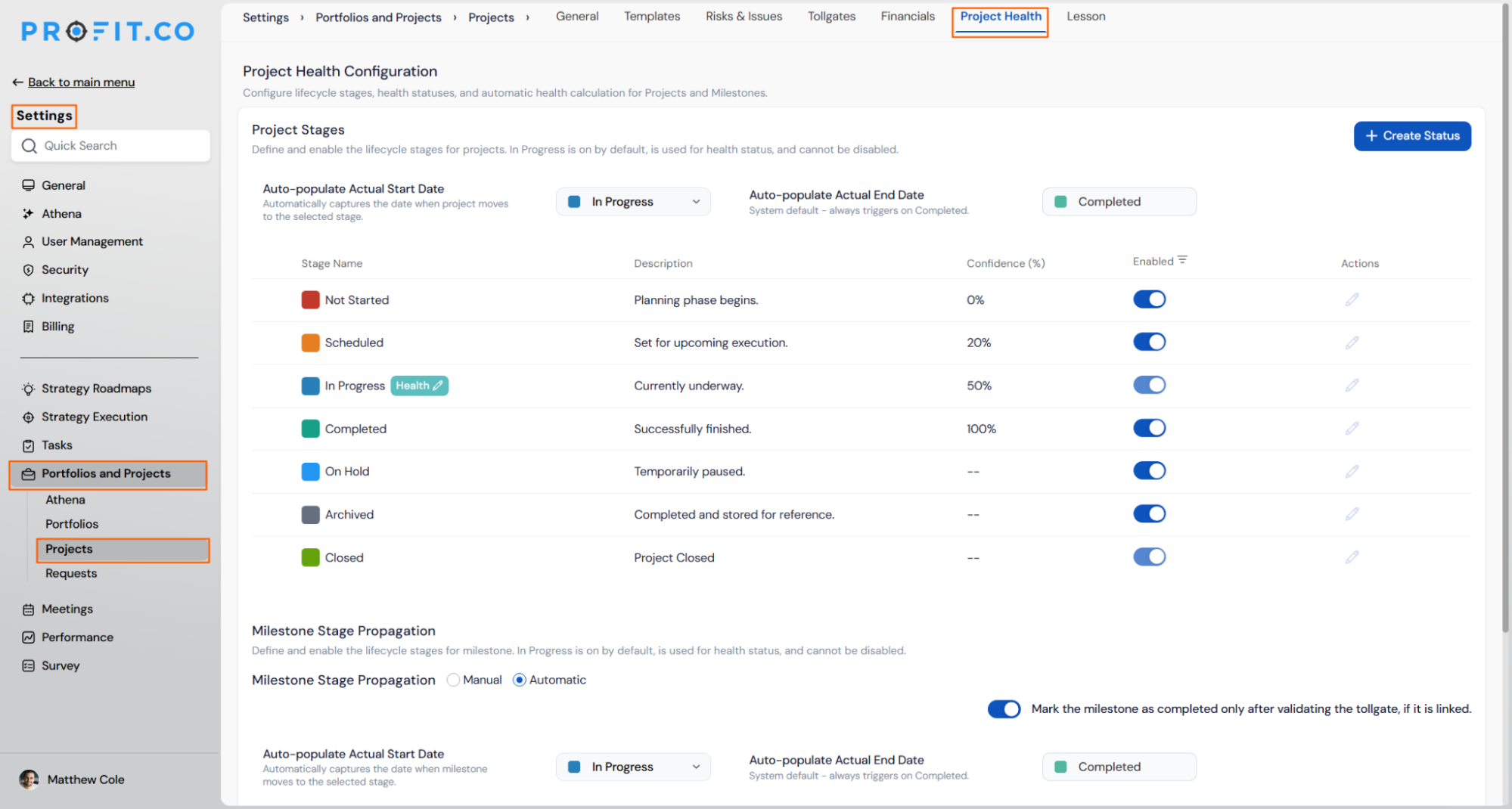
Note: In Progress is on by default, is used for health status, and cannot be disabled.
Step 2: Create a Custom Stage (Optional)
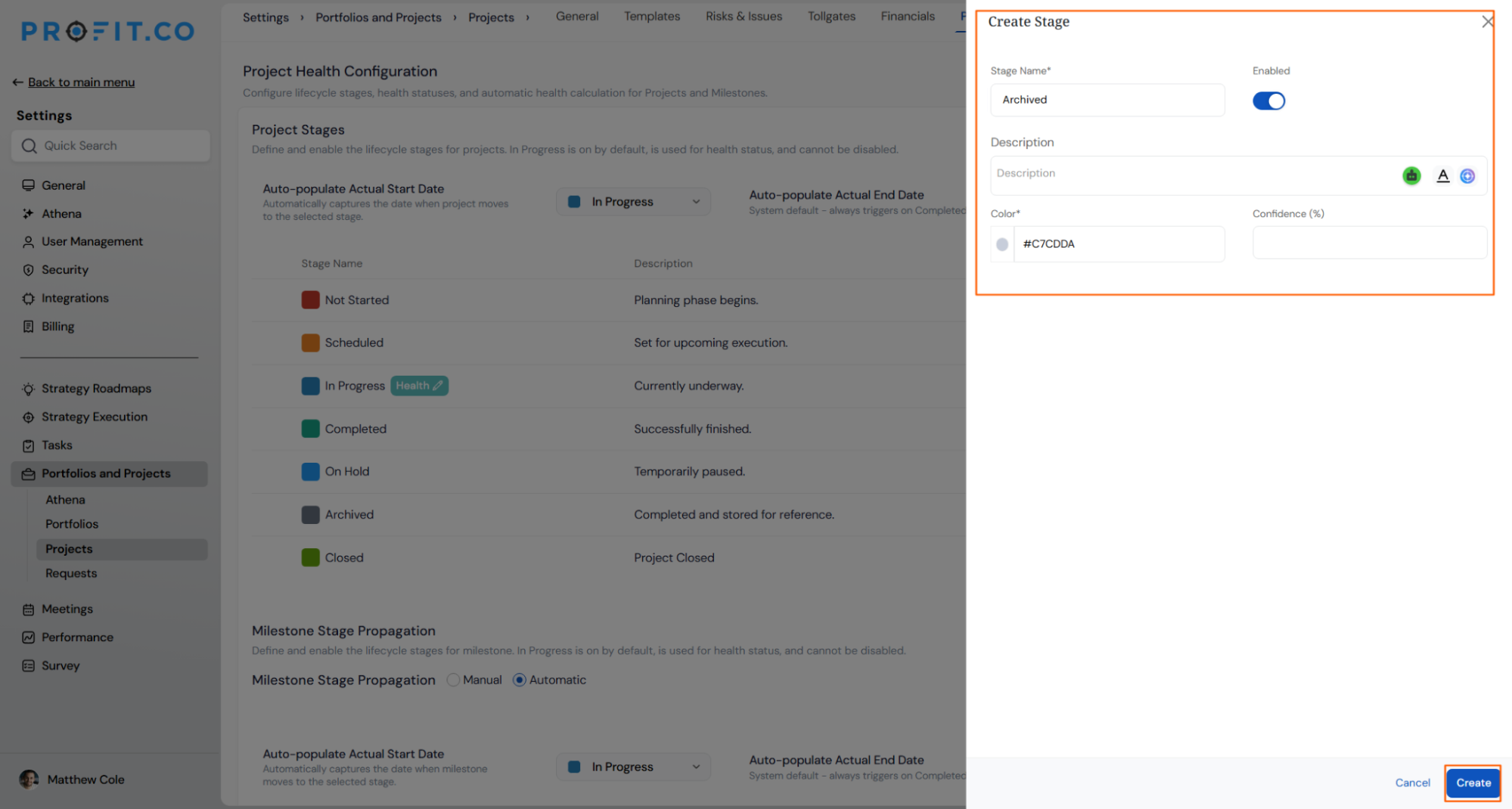
- To add a new stage, click + Create Status in the top right corner.
- A right panel opens where you can enter:
- Stage Name (required)
- Description
- Color Code: choose a color to identify the stage visually
- Confidence (%): the default progress value when a project reaches this stage
- Enabled toggle: turn the stage on or off
- Once done, click Create.
Step 3: Configure Auto-populate Dates
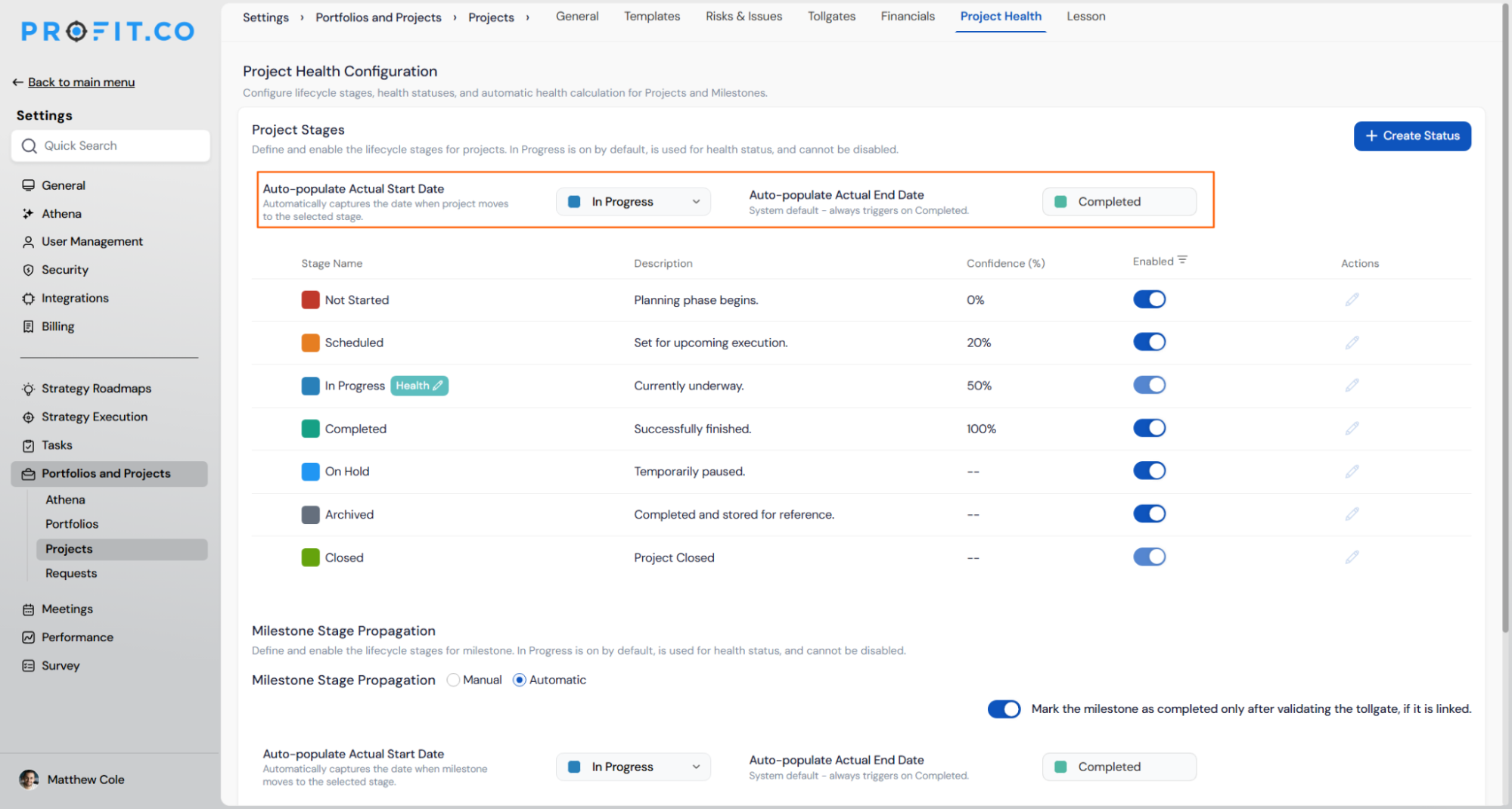
- At the top of the Project Health tab, two date settings control when actual dates are recorded automatically:
- Auto-populate Actual Start Date: captures the date when the project moves to the selected stage. Default is In Progress.
- Auto-populate Actual End Date: system default — always triggers when the project moves to Completed.
How do I configure Health Status and Velocity Bands?
Health status applies to projects in the In Progress stage. You can configure how health is assigned and what thresholds define each state.
Step 1: Open Health Status Configuration
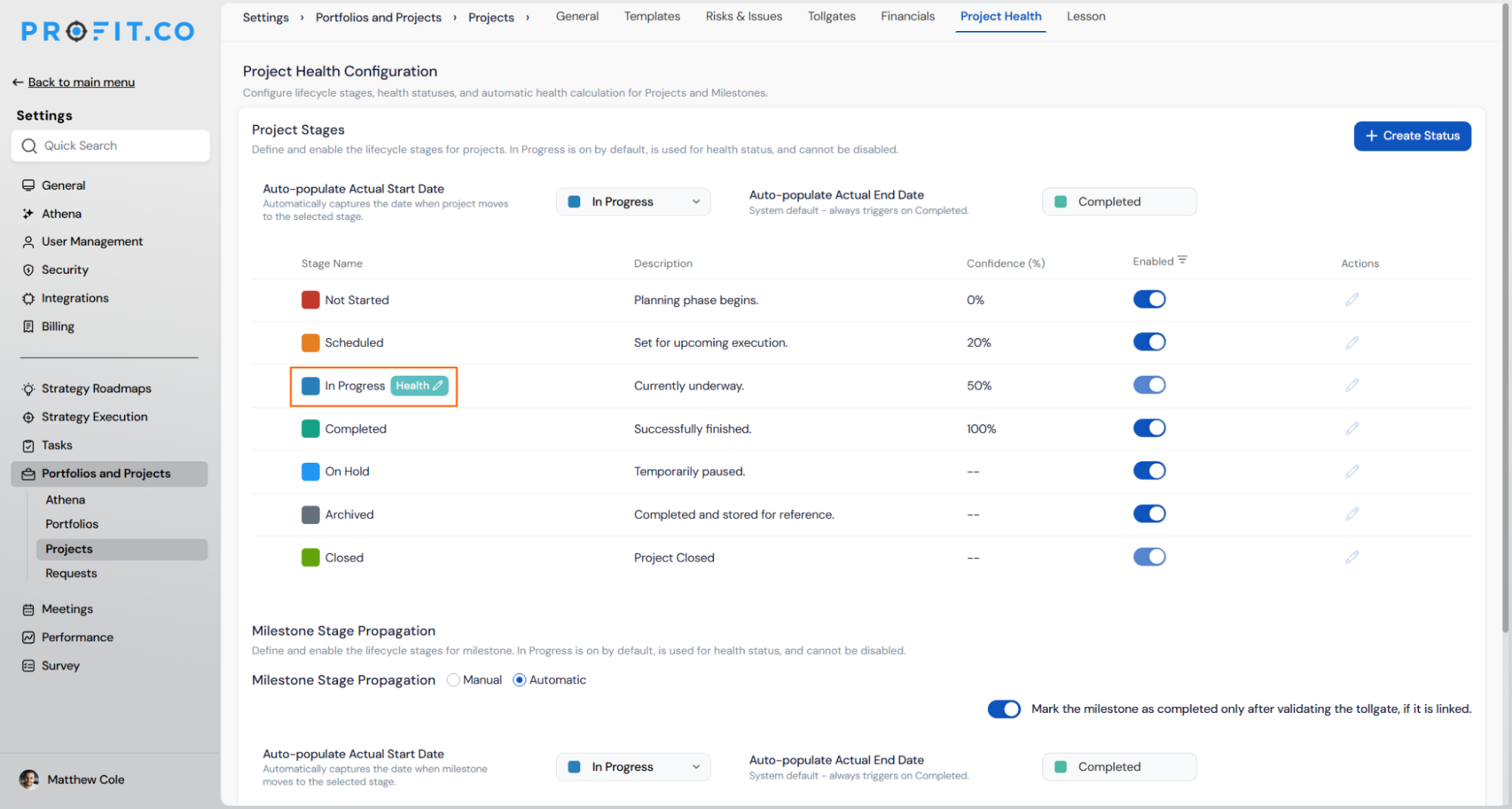
- On the Project Health tab, click the Health icon next to the In Progress stage to open the Health Status Configuration panel.
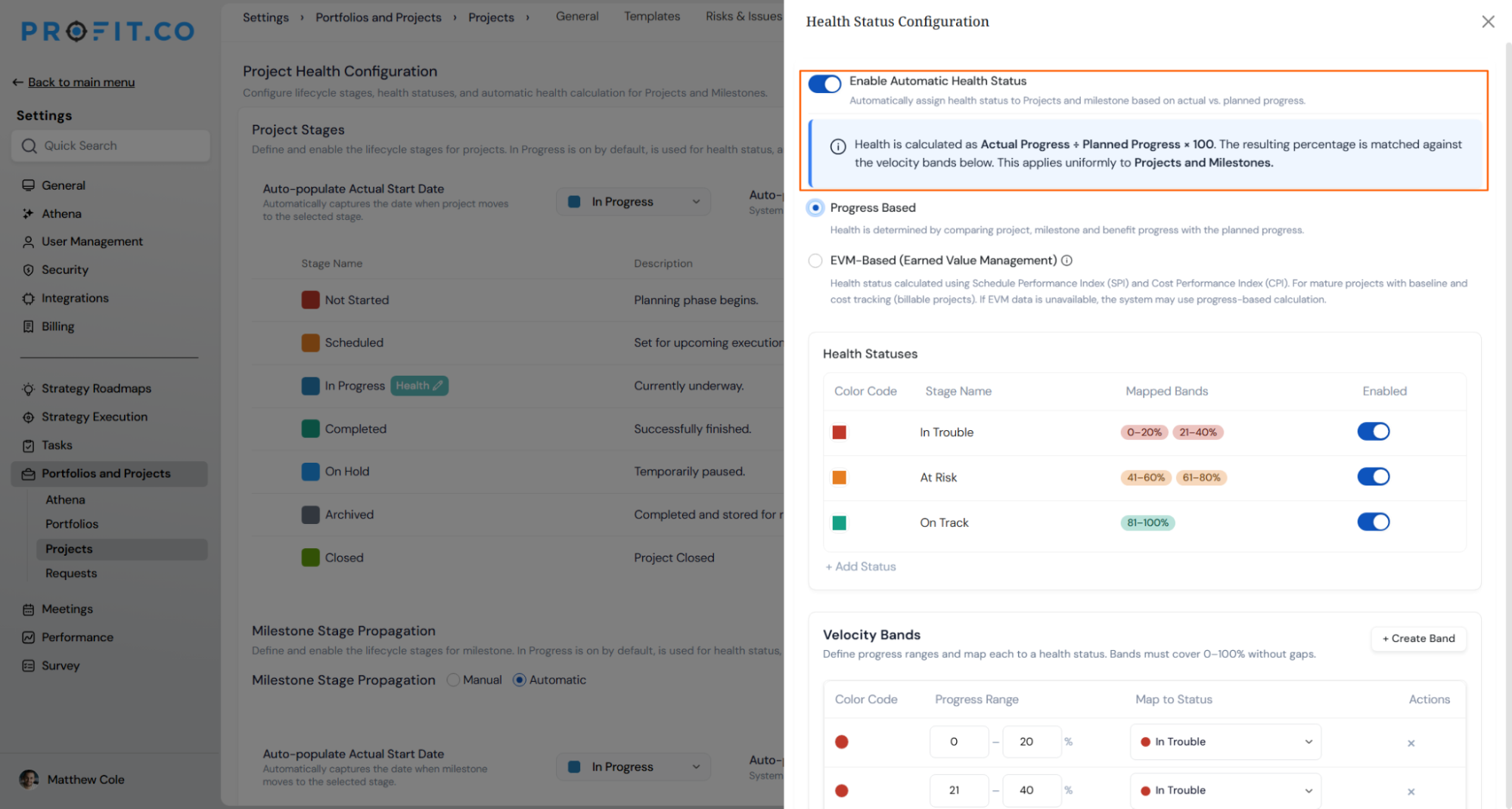
Step 2: Enable Automatic Health Status (Optional)
- Toggle on Enable Automatic Health Status to let Profit.co assign health automatically during check-ins.
- The formula used is: Actual Progress ÷ Planned Progress × 100
- The resulting percentage is matched against your configured Velocity Bands to determine the health status. This applies uniformly to Projects and Milestones.
Note: If you prefer manual control, leave this toggle off. You can set health status manually during each check-in.
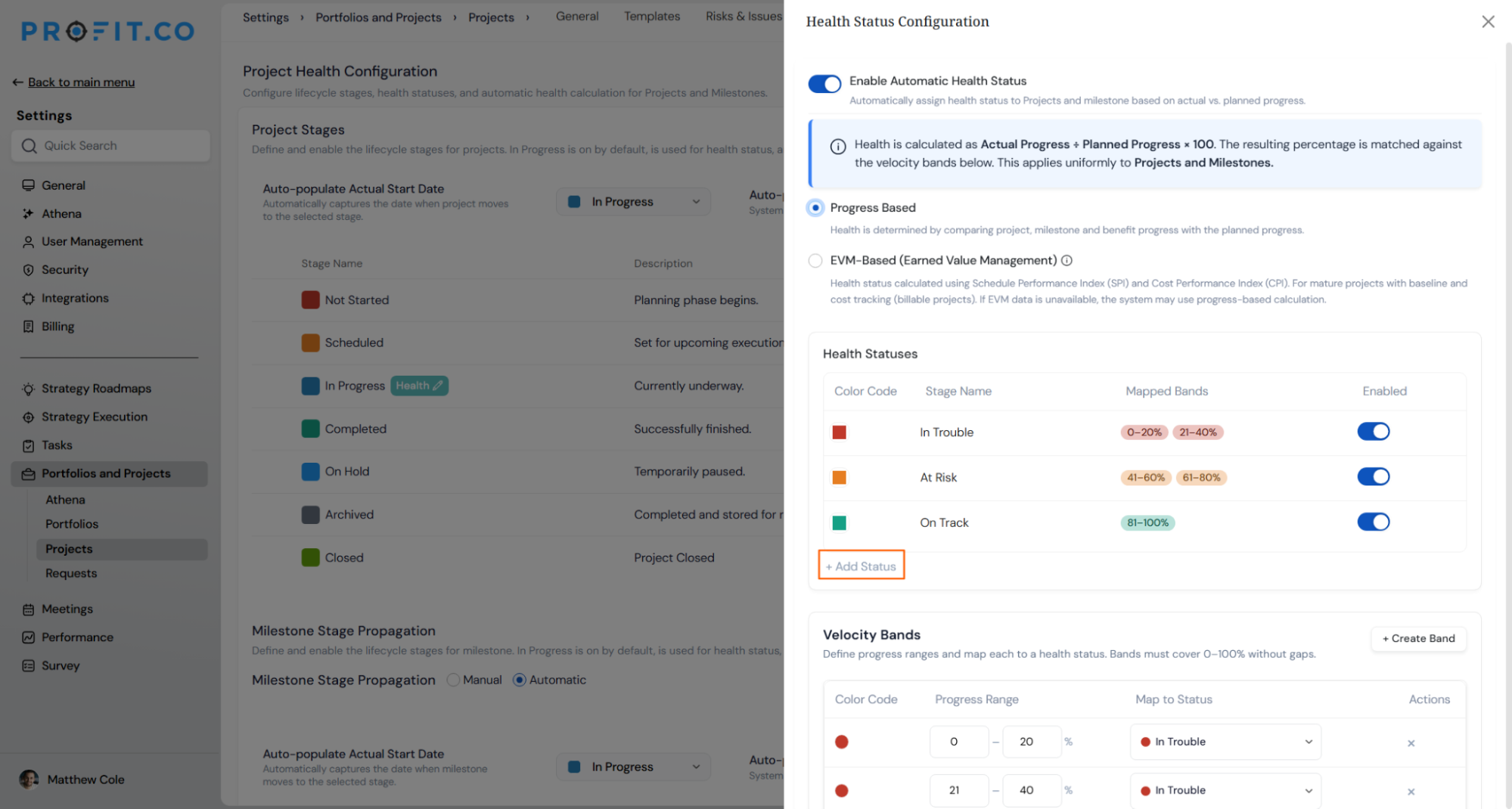
Click + Add Status to create additional health states if your organisation requires more than the defaults.
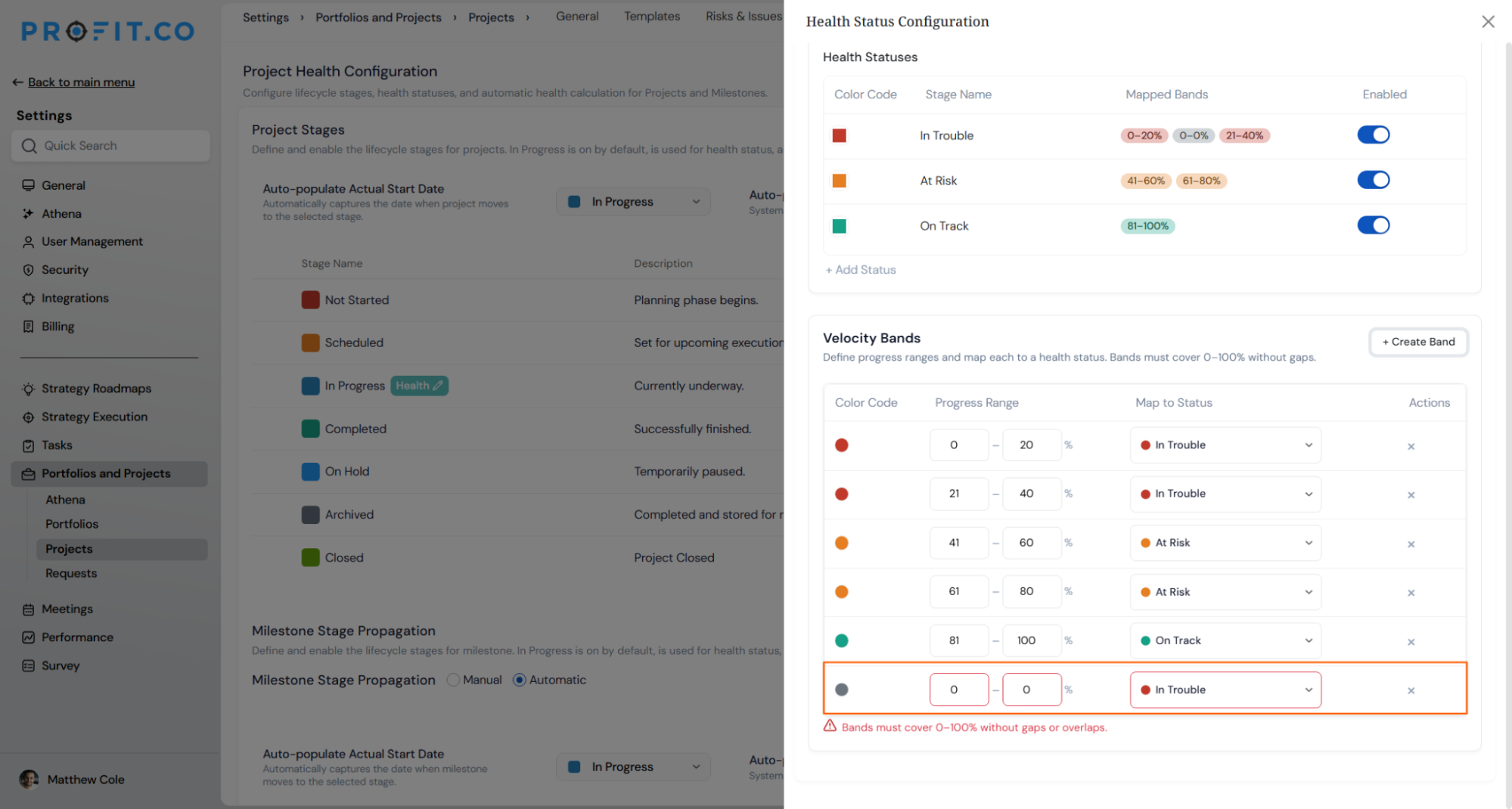
Step 3: Configure Velocity Bands
- Velocity Bands define the progress percentage ranges that map to each health status. Bands must cover the full 0–100% range without gaps.
- To add a new band, click + Create Band and set:
- Color Code
- Progress Range (e.g., 0 to 20%)
- Map to Status (e.g., In Trouble)
How do I set up the Health Calculation Method?
Profit.co supports two calculation methods for automatic health status. Both methods are configured inside the Health Status Configuration panel.
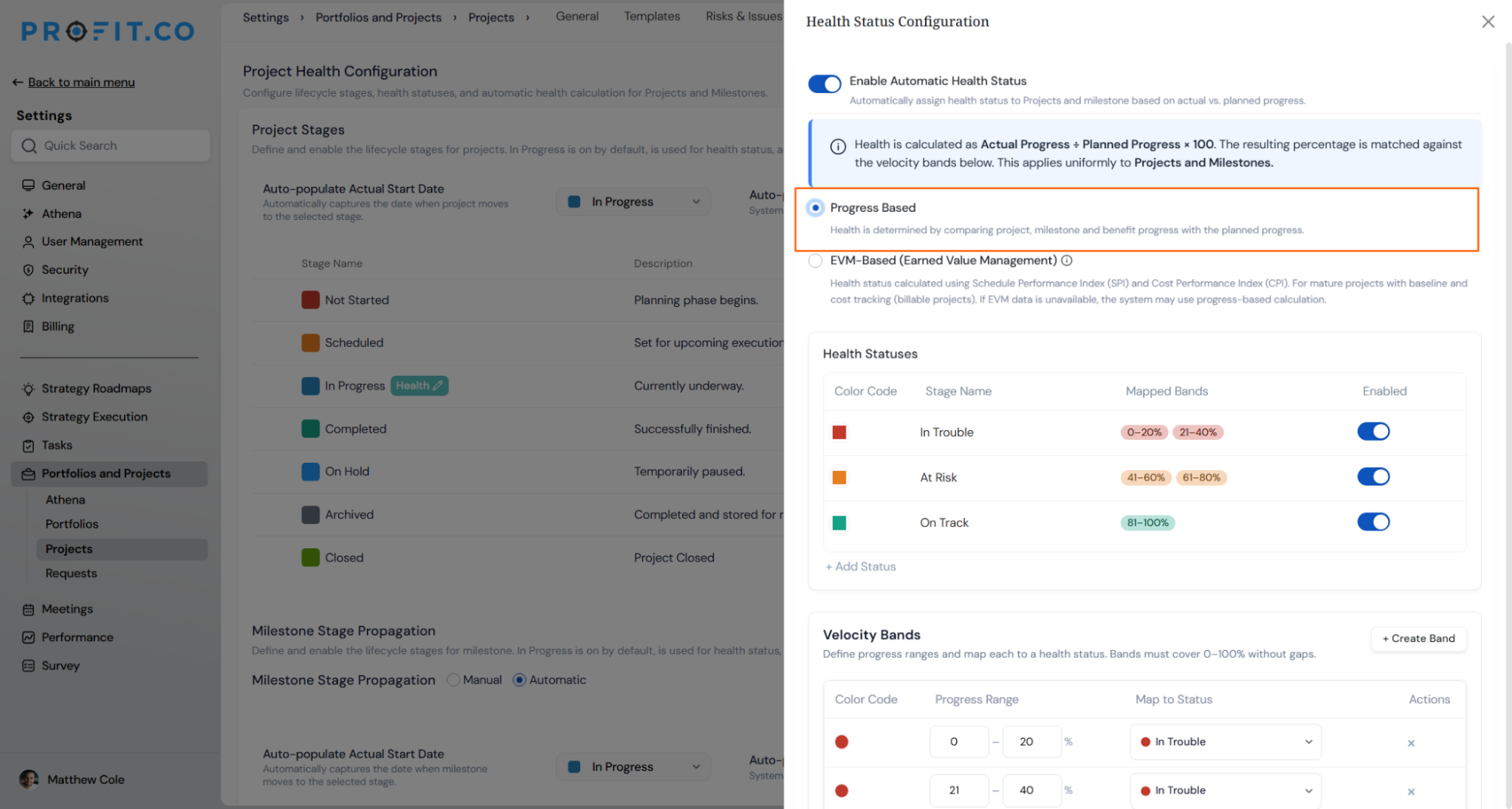
Progress-Based Method
Available for all projects. Health is determined by comparing actual progress against planned progress across tasks and milestones. Select Progress Based in the Health Status Configuration panel. The velocity bands you configured map the resulting percentage to a health state.
EVM-Based Method (Earned Value Management)
Available for billable projects with cost and schedule baselines. Health status is calculated using Schedule Performance Index (SPI) and Cost Performance Index (CPI) and plotted on a customisable 2×2 quadrant matrix. Select EVM-Based (Earned Value Management) in the panel, then configure the quadrant thresholds.
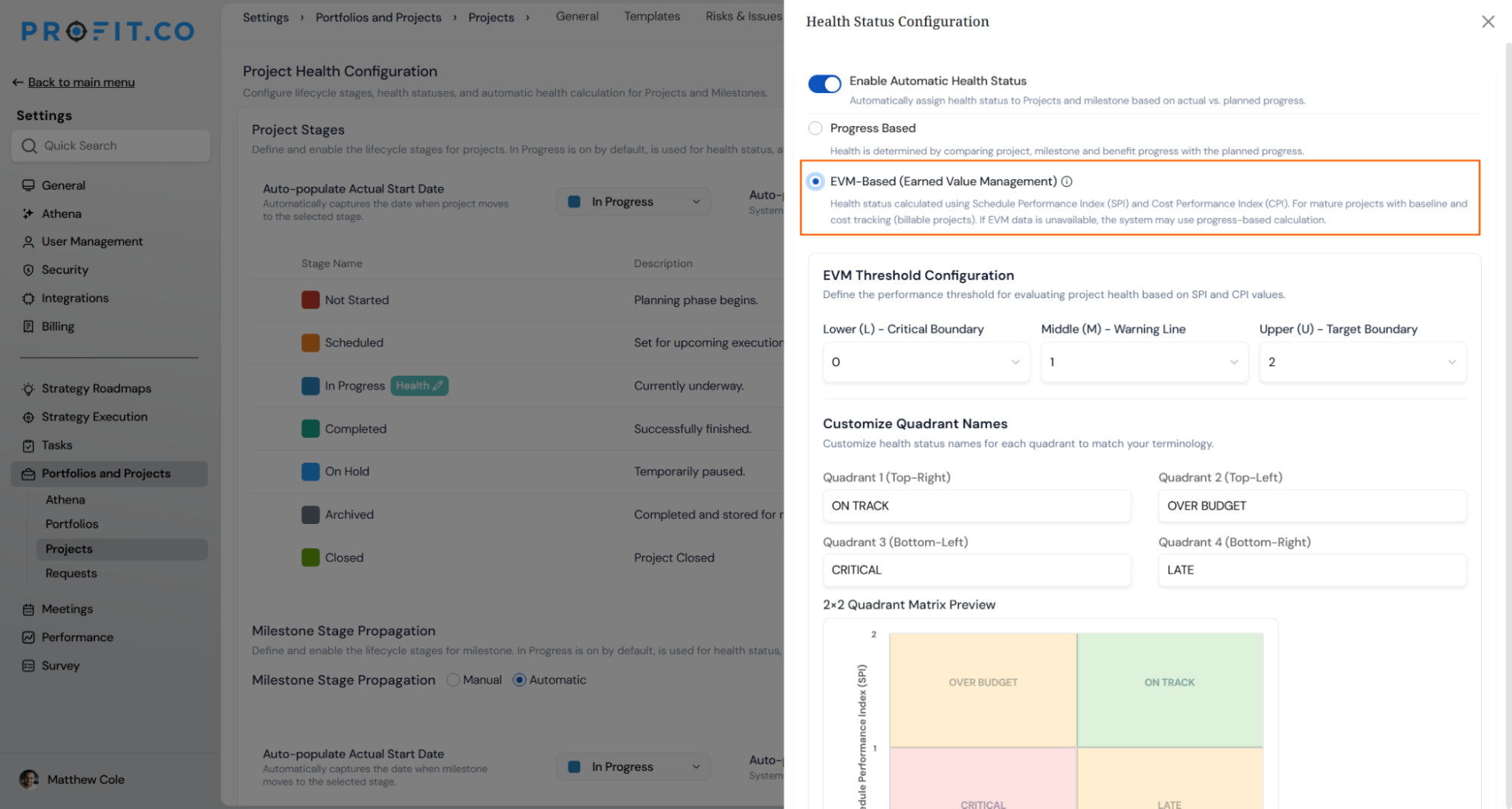
Note: Quadrant names and threshold values are fully customisable to match your organisation's governance standards. If EVM data is unavailable, the system falls back to progress-based calculation.
How do I perform a Project Check-in?
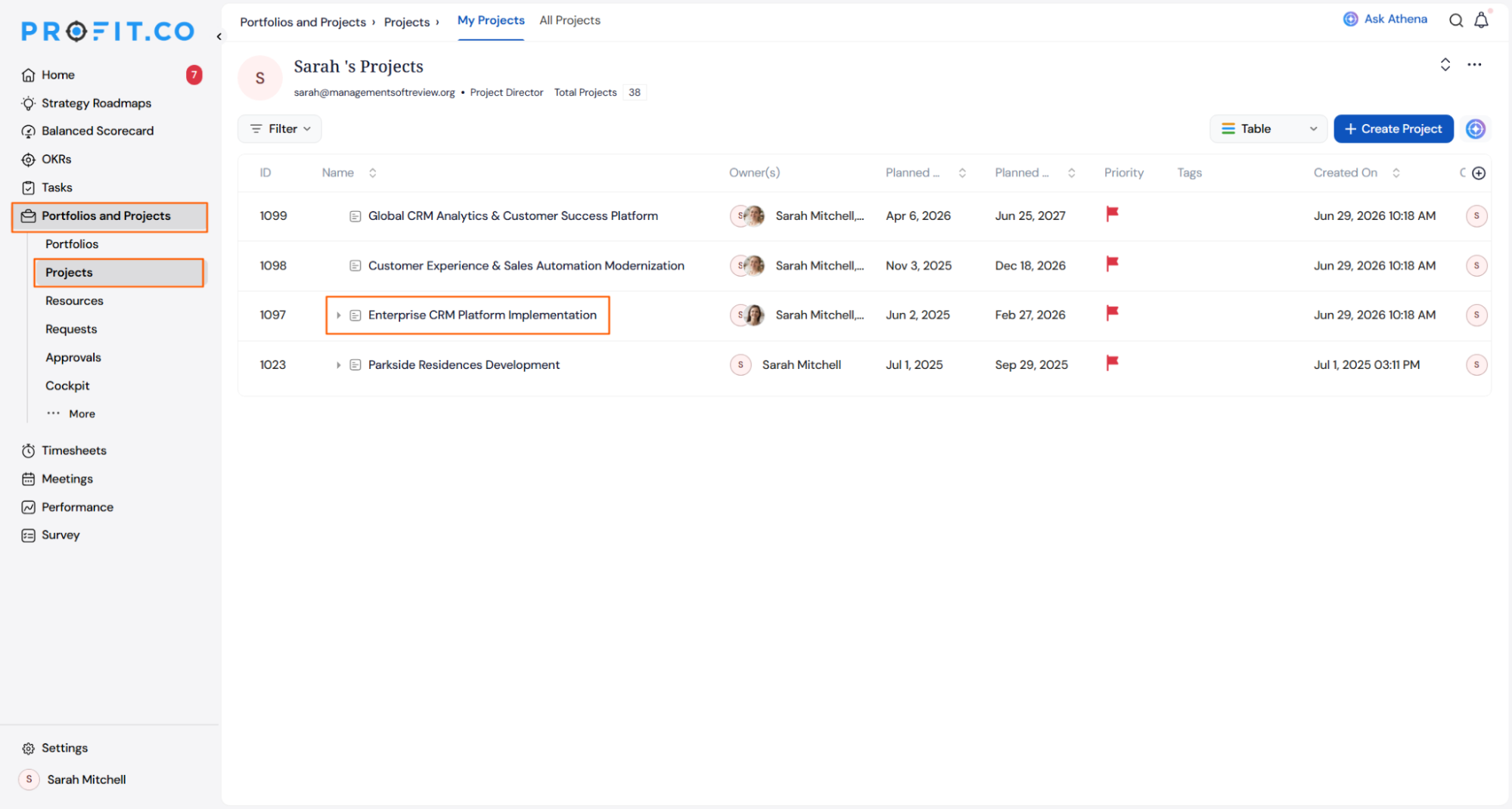
Step 1: Navigate to Your Project
- Go to Portfolios and Projects → Projects from the left navigation panel and select the project you want to check in on.
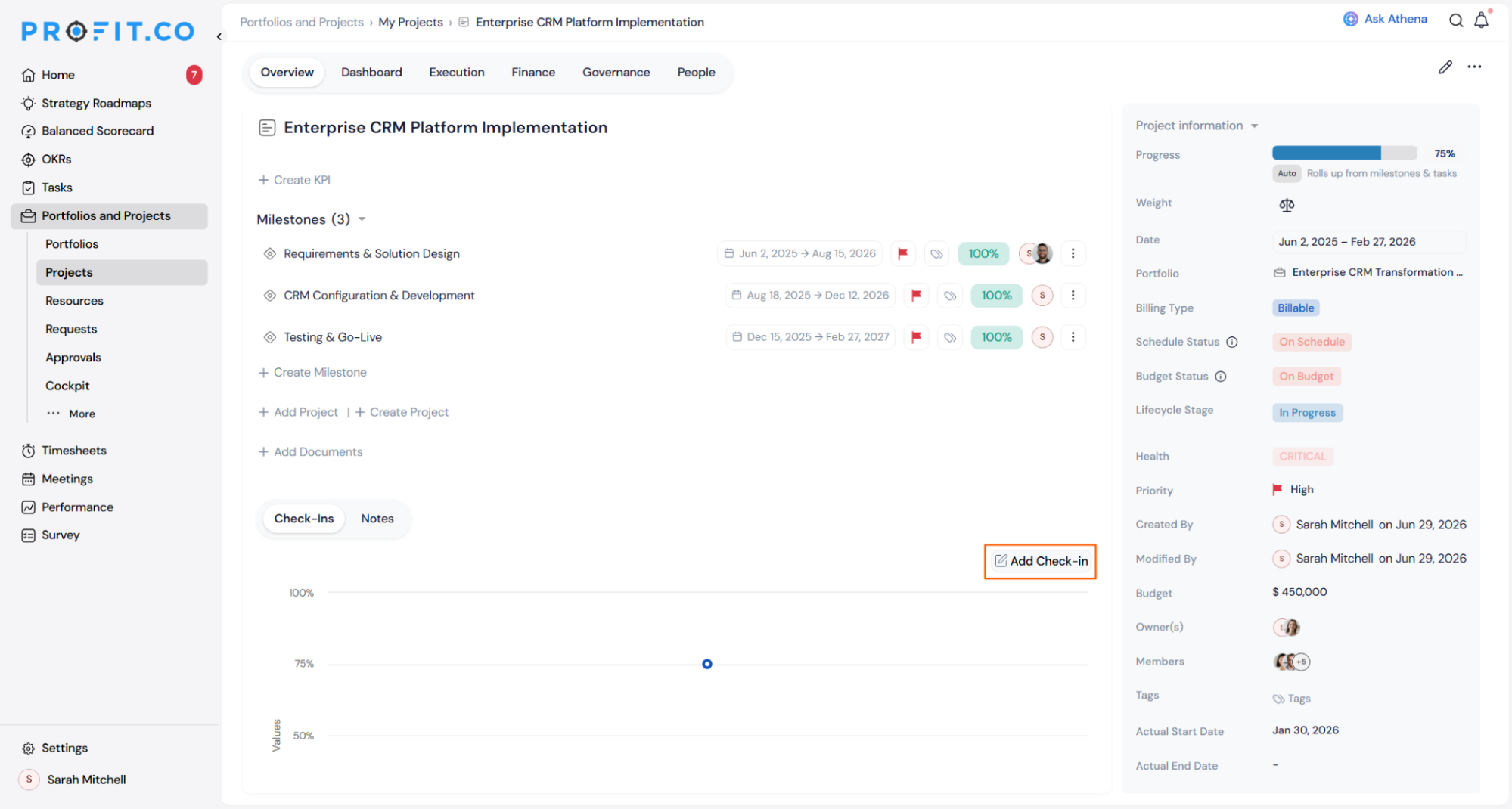
Step 2: Open the Check-in Panel
- On the project overview page, scroll to the bottom and click + Check-in under the Check-ins tab. The check-in panel opens on the right.
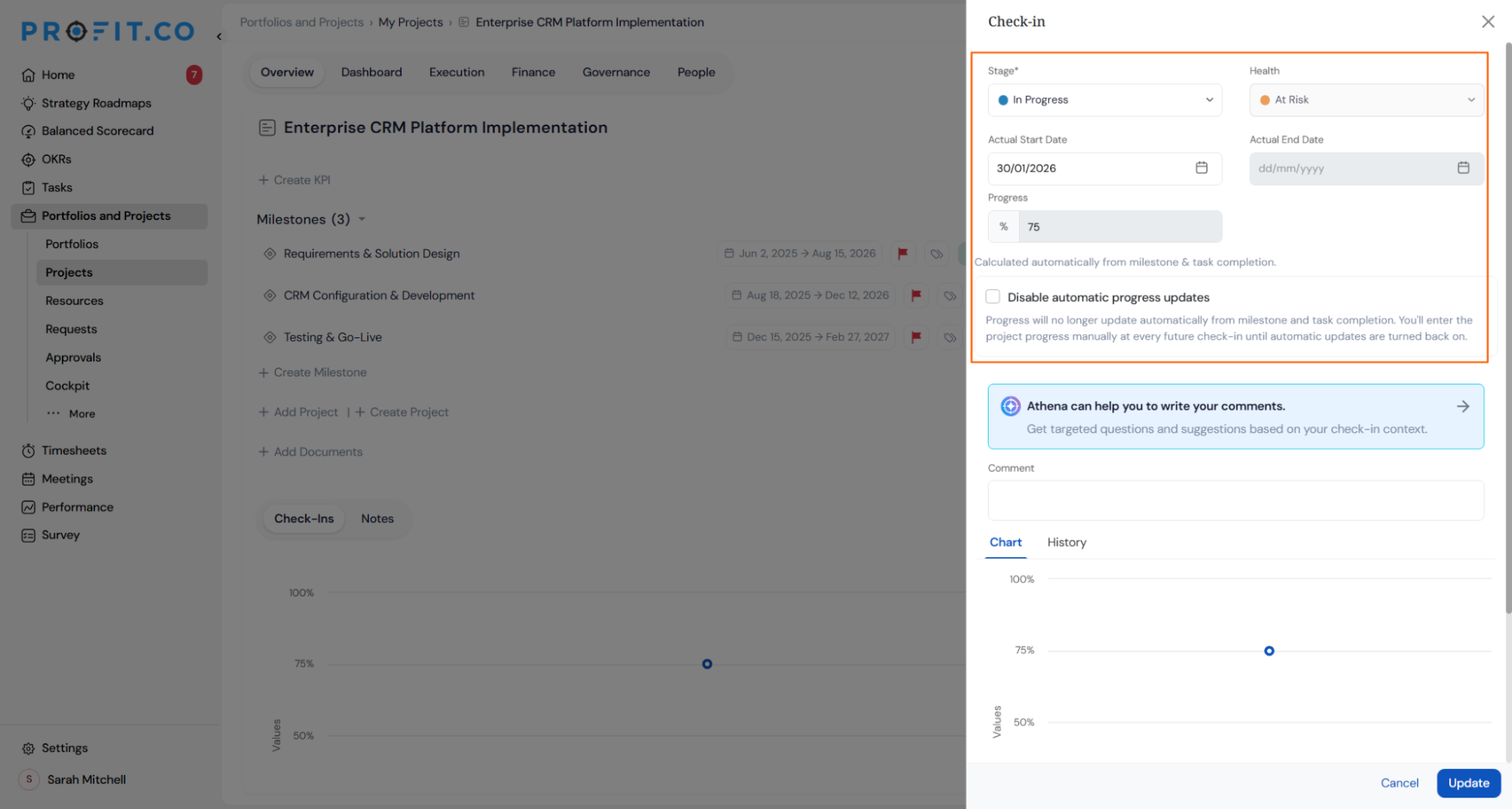
Note: Health status is only available when the project stage is set to In Progress. If you have enabled Automatic Health Status, the health status updates automatically based on actual vs. planned progress. You can still change it manually at any time.
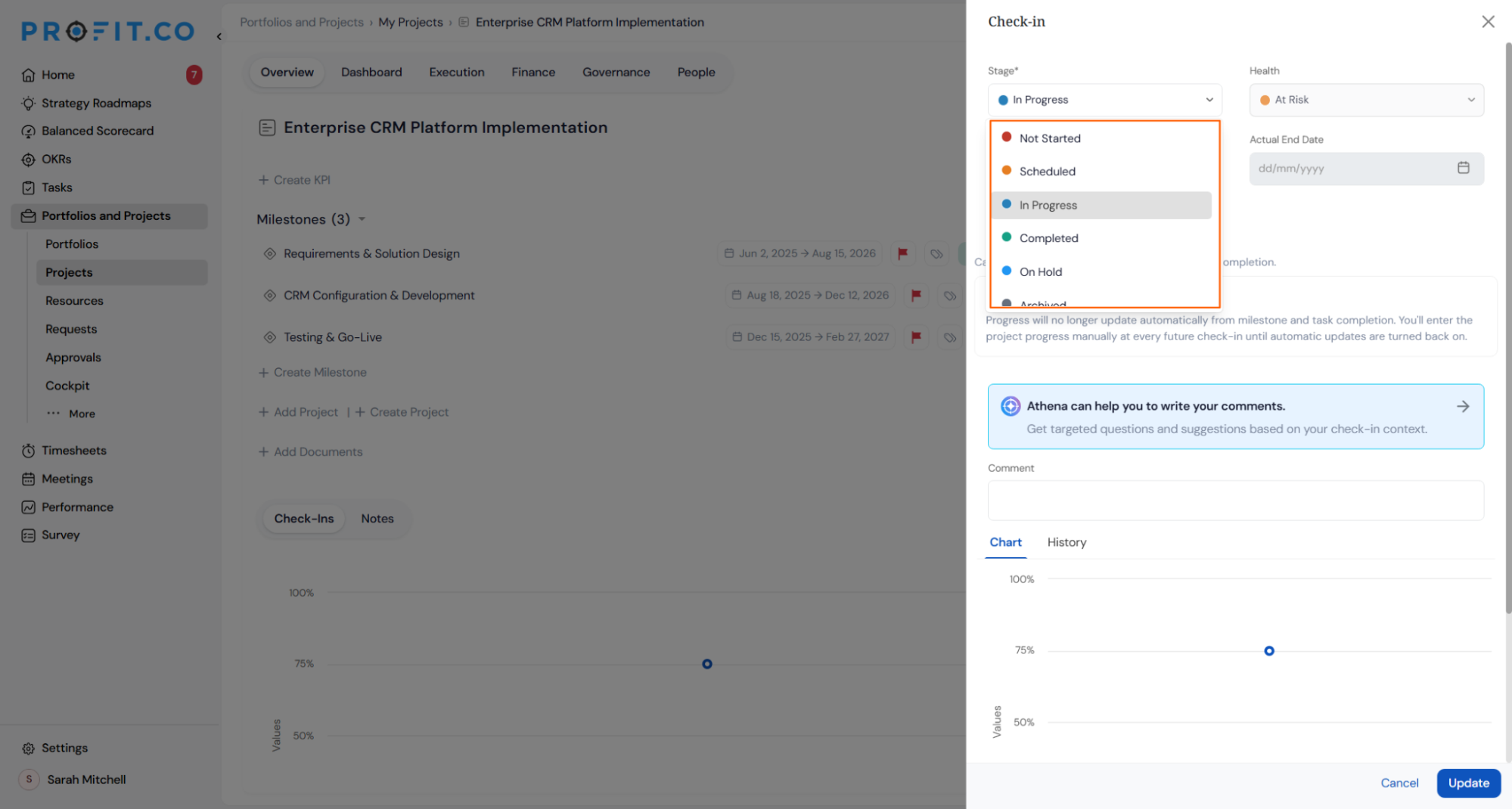
Step 3: Set the Stage
- Select the current stage from the Stage dropdown. When the stage changes, Profit.co automatically records the actual date based on your auto-populate settings.
Step 4: Review Progress
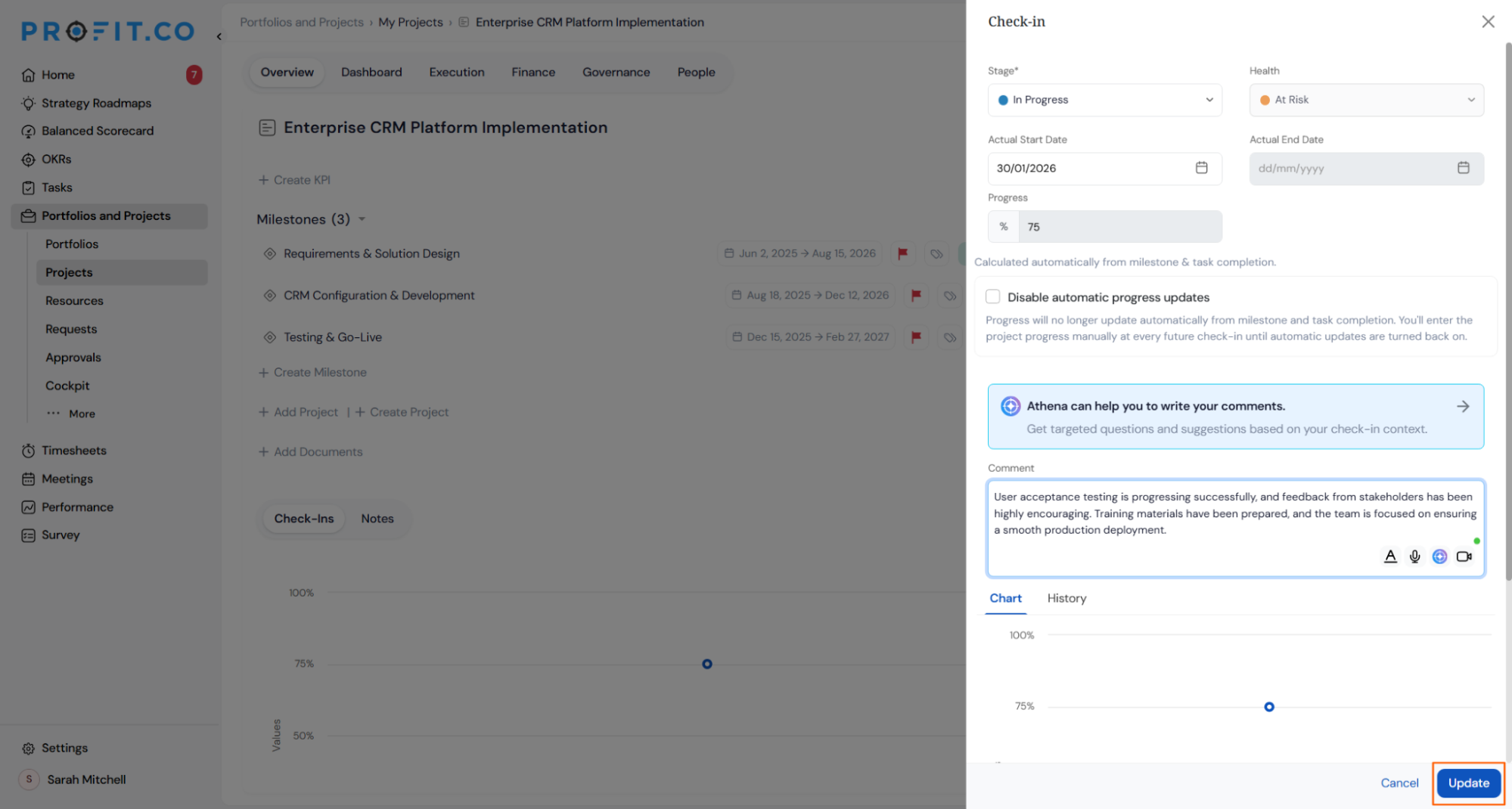
- The Progress field shows the current project progress, calculated automatically from milestone and task completion across the project.
- Example: If the "Enterprise CRM Platform Implementation" project has milestones at varying completion rates, Profit.co calculates the overall project progress automatically and displays it in the Progress field.
- Enter your check-in comment in the Comment field. You can write it manually, or use Athena AI to generate it (see next section).
- Once the stage, progress, and comment are complete, click Update to save the check-in.
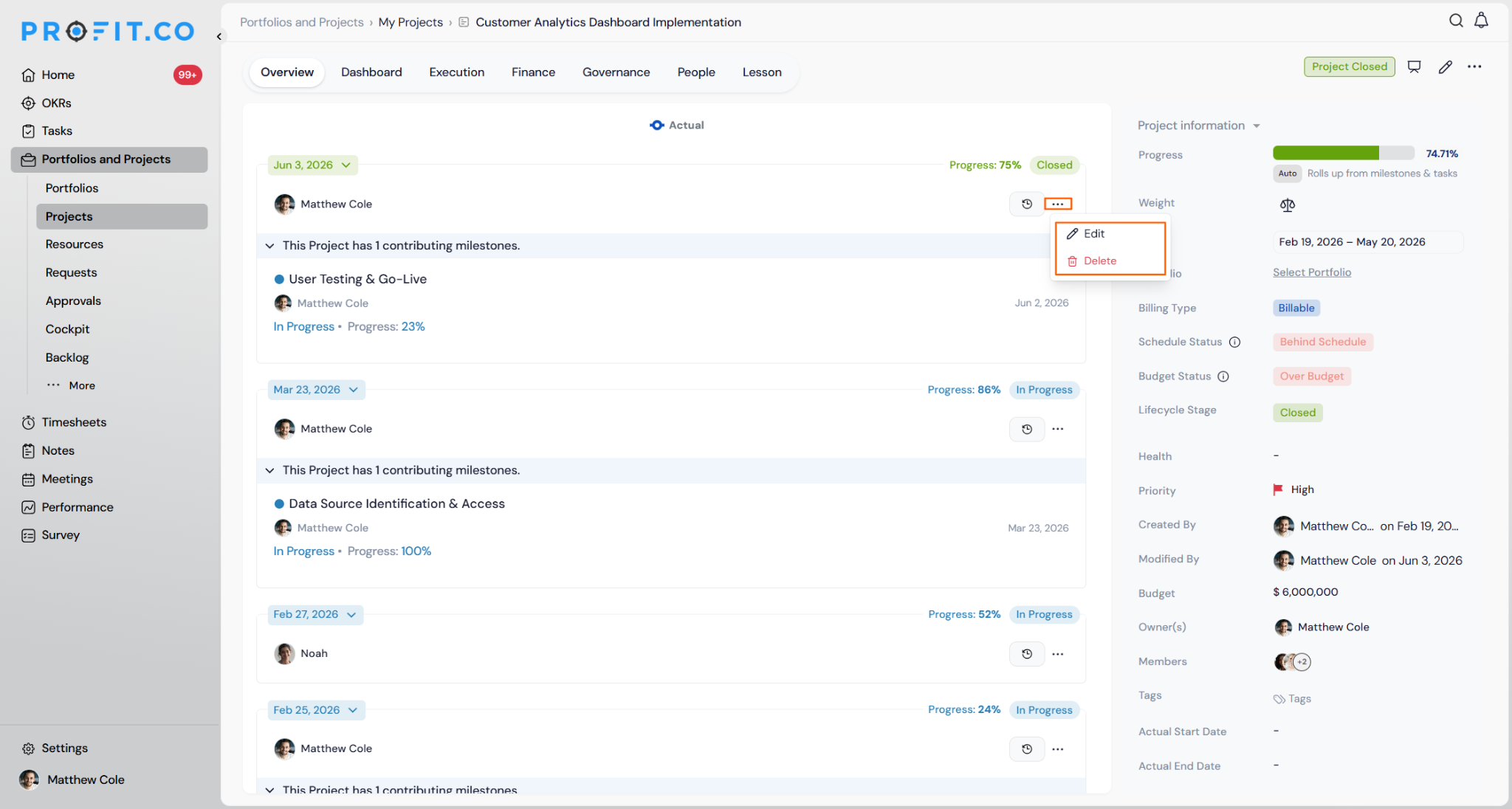
How does Athena AI assist with check-ins?
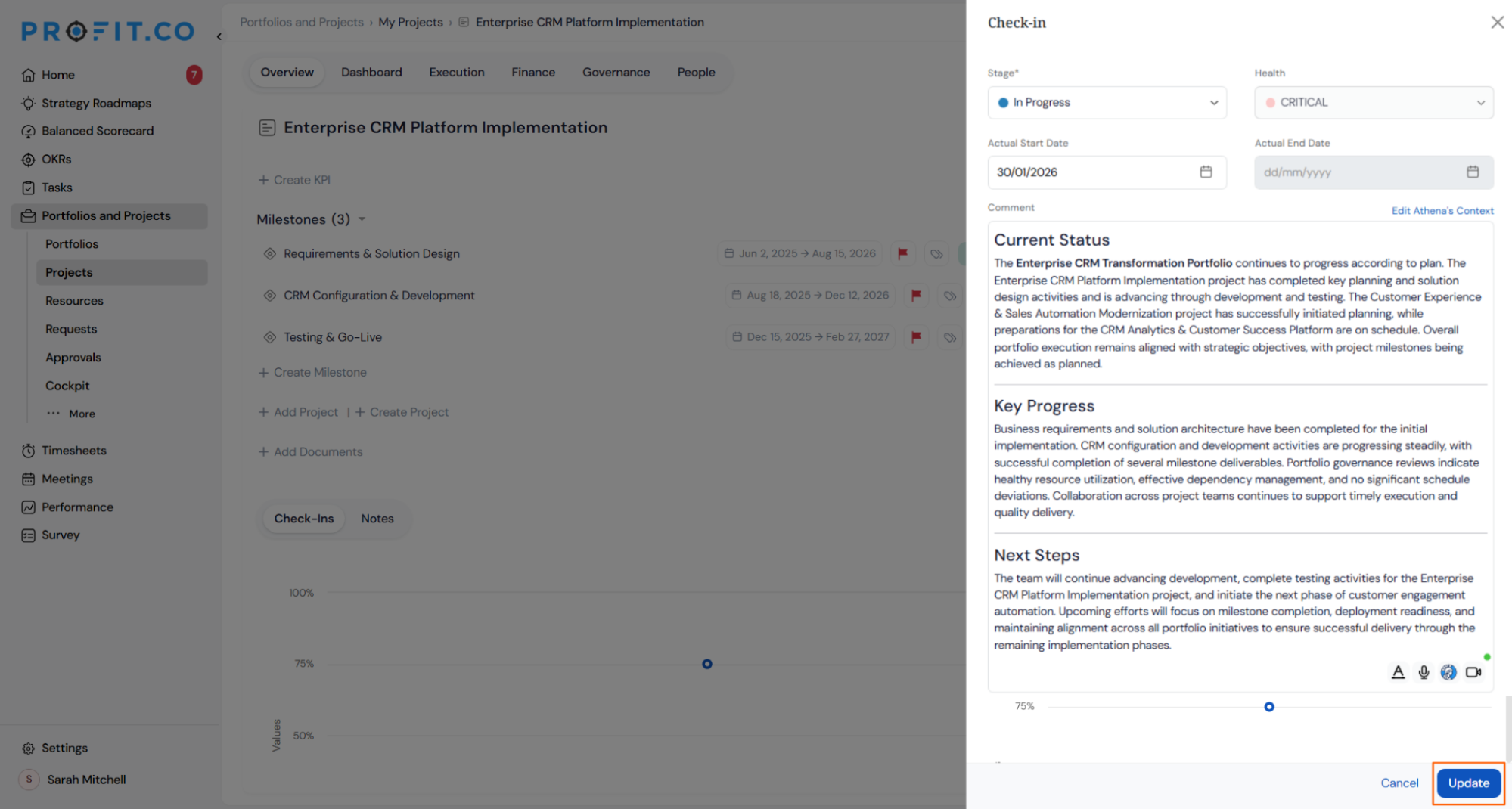
When writing a check-in comment, Athena AI can generate the comment for you based on updates from every milestone and task within the project.
Click the Athena can help you to write your comments banner in the check-in panel. Athena pulls in:
- Comments from all milestones within the project
- Comments from all tasks under those milestones
This gives project managers a consolidated, bottom-up summary without manually aggregating updates from each team member.
Example: For the "Enterprise CRM Platform Implementation" project with 3 active milestones, Athena generates a structured summary covering Current Status, Key Progress, and Next Steps — drawing from milestone and task check-in data across all three.
What is the difference between automatic and manual progress?
Profit.co supports two ways to record project progress during a check-in.
Automatic Progress (Default)
By default, project progress is calculated automatically from milestone and task completion across the project. You do not need to enter a number. The system keeps it current. This is the recommended approach, as it ensures project health always reflects real delivery data.
Manual Progress
If you need to override the automatic calculation, check the Disable automatic progress updates option in the check-in panel. A Progress field appears where you enter the percentage manually.
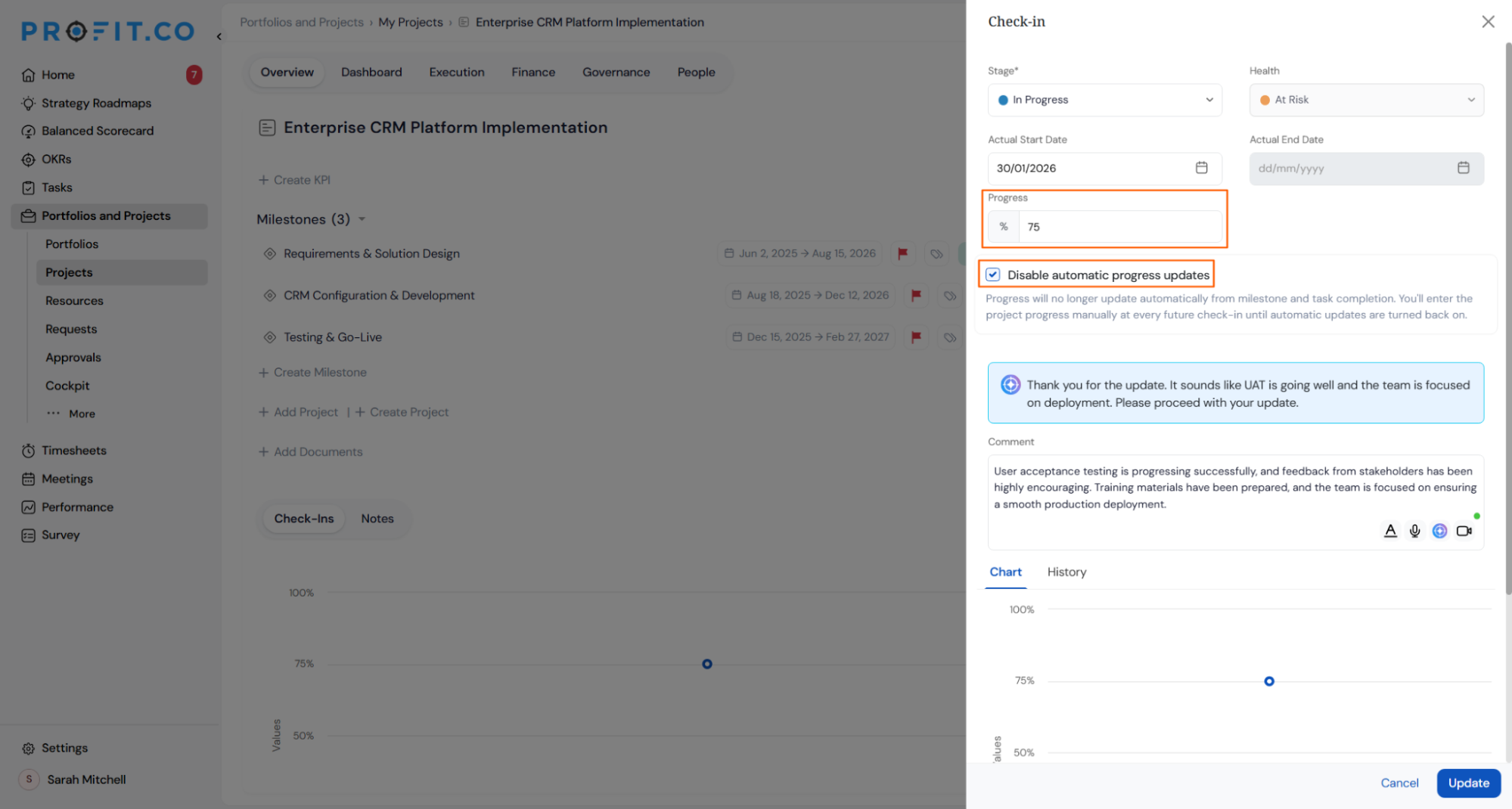
Note: Once disabled, progress will no longer update automatically from milestone and task completion. You will enter project progress manually at every future check-in until automatic updates are turned back on. This option is useful when the project has scope changes or delivery circumstances that the automatic calculation does not yet reflect.
Related Question
- How do I perform a Portfolio Check-in in Profit.co?
- How do I perform a Milestone Check-in in Profit.co?
Frequently Asked Questions
Profit.co records the Actual Start Date the moment the project moves to the stage configured under Auto-populate Actual Start Date in Settings. The default trigger stage is In Progress. You can change this to any stage that fits your workflow.
Yes. In the Health Status Configuration panel, click + Add Status to create additional health states. Each new state can have its own color code and mapped velocity bands. Define as many health states as your organisation needs.
Progress will no longer roll up from milestone and task completion. You will enter the project progress value manually at every future check-in. Automatic updates resume as soon as you uncheck the Disable automatic progress updates option in a subsequent check-in.
Progress-Based compares actual task and milestone completion against planned progress — available for all projects. EVM-Based uses SPI and CPI to plot health on a 2×2 quadrant matrix — available for billable projects with cost and schedule baselines. Both methods assign health automatically during each check-in when Automatic Health Status is enabled.
Execute your strategy with confidence
Connect OKRs, tasks, and teams in one place with Profit.co
