

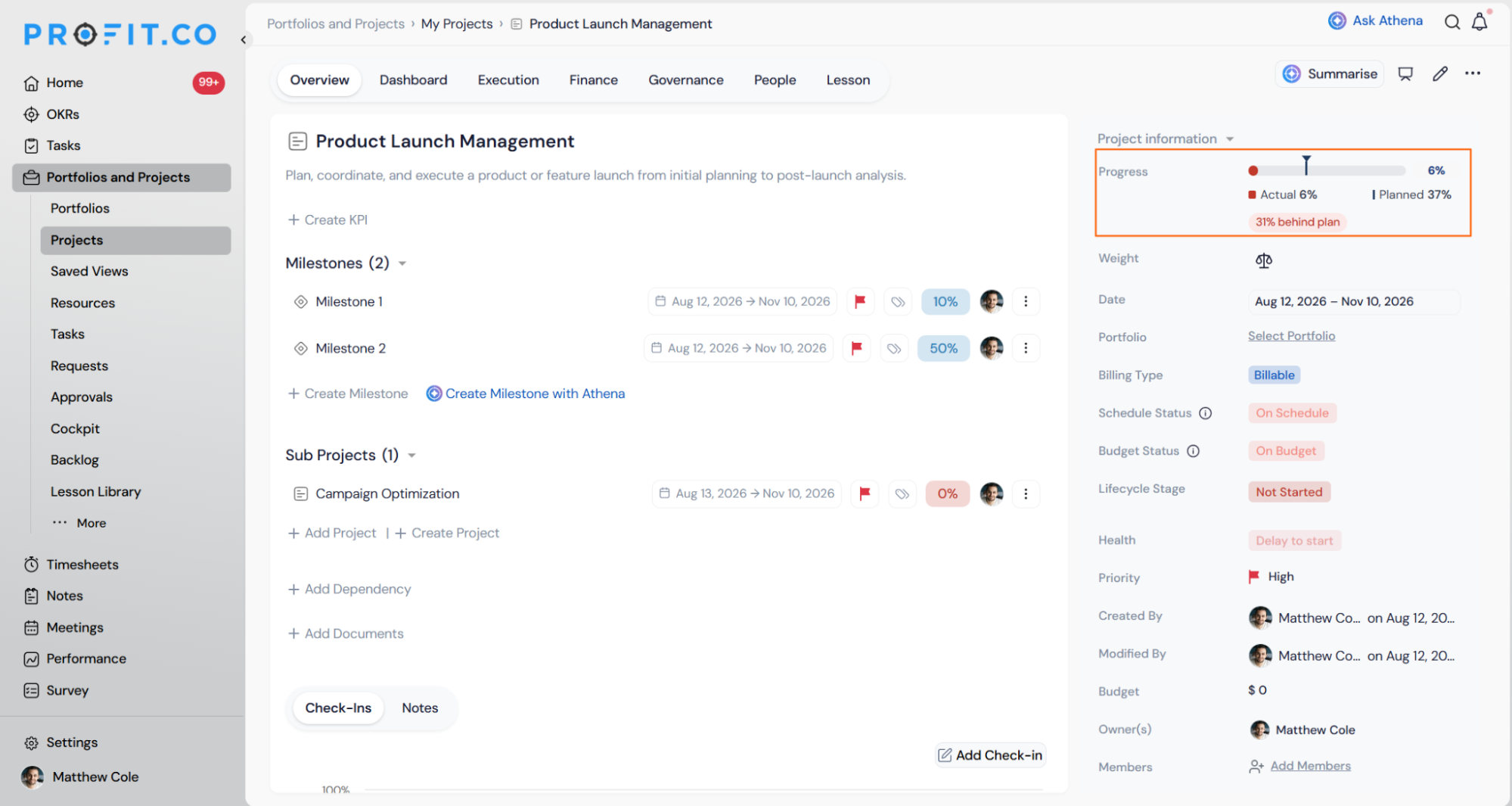
Profit.co displays Actual Progress and Planned Progress together on the Project Information panel, so you can see how a project's Health badge was reached without leaving the Overview tab. Both values appear automatically, with no click or hover required.
Table of Contents
- What is Planned vs Actual Progress?
- Why Does Planned vs Actual Progress Matter?
- How Does Planned vs Actual Progress Work?
- What Happens When You Use Planned vs Actual Progress?
- How Is the Progress Gap Calculated?
- What Are the Best Practices for Planned vs Actual Progress?
- Related Articles
- What Are Some Frequently Asked Questions About Planned vs Actual Progress?
What is Planned vs Actual Progress?
Planned vs Actual Progress is a dual-indicator display on the Project Information panel's Progress field. Actual Progress renders as a solid fill on a single track, and Planned Progress renders as a fixed tick marker at its own position on that same track, so the numbers behind the Health badge are visible without opening the Dashboard tab.
In v1, the dual bar is available on the Project-level Overview only. Milestone-level Overview panels keep their existing mini progress bars, unchanged by this release. The feature is UI-only: it displays Actual Progress, Planned Progress, and Health values that are already computed server-side, and it does not alter the underlying calculation, rollup, or Delayed/On Time threshold logic.
Note
Extending this pattern to Milestone-level Overview panels and to PPM Governance Tracking item health are both still under evaluation and are not part of this release.
Why Does Planned vs Actual Progress Matter?
Before this release, a Health badge like In Progress Delayed was final and unexplained. Reviewers and Project Managers had to leave the Overview tab and manually reconstruct the comparison from the milestone list just to confirm why a project earned that badge. The Progress field now shows the same two numbers the Health engine used, so the badge is self-evident the moment you look at it.
This matters more as Health logic becomes configurable. With per-customer options such as the Axian "enforce planned deadline" toggle, the same Delayed badge can now represent different thresholds for different customers. Showing Actual and Planned side by side means you're judging the real numbers, not trusting a label that could mean something different elsewhere.
How Does Planned vs Actual Progress Work?
Step 1
- Go to Portfolios and Projects → My Projects
- Select the project you want to review
- Look at the Project Information panel on the right side of the screen
- Find the Progress field, positioned near the top of the panel
- The dual progress bar renders here automatically, with no click or hover needed
- The solid fill on the bar shows Actual Progress
- The tick marker on the same track shows Planned Progress at its position
What Happens When You Use Planned vs Actual Progress?
Opening the Progress field never changes Actual Progress, Planned Progress, or Health. Profit.co only displays values already computed server-side.
Note
Not Started and No Due Date are driven by a dedicated flag rather than inferred from Actual and Planned both equaling 0%, since a 0% vs 0% comparison can also occur legitimately for other reasons.
| Scenario | What Happens |
|---|---|
| You view a project where Actual Progress trails Planned Progress. | The gap pill reads "X% behind plan" in red, and the Health badge shows "In Progress Delayed" in red. |
| You view a project where Actual Progress leads Planned Progress. | The gap pill reads "X% ahead of plan" in green, and the Health badge shows "In Progress On Time" in green. |
| You view a project where Actual Progress exactly equals Planned Progress. | The gap pill reads "On pace with plan" without a percentage, and the Health badge shows "In Progress On Time" in green. |
| You view a project whose Planned Start Date has not yet arrived. | Actual and Planned Progress both display 0%, the gap pill reads "Planned start date not yet reached" in gray, and the Health badge shows "Not Started" in gray. |
| You view a milestone or task that has no due date set. | Actual and Planned Progress both display "—", the Planned tick marker does not appear on the track, the gap pill reads "No due date set" in gray, and the Health badge shows "Not Scheduled" in gray. |
| You view a project whose Lifecycle Stage is Closed. | The Health field displays "-" instead of one of the five defined states, while the Progress bar and gap pill continue to reflect the project's final Actual and Planned values. |
How Is the Progress Gap Calculated?
The gap is computed as gap = round(Actual) − round(Planned), then formatted as a percentage. Profit.co never labels the gap in "points". Every gap value on this panel is a percentage.
Rounding follows the existing convention already used elsewhere on the Progress field: whole numbers, no decimals. The gap pill always pairs its color with a text label, such as "8% behind plan", so color is never the only way the state is communicated.
What Are the Best Practices for Planned vs Actual Progress?
- Read a Delayed gap as a percentage, not a fixed threshold. Health logic can now be configured per customer, such as the Axian "enforce planned deadline" toggle, so the same gap percentage doesn't necessarily mean the same schedule risk across every account.
- Check the Lifecycle Stage before trusting the Health field on an older project. A Closed project shows Health as "-" instead of one of the five defined states, even though its Progress bar keeps showing the final Actual and Planned values.
- Confirm a due date is set before reading a "—" as zero progress. Milestones and tasks without a due date show "—" for both Actual and Planned, and the Planned tick marker is intentionally left off the bar.
- Verify the Planned Start Date, not the project's creation date, when a new project unexpectedly reads 0% vs 0%. The Not Started state is triggered by the Planned Start Date being in the future, a mandatory field distinct from when the project record was created.
- Don't look for a calculation date next to the Progress field. The "as of" label was intentionally removed to reduce clutter, so check the Date field elsewhere on the panel if you need to know the project's timeline.
Related Articles
- What is the Project Health Score in Profit.co?
- How do I View Portfolio Health Metrics and Heatmaps in Profit.co?
What Are Some Frequently Asked Questions About Planned vs Actual Progress?
Not in v1. Milestone-level Overview panels keep their existing mini progress bars; adding the same dual-indicator display at the milestone level is an open question still being evaluated for a future release.
No, not in this release. The gap pill isn't interactive. A drill-down showing which milestone or task is driving the deviation, either on the Dashboard tab or as a clickable pill, is being evaluated for a later release.
In the current release, the Actual bar's fill mirrors the Health state: red when the project is Delayed, green when it's on time or ahead of plan. This is the current default while the final styling is still under review.
Not currently. Reusing this pattern for Governance Tracking item health is flagged as a future consideration, once that module has a comparable rollup.
Execute your strategy with confidence
Connect OKRs, tasks, and teams in one place with Profit.co
