

Project Creation Approval requires new projects to pass through a defined approver sequence before they become accessible to the wider organization. It gives administrators control over who can bring a project live and in what order approvers sign off.
Table of Contents
What is Project Creation Approval?
Project Creation Approval is a setting under Settings → Portfolios and Projects → Projects → General that gates new project creation behind an approval sequence. It applies only to newly submitted projects, not to projects that already exist.
Each approval sequence is built from one or more levels, and each level uses one of five approver types. You can chain multiple levels together to route a project through more than one reviewer before it goes live.
| Approval Sequence Type | Description |
|---|---|
| Employee's own approvers | The employee submitting the project designates who reviews it. |
| Employee's Manager | The submitter's direct manager is added as the approver for that level. |
| Department Head | The head of the submitter's department reviews the project. |
| PPM Admin | A designated PPM Admin reviews the project regardless of department. |
| Custom list of employees | A fixed group you select in advance, with approval by one person or all of them. |
Why Project Creation Approval Matters
Without this setting, any user with project creation access can publish a project without oversight. Project Creation Approval closes that gap by holding a project in Pending Approval until the required reviewers sign off.
Because the sequence is configurable, you can match the approval structure to your organization's reporting lines rather than forcing every project through a single fixed reviewer, which keeps governance realistic instead of a bottleneck.
How It Works
Configure Project Creation Approval
Step 1
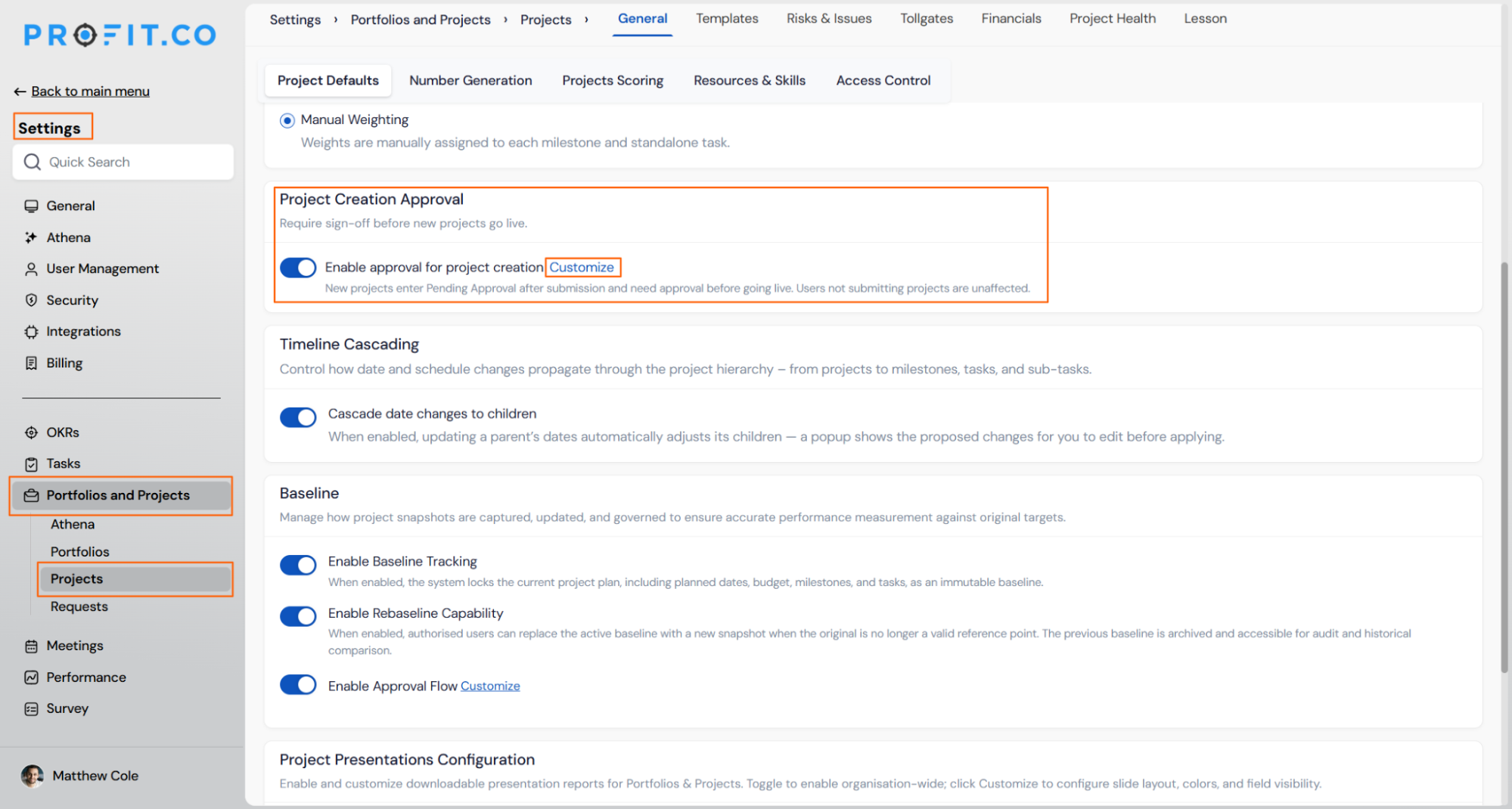
- Navigate to Settings → Portfolios and Projects → Projects.
- Stay on the General tab, then select Project Defaults.
- Scroll to the Project Creation Approval section.
- Turn on Enable approval for project creation.
Step 2
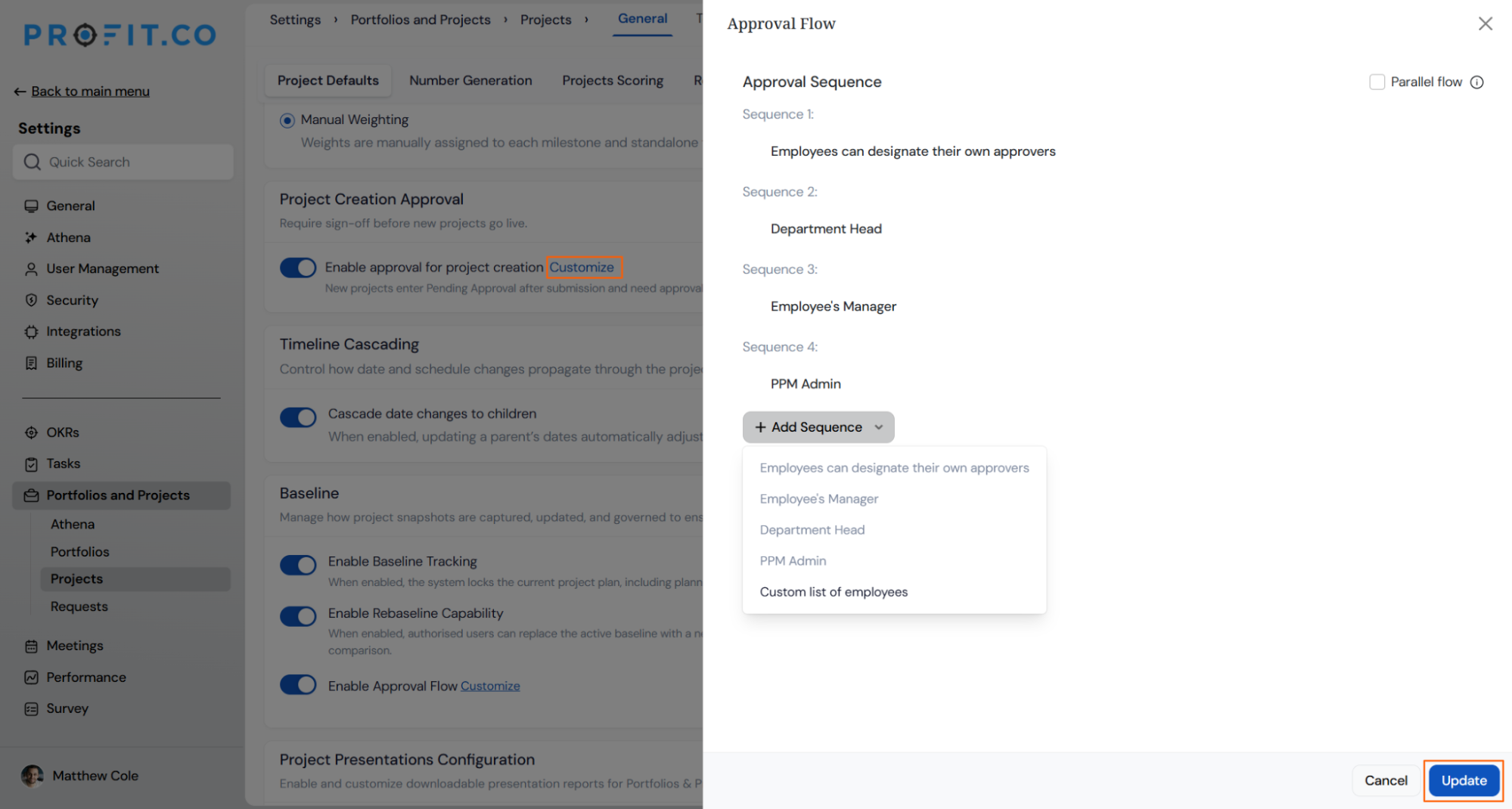
- Click Customize to open the Approval Flow panel.
- Click + Add Sequence to add a level: Employee's own approvers, Employee's Manager, Department Head, PPM Admin, or Custom list of employees.
- For a custom list of employees, select the reviewers and set whether approval requires one person or all of them.
- Turn on Parallel flow if you want every sequence level reviewed at the same time instead of in order.
- Click Update to save the approval sequence.
Note
Once you enable Parallel Flow, approvers complete their review at the same time rather than one sequence level after another.
Submit a Project for Approval
Step 1
- Create the new project you want to route for approval.
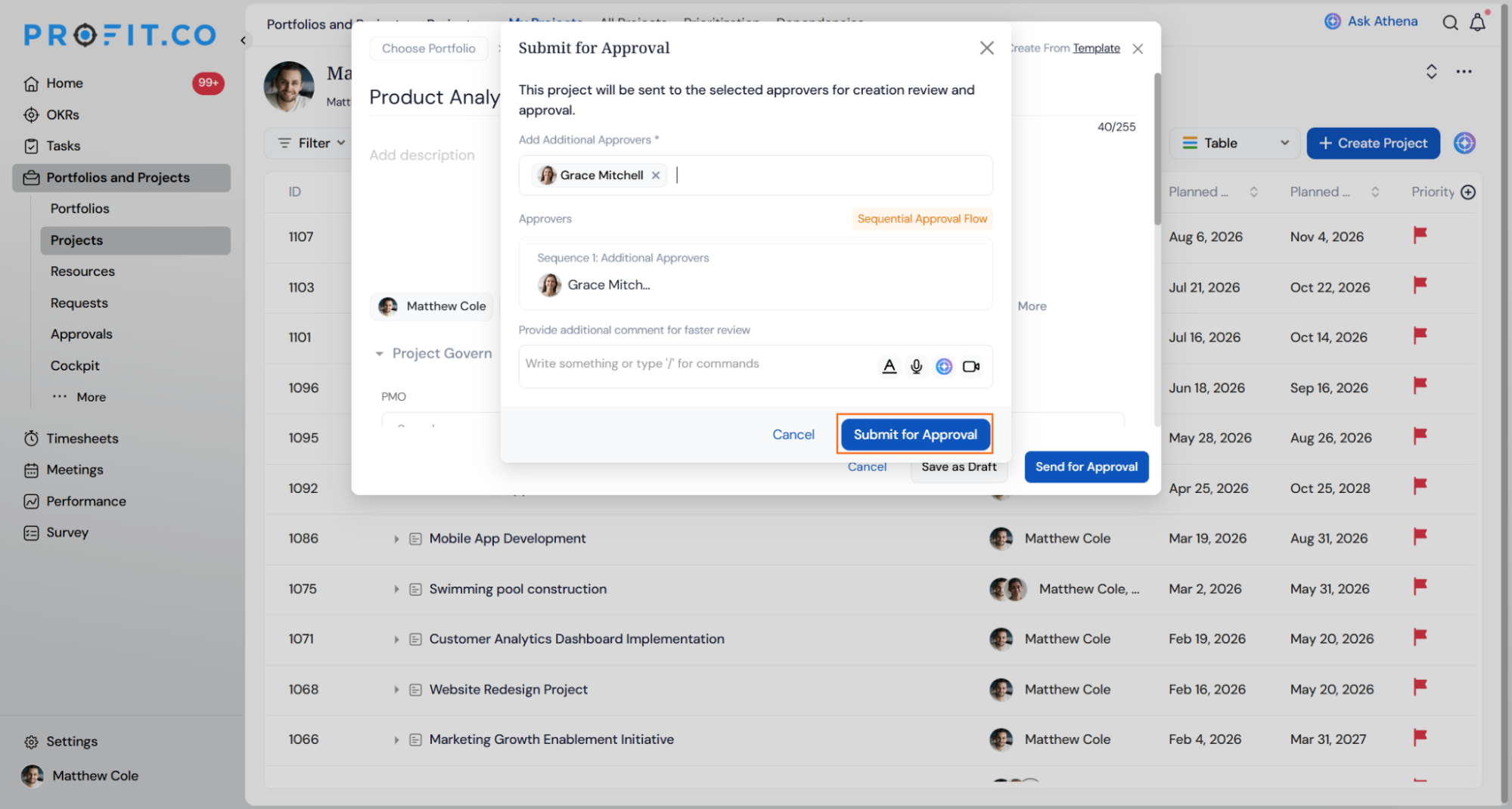
- Click Send for Approval, or click Save as Draft if it isn't ready to submit yet.
- In the Submit for Approval pop-up, add any Additional Approvers required.
- Click Submit for Approval to start the sequence.
Project Creation Approval Scenarios and Their Outcomes
| Scenario | What Happens |
|---|---|
| You enable Project Creation Approval for your organization. | Profit.co moves every new project into Pending Approval status and hides it from general access until every required approver responds. |
| You submit a project for approval. | Profit.co notifies the assigned approvers so they can review and act on the request. |
| You start the Send for Approval process but choose Save as Draft instead. | Profit.co saves the project as a draft and does not route it to any approver. |
| You set up an approval sequence with more than one level. | Profit.co requires approval at each level before the project moves to the next one in the sequence. |
| You complete approval at every level in the sequence. | Profit.co marks the project as approved and makes it available to all users across the organization. |
Best Practices for Project Creation Approval
- Assign Department Head or PPM Admin as a sequence level for projects that cross team boundaries, since Employee's own approvers works best for individual accountability rather than cross-functional sign-off.
- Turn on Parallel Flow when the review order genuinely doesn't matter, since sequential review adds wait time that isn't needed if approvers aren't dependent on each other's decisions.
- Use Custom list of employees for review groups that don't map to a manager or department, since it's the only sequence type not tied to a fixed reporting relationship.
- Set the custom list to require all approvers only when every reviewer's sign-off is genuinely necessary, since requiring all approvers slows the sequence compared to requiring just one.
- Use Save as Draft while a project is still being scoped, so it doesn't reach approvers before the details are ready for review.
Related Articles
- How do I enable the Portfolios and Projects module in Profit.co?
- How to create a Project in the PPM module?
- How does the new PPM Settings access help PPM Admins?
Frequently Asked Questions
No. It applies only to new projects submitted after the toggle is enabled; existing projects are not retroactively placed into Pending Approval.
Yes. Each sequence level is independent, so you can set Sequence 1 to Employee's own approvers and Sequence 2 to Department Head, for example.
Yes. When you add a Custom list of employees level, you can set approval to require only one person from the list or all of them.
Execute your strategy with confidence
Connect OKRs, tasks, and teams in one place with Profit.co
