

Portfolio-based role access control gives Super Users a dedicated way to decide what each portfolio member can see and do, independent of the organization's platform-wide roles. Members receive their access directly on the portfolio they're assigned to, and that access stays visible for review at any time.
Table of Contents
What is Portfolio-Based Role Access Control?
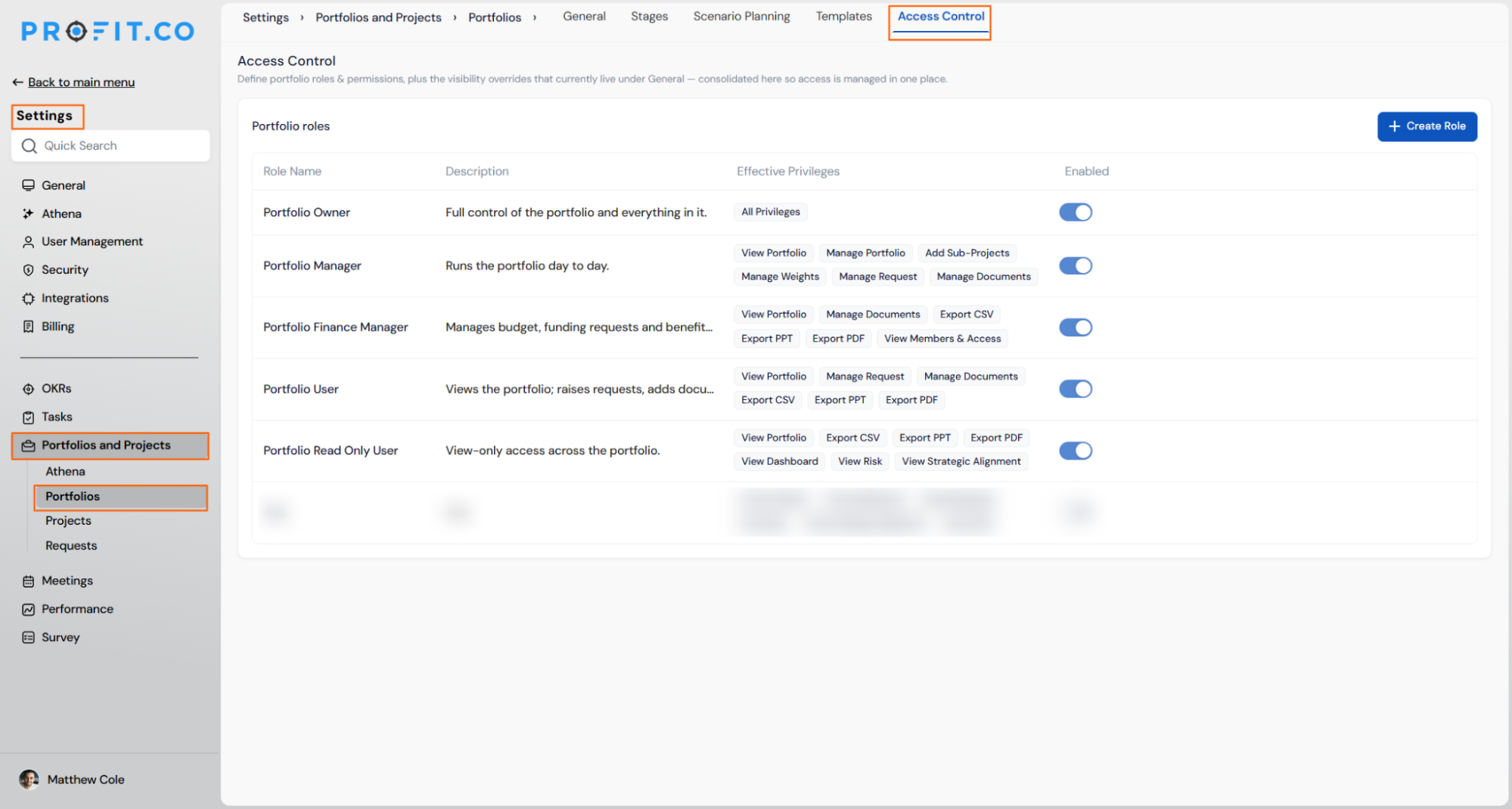
A portfolio role is a named permission profile that applies only within the portfolio where it's assigned. Profit.co ships five default roles: Portfolio Owner, Portfolio Manager, Portfolio Finance Manager, Portfolio User, and Portfolio Read Only User, each carrying a fixed description and a set of effective privileges.
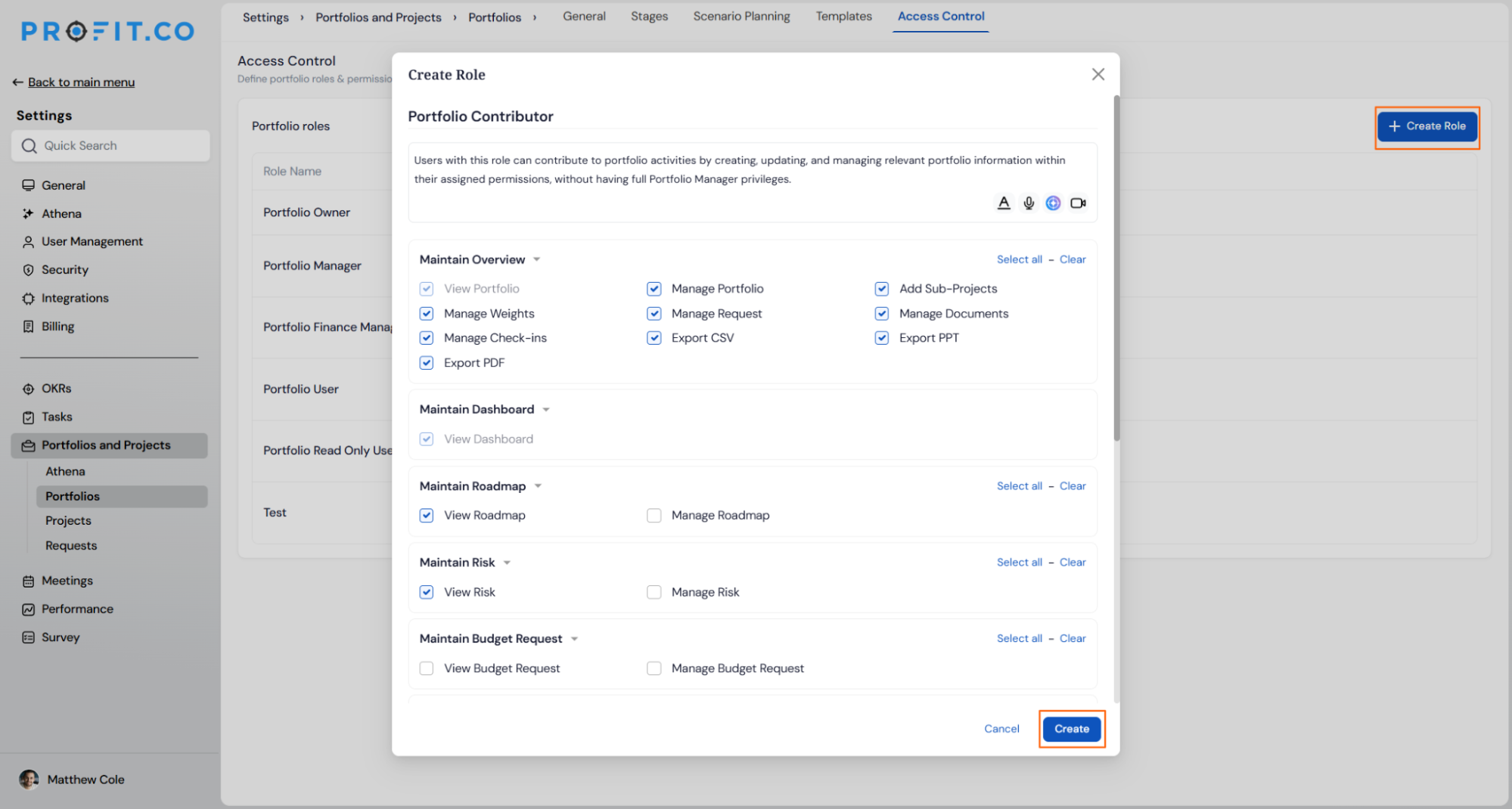
Each role's permissions are grouped into functional categories, including Maintain Overview, Maintain Dashboard, Maintain Roadmap, Maintain Risk, Maintain Budget Request, Maintain Funding Request, and Maintain Members & Access. Within each category, individual permissions toggle at a View or Manage level, giving a granular breakdown beneath the role's summary description.
Note
Portfolio roles apply only within the portfolio where they're assigned. They don't carry over to other portfolios and don't grant platform-wide access.
| Role | Description | Effective Privileges |
|---|---|---|
| Portfolio Owner | Full control of the portfolio and everything in it. | All Privileges |
| Portfolio Manager | Runs the portfolio day to day. | View Portfolio, Manage Portfolio, Add Sub-Projects, Manage Weights, Manage Request, Manage Documents |
| Portfolio Finance Manager | Manages budget, funding requests, and benefits. | View Portfolio, Manage Documents, Export CSV, Export PPT, Export PDF, View Members & Access |
| Portfolio User | Views the portfolio, raises requests, edits documents. | View Portfolio, Manage Request, Manage Documents, Export CSV, Export PPT, Export PDF |
| Portfolio Read Only User | View-only access across the portfolio. | View Portfolio, Export CSV, Export PPT, Export PDF, View Dashboard, View Risk, View Strategic Alignment |
Beyond these five defaults, Super Users can add further custom roles with their own permission combinations to cover additional functions or access levels the organization needs.
Why Portfolio-Based Role Access Control Matters
Portfolio-based role access control replaces one-size-fits-all permissions with scoped, function-specific access. Each benefit below reflects a concrete gap this closes for portfolio governance.
| Benefit | Description |
|---|---|
| Granular access per portfolio | Organizations control exactly what each member can see and do inside a specific portfolio, instead of relying on one platform-wide role for every context. |
| Clear permission transparency | Super Users and members can open any assigned role's permission breakdown directly from Members & Access and see the exact privileges in effect. |
| Reduced over-permissioning | Purpose-built roles like Portfolio Finance Manager and Portfolio Read Only User scope access to a function, rather than granting broader privileges than a member's responsibilities require. |
How It Works
Configure Portfolio Roles
Step 1
- Navigate to Settings → Portfolios and Projects → Portfolios → Access Control
- Check each role's description and effective privileges listed in the Portfolio Roles table
Step 2
- Click + Create Role and select the specific permissions the new role should carry
- Use the toggle next to a role's name to turn it on or off
Prerequisite
Only Super Users can create, configure, and enable or disable portfolio roles from the Access Control page.
View a Member's Assigned Role and Permissions
Step 1
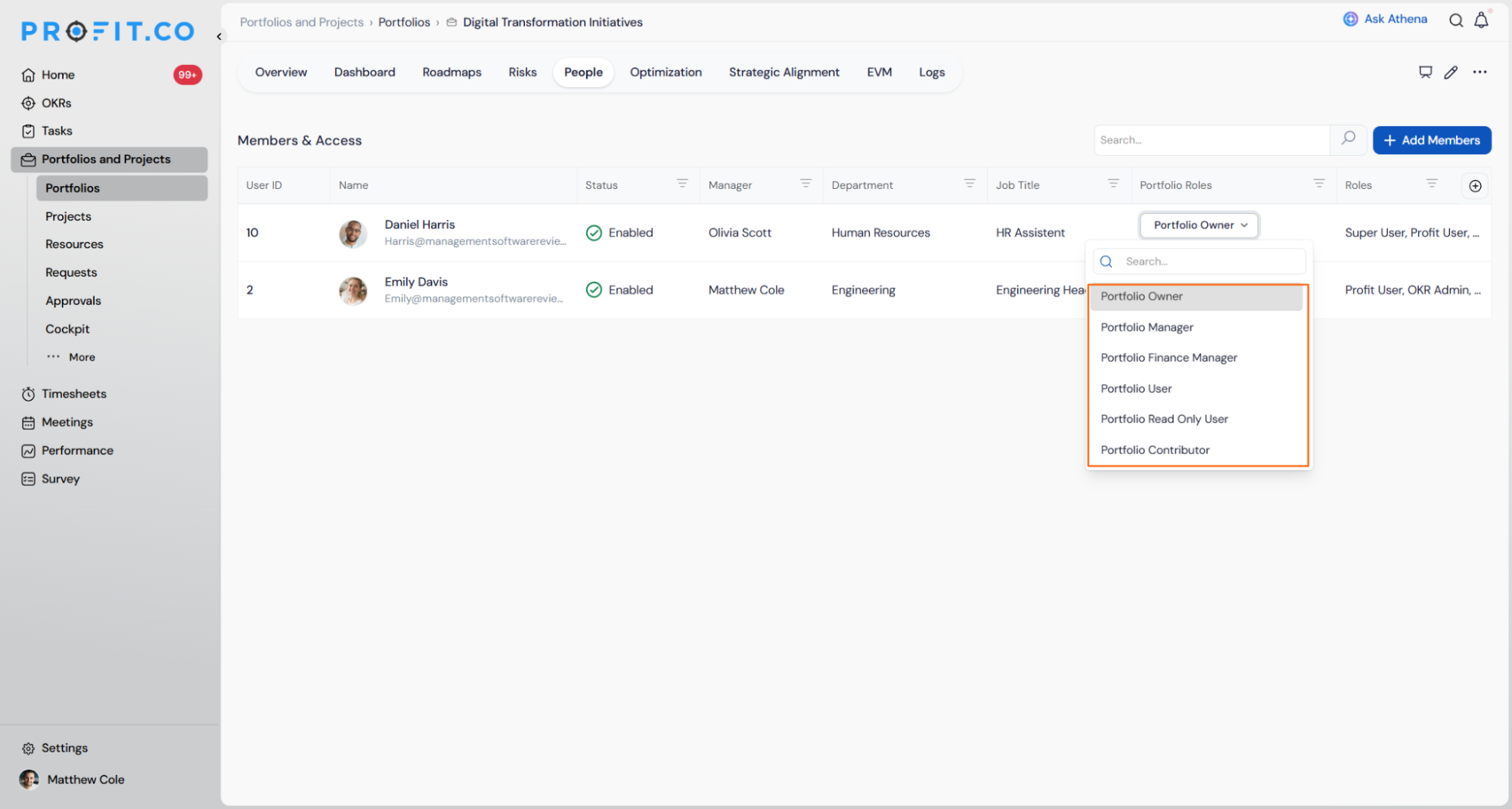
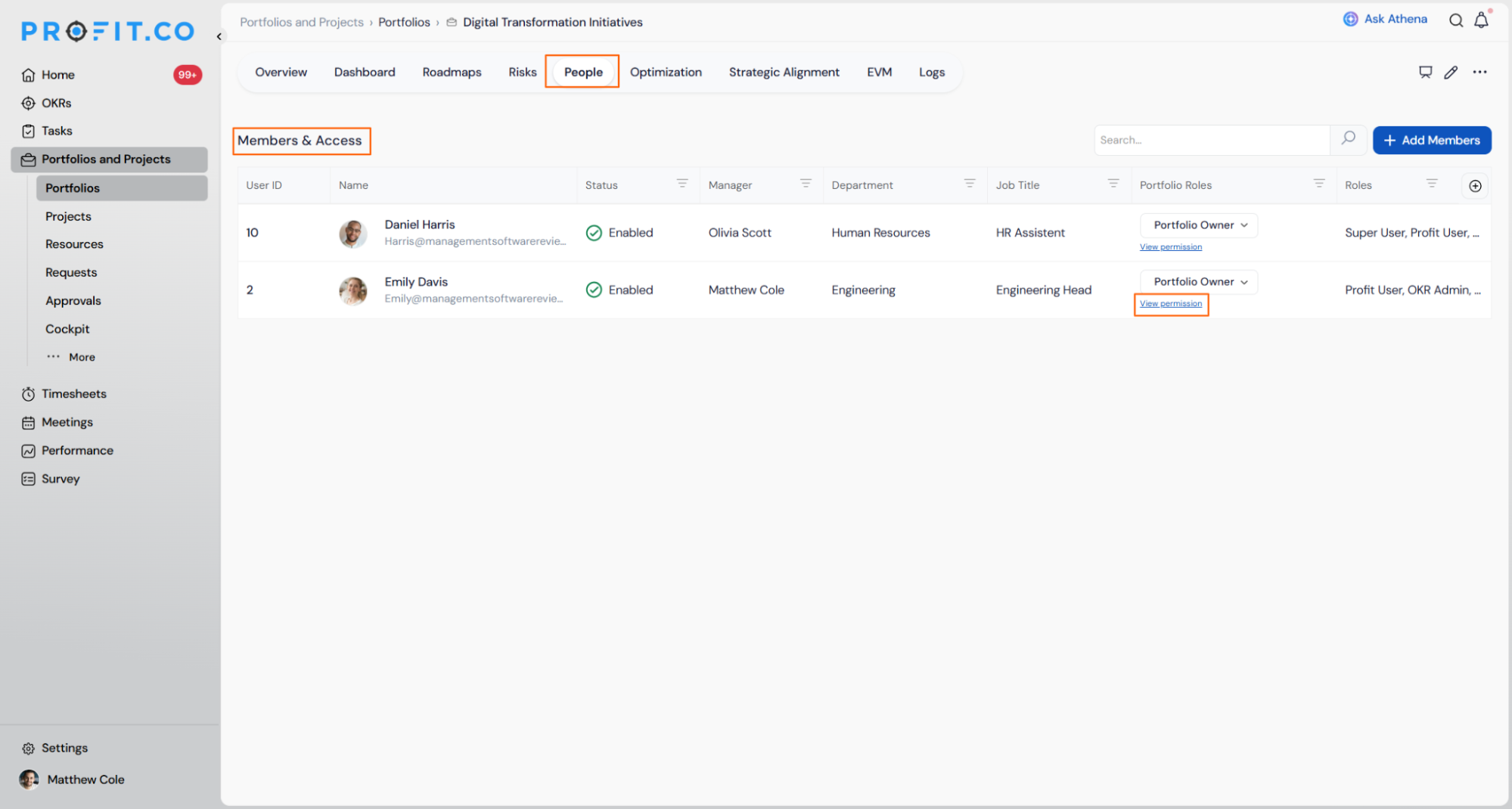
- Navigate to a portfolio and open the Members & Access page
- Select a role for a member from the Portfolio Roles dropdown
- Click View permission beneath the assigned role to see that member's full permission breakdown
Portfolio-Based Role Access Control Scenarios and Their Outcomes
| Scenario | What Happens |
|---|---|
| You try to disable a default portfolio role (Portfolio Owner, Portfolio Manager, Portfolio Finance Manager, Portfolio User, or Portfolio Read Only User). | Profit.co blocks the action, since default roles cannot be disabled and only custom roles support the toggle. |
| You disable a custom portfolio role that's already assigned to one or more members. | Profit.co keeps each assigned member's access unchanged, so they continue to have the permissions defined in that role. |
| You change a member's portfolio role from the Members & Access page. | Profit.co sends the member a notification confirming their updated role assignment. |
Best Practices for Portfolio-Based Role Access Control
- Build custom roles around a single function, such as budget approvals or reporting, rather than duplicating a default role with minor edits, since default roles can't be disabled or removed once shipped.
- Reserve Portfolio Owner for the individual accountable for the portfolio, since it carries all privileges, including sub-project creation and document management, in one assignment.
- Confirm a role's full permission breakdown using View permission before assigning it to a new member, rather than judging scope from the role name alone.
- Complete custom role creation in one sitting, since closing the + Create Role panel before saving discards every permission selected so far.
- Use Portfolio Read Only User for external or occasional stakeholders who only need dashboard and export access, keeping Manage-level privileges limited to active contributors.
Related Articles
- What are the various roles available for users in Profit.co?
- How to create a new portfolio in Profit.co?
Frequently Asked Questions
No. Roles are assigned per portfolio from that portfolio's Members & Access page, so the same member can hold different roles in different portfolios.
Only Super Users can create, configure, and enable or disable portfolio roles from the Access Control page.
No. Portfolio roles are scoped to the specific portfolio and are separate from the organization's global roles.
Execute your strategy with confidence
Connect OKRs, tasks, and teams in one place with Profit.co
