

Multi-currency support lets you create and track objectives, key results, and budgets in currencies other than your organization's base currency. This gives global teams the flexibility to report in local currencies while Profit.co rolls up financial values accurately to a base currency at the parent level.
Table of Contents
What is Multi-Currency Support?
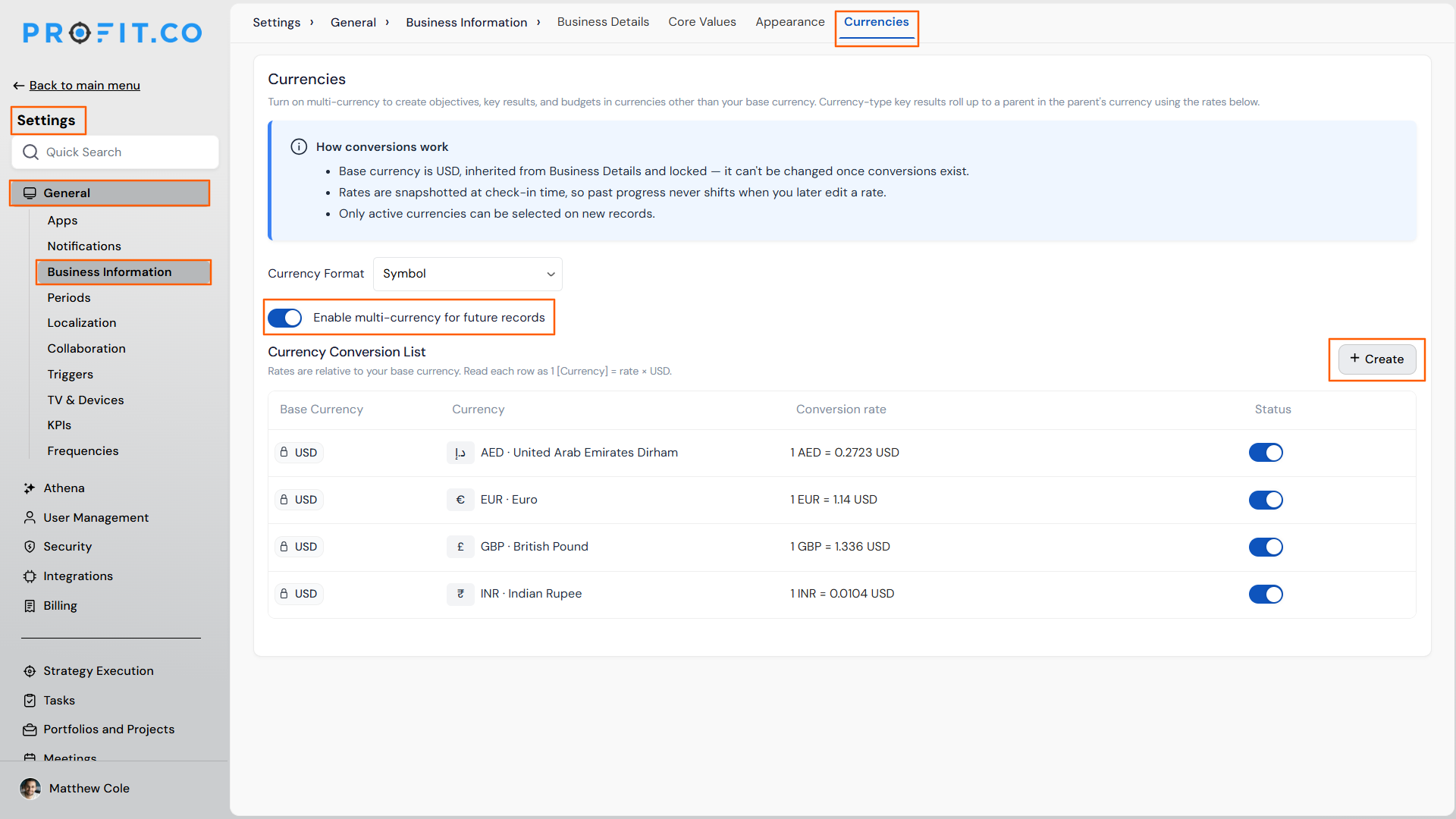
Multi-currency support is a Business Information setting that admins configure from a dedicated Currencies page, letting objectives, key results, and budgets carry a currency other than your organization's base currency. Once a currency is selected, its symbol or full currency type displays with the value everywhere the amount appears, including directly beneath the record's progress bar, so the financial context stays consistent across every screen.
Your base currency is inherited from Business Details and locked once currency conversions exist, so it cannot be changed later. Currency-type key results roll up to a parent in the parent's currency using conversion rates you configure. For example, a U.S.-based organization might add AED, EUR, GBP, and INR alongside its USD base currency, each carrying its own conversion rate.
Note
Enabling multi-currency only applies to records created after the toggle is turned on. Objectives, key results, and budgets that already exist keep their original currency setup.
Currency Conversion List Fields
| Field | Description |
|---|---|
| Base Currency | The locked currency inherited from Business Details; the reference point for every conversion. |
| Currency | The additional currency being configured, shown with its symbol and full name, for example AED - United Arab Emirates Dirham. |
| Conversion Rate | The rate expressed as 1 [Currency] = rate × Base Currency. |
| Status | The toggle that controls whether a currency is active and selectable on new records. |
Why Multi-Currency Support Matters
Before this update, selecting a currency on a record gave no visual confirmation once progress entry began. The value appeared without a symbol or currency label beneath the progress bar, leaving anyone reviewing the record to guess the financial context. Profit.co now displays the exact symbol or currency type consistently everywhere the amount appears, from the progress bar to every other screen showing that value, so the currency is clear no matter where it's viewed.
Because currency-type key results roll up to a parent using conversion rates you define, teams no longer need to manually convert regional figures before consolidating them into a single objective. Rates snapshot at check-in time, so editing a rate later does not change progress that was already recorded, keeping historical reporting stable.
How It Works
Step 1
- Navigate to Settings → General → Business Information → Currencies.
- Review the Currency Format selector and the Currency Conversion List on this page.
- Open the Currency Format dropdown.
- Select Symbol or Full Currency Type based on how you want values labeled.
Step 2
- Turn on Enable multi-currency for future records.
- Confirm the toggle switches to its active state.
- Click + Create in the Currency Conversion List.
- Select the currency to add and enter its Conversion Rate relative to your base currency.
Step 3
- Locate the new currency's row in the Currency Conversion List.
- Turn on its Status toggle to make it selectable on new records.
- Open an objective, key result, or budget.
- Choose an active currency from the currency selector and enter the progress value.
Multi-Currency Support Scenarios and Their Outcomes
| Scenario | What Happens |
|---|---|
| You edit a currency's conversion rate after check-ins have already been recorded against it. | Profit.co keeps the rate as a snapshot from each check-in's time, so previously recorded progress values remain unchanged when you update the rate later. |
| You attempt to change the base currency after currency conversions already exist. | Profit.co blocks the change, and the base currency inherited from Business Details stays locked for the organization. |
| You try to select a currency on a new objective, key result, or budget. | Profit.co lists only currencies marked Active in the Currency Conversion List, so inactive currencies never appear as selectable options. |
| You change a record's currency or enable multi-currency for your organization. | Profit.co applies the change without notifying other users, so no owner or stakeholder receives an alert. |
| You add or edit a rate in the Currency Conversion List but navigate away without saving. | Profit.co discards the unsaved rate, and the field reverts to its last saved value. |
Best Practices for Multi-Currency Support
Tip
Set the Currency Format organization-wide before activating individual currencies, so every new record displays its symbol or currency type consistently across every screen from day one.
- Confirm your base currency in Business Details before creating any conversions, since Profit.co locks it permanently once a conversion exists.
- Activate only the currencies your organization actually transacts in, extra active currencies add noise to the currency selector without adding value.
- Review conversion rates on a regular cadence since Profit.co snapshots rates at check-in time, an outdated rate only affects future check-ins, not the history you've already recorded.
- Assign currencies consistently within a department so consolidated roll-ups don't mix arbitrary local currencies at the same OKR level.
- Add and activate new currencies before your finance team needs to report in them, configuring a conversion rate under time pressure increases the risk of an incorrect rate.
Related Articles
- How to set a decimal value for the measurements while creating a new KPI?
- What is the Override option found while creating KPI in Profit.co?
Frequently Asked Questions
Yes. Roll-ups convert the child key result's value into the parent's currency using the rate configured in the Currency Conversion List, so that rate must exist before the parent reflects the contribution.
Yes. Objectives, key results, and budgets each select their own currency independently, so a budget can carry a different currency than the objective it's linked to.
The Currency Format selector is a single, organization-wide setting on the Currencies page. It controls whether every record shows a symbol or the full currency type, and it is not configured per record.
Symbol displays the currency mark directly with the value, for example $100. Full Currency Type displays the currency code or name instead, for example INR 100.
Execute your strategy with confidence
Connect OKRs, tasks, and teams in one place with Profit.co
