

Super users can configure one column layout for the OKR list and roll it out to the entire organization from Settings. Anyone without a personal custom view follows this layout automatically, including users who join afterward.
Table of Contents
What is the Organization-Wide Default View?
The Organization-Wide Default View is a column layout for the OKR list that a super user configures once in Settings and applies across the entire organization. It controls which columns appear and in what order, for every user who has not built a personal layout of their own.
Users who already created a custom view keep it as is. They are never overwritten, and they can switch to the Organization default at any time from the column picker. Anyone added to the organization after the default is set starts on it automatically, with no configuration on their part.
Why the Organization-Wide Default View Matters
Before this feature, getting every team to review OKRs on the same columns meant sending written instructions and following up manually with each department. A super user can now set one standard from Settings and have it apply organization-wide immediately.
Users who have already built their own view are never forced onto the standard; they keep their layout and adopt the Organization view only when it suits them. New hires added after the default is set start on that layout automatically, with no setup on their end.
How It Works
Method 1: Configuring the Organization Default (Super User)
Step 1
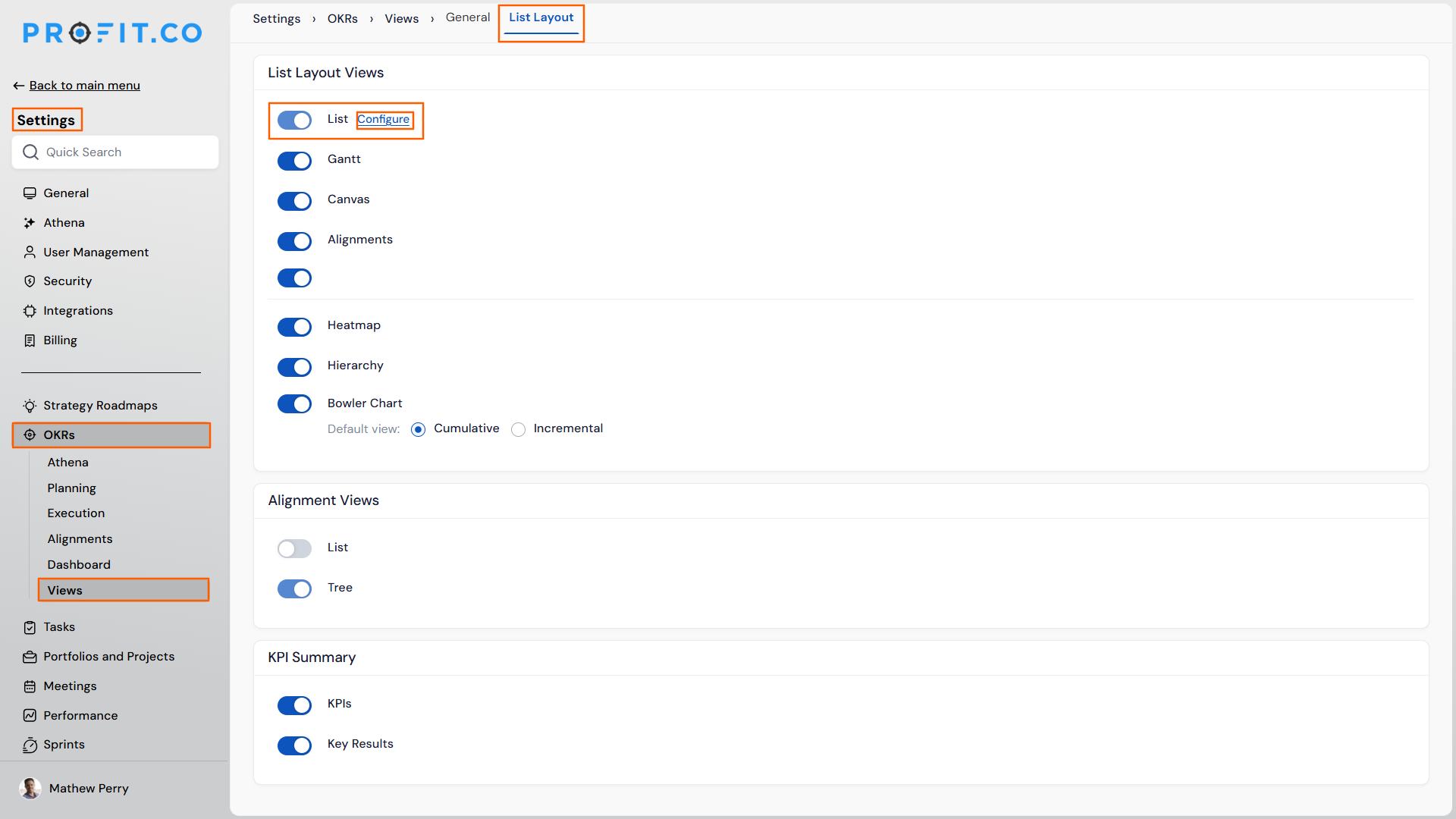
- Navigate to Settings → OKRs → Views → List Layout.
- Under List Layout Views, click Configure next to List.
Step 2
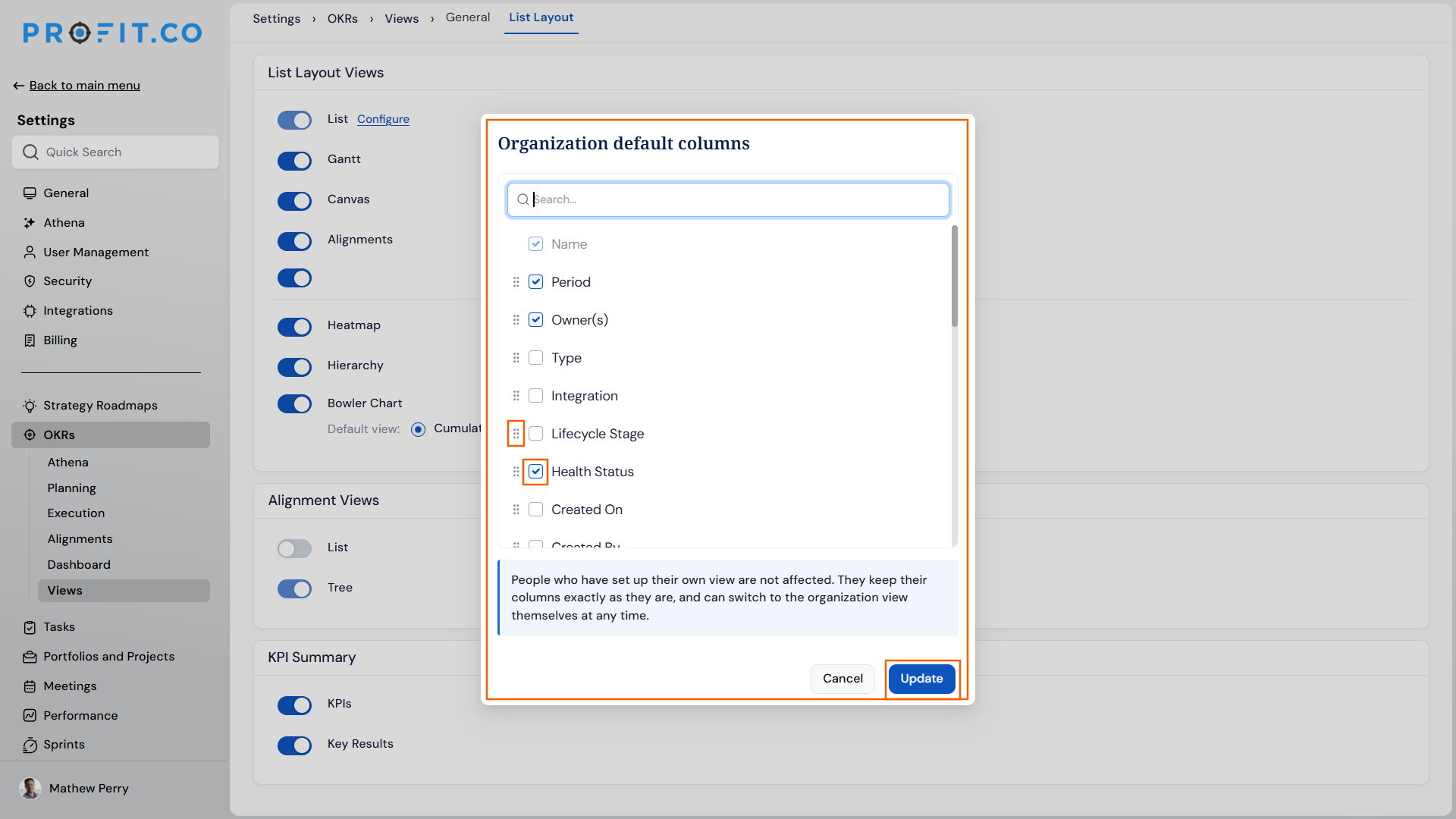
- In the Organization default columns panel, check or uncheck columns to enable or disable them.
- Drag columns into the preferred order using the drag handles.
- Click Update to save the layout and apply it as the Organization default.
Method 2: Switching to the Organization View (Custom View Users)
Step 1
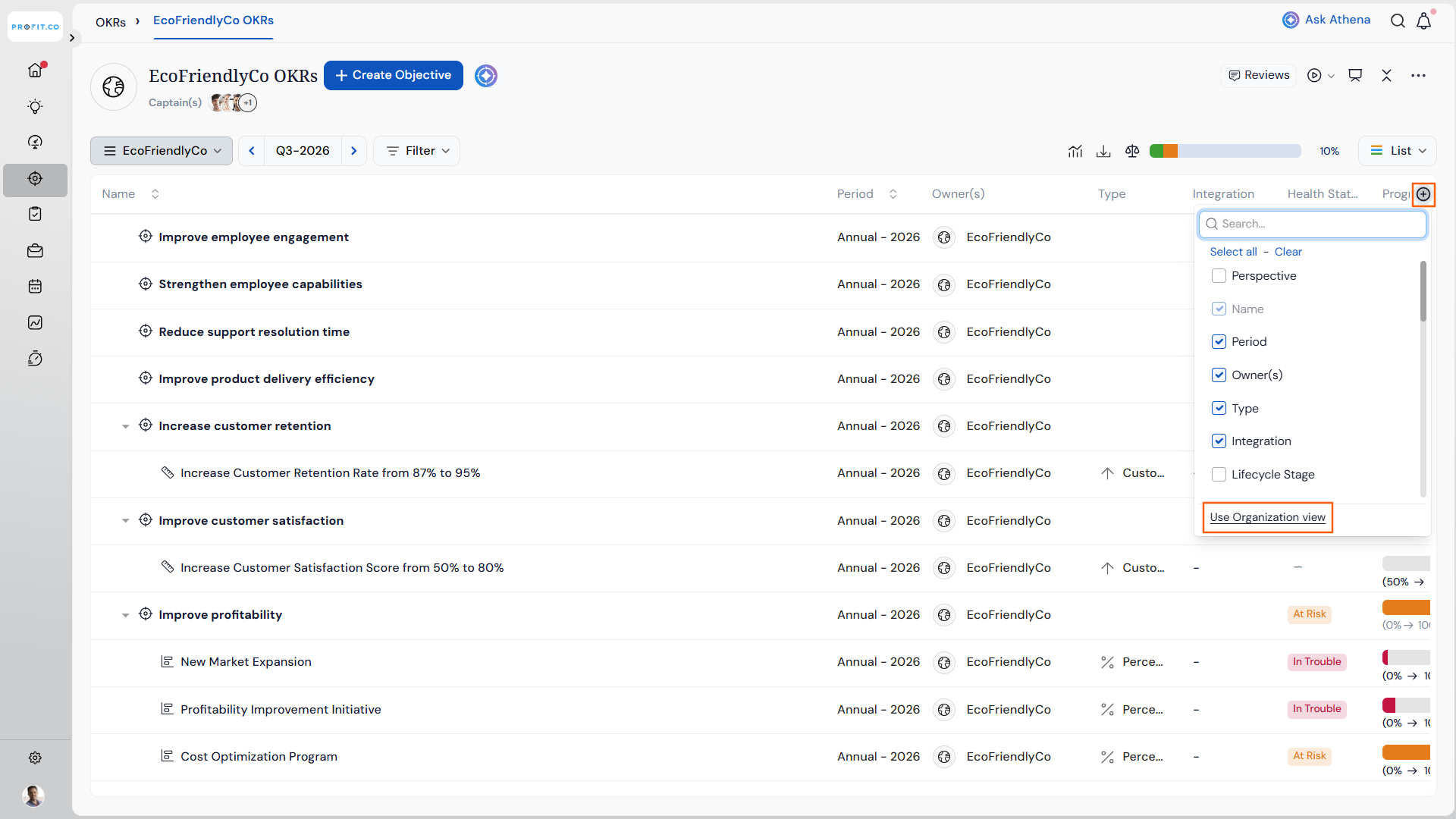
- Open the OKR list and click the column picker control.
- Choose Use Organization view from the bottom of the panel.
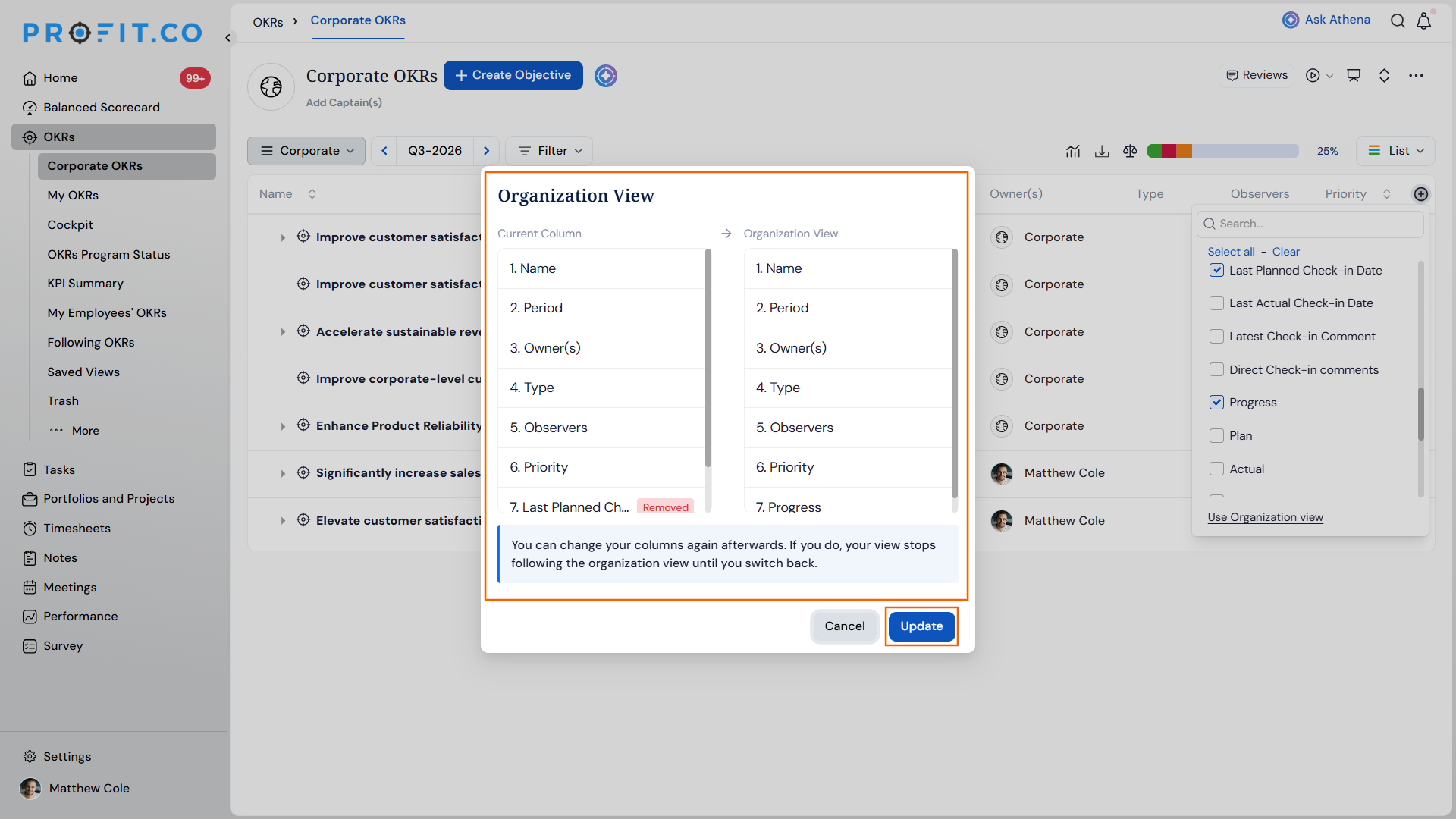
- Review the side-by-side comparison of your current columns against the Organization default, with additions and removals marked.
- Confirm to switch. The table updates to the Organization default immediately.
Organization-Wide Default View Scenarios and Their Outcomes
| Scenario | What Happens |
|---|---|
| You update the Organization default column layout as a super user. | Profit.co changes only the list's column layout. It does not affect any OKR's progress, status, or other data. |
| You update the Organization default again after it is already live. | Users on the shared setup see the new columns the next time they open the OKR list. Profit.co does not send them a notification. |
| You have already built your own custom view before the Organization default is set. | Profit.co leaves your custom view untouched. You keep your existing columns until you choose to switch. |
| You add a new user to the organization after setting the default. | Profit.co starts the new user on the Organization default view automatically. They do not need to configure anything. |
| You open the Use Organization view comparison but do not confirm the switch. | Profit.co keeps your current view unchanged. No columns are applied until you confirm the switch. |
Note
Updating the Organization default does not trigger a notification. Users on the shared setup simply see the new columns the next time they open the OKR list.
Best Practices for the Organization-Wide Default View
- Finalize the column order before clicking Update, since re-editing the Organization default later still applies silently to shared-setup users without any notification.
- Let teams with genuine reporting needs keep their custom view, since Profit.co never overwrites it and switching remains entirely their choice.
- Set the Organization default before onboarding new hires if you want a specific layout as their starting point, since anyone who joins after it is applied inherits it automatically.
- Review the side-by-side comparison in the column picker before confirming, since it is the only place that shows exactly which columns would be added or removed.
- Communicate layout changes to your teams separately if timing matters, since Profit.co updates the shared layout without alerting users itself.
Related Articles
- What is the use of the "OKRs list view" option on the OKRs Settings page in Profit.co?
- What are the various roles available for users in Profit.co?
- How to change user status, from user to super user in Profit.co?
Frequently Asked Questions
No. Only super users can configure or update it from Settings > OKRs > Views > List Layout. Other users can only choose to adopt it from the column picker.
Anyone who has not created a personal custom column layout. They automatically follow whichever layout the super user sets as the Organization default.
No. Any user with a personal custom view can switch to the Organization view themselves. Only creating or editing the Organization default requires super user access.
Execute your strategy with confidence
Connect OKRs, tasks, and teams in one place with Profit.co
