

Profit.co maintains a detailed activity log for every Objective, Key Result, and Sub Key Result, recording who made a change, what changed, and the value before and after. You open this log directly from the OKR to review the full history of actions taken on it.
Table of Contents
What is the Detailed Activity Log for Key Result Actions?
The Detailed Activity Log is a chronological record attached to every Objective, Key Result, and Sub Key Result in Profit.co. It captures actions across perspectives, reviews, notes, documents, alignments, tasks, goals, and milestone dates, recording the user, the action taken, and the affected item.
Note
The log is visible to anyone who has access to view that Objective or Key Result. It isn't restricted to Super Users or the record owner.
Log entries themselves cannot be edited or deleted by any user. Where a recorded change supports it, you can restore the previous version directly from the log entry without removing the entry that documented the change.
Why the Detailed Activity Log Matters
Before this log existed, tracing a change to an Objective or Key Result meant relying on memory or asking around. Now every meaningful action is captured automatically, with who did it and when.
| Benefit | What Changes |
|---|---|
| Complete audit trail | Every meaningful action on an OKR, from perspective changes to milestone updates, is captured with who did it and when. |
| Faster troubleshooting | Teams trace exactly what changed and when, without relying on memory or manual follow-up. |
| Change transparency | Before and after values are shown for edits, making the impact of a change clear at a glance. |
How It Works
Step 1
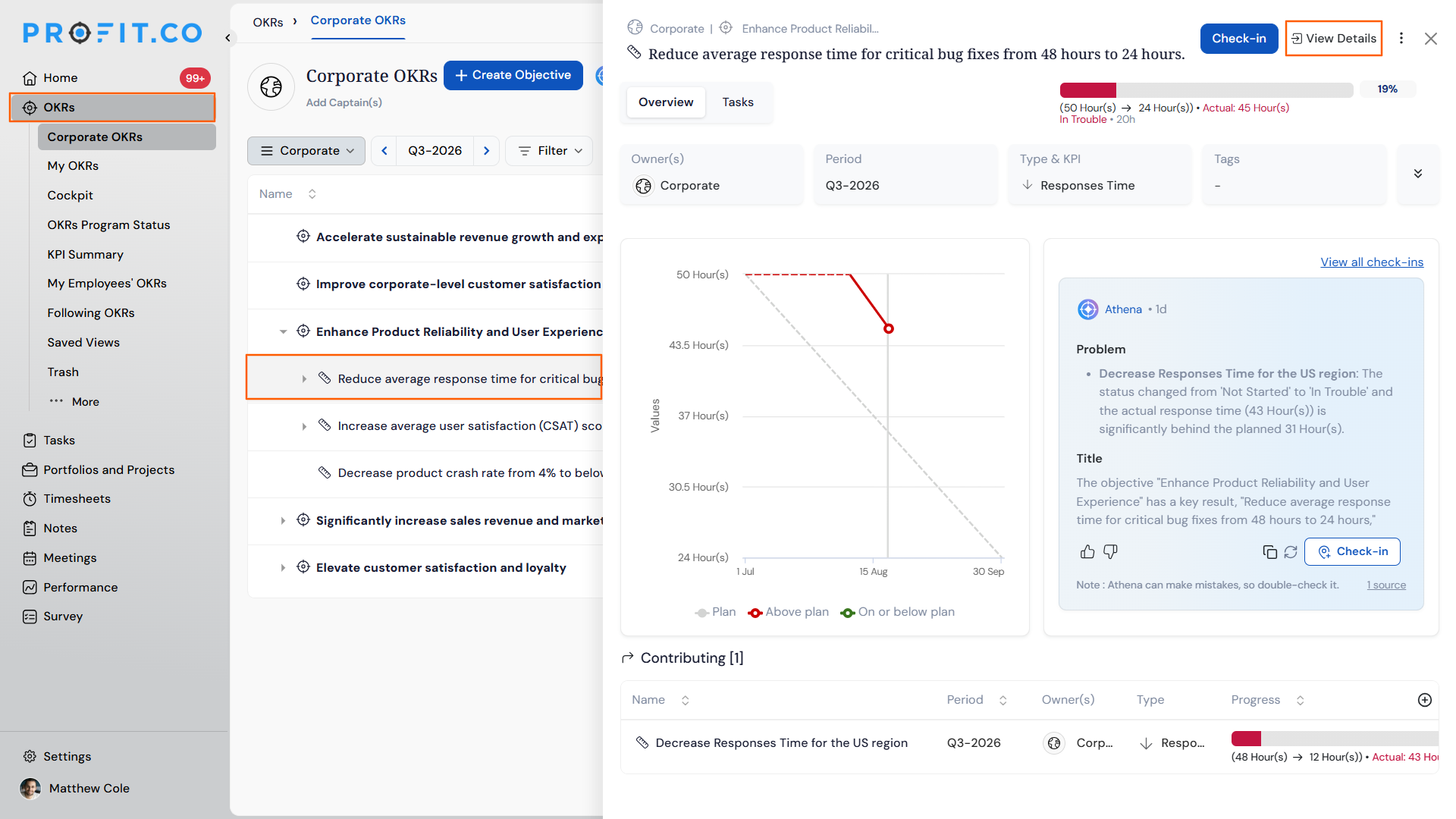
- Navigate to the Objective or Key Result you want to review.
- Click on the View Details button.
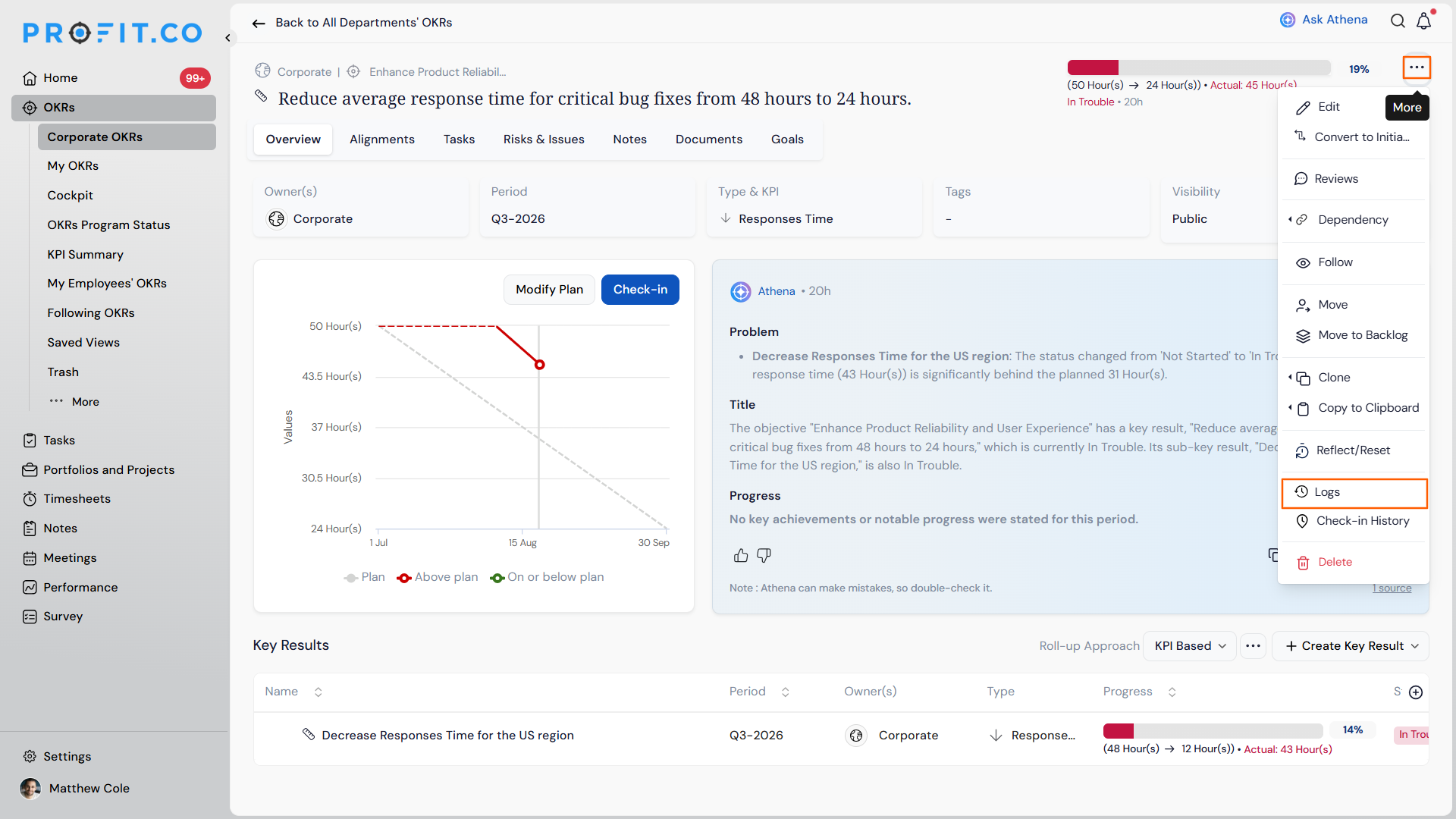
- On the View Details page, click on the More Option and choose Logs.
Step 2
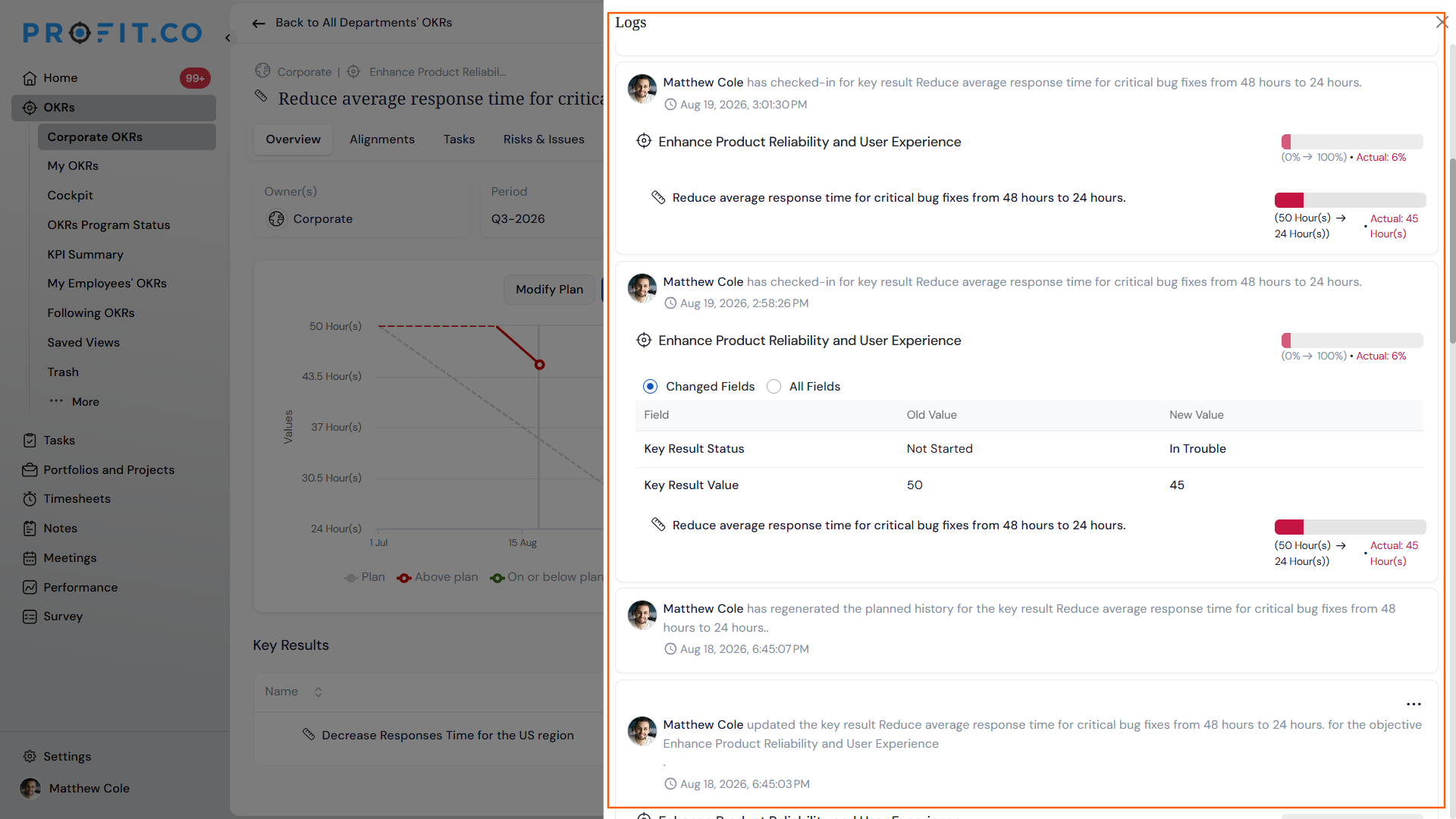
- Check each entry for the user, the action taken, the target item, and the timestamp.
- Toggle between Changed Fields and All Fields to control how much detail each entry shows.
Detailed Activity Log Scenarios and Their Outcomes
| Scenario | What Happens |
|---|---|
| You open the Logs panel for an Objective or Key Result. | Profit.co displays every recorded action to anyone who has access to view that OKR, not only to Super Users or the record owner. |
| You review entries in the Logs panel. | Profit.co shows only the recorded history and does not change any current values, statuses, or progress on the Objective or Key Result. |
| You attempt to edit or delete a log entry. | Profit.co keeps the log entry in place permanently, since log entries cannot be edited or deleted by any user. |
| You need to reverse a change that was recorded in the log. | Profit.co lets you restore the previous recorded version directly from the log entry, without removing the log entry itself. |
| You delete a document, task, goal, or note from an Objective or Key Result. | Profit.co adds a new log entry recording who deleted it and when, even though the item no longer appears on the Objective or Key Result. |
Common Log Entry Types
The log follows a consistent message format across categories, always naming the user, the action, and the affected item. The table below shows one example entry for each category.
| Category | Example Log Entry |
|---|---|
| Perspective | Alex Johnson added the Perspective “Financial” to the Objective “Increase Market Share.” |
| Review | Alex Johnson submitted the review for the Objective “Increase Market Share.” |
| Notes | Alex Johnson added a note to the Key Result “Increase signups from 0 to 10.” |
| Documents | Alex Johnson attached a document “Q4_Plan.pdf” to the Objective “Increase Market Share.” |
| Alignment | Alex Johnson aligned the Objective “Increase Sales Pipeline” from “Grow Annual Revenue.” |
| Tasks | Alex Johnson created a task “Prepare Q4 Campaign Plan” under the Key Result “Increase signups from 0 to 10.” |
| Goals | Alex Johnson created a goal “Improve Landing Page Conversion” under the Key Result “Increase signups from 0 to 10.” |
| Milestones | Alex Johnson updated the milestone end date for “Complete Phase 1 Rollout” from Feb 12, 2026 to Mar 15, 2026. |
| Reordering and renaming | Alex Johnson reordered the Objective “Increase Market Share” to position 2. |
Best Practices for Using the Detailed Activity Log
- Check the Logs panel before questioning a change during an OKR review, since anyone with access to that Objective or Key Result can already see who made the change and when.
- Reserve the All Fields view for deep audits, since Changed Fields already surfaces the specific values that moved without the extra detail.
- Use the log's restore option instead of manually re-entering old values when reverting a milestone date or weightage, since the previous recorded version is already captured in the entry.
- Remember that deleting a document, task, or goal doesn't erase its history, since the deletion itself remains as a permanent log entry.
- Treat the log as a shared reference during cross-functional OKR reviews, since every collaborator with view access sees the identical history, not a personalized version.
Related Articles
- What is the use of the newsfeed in the OKRs view page?
- How to view the OKR weight log?
- How do you define a key result of Milestone tracked in Profit?
Frequently Asked Questions
Yes. Sub Key Results have their own log entries for perspectives, notes, documents, alignments, tasks, and goals, following the same structure as Objectives and Key Results.
No. The Logs panel is the full activity record. Changed Fields and All Fields are two display options within it that control how much detail each entry shows.
No, viewing the log doesn't generate a notification. The log only records actions taken on the OKR, such as edits or deletions, not who viewed the log itself.
Execute your strategy with confidence
Connect OKRs, tasks, and teams in one place with Profit.co
