



In Profit.co users may face errors while trying to create/edit/check-in for Department OKRs.
Why this Feature?
This feature allows you to rectify the errors you face while performing actions to the departmental OKRs. The two possible reasons for not being able to Create / Edit/check in your My Department OKRs are listed below.
Reason 1
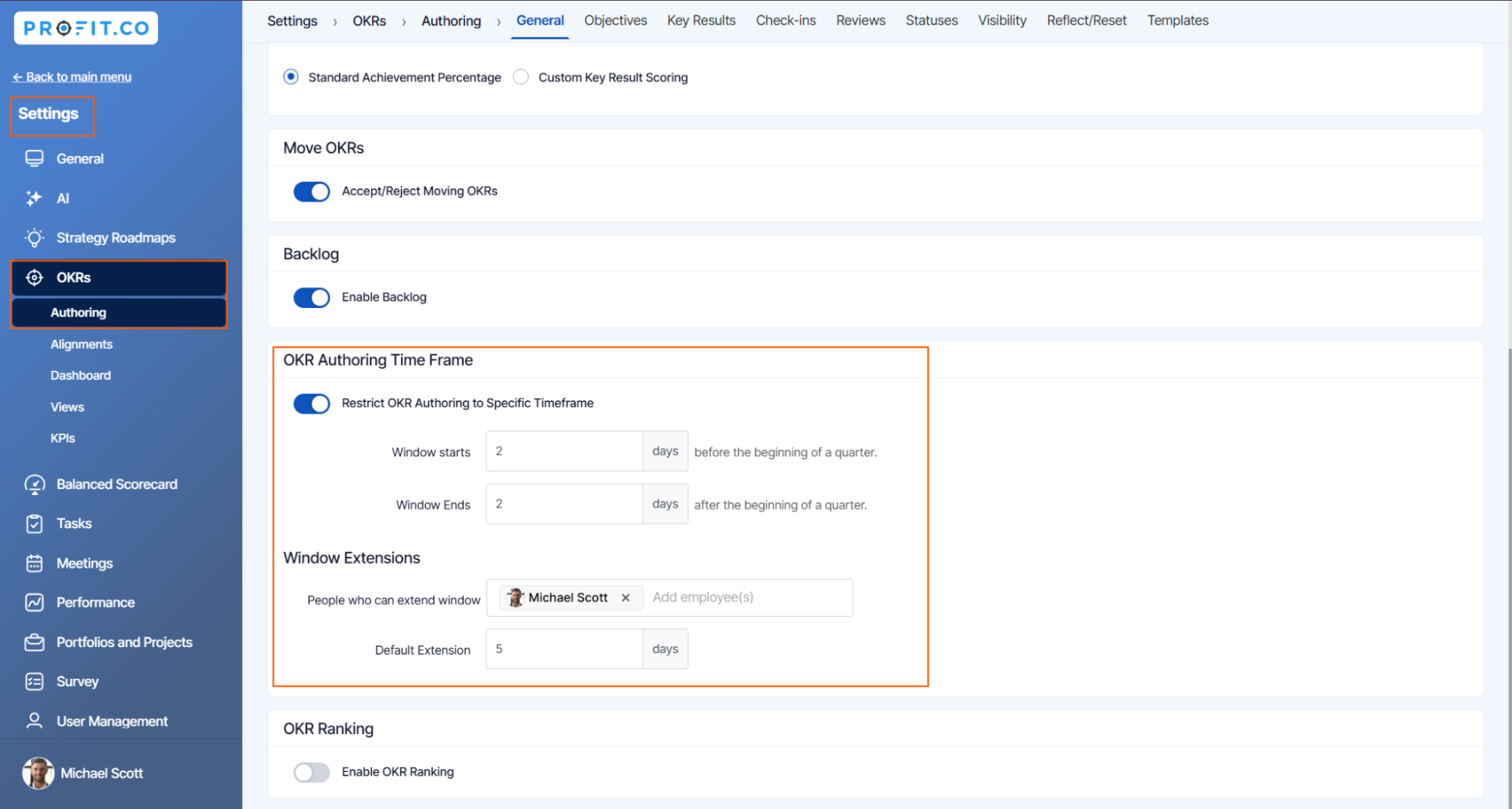
When the OKR Authoring Time frame toggle is enabled. If the user exceeds the set OKR time frame, they will not be able to create/edit check-in for Department OKRs.
Step 1
Navigate to Settings → OKRs→ Authoring from the left navigation panel.
On the Authoring page under the General Tab, You can customize the OKR Authoring Time Frame according to the organization’s needs.
Reason 2
The user must be the Head of the Department or an authorized user. Only they can create, add, edit, perform check-in, and update OKRs for the department.
Note: Only Super Users can add authorized users to the Department.
Step 1
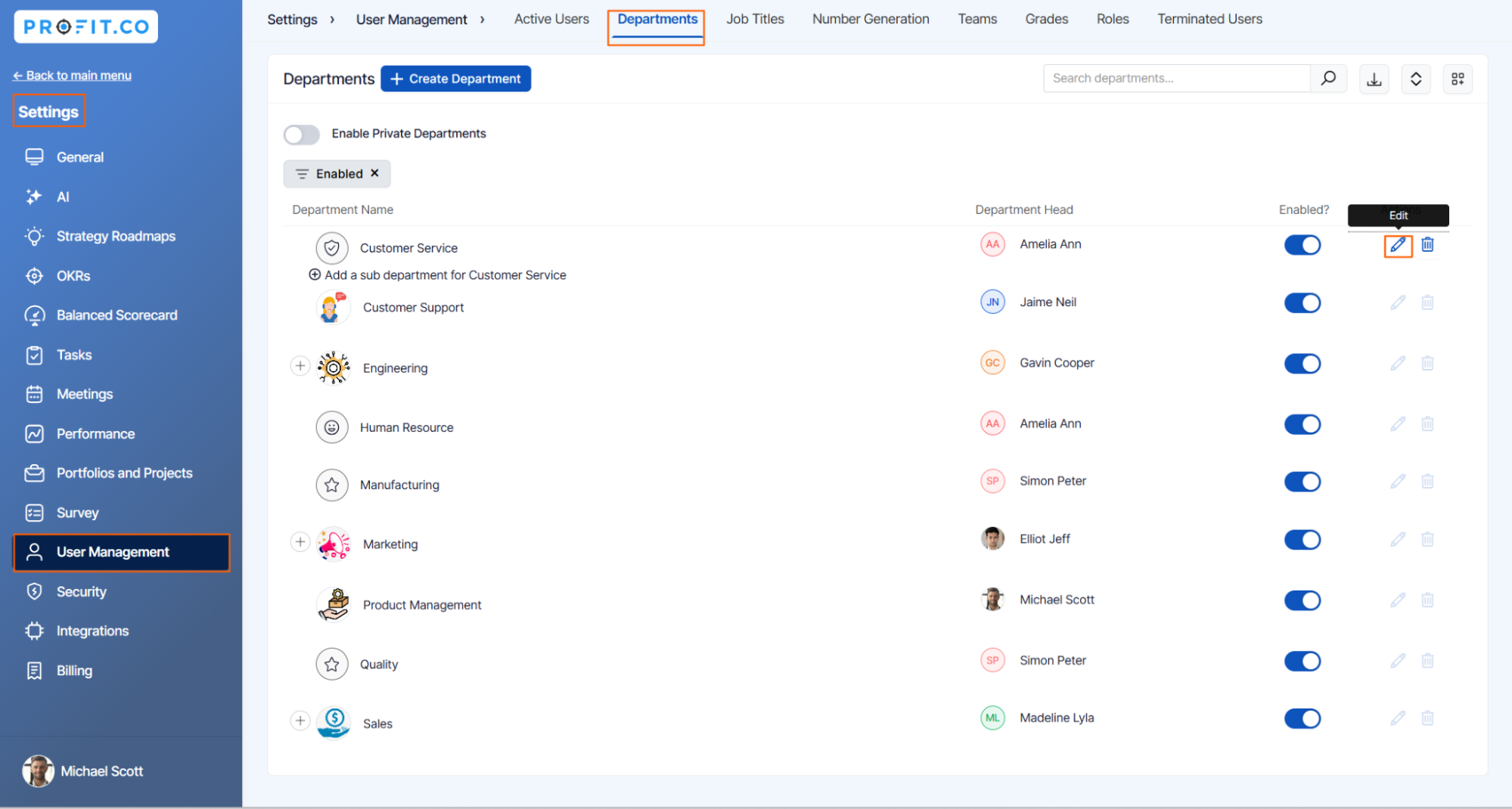
Navigate to Settings → User Management → Departments from the left navigation panel to view user management and add authorized users to the departments.
On the Department’s page, click on the  of the department you wish to edit.
For instance, Let’s select the Customer Service department.
Step 2
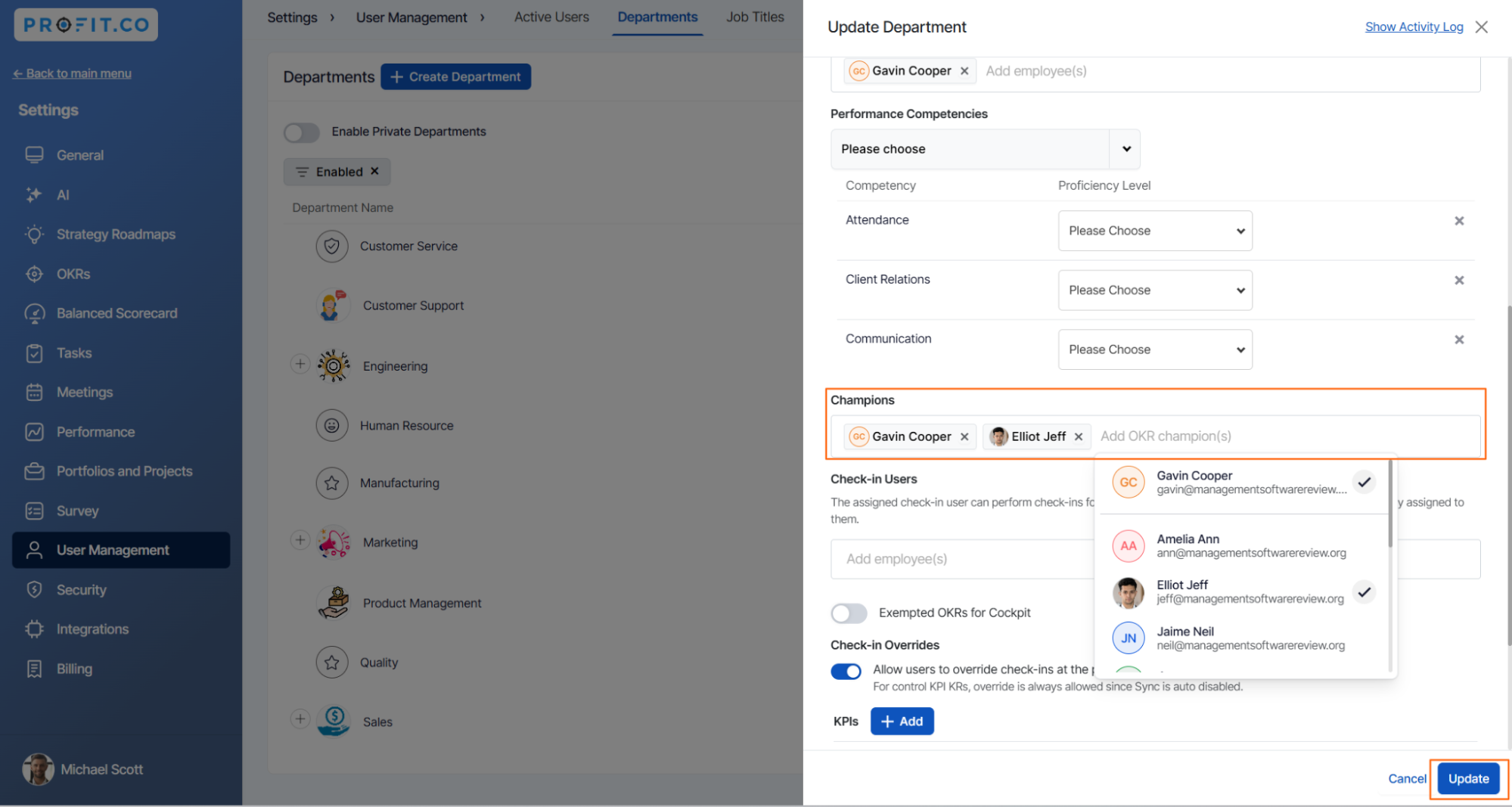
In the Update Department panel, Click on the Search tab of OKR Champion and select the users from the drop-down menu. Finally, click Update.
For instance, Let’s add Elliot Jeff as an authorized user for the Customer Service Department.
The selected employees will be able to create, add, edit, and perform check-ins for the assigned Department.
Related Answer Post
To learn more about how to fix Administrative Errors while initiating a Performance Review, click here.