

Review Summary Information consolidates an employee's assessment ratings and scores into one dashboard on the review template.
Table of Contents
What is Review Summary Information?
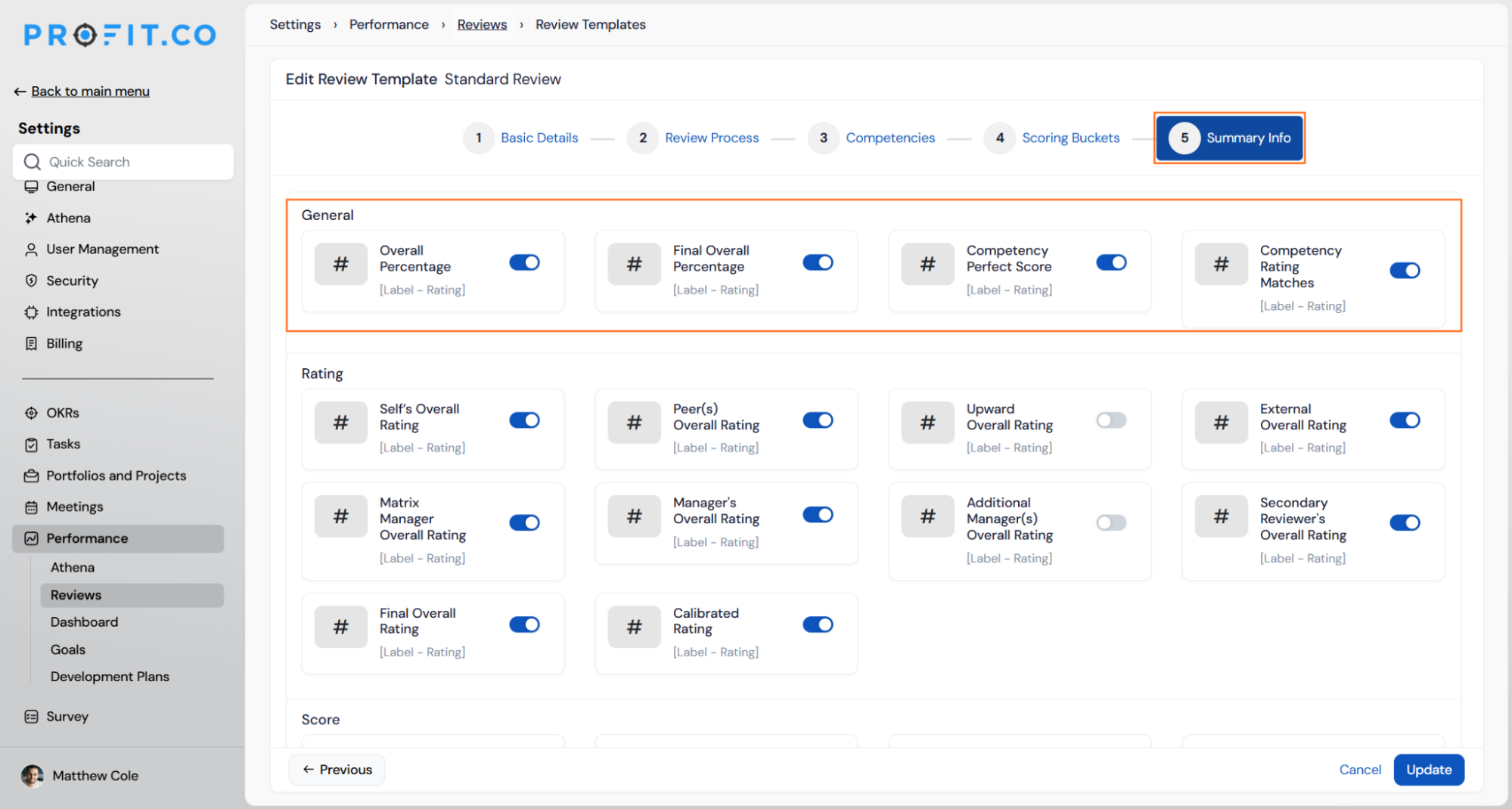
Review Summary Information is the Summary Info tab inside a Review Template's settings. It controls which rating and score fields appear on an employee's review summary, organized into three categories: General, Rating, and Score.
The General category includes a Final Overall Percentage field, which is distinct from Overall Percentage. Overall Percentage converts the average of OKR Score, Goal Score, and Competency Score into a percentile. Final Overall Percentage instead converts the Final Overall Rating, built from assessor scores such as Self, Manager, and Peer, into a number.
| Category | Fields |
|---|---|
| General | Overall Percentage, Final Overall Percentage, Competency Perfect Score, Competency Rating Matches |
| Rating | Self's Overall Rating, Peer(s) Overall Rating, Upward Overall Rating, External Overall Rating, Matrix Manager Overall Rating, Manager's Overall Rating, Additional Manager(s) Overall Rating, Secondary Reviewer's Overall Rating, Final Overall Rating, Calibrated Rating |
| Score | Performance Score, Goal Score, OKR Score, Task Score, Proficiency Matches |
Why Review Summary Information Matters
Without a shared dashboard, understanding a review meant comparing separate rating scales across self, peer, and manager assessments. Review Summary Information puts every category on one screen instead.
- Comparable scoring: a label like 3.4 - Satisfactory does not compare cleanly against a 4 - Commendable rating on a different scale, so Final Overall Percentage gives both a single comparable number.
- Configurable reviewer weight: assessor weights let a manager's score count more than a single peer's input, rather than treating every reviewer equally by default.
- Portfolio-level comparison: because the same percentage carries into Cockpit's Competency and Performance charts, comparing employees no longer requires opening each review.
How It Works
Step 1
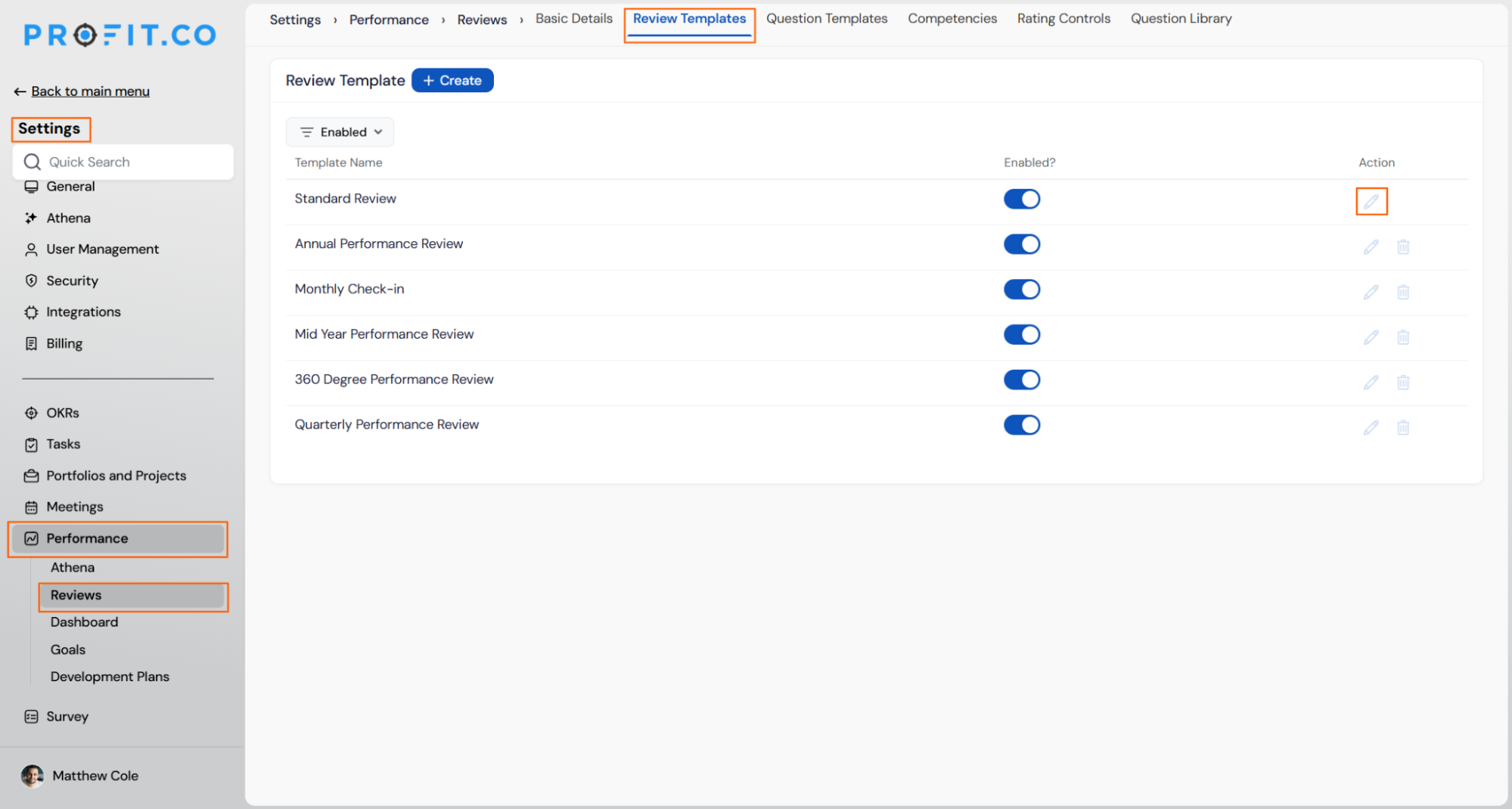
- Navigate to Settings → Performance → Reviews → Review Templates from the left navigation panel.
- Click the Edit icon on the review template you want to configure.
- Select the Summary Info tab on the review template.
- Review the fields available under the General, Rating, and Score categories.
- Turn on the Overall Percentage, Final Overall Percentage, Competency Perfect Score and Competency Perfect Match toggles under the General category.
- Click Update to save the template.
Review Summary Information Scenarios and Their Outcomes
| Scenario | What Happens |
|---|---|
| You enable Final Overall Percentage without configuring assessor weights. | Profit.co calculates the percentage as a straight average of all assessor scores, for example Self at 60 percent and Manager at 70 percent produce 65 percent. |
| You enable Final Overall Percentage after configuring assessor weights. | Profit.co calculates the percentage as a weighted average based on each reviewer's configured weight, combining scores like Self at 80 percent weight and Manager at 20 percent weight proportionally. |
| You enable Final Overall Percentage on a template with reviews already completed or in progress. | Profit.co applies the percentage only to reviews initiated after the toggle is enabled, leaving existing completed or in-progress reviews unchanged. |
| You enable or disable the Final Overall Percentage toggle. | Profit.co makes the change silently, without notifying employees or reviewers. |
| You view an employee's Cockpit Competency or Performance chart after Final Overall Percentage is enabled. | Profit.co displays the same Final Overall Percentage value in the Cockpit chart, using the calculation configured in the review template. |
Best Practices for Review Summary Information
- Enable Final Overall Percentage before a review cycle starts, since it only applies to reviews initiated after the toggle is turned on, not to reviews already in progress.
- Configure assessor weights before relying on the percentage for comparisons, so a manager's judgment isn't unintentionally weighted the same as a single peer's.
- Check which General, Rating, and Score fields are already enabled before adding Final Overall Percentage, so the summary doesn't carry two overlapping numeric fields for the same rating.
- Because enabling the toggle is silent, communicate the change to reviewers directly if you need them to notice the new percentage field.
- Confirm the calculated percentage in Cockpit's Competency and Performance charts before rolling the toggle out organization-wide, to verify the weighting matches your intent.
Related Articles
- What are Ratings in the Review Summary Information?
- What are Scores in the Review Summary Information, and how are the scores calculated in Performance Reviews?
Frequently Asked Questions
No. It appears alongside the rating label as an added numeric field, not in place of it.
No. A Super User must enable the toggle individually on each review template where it should appear.
Overall Percentage converts the average of OKR Score, Goal Score, and Competency Score. Final Overall Percentage converts the assessor-based Final Overall Rating, optionally applying assessor weights.
Execute your strategy with confidence
Connect OKRs, tasks, and teams in one place with Profit.co
