

Profit.co lets you build project roles from per-tab permissions, so a role can grant exactly the tabs and actions a job requires and nothing more. You define what each role can view and manage, and access is enforced automatically for every member assigned to it.
Profit.co's project portfolio management software lets administrators define exactly what each team member can view or manage within a project, replacing broad default roles with access that matches the actual job.
For more on how Profit.co protects project data and manages permissions at scale, see our enterprise security and access controls.
Table of Contents
What is Fine-Grained Project Access Control?
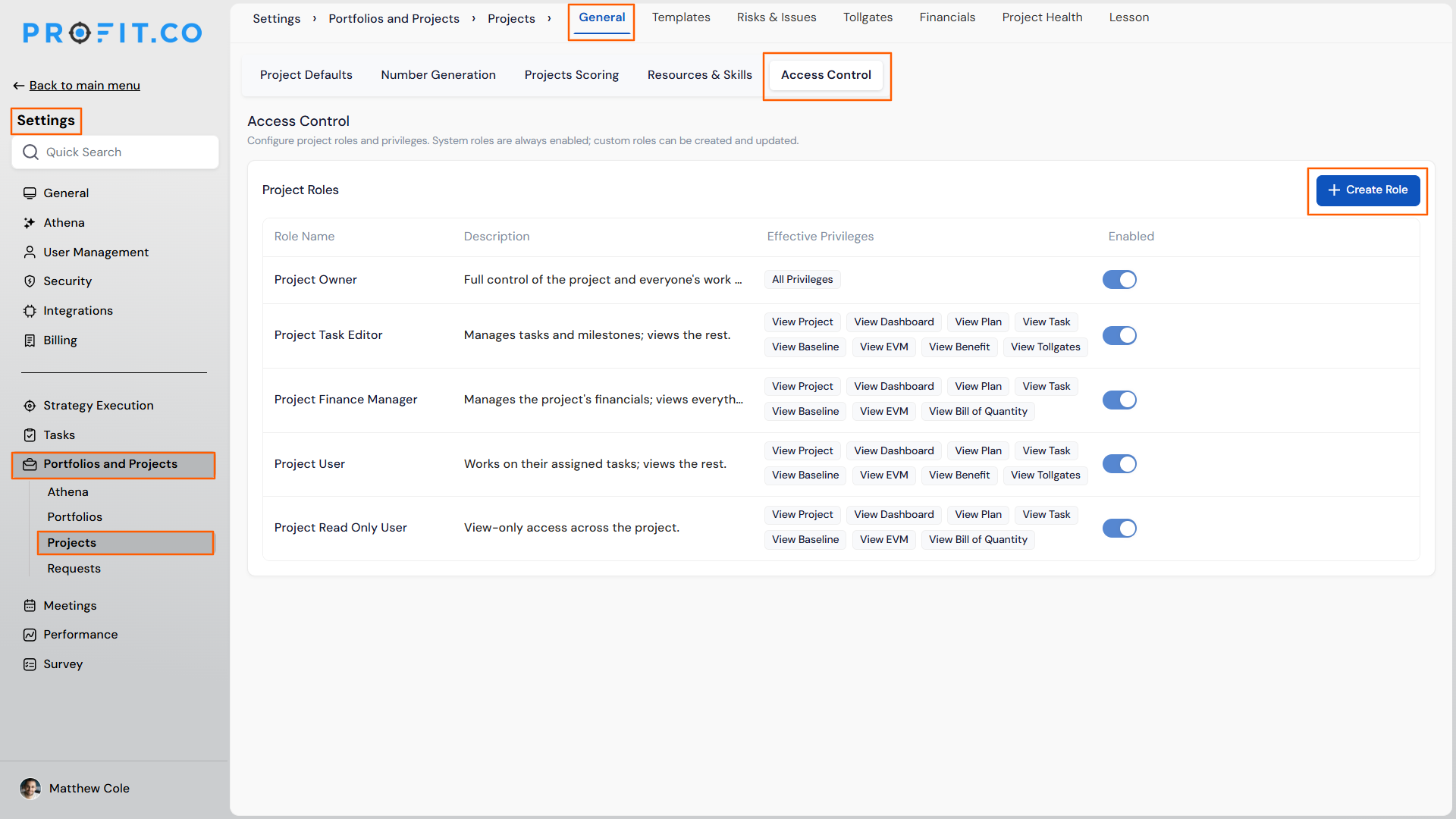
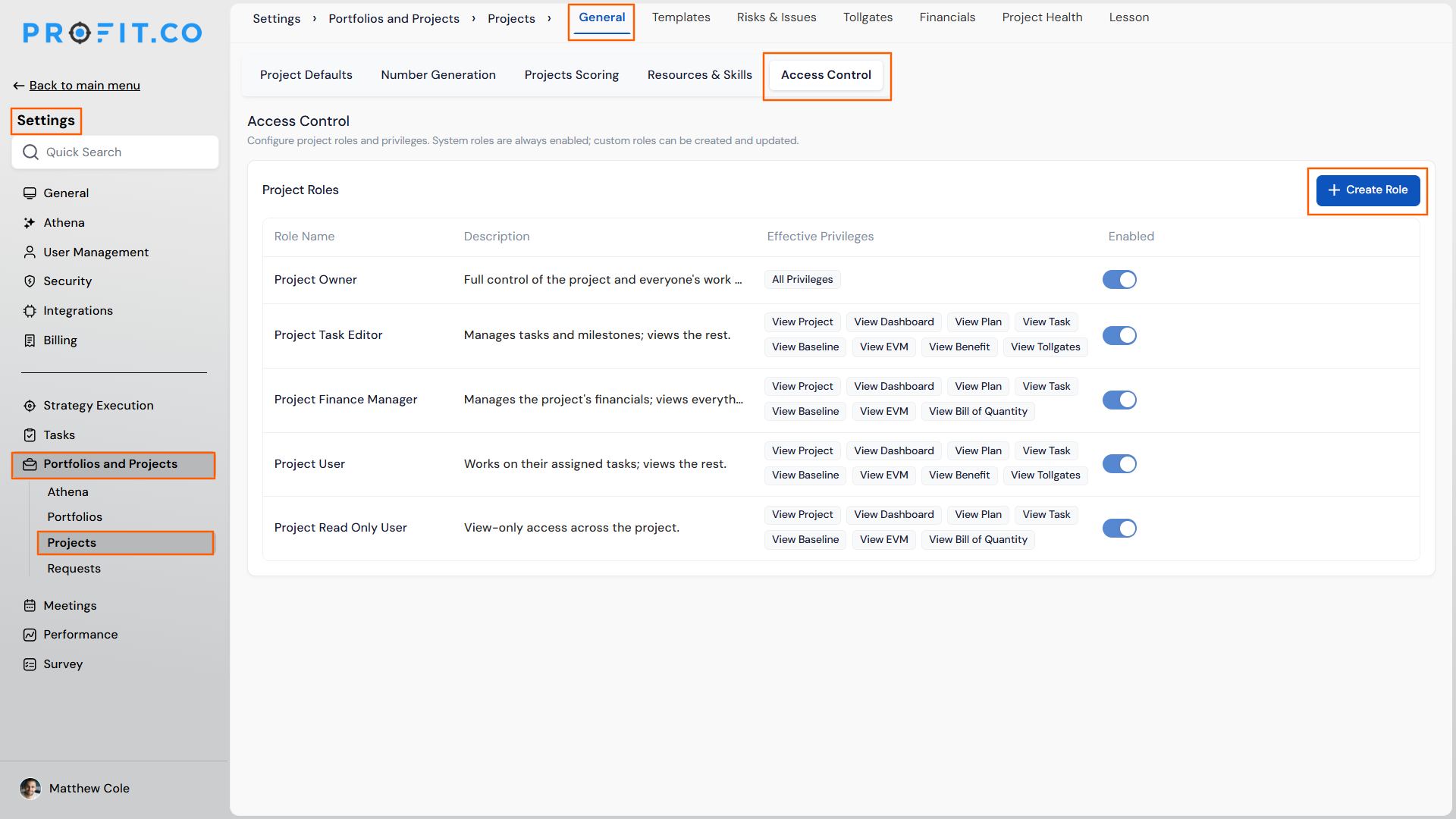
Fine-Grained Project Access Control is a project-level role system built on the Access Control page under Settings → Portfolios and Projects → Projects → General. It lists every project role with its description and Effective Privileges, and lets you build custom roles from permissions organized into "Maintain [Tab]" groups, such as Overview, Dashboard, Plan, and Task. Each group has a View anchor that must be enabled before you can grant any action within that tab.
Five roles are available by default: Project Owner, Project User, Project Read Only User, and two new presets, Project Task Editor (manages tasks and milestones, views the rest) and Project Finance Manager (manages financials, views everything else). System roles stay always enabled; custom roles can be created and updated through + Create Role.
Why Fine-Grained Project Access Control Matters
Coarse, one-size-fits-all roles couldn't separate task management from financial control, so people often ended up with more access than their responsibility required. Fine-grained roles let access match the job instead of the closest built-in category.
| Benefit | What Changes |
|---|---|
| Expresses access patterns coarse roles can't | A role can manage budgets without managing tasks, or manage tasks without touching financials, instead of one role bundling both. |
| Least privilege by default | People see only the tabs and actions their role grants, instead of inheriting broader access by default. |
| Sensitive actions stay protected | Managing member access stays owner-only, and financial submit and approve permissions are kept independently grantable. |
| Fewer over-privileged users | Custom roles replace one-size-fits-all access with permission sets built for the actual responsibility. |
| Governance access matches responsibility | Each governance item, such as Constraints or Decisions, carries its own privilege group, so a role can work on the items it owns and only view the rest instead of getting one blanket governance permission. |
How It Works
Step 1
- Go to Settings → Portfolios and Projects → Projects → General → Access Control.
- Review the built-in roles listed with their description and Effective Privileges, or click + Create Role.
Step 2
- Enter a role name.
- Expand each "Maintain [Tab]" group, such as Overview, Dashboard, Plan, or Task.
- Tick the permissions to grant; turning on any action enables that group's View automatically.
- Use Select all or Clear within a group to speed up setup.
- Click Create to save the role; it becomes assignable to project members.
Fine-Grained Project Access Control Scenarios and Their Outcomes
| Scenario | What Happens |
|---|---|
| You edit an existing custom role's permissions after members are already assigned to it. | Profit.co applies the change immediately to everyone currently assigned that role, hiding or disabling any tab and action the updated role no longer grants. |
| You assign a member a role that doesn't grant View for a tab, such as the financial tab. | Profit.co hides that tab entirely for the member, rather than showing it in a read-only or disabled state. |
| You grant a role View for a tab but no actions within it. | Profit.co shows the tab to the member but hides or disables every action inside it, since only View was granted. |
| You try to change the permissions of a system role, such as Project Owner or Project User. | Profit.co keeps the system role always enabled and does not let you change its permissions, unlike custom roles which can be created and updated. |
| You close the permission builder without clicking Create. | Profit.co discards the role name, description, and permission selections you made, and does not create the role. |
Best Practices for Fine-Grained Project Access Control
- Test permission changes on a custom role during a low-activity window, since edits apply immediately to everyone currently assigned that role, not just to new assignments.
- Grant View alone for tabs a role should only observe, such as giving a delivery lead View on the financial tab without any financial actions, instead of leaving that tab hidden entirely.
- Reserve member-access management for the Project Owner role, since Profit.co keeps that kind of sensitive action owner-only regardless of what other permissions a custom role grants.
- Use Select all only when a role genuinely needs full control of a tab, then remove the specific actions that don't apply, rather than building permissions one checkbox at a time.
- Separate financial submit and approve permissions across different roles when segregation of duties matters, since Profit.co keeps those two actions independently grantable.
Related Articles
- How to add members to a project in the PPM module?
- What are the various roles available for users in Profit.co?
- How to create a Project in the PPM module?
Frequently Asked Questions
Yes. Those three roles ship as system roles alongside Project Task Editor and Project Finance Manager, and remain available for assignment next to any custom roles you create.
The Access Control page lists every project role with its description and Effective Privileges, so you can review a role's actual access before assigning it to a member.
No. It governs access within a single project's tabs and actions, separate from the global and app-specific roles that control access across the wider platform.
Execute your strategy with confidence
Connect OKRs, tasks, and teams in one place with Profit.co
