

In Profit.co, you can download your project Gantt chart and milestone timeline in both PDF and PowerPoint (PPT) formats, making it easy to share project schedules with stakeholders, include in reports, or present in meetings.
Table of Contents
- What is the Gantt Chart Timeline feature in Profit.co?
- What formats are available for timeline downloads?
- How do I download the Gantt chart as a PDF?
- How do I download the Timeline as PowerPoint (PPT)?
- Best practices for downloading and sharing project timelines
- Related Questions
- Frequently Asked Questions
What is the Gantt Chart Timeline feature in Profit.co?
The Gantt Chart Timeline in Profit.co is a visual representation of your project's milestones, tasks, and schedule displayed in the Plan tab. It shows task dependencies, durations, and progress over time, providing a comprehensive view of your project's timeline that can be exported for sharing and presentations.
What formats are available for timeline downloads?
Profit.co provides two export formats to suit different needs:
| Format | Best For | Use Cases |
|---|---|---|
| Documentation, archiving, printing | Reports, compliance documents, email attachments, printed handouts | |
| PowerPoint (PPT) | Presentations, customization, editing | Stakeholder presentations, board meetings, and editable slide decks |
Both formats include the complete milestone timeline with a visual Gantt chart representation.
How do I download the Gantt chart as a PDF?
Navigate to the project timeline view:
Step 1
- Click on Portfolios and Projects from the left navigation panel.
- Select All Projects (or My Projects, depending on your preference).
- Locate and click on the project for which you want to download the timeline.
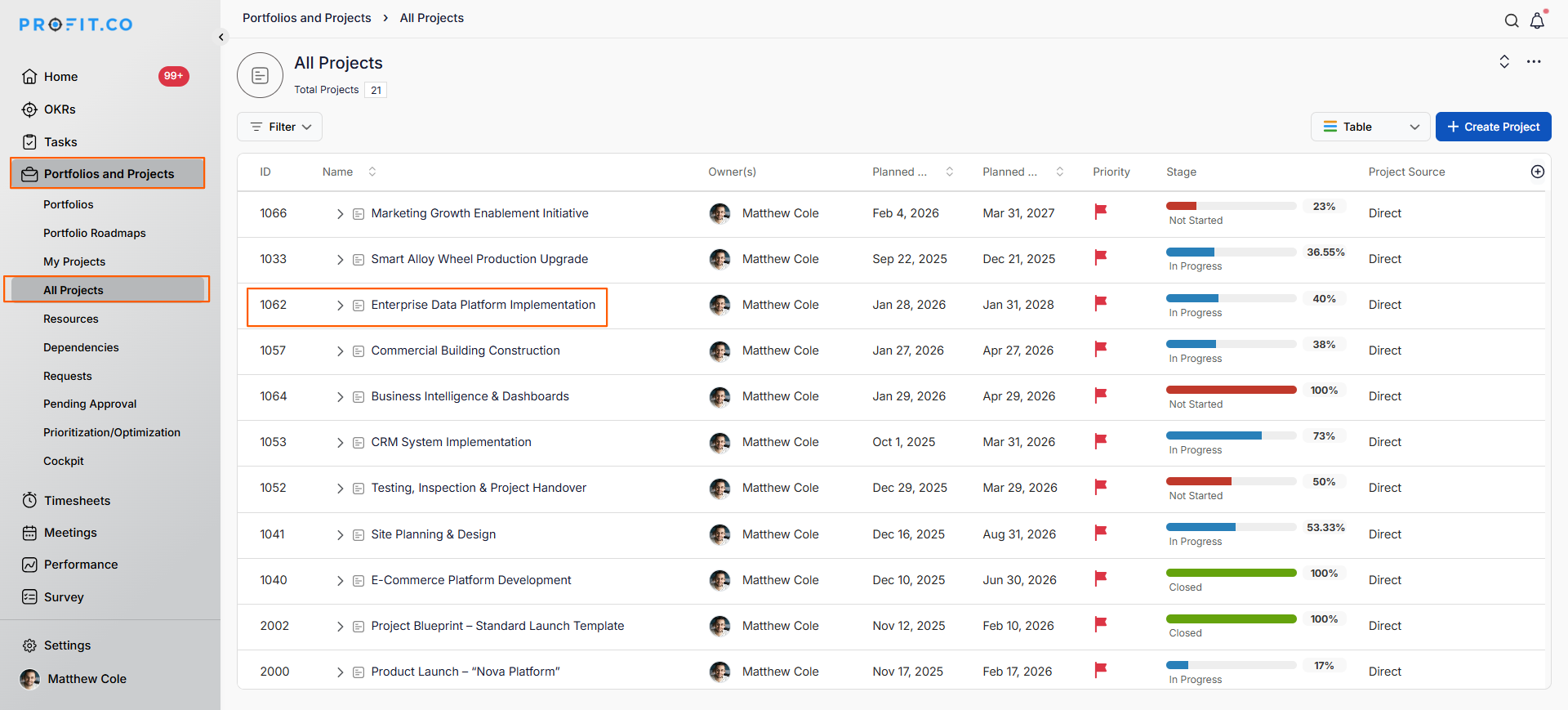
- The project overview page will open.
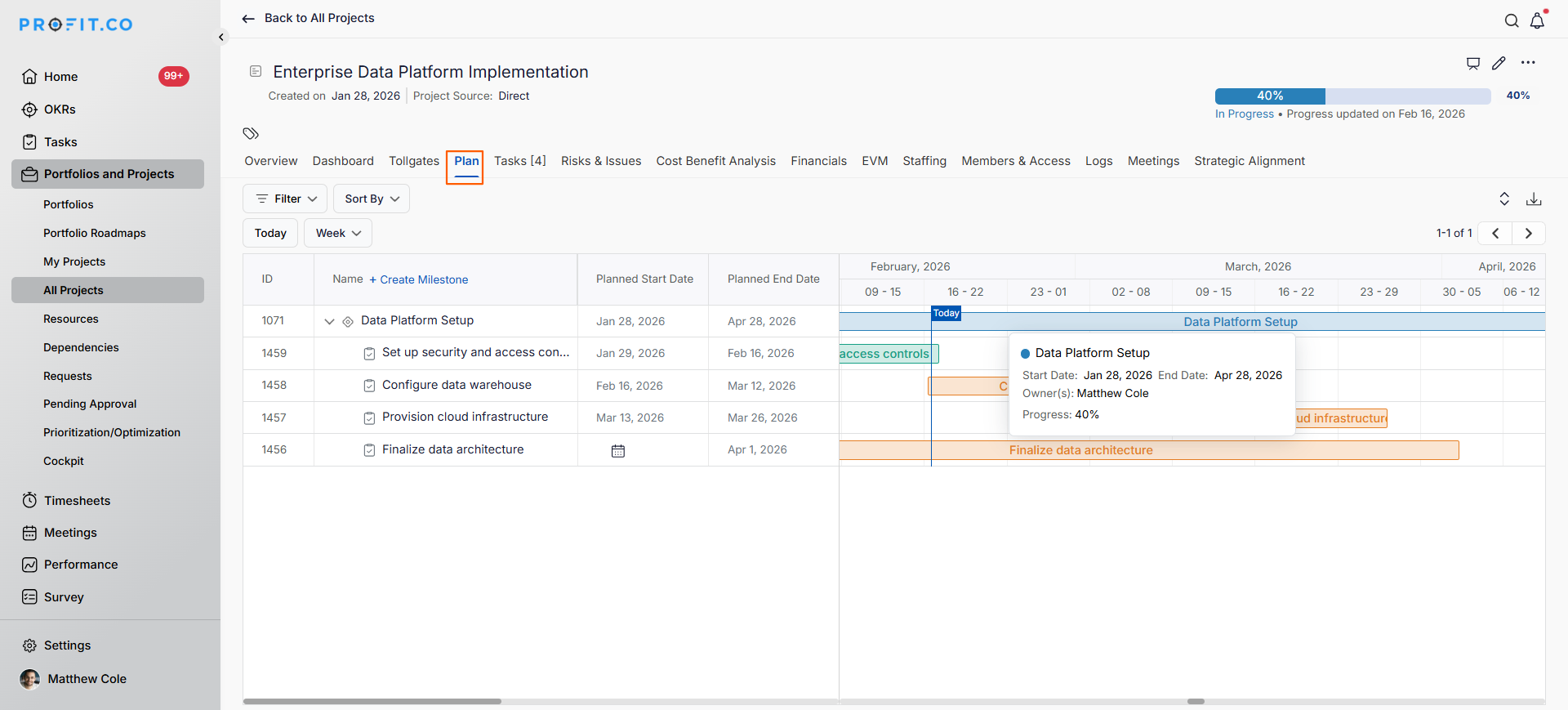
- Click on the Plan tab.
- You will now see the milestone timeline for your project displayed as a Gantt chart.
Export your project timeline in PDF format:
Step 2
- Navigate to your project and switch to the Plan tab.
- Locate the download icon (typically labeled "Download plan as PDF").
- Click on the download icon.
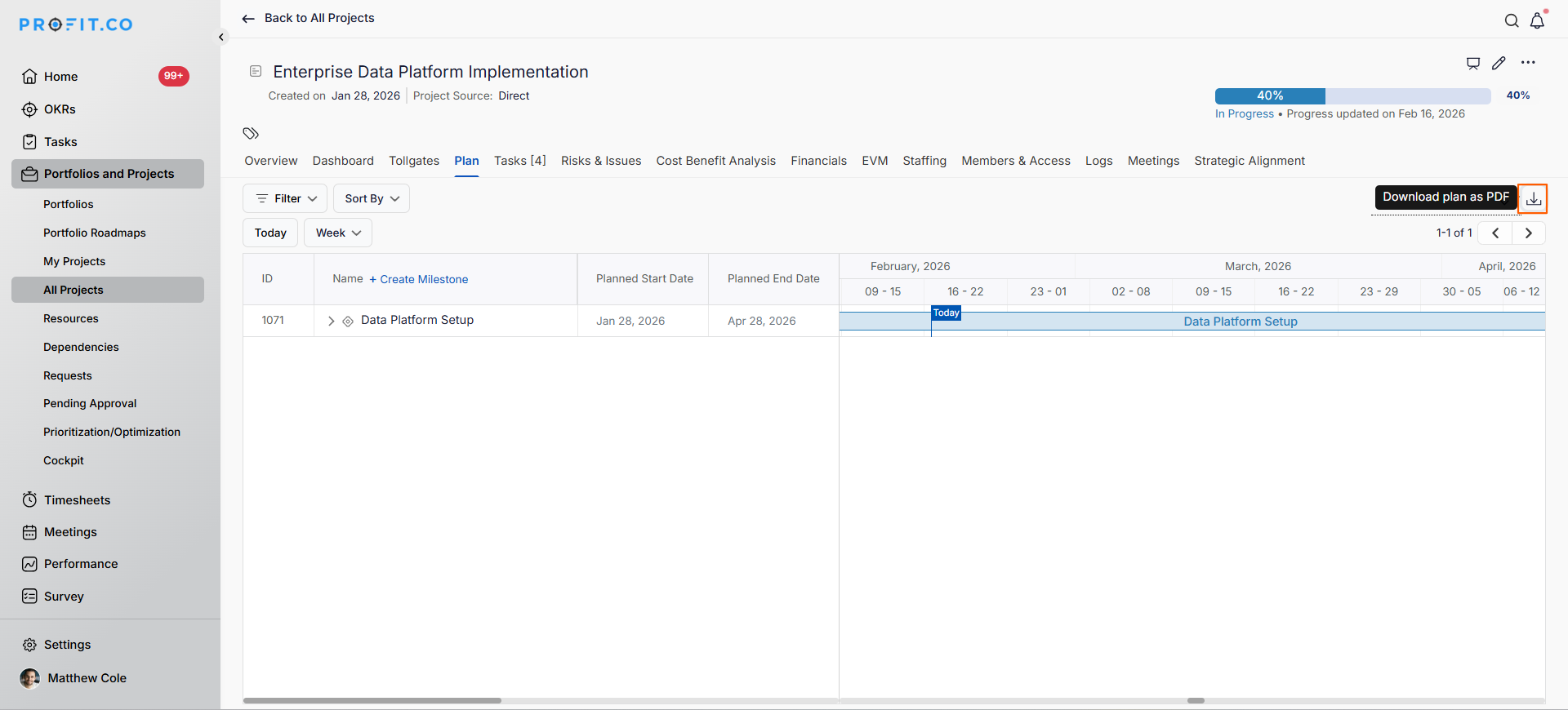
- The system will generate a PDF file of your project timeline.
- The PDF includes the complete Gantt chart with all milestones and tasks.

How do I download the Timeline as PowerPoint (PPT)?
Export your project timeline in an editable presentation format:
Step 1
- Navigate to your project and switch to the Plan tab.
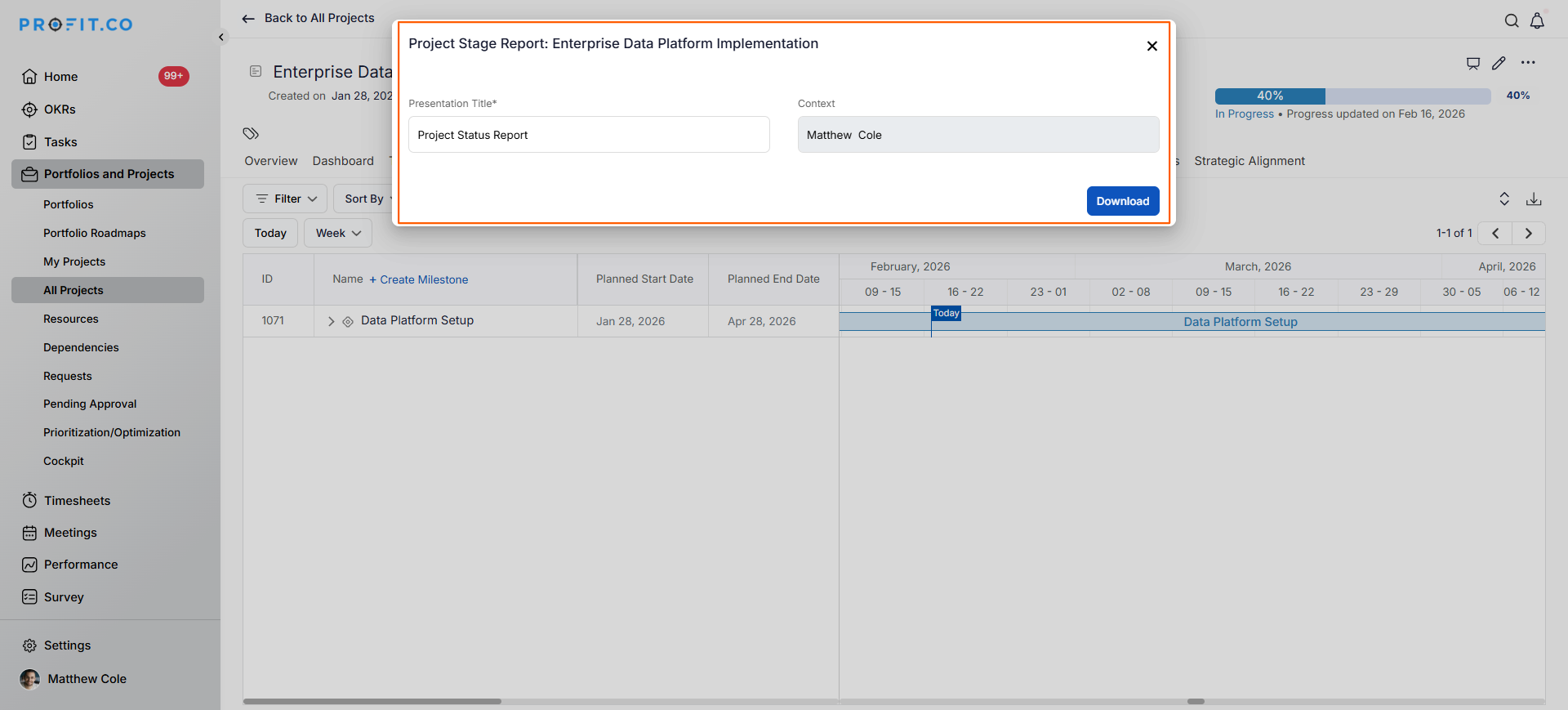
- Click on the presentation icon.
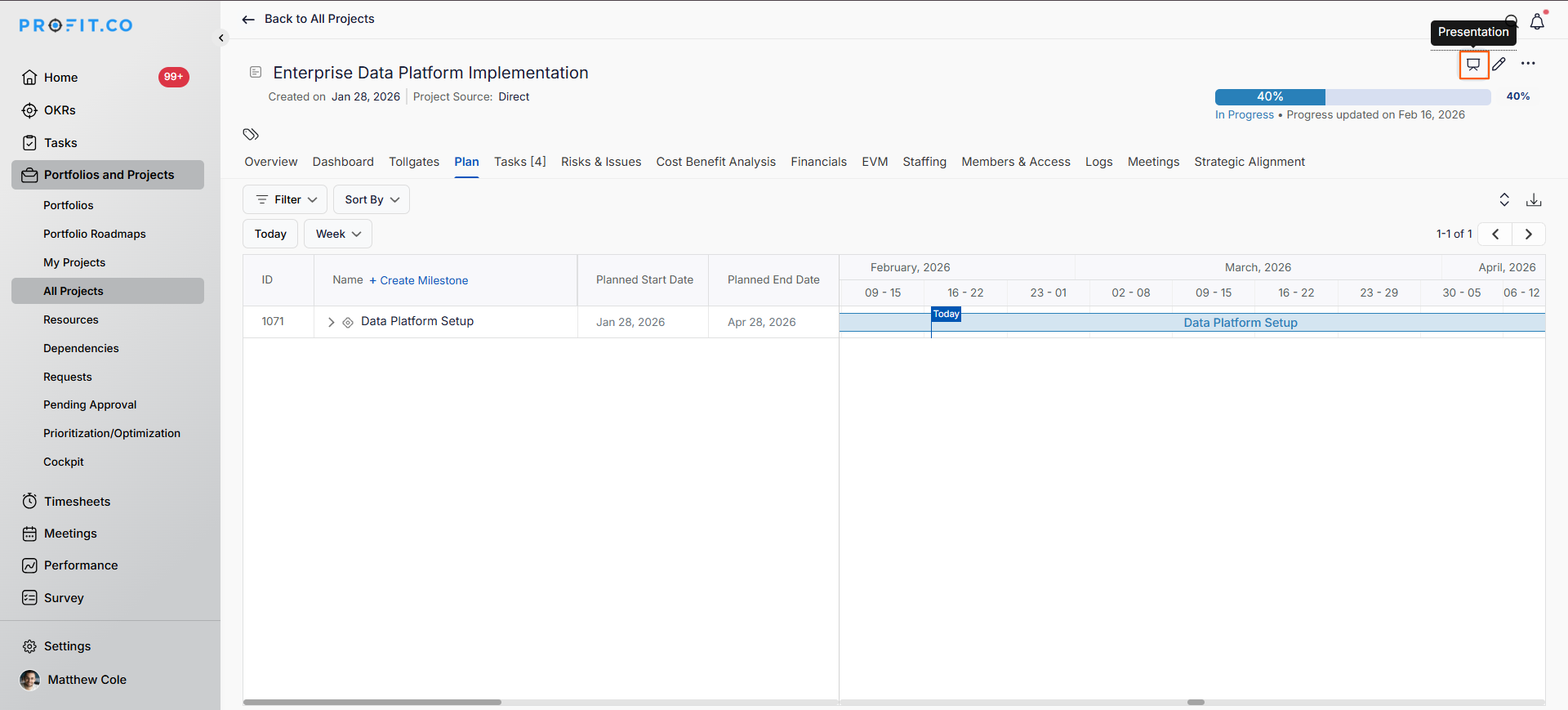
- A dialog box will appear, asking for the presentation's name.
- Enter the name for your PowerPoint file. Click the Download button.
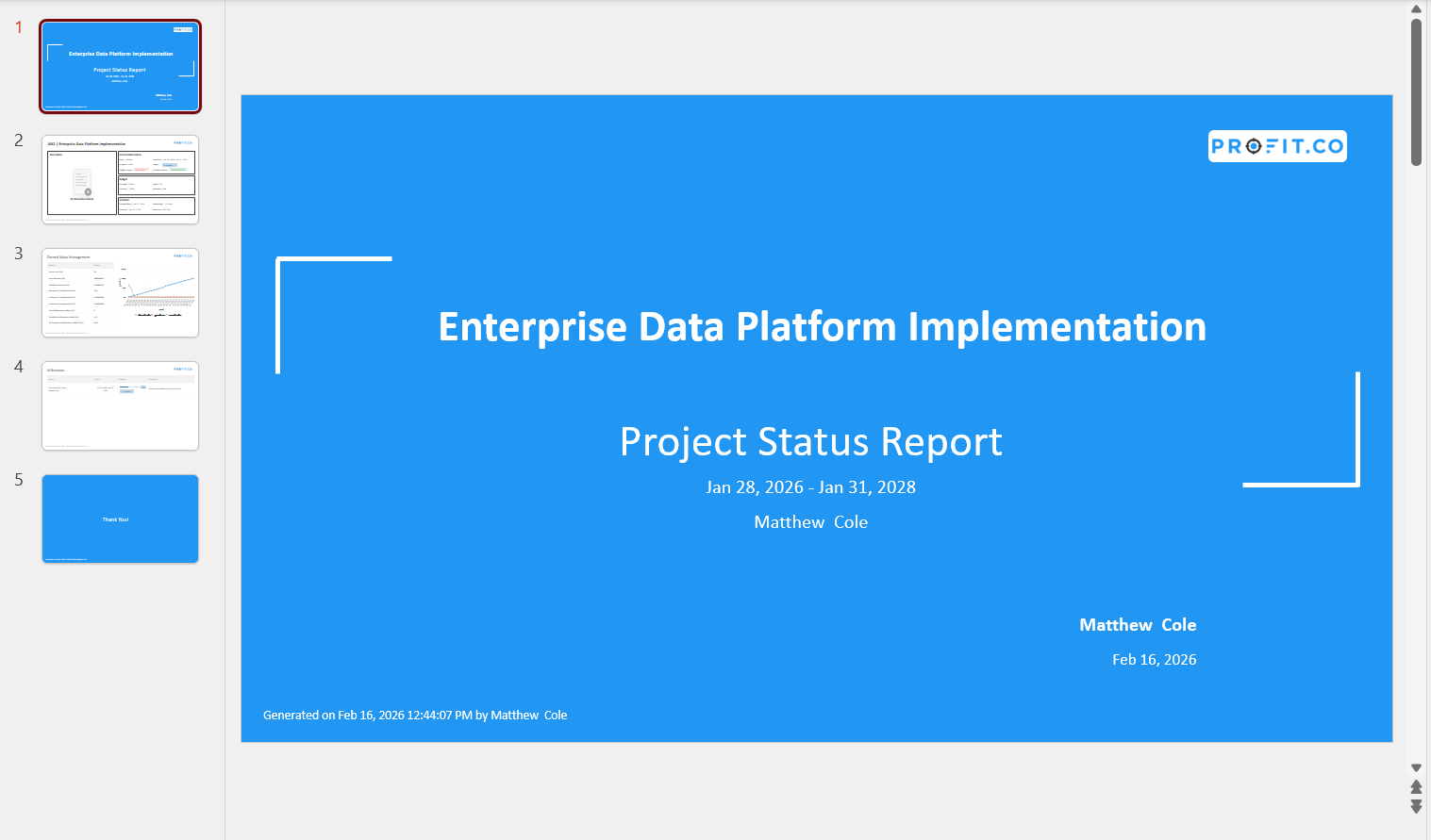
- The system will generate a PowerPoint file.
- Your browser will prompt you to save the PPT file.
- Save the file to your preferred location.
- The PowerPoint file is now ready to open, edit, and present.
Best practices for downloading and sharing project timelines
- PDF format: Use for executive summaries and high-level status reports. PDFs provide a static, professional snapshot ideal for board updates, sponsor reviews, or formal documentation.
- PPT format: Use for detailed project presentations in meetings. PowerPoint allows you to present the timeline interactively during stakeholder meetings, project reviews, or team discussions where you need to walk through milestones and dependencies.
- Update and re-download timelines whenever significant project changes occur to keep stakeholders informed.
- Include timeline PDFs in project status reports and monthly updates for consistent documentation.
- When sharing timelines externally, use a PDF to prevent unintended edits and maintain professional formatting.
Related Questions
Learn more about how to create a new project in Profit.co, Click here
Frequently Asked Questions
Yes, the download automatically adjusts to fit the entire timeline.
Filter or view customization options may be available in the Plan tab before downloading. Adjust your view to show only desired milestones, then download.
Downloaded files are typically high-resolution and suitable for printing and professional presentations. PDFs maintain vector quality.
