

Master Layout's Mandatory toggle lets a Super User require a Standard Attributes field before a record can be created, instead of leaving that field optional platform-wide. Planned Start Date and Planned End Date now ship with this toggle already switched on.
Table of Contents
- What is the Mandatory Toggle in Master Layout?
- Why Does the Mandatory Toggle in Master Layout Matter?
- How Do I Set Up the Mandatory Toggle in Master Layout?
- What Happens When You Use the Mandatory Toggle in Master Layout?
- Which Entities Support the Mandatory Toggle?
- What Are the Best Practices for the Mandatory Toggle in Master Layout?
- Related Articles
- What Are Some Frequently Asked Questions About the Mandatory Toggle in Master Layout?
What is the Mandatory Toggle in Master Layout?
The Mandatory toggle sits inside the field Inspector panel in Master Layout, alongside Standard Behaviour, Label Visibility, Visibility, and Security. Selecting a field in the Standard Attributes section and switching Mandatory to ON requires that field before the entity's creation popup can be submitted.
The toggle is available on Portfolio, Project, and Milestone, and on Task as of this release, but Task's toggle only configures the requirement. It does not yet block task creation, since Task's quick-add popup cannot hold two independent planned dates.
Why Does the Mandatory Toggle in Master Layout Matter?
Earlier, Planned Start Date and Planned End Date were mandatory only on Project. Portfolio, Milestone, and Task left both fields optional with no configuration mechanism for a Super User to change that per the organization's governance needs.
Now a Super User sets the requirement per field, per entity, through the same Inspector panel already used for Security and Visibility. Turning Mandatory ON guarantees every new record carries a timeline from the moment it's created, instead of depending on someone filling it in later.
How Do I Set Up the Mandatory Toggle in Master Layout?
Note
You need Master Layout access as a Super User to toggle Mandatory on any field.
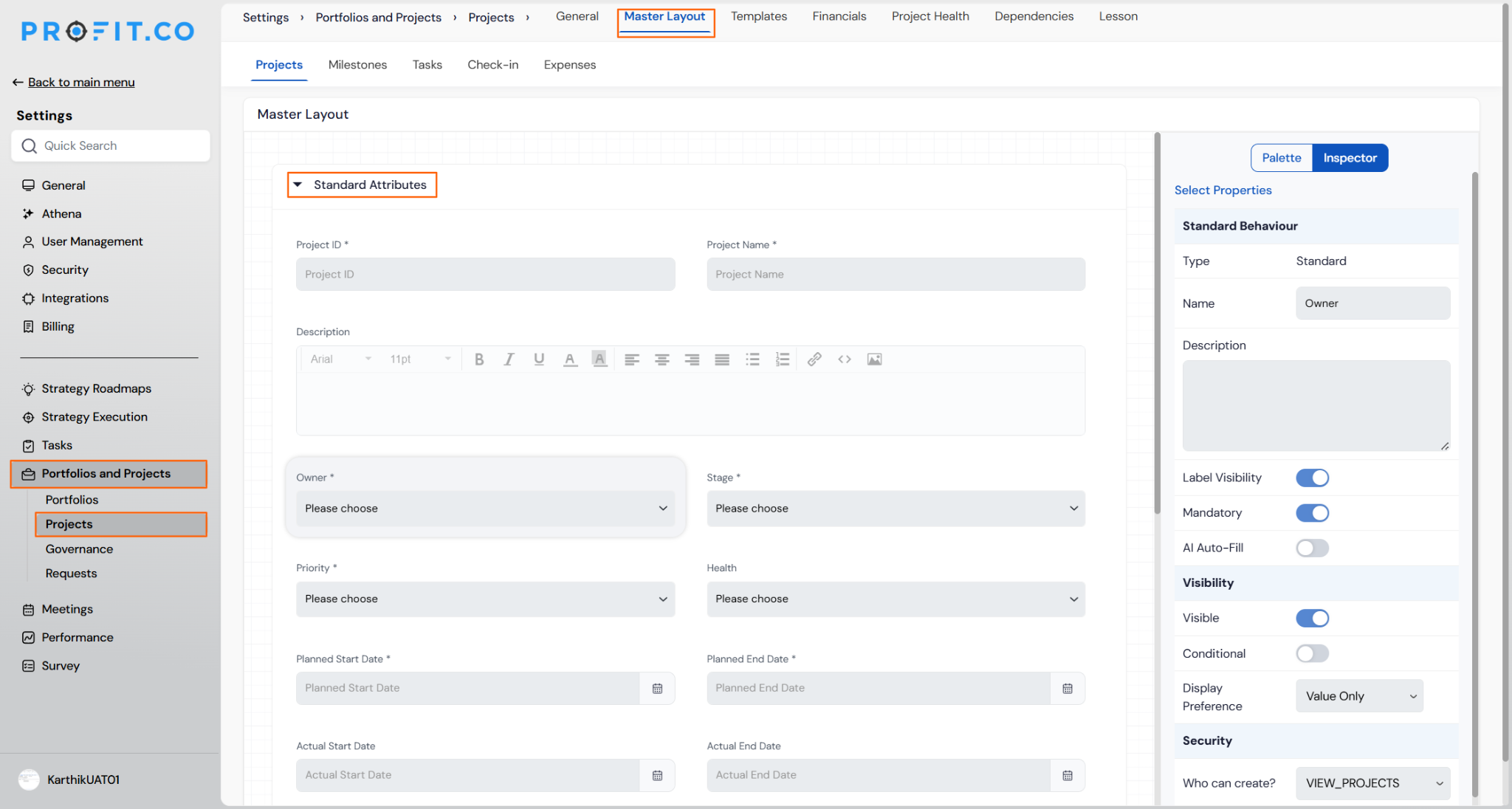
Step 1
- For Portfolio, go to Settings → Portfolios and Projects → Portfolios → Master Layout.
- For Project, go to Projects → Master Layout, then switch to the Projects, Milestones, or Tasks sub-tab.
- Locate the Standard Attributes section on the canvas.
Step 2
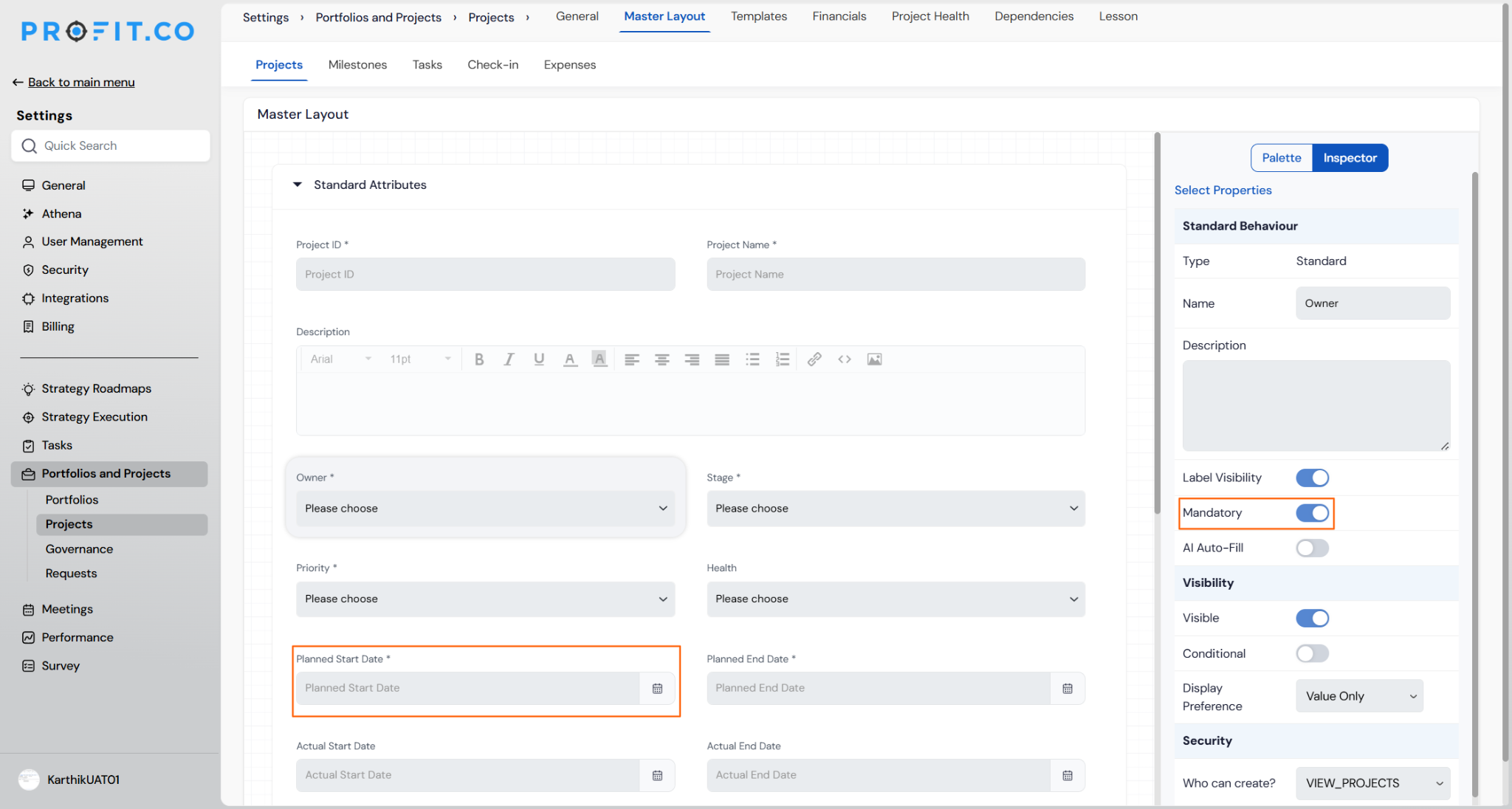
- Click the field you want to configure, for example, Planned Start Date.
- The Inspector panel opens on the right rail, showing Standard Behaviour, Label Visibility, Mandatory, Visibility, and Security.
- Switch Mandatory to ON in the Inspector.
- Confirm the required-field asterisk now appears next to the field's label on the canvas.
What Happens When You Use the Mandatory Toggle in Master Layout?
| Scenario | What Happens |
|---|---|
| You turn Mandatory ON for a field in Standard Attributes. | Profit.co adds a required-field asterisk to that field's label in the canvas and makes it required on the entity's creation popup. |
| You try to create a Portfolio, Project, or Milestone without filling a Mandatory field. | Profit.co blocks the save, shows a validation message beneath the field, and keeps Create disabled until the field is filled. |
| You turn Mandatory ON for a field that existing records don't have. | Profit.co leaves those existing records valid and editable without forcing you to backfill the missing value. |
| You turn Mandatory OFF after it was ON. | Profit.co stops blocking new records on that field, and records created earlier keep whatever value they already have. |
| You turn Mandatory ON for Planned Start Date or Planned End Date on Task. | Profit.co does not yet block task creation on the missing dates, since Task's quick-add popup cannot hold two independent date fields. |
| You create a record through bulk import or the API instead of the UI form. | Profit.co still enforces the Mandatory flag on that record, so the field cannot be skipped through import or API either. |
Which Entities Support the Mandatory Toggle?
| Entity | Support Level |
|---|---|
| Portfolio | Fully supported — Mandatory blocks record creation on the creation popup until the field is filled. |
| Project | Fully supported — Mandatory blocks record creation on the creation popup until the field is filled. |
| Milestone | Fully supported — Mandatory blocks record creation on the creation popup until the field is filled. |
| Task | Toggle available as of this release, but does not yet block task creation, since the quick-add popup cannot hold two independent planned date fields. |
What Are the Best Practices for the Mandatory Toggle in Master Layout?
- Turn Mandatory ON deliberately, per field, since each one blocks Create on that entity until filled, adding friction to every future record if applied too broadly.
- Decide your Mandatory settings before rollout, since turning Mandatory ON later doesn't force existing records to backfill the field, so older records will look inconsistent with new ones unless you follow up separately.
- Hold off relying on Task's Mandatory toggle for enforcement, since it configures the requirement but does not yet block task creation until the quick-add popup is rebuilt.
- Confirm bulk-import and API workflows honor the Mandatory flag before treating it as your only compliance gate, since the setting applies platform-wide, not just to the UI popup.
- Use the Inspector's Clone action when adding a similar field, since Clone carries over the source field's Mandatory state and saves you a manual toggle step.
Related Articles
What Are Some Frequently Asked Questions About the Mandatory Toggle in Master Layout?
No. Only Planned Start Date and Planned End Date default to Mandatory ON. Actual Start Date and Actual End Date default to OFF, though both remain individually toggleable in the Inspector.
Yes. The Mandatory toggle is set per field, per entity's own Master Layout, so each entity's Standard Attributes configuration is independent of the others.
The Inspector's Mandatory toggle already governs custom fields elsewhere in Master Layout. This release extends the same mechanism to Standard Attributes fields like Planned Start Date and Planned End Date.
Enforcement is planned as a follow-up once the Task quick-add popup is rebuilt to hold two independent date fields instead of the current single calendar icon.
Execute your strategy with confidence
Connect OKRs, tasks, and teams in one place with Profit.co
