

In Profit.co, the Document Repository allows you to centralize all project-related files and links in one location, making it easy for team members to access important documents, resources, and references throughout the project lifecycle.
Table of Contents
- What is the Document Repository in Profit.co?
- Why the Document Repository Matters
- How do I access the Document Repository for a project?
- How do I add documents to the Project Repository?
- How do I add document links to the repository?
- Document Repository Scenarios and Their Outcomes
- Best Practices for Managing a Project Document Repository
- Related Questions
- Frequently Asked Questions
What is the Document Repository in Profit.co?
The Document Repository is a centralized storage location within each project where you can upload files or add links to external documents. It provides a single source of truth for all project-related documentation, ensuring team members always have access to the latest versions and resources.
Why the Document Repository Matters
| Benefit | What It Solves |
|---|---|
| Centralized documentation | Project files and reference links used to scatter across personal drives and chat threads. The repository keeps every project's documents in one place, accessible to the whole team. |
| Immediate team access | Team members previously had to request files individually from whoever held them. Anything uploaded or linked here is available to the team right away. |
| Guaranteed section availability | Disabling every upload toggle previously made the Documents section disappear entirely from view. Profit.co now keeps at least one option enabled, so the section can no longer vanish. |
| Clear in-product guidance | Admins previously discovered a disabled Documents section only after users complained. The blocking message now explains why the last toggle can't be turned off, at the moment they try. |
How do I access the Document Repository for a project?
Follow these steps to navigate to the Document Repository:
Step 1
- Click on Portfolios and Projects from the left navigation panel.
- Select either "My Projects" or "All Projects" depending on which view you prefer.
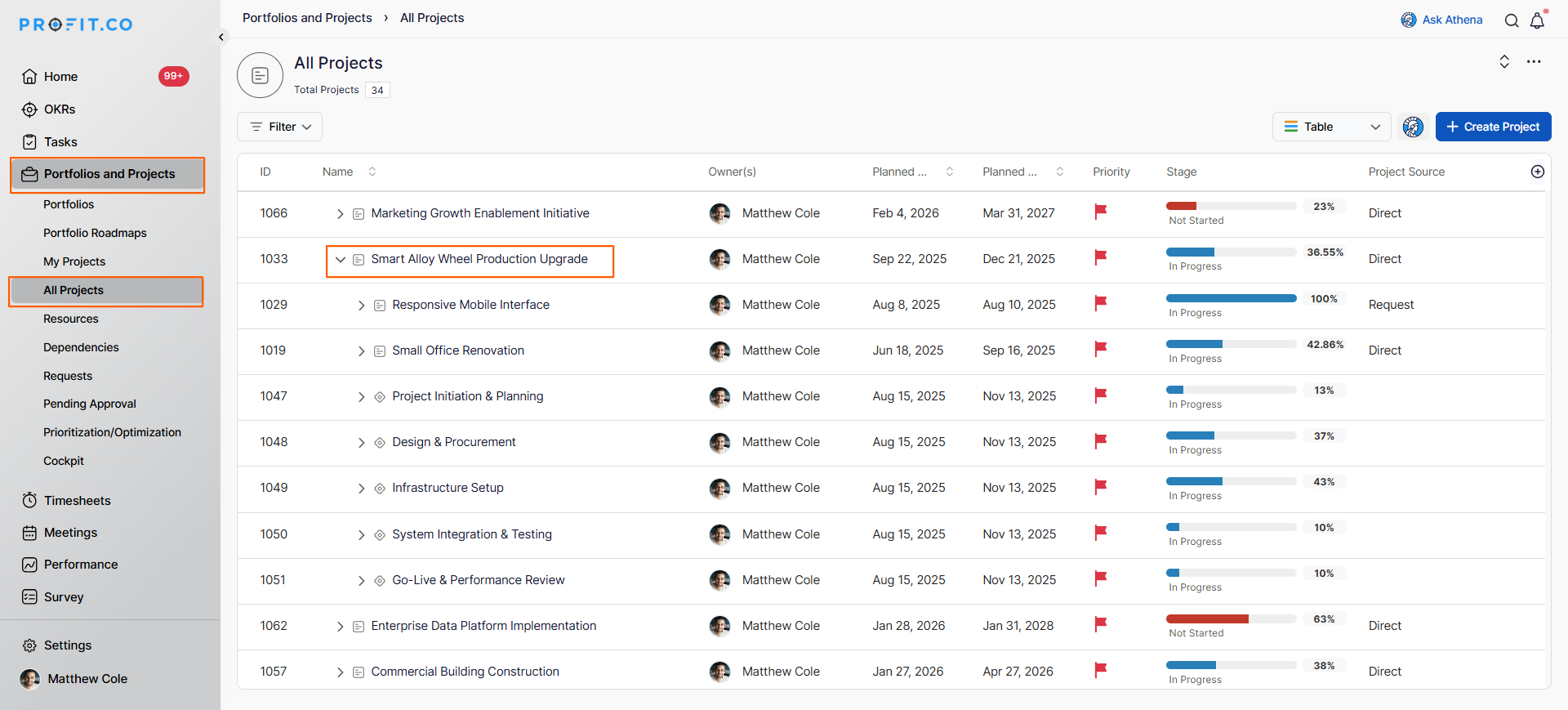
- On the project page, locate and click on the project where you want to add documents.
- On the project overview page, scroll down to the Document section.
- This is where all project documents and links are stored and managed.
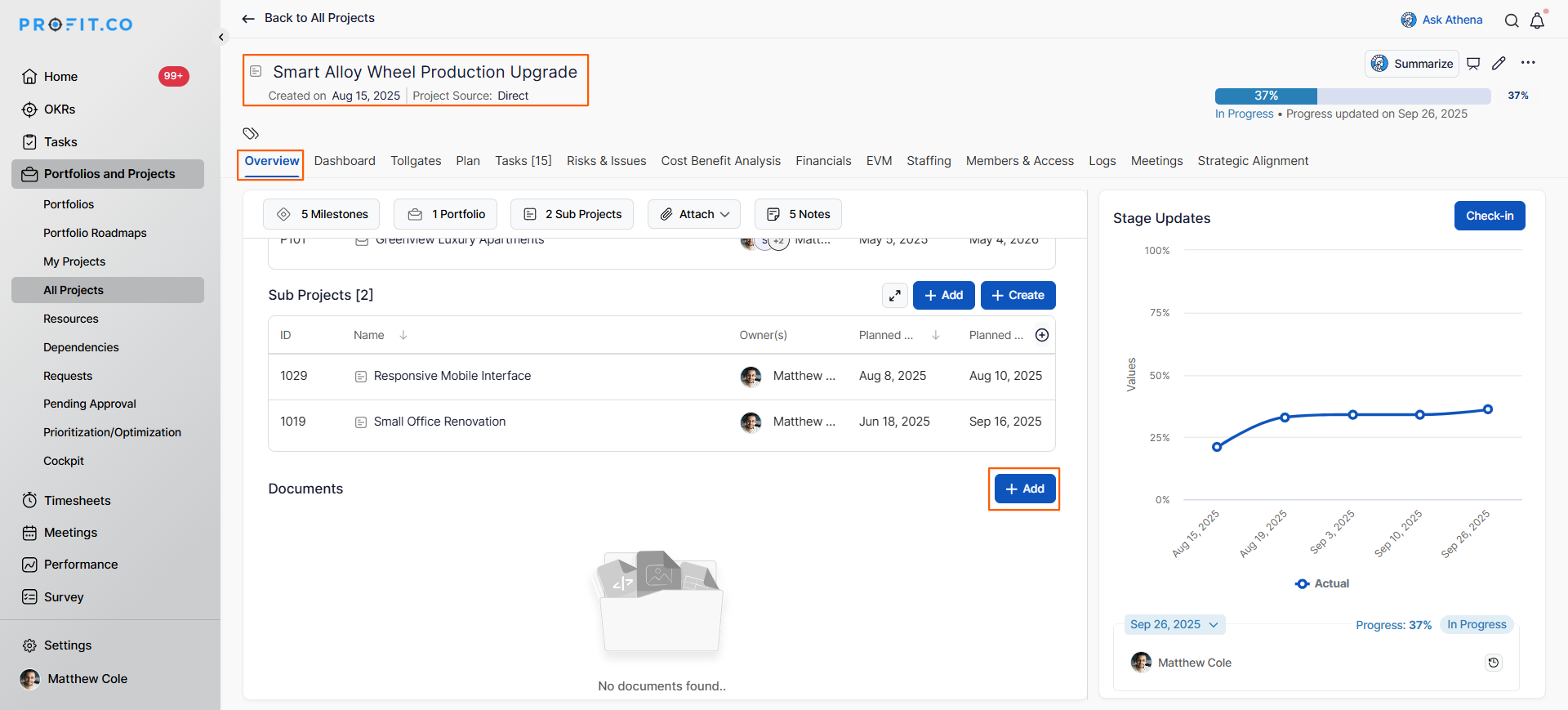
You will now see the document repository interface with options to add new documents.
How do I add documents to the Project Repository?
You can add documents from multiple sources, including your local computer, cloud storage services, and external links:
Step 1
- In the Document section, click on the + Add button.
- A dropdown menu will appear with four upload options.
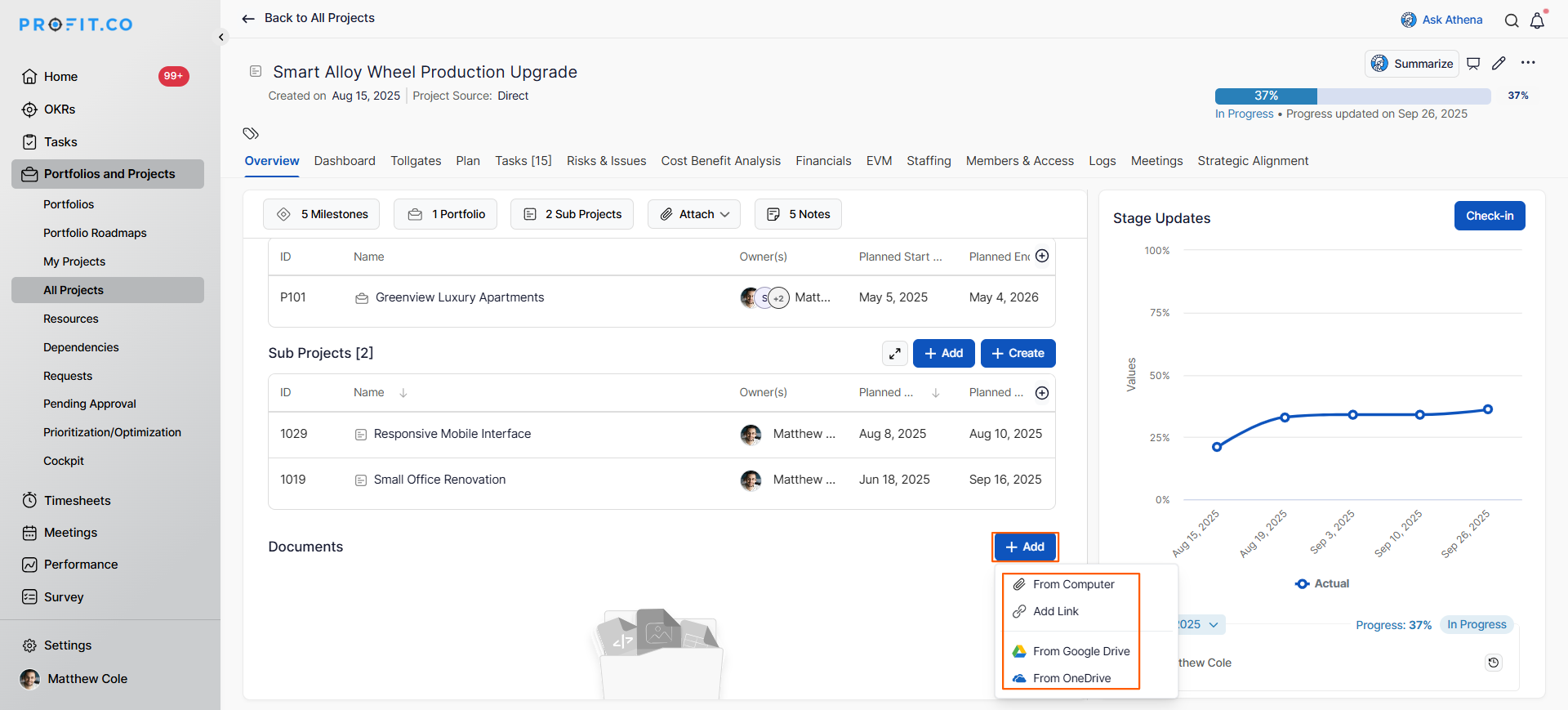
| Upload Option | Source | Best For |
|---|---|---|
| From Computer | Local device files | Files stored on your laptop or desktop |
| Add Link | External URLs | Documents hosted on websites or other platforms |
| From Google Drive | Google Drive cloud storage | Files stored in your Google Drive |
| From OneDrive | OneDrive cloud storage | Files stored in your Microsoft OneDrive |
Note
These four upload options are controlled by the Documents toggles under Settings → General → Collaboration → Documents. A separate Enable Documents master toggle shows or hides the Documents tab across all modules, and at least one upload option must stay enabled while Documents is on. Attempting to disable the last active toggle displays: "At least one upload option must remain enabled."
Choose the appropriate option based on where your document is located:
- A file browser window will open.
- The file will be uploaded to the project document repository.
- The document will now appear in the document list with its filename.
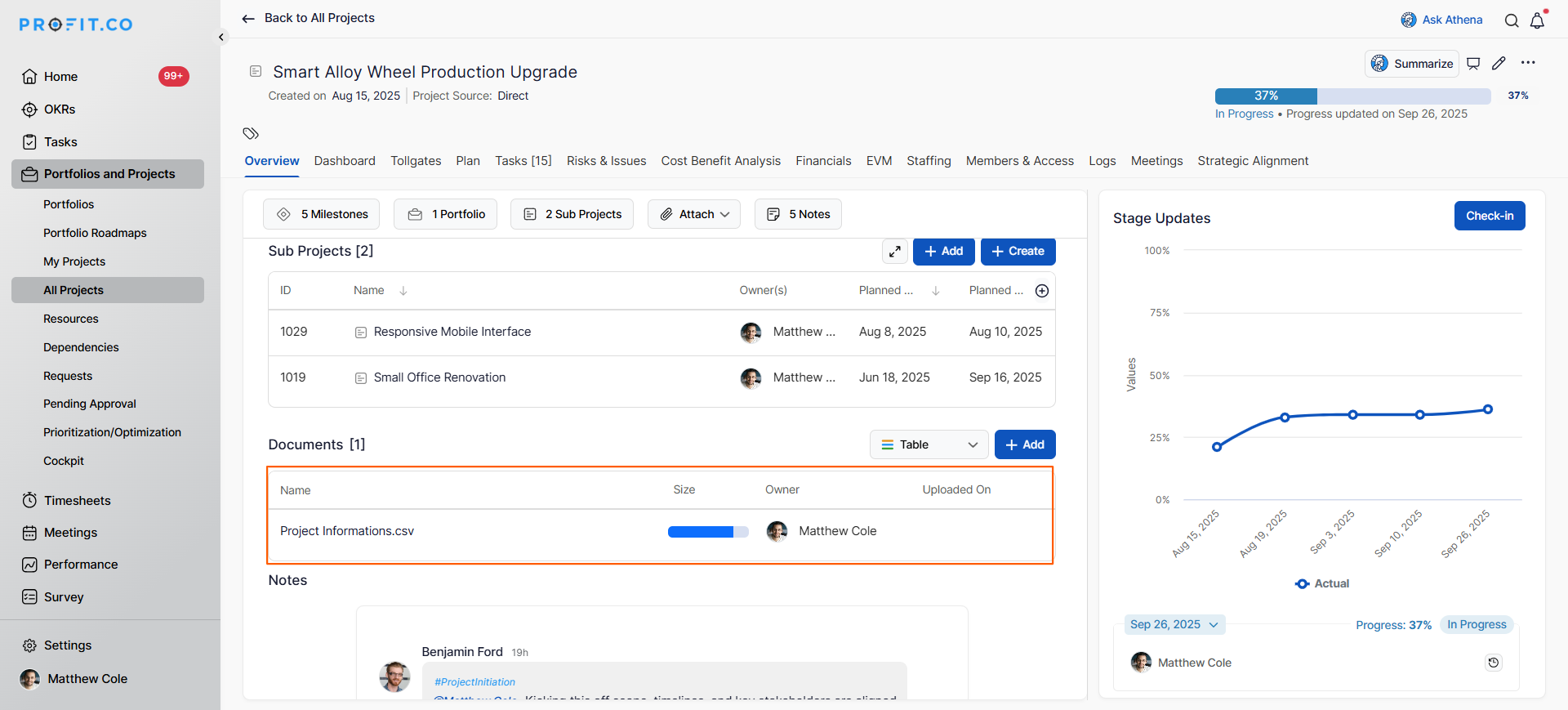
Supported Actions:
- You can upload multiple files by repeating this process.
- Files are immediately accessible to team members with project access.
Note
STEP and STP files (.step, .stp) are now supported in the Documents section. They open in a new browser tab with no in-app 3D preview; use the row menu to download them locally.
How do I add document links to the repository?
Add links to external documents or resources:
Step 1
- In the Document section, click on the +Add button.
- A dropdown menu will appear.
- Select Add Link from the dropdown options.
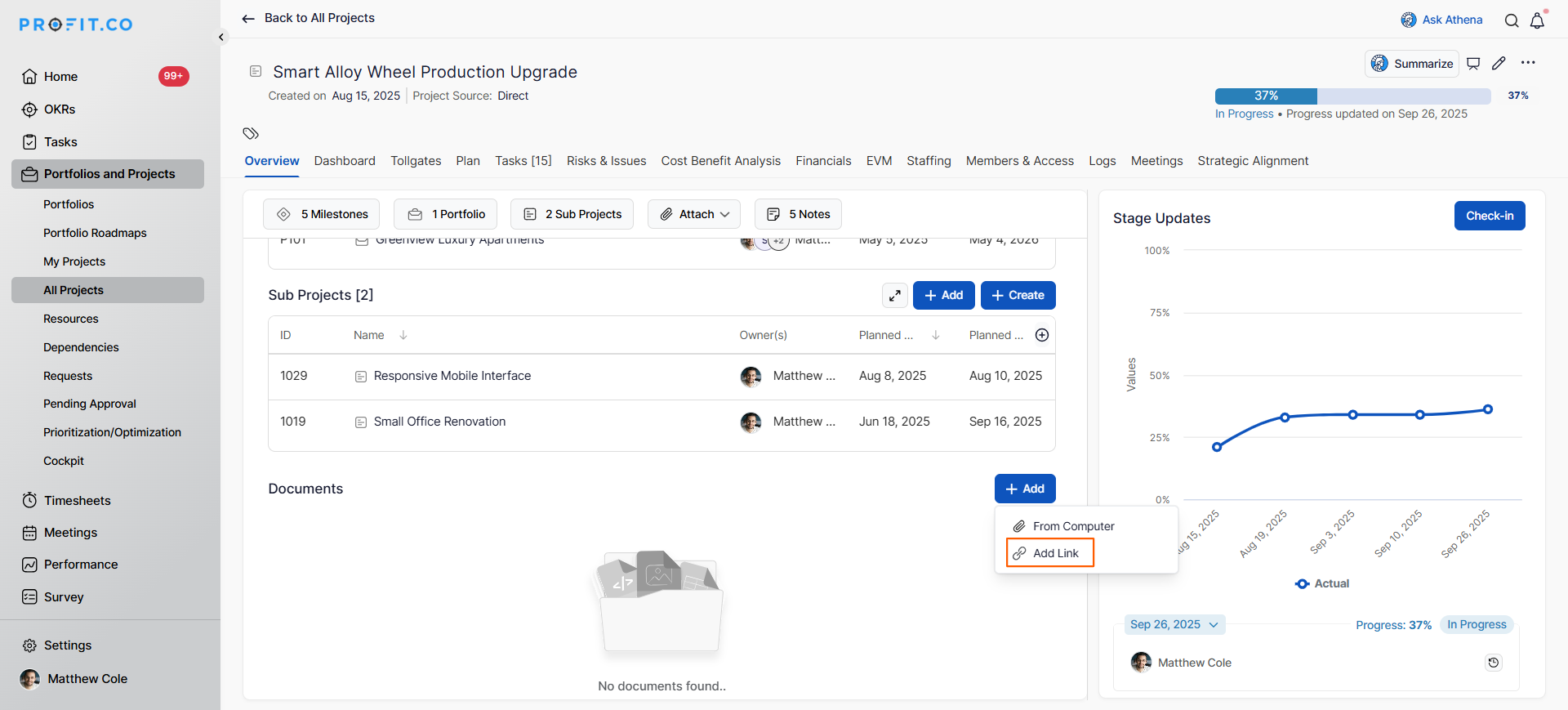
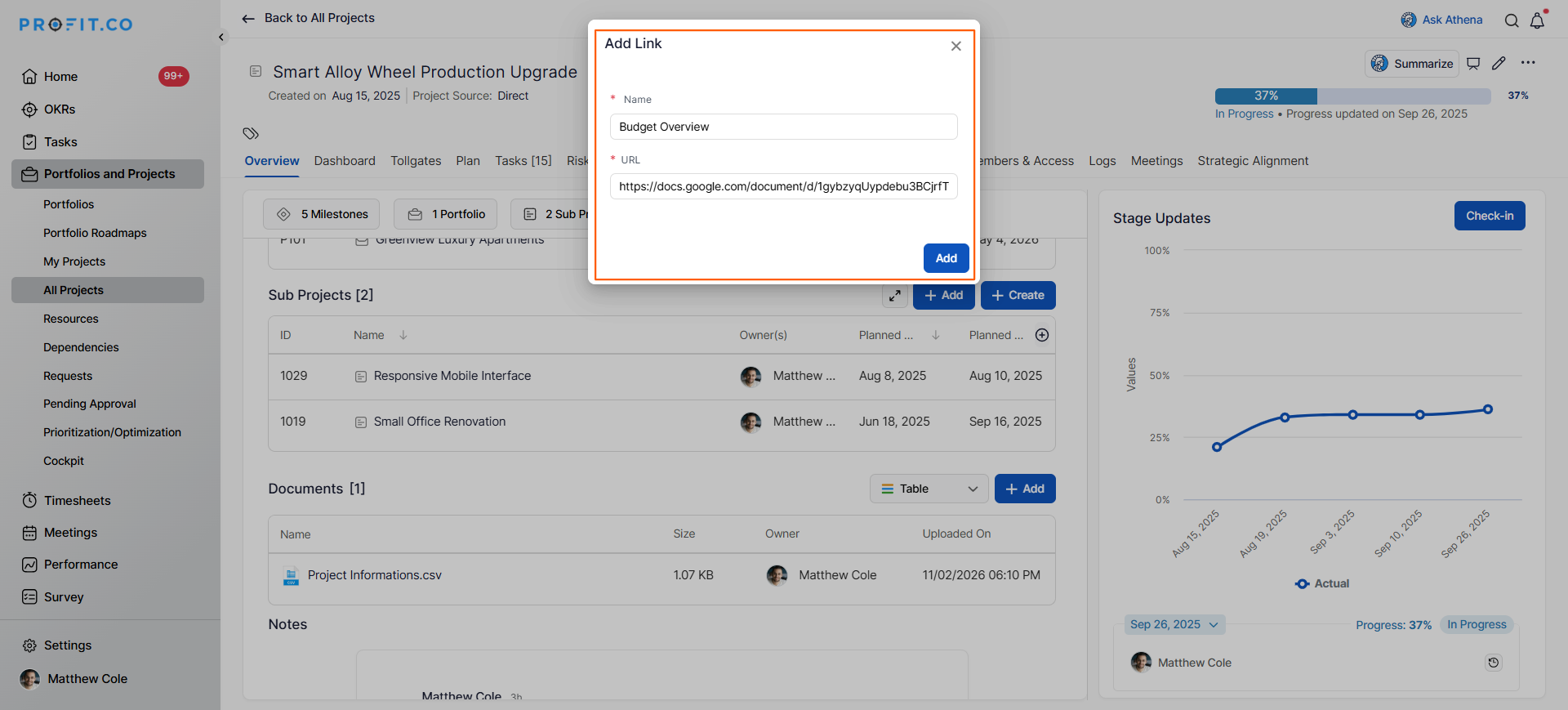
A dialog box will appear with two fields:
- Name: Enter a descriptive name for the link
- Link: Enter the full URL of the external resource
- Click Add to save the link to the repository.
The link will appear in the document list with the name you provided.
Document Repository Scenarios and Their Outcomes
| Scenario | What Happens |
|---|---|
| You disable one of the four upload option toggles in Collaboration settings. | Profit.co removes that option from the + Add dropdown in every project's Document section, and it keeps the remaining enabled options available. |
| You attempt to disable the last remaining enabled upload toggle. | Profit.co blocks the action and shows a message that at least one upload option must remain enabled, and it leaves that toggle switched on. |
| You upload a file or add a link to the Document section. | Profit.co makes the item immediately accessible to every team member with project access, and it lists the item by name in the document repository. |
| You reduce the Documents upload toggles down to the minimum of one enabled option. | Profit.co keeps the Notes section governed separately by its own visibility toggles, and it does not extend the minimum-one-enabled rule to Notes. |
Best Practices for Managing a Project Document Repository
- Upload documents as soon as they're finalized rather than waiting, ensuring immediate team access.
- Upload all project kickoff documents immediately to establish the repository as the go-to resource location.
- For documents that change frequently, use links to external locations rather than re-uploading files repeatedly.
Related Questions
Frequently Asked Questions
Uploading stores a copy of the file in Profit.co, while adding a link points to a file stored elsewhere (Google Drive, SharePoint, etc.). Use links for documents that change frequently.
Documents typically remain accessible as long as the project exists in the system. Check your organization's archival policies for specific retention rules.
Yes, all documents in the repository can be downloaded.
Execute your strategy with confidence
Connect OKRs, tasks, and teams in one place with Profit.co
