
Threshold alerts notify the right people the instant a project, portfolio, task, or milestone attribute crosses a value you set, instead of surfacing risk during periodic status meetings. You define the condition, the metric, and how Profit.co should respond when it's met.
Table of Contents
What Are Threshold Alerts?
Threshold alerts are super-user-configured triggers that evaluate a chosen update event, Project Update, Task Update, Portfolio Update, or Milestone Update, against one or more condition attributes and a threshold value. When the condition is met, Profit.co runs the actions configured on that trigger.
The available condition attributes depend on the event type you monitor, and Project Update supports a wider set of metrics than the other three event types.
| Update Event | Available Condition Attributes |
|---|---|
| Project Update | Health Status, Budget Utilization, Amount Spent, Budget, CPI, SPI, TCPI, CV, SV, VAC |
| Task Update | Health Status |
| Portfolio Update | Health Status |
| Milestone Update | Health Status |
Conditions within a group combine using AND logic, and separate groups combine using AND or OR logic, letting one trigger cover compound scenarios such as a project that is simultaneously over budget and behind schedule.
Why Do Threshold Alerts Matter?
Risk has historically surfaced through periodic status meetings or manual dashboard checks, often after a budget overrun or schedule slip has already compounded. Because threshold conditions are evaluated with every relevant update, Profit.co raises alerts while corrective action is still practical, not after the fact.
A single trigger can also combine multiple attributes with AND and OR logic. Hence, a compound risk like a project running over budget and behind schedule at the same time triggers one alert instead of requiring a separate trigger for each metric.
How Do I Set Up Threshold Alerts?
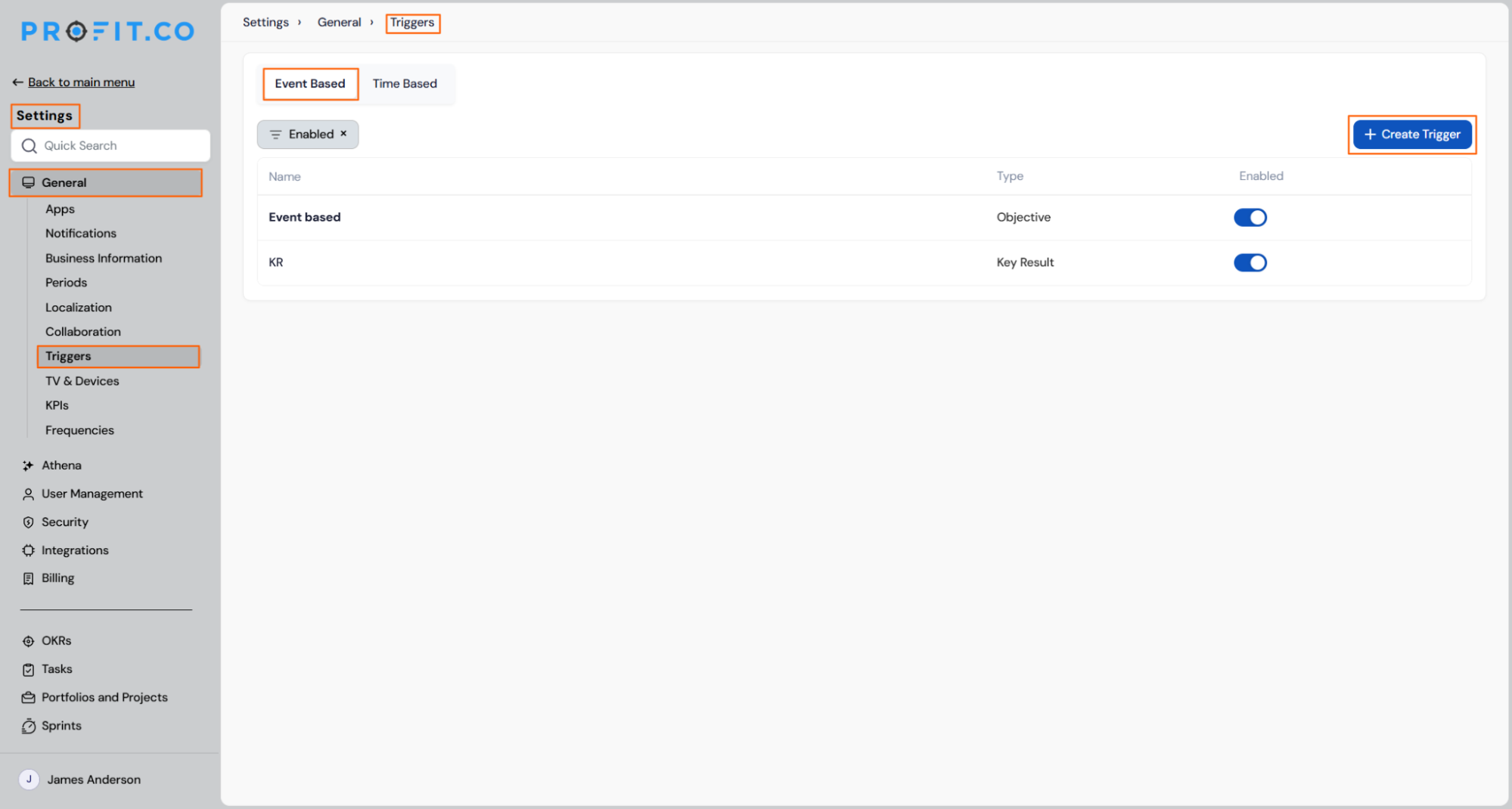
Step 1
- Navigate to Settings → General → Triggers
- Click Create Triggers
Step 2
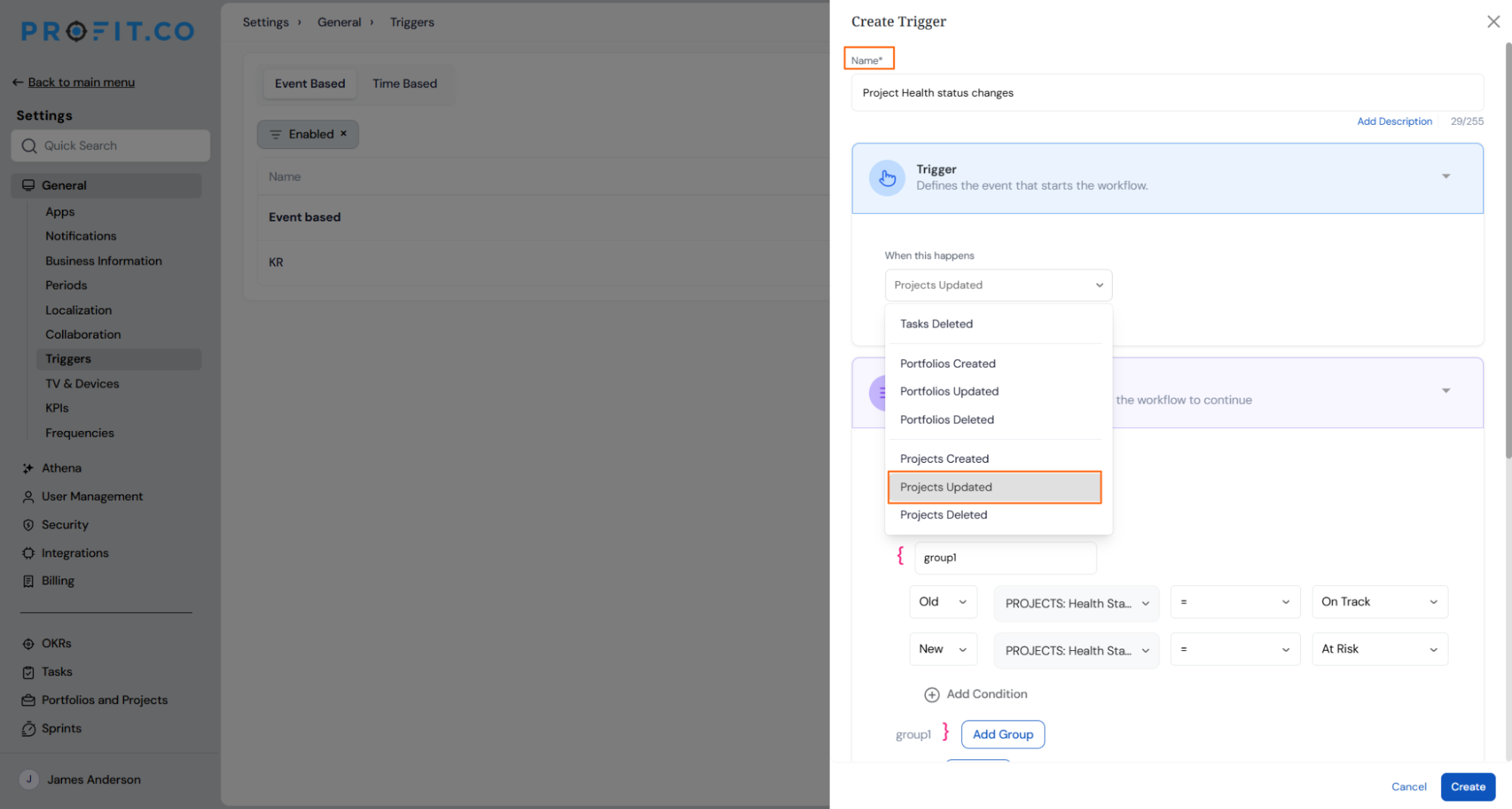
- Enter a trigger name
- Select the update event to monitor: Project Update, Task Update, Portfolio Update, or Milestone Update
Step 3
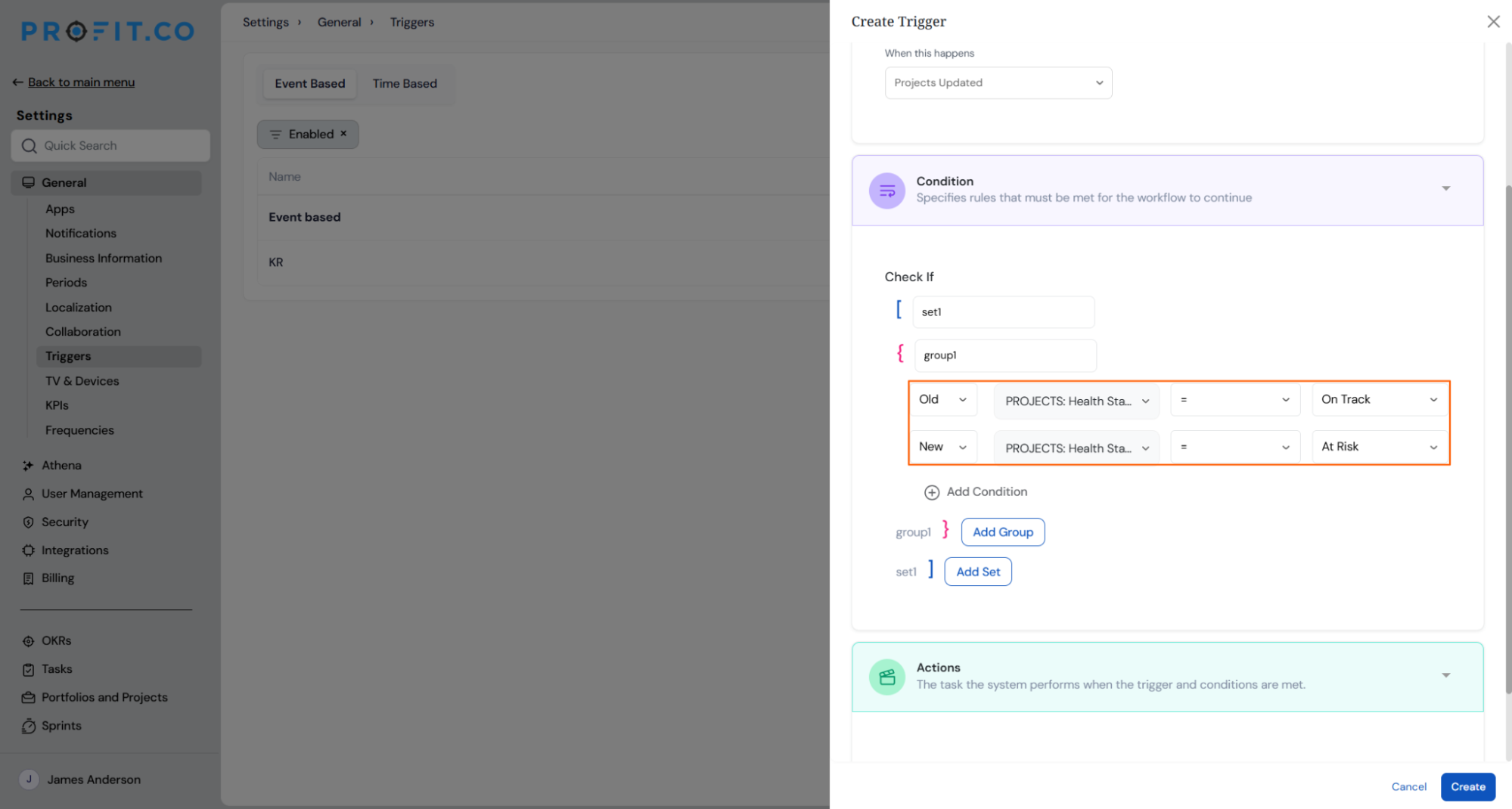
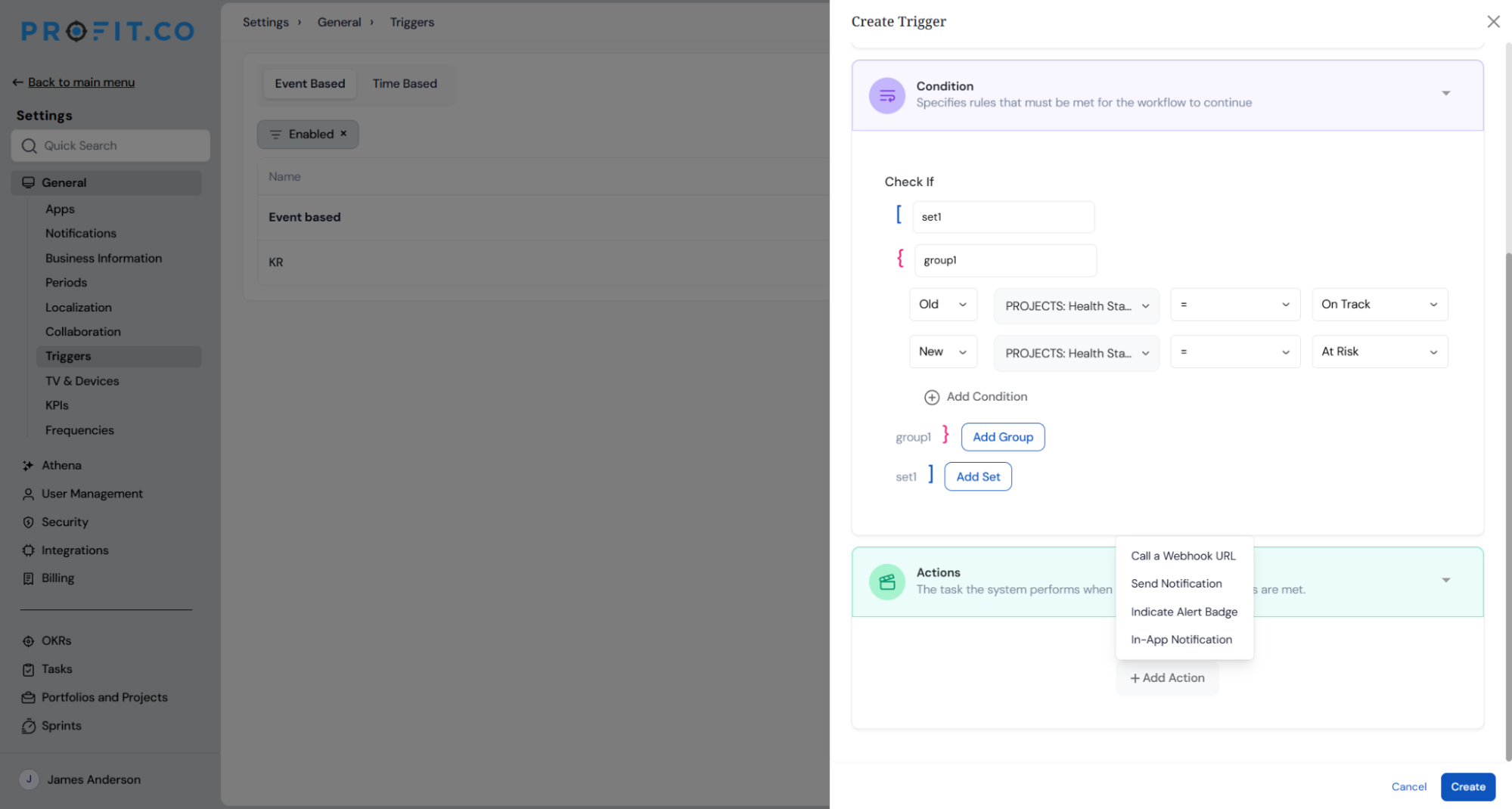
- Choose a condition attribute: Health Status for Task, Portfolio, or Milestone Update, or Health Status, a financial metric, or an EVM metric for Project Update
- Select an operator and set a threshold value
- Combine conditions in a group with AND logic, and combine groups with AND or OR logic
Step 4
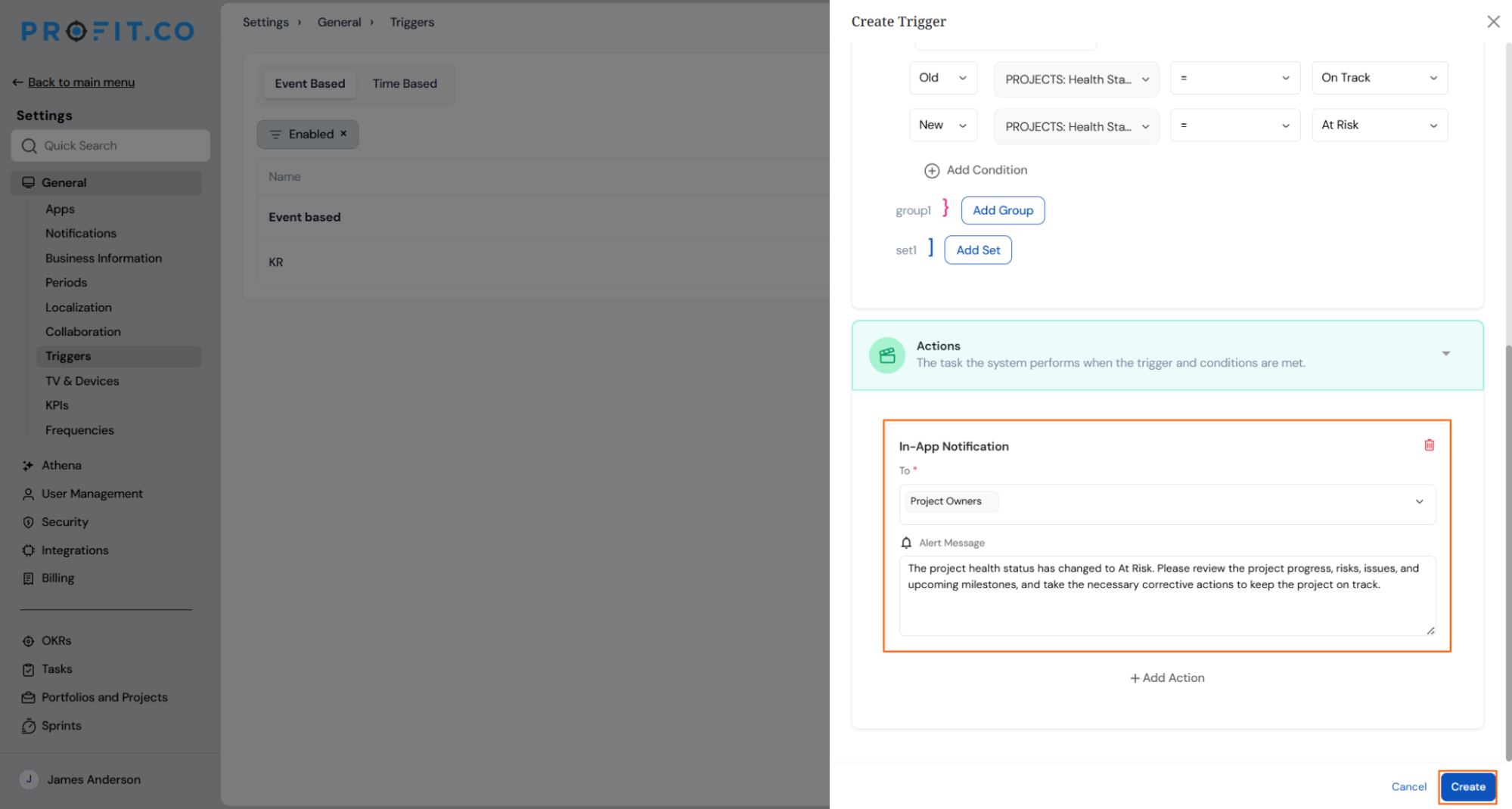
- Click Add Action
- Choose In-App Notification (Action Center), Email Notification, Indicate Alert Badge (projects only), or Call a Webhook URL
- For In-App Notification, select the specific stakeholders who should receive it
- Save the trigger to activate it
- Profit.co evaluates the conditions automatically on every relevant update from that point forward
What Happens When You Use Threshold Alerts?
| Scenario | What Happens |
|---|---|
| You save a trigger with valid conditions and actions. | Profit.co evaluates the trigger against every relevant update from that point forward, not against updates that already happened before you saved it. |
| You try to save a trigger with a threshold value outside the valid range for an EVM metric. | Profit.co blocks the save and the trigger is never created, so the invalid configuration cannot go live. |
| You add In-App Notification as an action on a trigger. | Profit.co requires you to select the specific stakeholders who should receive the alert, and only those selected users see it in the Action Center. |
| You add Indicate Alert Badge as an action on a Task, Portfolio, or Milestone Update trigger. | Profit.co does not offer that action for this event type, because the alert badge displays on projects only. |
| You combine multiple condition groups using OR logic. | Profit.co fires the trigger's actions as soon as any single group's conditions are met, not only when every group is satisfied. |
| You reach a saved threshold on a project's Health Status, budget, or EVM metric. | Profit.co fires the configured actions but does not change the underlying Health Status, budget, or EVM value itself. |
What Are the Best Practices for Threshold Alerts?
- Group related metrics under one trigger with AND logic instead of building a separate trigger per metric, since a single Project Update trigger can already combine Health Status, budget, and EVM conditions.
- Select stakeholders deliberately when adding an In-App Notification action, since Profit.co only alerts the people you choose at setup, not every project member automatically.
- Confirm EVM thresholds sit within the valid range before saving, since Profit.co's validation blocks the entire save rather than storing a partial configuration.
- Reserve the Indicate Alert Badge action for project-level triggers, since it is not available for Task, Portfolio, or Milestone Update events.
- Create the trigger before the risk window opens, since evaluation applies only to updates from the save date forward and will not reprocess updates that already happened.
Related Articles
- How does the OKR triggering work?
- How do I view portfolio health metrics and heatmaps in Profit.co?
- How do I enable and disable action center and email notifications?
What Are Some Frequently Asked Questions About Threshold Alerts?
No. Each trigger is tied to a single update event chosen at creation, so monitoring a different event requires a separate trigger.
Only Health Status. The additional financial and EVM attributes apply to Project Update triggers only.
Only super users have access to Settings → General → Triggers, so only super users can create or edit these triggers.
Execute your strategy with confidence
Connect OKRs, tasks, and teams in one place with Profit.co
