

Timeline Cascading lets project owners update a project's dates once and have Profit.co calculate matching date changes for every milestone, task, and sub-task beneath it. A preview step shows the full impact before any child date actually changes.
Table of Contents
What is Timeline Cascading?
Timeline Cascading is a project-level setting that controls how date changes made to a project propagate down through its hierarchy of milestones, tasks, and sub-tasks. It is governed by the Cascade date changes to children toggle in Project Defaults, and it applies automatically whenever a parent project's end date is updated.
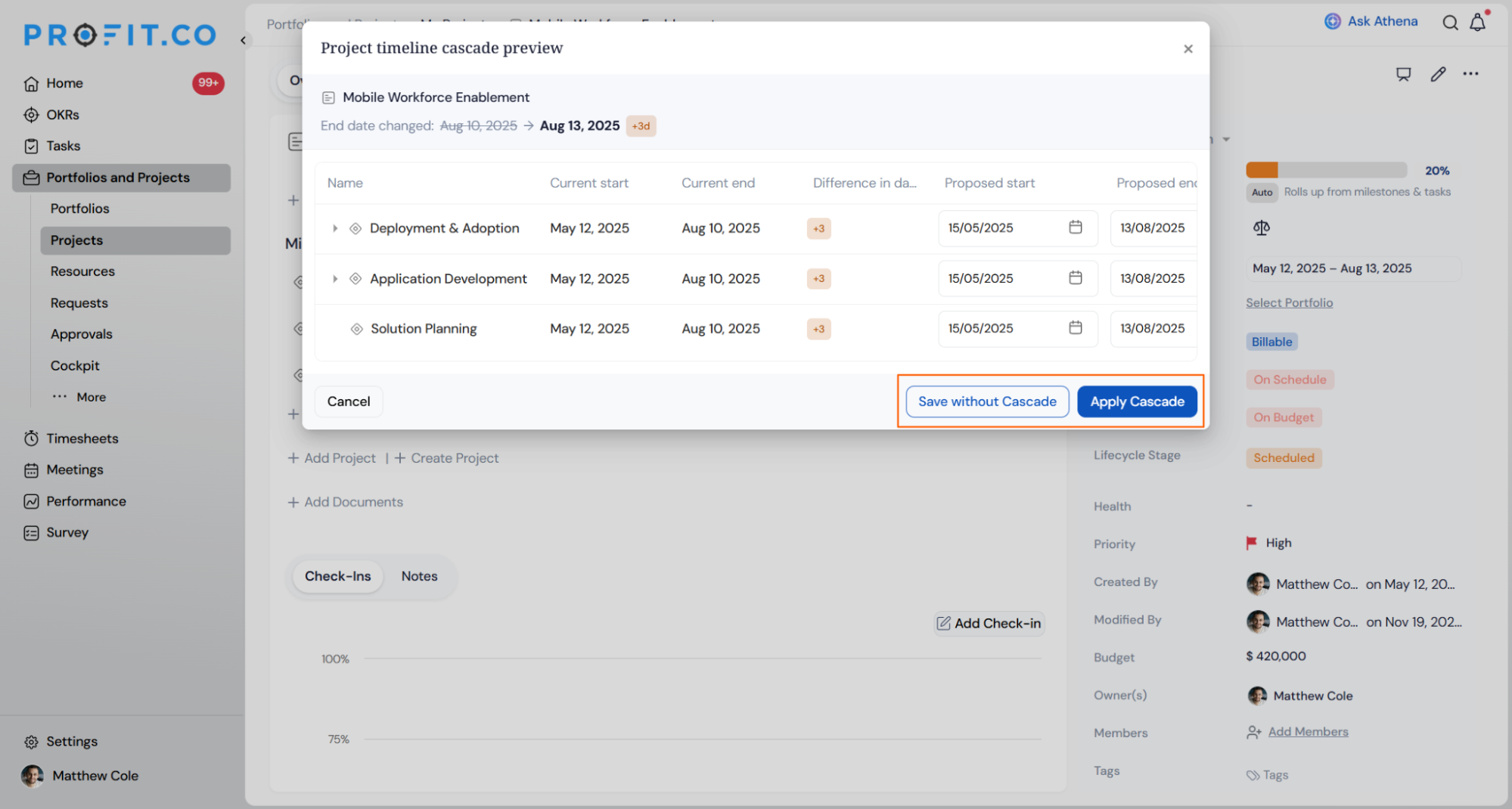
When enabled, updating a project's end date opens a Project timeline cascade preview panel instead of silently changing anything. The panel lists every affected child item with its current dates, the proposed dates, and the difference in days, so no child date changes until the user acts on the preview.
Why Timeline Cascading Matters
Before this setting, a shift in a project's end date meant manually opening each milestone, task, and sub-task to update its dates. Timeline Cascading calculates and proposes those child date changes automatically, removing that item-by-item edit.
The cascade preview shows the exact date shift for every affected item before anything is committed, so a project owner can catch an item that should not follow the parent's new schedule and correct it in the panel. Choosing Apply Cascade or Save without Cascade keeps that decision with the user on a case-by-case basis rather than forcing every date change through automatically.
How It Works
Step 1
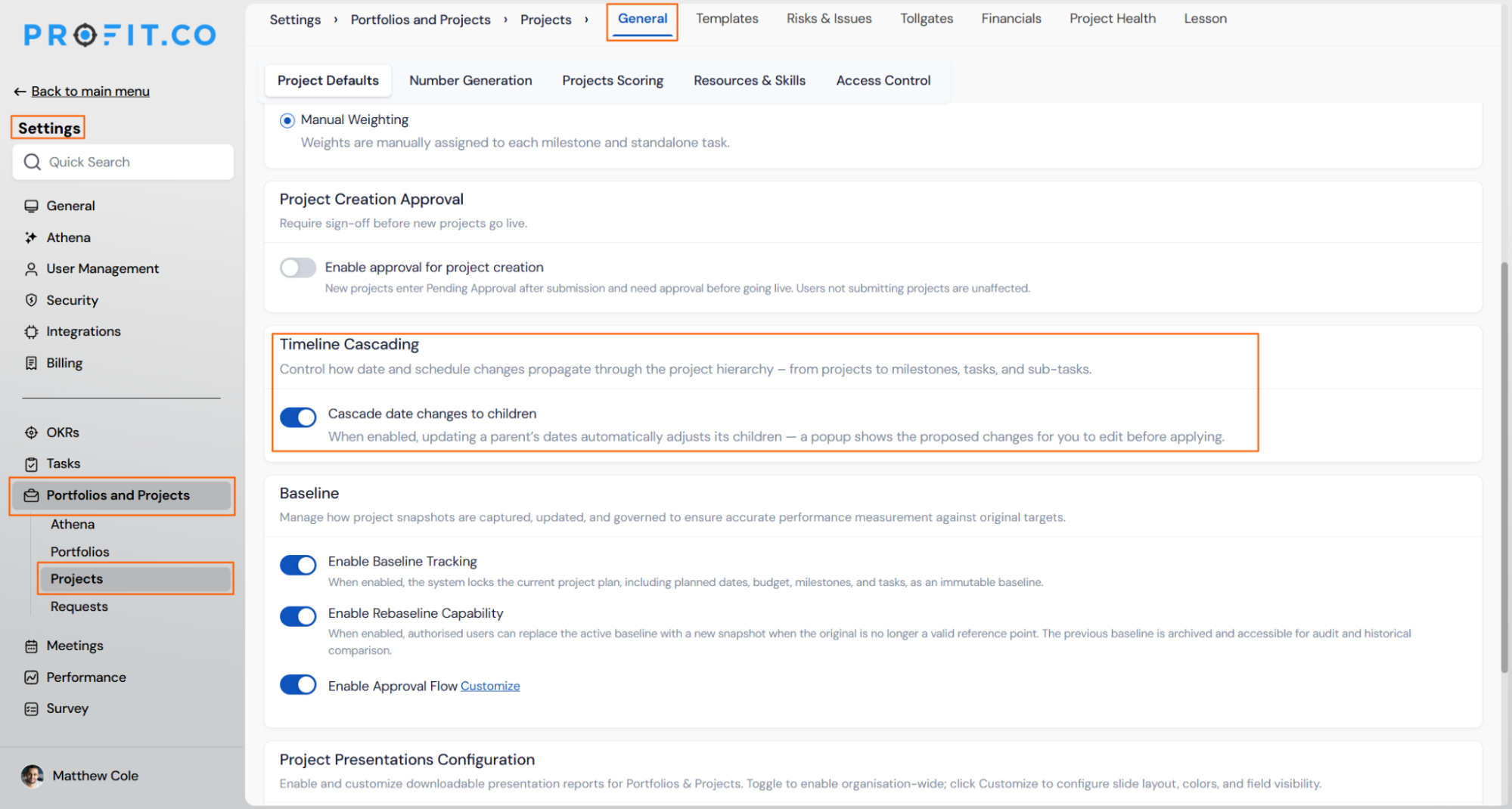
- Navigate to Settings → Portfolios and Projects → Projects → General → Project Defaults
- Locate the Timeline Cascading section on the Project Defaults tab
- Turn on the Cascade date changes to children toggle
Step 2
- Change the end date on a project that has milestones, tasks, or sub-tasks under it
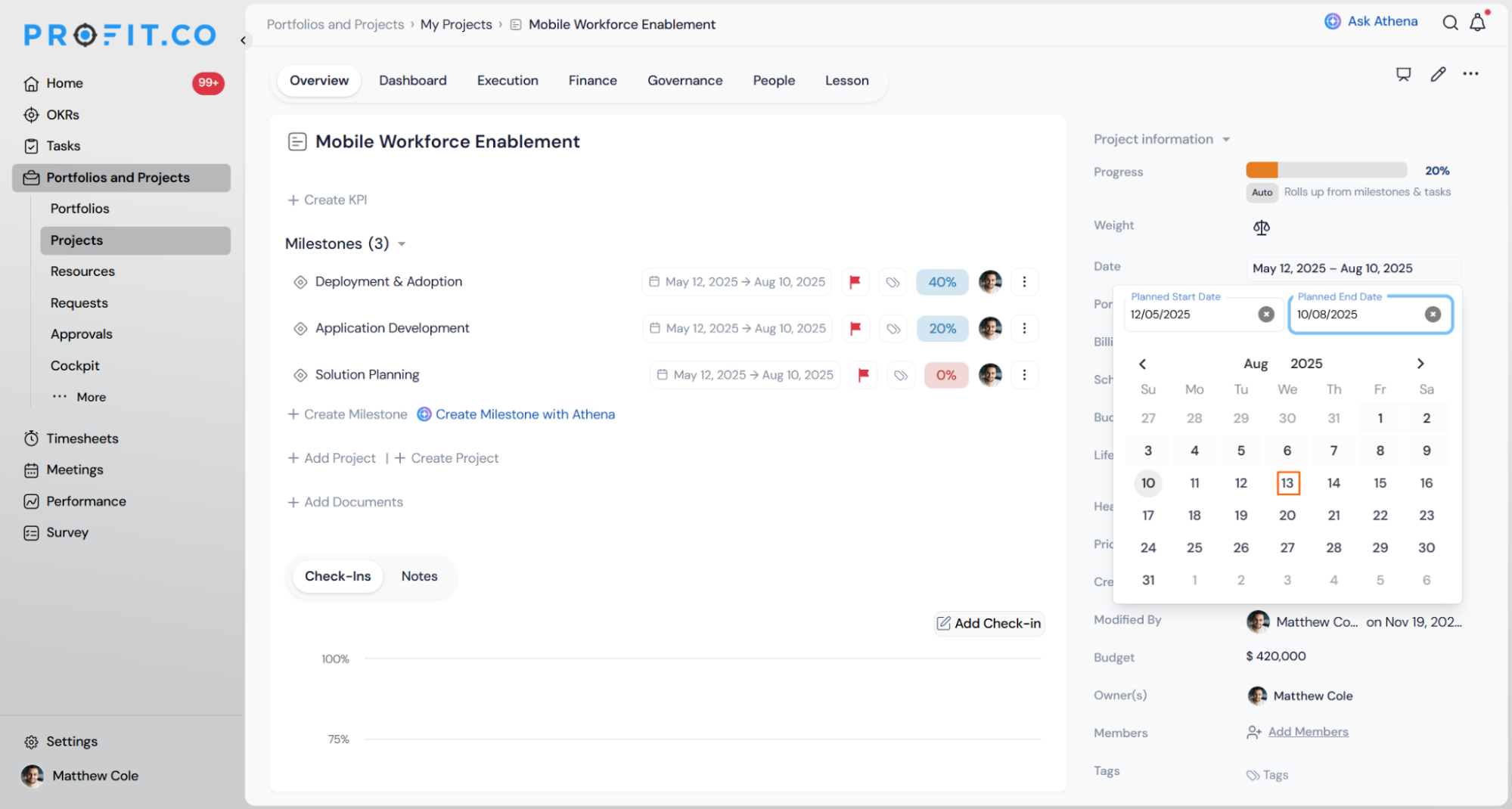
- Profit.co opens the Project timeline cascade preview panel automatically
- Check the current start date, current end date, and difference in days for each listed child item
- Check the proposed start and end dates Profit.co has calculated for each item
- Edit any proposed date directly in the panel if it needs to differ from the calculated value
- Select Save without Cascade to keep the parent's date change only
- Select Apply Cascade to apply the proposed dates to every child item in the panel
Timeline Cascading Scenarios and Their Outcomes
How It Works covers the steps to trigger and act on a cascade. This section covers what actually happens to your data, your notifications, and your ability to reverse the change once you do.
| Scenario | What Happens |
|---|---|
| You apply the cascade after reviewing the preview panel. | Profit.co updates the start and end dates of every milestone, task, and sub-task shown in the panel to their proposed values. |
| You apply the cascade on items that have other records tied to their schedule. | Profit.co carries the date shift into those downstream records as well, so the impact is not limited to the item's own start and end date fields. |
| You apply the cascade across the project hierarchy. | Profit.co notifies the owner of every milestone, task, and sub-task whose dates changed as part of the cascade. |
| You apply the cascade and commit the proposed dates. | Profit.co makes the change permanent and provides no option to undo it or restore the prior schedule. |
| You close the cascade preview panel without clicking Save without Cascade or Apply Cascade. | Profit.co still saves the parent project's date change on its own, while every child item's dates remain unchanged. |
Best Practices for Timeline Cascading
- Review every row in the preview panel before applying, since Apply Cascade cannot be undone once the dates are committed.
- Use Save without Cascade when only the parent project's own timeline needs to shift for administrative reasons, so child item owners are not notified about a change that does not apply to them.
- Edit a child item's proposed dates directly in the panel when that item has a hard external deadline, rather than letting it inherit the full parent-driven shift.
- Confirm the Cascade date changes to children toggle state in Project Defaults before relying on the preview panel to appear, since the setting controls whether the panel triggers at all.
- Time an Apply Cascade action with awareness that dependent owners receive their date-change notification immediately, so avoid applying major shifts right before end-of-day handoffs.
Related Articles
- How to create a Project in the PPM module?
- How do I enable the Portfolios and Projects module in Profit.co?
Frequently Asked Questions
The Cascade date changes to children toggle must be enabled in Project Defaults first. Without it, Profit.co does not calculate or open a preview for child date changes.
Yes. Every proposed start and end date in the preview panel can be edited before you choose Save without Cascade or Apply Cascade.
The cascade extends through milestones, tasks, and sub-tasks across the full project hierarchy, not just the items directly beneath the project.
The toggle sits under Project Defaults, which sets the default cascade behavior applied across projects rather than being configured separately inside each individual project.
Execute your strategy with confidence
Connect OKRs, tasks, and teams in one place with Profit.co
