

Request Templates let you standardize how new project requests are captured by building reusable formats from scratch or from an existing request.
Table of Contents
What is Template Selection for Project Requests?
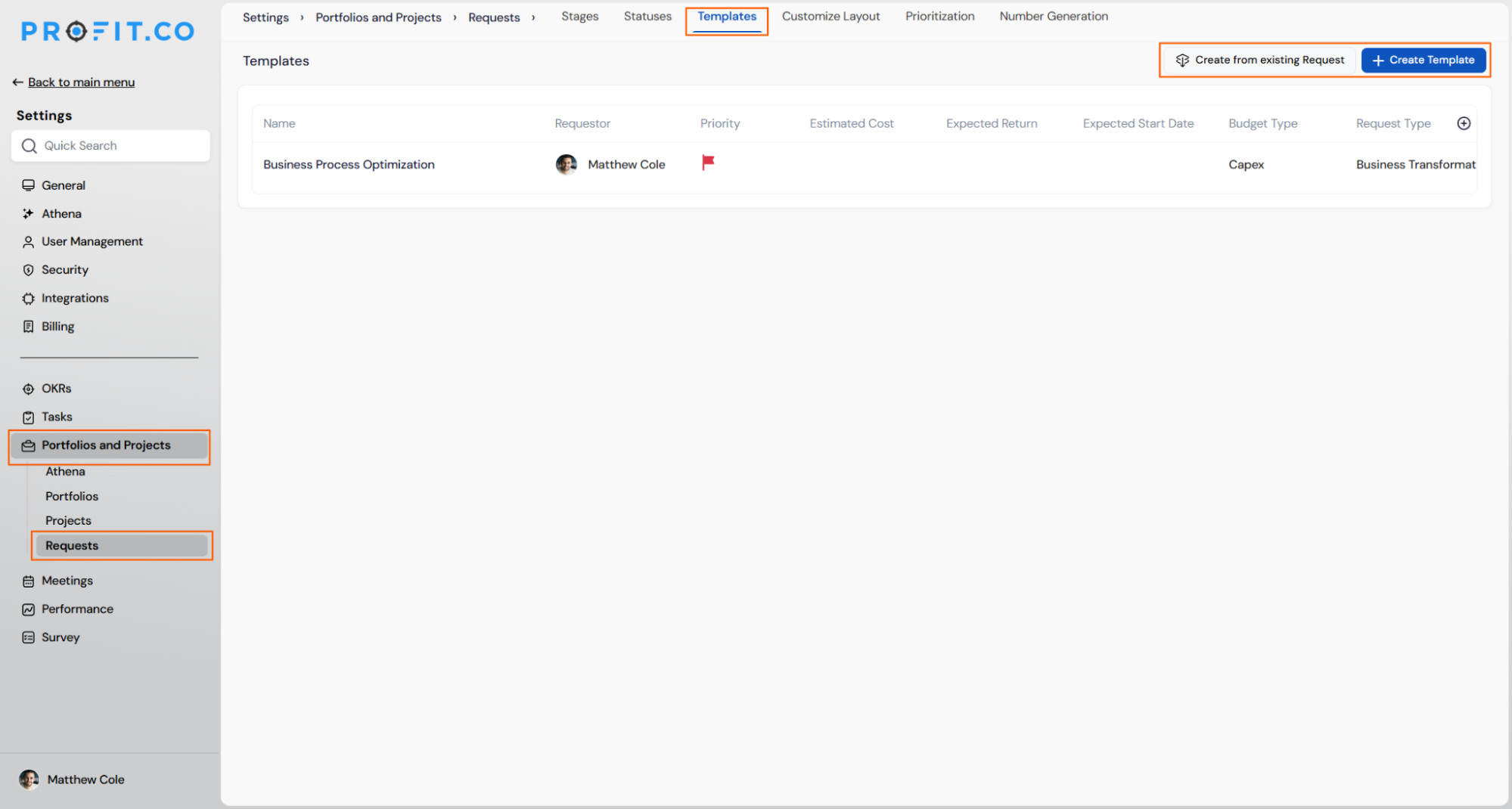
A Request Template is a reusable format for the fields on a project request, saved from the Templates settings page and made available to anyone submitting a new request. You build a template from a blank form using + Create Template, or you base it on a submitted request using Create from existing Request.
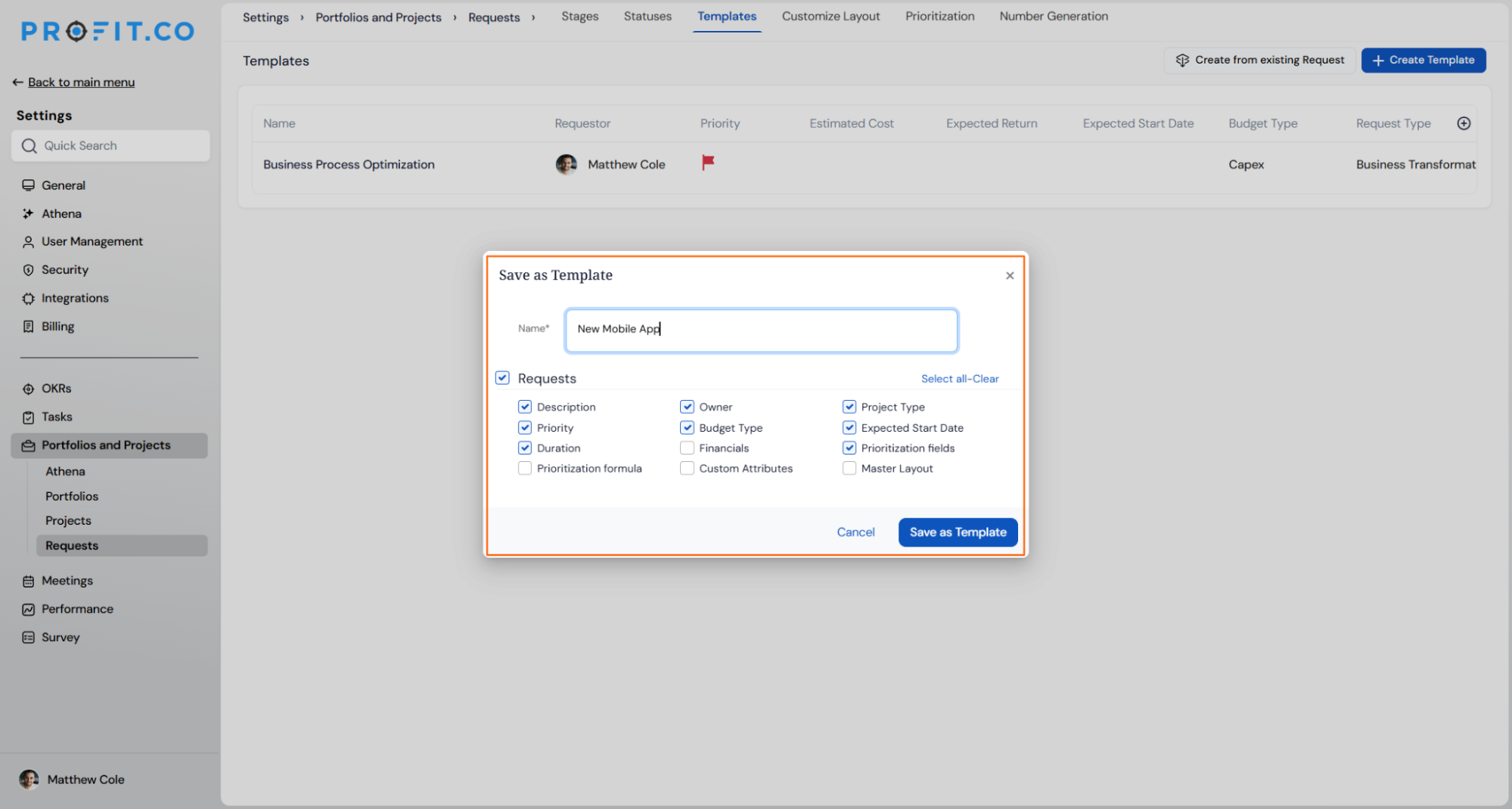
When you build a template from an existing request, you choose exactly which fields it carries forward. The following fields are available as individual checkboxes in the Save as Template modal.
| Field | Field |
|---|---|
| Description | Budget Type |
| Owner | Expected Start Date |
| Project Type | Duration |
| Priority | Financials |
| Prioritization fields | Custom Attributes |
| Prioritization formula | Master Layout |
Tip
Use Select all on the Requests checkbox to carry over every field, then clear only the ones you want each requester to fill in manually.
The Templates list itself tracks Name, Requestor, Priority, Estimated Cost, Expected Return, Expected Start Date, Budget Type, and Request Type for every saved template, so admins can scan template metadata without opening each record.
Why Request Templates Matter
Request Templates remove repetitive data entry from the request intake process and keep submissions consistent across teams.
| Benefit | Description |
|---|---|
| Faster request submission | Users starting from a pre-built template skip manual entry for recurring request types. |
| Consistent request quality | Templates enforce a standard structure, reducing incomplete submissions. |
| Reuse of real request data | Creating a template from an existing request turns proven data into a reusable starting point without duplicating work. |
How It Works
Step 1
- Go to Settings → Portfolios and Projects → Requests → Templates
- Review existing templates listed by Name, Requestor, Priority, Estimated Cost, Expected Return, Expected Start Date, Budget Type, and Request Type
- Click + Create Template to start a blank template
- Click Create from existing Request to base the template on a submitted request
- Use the search bar in the request picker to locate a specific request quickly
Note
+ Create Template opens a blank form. Only Create from existing Request copies field values from a submitted request.
Step 2
- Enter a template Name (required)
- Toggle Select all / Clear on the Requests checkbox, or check individual fields such as Description, Owner, Priority, Budget Type, and Duration
- Click Save as Template to confirm, or Cancel to discard changes
Request Templates Scenarios and Their Outcomes
| Scenario | What Happens |
|---|---|
| You save a template from an existing request using only some of the available field checkboxes. | Profit.co copies only the checked fields into a new, independent template record — the source request itself is not edited, locked, or moved. |
| You open Save as Template, enter a name, and close the modal without clicking Save as Template. | Profit.co discards every field selection and the name you entered, creates no template entry, and leaves the source request untouched. |
| You leave a field such as Financials or Master Layout unchecked when saving a template. | Profit.co excludes that field from the template rather than blocking it — a requester who later applies the template sees it blank and can still fill it in manually. |
| You submit a new project request without admin-level access to the Templates settings page. | Profit.co still lets you search for and apply an existing template from the picker — only template creation and editing are restricted to Settings → Portfolios and Projects → Requests → Templates. |
Best Practices for Request Templates
- Name templates by request type rather than by the source request's project name, so the list stays clear as it grows.
- Exclude Financials and Custom Attributes fields from templates shared across departments where cost or attribute values vary by team.
- Review the Templates list periodically and retire templates tied to request types that are no longer in use.
- When building a template from an existing request, confirm every checked field still holds accurate values before saving, since the modal copies current data, not blank placeholders.
- Limit who can create templates in Settings → Portfolios and Projects → Requests → Templates to avoid duplicate or conflicting templates for the same request type.
Related Articles
- How to create a Project Request in the PPM module?
- How does the new PPM Settings access help PPM Admins?
- How to create a Project in the PPM module?
Frequently Asked Questions
Yes. Click + Create Template on the Templates page to start with a blank template instead of basing it on a submitted request.
Name, Requestor, Priority, Estimated Cost, Expected Return, Expected Start Date, Budget Type, and Request Type.
Yes. The request picker in Create from existing Request includes a search bar so you can locate the request by name instead of scrolling the full list.
Execute your strategy with confidence
Connect OKRs, tasks, and teams in one place with Profit.co
