

Dependency Management in Profit.co lets you warn or prevent stage changes that break a project dependency. This stops a project from starting or being completed before the projects it depends on are ready.
Table of Contents
- What is Dependency Management in Profit.co?
- What are predecessor and successor projects?
- Why do stage rules for dependencies matter?
- What rules apply to each dependency type?
- What is the difference between Allow with a warning and Prevent?
- How to set up Dependency Management in Profit.co?
- What happens when you change a stage in check-in?
- Best practices for Dependency Management
- Related Questions
- Frequently Asked Questions
What is Dependency Management in Profit.co?
Dependency Management is a PPM setting that turns a project dependency into a rule for stage changes. For each dependency type, a PPM Admin decides whether a stage change that breaks the dependency is allowed with a warning or prevented. Profit.co then checks every stage change against that rule, whether it comes from check-in, the project Overview or automatic check-in.
Example: A Customer Portal Revamp project depends on an Identity Platform Upgrade project (Finish-to-Start). The portal can't start until the identity platform is live. With Dependency Management, Profit.co flags or blocks any attempt to move the portal project to a started stage while the identity platform project is still in progress.
What are predecessor and successor projects?
Every project dependency links two projects: a predecessor and a successor.
| Predecessor | Successor | |
|---|---|---|
| What it means | The project that must happen first. Another project depends on it. | The project that depends on the predecessor. It comes next. |
| Example | Identity Platform Upgrade, since the single sign-on work must happen first | Customer Portal Revamp, since the portal can't start until single sign-on is live |
| Label on the Dependency Map | Blocking | Waiting On |
Why do stage rules for dependencies matter?
Dependency cascade already shifts dates when a predecessor slips, but it doesn't look at stages. Without stage rules, a successor project can move to In Progress while its predecessor hasn't finished, and teams often find out late.
Stage rules give you:
- Real readiness: Project stages reflect whether the required work is done, not only the planned dates.
- Early visibility: Project owners see the reason for a conflict at the moment they change a stage.
- Accurate reporting: Executives see stages that respect the plan, with any held changes clearly marked.
Dates and stage rules work together. Dependency cascade says when work happens, and the stage rule says whether work may start or finish.
What rules apply to each dependency type?
Each dependency type has one rule and one condition that triggers it:
| Dependency type | Rule | Conflict occurs when |
|---|---|---|
| Finish-to-Start (FS) | The successor can't start until the predecessor is completed. | The successor starts before the predecessor is completed |
| Start-to-Start (SS) | The successor can't start until the predecessor has started. | The successor starts before the predecessor has started |
| Finish-to-Finish (FF) | The successor can't be completed until the predecessor is completed. | The successor is completed before the predecessor is completed |
| Start-to-Finish (SF) | The successor can't be completed until the predecessor has started. | The successor is completed before the predecessor has started |
Note
A project can have more than one predecessor, of the same type or of different types.
What is the difference between Allow with a warning and Prevent?
| Action | What happens |
|---|---|
| Allow, with a warning (default) | The stage change saves. The check-in panel shows the conflict, and an amber icon appears on the dependency row of both projects. |
| Prevent | The stage change is blocked everywhere, including automatic check-in. A project already in a blocked stage must move back to Not Started. |
How to set up Dependency Management in Profit.co?
Only PPM admins and Superusers who can edit Project settings can change Dependency Management.
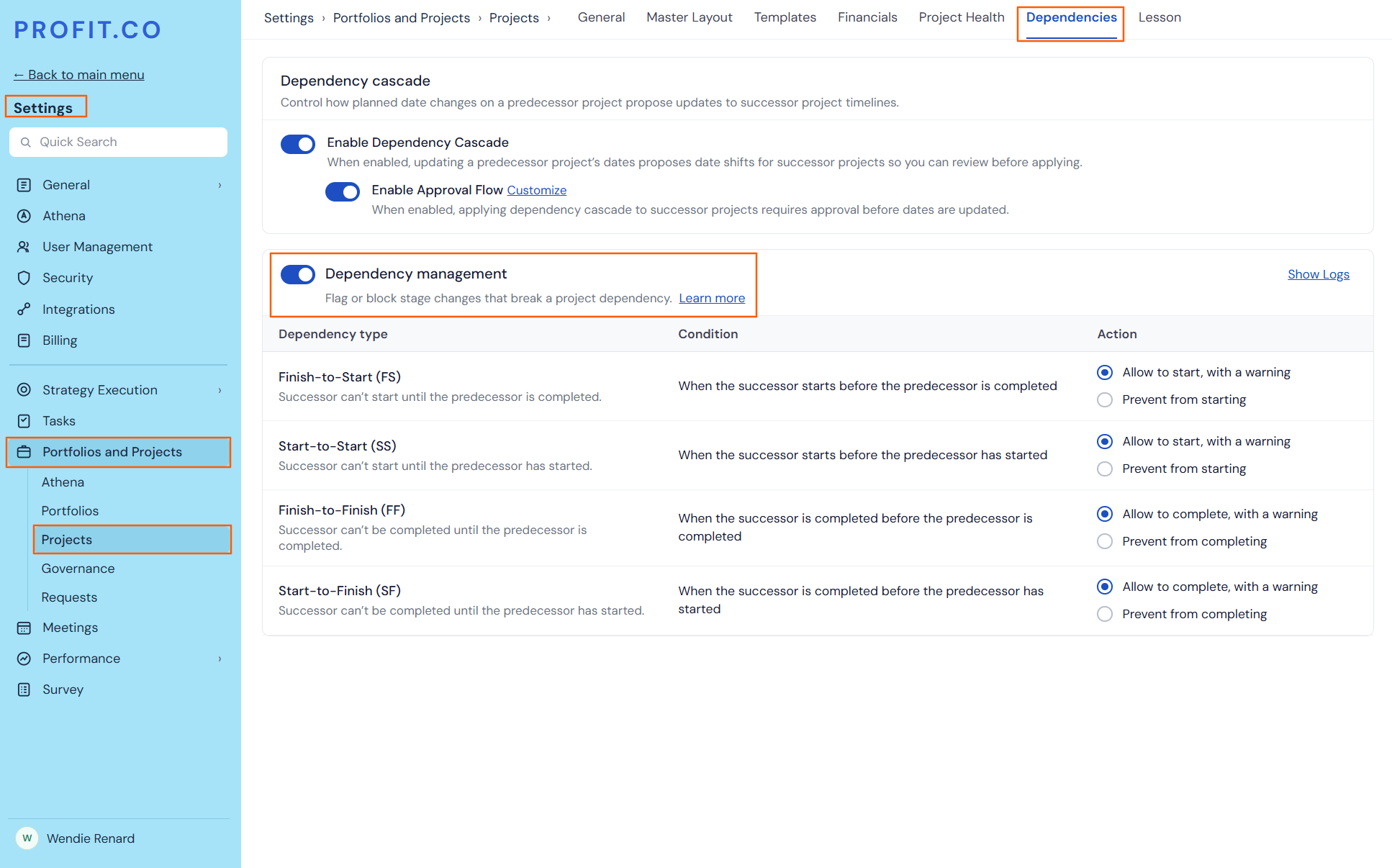
Step 1
- Navigate to Settings → Portfolios and Projects → Projects from the left navigation panel.
- Switch to the Dependencies tab.
- Enable the Dependency Management toggle.
Step 2
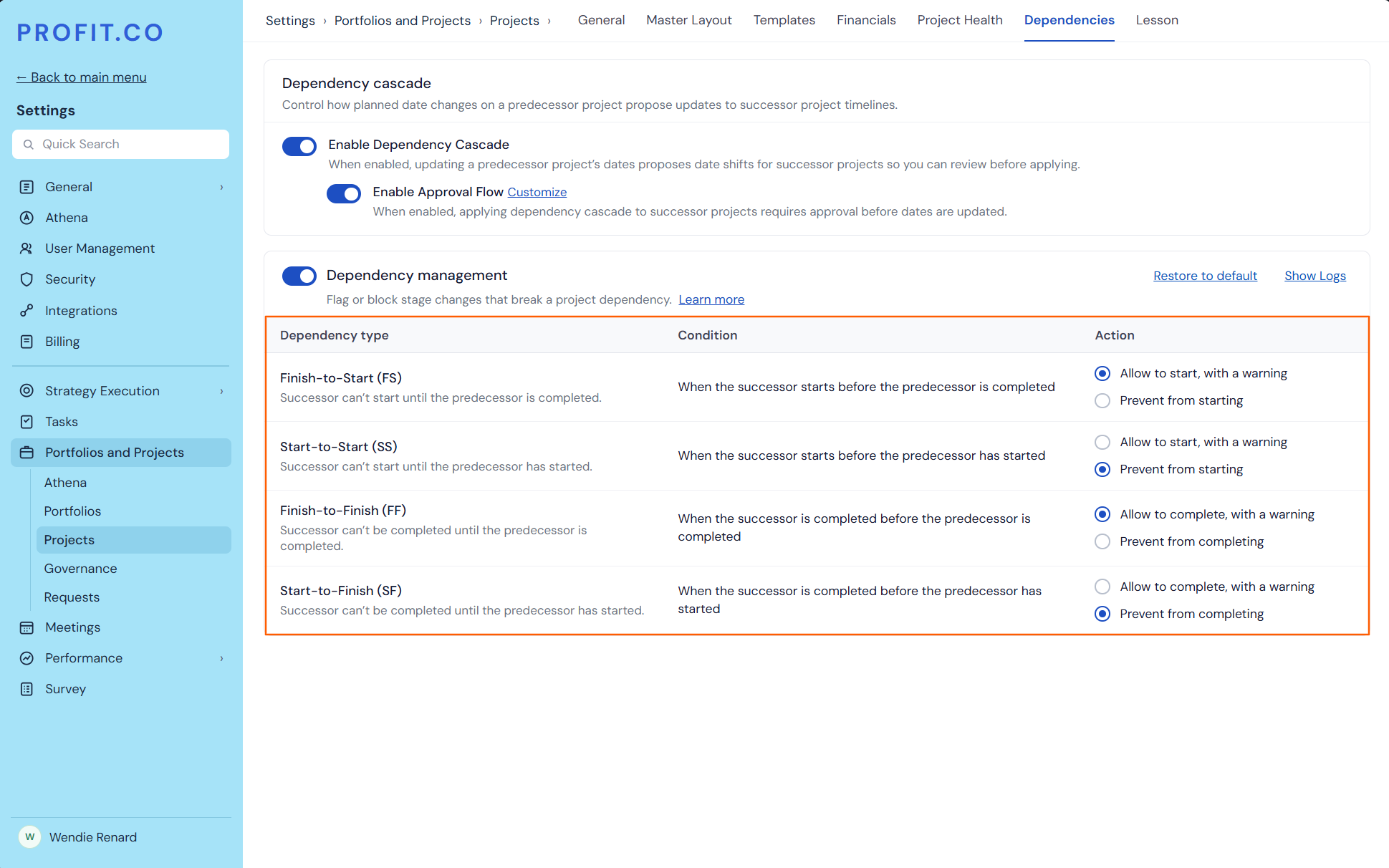
- Each row shows the Dependency type, its Condition, and an Action.
- Select the warning option to flag conflicts, or the prevent option to block them.
Step 3
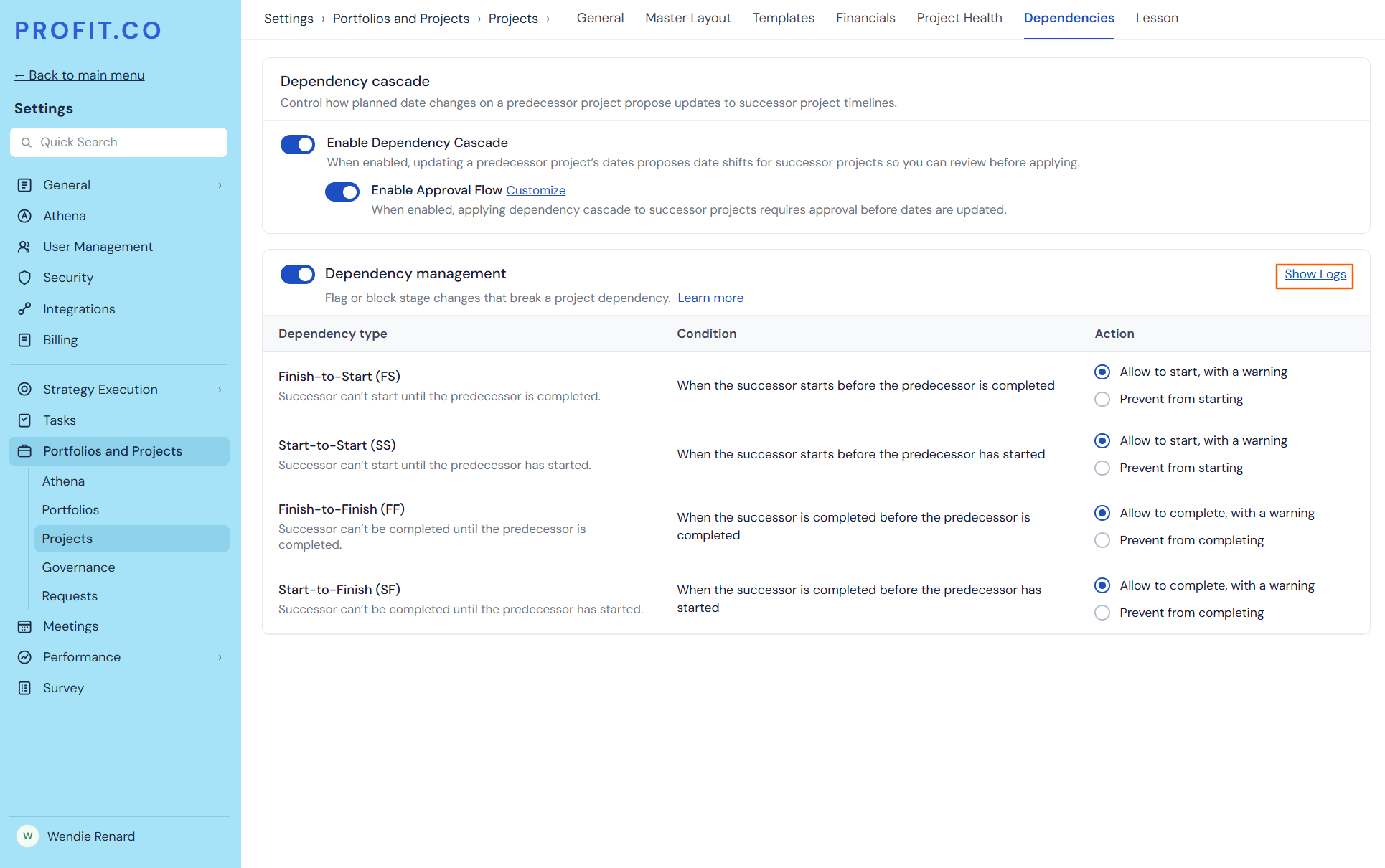
- Click Show Logs to see who changed a rule, when, and the old and new values.
Note
Changing a rule never changes a project's stage by itself. The new rule applies from the next stage change or check-in.
What happens when you change a stage in check-in?
When you pick a new stage under Stage & Health in the check-in panel, Profit.co checks the dependency right away.
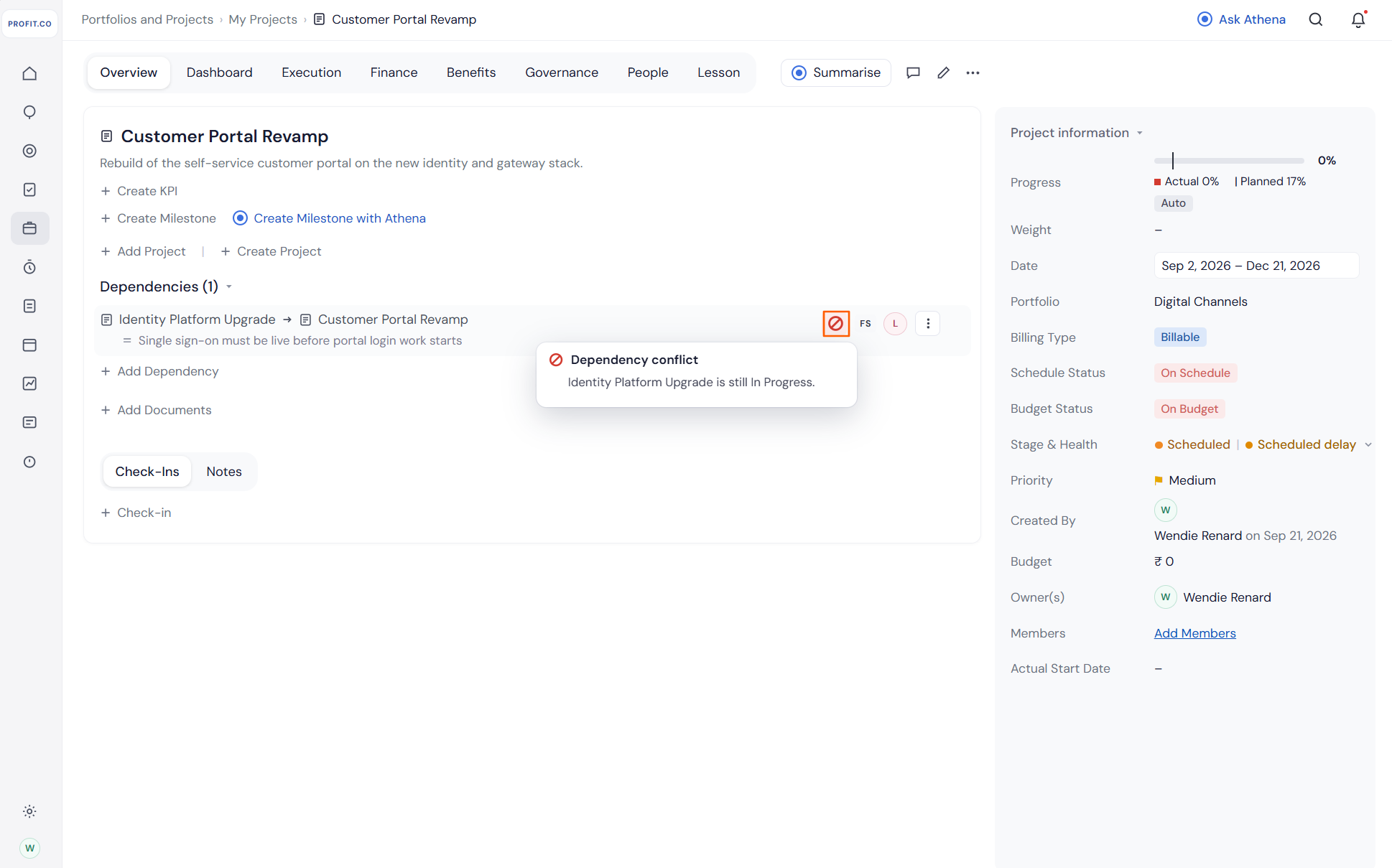
When the rule is set to Allow, a warning appears
- An amber line appears under Stage & Health, for example: Identity Platform Upgrade (FS predecessor) is still In Progress.
- Update stays enabled, so you can still save the stage.
When the rule is set to Prevent
- A red line appears, for example: Can't move to Scheduled. Identity Platform Upgrade (FS predecessor) is still In Progress.
- Update is disabled until you pick an allowed stage, such as Not Started or On Hold.
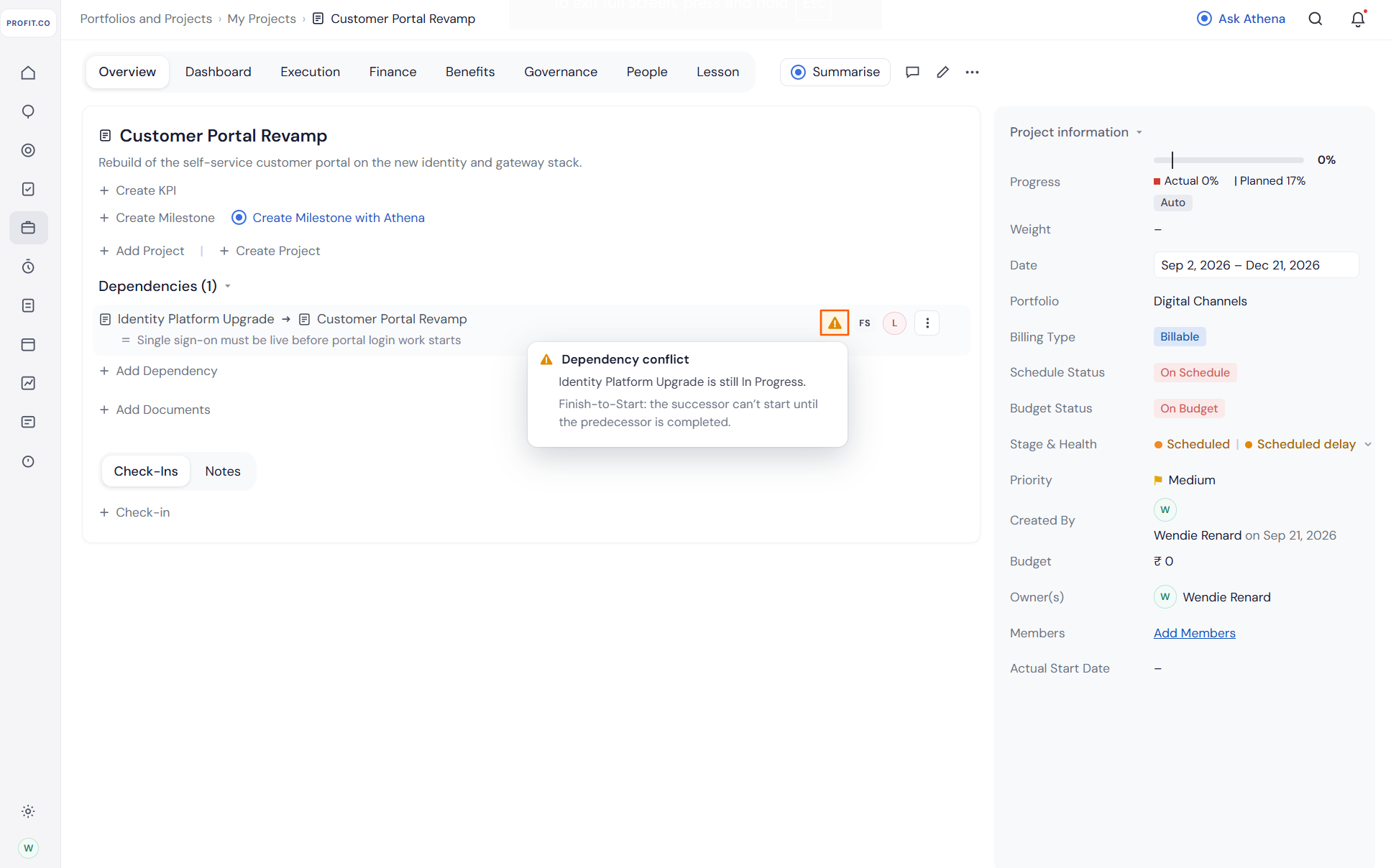
Finish-to-Start (FS) example: Allow, with a warning
FS means the successor can't start until the predecessor is completed.
Example: The Customer Portal Revamp project depends on the Identity Platform Upgrade project (FS), because the portal can't open logins until single sign-on is live. The PPM Admin has set FS to Allow to start, with a warning.
Start-to-Start (SS) example: Prevent
SS means the successor can't start until the predecessor has started.
Example: The Load Testing project depends on the API Gateway Hardening project (SS), because load testing can begin only once the gateway work has started. The PPM Admin has set SS to Prevent from starting.
Start-to-Finish (SF) example: Allow, with a warning
SF means the successor can't be completed until the predecessor has started.
Example: The Legacy Billing Retirement project depends on the New Billing System Rollout project (SF), because the old system can't be retired until the new one has started. The PPM Admin has set SF to Allow to complete, with a warning.
Finish-to-Finish (FF) example: Prevent
FF means the successor can't be completed until the predecessor is completed.
Example: The Product Documentation project depends on the Product Release project (FF), because the documentation can't close before the release closes. The PPM Admin has set FF to Prevent from completing.
Best practices for Dependency Management
- Start with Allow, with a warning for every type, so teams see conflicts before you block any changes.
- Switch a type to Prevent only when starting or finishing early would cause real rework or risk.
- Before switching to Prevent, check for projects already in a conflicting stage, since their owners can't save check-ins until they move the stage.
- Use dependency cascade for date shifts and stage rules for readiness, since the two settings work together.
- Ask project owners to hover over the Auto tag first when a project doesn't move during automatic check-in.
Related Questions
- Click here to learn more about how project dependency management works in Profit.co.
- Click here to learn more about how Timeline Cascading works for project date changes in Profit.co.
- Click here to learn more about task dependencies in Profit.co.
Frequently Asked Questions
A dependency set to Prevent may be in conflict. Hover over the Auto tag next to Stage & Health to see whether a dependency conflict or a manual change stopped it.
The selected stage breaks a dependency set to Prevent. Choose Not Started or On Hold, or wait for the predecessor project to reach the required stage.
Yes. A project can have several predecessors, of the same or different dependency types. Profit.co checks each one on its own, and any conflict set to Prevent blocks the stage change.
No. The rule applies to every user, including PPM Admins, and there are no per-project exceptions. To allow the change, set that dependency type to Allow, with a warning, or turn off Dependency Management.
No. Dependency Management controls stages only. Date shifts are handled by Dependency cascade.
Execute your strategy with confidence
Connect OKRs, tasks, and teams in one place with Profit.co
