
In Profit.co, you can hide workspaces in task management to restrict their visibility from users who are not members of that workspace, keeping your navigation clean and your team's work organized and private.
Table of Contents
What does hiding a Workspace mean in Profit.co?
Hiding a Workspace in Profit.co removes it from the main Workspaces list in the left navigation panel and moves it to the Hidden Workspaces section. This is a personal visibility setting that restricts the Workspace from appearing in the active navigation view for users who are not members of that Workspace. The Workspace and all its tasks, Boards, and data remain intact — it is simply moved out of the primary view.
How to hide a Workspace in Profit.co?
Follow these steps to hide a Workspace from the main navigation panel:
Step 1
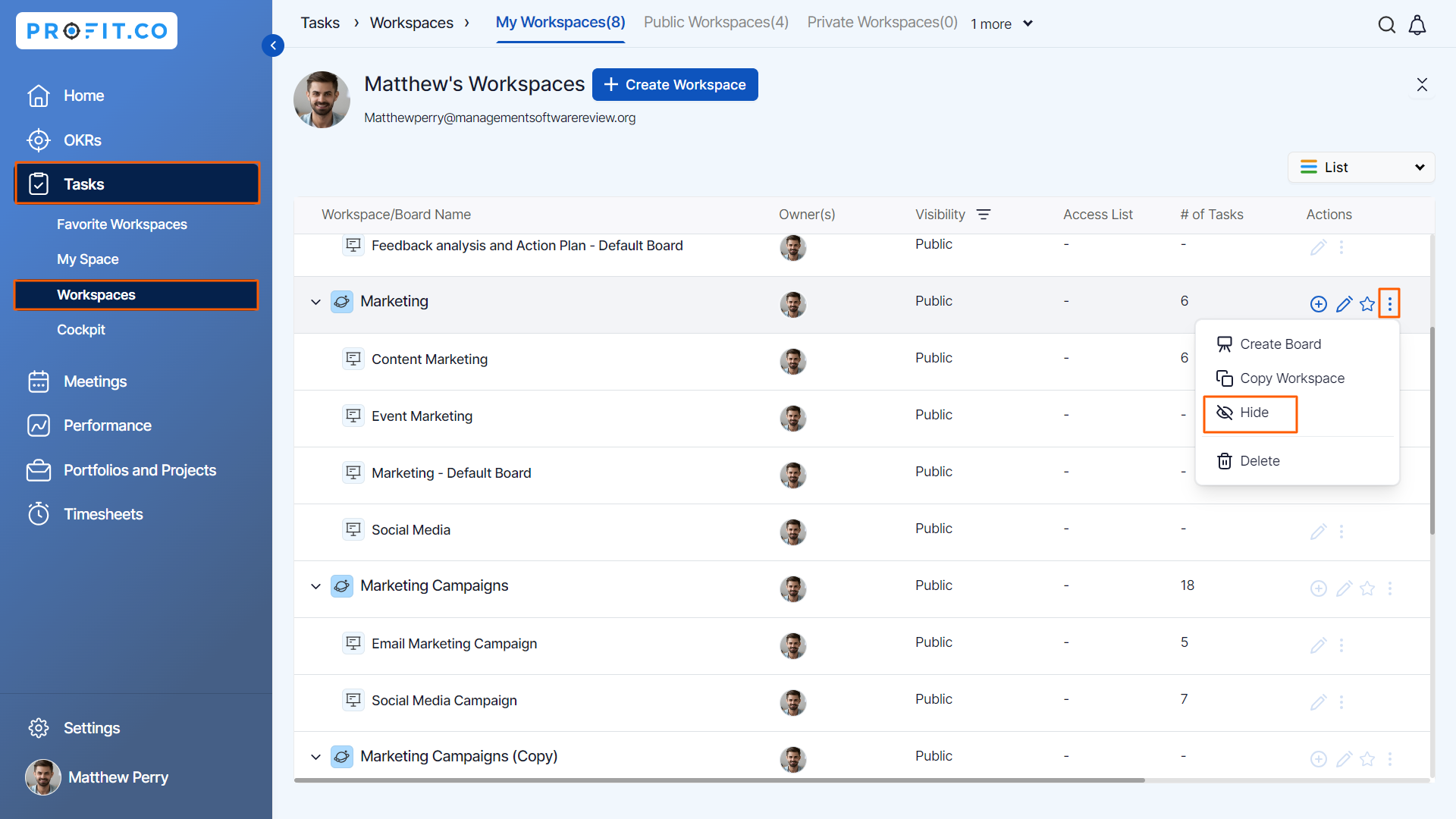
- Go to Task → Workspaces from the left navigation panel.
- Click the Ellipsis (...) icon next to the workspace name to open the options menu.
- Click the Hide option from the dropdown menu.
- The Workspace will be immediately removed from the main Workspaces list and moved to the Hidden Workspaces section.
Note: Hiding a Workspace does not delete it or remove any of its tasks, Boards, or data. It only moves it out of the active navigation view.
How to unhide a workspace in Profit.co?
Hidden Workspaces can be restored to the main navigation panel at any time.
Step 1
- Go to Task → Workspaces from the left navigation panel.
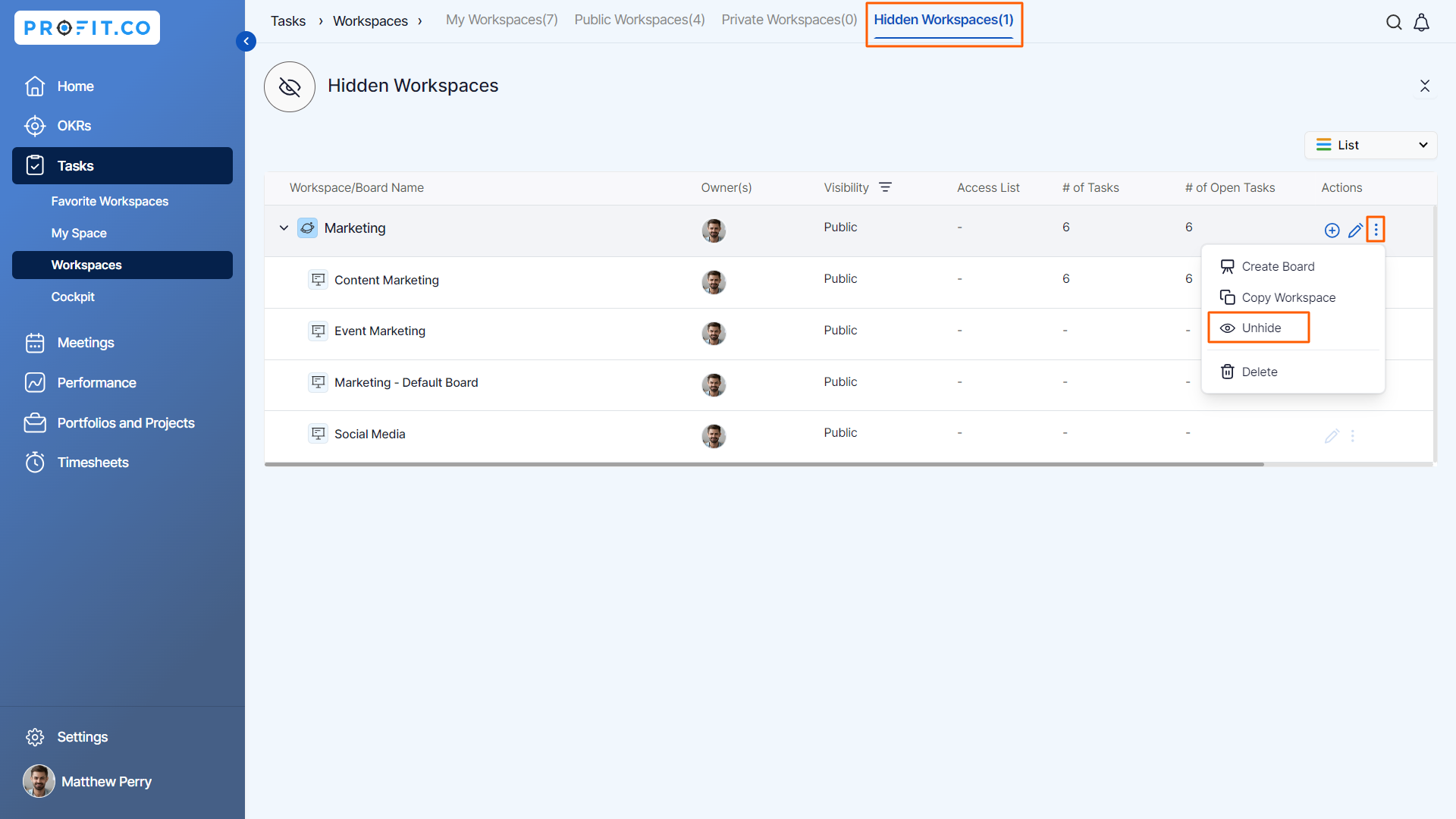
- Scroll down to locate the Hidden Workspaces section.
- Click on the Hidden Workspaces section to expand it and view all hidden Workspaces.
- Click the Ellipsis (...) icon next to the Workspace you want to restore.
- Select the Unhide option.
- The Workspace will be moved back to the main Workspaces list in the navigation panel.
Note: You can unhide any hidden Workspace at any time from the Hidden Workspaces section without any impact on its tasks or data.
Best practices for managing Workspace visibility in Profit.co
- Hide Workspaces that are completed or inactive to keep your navigation panel clean and focused on current work.
- Use the Hide option for Workspaces that are relevant only to specific team members. This ensures non-members are not distracted by Workspaces they do not have access to.
- Avoid hiding Workspaces that are actively in use by your team, as this may create confusion about where to find current tasks.
- Use Workspace visibility settings alongside the Access List visibility option when creating Workspaces to build a comprehensive privacy strategy for your task organization.
Related Questions
Click here to learn how to create Workspaces and Boards in Profit.co.
Frequently Asked Questions
Navigate to Task → Workspaces, click the Ellipsis icon next to the Workspace you want to hide, and select the Hide option. The Workspace will move to the Hidden Workspaces section.
No. Hiding a Workspace only removes it from the main navigation panel. All tasks, Boards, and data within the Workspace remain fully intact and accessible from the Hidden Workspaces section.
Hidden Workspaces are moved to the Hidden Workspaces section within the Task → Workspaces navigation panel. They remain accessible from that section at any time.
