

Saved Views give you instant access to a custom-filtered slice of your OKR data, without rebuilding the filters each time. You can also control the order in which views appear and the chart format each one uses.
Table of Contents
What is Saved View?
A Saved View stores a specific combination of OKR filters, such as Status, Tag, Owner, Progress, Label, or Levels, so you don't have to recreate the same set from scratch each time you open OKRs. Saved Views appear as a list under OKRs → Saved Views and can be shared with other users to align on the same filtered set.
Each Saved View also carries its own display preferences, including its position in the Saved Views list and its chart format, which now includes the Bowler Chart alongside the platform's existing chart types. From the Saved Views list, you can edit, share, download the visible part as a PDF or presentation, expand or collapse a view, and remove it from Favorites or delete it entirely.
Why Saved Views Matter
Saved Views remove repeated setup work and give you more control over how your OKR data is organized and displayed.
| Benefit | Description |
|---|---|
| Instant access to filtered data | You skip reapplying Status, Tag, Owner, or other filters every time you open OKRs. |
| Personalized organization | Drag and drop lets you move your most-used Saved Views to the top of the list. |
| Less time scrolling | Moving high-priority views up cuts the time spent searching through a long list. |
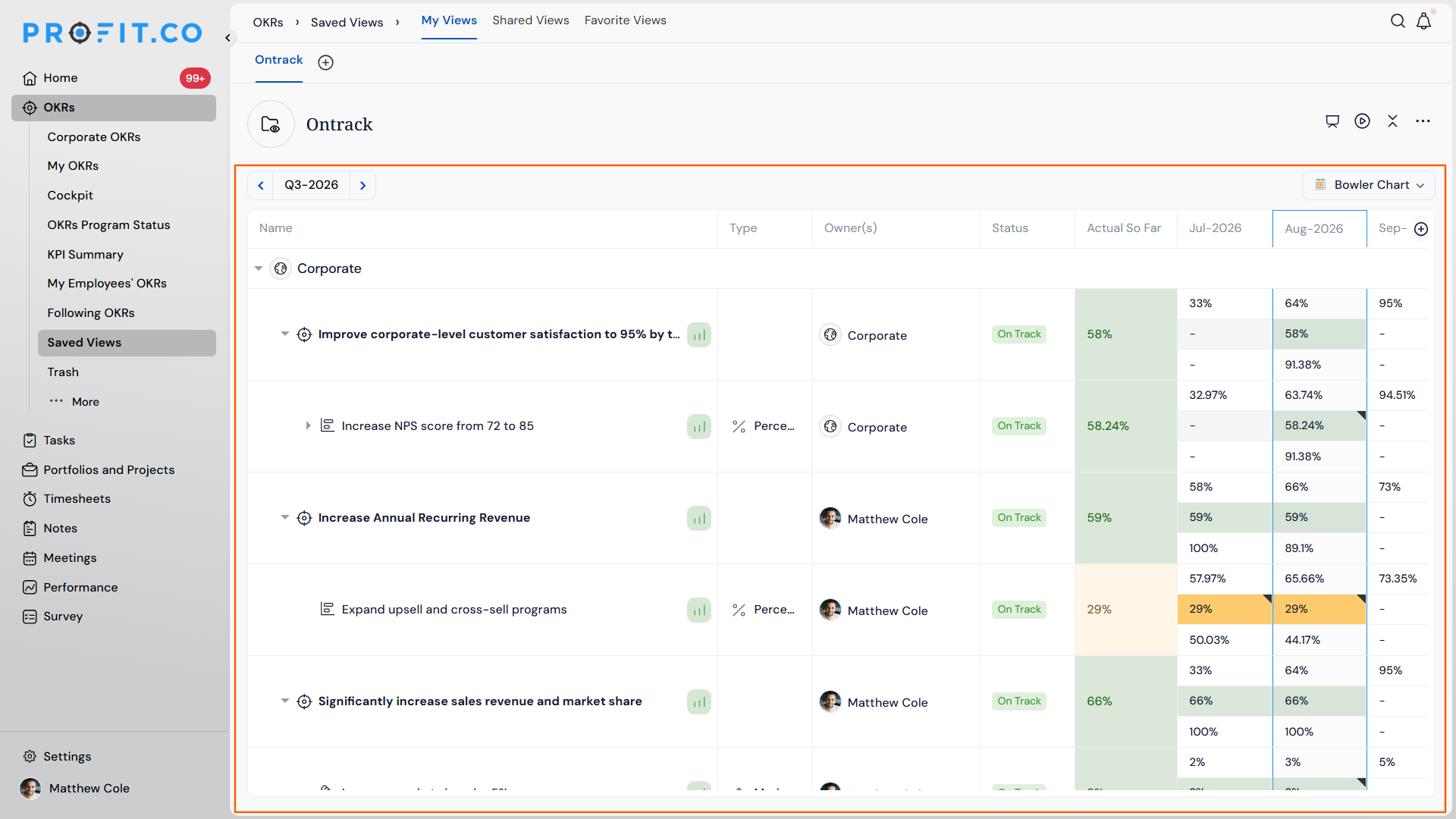
| Broader visualization options | The Bowler Chart adds a period-over-period view without leaving the Saved Views page. |
| Easier team alignment | Shared Saved Views let colleagues reference the same filtered OKR set without rebuilding it. |
How It Works
Method 1: Create a Saved View
Step 1
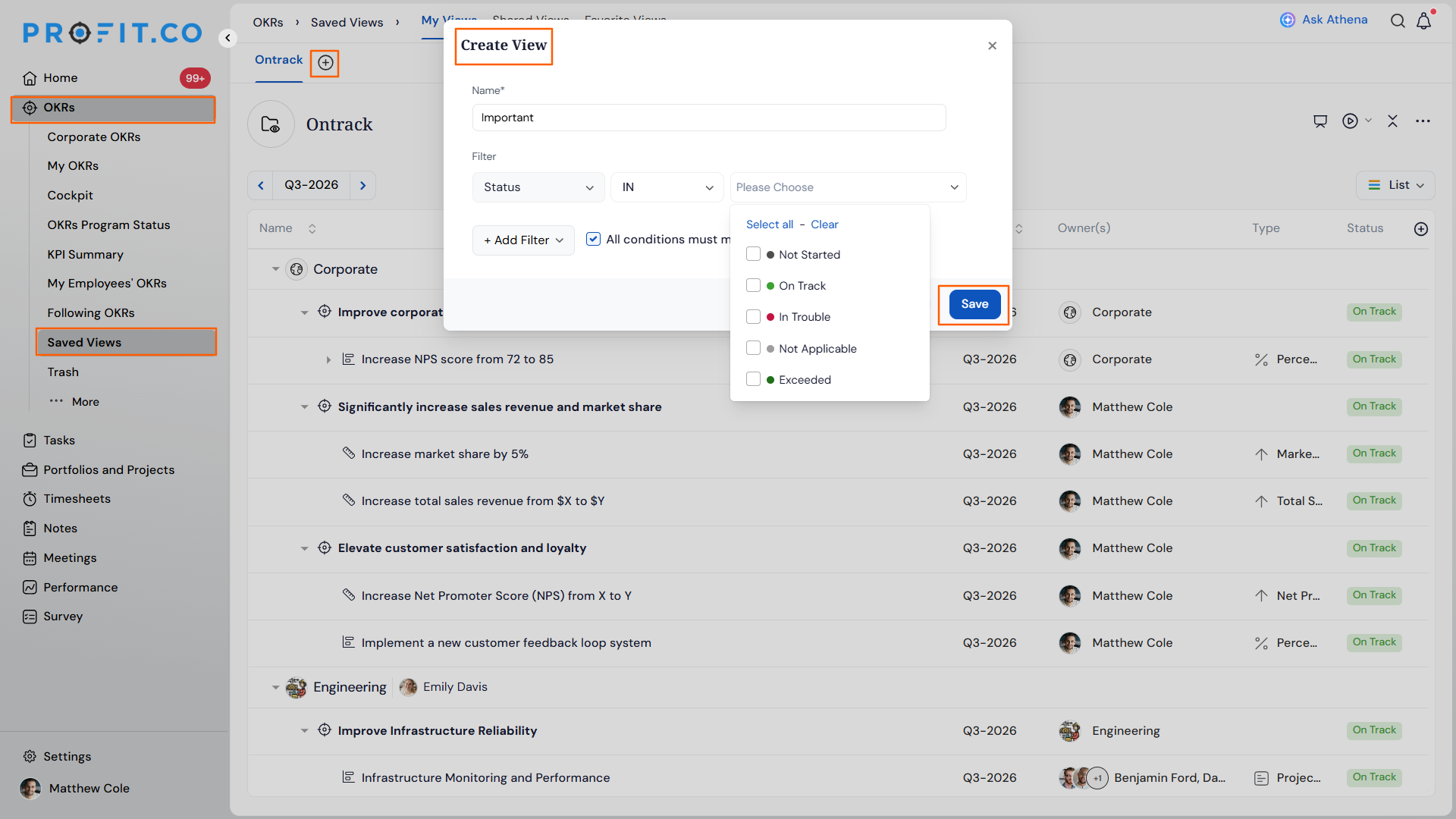
- Navigate to OKRs → Saved Views from the left navigation panel.
- Click the + icon on the Saved Views page.
- Enter a name for the view.
- Apply filters such as Status, Tag, Owner, Progress, Label, or Levels (for example, filter by department levels to view specific Department OKRs).
- Click Save.
Note
The OKR list behind the filter panel updates in real time as you add or adjust filter conditions, before you click Save. This applies when creating or editing a Saved View.
Method 2: Reorder Saved Views with Drag and Drop
Step 1
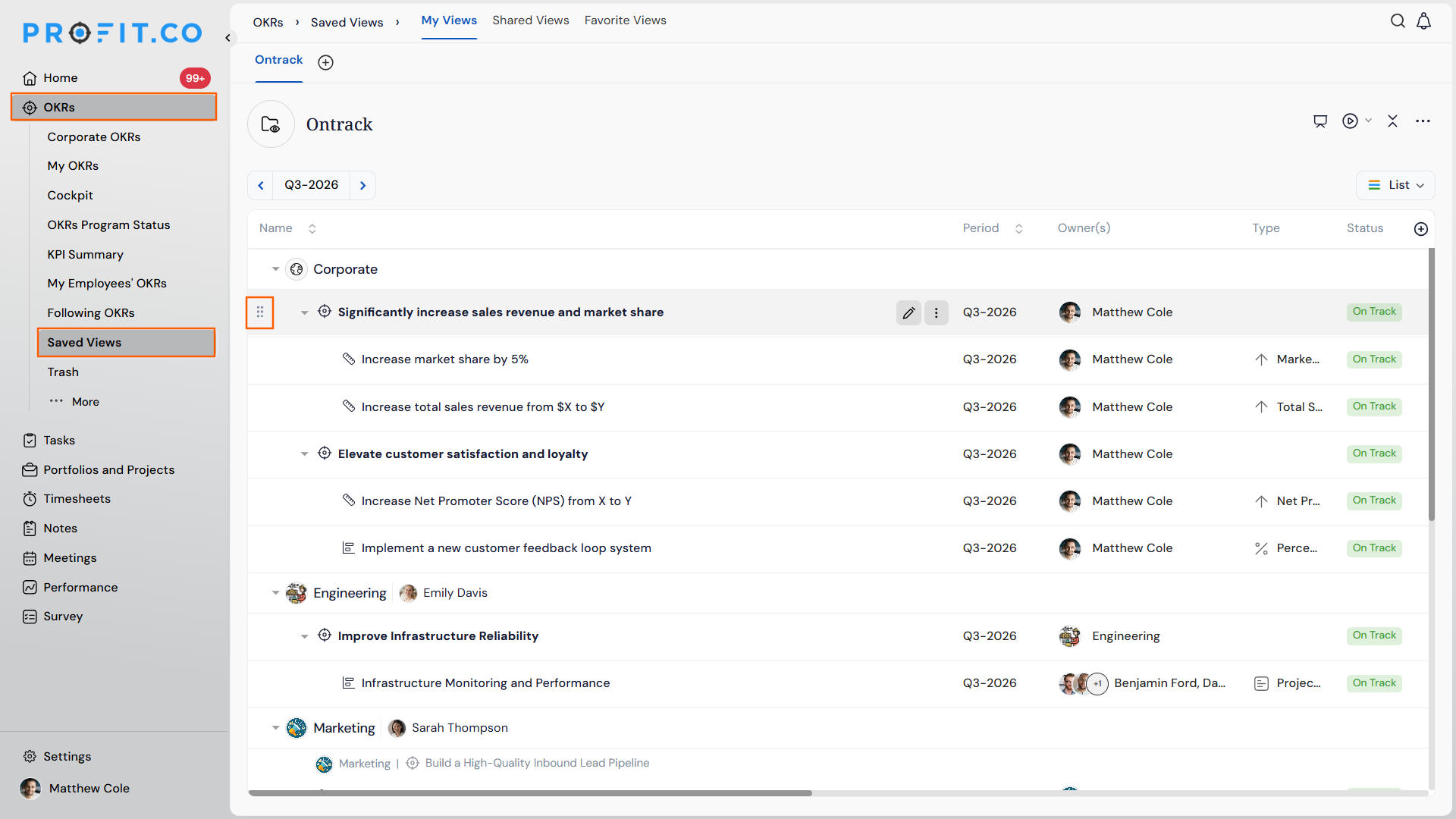
- Navigate to OKRs → Saved Views from the left navigation panel.
- Click and hold the drag handle next to any saved view.
- Drag the view to the desired position in the list.
- Release to drop it into place.
Method 3: Switch to Bowler Chart View
Step 1
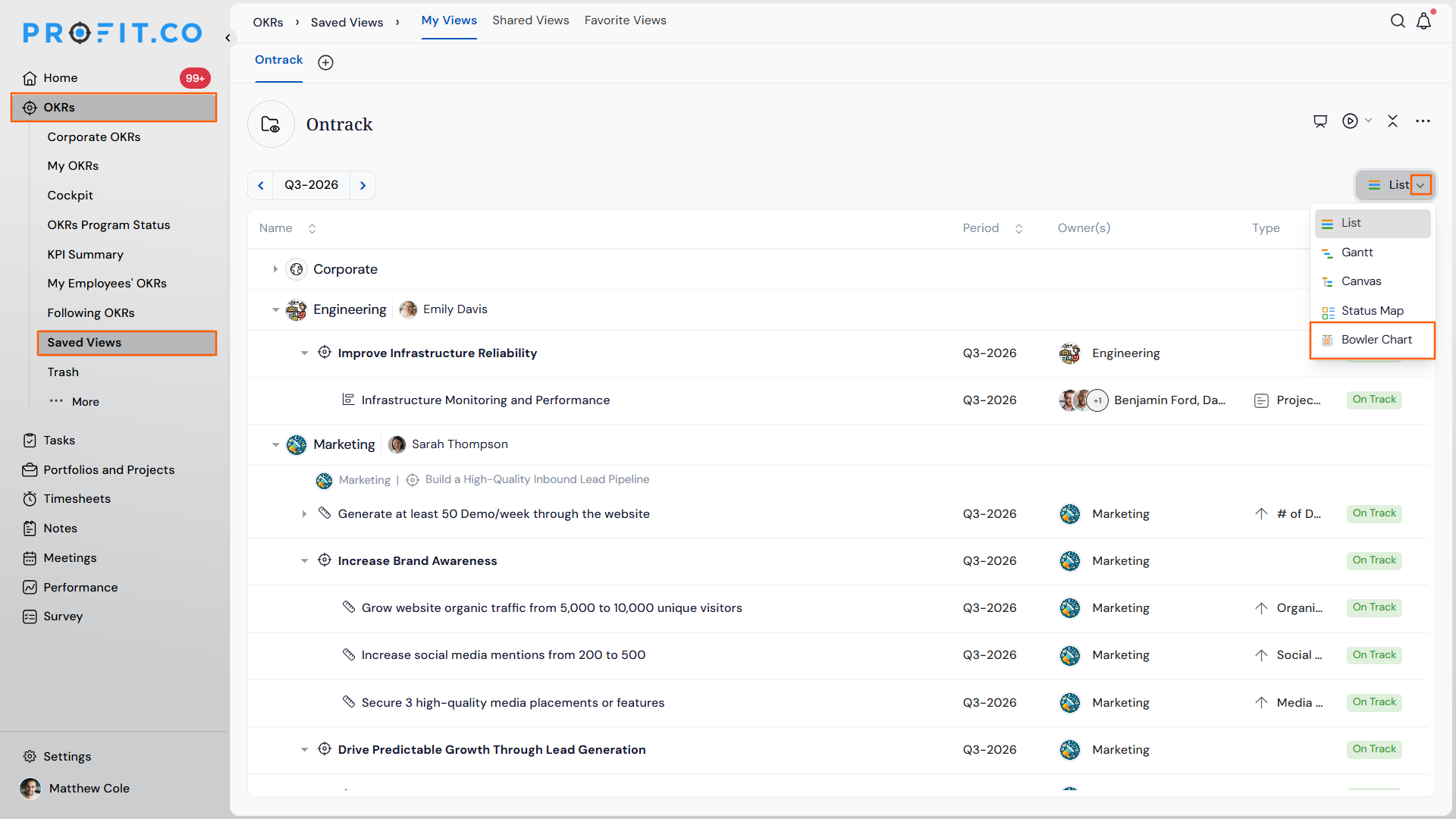
- Navigate to OKRs → Saved Views.
- Select Bowler Chart as the view type.
Saved View Scenarios and Their Outcomes
| Scenario | What Happens |
|---|---|
| You reorder a Saved View using drag and drop. | Profit.co saves the new position automatically as soon as you release it. |
| You reorder a Saved View that is shared with other users. | The new position applies only to your own list and does not change the order for other users who access the same Saved View. |
| You switch a Saved View's chart type to Bowler Chart. | Profit.co displays that view in Bowler Chart format only for you and leaves the chart type unchanged for other users who open the same Saved View. |
| You reorder a Saved View or change its chart type. | The Saved View's filters, Objectives, and Key Results stay exactly the same, and only the display order or chart format updates. |
| You add a Saved View to Favorites. | Profit.co lists the view under the Favorites View section for quick access. |
| You export a Saved View as a presentation. | The exported presentation displays the Saved View's name on the first slide instead of the creator's username. |
Best Practices for Saved Views
- Reorder your Saved Views by which filters you check most often. Position changes apply only to your own list, so you won't disrupt teammates using the same shared view.
- Don't worry about your underlying filters when you drag a view or switch its chart type. The Status, Tag, and Owner criteria you saved stay untouched.
- Add high-traffic Saved Views to Favorites so they surface in the Favorites View section, separate from the ordering you set in the main Saved Views list.
- Switch to Bowler Chart for period-over-period reviews and back to your default chart when you need to keep filtering data day to day.
- Rename Saved Views before exporting them as presentations, since the exported slide shows the Saved View's name rather than your username.
Related Articles
Frequently Asked Questions
Yes. Apply the Levels filter when creating the Saved View to narrow results to a specific department.
No. The Bowler Chart is available directly within your existing Saved Views, alongside the other chart options already on the page.
Yes. Removing a view from Favorites only affects its Favorites listing. The Saved View itself remains available under Saved Views until you delete it separately.
Execute your strategy with confidence
Connect OKRs, tasks, and teams in one place with Profit.co
