

Timeline Cascading lets a date change on a task or milestone propose matching date updates to its parent milestone and project. You review the proposed dates and choose whether to apply, skip, or cancel the change before anything is saved.
Table of Contents
What is Timeline Cascading?
Timeline Cascading is a project-hierarchy synchronization mechanism in the PPM module that recalculates parent milestone and project dates whenever a child task or milestone's start or end date changes. It runs on the Adjust Parent Dates from Children toggle, which applies to both tasks and milestones as trigger points.
Note
Adjust Parent Dates from Children is separate from Cascade date changes to children, which pushes a parent's date change down to its child tasks and milestones instead.
Why Timeline Cascading Matters?
Before this feature, a task or milestone slipping its date left the parent milestone and project timeline unchanged, so the schedule shown at the top no longer reflected what was actually happening underneath. Timeline Cascading closes that gap by proposing the matching parent shift at the moment the child date changes.
The Timeline Adjustment Preview shows exactly which dates would move and by how much before anything is saved, so a change to one task cannot silently push out a milestone or project deadline. Layering Enable Approval Flow on top keeps that authority with the parent record's owner instead of the person editing the child.
How It Works?
Step 1
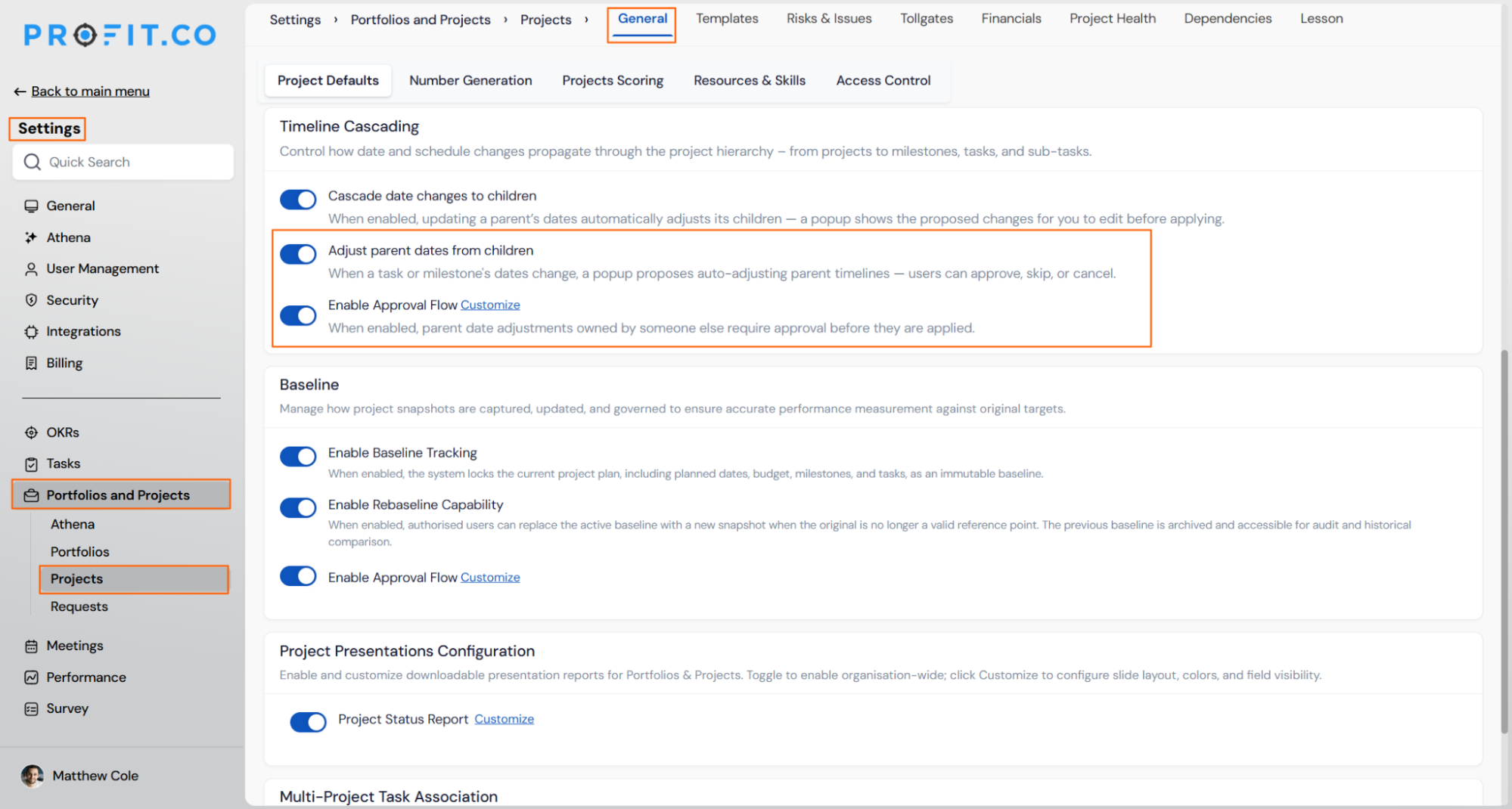
- Navigate to Settings → Portfolios and Projects → General → Timeline Cascading.
- Turn on the Adjust Parent Dates from Children toggle.
- Optionally, turn on Enable Approval Flow if parent date changes owned by other users should require review.
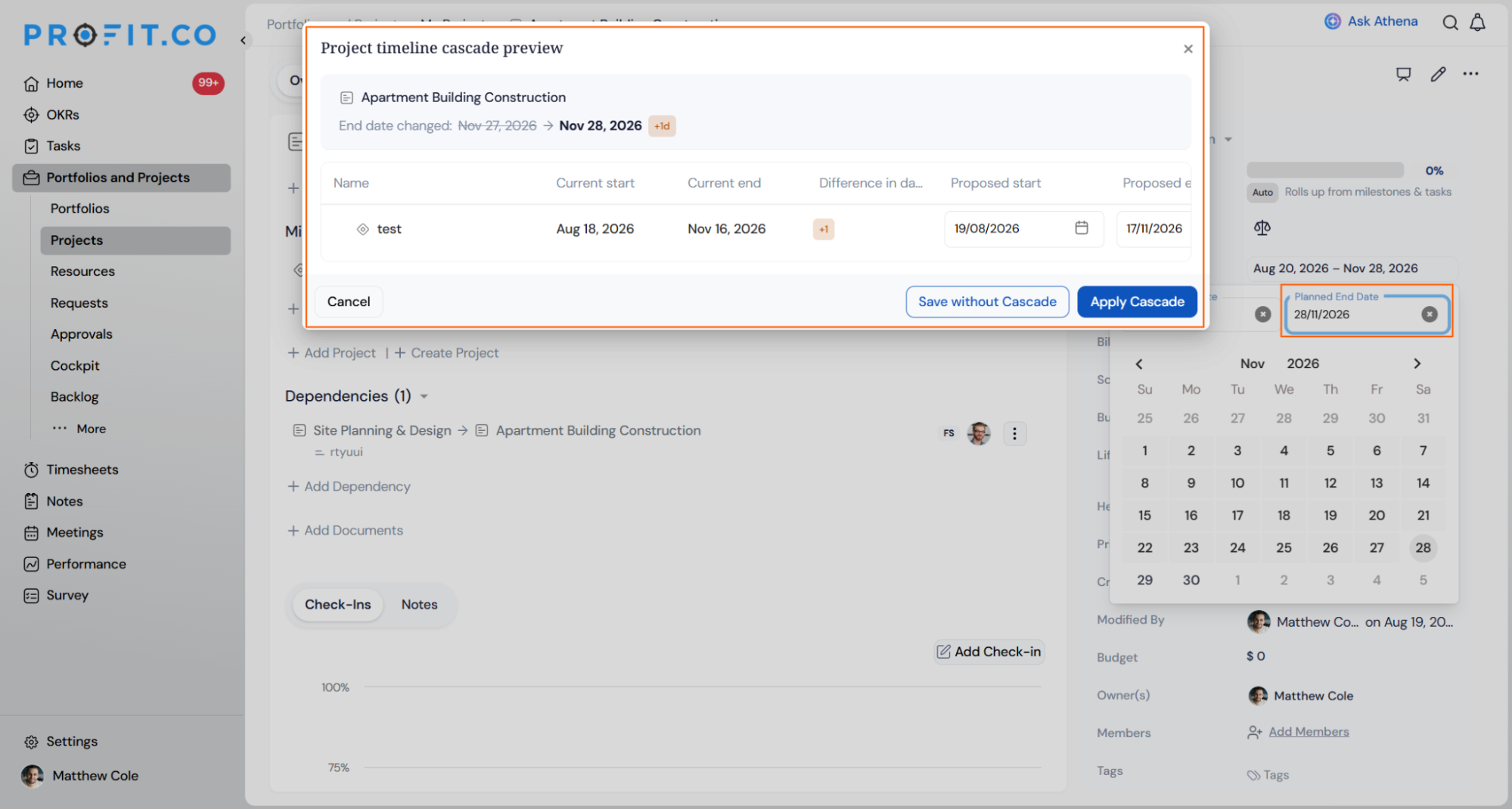
- Open the task or milestone whose schedule needs to move.
- Update its start date, end date, or both.
- Check the Timeline Adjustment Preview popup for the planned and proposed dates.
- Select Apply Adjustments to cascade the change to every checked parent record.
- Select Skip Adjustments to save only the child's new date.
- Select Cancel to discard the date change entirely.
Timeline Cascading Scenarios and Their Outcomes
[Content for this section — the scenarios and outcomes table — was not included in the source document. Please add it before publishing.]
Best Practices for Timeline Cascading
- Turn on Enable Approval Flow before rolling this out broadly, since cascades to parent records owned by other people will otherwise apply immediately without any owner review.
- Use the checkbox selection in the Timeline Adjustment Preview to exclude a parent milestone from a cascade when only one child's schedule actually slipped, rather than accepting every proposed shift by default.
- Reserve Skip Adjustments for isolated child date changes, such as a one-off task delay, that shouldn't ripple into a milestone or project date the team has already committed to.
- Confirm the proposed dates in the preview against your actual project commitments before selecting Apply Adjustments, since the update carries no built-in undo.
- Let parent milestone owners know they'll be notified directly whenever Enable Approval Flow is off, so they recognize a schedule shift already happened rather than expecting an approval request.
Related Articles
- How to create a Project in the PPM module?
- How do I enable the Portfolios and Projects module in Profit.co?
Frequently Asked Questions
No. This feature covers Adjust Parent Dates from Children only. A separate toggle, Cascade date changes to children, moves a parent's date change down to its child tasks and milestones.
You can choose. The Timeline Adjustment Preview lists every affected parent milestone and project with a checkbox, so you can include or exclude specific records before applying.
No. An approval request is only created when the affected parent record is owned by someone other than the person applying the adjustment.
Both. A date change on either a task or a milestone can trigger the Timeline Adjustment Preview for its parent milestone and project.
Execute your strategy with confidence
Connect OKRs, tasks, and teams in one place with Profit.co
