

The Expenses setting in Project Financial Settings controls whether Super Users can track and record project-related expenses.
Table of Contents
What is the Expense Category?
The Expense Category is a toggle in a project's Financial Settings that determines whether the Expenses tab appears in project navigation and whether Bill of Quantity (BOQ) line items record actual spend. When enabled, the Expenses tab is visible and BOQ items track both planned cost and actual spend against it.
Why the Expense Category Matters
The Expense Category setting gives Super Users direct control over how granular financial tracking is for a project, without requiring a support ticket or a configuration change at the account level.
| Benefit | Description |
|---|---|
| No accidental data loss | A confirmation step prevents a single toggle click from unintentionally hiding expense tracking across every project. |
| Clear impact summary upfront | The confirmation popup states the navigation, BOQ recording, and data retention effects before the change is confirmed. |
| Safe to reverse | Existing expense records are preserved when the setting is disabled and reappear once it is re-enabled. |
How It Works
Enable the Expense Category
Step 1
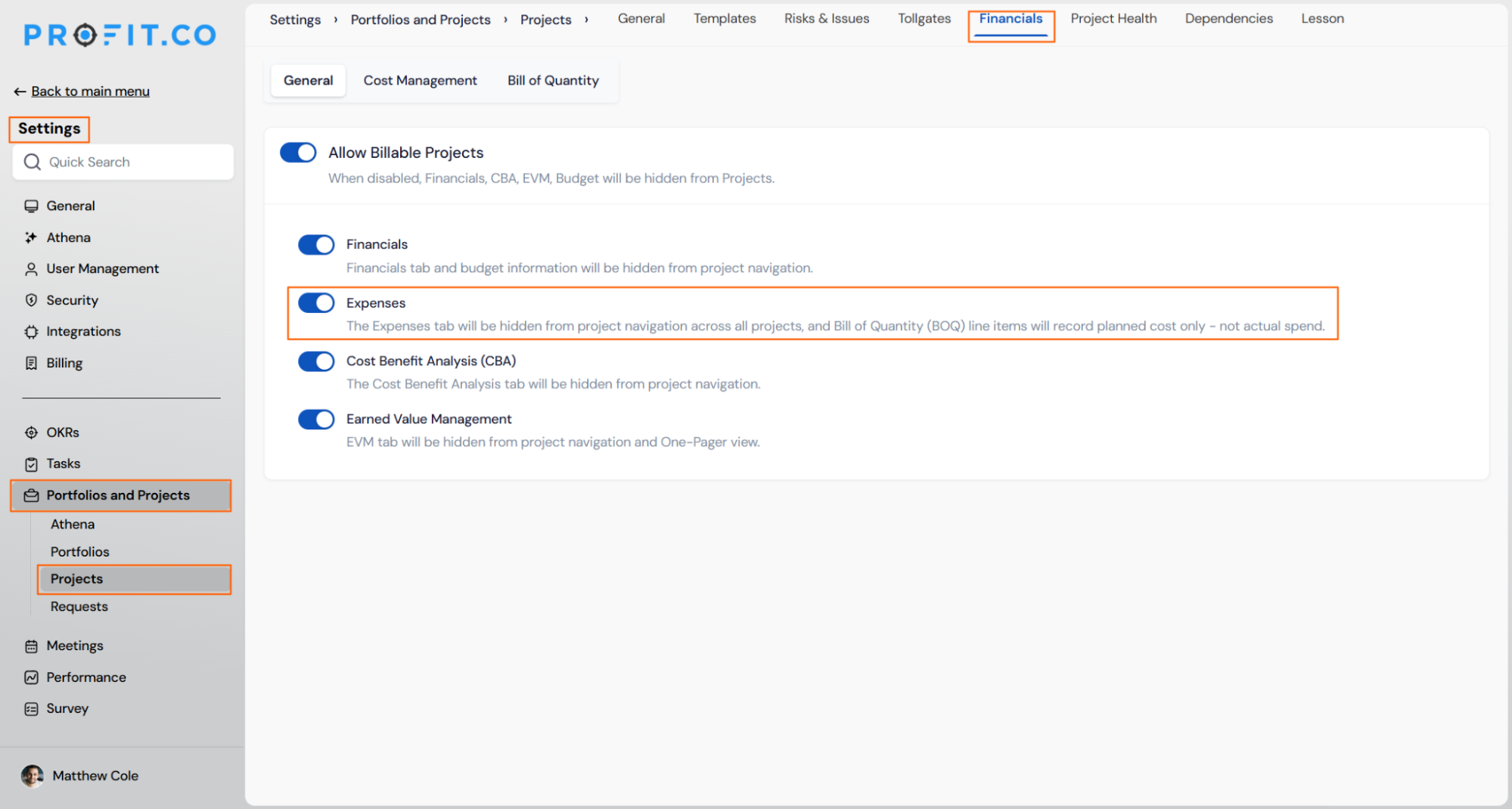
- Navigate to Settings → Portfolios and Projects → Projects → Financials.
- Toggle on the Expenses option.
- The Expenses tab becomes visible in project navigation immediately, with no confirmation step required.
Disable the Expense Category
Step 1
- Navigate to Settings → Portfolios and Projects → Projects → Financials.
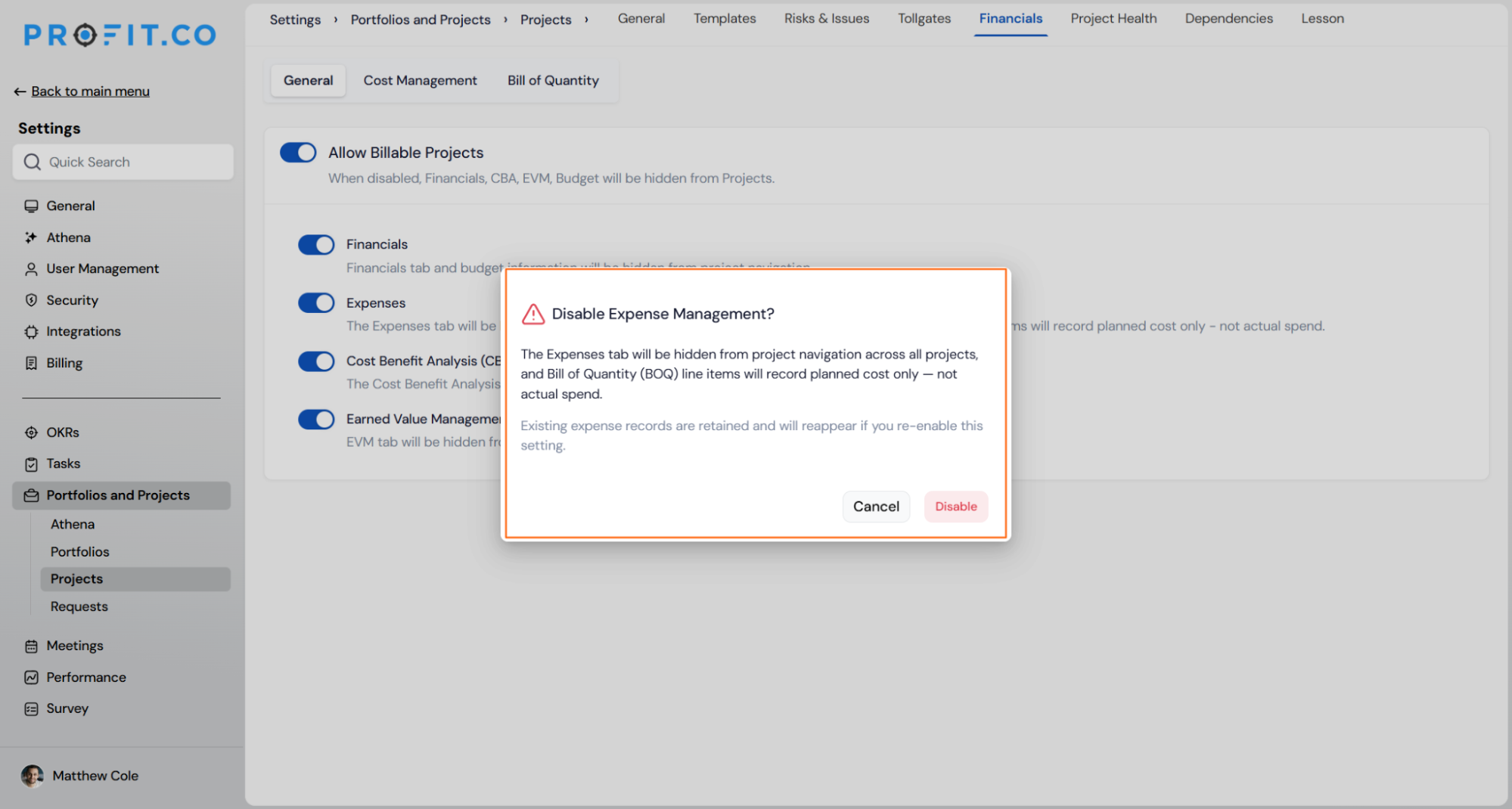
- Toggle off the Expenses option.
- Review the confirmation popup, which explains that the Expenses tab will be hidden across all projects and that BOQ line items will record planned cost only.
- Select Disable to confirm the change, or Cancel to leave the setting unchanged.
Expense Category Scenarios and Their Outcomes
These outcomes describe what changes in your project data, history, and downstream records when you enable or disable the Expense Category, separate from the click-by-click steps above.
| Scenario | What Happens |
|---|---|
| You re-enable the Expense Category after it was previously disabled. | Profit.co restores the Expenses tab to project navigation and displays the previously retained expense records with no data loss. |
| You disable the Expense Category and confirm the popup. | Profit.co hides the Expenses tab from navigation across all projects and switches Bill of Quantity line items to record planned cost only, not actual spend. |
| You disable the Expense Category while expense records already exist. | Profit.co retains those expense records in the background without deleting them, ready to reappear if the setting is re-enabled. |
| You select Cancel on the confirmation popup. | Profit.co leaves the Expense Category setting unchanged and keeps the toggle in its original position. |
Best Practices for the Expense Category
- Confirm with other Super Users before disabling the setting, since the change hides the Expenses tab across every project, not just the one you are configuring.
- Review open Bill of Quantity line items before disabling, since they will only record planned cost, not actual spend, while the setting is off.
- Use Cancel on the confirmation popup if you are not certain, since it leaves the setting untouched and gives you time to check with your team first.
- Re-enable the setting through the same Financial Settings path if the Expenses tab is hidden by mistake, since retained records reappear without needing re-entry.
- Limit Super User role assignment carefully, since only Super Users can change this setting and its effect spans the full project portfolio.
Related Articles
- What is Budget Management in the PPM module?
- How do I Use Bill of Quantities (BOQ) in Profit.co?
- How to change user status, from user to super user in Profit.co?
Frequently Asked Questions
Only Super Users can access and change this option in Project Financial Settings.
The popup appears only when disabling the Expense Category. Enabling the setting takes effect immediately with no confirmation step.
Although you access the toggle from an individual project's Financial Settings, disabling it hides the Expenses tab across all projects, not just the one you are editing.
Execute your strategy with confidence
Connect OKRs, tasks, and teams in one place with Profit.co
