

Task Health Status automatically evaluates whether a task is on track using rules specific to its current status stage. You configure it under Settings, so every task moving through Not Started, Scheduled, In Progress, or Completed gets a stage-appropriate health signal instead of a single generic flag.
Table of Contents
- What is Task Health Status?
- Why Does Task Health Status Matter?
- How Do I Set Up Task Health Status?
- What Happens When You Use Task Health Status?
- How Are In Progress Velocity Bands Calculated?
- What Are the Best Practices for Task Health Status?
- Related Articles
- What Are Some Frequently Asked Questions About Task Health Status?
What is Task Health Status?
Task Health Status is a per-stage indicator Profit.co calculates automatically for a task, evaluating schedule and progress health differently depending on whether the task is Not Started, Scheduled, In Progress, or Completed. Each of the four default task statuses runs its own calculation logic and carries its own named health values.
An Enable Automatic Health Status toggle governs each stage independently. The In Progress stage additionally supports a choice of calculation method and Velocity Bands, which map progress ranges to as many health statuses as you configure.
| Task Status | What It Measures | Default Health Values |
|---|---|---|
| Not Started | Whether the planned start date matches the actual start date, or today's date if work hasn't begun | On Time to Start, Delay to Start |
| Scheduled | Actual progress against progress expected evenly across the stage duration | Scheduled On Time, Scheduled Delay |
| In Progress | Actual Progress ÷ Planned Progress × 100 (Progress Based), or logged time against planned effort (Time Tracking), matched against Velocity Bands | In Trouble, At Risk, On Track |
| Completed | Scheduled completion date against actual completion date | Completed On Time, Completed Delay |
Why Does Task Health Status Matter?
Without stage-specific rules, a task marked In Progress gives no signal on whether it is actually behind. Task Health Status closes that gap by comparing planned dates or progress against actual figures directly on the Statuses page, so delays surface without opening each task's timeline individually.
Because In Progress health can run on either Progress Based or Time Tracking logic, teams that plan by percentage complete and teams that plan by logged hours each get an accurate signal instead of being forced onto one calculation method.
How Do I Set Up Task Health Status?
Step 1
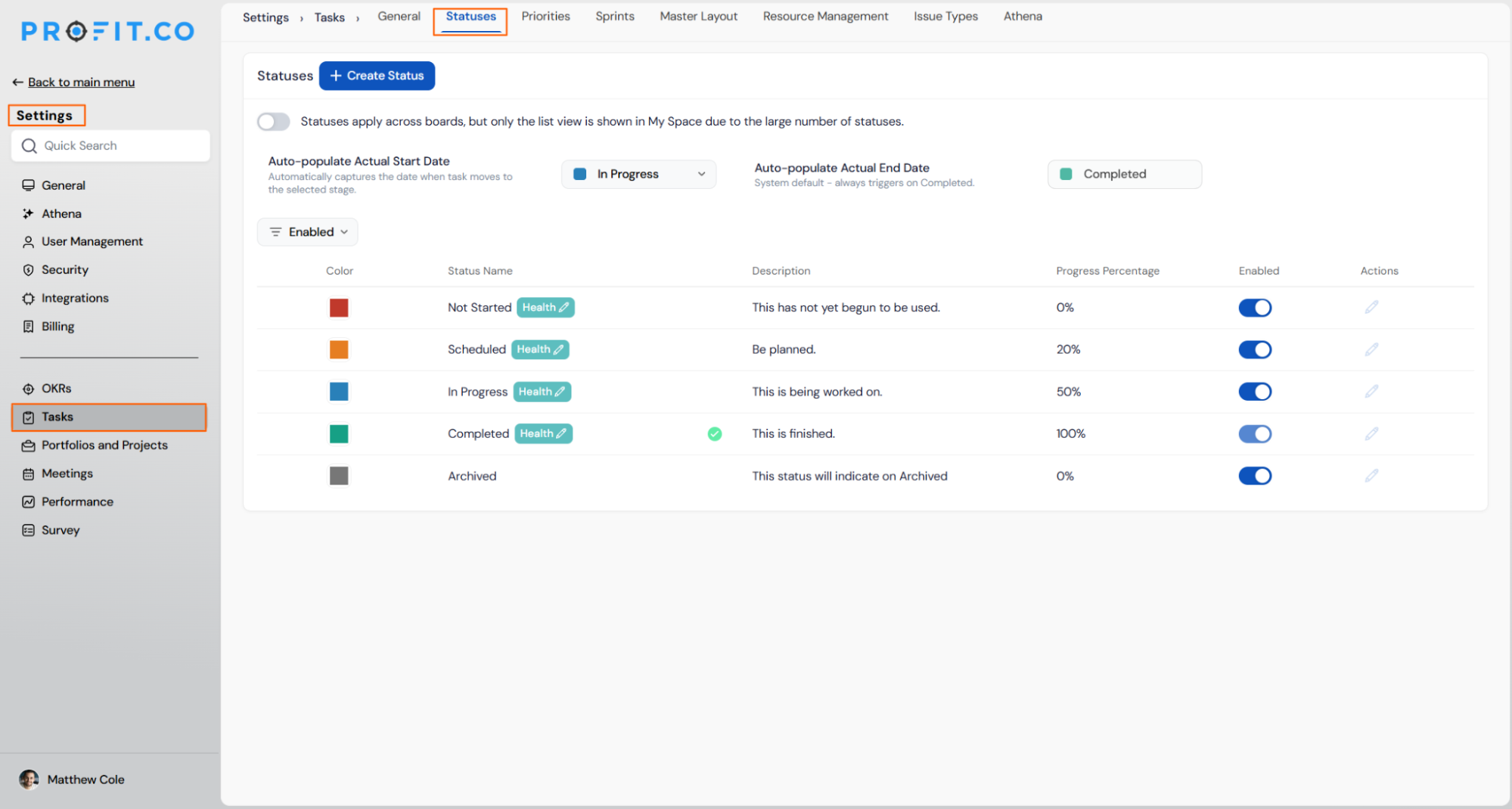
- Go to Settings → Tasks from the left navigation panel
- Switch to the Statuses tab
- Locate the four default statuses: Not Started, Scheduled, In Progress, Completed
Step 2
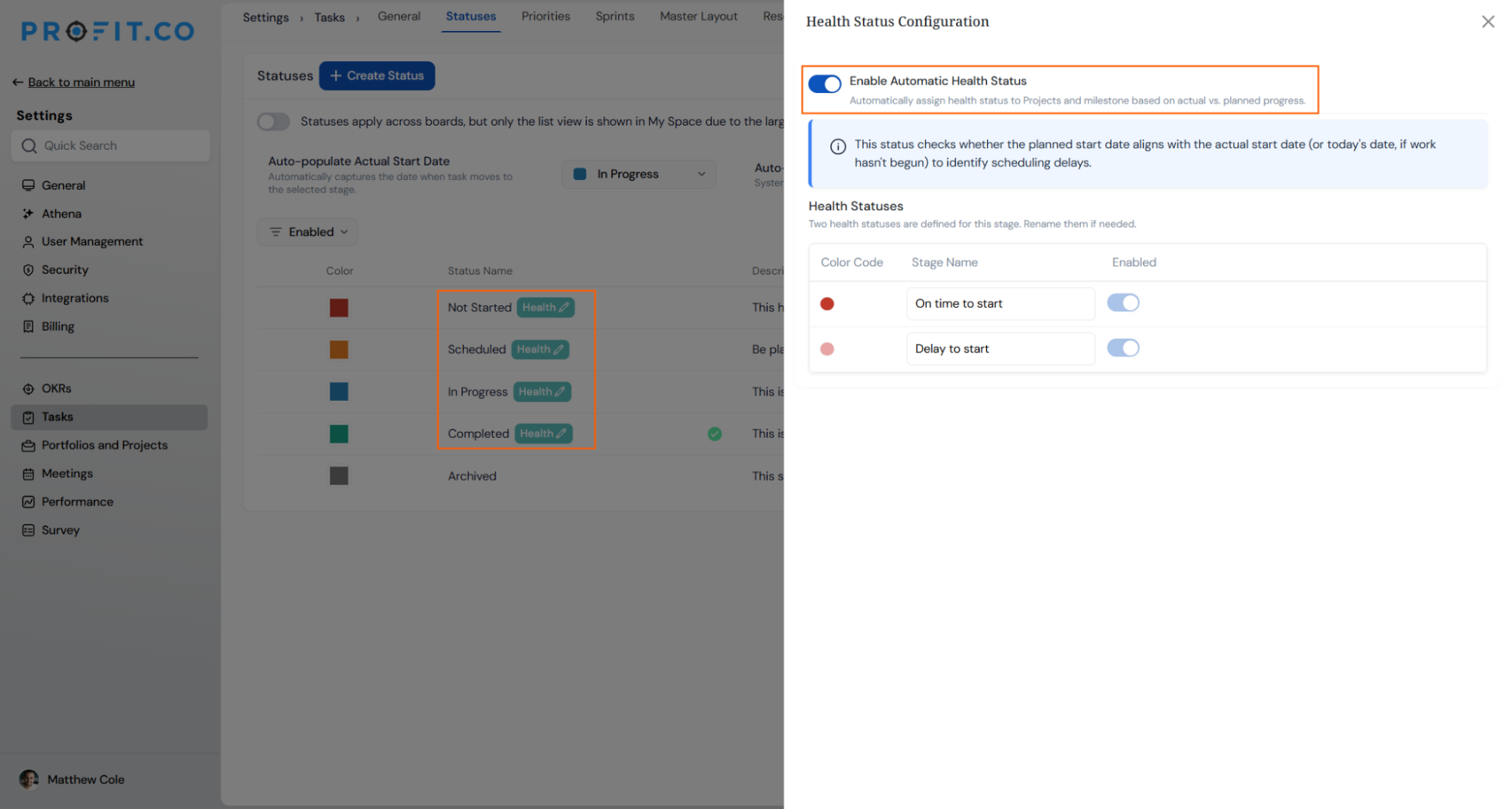
- Click the Health icon next to the status you want to configure
- Turn on Enable Automatic Health Status for that stage
- Review the info panel describing the calculation logic for that stage
- Rename On Time to Start / Delay to Start or Scheduled On Time / Scheduled Delay if needed
- Enable or disable each health status individually
Step 3
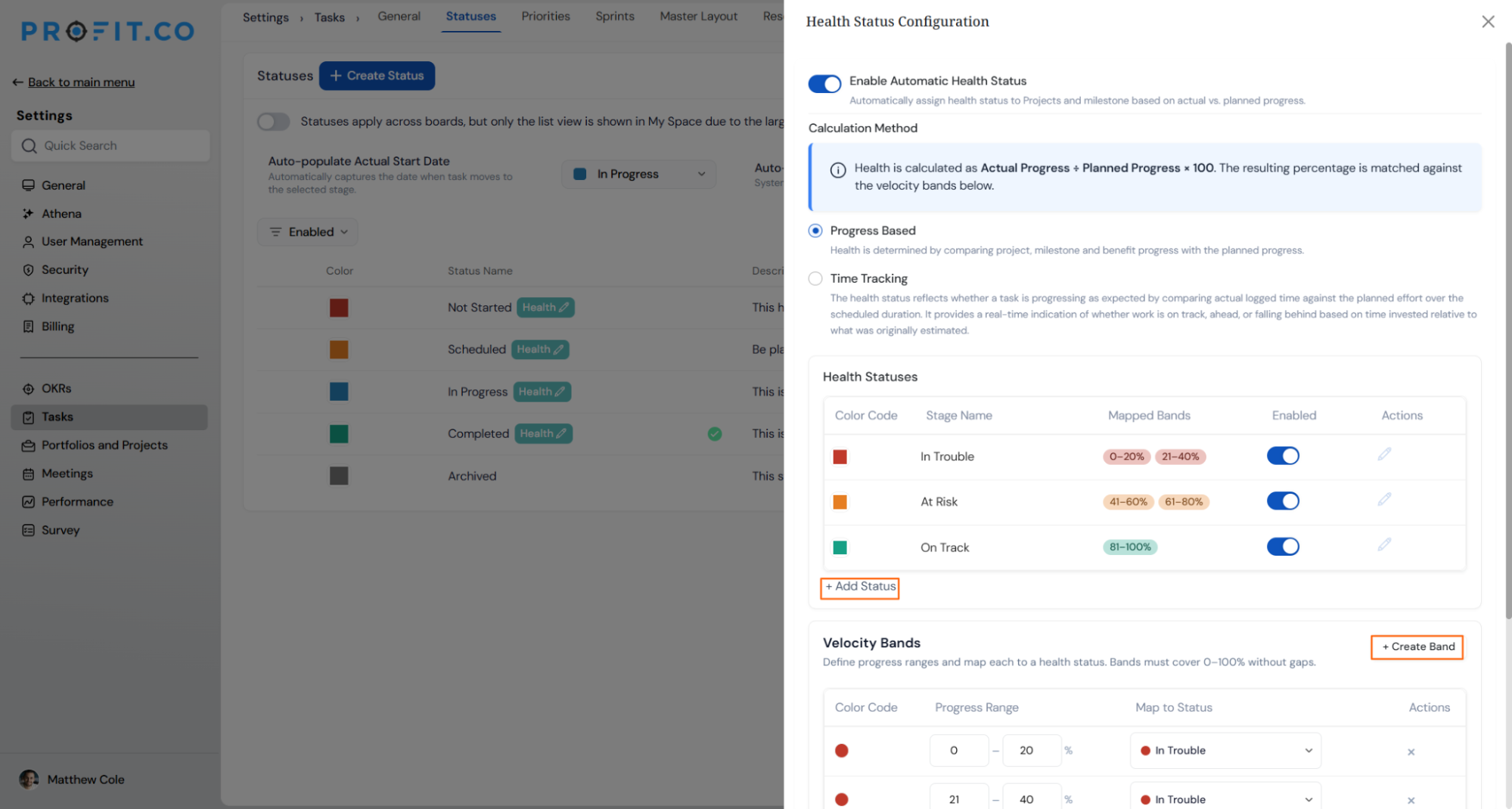
- Choose Progress Based or Time Tracking as the Calculation Method
- Edit the default statuses (In Trouble, At Risk, On Track) or click + Add Status for more
- Click + Create Band to map each progress range to a health status
Step 4
- Review the completion-date logic in the info panel
- Rename or toggle Completed On Time / Completed Delay as needed
Note
You need access to the Tasks settings area to reach the Statuses tab and its Health configuration panels.
What Happens When You Use Task Health Status?
| Scenario | What Happens |
|---|---|
| You enable Automatic Health Status for a task status stage. | Profit.co begins calculating that stage's health value using the stage's own logic, whether dates, progress, or logged time, instead of leaving the field unset. |
| You disable Automatic Health Status for a task status stage. | Profit.co stops calculating that stage's health value going forward. |
| You rename a health status label, such as On Time to Start. | Profit.co updates only the displayed label and keeps the underlying calculation logic for that stage unchanged. |
| You define Velocity Bands for In Progress health. | Profit.co requires the bands to cover the full 0 to 100 percent range without gaps, since it matches the Actual Progress ÷ Planned Progress × 100 result against them to assign a status. |
| You add a new health status with + Add Status on In Progress health. | Profit.co lists it as a selectable status that you then map to a progress range using + Create Band. |
How Are In Progress Velocity Bands Calculated?
When Progress Based is selected as the Calculation Method, Profit.co runs the formula Actual Progress ÷ Planned Progress × 100 and matches the resulting percentage against the configured Velocity Bands. When Time Tracking is selected instead, Profit.co compares actual logged time against the planned effort over the scheduled duration to produce the same three-tier health signal.
The default band mapping ships as follows, and you can adjust the ranges or add bands with + Create Band as long as the full 0 to 100 percent range stays covered:
| Progress Range | Health Status |
|---|---|
| 0% to 20% | In Trouble |
| 21% to 40% | In Trouble |
| 41% to 60% | At Risk |
| 61% to 80% | At Risk |
| 81% to 100% | On Track |
What Are the Best Practices for Task Health Status?
- Pick Time Tracking as the In Progress calculation method only if your teams log hours consistently, since that logic compares actual logged time against planned effort rather than percentage complete.
- Keep Velocity Bands covering the full 0 to 100 percent range without gaps before you finish configuring, since the Progress Based formula result is matched against these bands to assign a status.
- Configure Not Started and Completed health even if In Progress feels like the priority, since those two stages flag scheduling delays before and after the active work window.
- Rename default health labels, such as Scheduled On Time, to match your team's terminology early, since the calculation logic stays tied to the stage regardless of the label you choose.
- Review the At Risk and In Trouble band boundaries against your team's typical task duration, since narrow bands can flag tasks as In Trouble earlier than a manager expects.
Related Articles
- How to edit task status?
- How do I configure Project Health Status in Profit.co?
- I want to add a new status to my tasks. How can I do it?
What Are Some Frequently Asked Questions About Task Health Status?
No. Task Health Status uses the stage-specific rules described in this post. Project and portfolio health is configured separately under Project Health Status.
Based on the configuration panels, those three stages ship with two fixed statuses each. Only the In Progress panel shows a + Add Status control for adding more.
No. The Calculation Method selector only appears in the In Progress health panel and has no effect on the other three stages.
No. Each stage's Enable Automatic Health Status toggle is independent, so you can turn on health calculation for a single stage without configuring the others.
Execute your strategy with confidence
Connect OKRs, tasks, and teams in one place with Profit.co
