





Profit.co empowers users to create and assign tasks to team members directly through the mobile application.
What is the Assign Tasks to Others Feature?
The Assign Tasks to Others feature allows users to create new tasks and delegate them to specific employees or team members using the mobile application. This functionality includes setting task details such as descriptions, due dates, priorities, and ownership assignment. Users can also track assigned tasks through the "My Tasks for Others" view, providing visibility into delegated work and enabling effective follow-up on task completion.
Why Use the Assign Tasks to Others Feature?
- Mobile Accessibility: Mobile phones have become indispensable business tools, enabling work management anytime, anywhere
- Efficient Delegation: Allows managers to assign work immediately after meetings, calls, or when ideas emerge, without waiting for desktop access
- Progress Tracking: Provides visibility into tasks assigned to others, helping managers monitor workload distribution and completion rates
- Enhanced Accountability: Creates clear ownership and expectations by formally assigning tasks with deadlines and priorities
How to Assign Tasks to Others Using Mobile Application
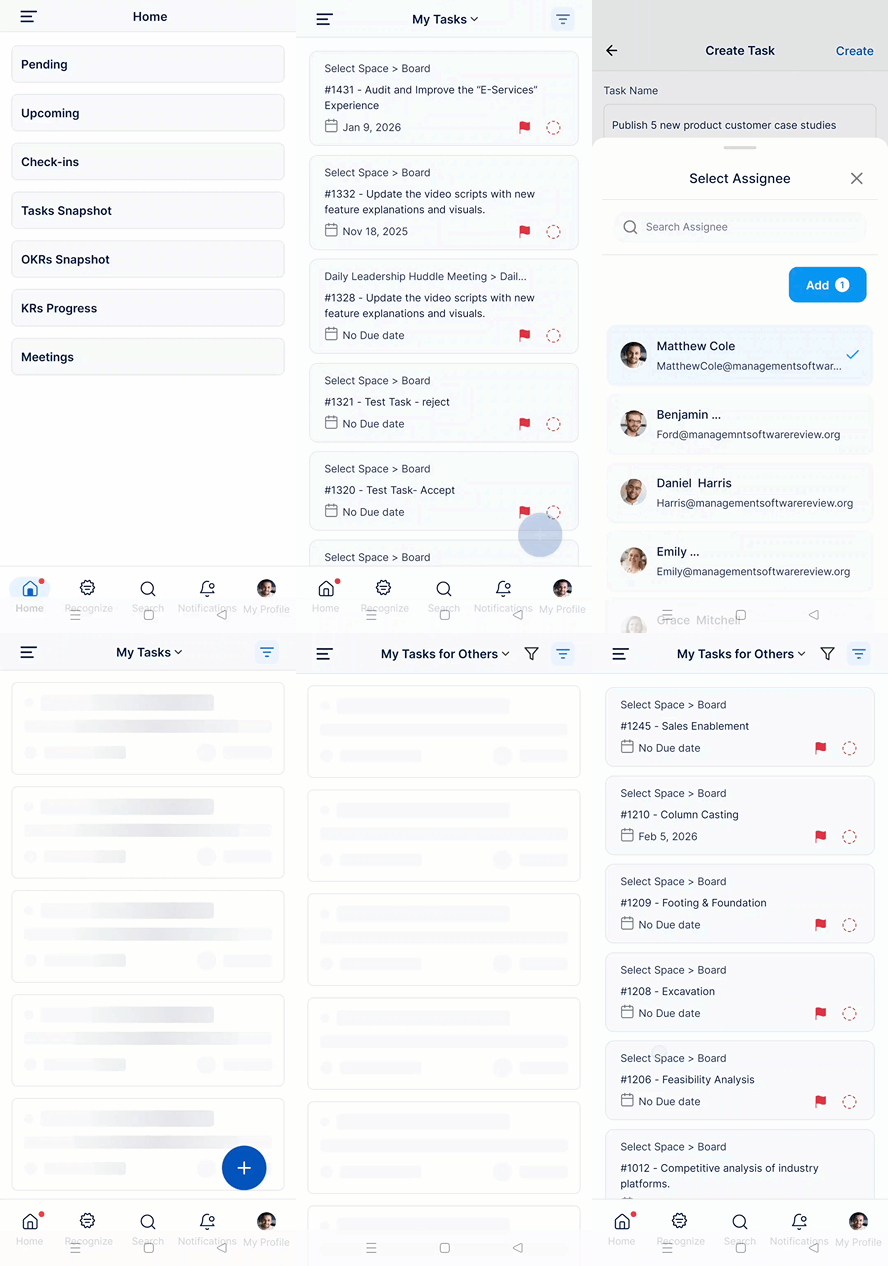
Open the Profit.co mobile application and navigate to Menu from the left navigation panel.
Select Tasks and then choose My Tasks. On the My Tasks page, tap on the + icon to create a new task.
Fill in the task details:
- Task Name: Enter a clear, descriptive title for the task
- Description: (Optional) Add details about what needs to be accomplished
- Due Date: Set the deadline for task completion
- Priority: (Optional) Mark the task as High, Medium, or Low priority
In the task creation form, locate and tap on the Owner field.
Select the employee you want to assign this task to from the list of available users.
Review all task details and tap Create to complete the assignment process.
The assigned employee will receive a notification about the new task.
Note: To view tasks you've assigned to others:
- From the Tasks page, tap the dropdown menu at the top
- Select "My Tasks for Others"
- Choose the employee to whom you have assigned tasks
- View all tasks assigned to that selected user
Best Practices for Assigning Tasks to Others
- Be Specific and Clear: Write task names and descriptions that leave no ambiguity about what needs to be done
- Set Realistic Deadlines: Consider the assignee's current workload and other commitments when setting due dates
- Assign to the Right Person: Match tasks with team members who have the appropriate skills, knowledge, and capacity
- Provide Sufficient Context: Explain why the task matters, how it fits into larger goals, and what success looks like
- Set Appropriate Priorities: Use priority levels consistently to help assignees organize their work effectively
Related Answer Posts
How to create new Workspace and Boards for Tasks through a mobile application, Click Here
Frequently Asked Questions
Typically, tasks have a single owner for clear accountability. However, you can add collaborators or create separate tasks for each team member if work needs to be distributed..
Yes, the assignee receives a notification on their mobile device and/or email (depending on notification settings) when a task is assigned to them.
You can edit the task and change the owner to reassign it to the correct person. Both the original and new assignees will receive notifications.
