

The User Import function lets administrators add multiple users to Profit.co at once by uploading a single CSV file, instead of creating each account individually. Uploading the file also applies each user's assigned roles and reporting relationships automatically as part of the same import.
Table of Contents
What is the User Import Function?
The User Import function is a bulk-upload tool under Settings → User Management → Active Users that creates multiple user accounts from a single CSV file. Instead of creating one user record at a time, you upload a spreadsheet containing each person's details, and Profit.co creates matching accounts in one pass.
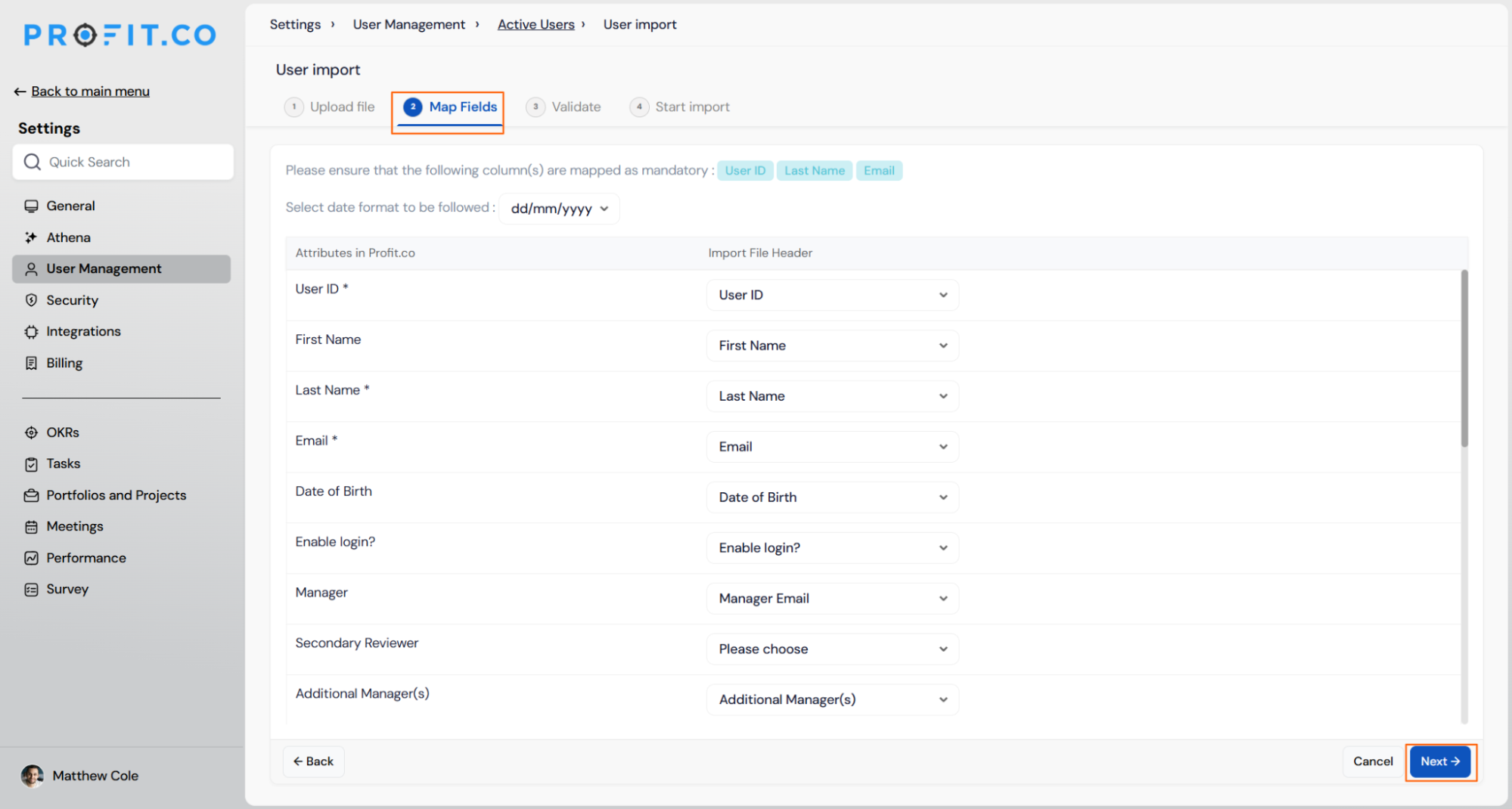
Two columns must be mapped before an import can proceed: Last Name and Email. The table below lists every attribute Profit.co recognizes during mapping.
| Field | Notes |
|---|---|
| First Name | Optional |
| Last Name | Mandatory — must be mapped before import can proceed |
| Enable Login? | Optional — controls whether the imported user can log in |
| Mandatory — must be mapped before import can proceed | |
| Date of Birth | Optional |
| Manager | Optional |
| Department | Optional |
| Job Title | Optional |
| Date of Joining | Optional |
| Last Access Date | Optional |
Note
The import file can also include Add-On Roles for each user, along with Check-in User For, OKR Champion For, and Additional Managers. Uploading the file applies these roles and relationships automatically alongside the user's basic information.
Why the User Import Function Matters
Creating accounts one at a time means re-entering the same fields for every new hire and re-checking each role and reporting line by hand. The User Import function replaces that repetition with a single file, validated once and applied to every row in it.
Because Add-On Roles, Check-in User For, OKR Champion For, and Additional Managers can now be set in the same file, a new hire's access level and reporting relationships are configured in the same step that creates their account, rather than as a separate follow-up task.
How It Works
Uploading and Mapping Your File
Step 1
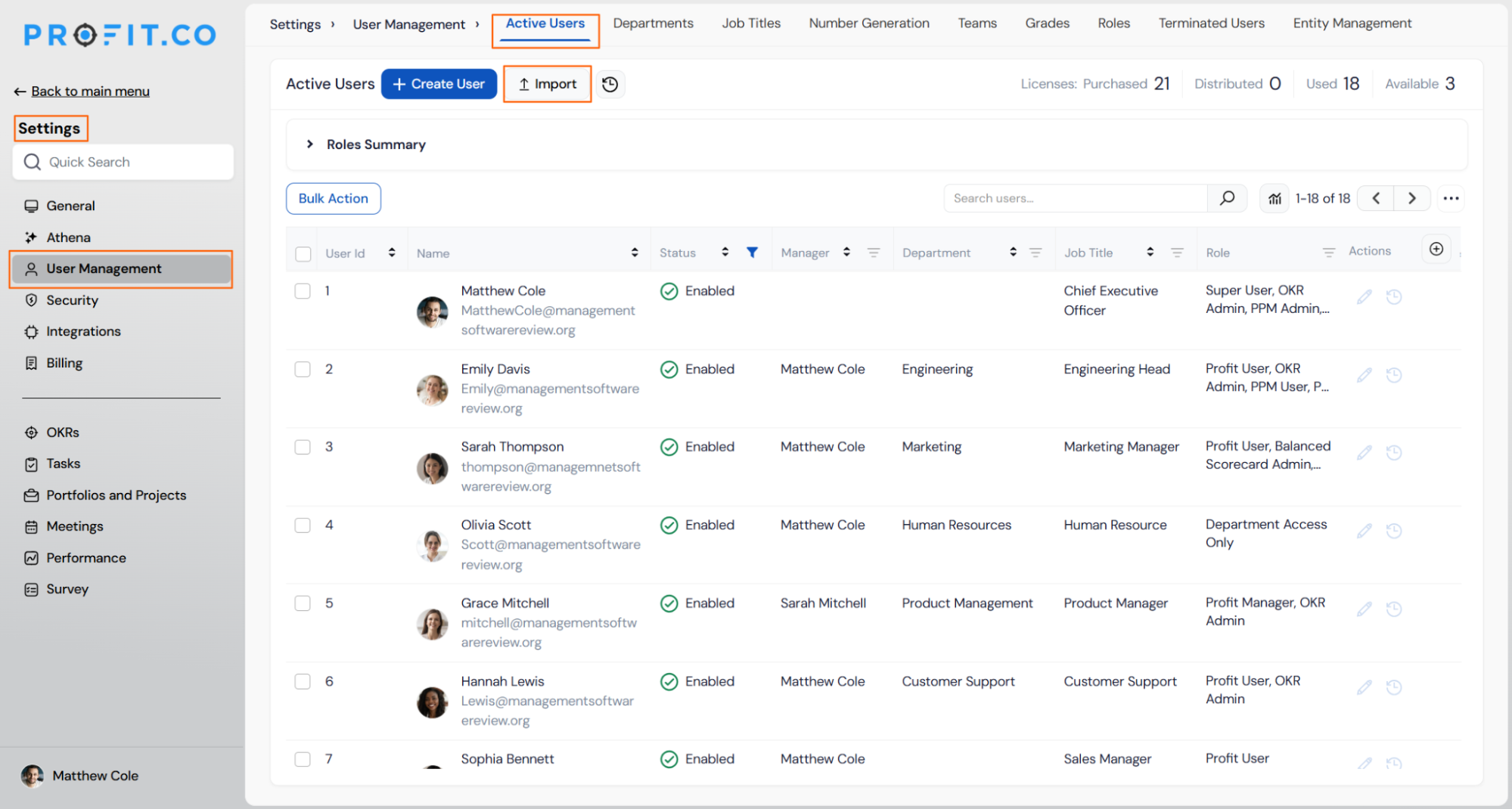
- Navigate to Settings → User Management from the left navigation panel.
- Open the Active Users tab.
- Click Import.
- Click Browse and select your CSV file.
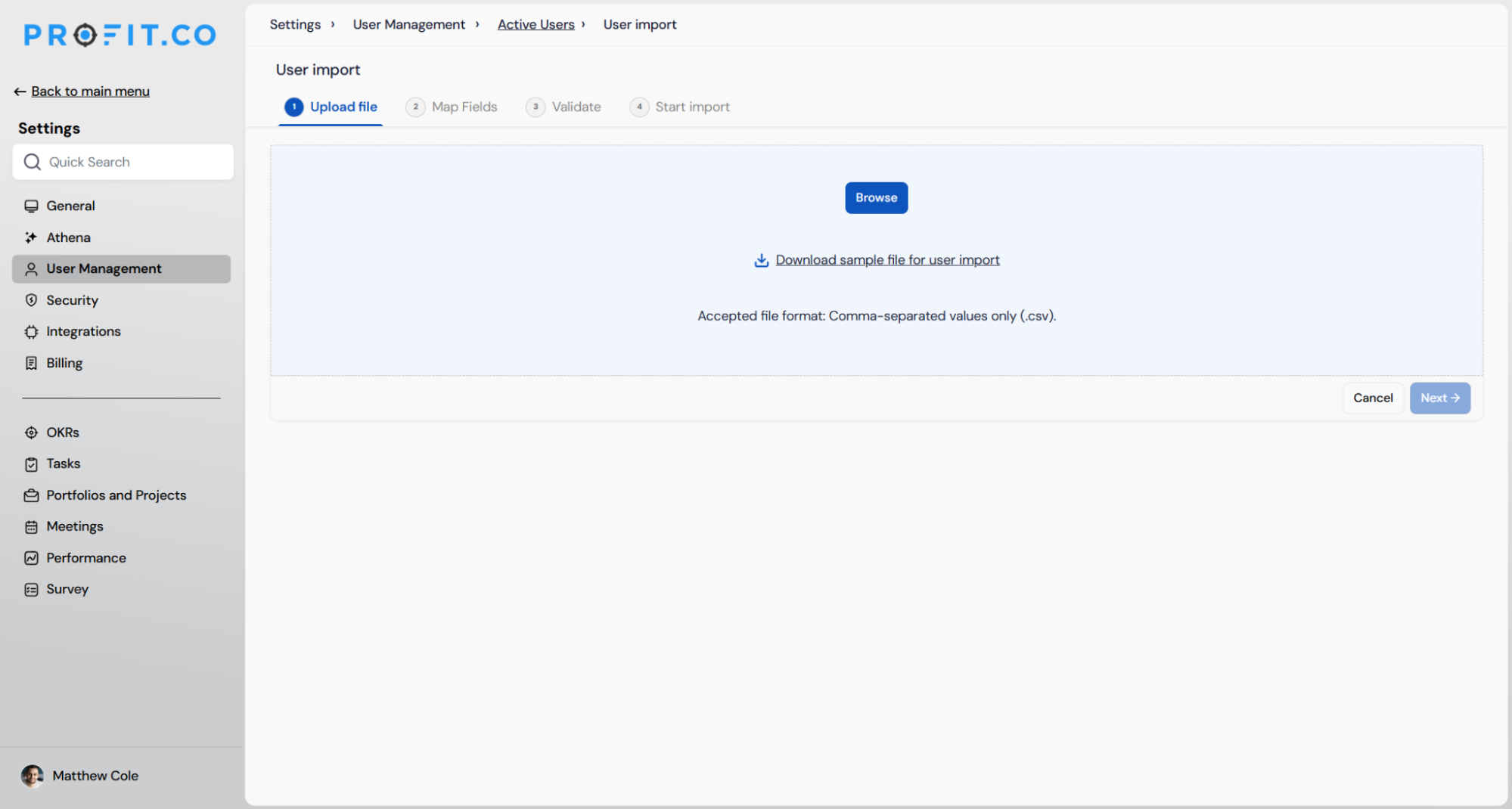
- Download the sample CSV file if you need a template.
- Confirm the file uses the Comma Separated Values (.csv) format.
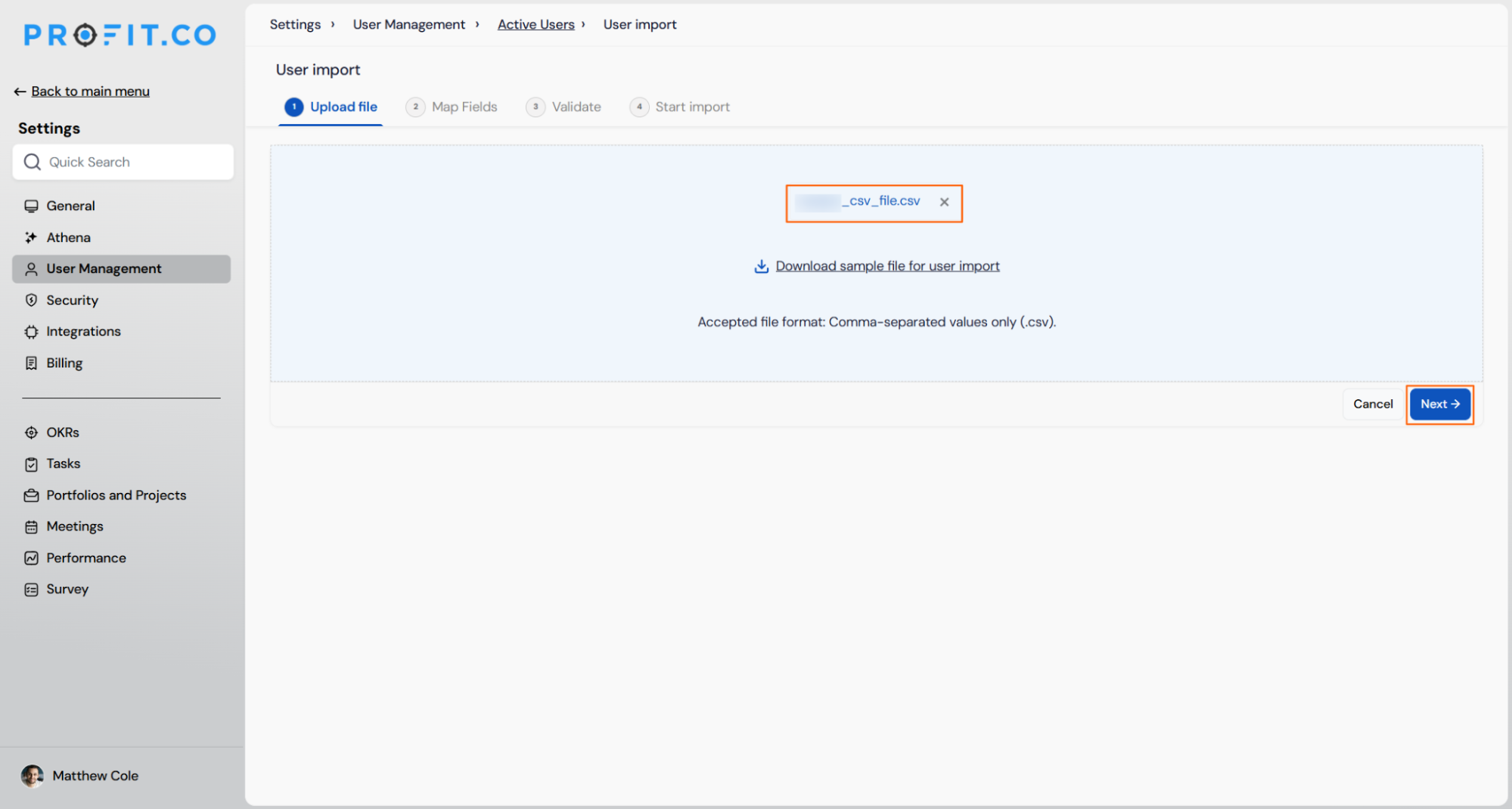
- Review the uploaded file name shown on the Upload File tab.
- Click Next.
Validating and Completing the Import
Step 2
- Review the automatic field mapping between your file's columns and Profit.co's attributes.
- Confirm the mandatory fields, Last Name and Email, show a green tick.
- Click Next.
Step 3
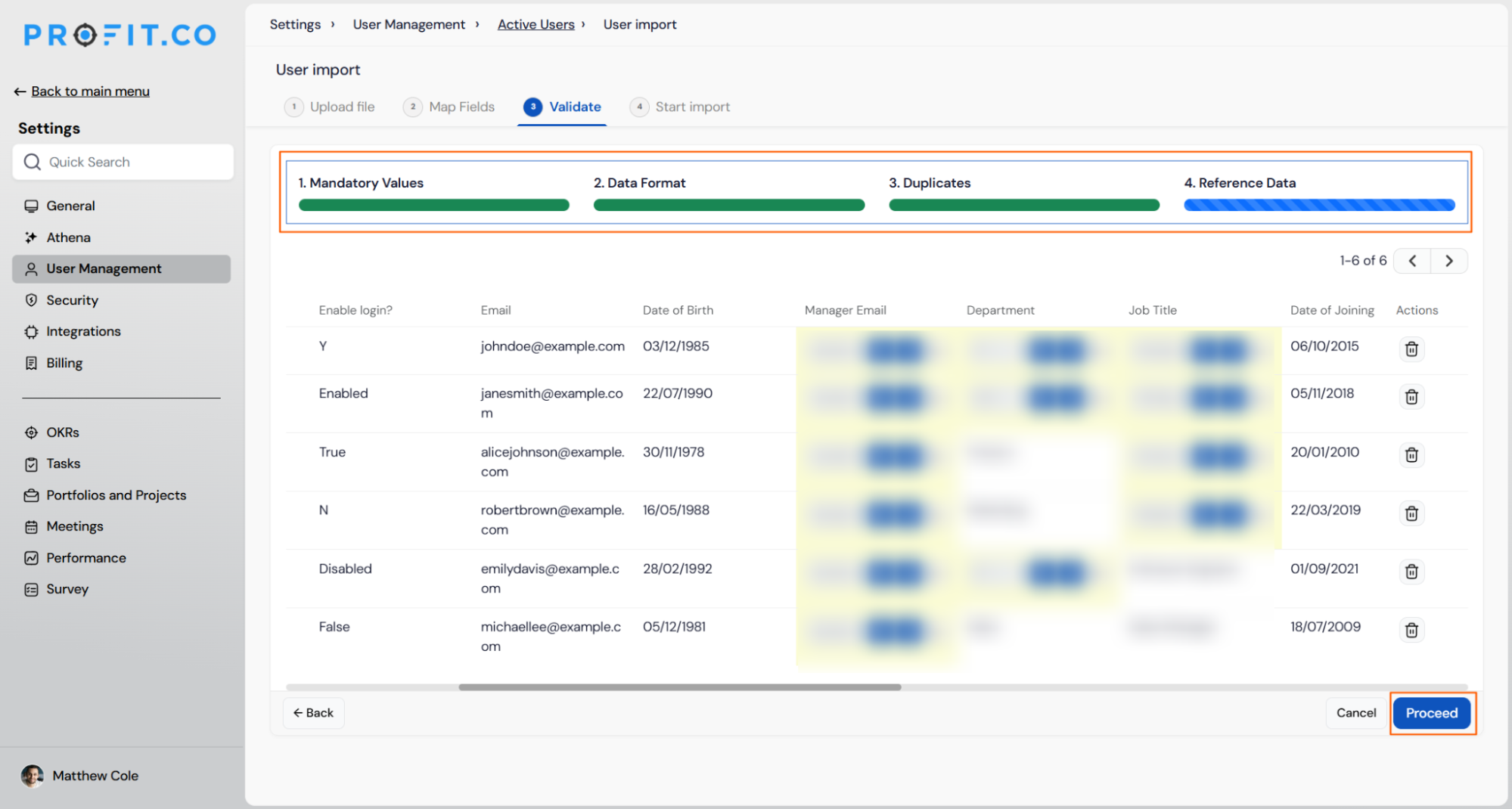
- Let Profit.co check Mandatory Values, Data Format, Duplicates, and Reference Data.
- Correct any flagged errors before continuing.
- Click Proceed once all four validation steps are complete.
Step 4
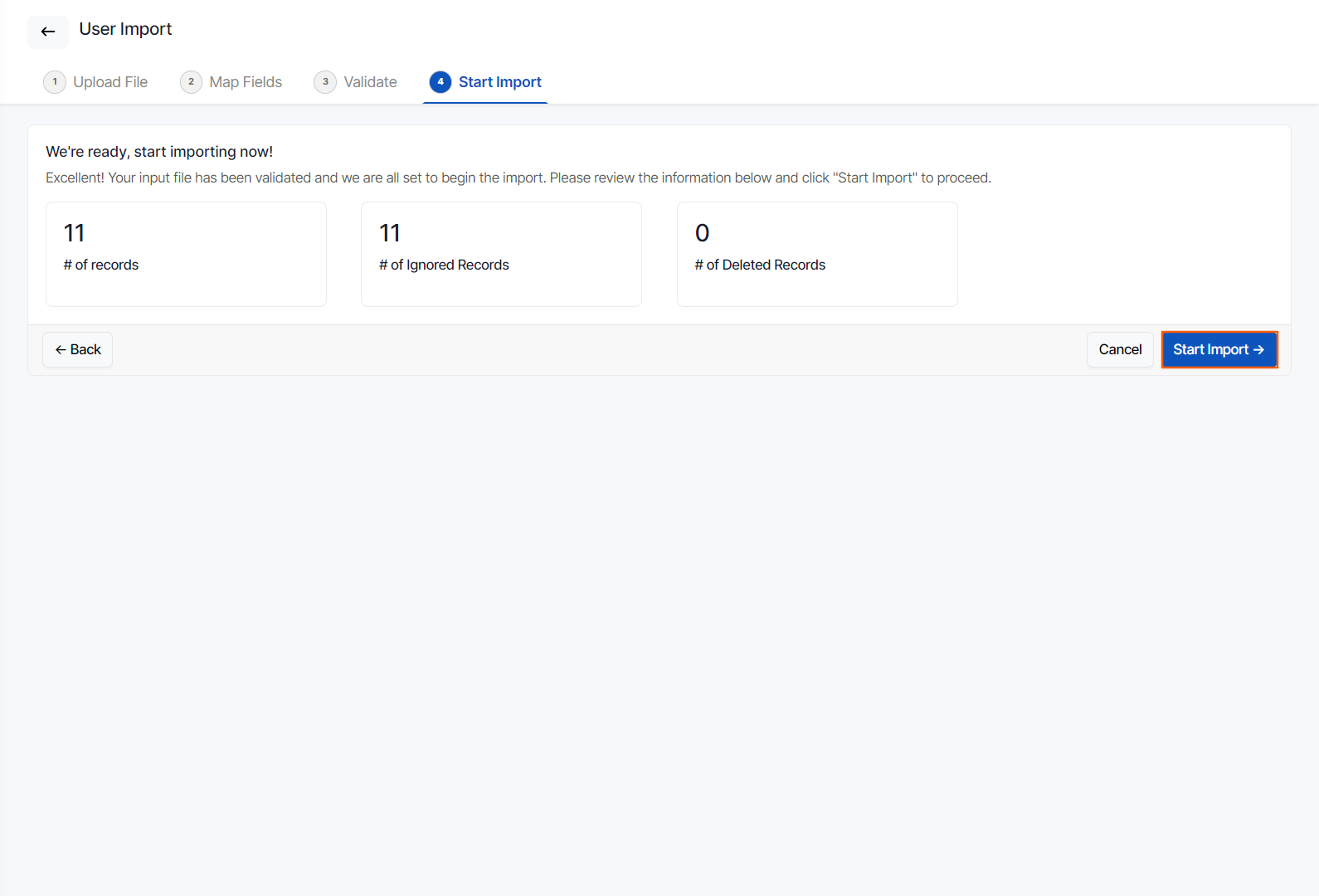
- Review the summary: number of records, ignored records, and deleted records.
- Click Start Import.
User Import Function Scenarios and Their Outcomes
This section covers what happens to your data and your users once you run an import, not how to operate the import wizard.
| Scenario | What Happens |
|---|---|
| Your import file is missing mandatory values, such as Last Name or Email. | Profit.co flags the missing mandatory fields during validation, and blocks you from advancing to Start Import until every required field is filled in. |
| Your import file contains a field in the wrong format, such as an invalid email or date. | Profit.co flags the format errors during validation, and blocks you from advancing to Start Import until the data matches the expected format. |
| Your import file contains duplicate user entries. | Profit.co flags the duplicate entries during validation, and blocks you from advancing to Start Import until the duplicates are resolved. |
| Your import file references a department, role, or manager that doesn't already exist in Profit.co. | Profit.co flags the mismatched reference during validation, and blocks you from advancing to Start Import until the value matches an existing record. |
| Your import completes and creates new user accounts. | Profit.co automatically sends each newly created user a welcome email when Welcome Email notifications are enabled, and sends no notification when they are disabled. |
| Your imported batch turns out to contain errors after Start Import completes. | Profit.co lets you remove the entire imported batch in bulk, and does not require you to delete each imported user one by one. |
Best Practices for the User Import Function
- Download and reuse the sample CSV template rather than building your own from scratch, since it already matches the mandatory Last Name and Email columns along with every optional attribute Profit.co recognizes.
- Resolve every validation flag — mandatory values, format, duplicates, and reference data — before clicking Next past the Validate step. Profit.co only unlocks Start Import once all four checks pass.
- Include Add-On Roles, Check-in User For, OKR Champion For, and Additional Managers directly in the import file when onboarding new hires, so access and reporting relationships are set up in the same pass instead of a manual follow-up.
- Check your Welcome Email setting before running a large import. When it's enabled, every successfully imported user is notified immediately, so timing the import to your onboarding schedule matters.
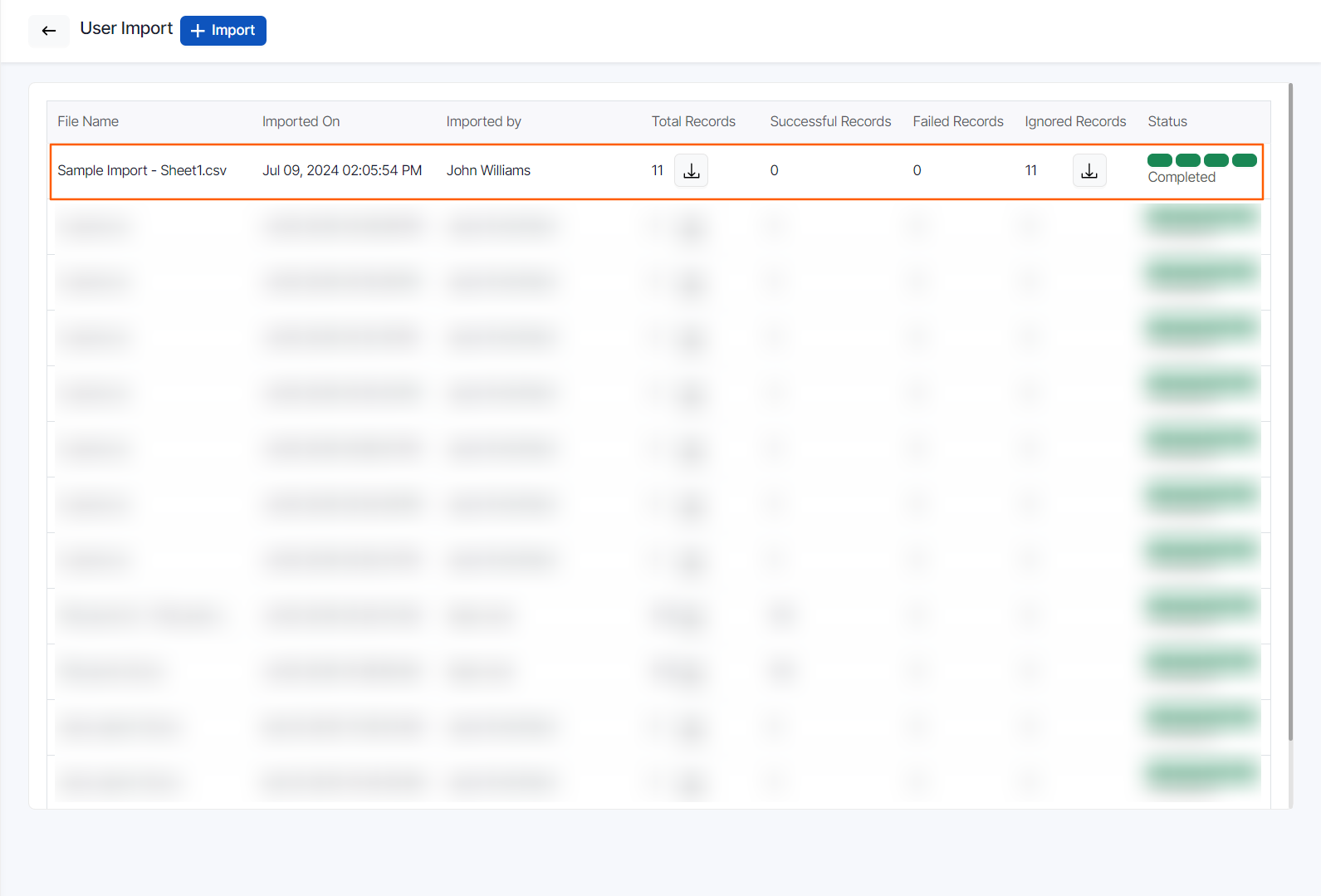
- Review the User Import history list before starting a new import to confirm you aren't re-uploading a file that already completed successfully.
Related Articles
Frequently Asked Questions
No. The only accepted file type is Comma Separated Value (.csv) format.
Yes. Each imported column has a dropdown you can use to select a different Profit.co attribute if the automatic mapping doesn't match what you intended.
No. The sample CSV file is provided as an optional reference. You can build your own file as long as it's in CSV format and includes the mandatory Last Name and Email columns.
Yes. The User Import history list includes a download icon next to each file, so you can retrieve the exact file used for any past import.
Execute your strategy with confidence
Connect OKRs, tasks, and teams in one place with Profit.co
