

OKR list views let you drag and drop objectives and key results into any order, independent of whatever column sort is applied, and Profit.co remembers that arrangement for you going forward. This works alongside standard column sorting in My OKRs, department OKR pages, and Saved Views.
Table of Contents
What is Custom Order?
Custom Order is a sort control option in OKR list views that stores a drag-and-drop arrangement of objectives and key results in place of a column sort. It's available in My OKRs, department OKR pages, and Saved Views, and each arrangement is saved for you individually rather than for your whole team.
Previously, list views disabled drag-and-drop as soon as a column sort was applied, and any manual arrangement was discarded the moment a sort ran. Custom Order removes that restriction and keeps your manual sequence intact even while a sort is active.
Why Does Custom Order Matter?
Previously, applying a sort to locate a specific objective wiped out any manual order you had built, forcing a choice between sorting for visibility and arranging rows by hand. Custom Order lets you sort by Name, Period, or Progress to find a row, then drag it into place without giving up either the sort's benefit or your own sequence.
Manual arrangements used to disappear the instant a sort ran, so you had to rebuild them from scratch on every visit. Now your dragged order is saved and returns exactly as you left it, so you don't spend time rebuilding a sequence that a sort would have otherwise erased.
How Does Custom Order Work?
Step 1: Open an OKR List View
- Navigate to My OKRs, a department's OKRs, or a Saved View
Step 2: Apply a Column Sort
- Apply a column sort as usual, such as Name, Period, or Progress
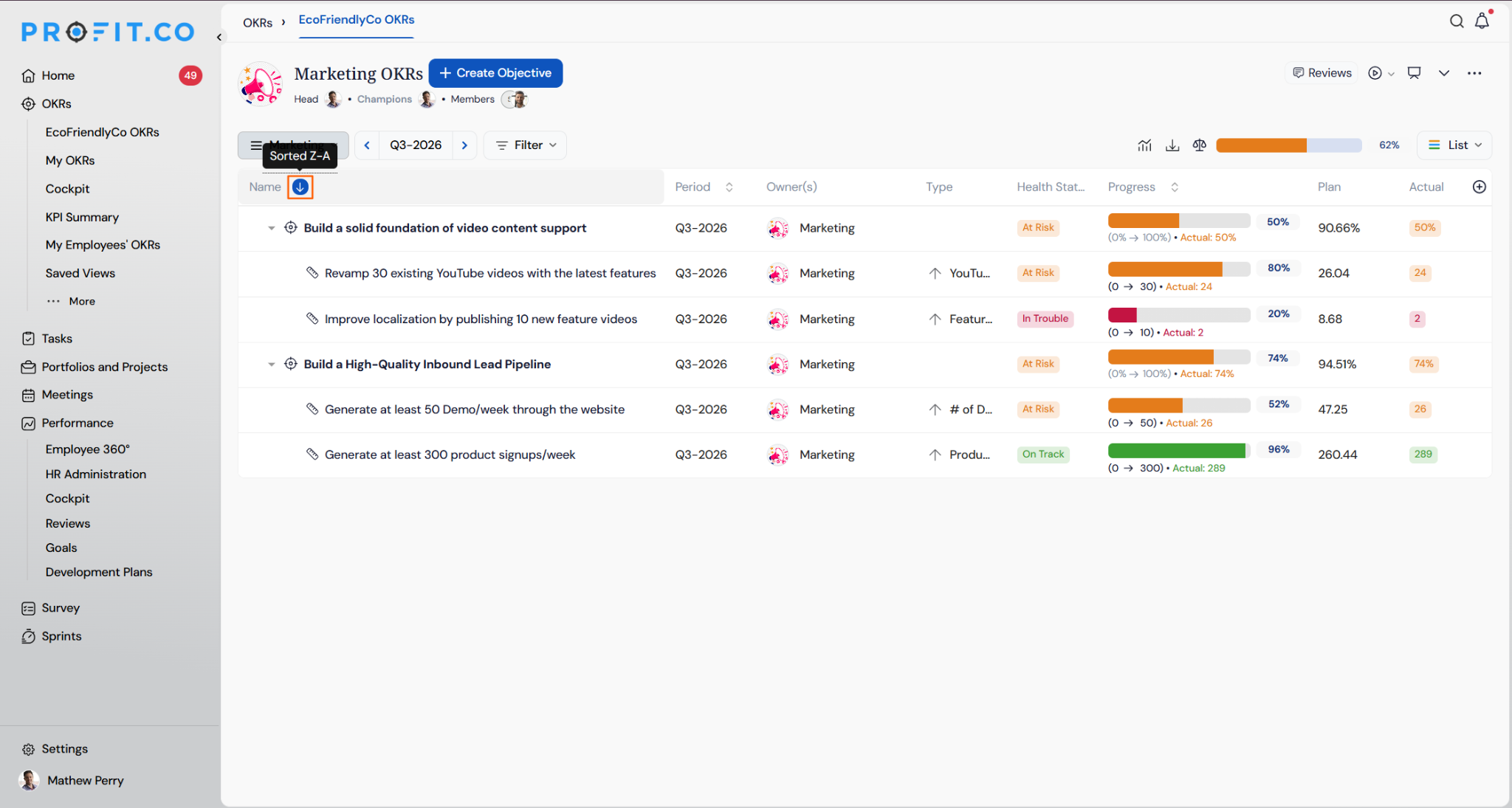
Step 3: Drag a Row Into Place
- Drag the row you want to move into the position you want, even while a column sort is applied
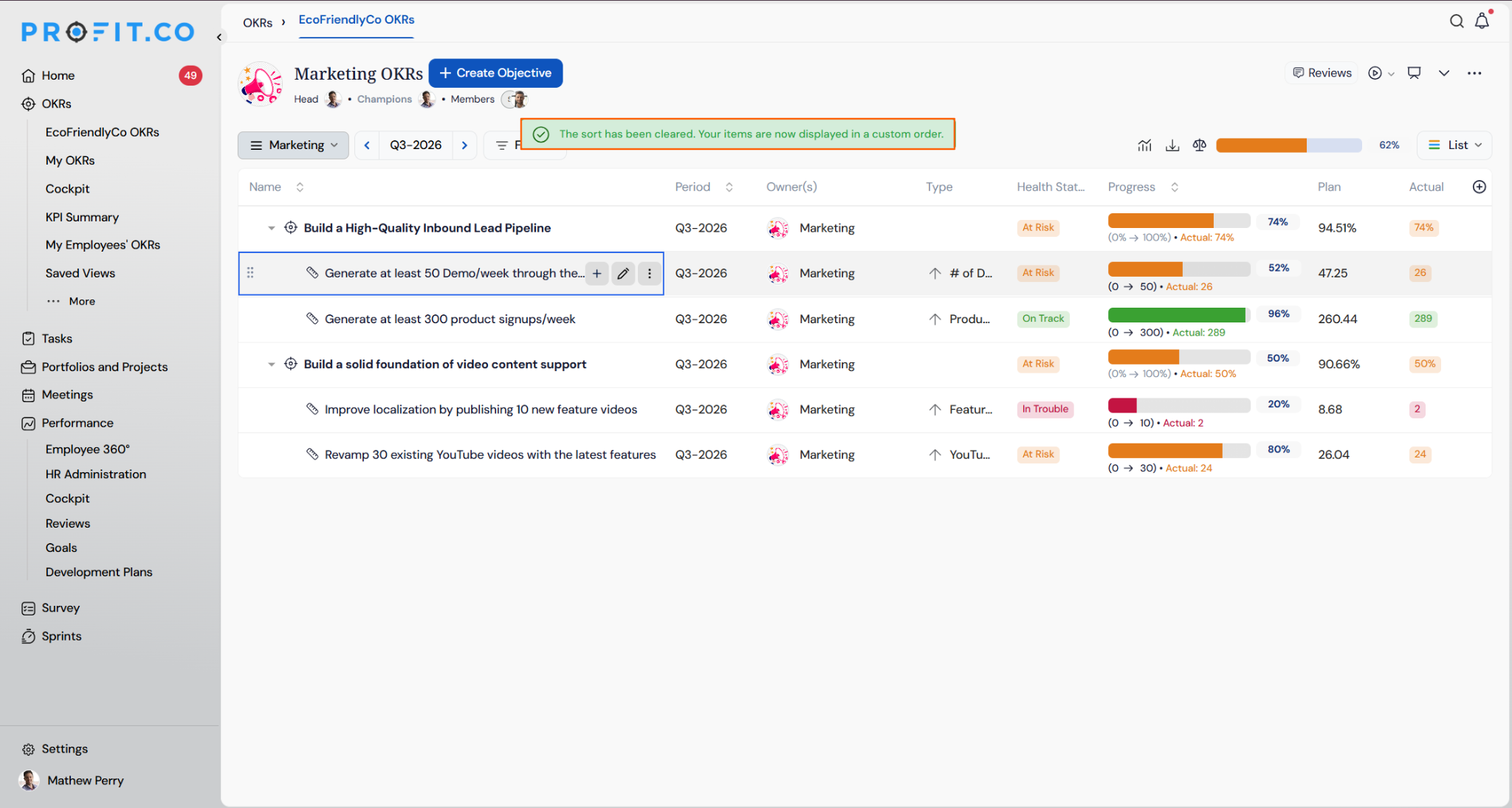
What Happens When You Use Custom Order?
| Scenario | What Happens |
|---|---|
| You drag a row into place while a column sort is applied. | Profit.co clears the active sort and switches the sort control to Custom order automatically. |
| You save a Custom order arrangement. | Profit.co stores the order for you individually and leaves what other users see in the same list view unchanged. |
| You return to the list view after saving a Custom order arrangement. | Profit.co returns your rows in the exact order you left them and does not reapply the earlier column sort. |
What Are the Best Practices for Custom Order?
- Sort by Name, Period, or Progress before you drag, since Custom Order locks in whatever sequence you land on, not just a default row order.
- Expect the column sort to clear the moment you drag a row, since Custom Order takes over the sort control automatically rather than running alongside it.
- Drag rows into place directly in My OKRs, a department's OKRs, or a Saved View, since Custom Order works the same way across all three.
- Treat a Custom order arrangement as personal, since it's saved for your own view and doesn't change what other users see on the same list.
Related Articles
- How Do I Assign and Sort by Priority Levels for Objectives and Key Results in Profit.co?
- How does the Saved View feature work in Profit.co?
What Are Some Frequently Asked Questions About Custom Order?
My OKRs, department OKR pages, and Saved Views all support dragging rows into a Custom order.
Yes. Custom Order works whether or not a column sort is currently active; this update specifically removes the earlier restriction that disabled dragging once a sort was applied.
Only you. Profit.co saves the arrangement for your view of the list, not for other users looking at the same list view.
Execute your strategy with confidence
Connect OKRs, tasks, and teams in one place with Profit.co
