

In Profit.co, you can include department-owned and corporate-owned OKRs in performance reviews, so department heads, department members, and OKR captains are rated on outcomes they are accountable for.
Table of Contents
- What Are Department-Owned OKRs in Performance Reviews in Profit.co?
- How to Include Department-Owned OKRs in Performance Reviews in Profit.co?
- What Happens When You Include Department-Owned OKRs in Performance Reviews in Profit.co?
- Best Practices for Department-Owned OKRs in Performance Reviews in Profit.co
- Related Questions
- Frequently Asked Questions
What Are Department-Owned OKRs in Performance Reviews in Profit.co?
Department-owned OKRs are OKRs owned by a department or by the organisation, not by the person being reviewed. Previously, a department-level OKR with no individual assignee never reached anyone's review, so department heads could not be rated on the outcomes they are accountable for. Super users now choose, per review template, whether these OKRs appear only in the department head's review or in every department member's review, and can include corporate-owned OKRs in the OKR captain's review.
How to Include Department-Owned OKRs in Performance Reviews in Profit.co?
Follow these steps to include department-owned OKRs in performance reviews in Profit.co:
Step 1
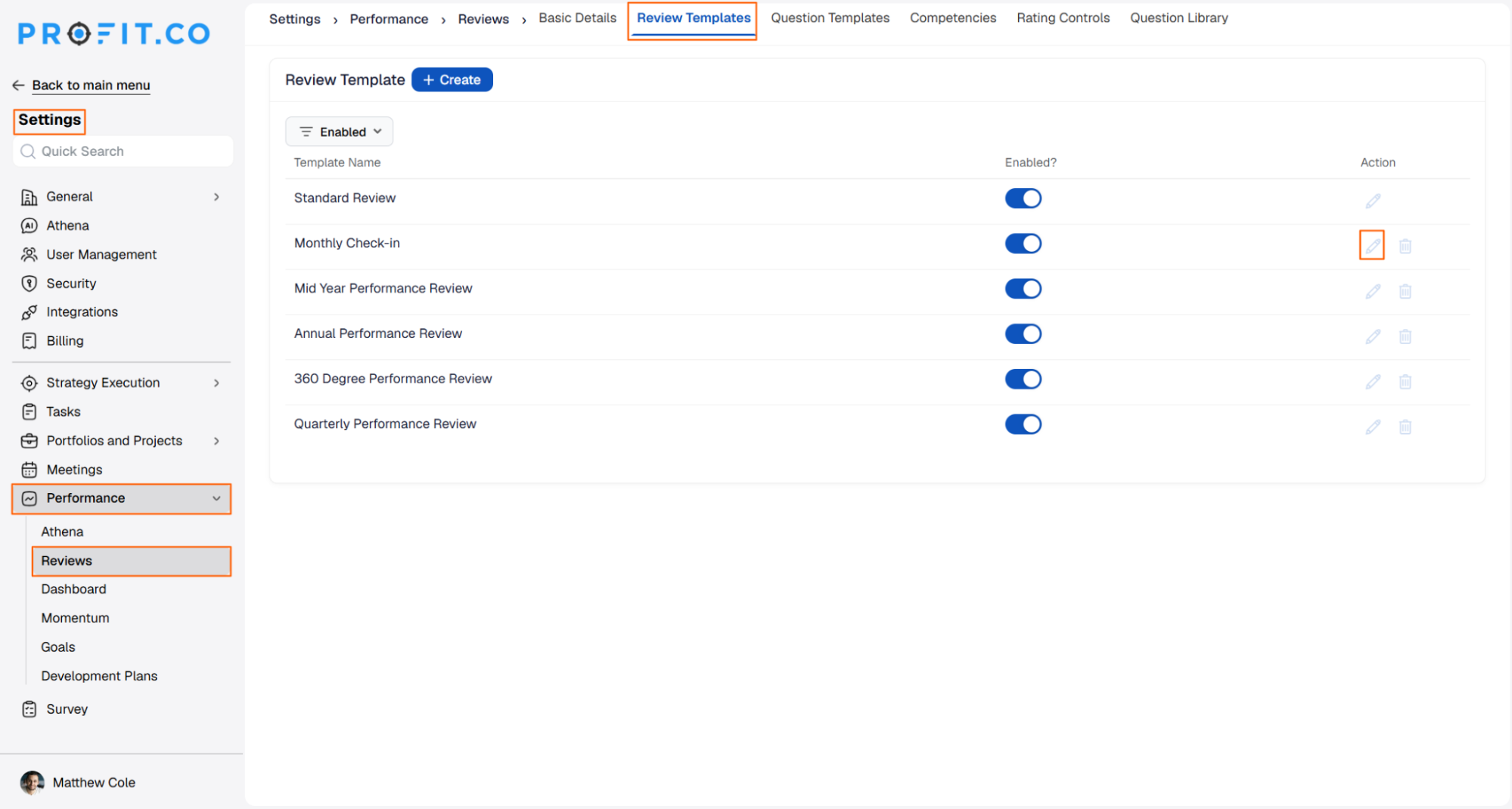
- Navigate to Settings → Performance → Reviews → Review Templates.
- Open the review template you want to update.
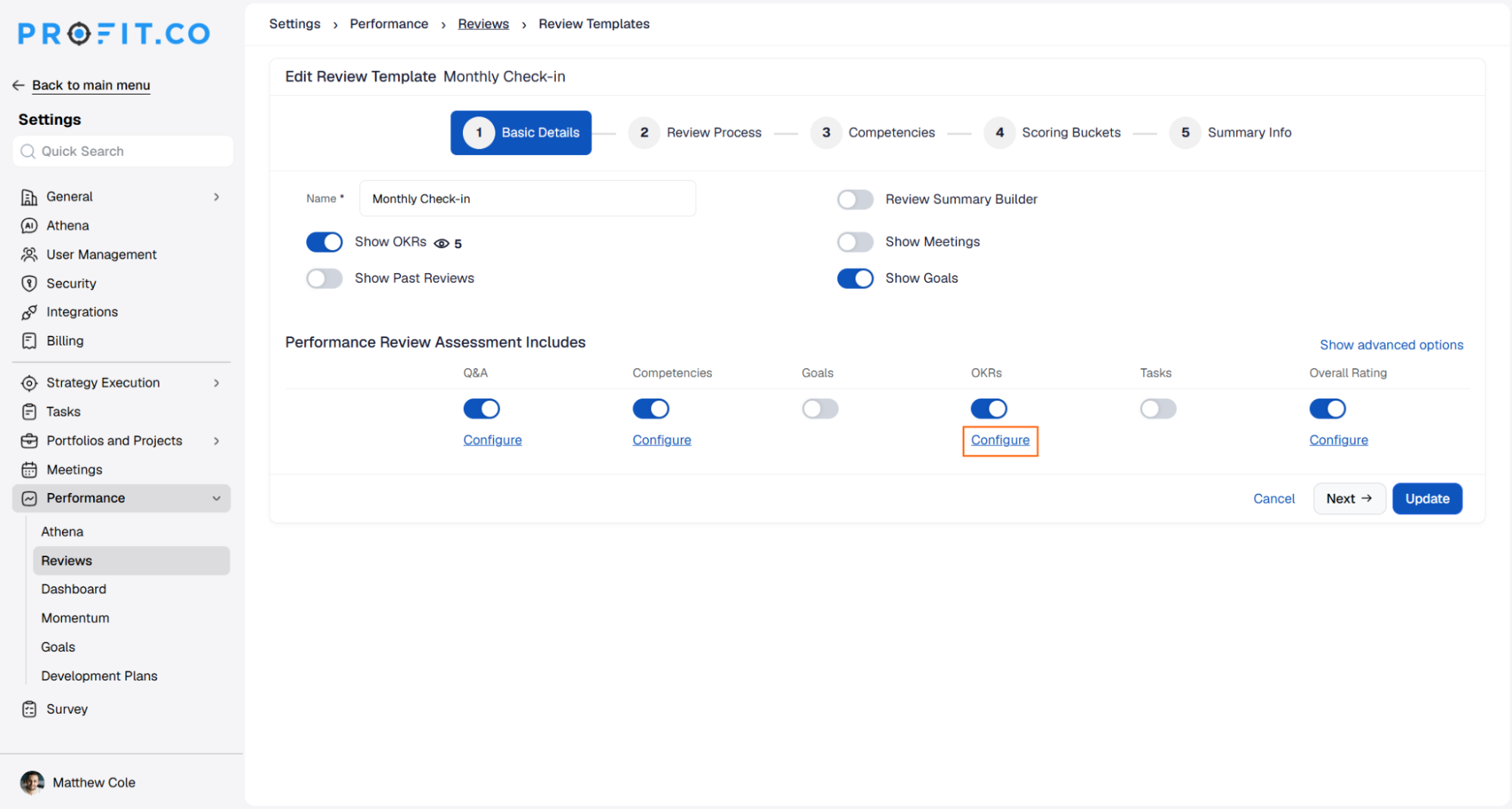
- In Basic Details, go to Performance Review Assessment Includes.
- Click Configure under OKRs.
Step 2
- Under Which OKRs Are Included?, enable Department OKRs assigned to the user.
- Choose a nested option: Department-Owned OKRs included for the department head's review or Department-Owned OKRs for department members.
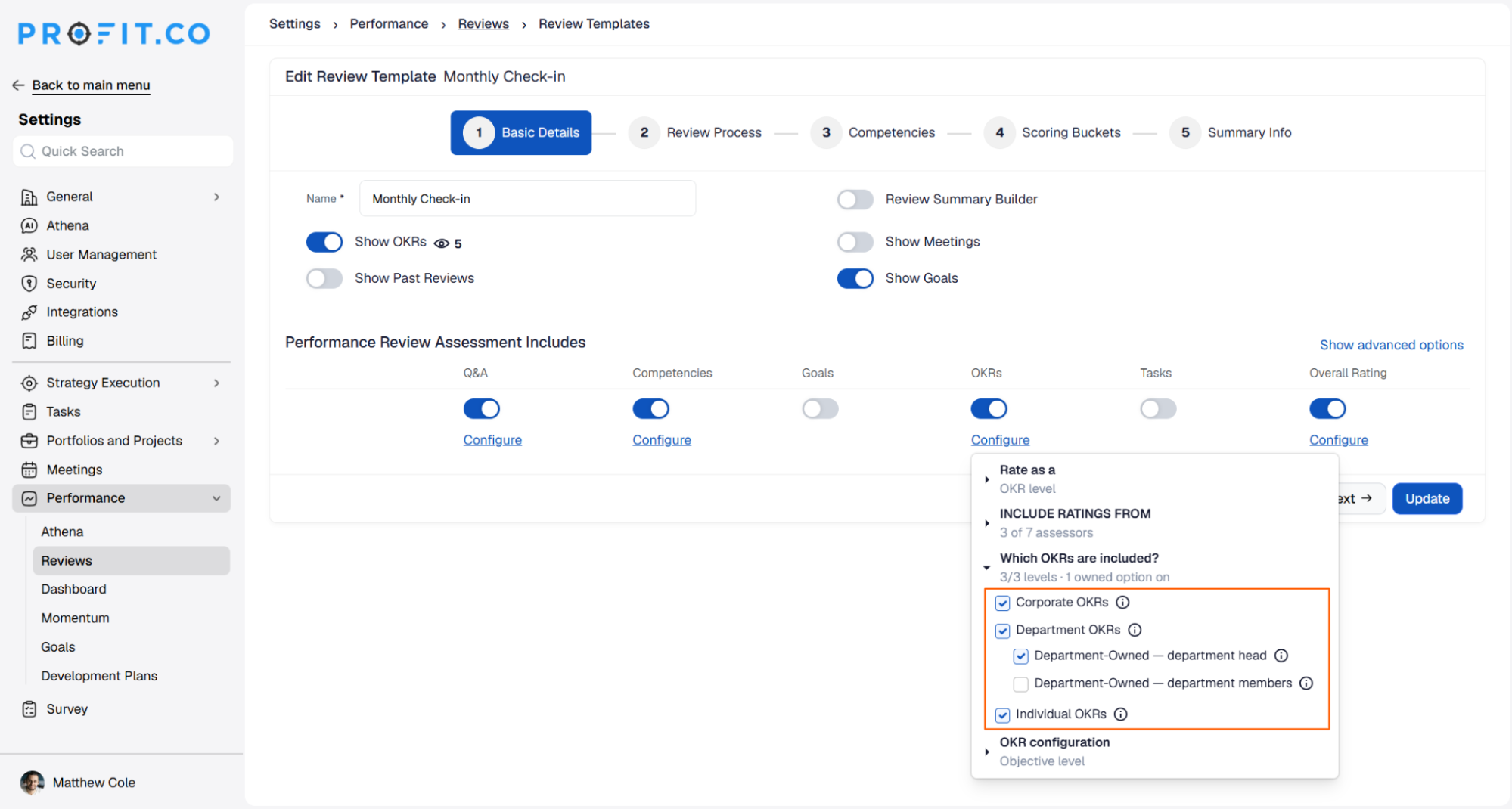
- Click Update.
- Profit.co saves your OKR selections to the review template.
Step 3
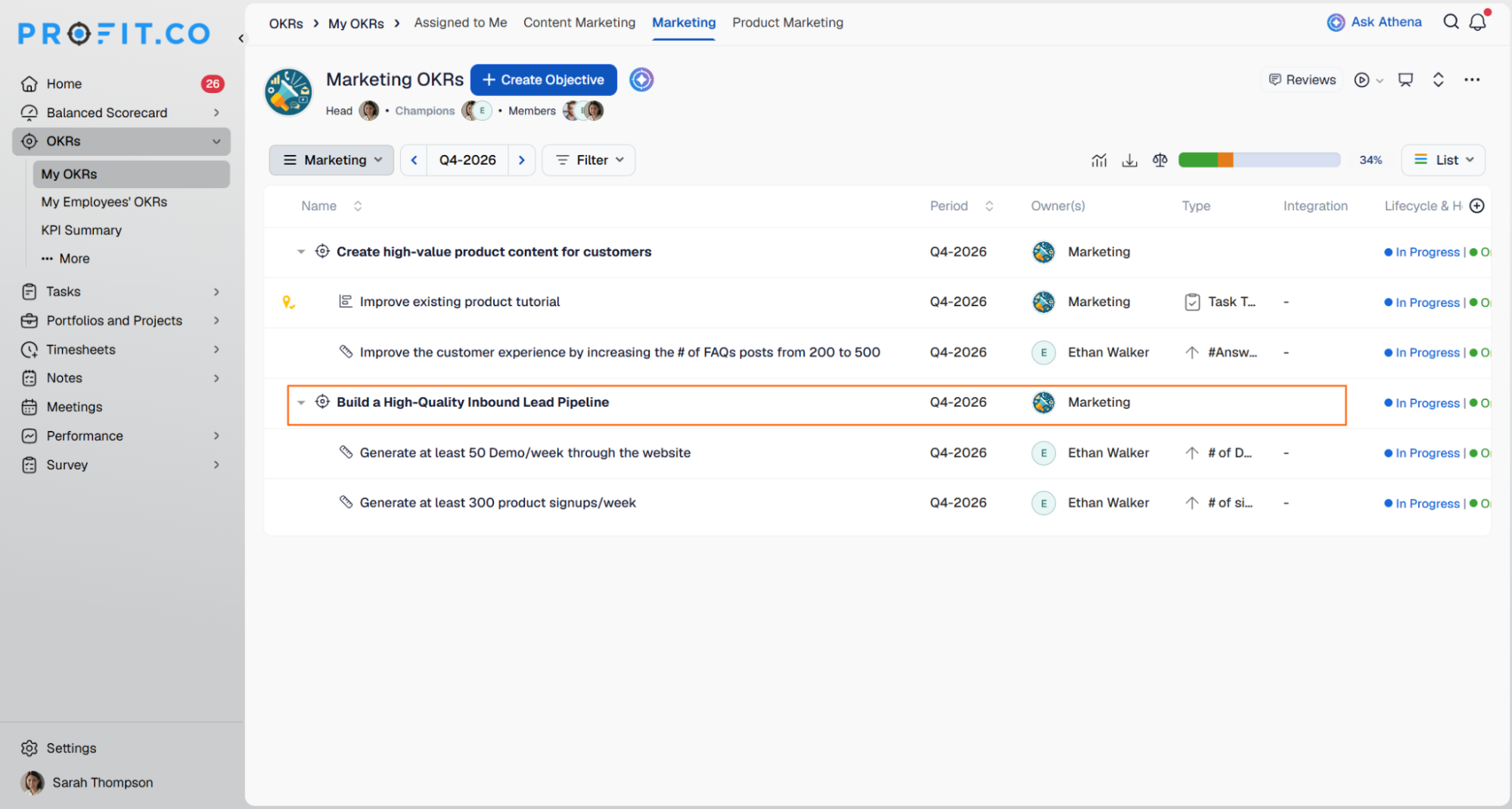
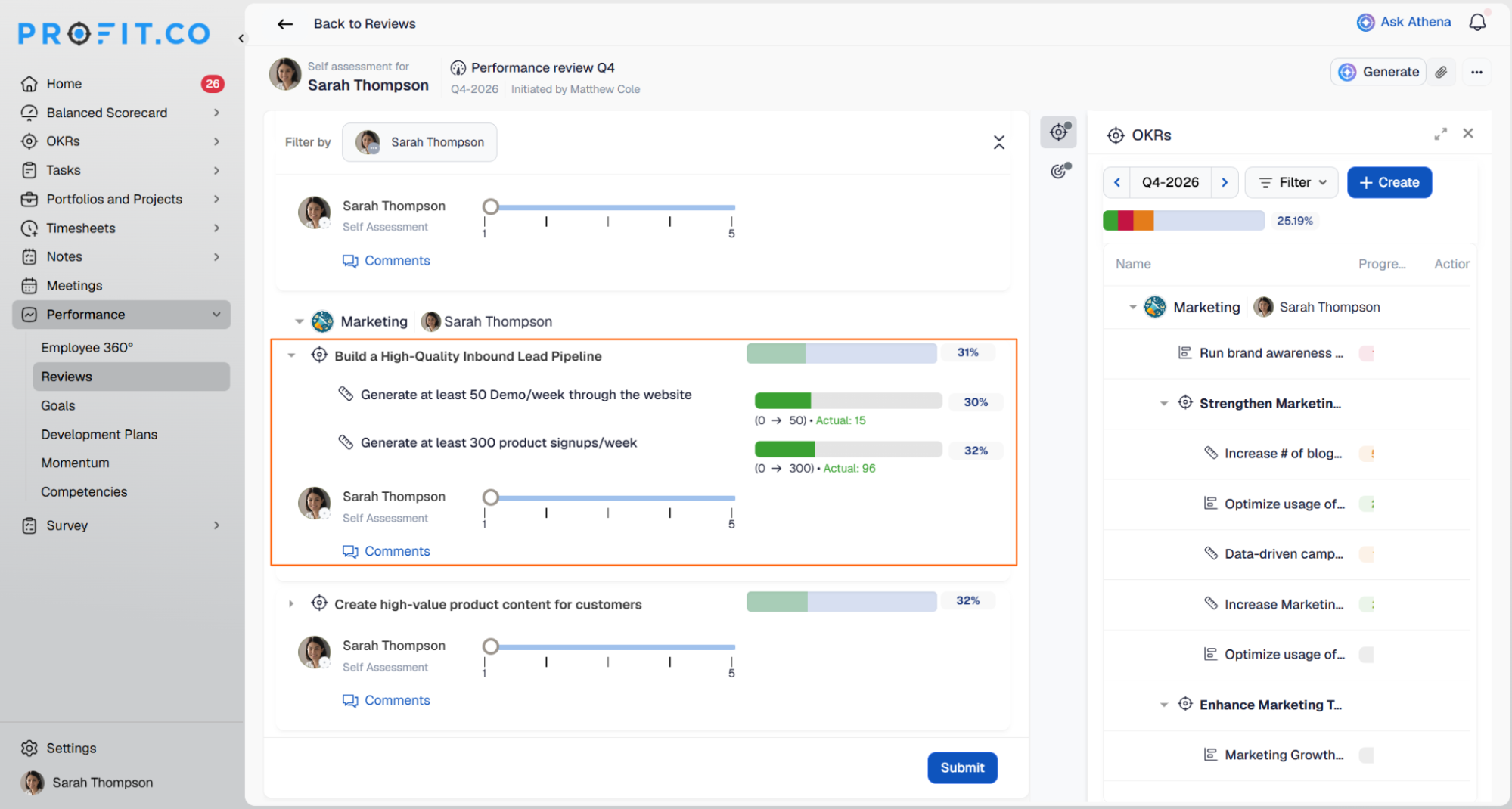
- In this example, the OKR Build a High-Quality Inbound Lead Pipeline belongs to the Marketing department.
- Sarah Thompson is the department head of the Marketing team.
- The OKR is shown on Sarah Thompson's review page.
What Happens When You Include Department-Owned OKRs in Performance Reviews in Profit.co?
| Scenario | What Happens |
|---|---|
| You enable Department-Owned OKRs included for the department head's review. | Profit.co adds department OKRs that are not assigned to anyone, or are assigned to the department itself, to the department head's review. |
| You enable Department-Owned OKRs for department members. | Profit.co adds the same OKRs to the department head's review and to each department member's review. |
| You enable Corporate-Owned OKRs included for the OKR captain's review. | Profit.co adds corporate OKRs that are not assigned to anyone to the OKR captain's review. |
| You click Update with these options enabled. | Profit.co lets assessors rate these OKRs the same way as assigned OKRs. |
| You open a review as the head of several departments. | Profit.co shows each department's OKRs under its own labelled band in the review form. |
| You leave both nested options off. | Profit.co leaves existing templates unchanged, because both options are off by default. |
Best Practices for Department-Owned OKRs in Performance Reviews in Profit.co
- Choose the department head option when only the department head is accountable for the department's outcomes.
- Choose the department members option when everyone in the department works towards the same department OKRs.
- Open the correct review template before you change the options, because you set them per template.
- Click Update after you choose your options, so the template saves them.
Related Questions
- Click here to learn more about setting an overall rating for OKRs, goals, and competencies in review templates
- Click here to learn more about enabling the Collaborator Assessment step in performance reviews
Frequently Asked Questions
Super users choose, for each review template, whether department-owned OKRs are included.
Go to Settings → Performance → Reviews → Review Templates, open a template, and click Configure under OKRs in Basic Details. The options are under Which OKRs Are Included?.
Yes. Enable Department OKRs assigned to the user before you choose a department nested option, and enable Corporate OKRs assigned to the user before you choose the corporate nested option.
Execute your strategy with confidence
Connect OKRs, tasks, and teams in one place with Profit.co
