





Table of Contents
What are centralized request capture forms?
Centralized request capture forms are standardized intake forms that collect consistent information from anyone submitting a project request, ensuring all necessary details are gathered upfront for proper evaluation.
Why is customizing request forms important?
Customized request capture forms ensure you collect the right information to make informed project decisions. Here's why this feature matters:
- Complete Information Capture: Ensures all necessary details are collected upfront, reducing back-and-forth questions and delays in evaluation
- Consistent Evaluation: Standardized intake forms mean all requests provide the same information, enabling fair comparison and prioritization
- Streamlined Process: Requesters know exactly what information is needed, reducing incomplete submissions and rework
- Better Decision-Making: Custom fields capture organization-specific criteria important for your approval and prioritization processes
- Reduced Ambiguity: Clear, structured forms eliminate confusion about what information requesters should provide
How do I customize request capture forms?
Follow these steps to customize your centralized request form:
Step 1: Navigate to Request Customization
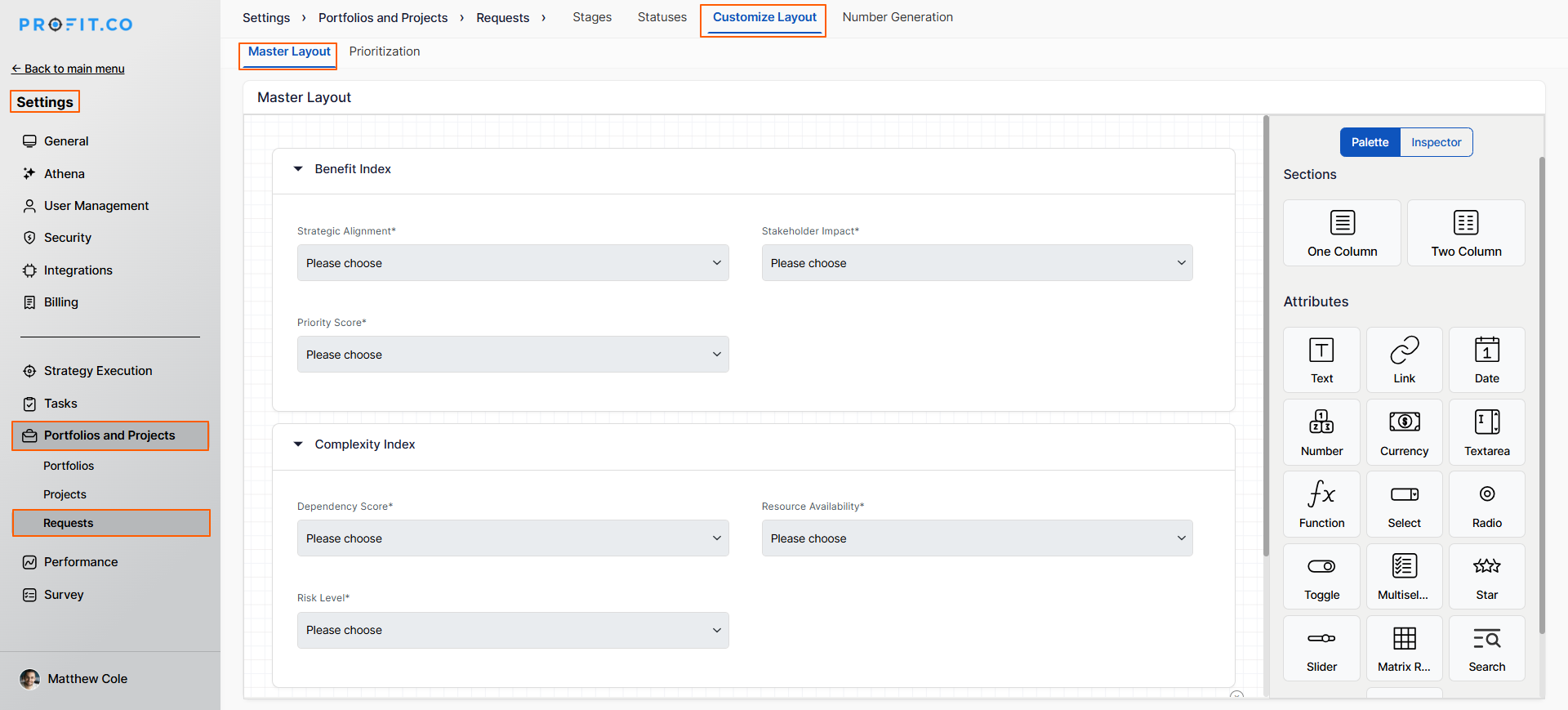
- Navigate to Settings → Portfolios and Projects → Requests from the left navigation panel
- On the Request page, switch to the Customize Layout tab
- The Master Layout interface will open for customization
Step 2: Add Custom Sections and Fields
In the Master Layout, customize your request form:
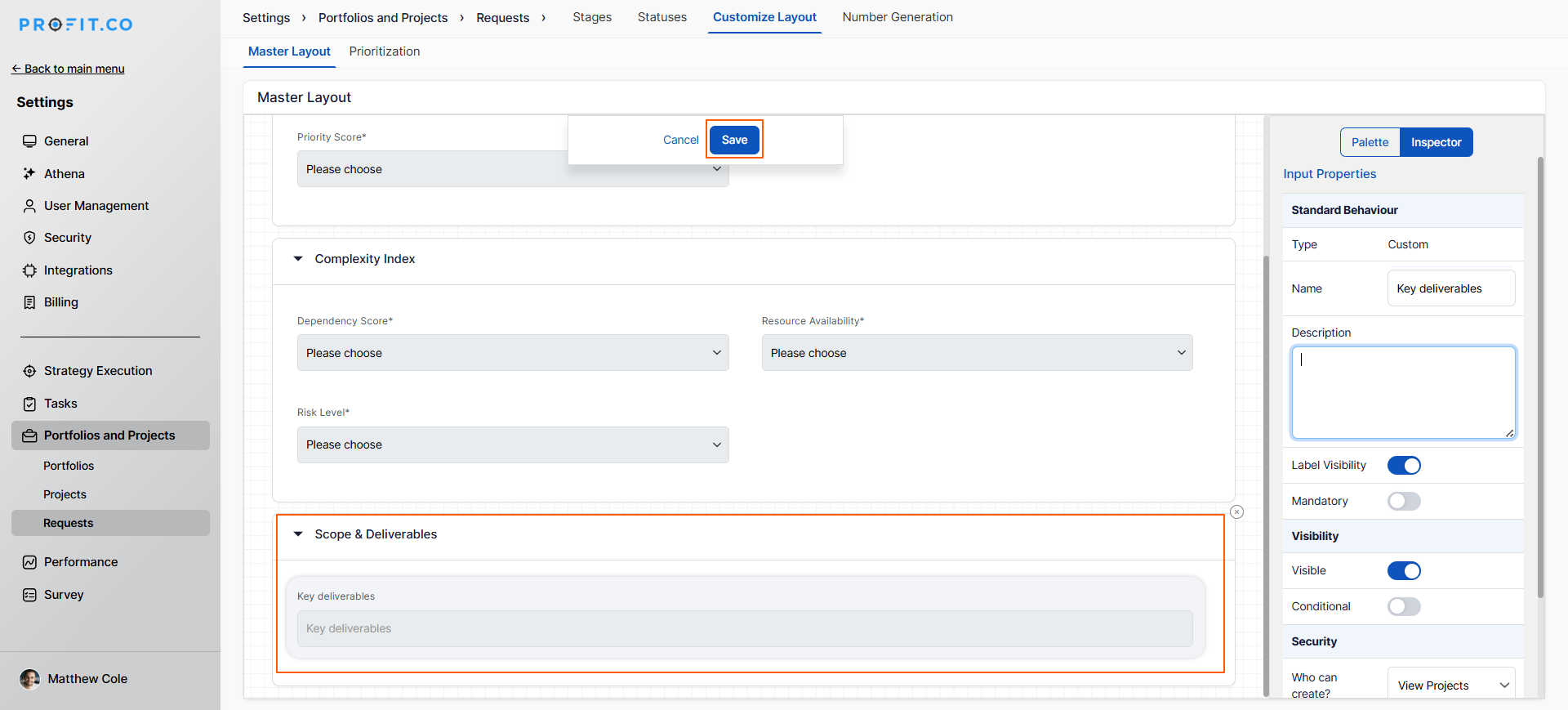
In this example, we are adding "Key Deliverables" as a customized section:
- Choose attributes from the available field types
- Enter the Name for your custom field (e.g., "Key Deliverables")
- Set Visibility options (who can see this field)
- Set Mandatory options (whether the field is required
- Once you've added and configured your custom fields, click on the Save option
- Your customizations are now applied to the request form
Step 3: Use Customized Form
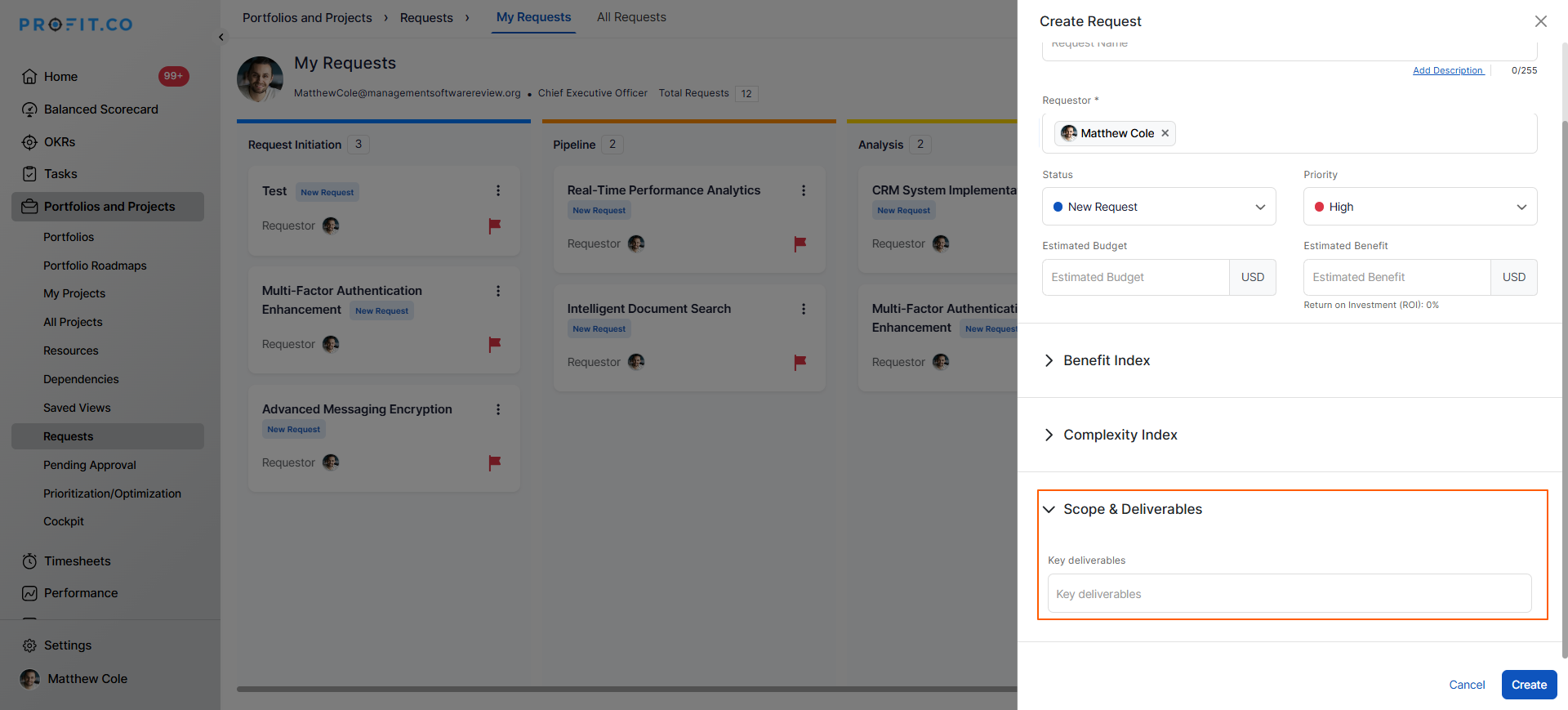
Once done, you can use the customized option in the request creation page:
- Navigate to create a new request
- Custom fields appear in the request form
- Requesters fill in both standard and custom fields
Best Practices for Customizing Request Forms
- To maximize the effectiveness of customized request capture forms:
- Keep Forms Concise: Add only fields that inform decision-making, avoid "nice to have" information that won't be used for evaluation or prioritization.
- Use Clear Field Names: Make field labels self-explanatory with no jargon; requesters should immediately understand what information is needed without additional help.
- Provide Helper Text: Add descriptions or examples for complex fields to guide requesters on what to enter and improve data quality and completeness.
- Organize Logically: Group related fields into sections creates an intuitive flow that makes forms easier to complete and reduces abandonment or errors.
- Test with Users: Pilot customized forms with a small group before full rollout gather feedback on clarity, completeness, and ease of use to refine.
Related Questions
How to create a project request in the PPM module: Click Here
Frequently Asked Questions
Yes, you can remove custom fields from the form layout. Once deleted, the field will no longer be available or visible in the form.
Yes, if you configure role-based or conditional visibility. For example, budget fields might be visible only to managers and approvers, not to general requesters.
