





Profit.co enables employees to complete their self-assessments directly through the mobile application, providing flexibility and convenience in the performance review process.
Table of Contents
What is the Self-Assessment Feature?
The Self-Assessment feature allows employees to evaluate their own performance, accomplishments, and development areas using their mobile devices. This functionality provides a structured framework for employees to document their achievements, assess their competencies against set criteria, rate their performance on assigned OKRs and goals, and provide narrative feedback about their contributions and growth. The mobile self-assessment includes all the capabilities of the desktop version, ensuring employees can complete thorough evaluations without being constrained by location or device availability.
Why Use the Self-Assessment Feature?
- Employee Empowerment: Self-assessment allows employees to showcase their achievements, highlight their strengths, and acknowledge areas for improvement
- Mobility and Flexibility: Employees can conduct assessments while traveling, working remotely, or during non-traditional work hours, removing the requirement for physical office presence
- Thoughtful Reflection: Mobile access allows employees to complete assessments in comfortable settings where they can think deeply about their performance
- Time Efficiency: Enables employees to work on assessments in segments during downtime, commutes, or whenever convenient
- Enhanced Preparation: Provides a platform for employees to prepare strategies and goals for upcoming quarters or review periods
How to Perform Self-Assessment Using a Mobile Application
Method 1: Using Home Page Notification
Open the Profit.co mobile application on your device.
Navigate to the Home page from the bottom menu bar.
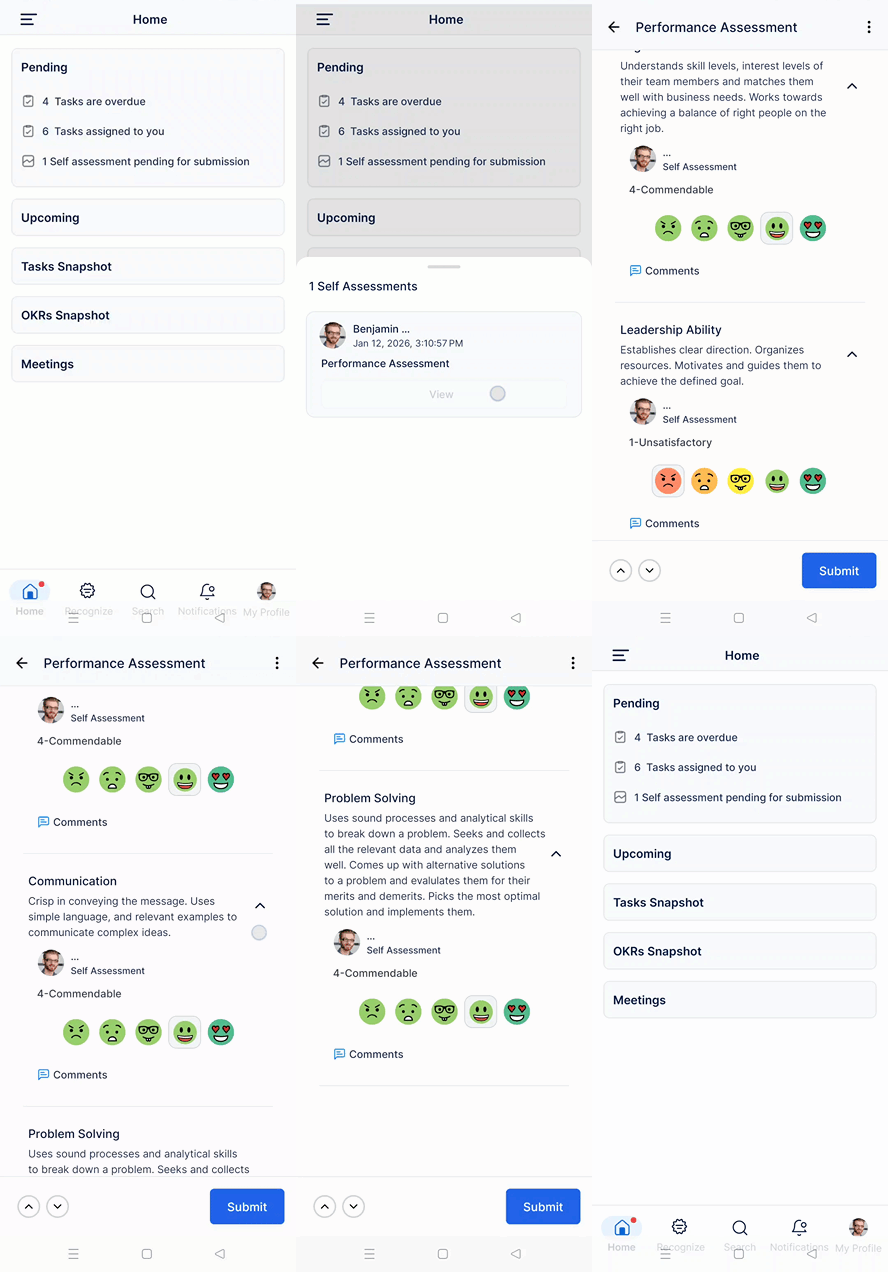
Look for the notification regarding pending self-assessment on your Home page. This will appear in the Actions section under "Pending."
Tap on the View button next to the self-assessment notification.
You will be automatically directed to the assessment page for the specific review cycle.
Complete the self-assessment by:
- Rating your performance on assigned competencies or criteria
- Providing written feedback on your achievements and contributions
- Evaluating your progress on OKRs and Key Results
- Documenting challenges faced and lessons learned
- Setting goals and development areas for the next period
Review all your responses to ensure completeness and accuracy.
Tap Submit to finalize and send your self-assessment.
Method 2: Using Performance Menu
Open the Profit.co mobile application on your device.
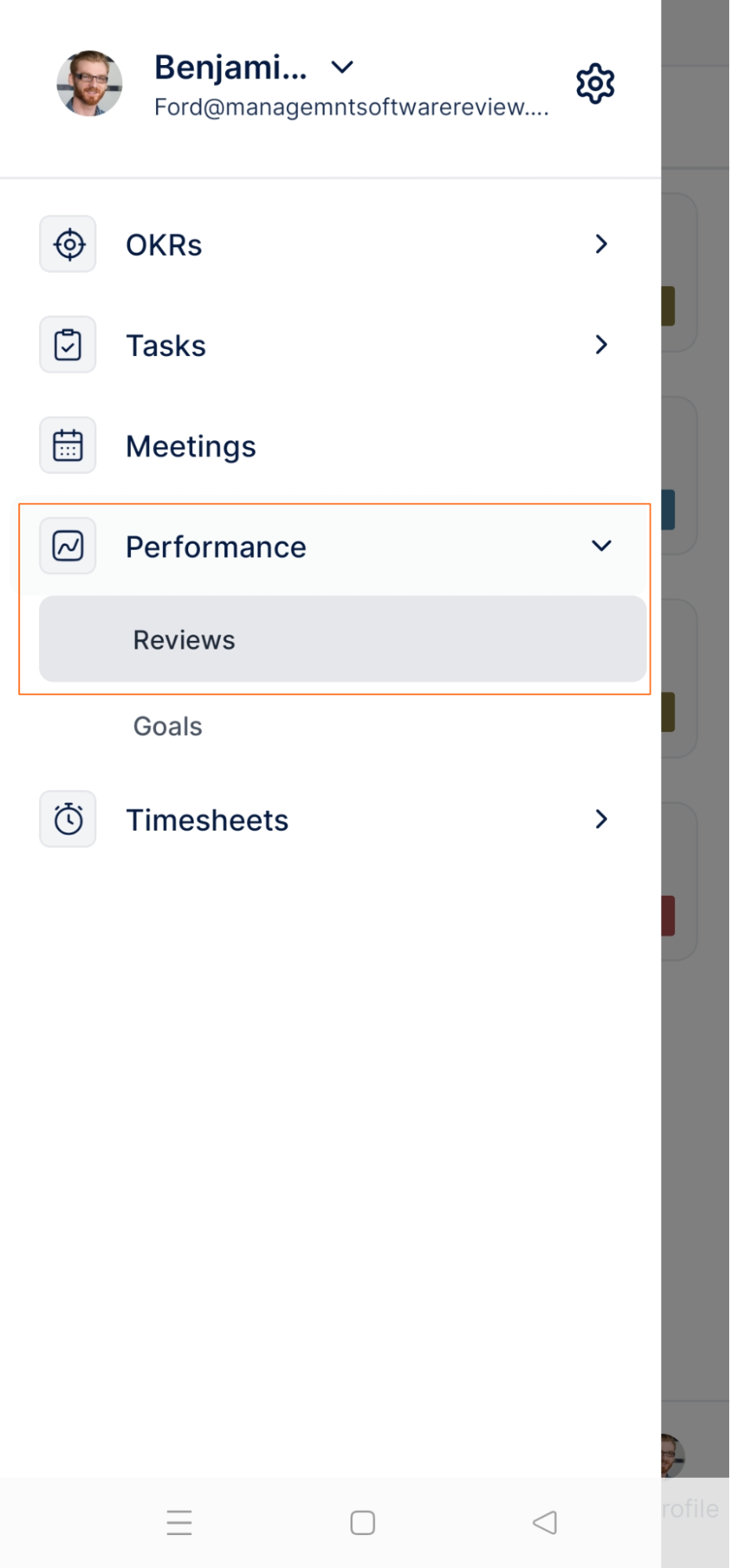
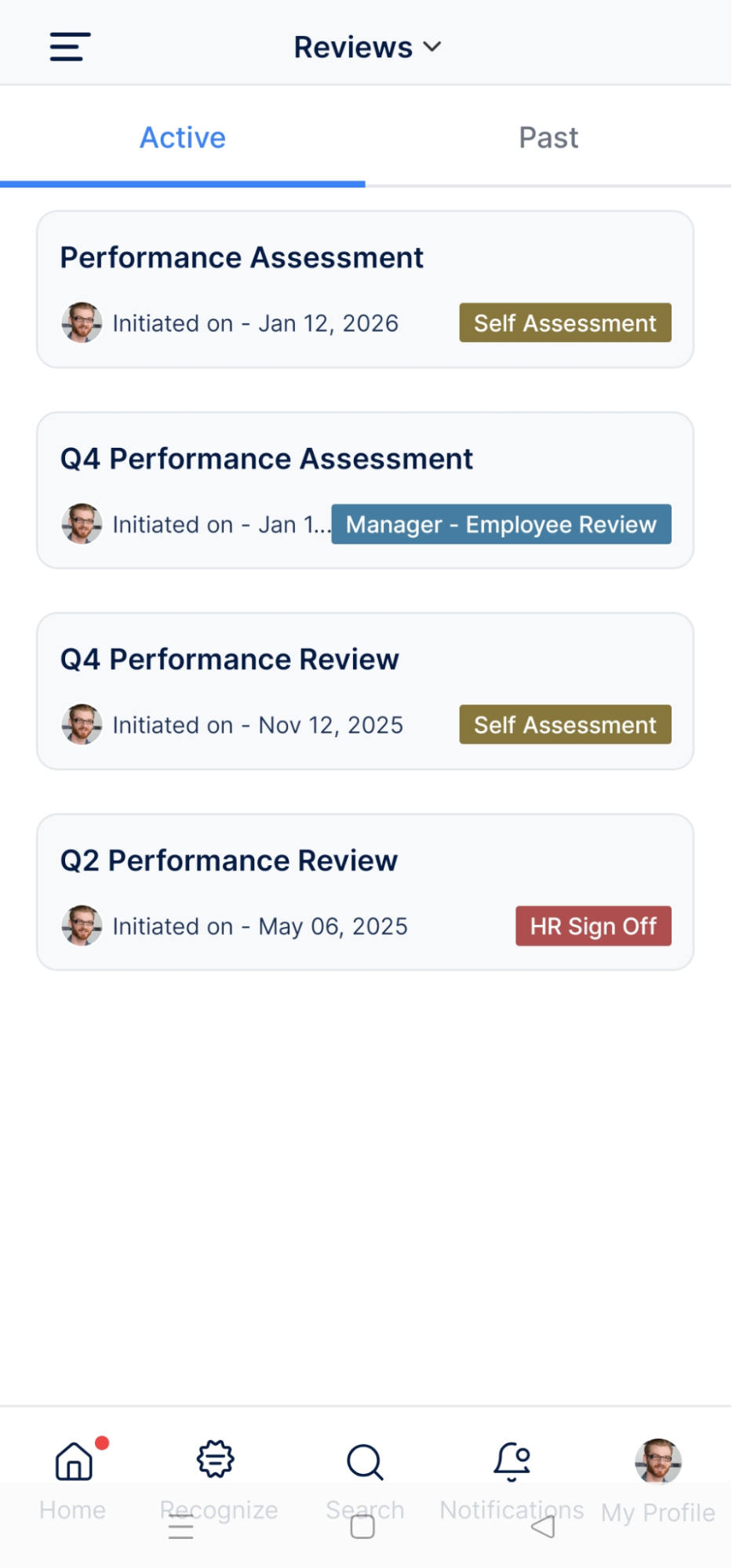
Navigate to the Performance → Review from the left navigation menu. Select the required review and perform the Self-Assessment.
Best Practices for Mobile Self-Assessment
- Start Early: Begin your assessment well before the deadline to allow time for thoughtful reflection and multiple review sessions
- Be Honest and Balanced: Provide accurate self-ratings that acknowledge both strengths and areas for improvement
- Provide Specific Examples: Support your ratings and claims with concrete examples, metrics, and outcomes
- Align with Goals: Reference your OKRs and Key Results to demonstrate goal-oriented performance
- Focus on Impact: Emphasize the results and value of your work, not just activities completed
Related Answer Posts
How to Create Objectives and Key Results Using the Mobile Application, Click Here
Frequently Asked Questions
The deadline is set by your organization and typically displayed in the review notification. It's best to complete it well before the due date to ensure thoughtful responses.
Your self-assessment becomes visible to your manager and others involved in the review process (based on your organization's workflow). It serves as input for performance discussions.
Typically, once submitted, self-assessments cannot be edited. Some organizations may allow reopening by managers. Complete your review carefully before submitting.
