

Project templates can be grouped into categories, so anyone creating a project browses by category instead of scrolling through every template at once. Super Users control which categories exist and which template carries each one.
Table of Contents
- What is Project Template Category Assignment?
- Why Project Template Category Assignment Matters
- How Does Project Template Category Assignment Work?
- Project Template Category Assignment Scenarios and Their Outcomes
- Best Practices for Project Template Category Assignment
- Related Articles
- Frequently Asked Questions
What is Project Template Category Assignment?
Project Template Category Assignment is a classification layer on top of existing project templates. Super Users create, rename, or disable categories, such as Implementation, Internal, or Research and Development, from Settings, and assign one category to each template.
A template can have only one category at a time. Templates left without an assigned category are grouped under Uncategorized rather than left unclassified, so they still surface in the picker.
Why Project Template Category Assignment Matters
Earlier, every template appeared in one flat list, so finding the right one meant scrolling past templates built for unrelated project types. Category Assignment replaces that list with a category-first picker, so users go straight to the group that matches their work.
Because Super Users control the category list directly, template libraries stay organized as the number of templates grows, instead of turning into an unsorted backlog that gets harder to navigate over time.
How Does Project Template Category Assignment Work?
Step 1
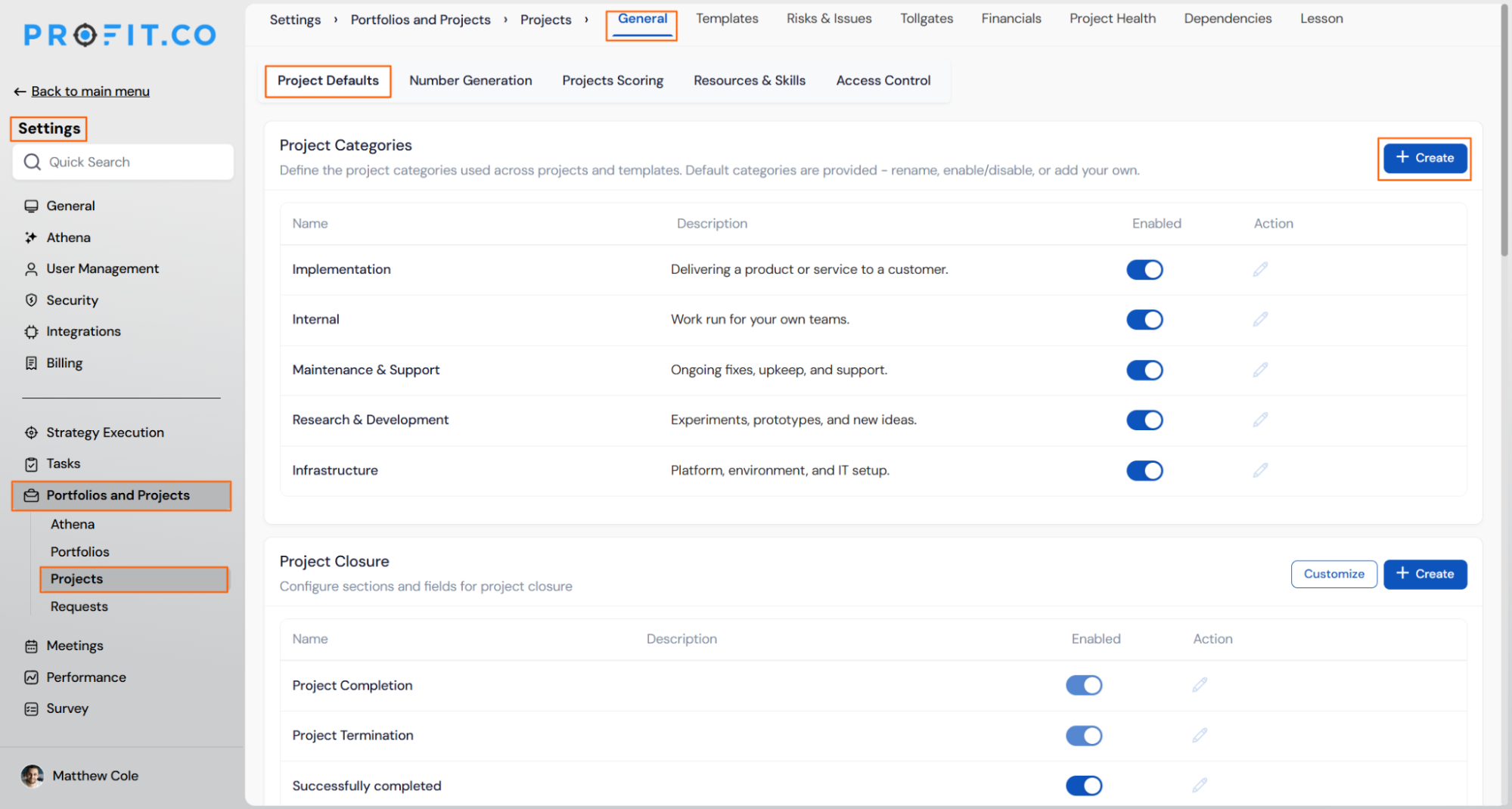
- Navigate to Settings → Portfolios and Projects → Projects → General → Project Defaults.
- Click + Create to add a new category.
- Use the edit icon on an existing category to rename it or toggle it enabled or disabled.
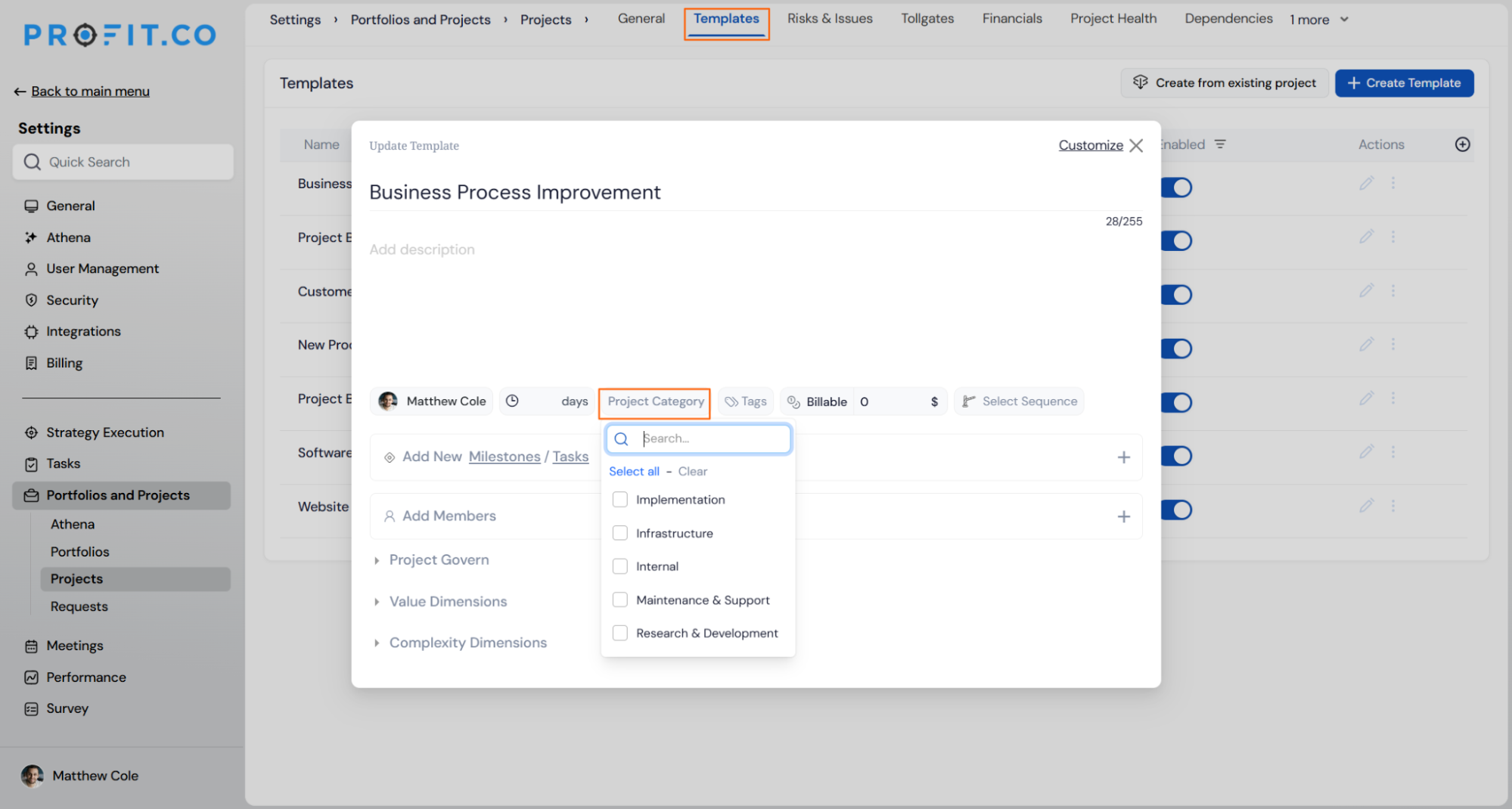
- Open the template for editing.
- Select a category from the list, or type a new category name to create one inline.
- Leave the category unset to have the template grouped under Uncategorized.
Step 2
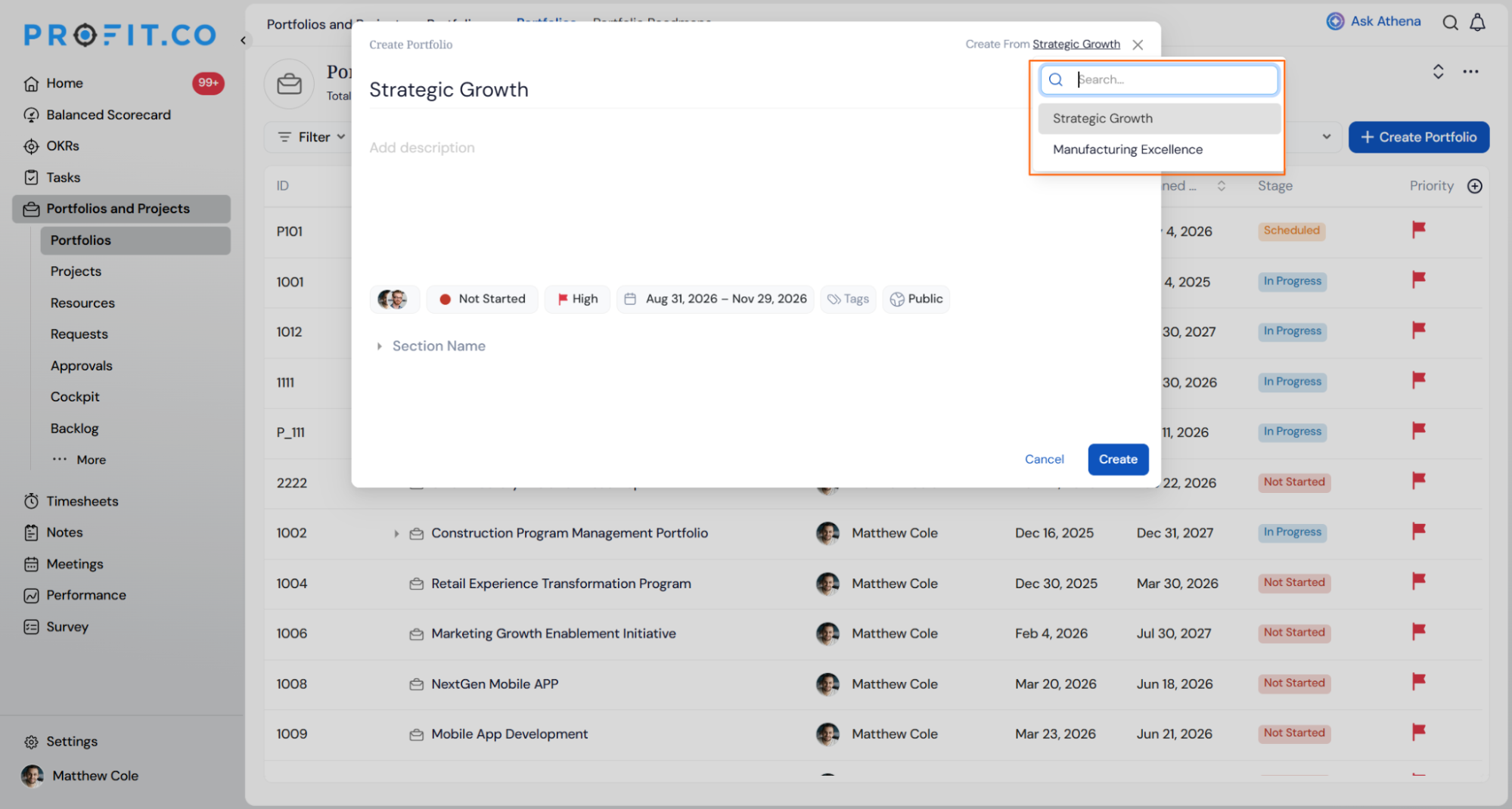
- Click Create From Template in the project creation panel.
- Browse the available categories and select the one that matches your project type.
- Choose the template you need from within that category.
- Use the search bar in the template picker.
- Enter part of the template name.
- Select the matching template directly, without navigating by category.
Project Template Category Assignment Scenarios and Their Outcomes
The table below covers what actually happens to templates, categories, and the picker once category assignment is in use, not the steps to configure it.
| Scenario | What Happens |
|---|---|
| You leave a template without an assigned category. | Profit.co groups the template under Uncategorized in the picker, so it still appears for project creation instead of being hidden. |
| You disable a category that templates are already assigned to. | Profit.co keeps the existing label on those templates, so they keep showing the category, but excludes the category from the picker, so it can't be assigned to anything else. |
| You rename an existing category. | Profit.co updates the category name everywhere it appears, so every template already assigned to it shows the new name automatically. |
| You browse templates when creating a project. | Profit.co shows categories first instead of a flat list, so you pick a category before choosing the template inside it. |
Best Practices for Project Template Category Assignment
- Assign a category when you create or edit a template instead of leaving it for later, since uncategorized templates still need manual sorting afterward.
- Disable a category you no longer need instead of trying to remove it outright, since disabling keeps the label on templates that already carry it while blocking new assignments.
- Keep category names short and specific to project type, since they double as the first navigation layer in the template picker.
- Review the category list periodically as your template count grows, since only Super Users can create, rename, or disable categories.
- Use the search bar for templates you reach for often, since it bypasses category browsing regardless of which category the template sits in.
Related Articles
Frequently Asked Questions
Yes. When editing a template, you can type a new category name inline to create it on the spot, without going to Settings first.
No. The search bar searches across all categories at once, so you can find a template without navigating by category first.
Profit.co ships with categories such as Implementation, Internal, and Research and Development by default, and Super Users can rename or disable any of them.
Execute your strategy with confidence
Connect OKRs, tasks, and teams in one place with Profit.co
