
Overview
Dayforce is a cloud-based human capital management (HCM) platform that centralizes workforce data, including employee records, payroll, and organizational structures. It helps organizations manage the full employee lifecycle from hire to retire.
The Dayforce integration with Profit.co allows you to sync employee data directly from Dayforce and automatically create users in Profit.co. This eliminates manual user management and ensures your Profit.co user base stays aligned with your Dayforce HR records.
What This Integration Supports
With the Dayforce integration, you can import the following fields from Dayforce into Profit.co:
- Employee ID
- First Name and Last Name
- Email ID
- Manager
- Department
- Job Title
- Date of Joining
- Grade
- Group (Roles)
- Termination
- Exclude Employment Type
Prerequisites
Before starting, ensure the following requirements are met:
- You have valid Dayforce administrator credentials
- You are logged in as a Super User in Profit.co
- You have the Connection Name, Username, Password, and Sync API details from your Dayforce account
Note: Only Super Users can configure this integration in Profit.co.
Configure Dayforce in Profit.co
The following steps walk through connecting Dayforce to Profit.co and configuring user sync.
Step 1
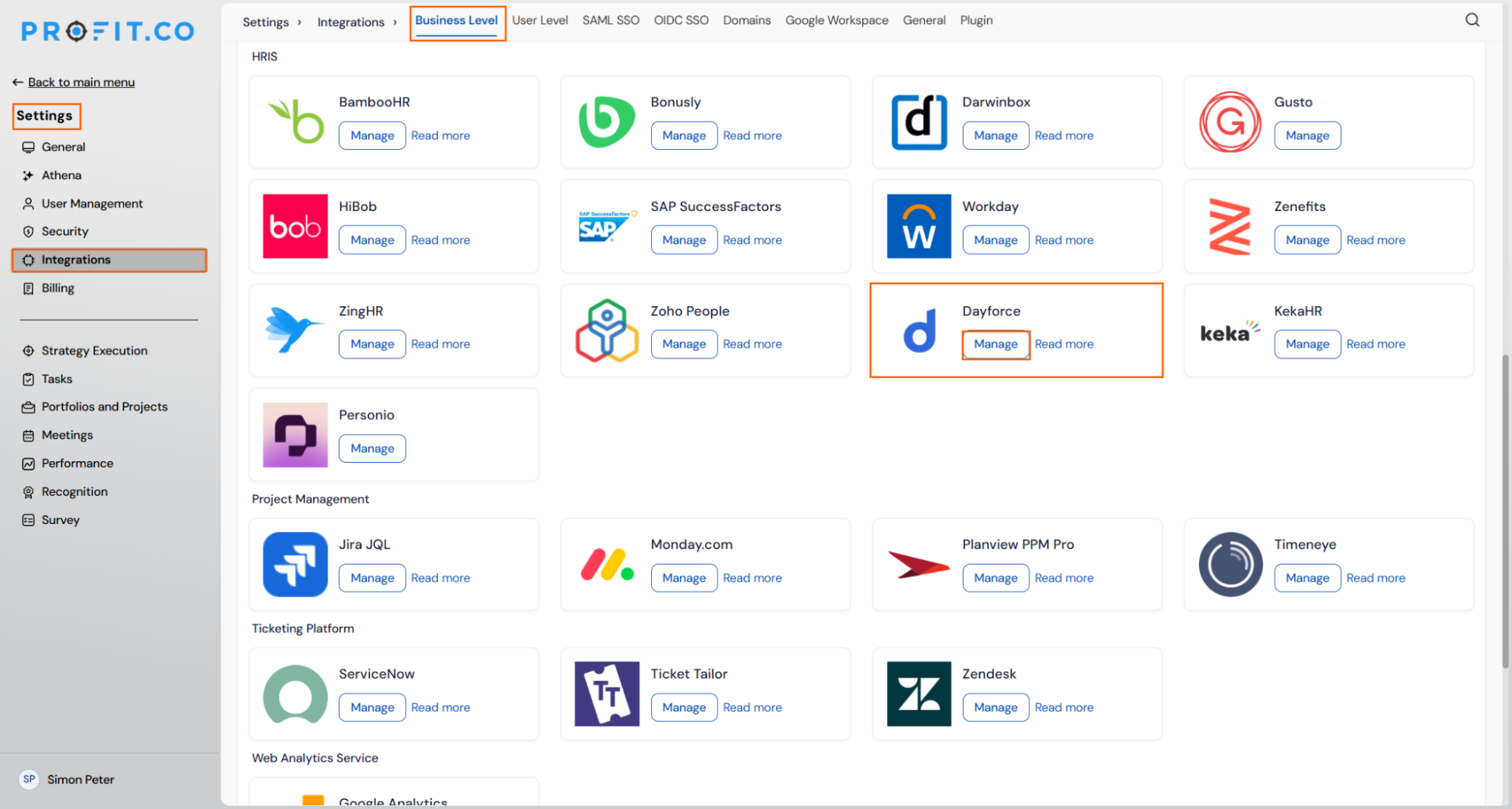
Navigate to the Dayforce connector in Profit.co to begin the setup.
- Navigate to Settings from the left navigation panel.
- Click Integrations and select the Business Level tab.
- Locate Dayforce and click the Manage button.
Step 2
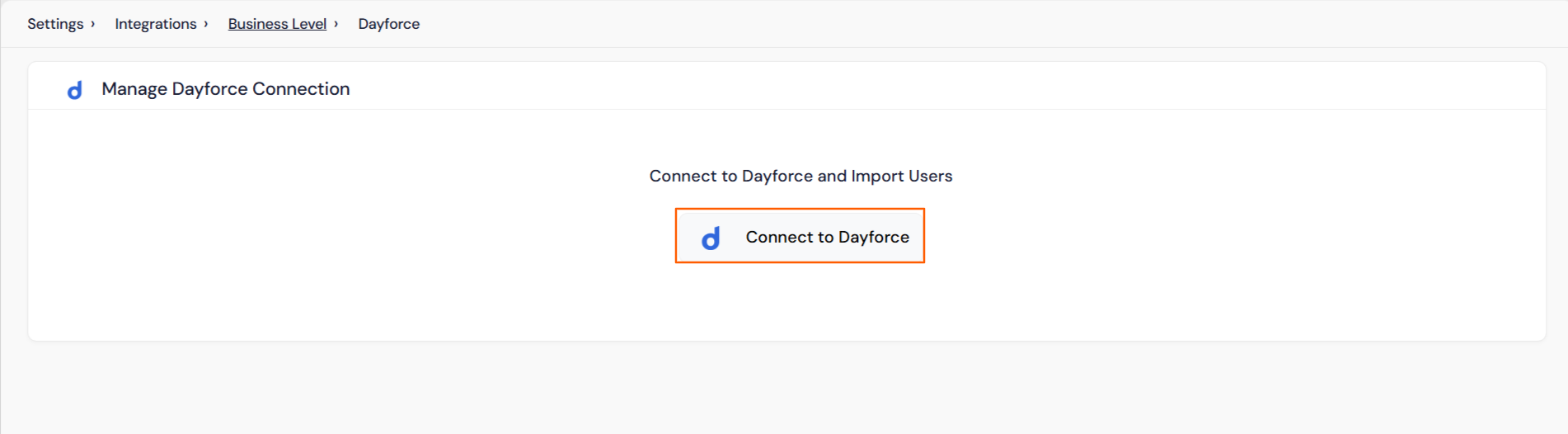
Connect Profit.co to your Dayforce account.
- On the Manage Dayforce page, click the Connect to Dayforce button.
- A connection pop-up will appear.
Step 3
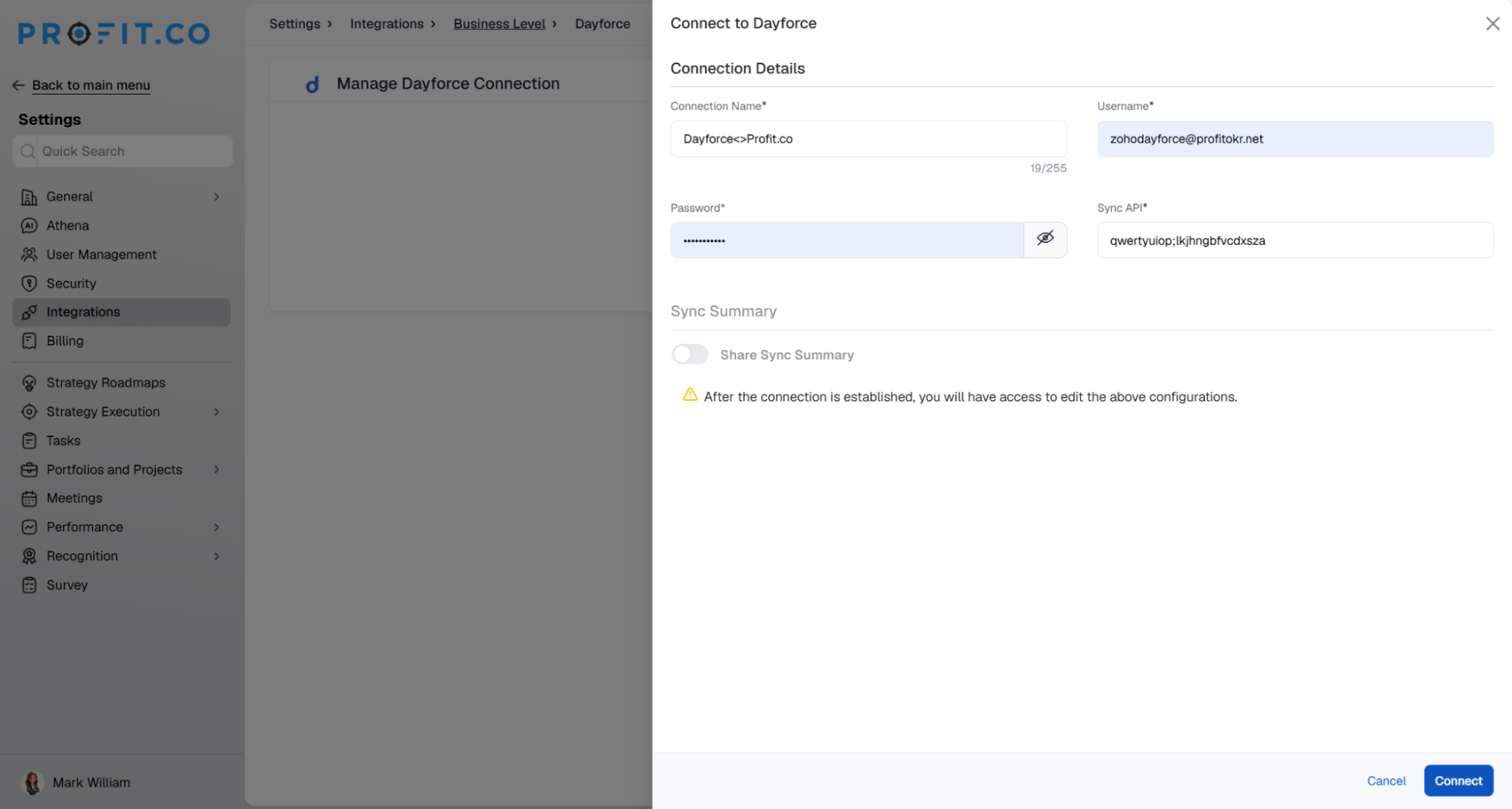
Fill in the required credentials from your Dayforce account to authenticate the connection.
- Enter the Connection Name.
- Enter your Dayforce Username.
- Enter your Dayforce Password.
- Enter the Sync API endpoint.
- Press Enter to establish the connection.
Step 4
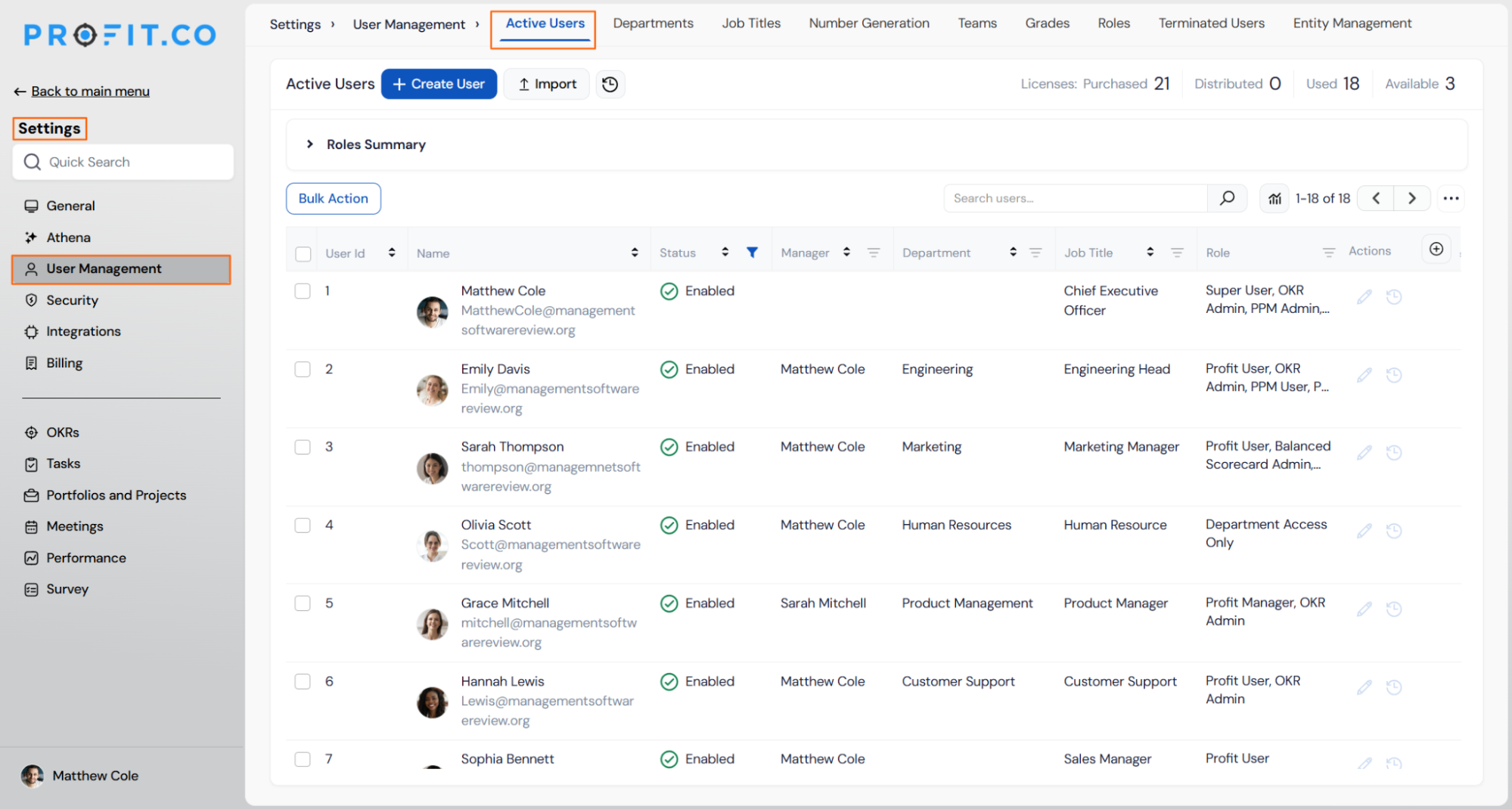
Once the connection is established, Profit.co will begin importing users from Dayforce.
- After the connection is confirmed, the first sync will begin automatically.
- The initial import takes up to 30 minutes to complete.
- Once sync is done, users from Dayforce will appear in Settings → User Management → Active Users in Profit.co.
Note: The first sync will happen only after 30 minutes once the connection is saved. Periodic syncs then run based on the Interval (Hrs) and Time set in Sync Scheduler, which defaults to every 24 hours at 9 PM local time.
Step 5
Field mapping controls which Dayforce fields are synced to Profit.co. Only fields with the Sync toggle enabled are updated during synchronization, and unmapped fields retain their existing values in Profit.co.
- On the Manage Dayforce page, click the Field Mapping option.
- The Field Mapping panel displays the Profit.co field on the left and the corresponding Dayforce field on the right.
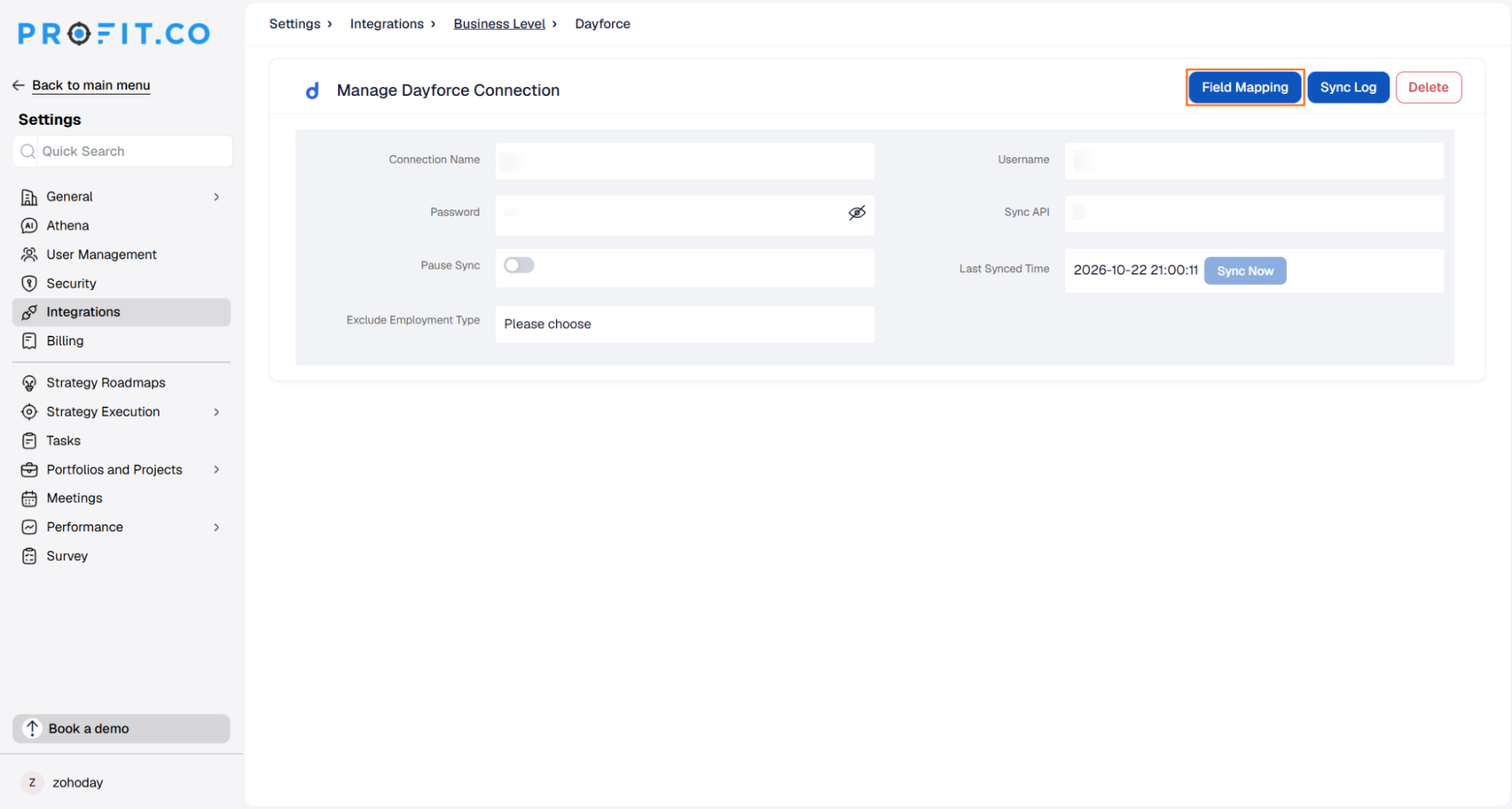
- Enable the Use Default Dayforce Fields toggle to sync using Dayforce’s default field set. Once this toggle is enabled, the field mappings cannot be edited.
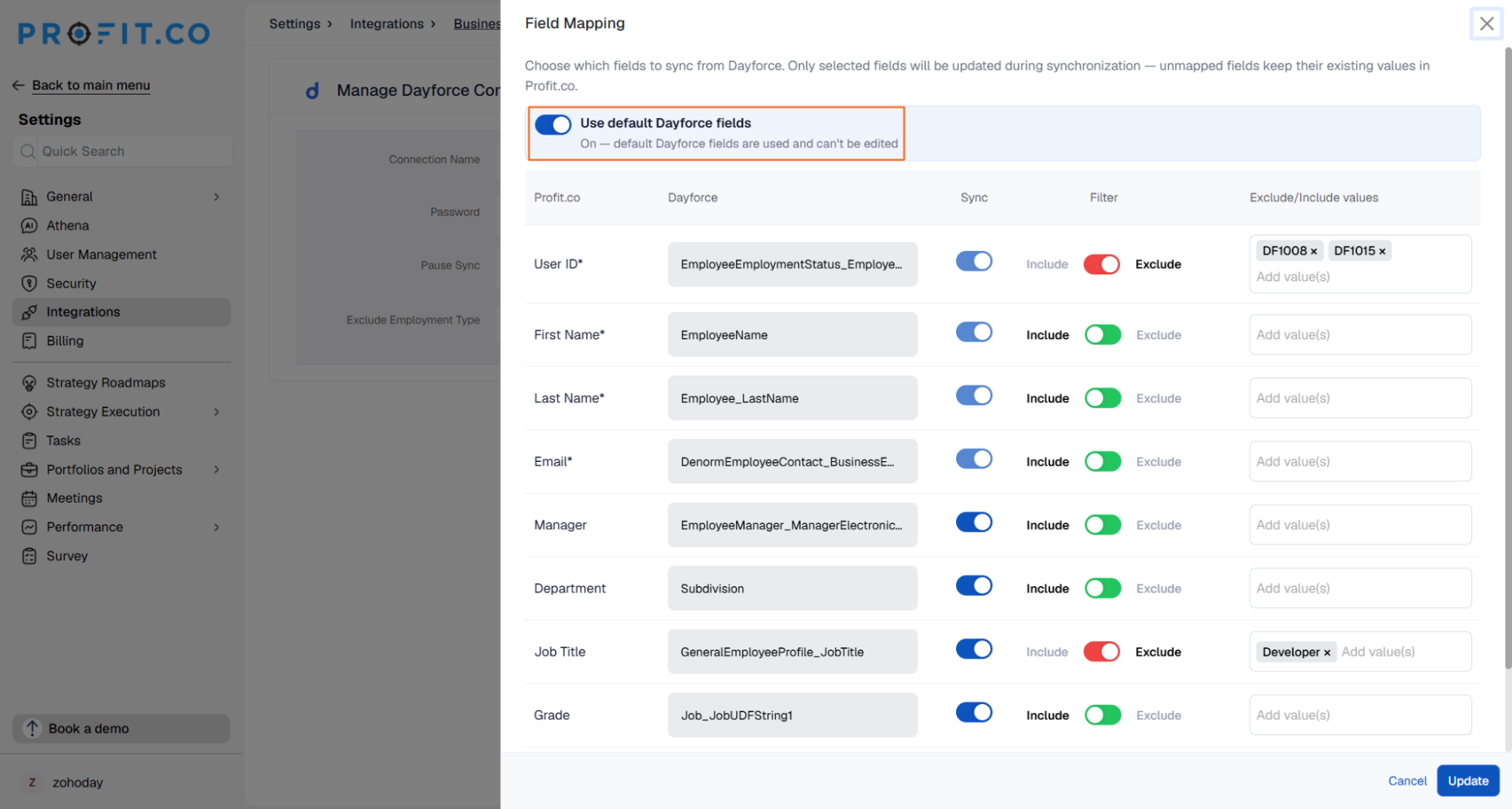
- Disable the toggle to make the Dayforce field names editable.
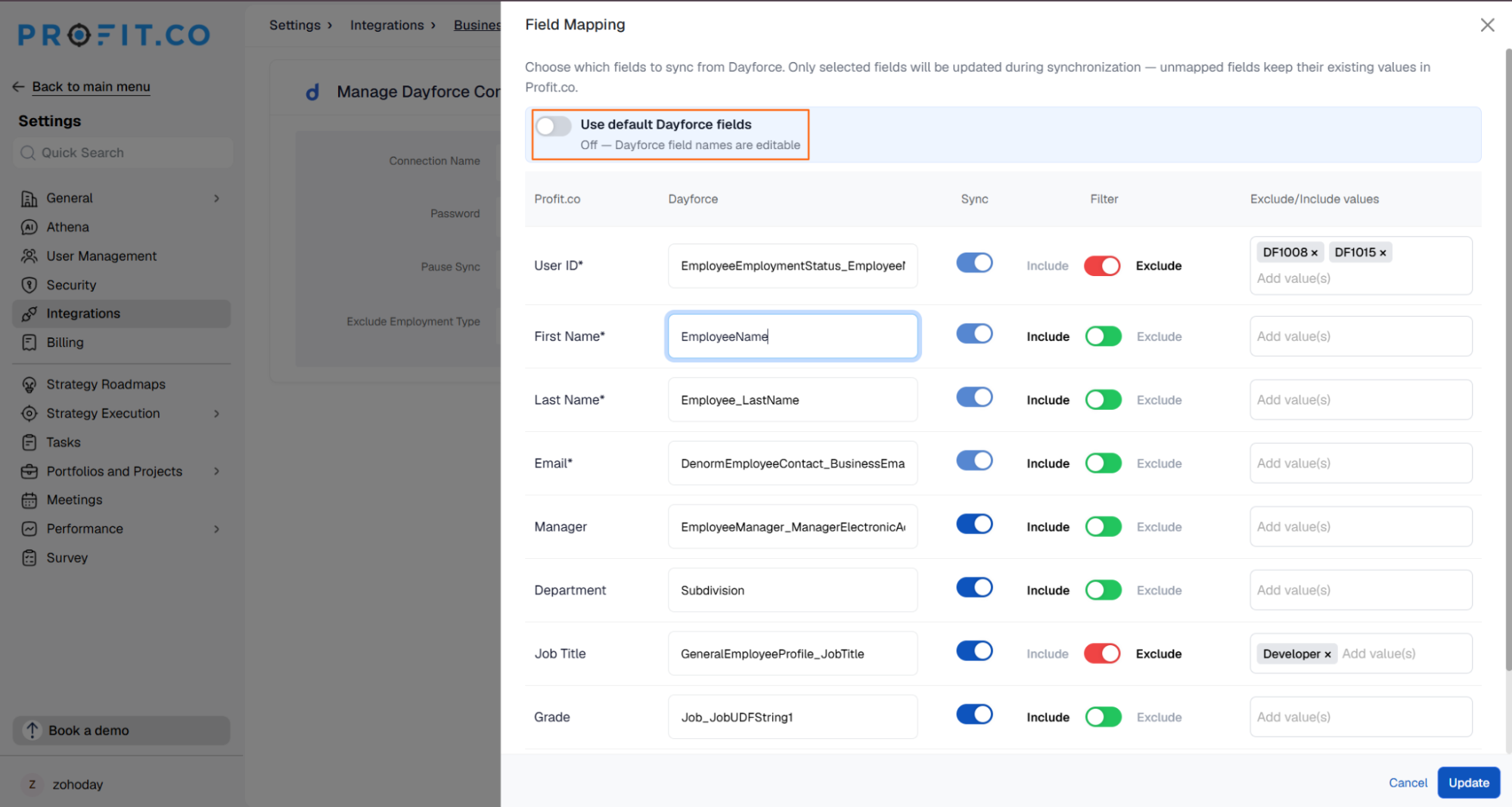
- Enable the Sync toggle next to each field you want to map from Dayforce. Disabling the toggle excludes that field from synchronization.
- Use the Filter toggle to control which field values are synced. Enabling the toggle sets it to Include, so only the values you add in the Exclude/Include values field are synced for that field. Disabling the toggle sets it to Exclude, so the values you add are left out of the sync instead.
- Click Update to save the field mapping configuration.
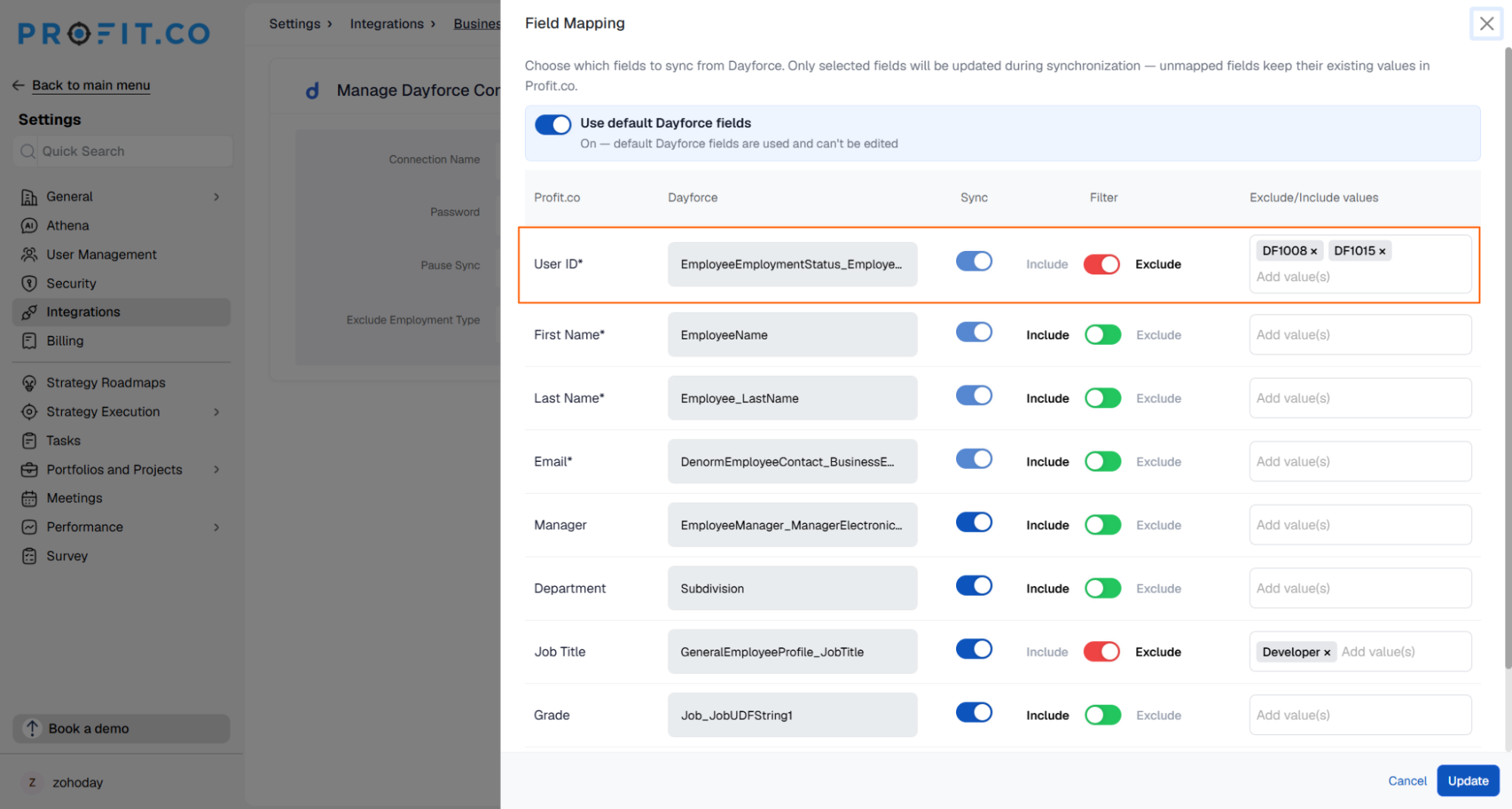
Note: After typing each value in the Exclude/Include values field, press Enter to register it as a separate entry. Values that are not confirmed with Enter are not saved once you leave the Field Mapping page.
The Dayforce sync report includes an employment status field (GeneralEmployeeProfile_EmploymentStatusName) with values Active, Terminated, and Inactive. When synced, a status of Terminated automatically deactivates the corresponding user in Profit.co.
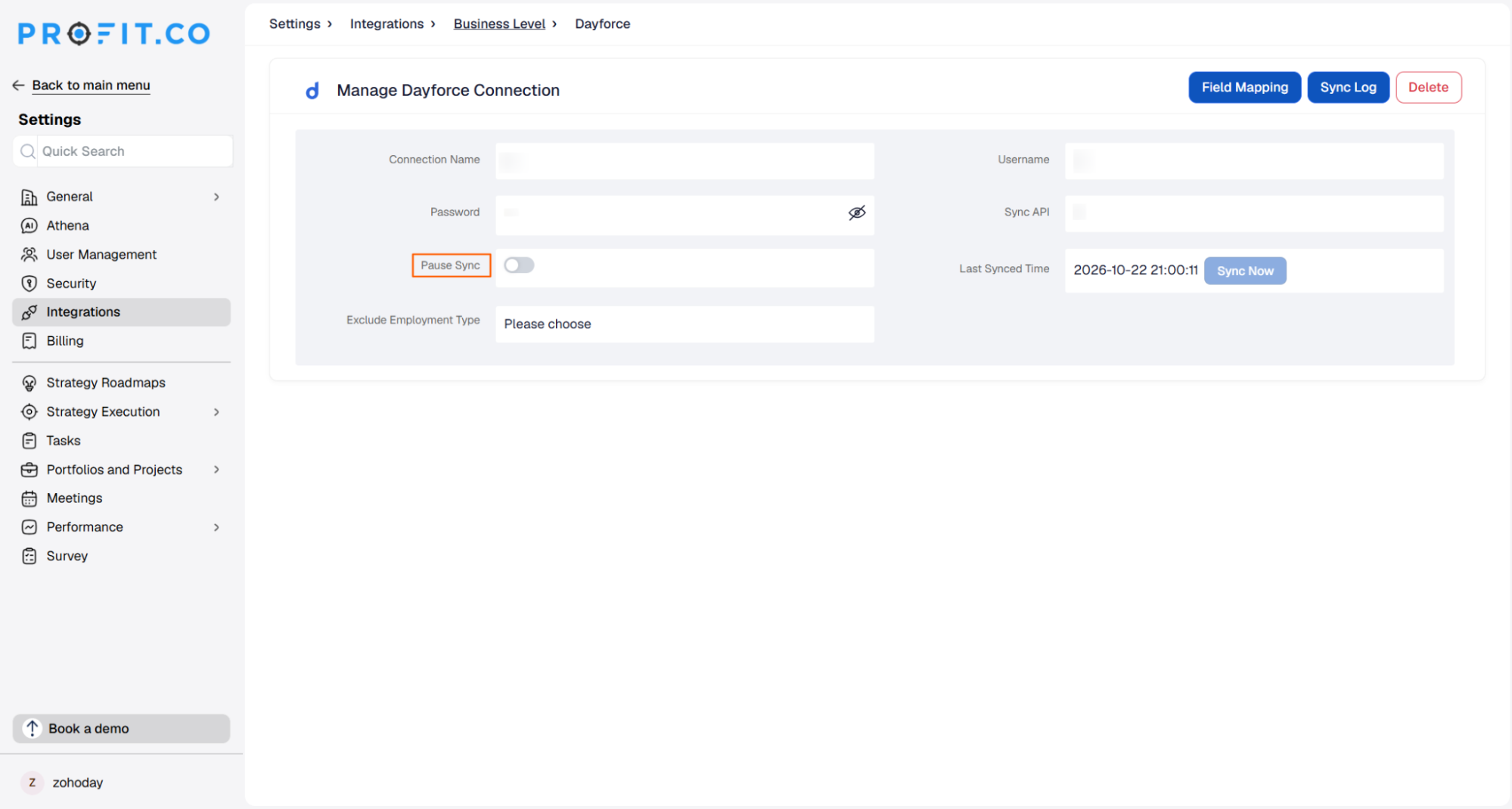
At any stage, if you do not want to synchronize the user details for a particular period of time, you can enable the Pause Connection toggle. Users will not be synchronized until you disable the toggle.
Note: Fields marked with * are required and should always remain enabled. Disabling required fields may cause sync errors.
Step 6
Profit.co provides additional options to control how the sync behaves and what notifications you receive.
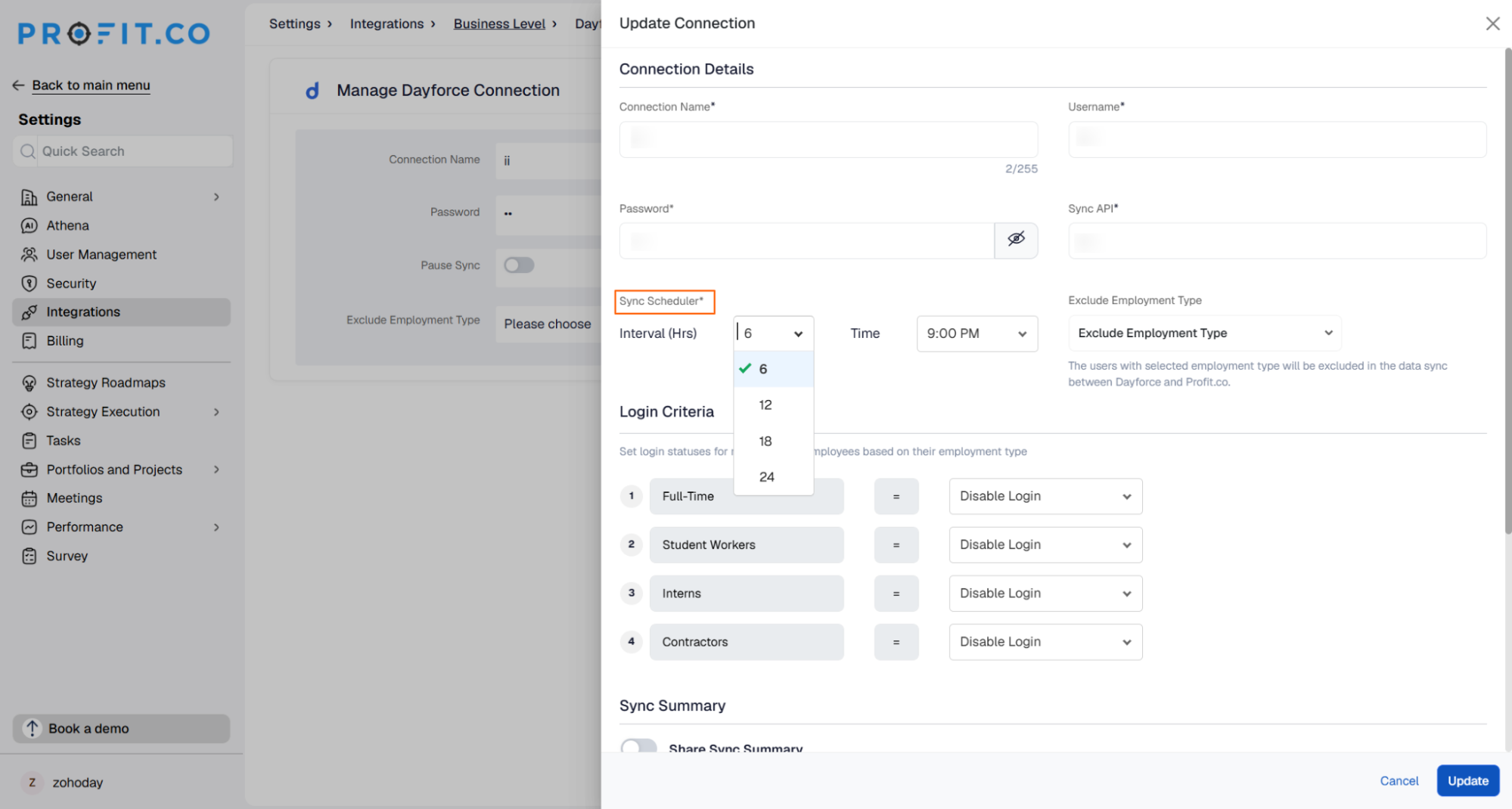
Sync Scheduler
Set the Interval (Hrs) (6, 12, 18, or 24) and the Time to control how often and when periodic syncs run.
Exclude Employment Type
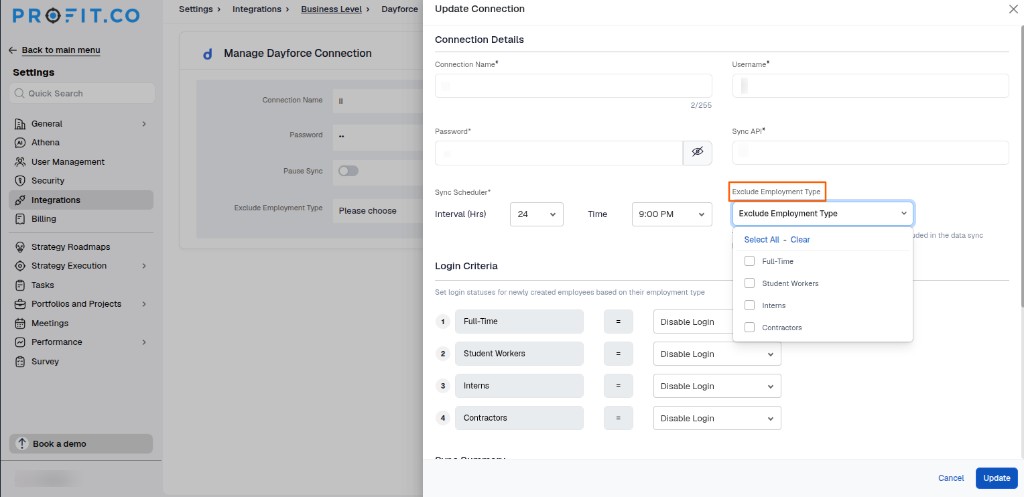
Use the Exclude Employment Type dropdown to leave out employment types from the data sync between Dayforce and Profit.co. Use Select All or Clear to quickly select or deselect every type.
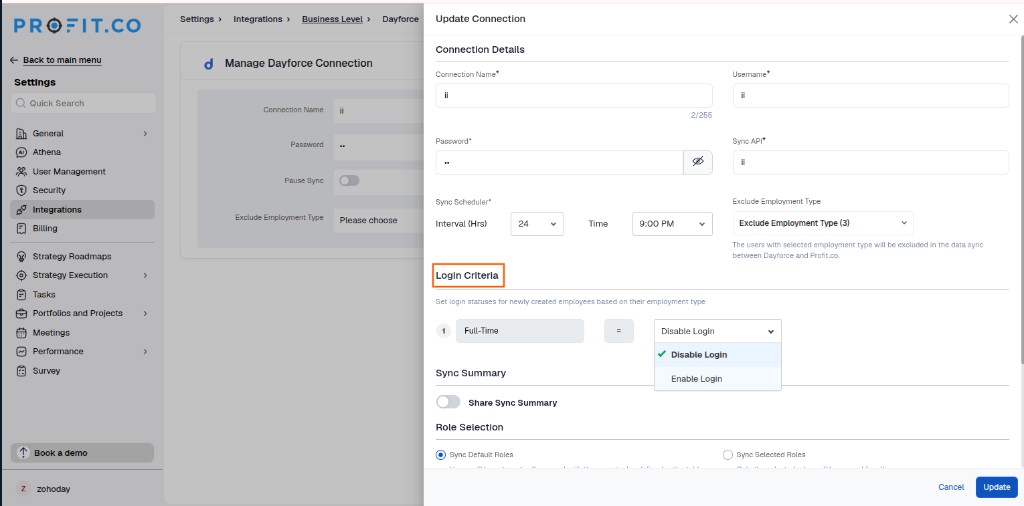
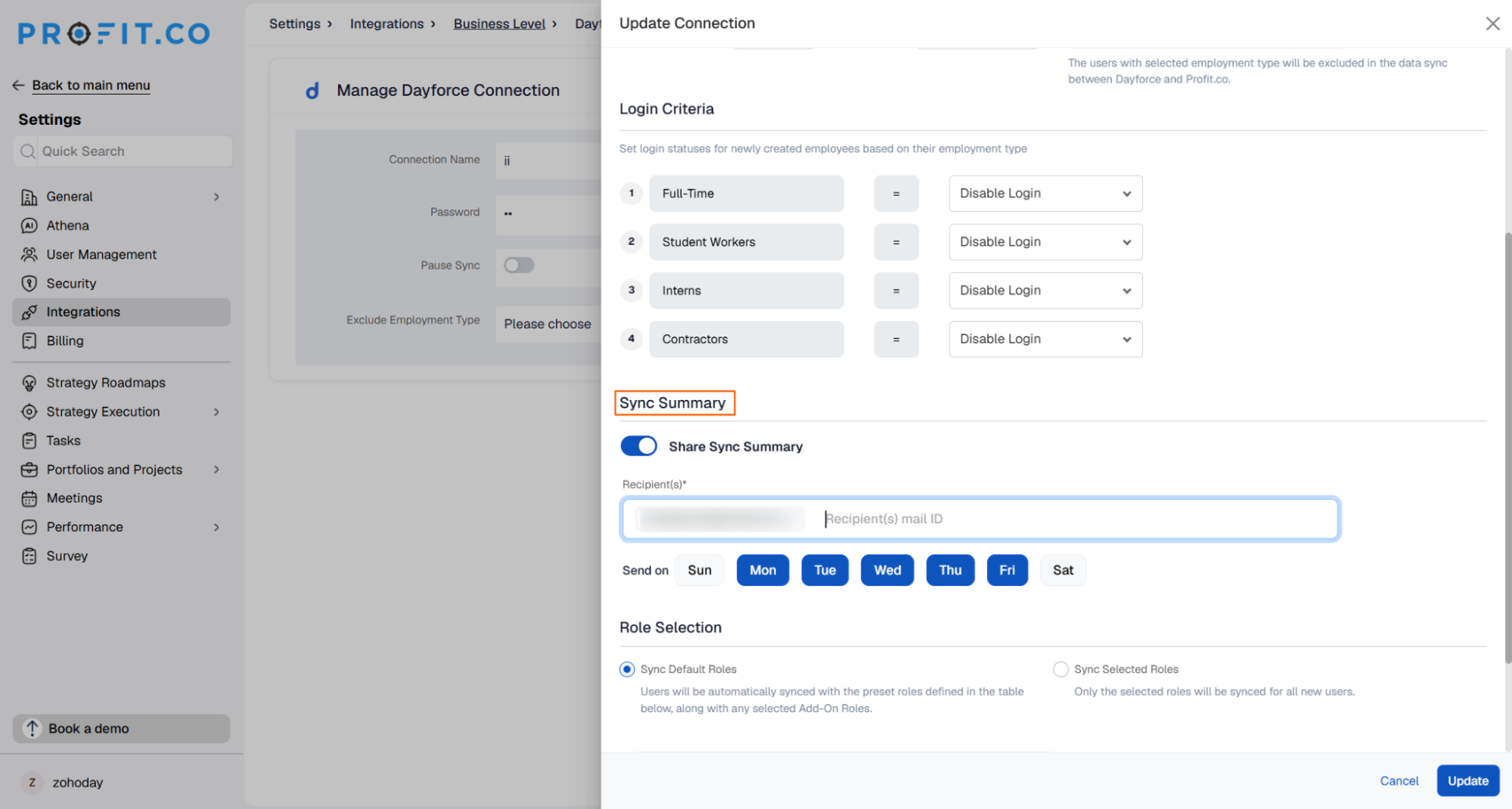
Login Criteria
For each employment type that is not excluded from the sync, set its login status as either Disable Login or Enable Login from the dropdown. For example, if Full-Time is left unselected in Exclude Employment Type (meaning Full-Time employees are synced), you can choose whether those users are granted Enable Login or restricted with Disable Login.
Share Sync Summary
Enable the Share Sync Summary toggle to receive an email notification after each sync with a summary of the imported user data. Enter the Recipient(s) email address, and select the days under Send on when the summary should be sent.
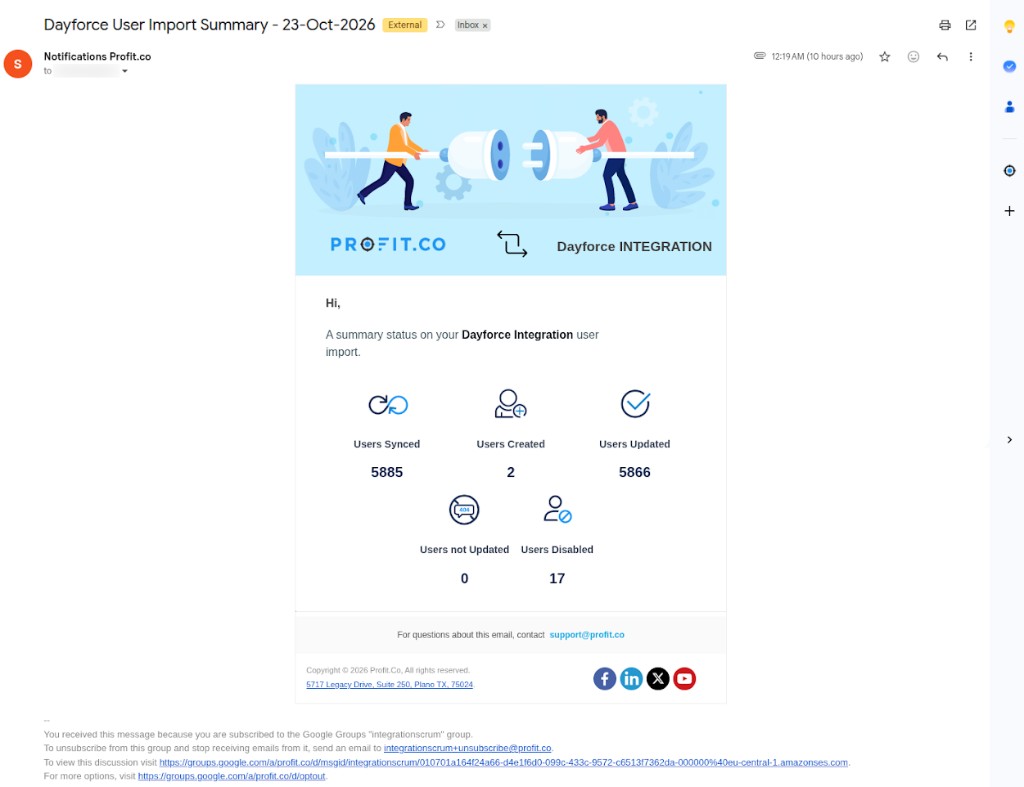
The summary email includes the count of Users Synced, Users Created, Users Updated, Users not Updated, and Users Disabled for that sync.
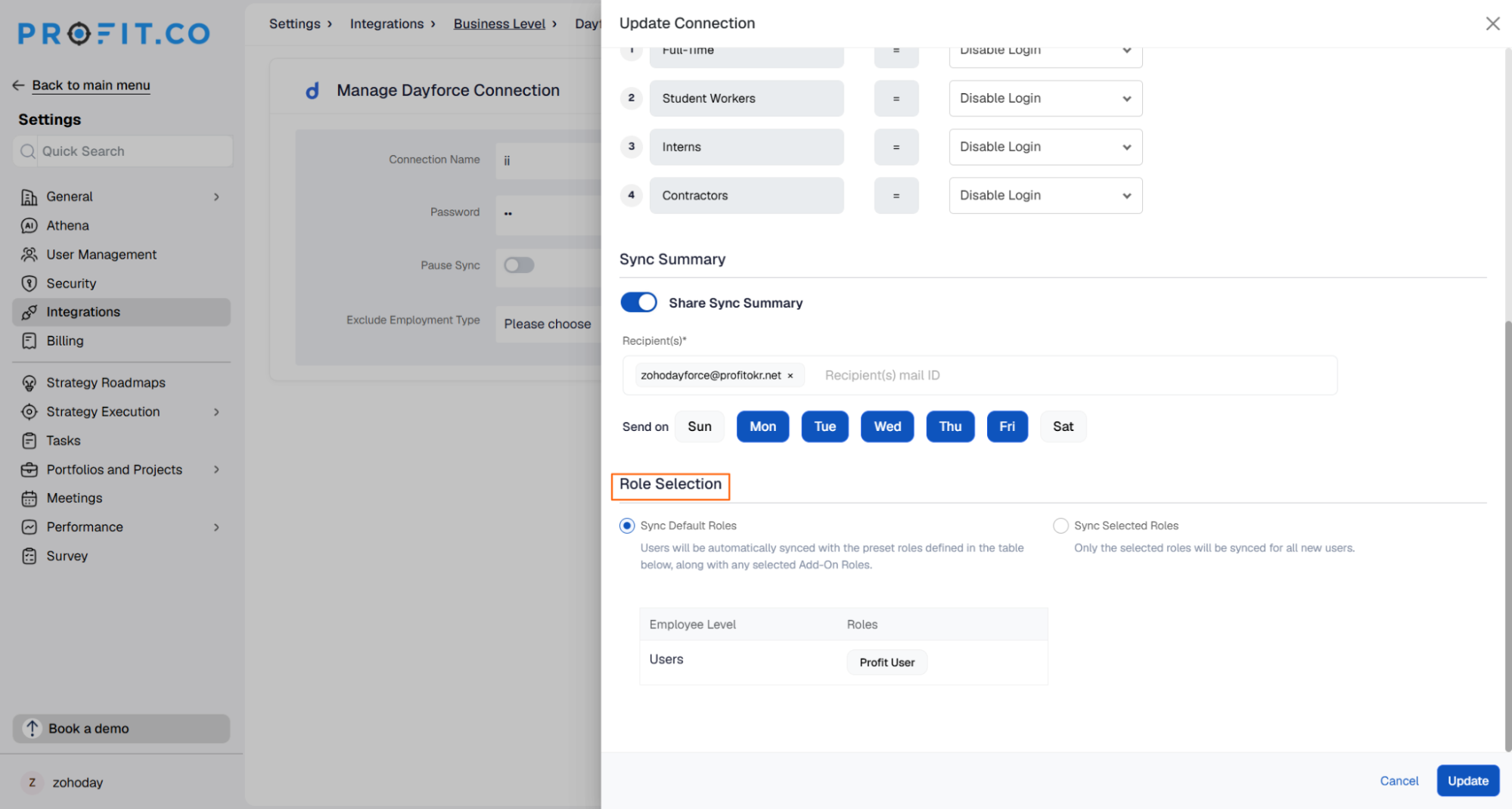
Role Assignment
Under the Role Selection section, choose how Profit.co roles are assigned to synced users:
- Sync Default Roles – All users synced from Dayforce are assigned the default Profit User role in Profit.co.
- Sync Selected Roles – Allows you to customize and assign specific roles to users in Profit.co during the sync. Click + Add Role to open the Roles panel, select the roles you want from the Global, App Specific, or Add-on tabs, and click Add to confirm.
Group-Based Role Assignment
Once a group is created in Dayforce and users are added to it, the same group name can be configured in Profit.co for role mapping. After this mapping is configured, whenever a user is added to the corresponding Dayforce group, Profit.co automatically assigns the predefined roles associated with that group.
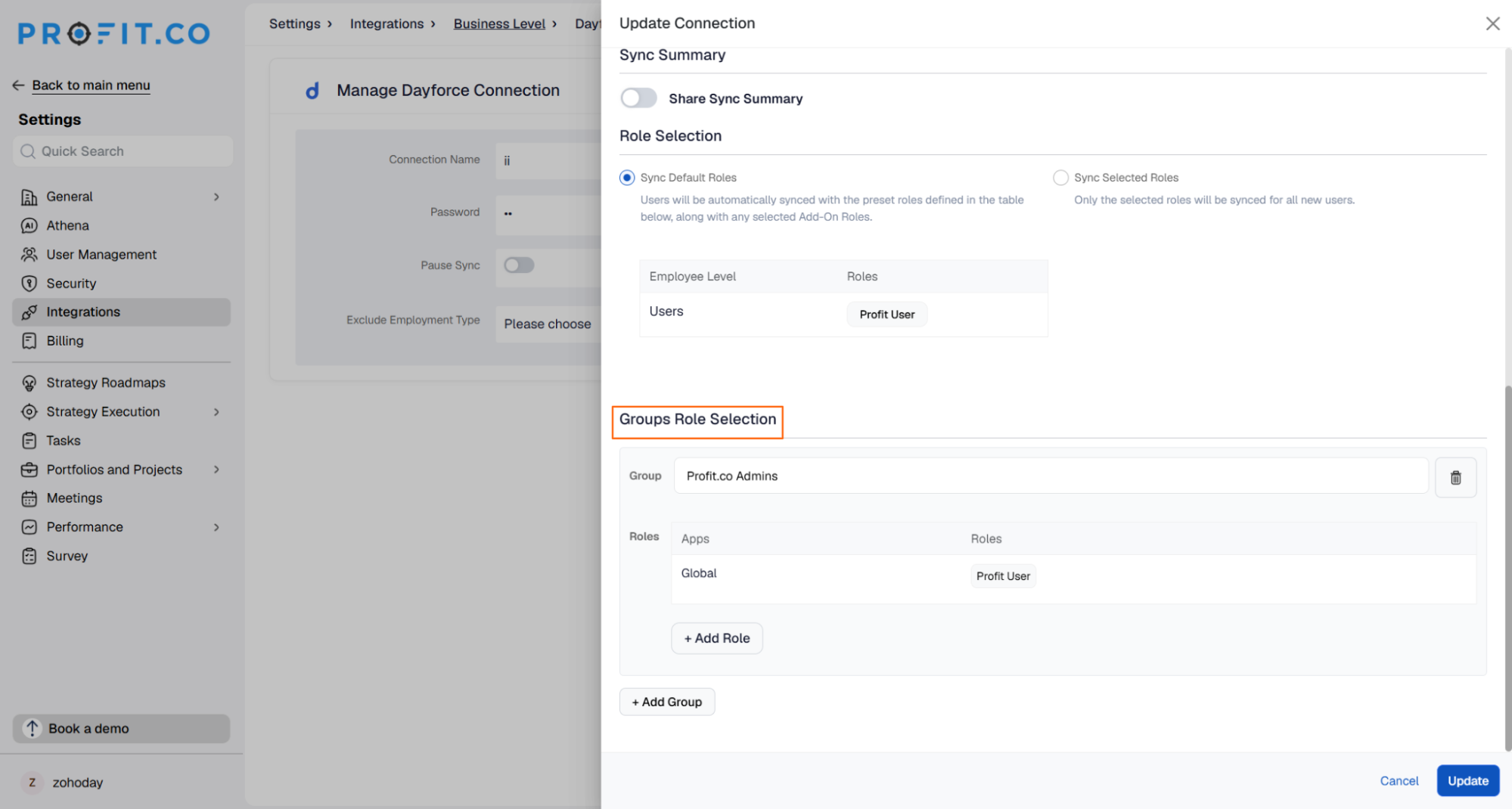
Note: The group name must be the same as the group name in Dayforce for the role mapping to work.
Step 7
Profit.co keeps a log of past syncs so you can review what was imported, added, updated, or failed.
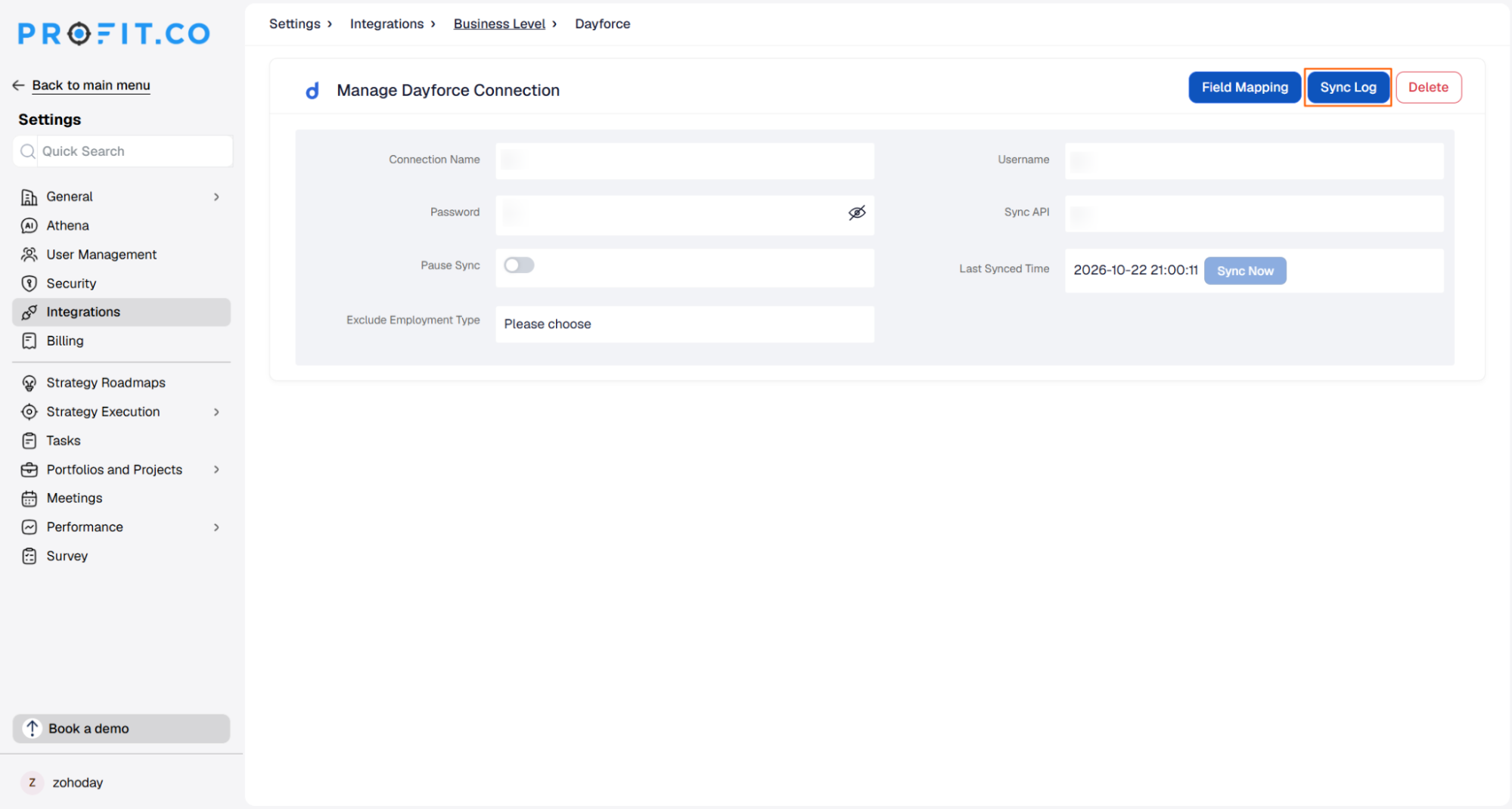
- On the Manage Dayforce page, click the Sync Log option.
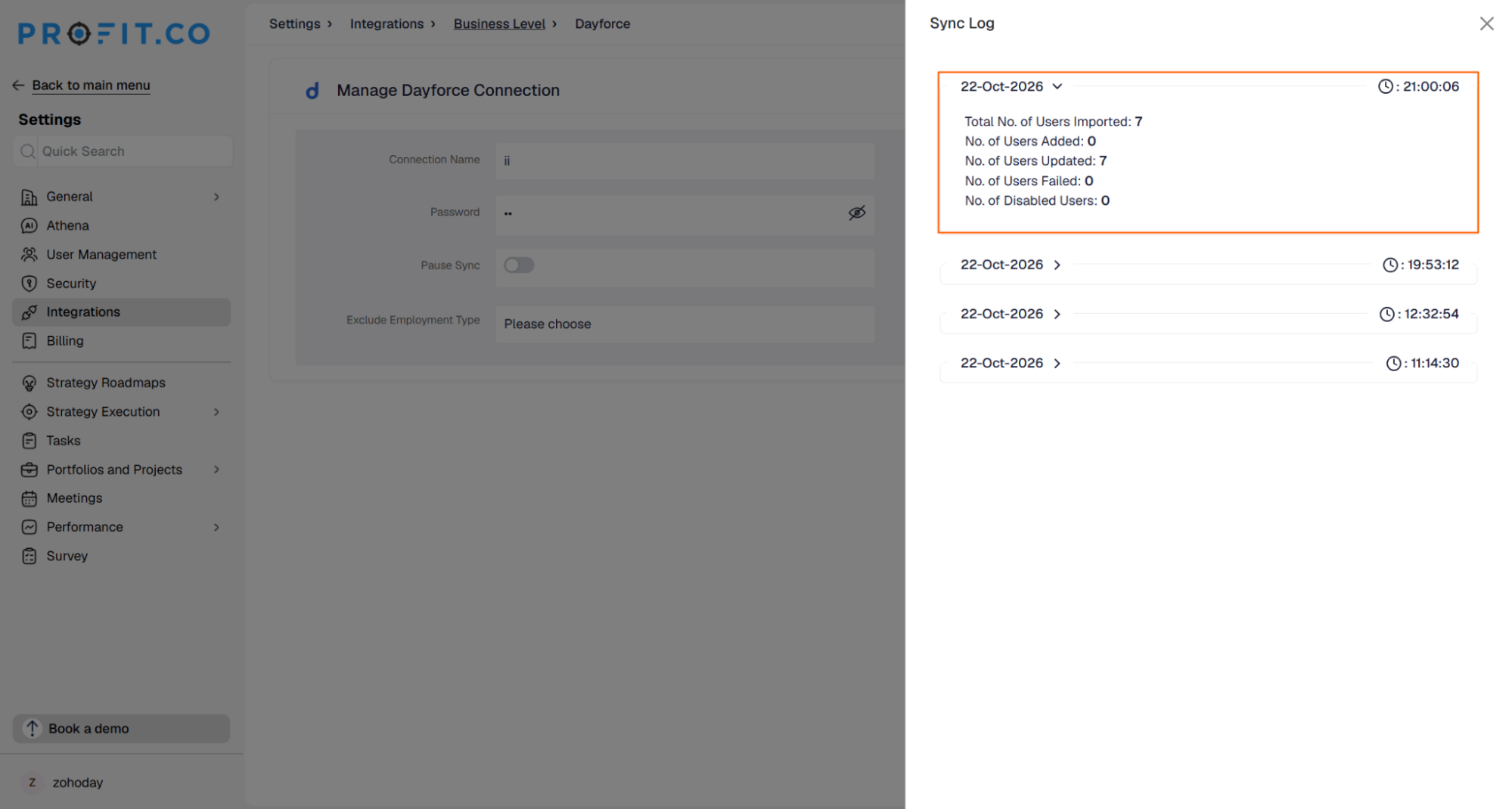
- The Sync Log panel lists past syncs by date, with the time of each sync shown alongside it. Click a date to expand its details.
- Each sync entry shows the Total No. of Users Imported, No. of Users Added, No. of Users Updated, No. of Users Failed, and No. of Disabled Users.
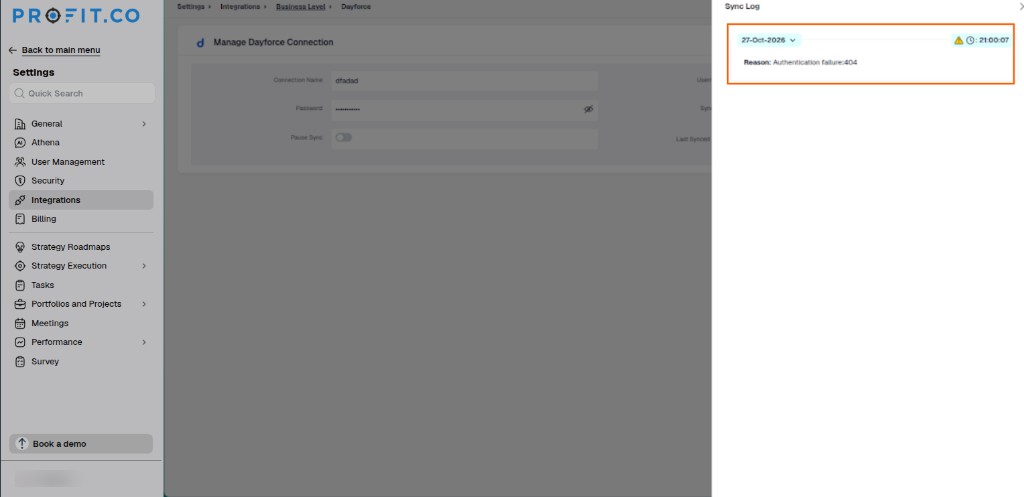
- If a sync fails, the entry displays a warning icon along with a Reason for the failure (for example, an authentication error).
Summary
By connecting Dayforce to Profit.co, your organization can automate user provisioning and keep employee data consistently aligned across both platforms. Field mapping gives you full control over what data syncs, including automatic deactivation for terminated employees, while role assignment options, from default and selected roles to custom attribute and group-based role sync, ensure synced users get the right access in Profit.co. Scheduling, sync notifications, and the sync log round out the integration, keeping the process transparent and fitting seamlessly into your existing HR workflows.